How to Set up Scan & Redeem Discounts in the GRUBBRR Portal
Last updated: August 8, 2026
Do customers have to manually enter Discount codes to redeem a coupon on the Kiosk?
Your GRUBBRR Kiosk supports the ability to scan & redeem discounts that have been properly configured in the GRUBBRR Portal. Before we can use this feature, we have to complete two key steps:
-
We have to ensure that all discounts have a valid Barcode ID assigned to them at the location level, and
-
We have to enable Discount code scanning on Kiosks at the location
In this guide, we'll show you how to complete both of these steps, so your customers can quickly and easily redeem discounts with their orders.
Go to portal.grubbrr.com
1. First, we need to ensure that our discounts have a valid barcode assigned through the Portal. Click "Advanced Pricing" to start.

2. Click "Discounts"

3. Scroll or search for the discount you want to update
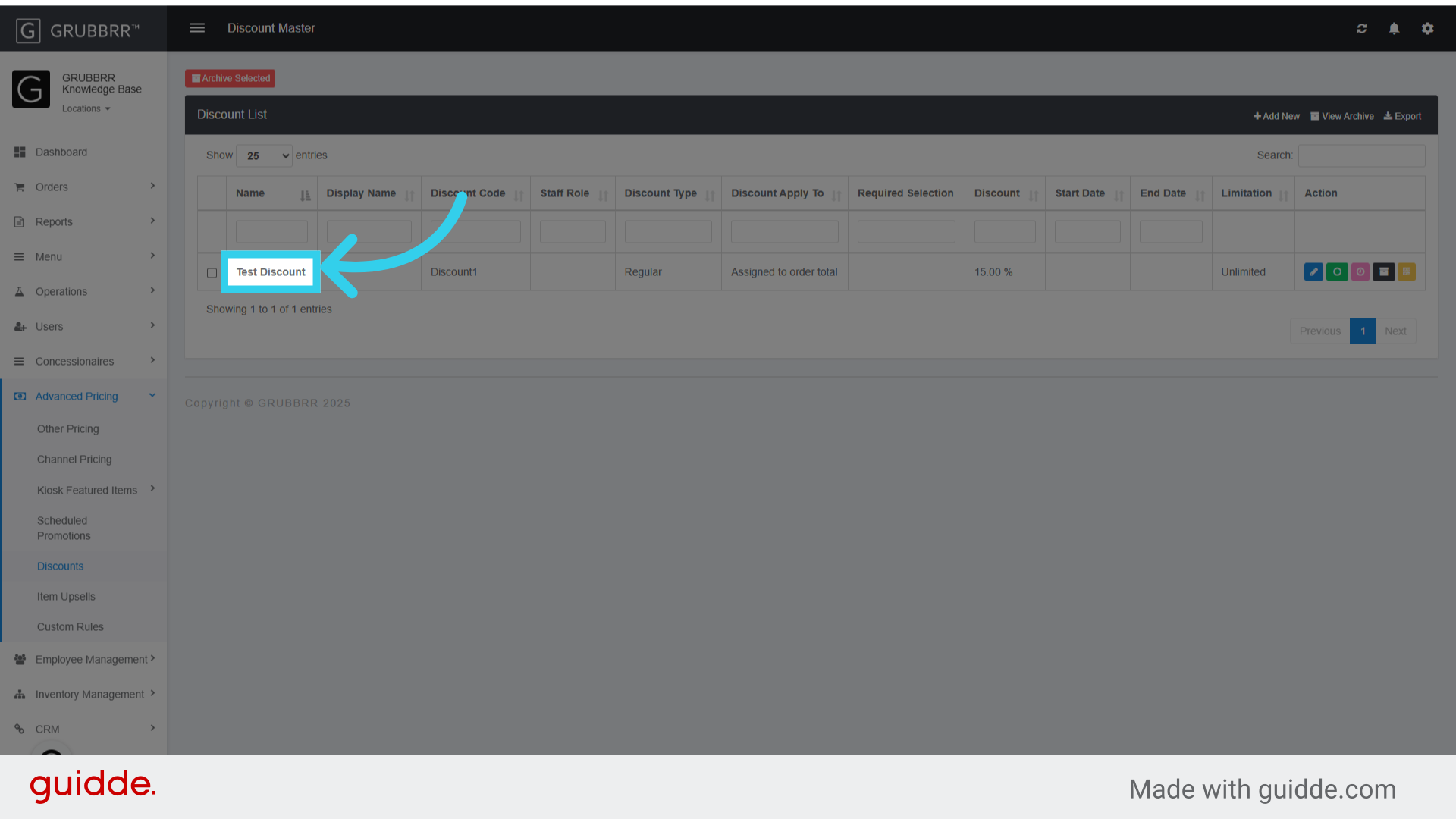
4. Click the blue "Edit" button in the action column

5. Make sure that we've entered a valid item code in the "Barcode ID" field

6. Don't forget to save any changes you make in this step!

7. Now, we'll confirm that the Kiosk has been configured to Scan & Redeem discount barcodes. Click "Configure" to continue.

8. Click "General Settings"

9. Click here to navigate to the "Kiosk" tab.
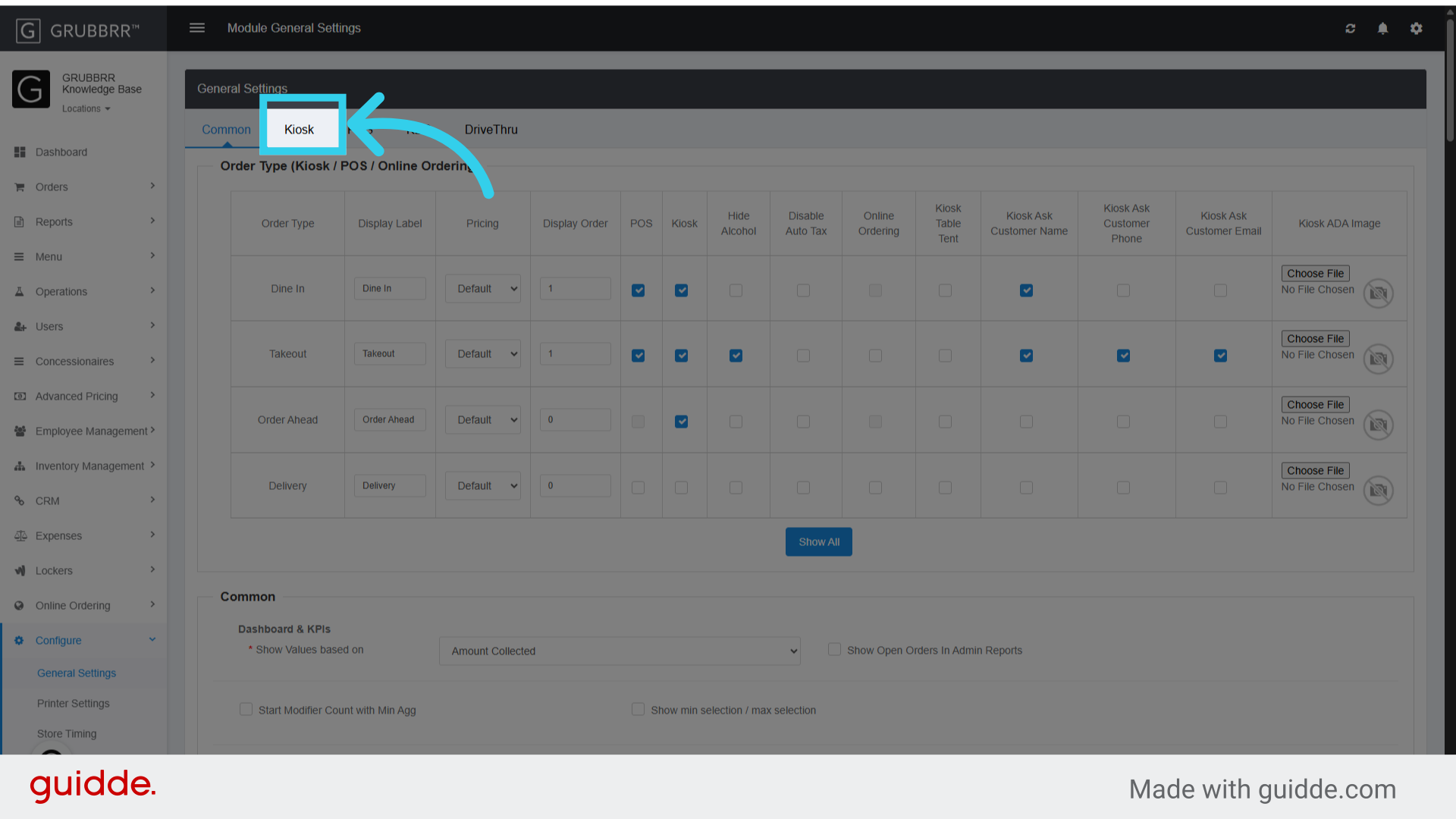
10. Make sure the "Allow Scan Discount Barcodes" flag is enabled

11. Click "Save"

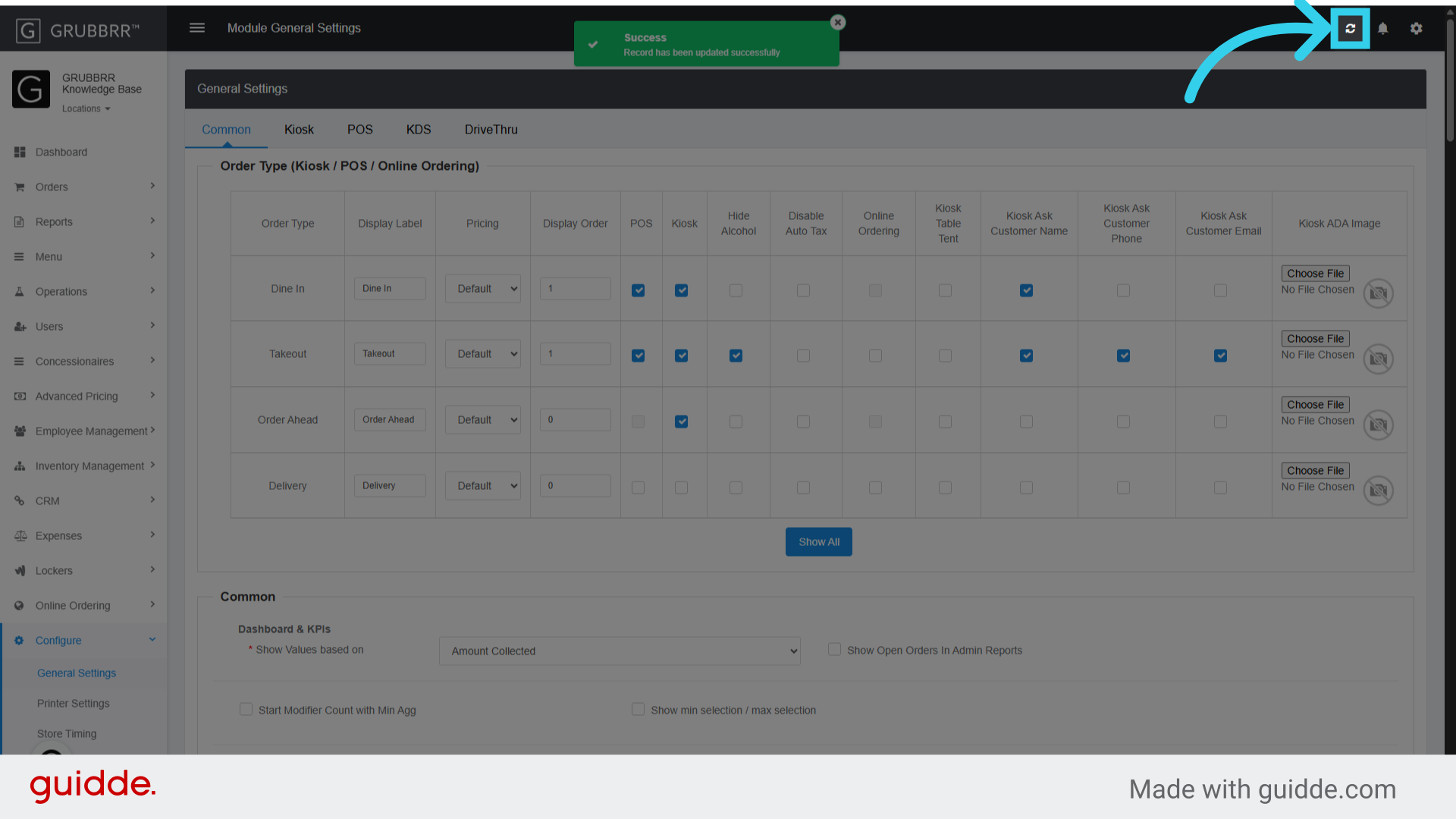
12. Don't forget to sync changes to your Kiosk when you're done!