Frequently Asked Questions for new Toast Customers
Last updated: September 14, 2026
There are a few more advanced configurations that GRUBBRR clients using our Toast integration will need to make as part of the onboarding process. If any of the following questions arise while you're working through the Onboarding Questionnaire with your GRUBBRR representative, please refer to the FAQs outlined below to help you complete the onboarding process.
How do I subscribe to GRUBBRR in Toast?
Before GRUBBRR can import your menu, you'll need to add us as an integration partner in the Toast portal. You can subscribe to GRUBBRR by following the steps outlined below:
Sign in to pos.toasttab.com
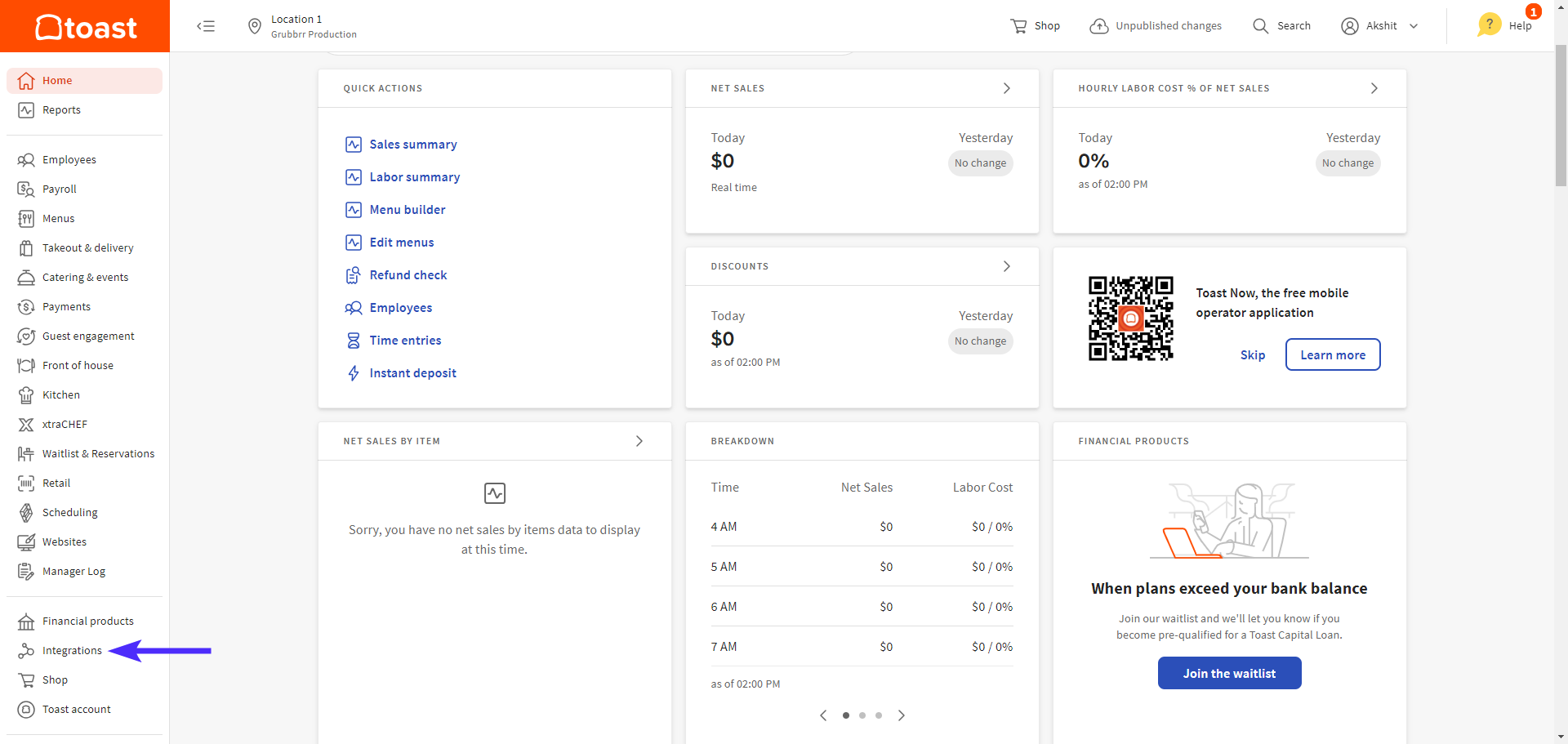
Select Integrations in the left sidebar
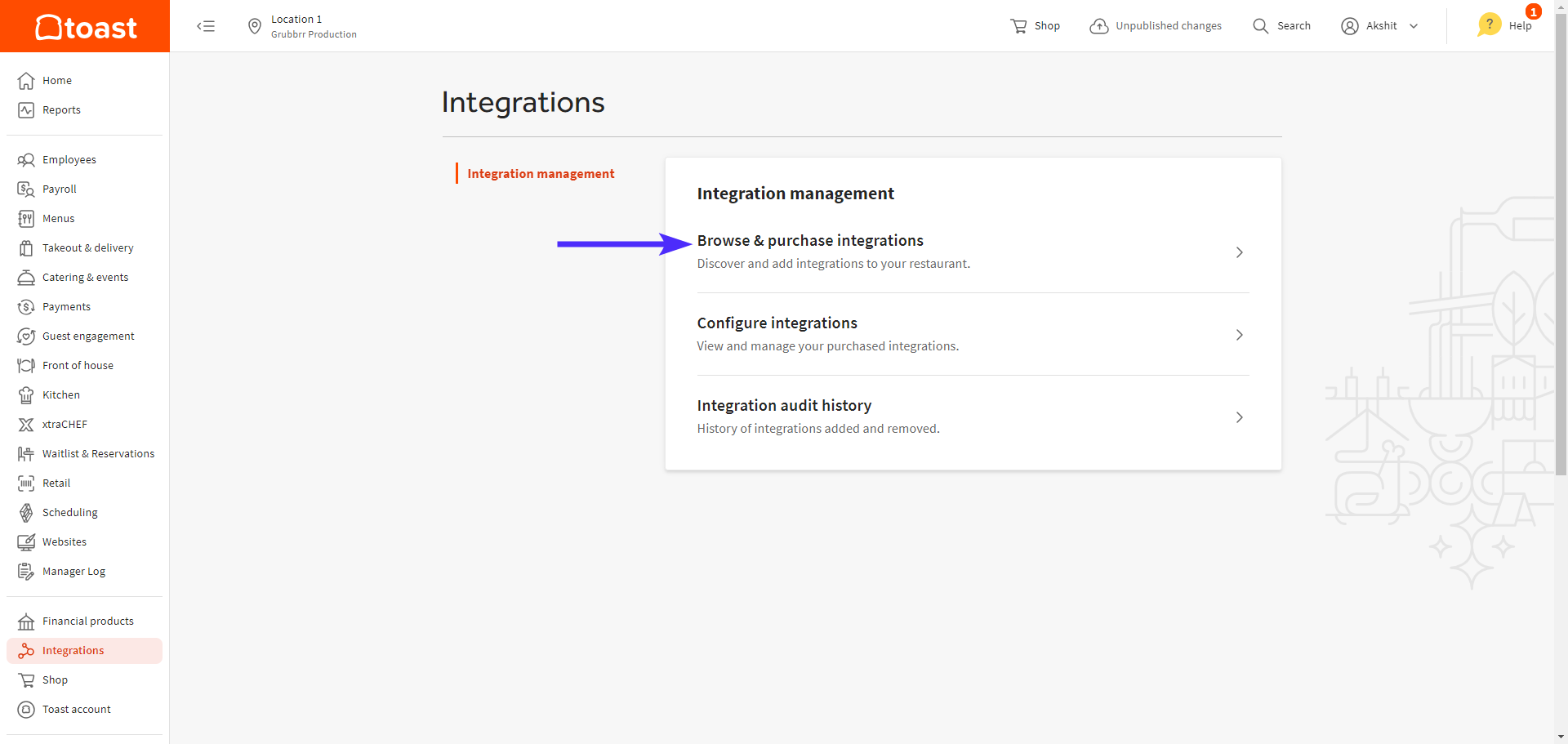
Select Browse & Purchase Integrations
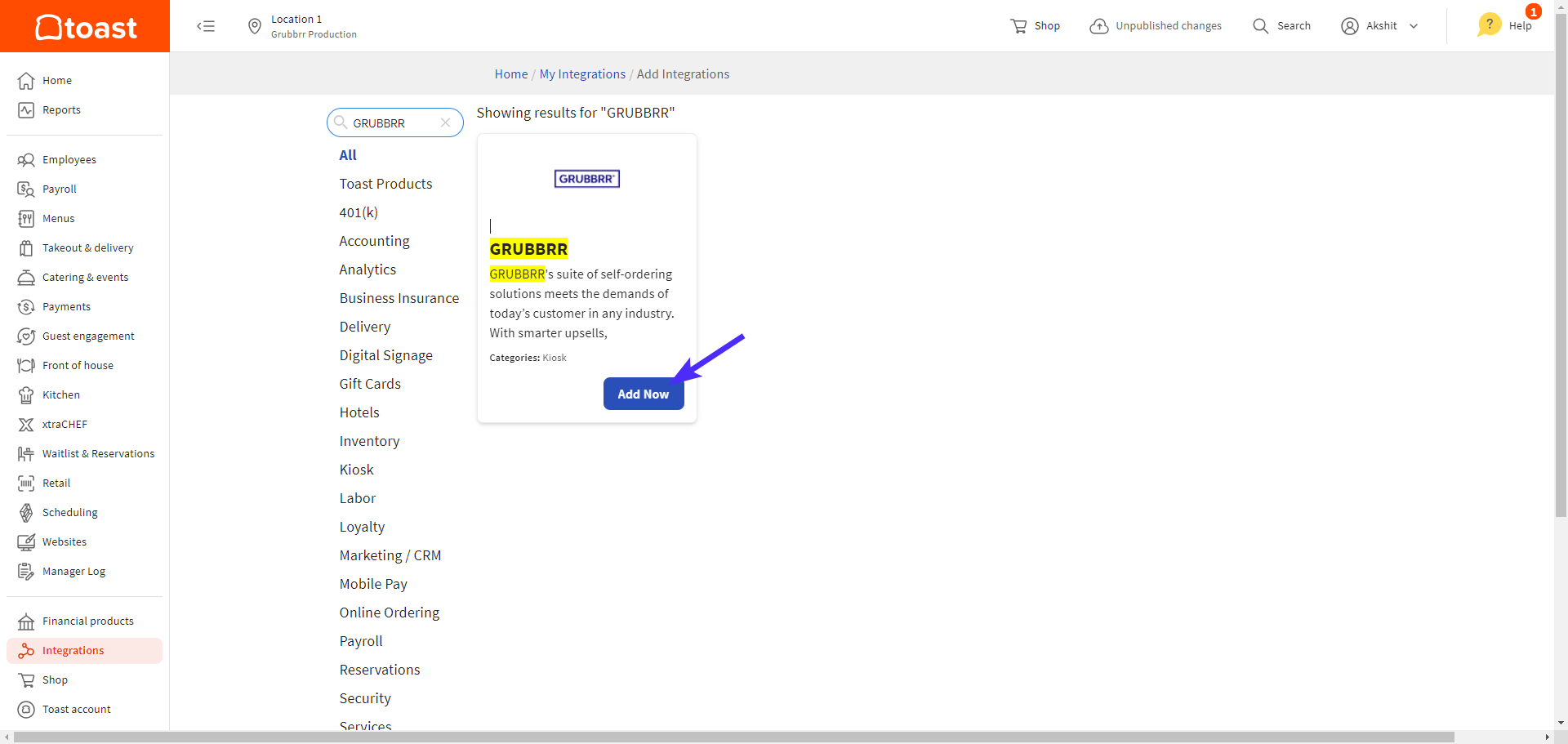
Search for GRUBBRR, and click Add Now
Click Confirm to enable the GRUBBRR integration
Once you complete these steps, Toast will contact GRUBBRR's team with the information we need to connect your Kiosk(s) to your POS.
What if I can't see the "Add Now" Button?
You may not have subscribed to integrations with Toast. Contact your Toast sales representative or the Toast support team to enable this functionality for your account.
How do I create a Revenue Center?
Revenue Centers help you easily identify orders taken on your GRUBBRR Kiosk as opposed to orders processed on the POS. You can set up a GRUBBRR-specific Revenue Center in the Toast Portal by following these steps:
Sign in to pos.toasttab.com
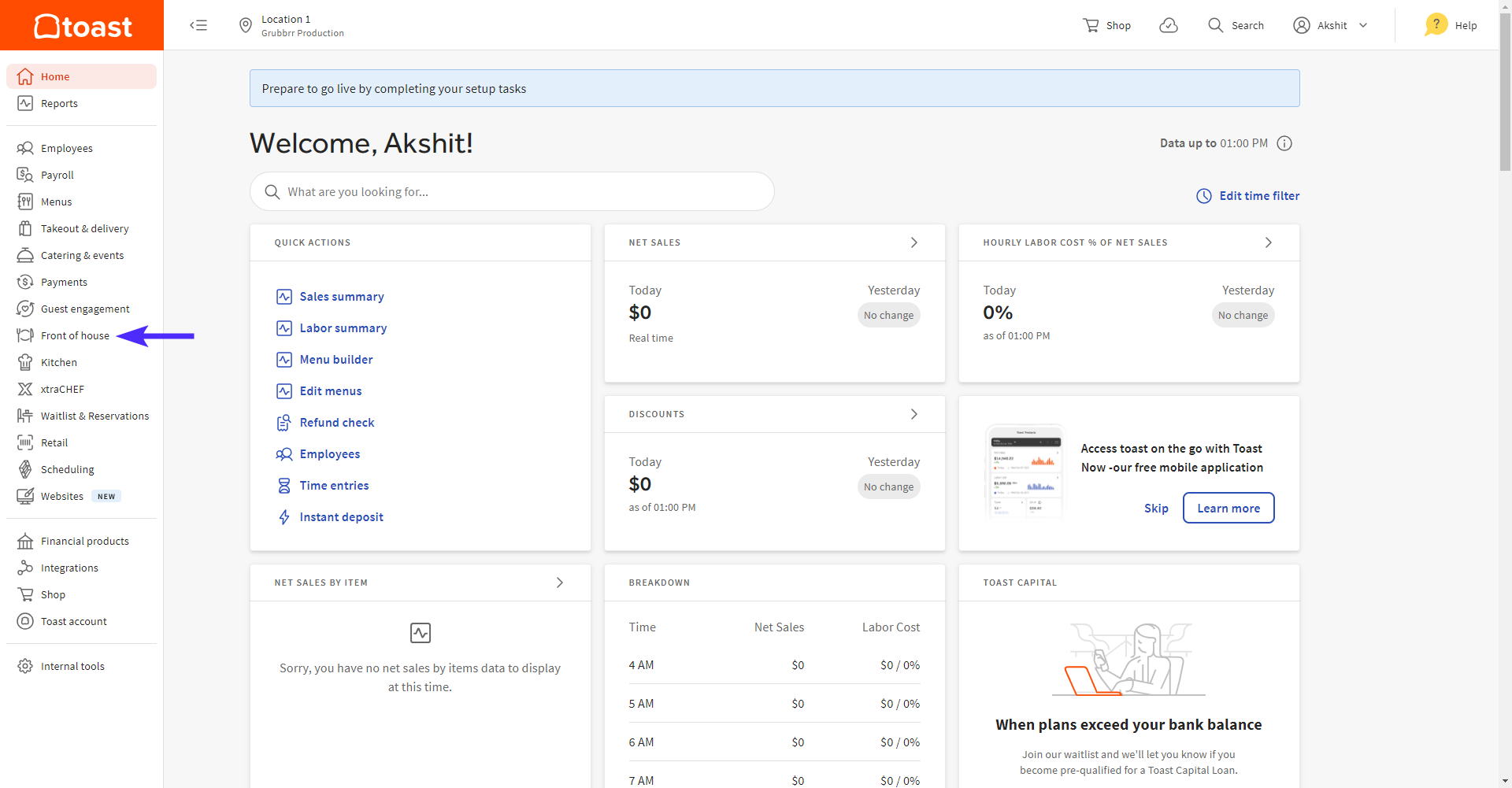
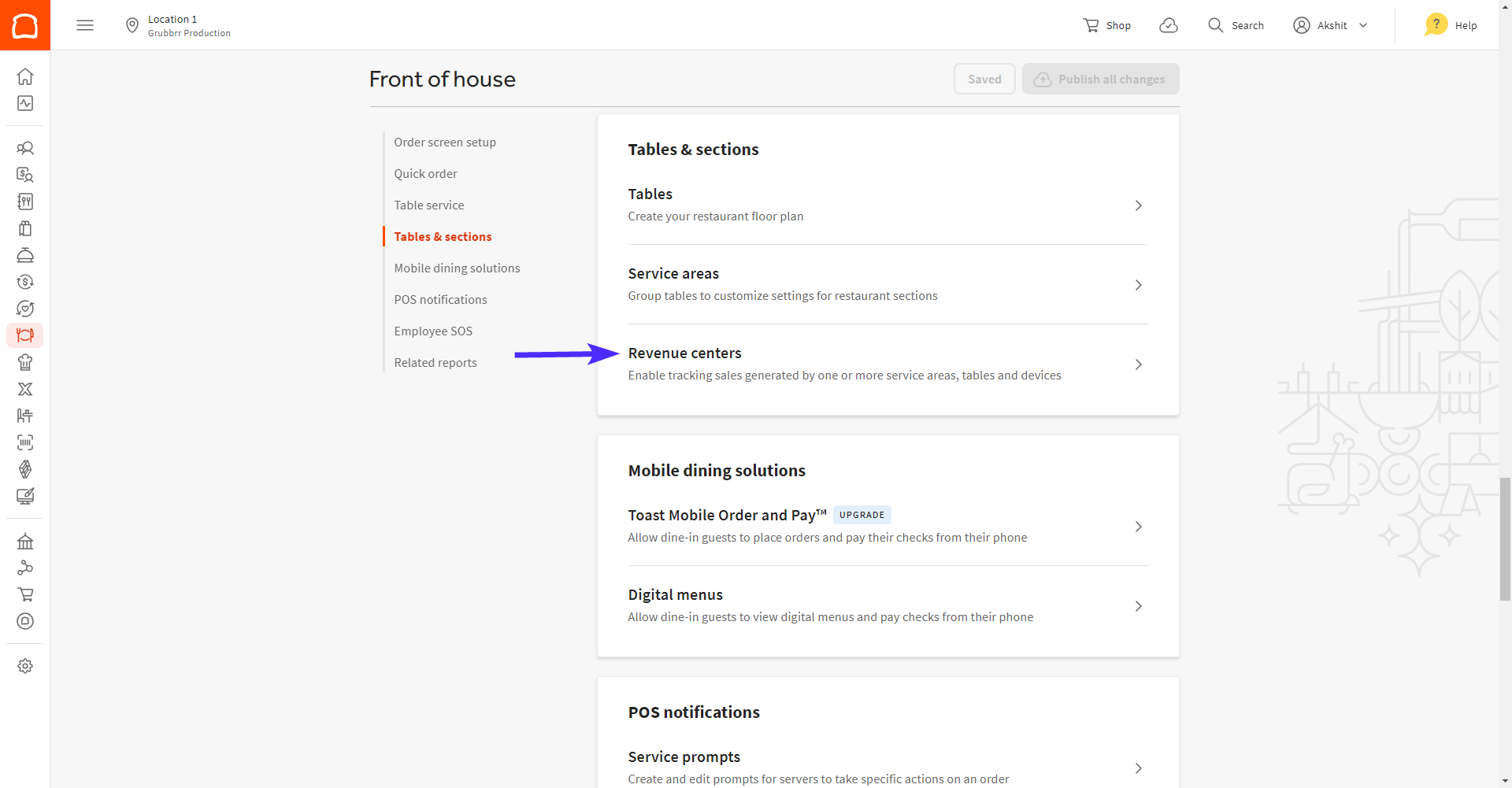
Select the Front of House tile from the left sidebar
Scroll or use the left sidebar to the Tables & Sections window, then select Revenue Centers
Select Add
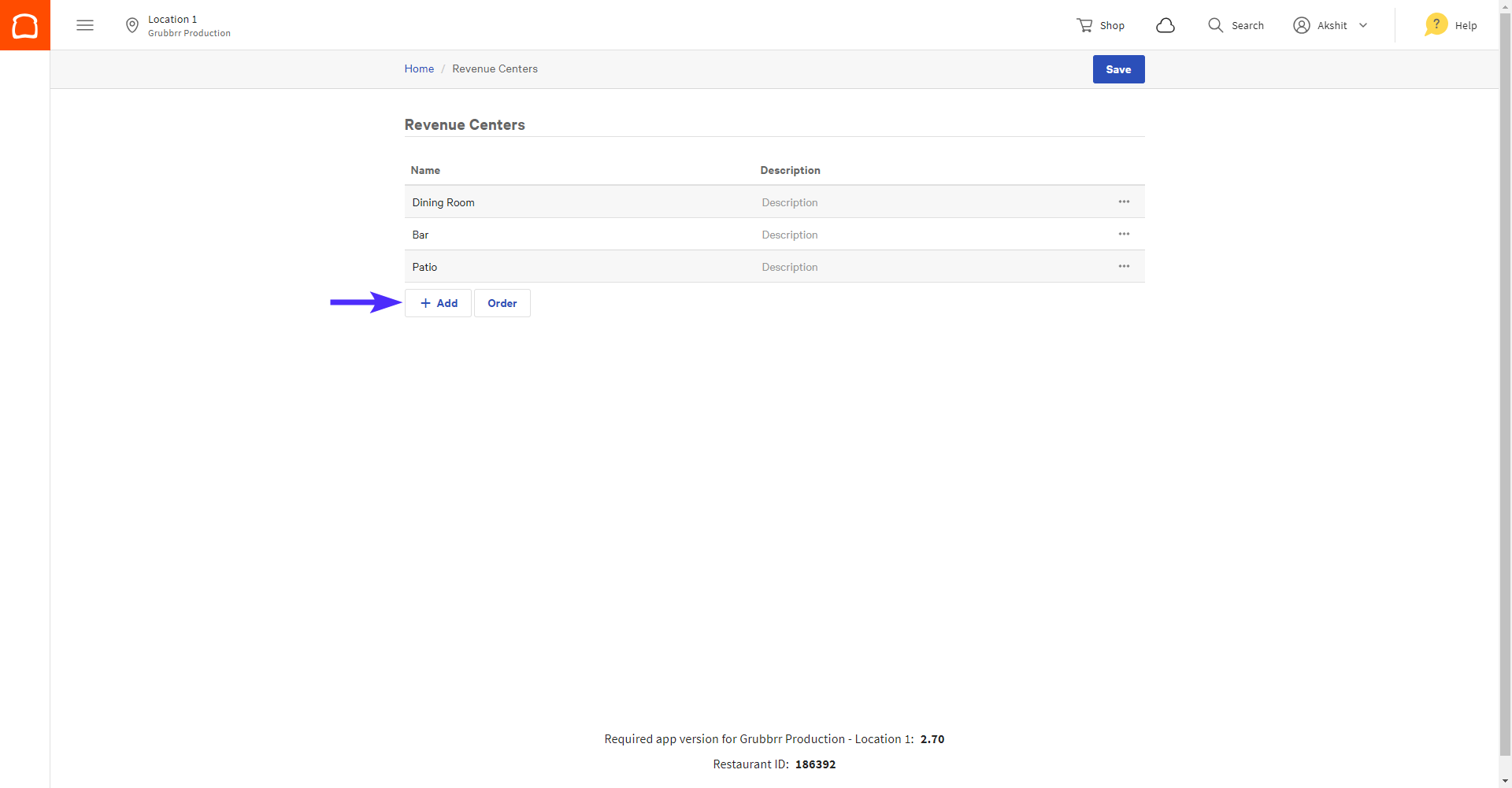
Give your new Revenue Center an easily recognizable name- we recommend including GRUBBRR in some way for ease of reference
Click Save to apply your changes
How do I Create a GRUBBRR Payment Option?
Sign in to pos.toasttab.com
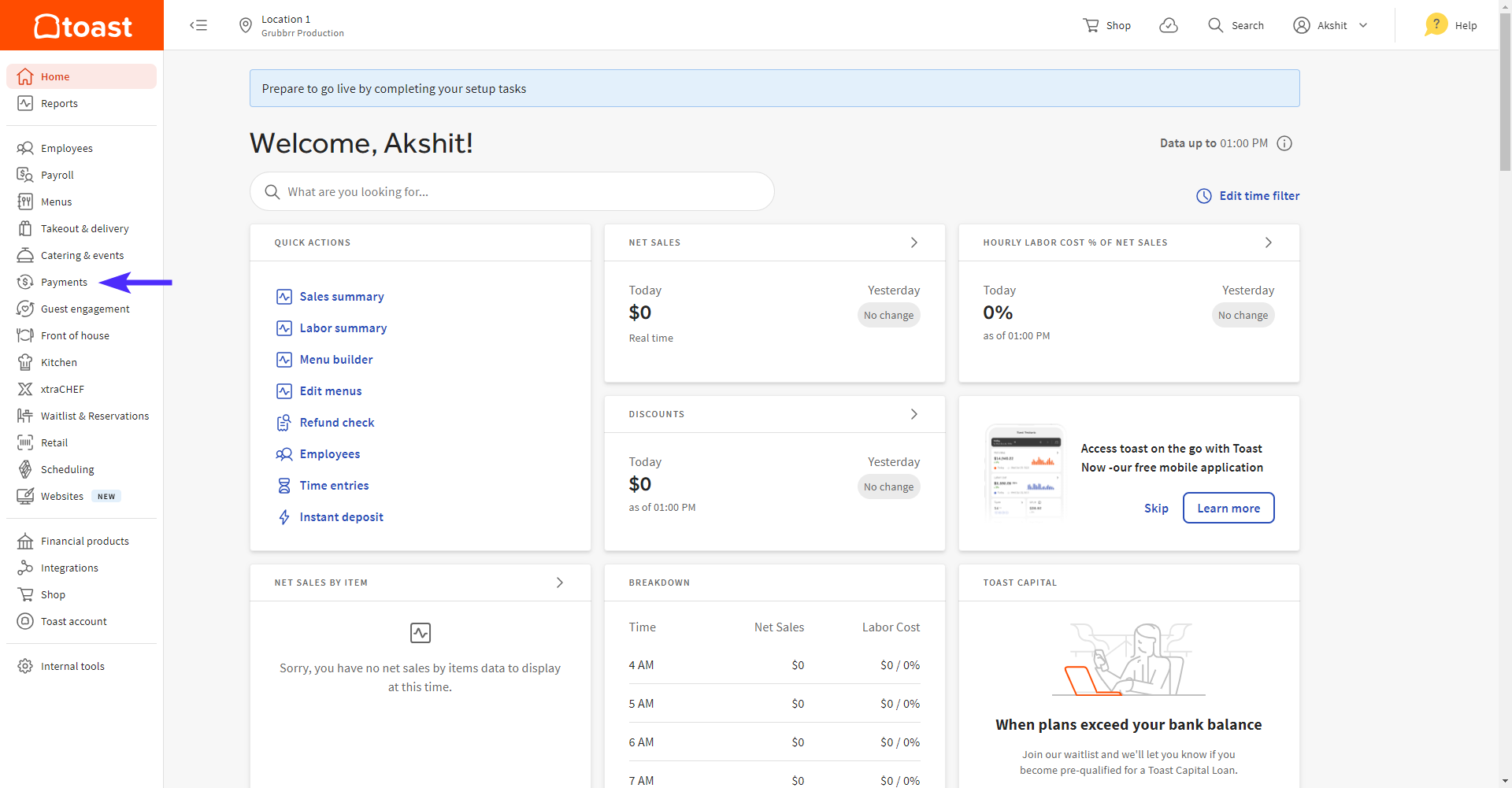
Select the Payments tile from the left sidebar
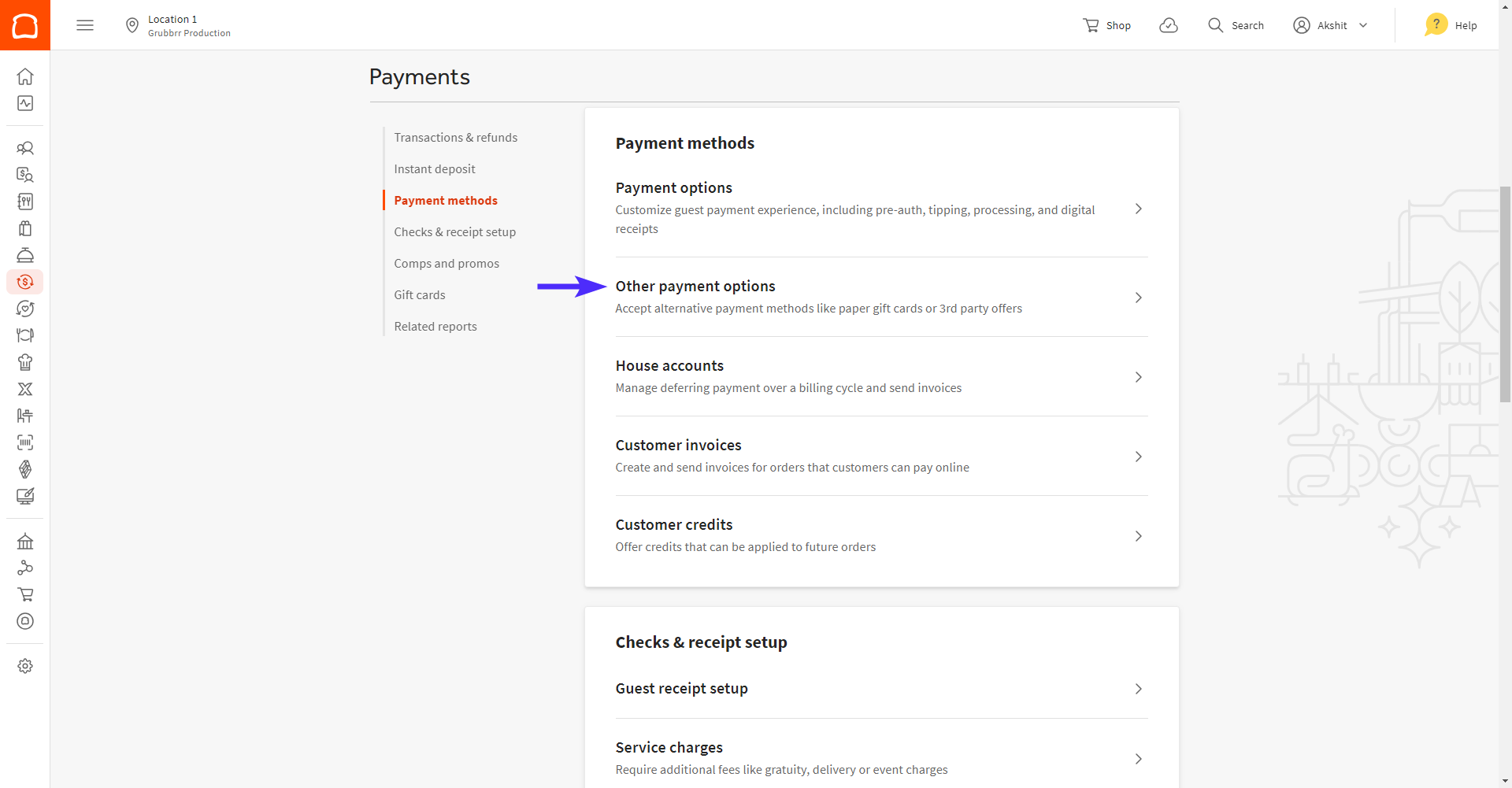
Scroll or use the left sidebar to jump to Payment Methods, then select Other Payment Options
Select Add
On the New Payment Option page, make the following Configurations:
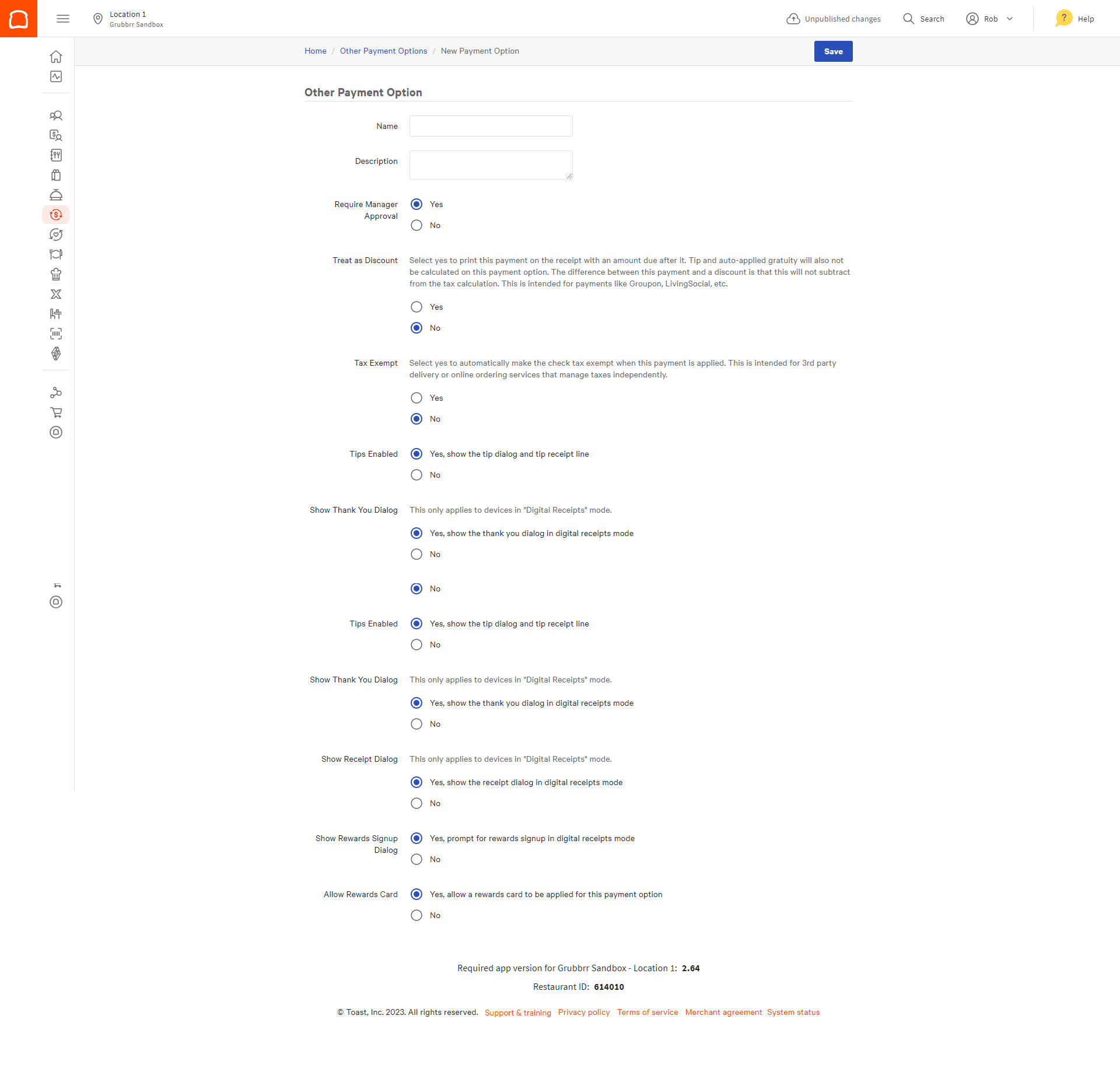
In the Name field, enter GRUBBRR Kiosk
Leave the Description field blank
(Recommended) Select No for Require Manager Approval
Turning this feature will require a manager to approve kiosk orders from the POS
(Default) Select No for Treat as Discount
(Default) Select No for Tax Exempt
(Default) Select Yes for Tips Enabled
(Default) Select No for Show Thank You Dialog
(Default) Select No for Show Receipt Dialog
Click Save to activate your new payment option
How do I Create GRUBBRR Order Types?
Sign in to pos.toasttab.com
Select the Kitchen tile from the left sidebar
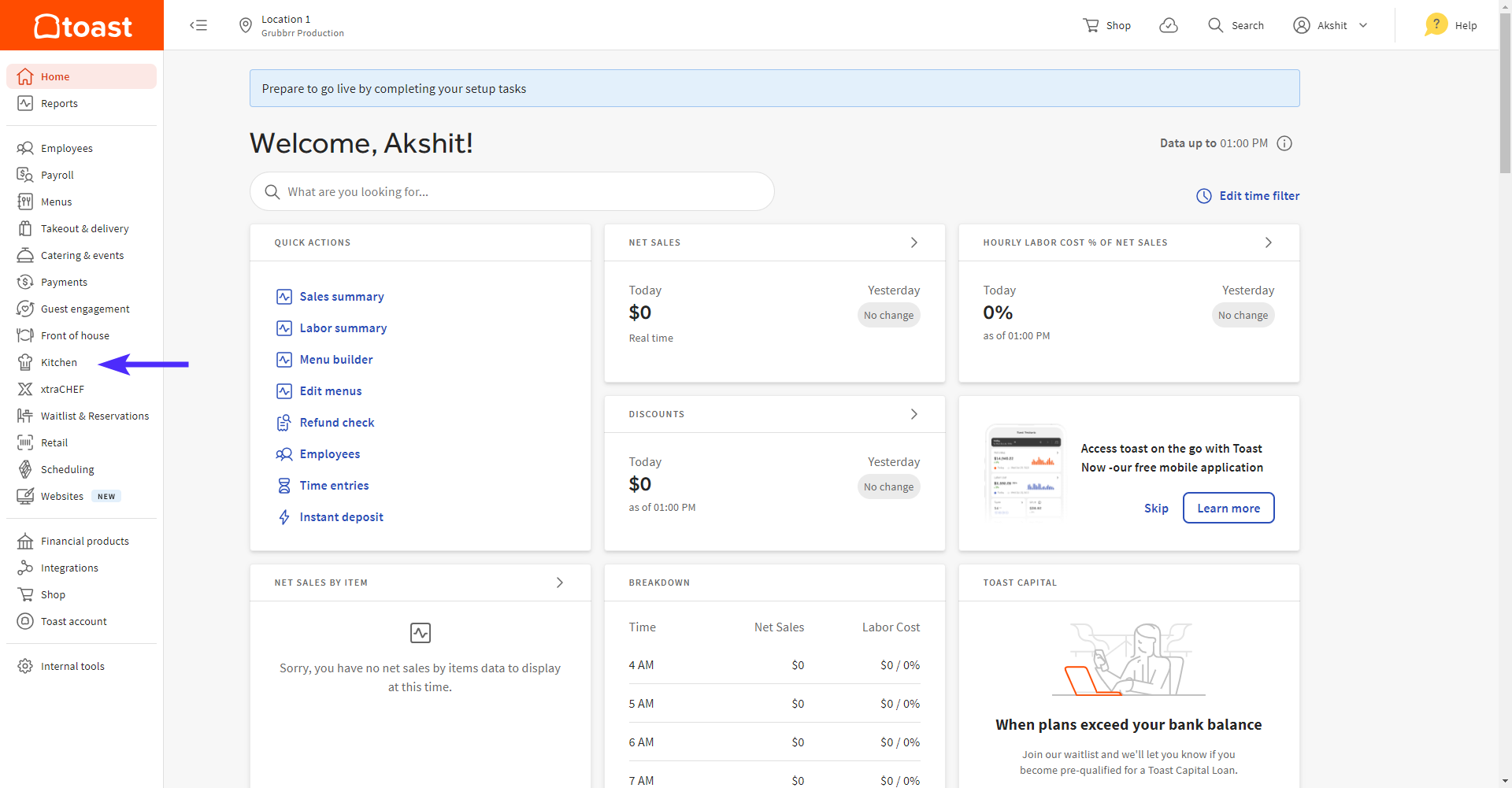
Select Dining Options
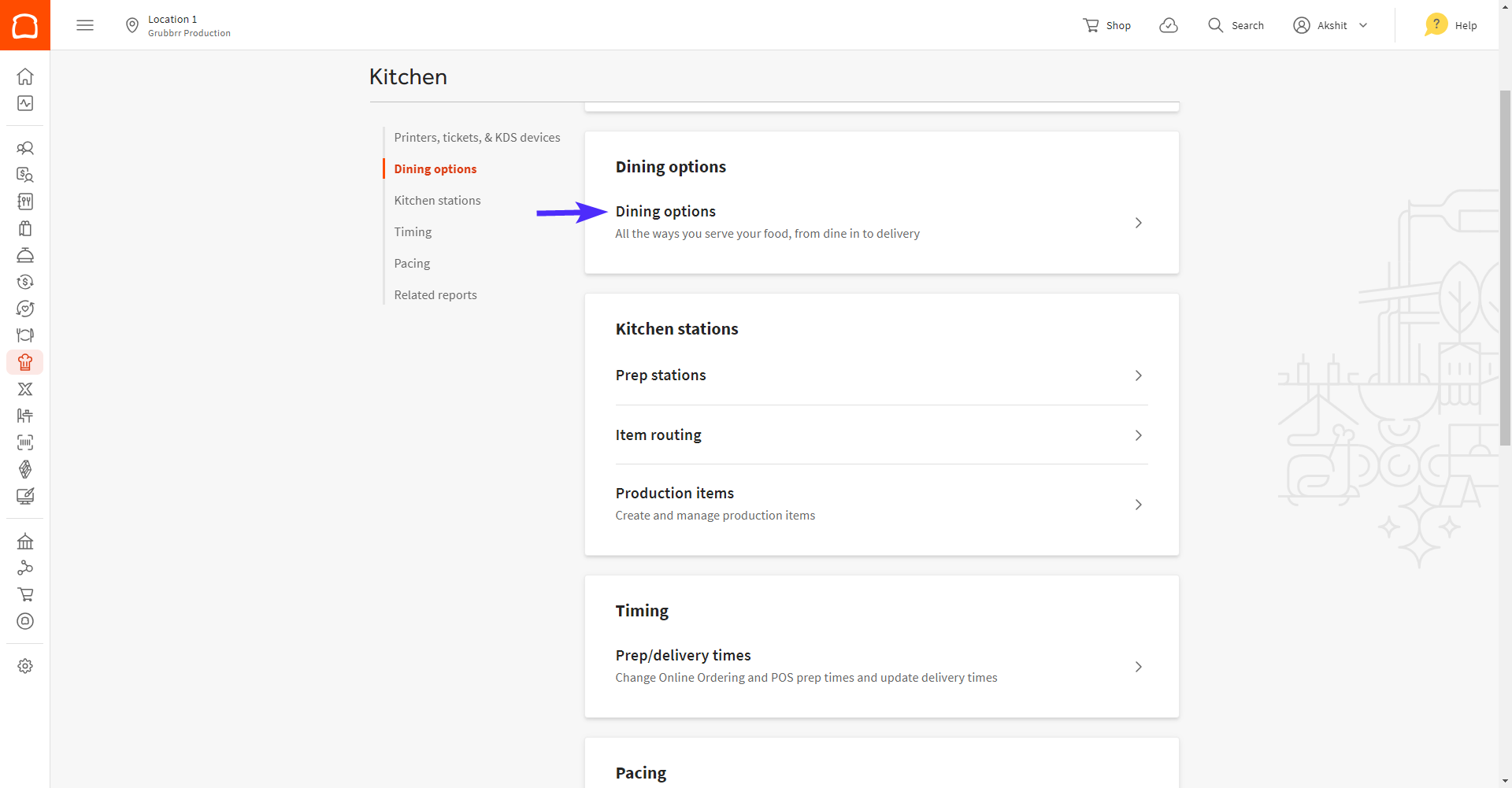
Select Add
Give your new option a Name (Recommended: Kiosk Dine In and Kiosk Takeout)
Select the appropriate order type from the Behavior dropdown
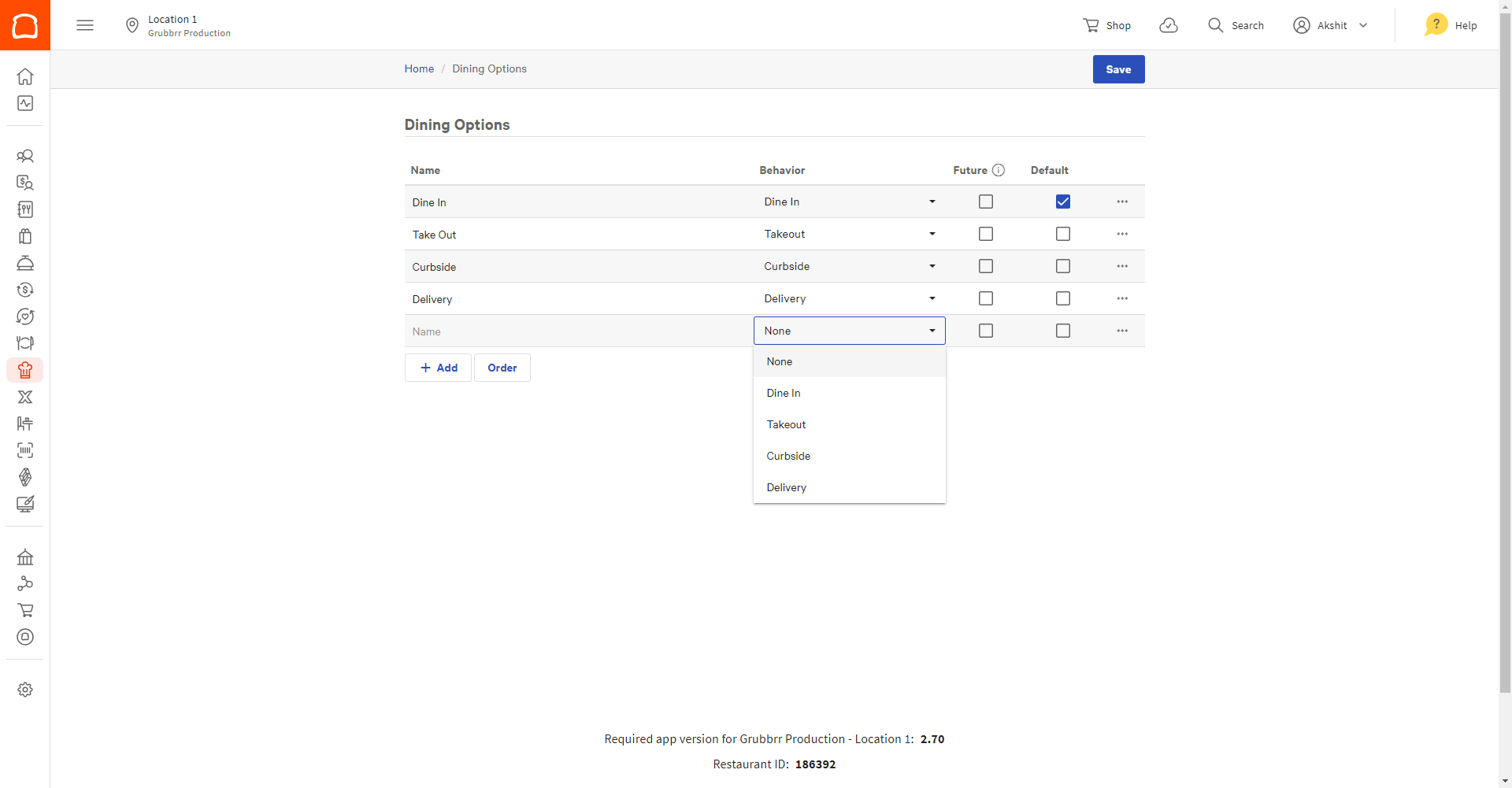
Click Save to apply your changes
How do I Create a GRUBBRR Kiosk Menu?
As of January 19, 2024, Toast published a change to their platform that requires all new and existing GRUBBRR/Toast partners to switch to V3 Menus during the integration process, as Toast will be sunsetting their V2 menu format. Users can create and limit a V3 menu specifically for their GRUBBRR Kiosks by following the steps outlined below.
Sign in to pos.toasttab.com
Select the Menus tile from the left sidebar
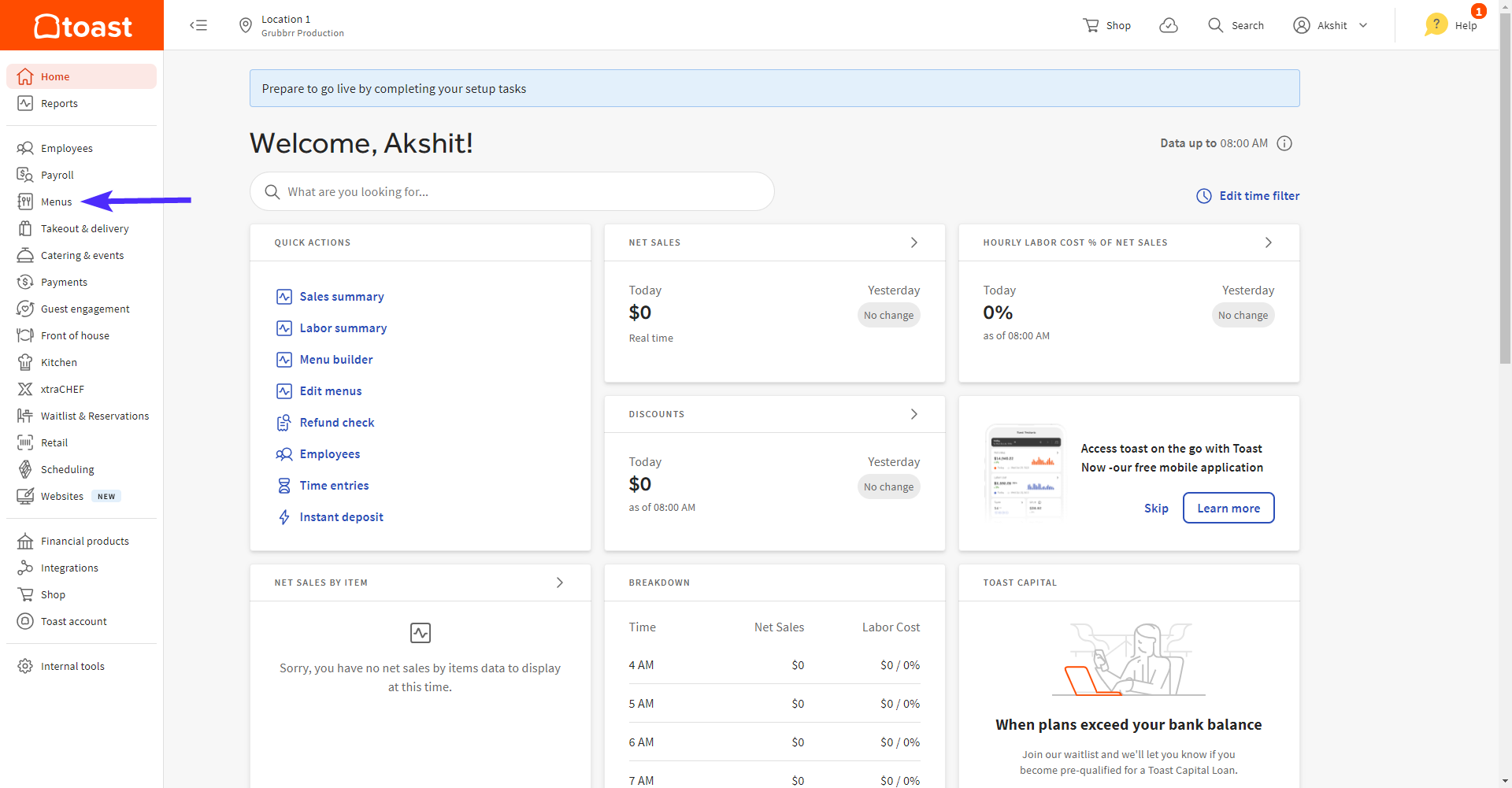
Navigate to Toast's Menus Experience via:
The Menu Builder
Select Menu Builder
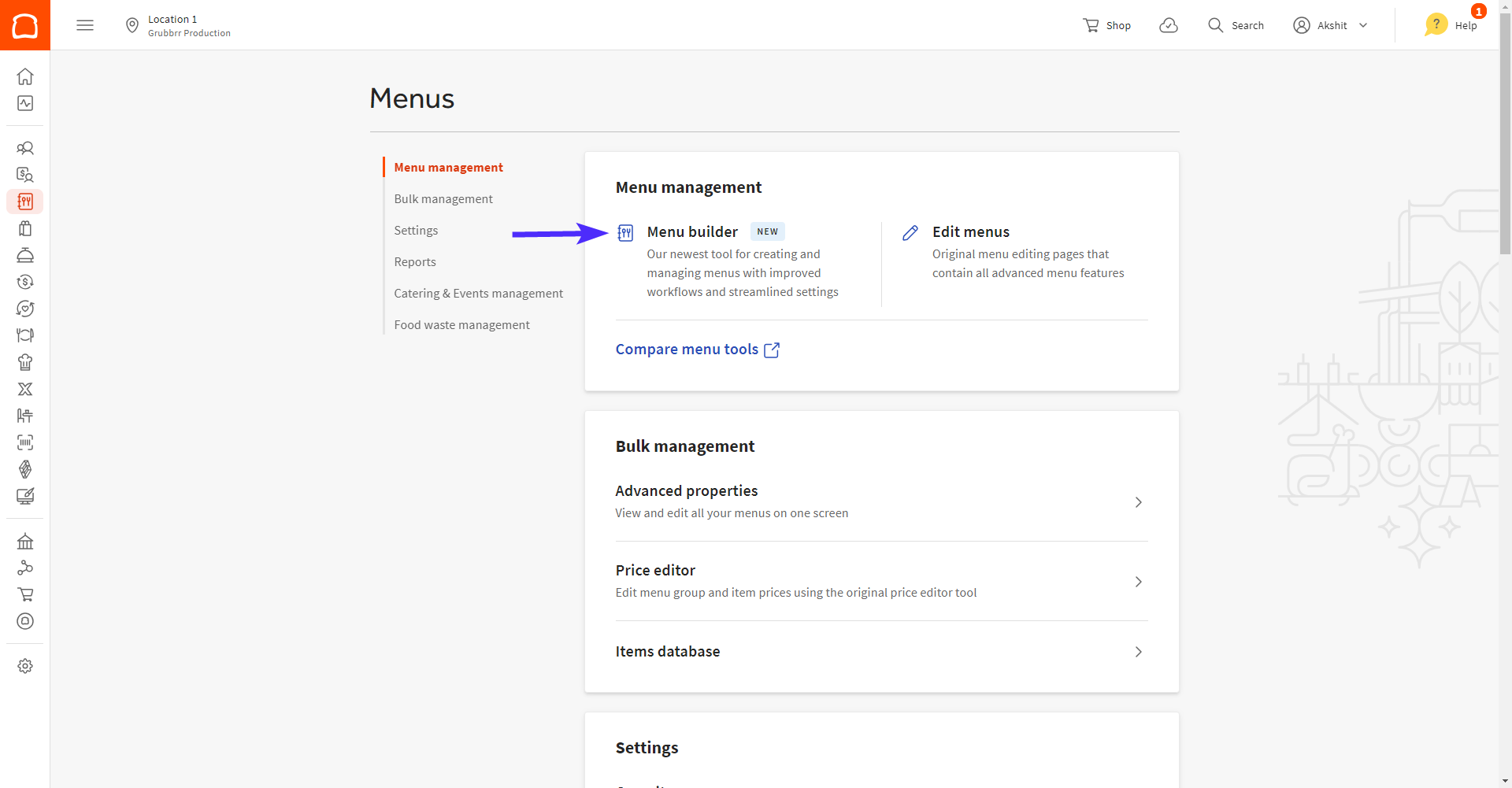
On the Menus list, click on the tricolon ( ⁝ ) next to the name of the menu you want to edit, then select Edit from the dropdown menu
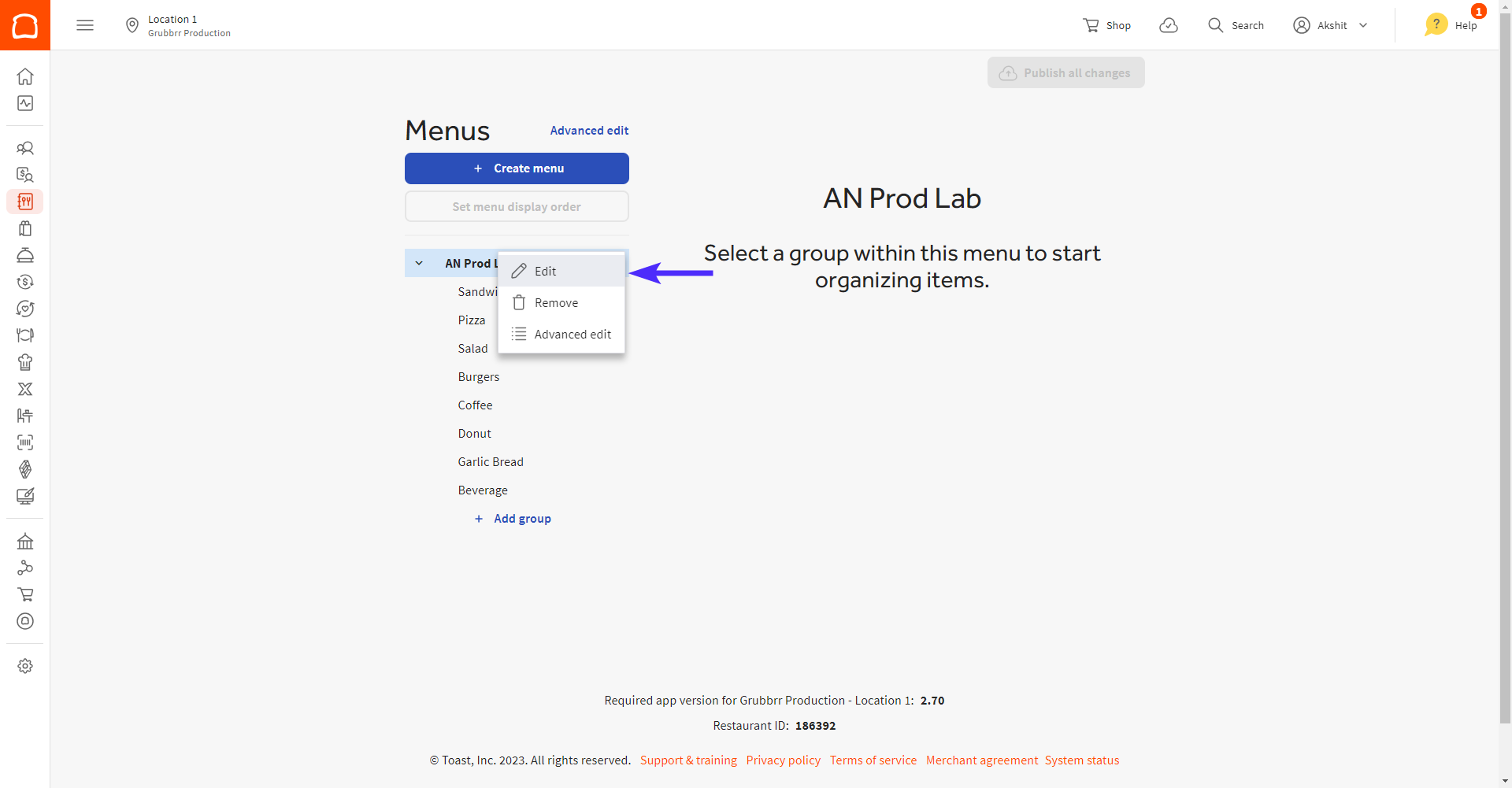
The Edit Menu page
Select Edit Menu
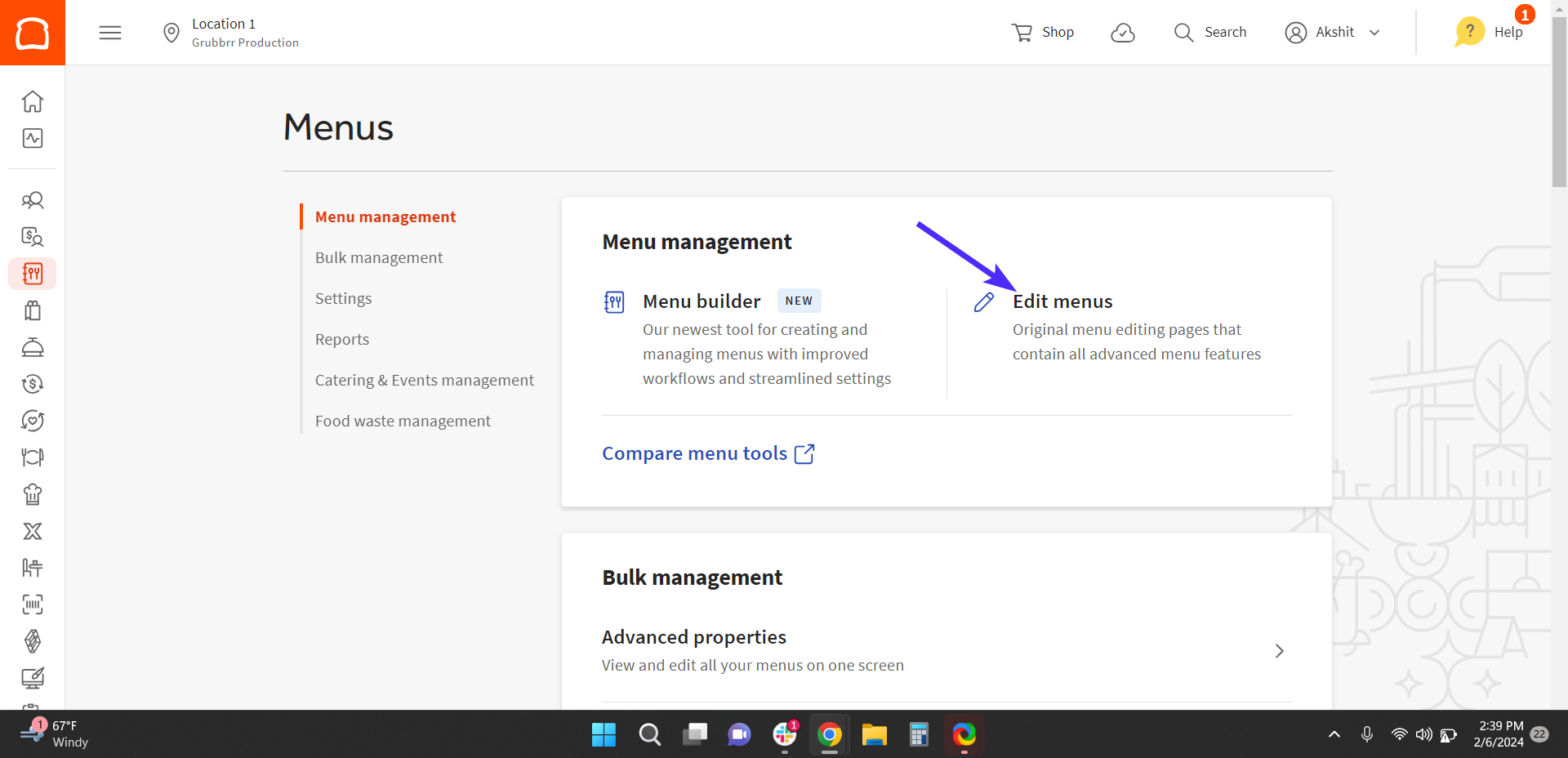
Click the Name of the menu you want to edit
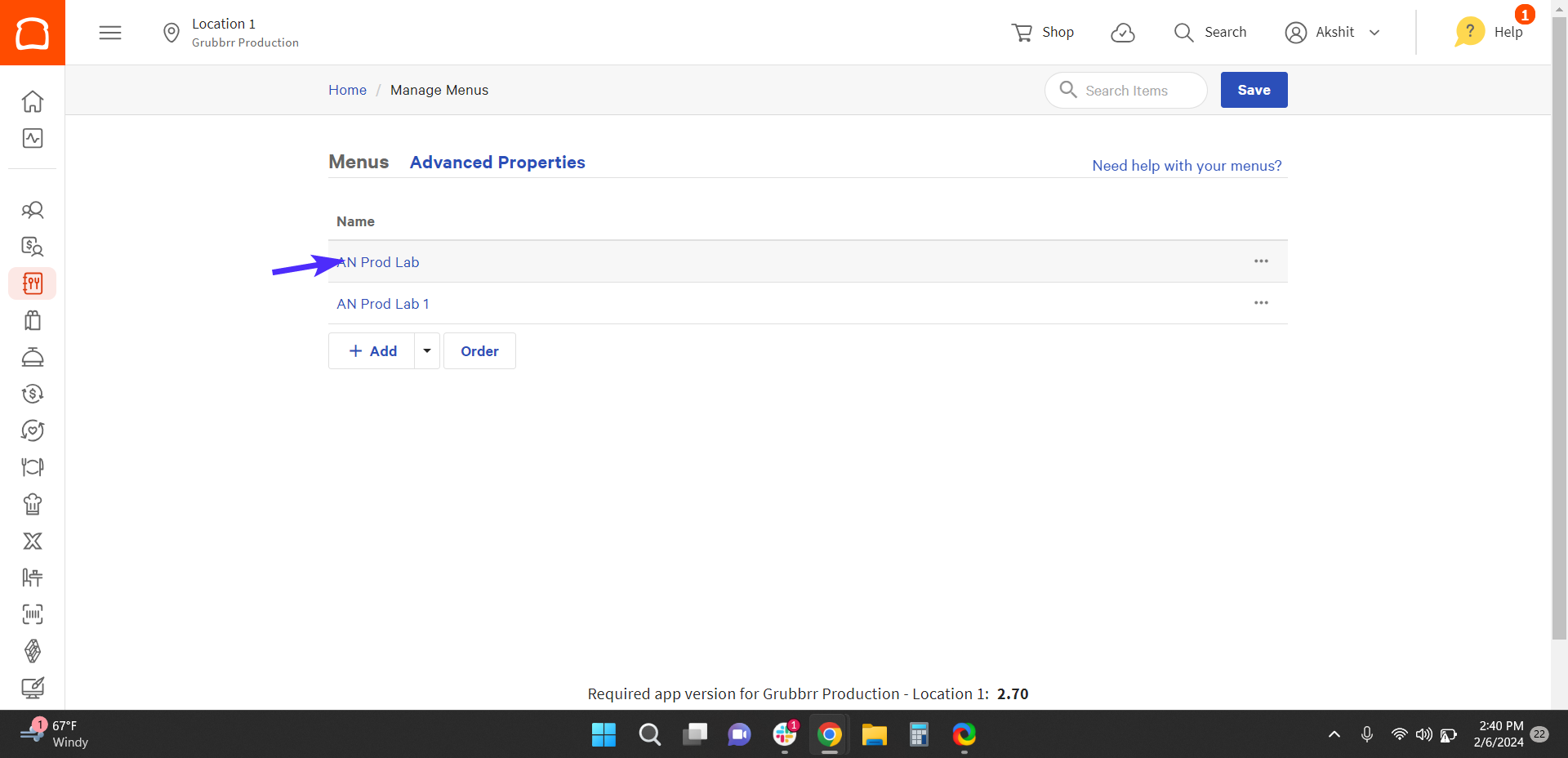
Scroll down to find the blue visibility banner and click on the link labeled Menus Experience
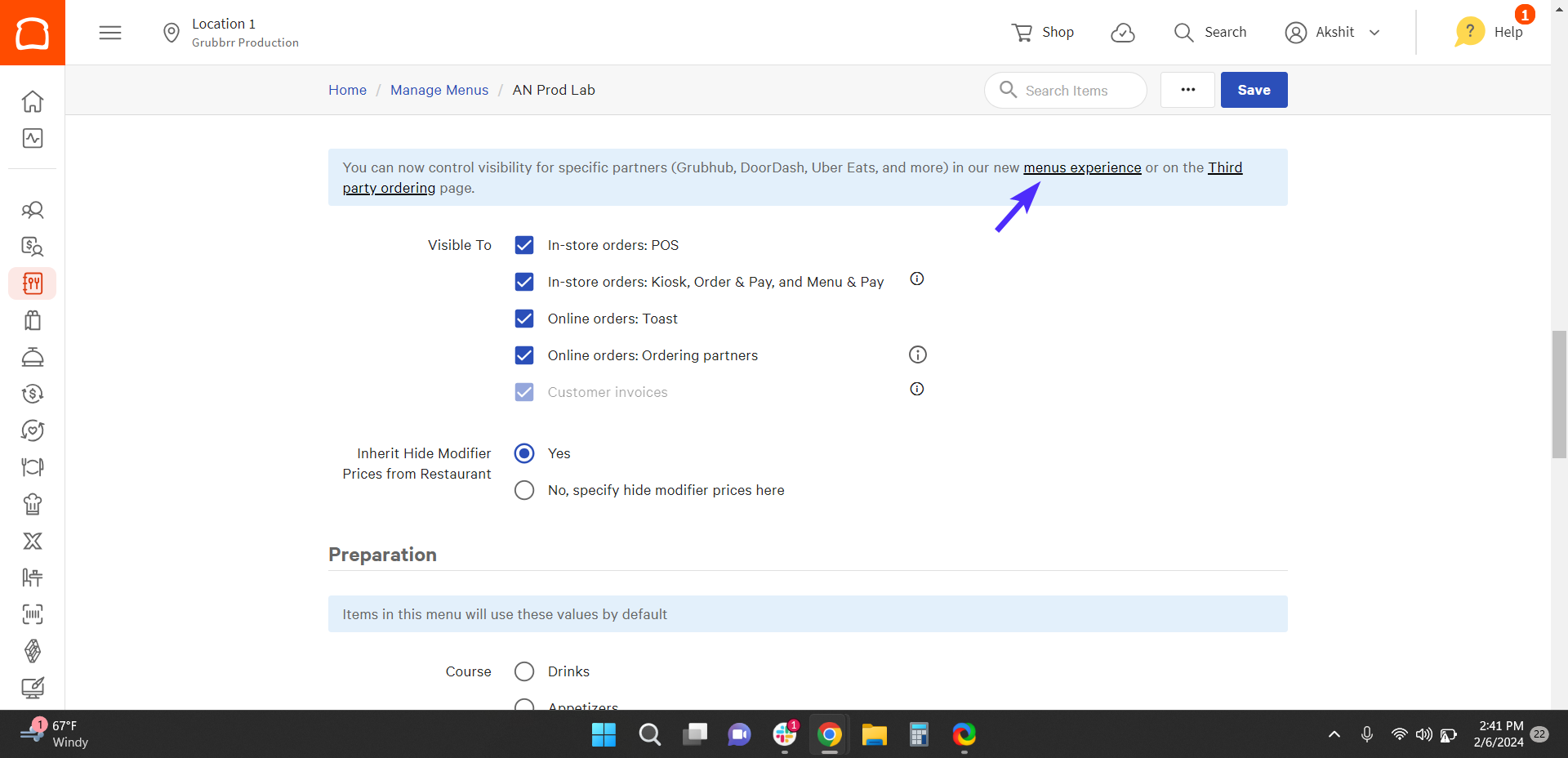
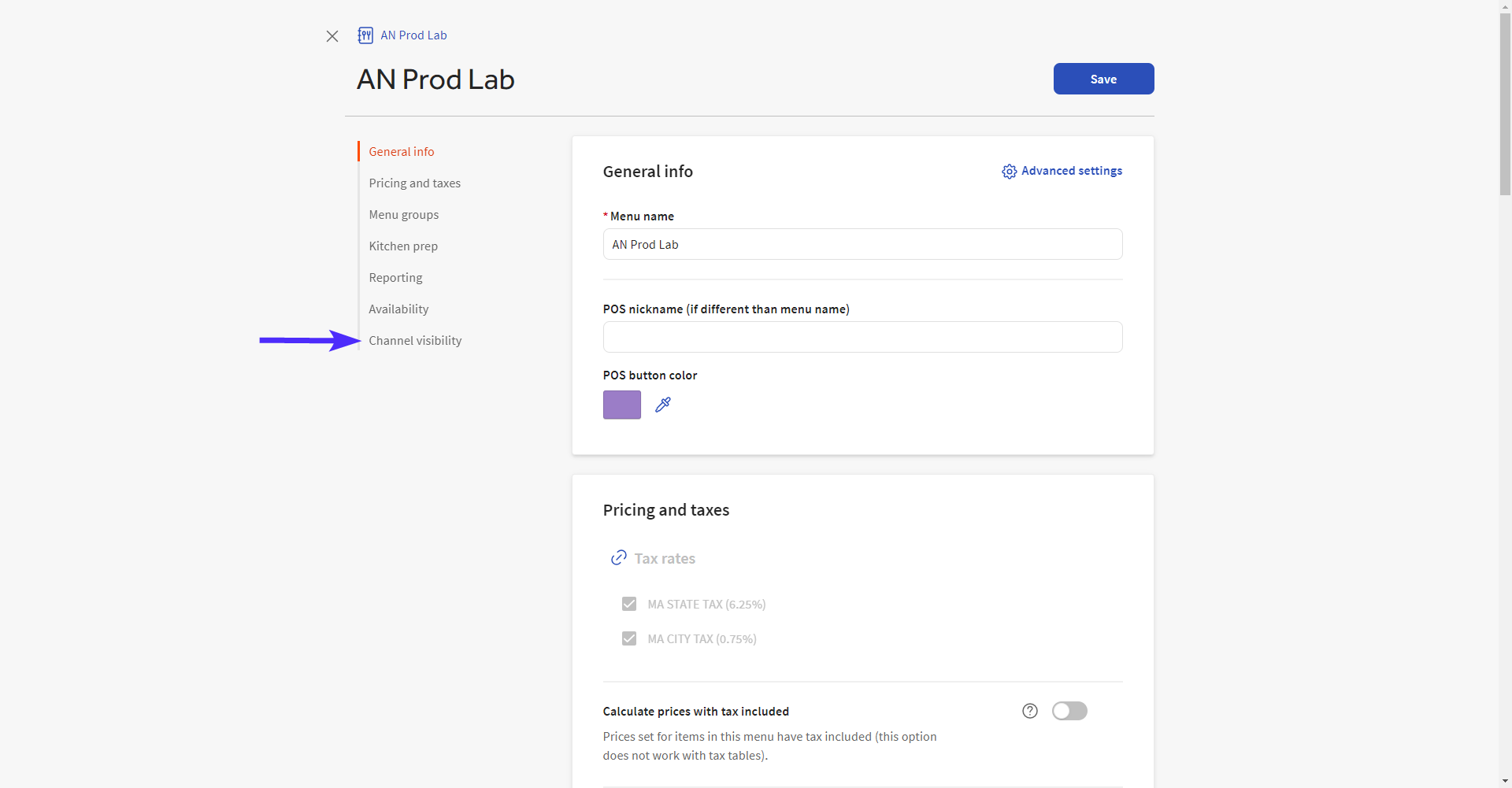
Scroll down or select Channel Visibility from the left sidebar
Use the toggle to turn Online Ordering Partners on
Check the box labeled GRUBBRR
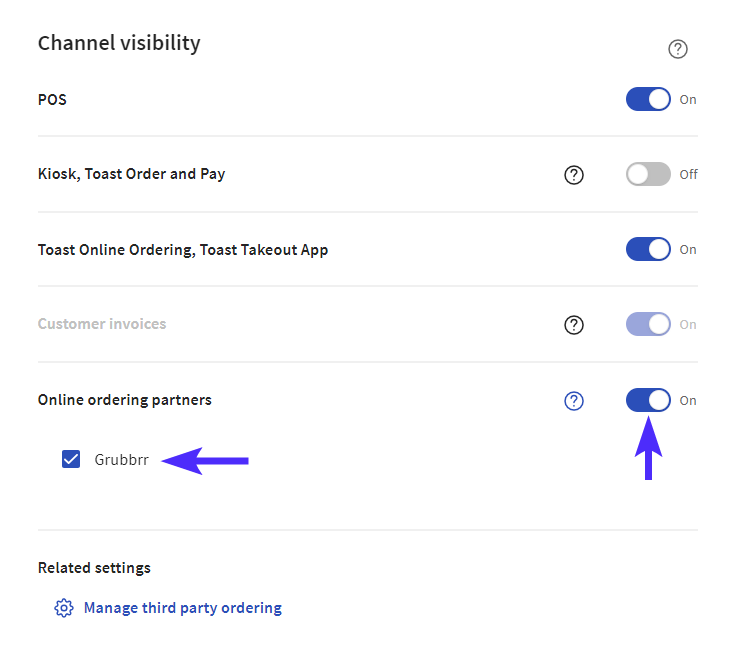
Click Save to apply your changes
What do I do if My GRUBBRR Menu is Missing Categories?
If we can't pull your full menu as part of a menu sync, it may be because menu categories have been built in Toast as separate, unique menus. If this is the case, we'll only be able to pull a single category when we sync the GRUBBRR Portal with your POS. In this scenario, one fix would be to create a kiosk-specific menu in Toast and have us pull that.
If you need assistance creating a kiosk-specific menu, you can walk them through the steps outlined below:
Follow Toast's Documentation on creating a new menu, available here
After they've created the menu, navigate to the Edit Menus page
Click on the menu's name to open the Menu Management page
Under the Groups heading, select the dropdown arrow next to the +Add button
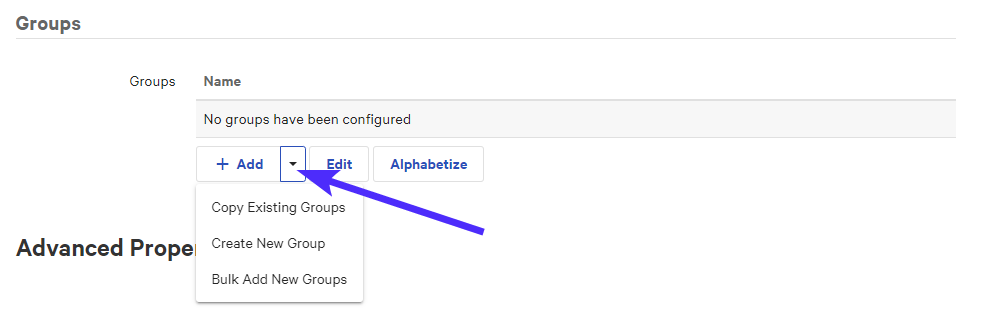
Select Copy Existing Groups
Select the desired menu group(s) from the pop-up
Select Done to apply your changes
What do I do if Items or Categories Don't Import to GRUBBRR?
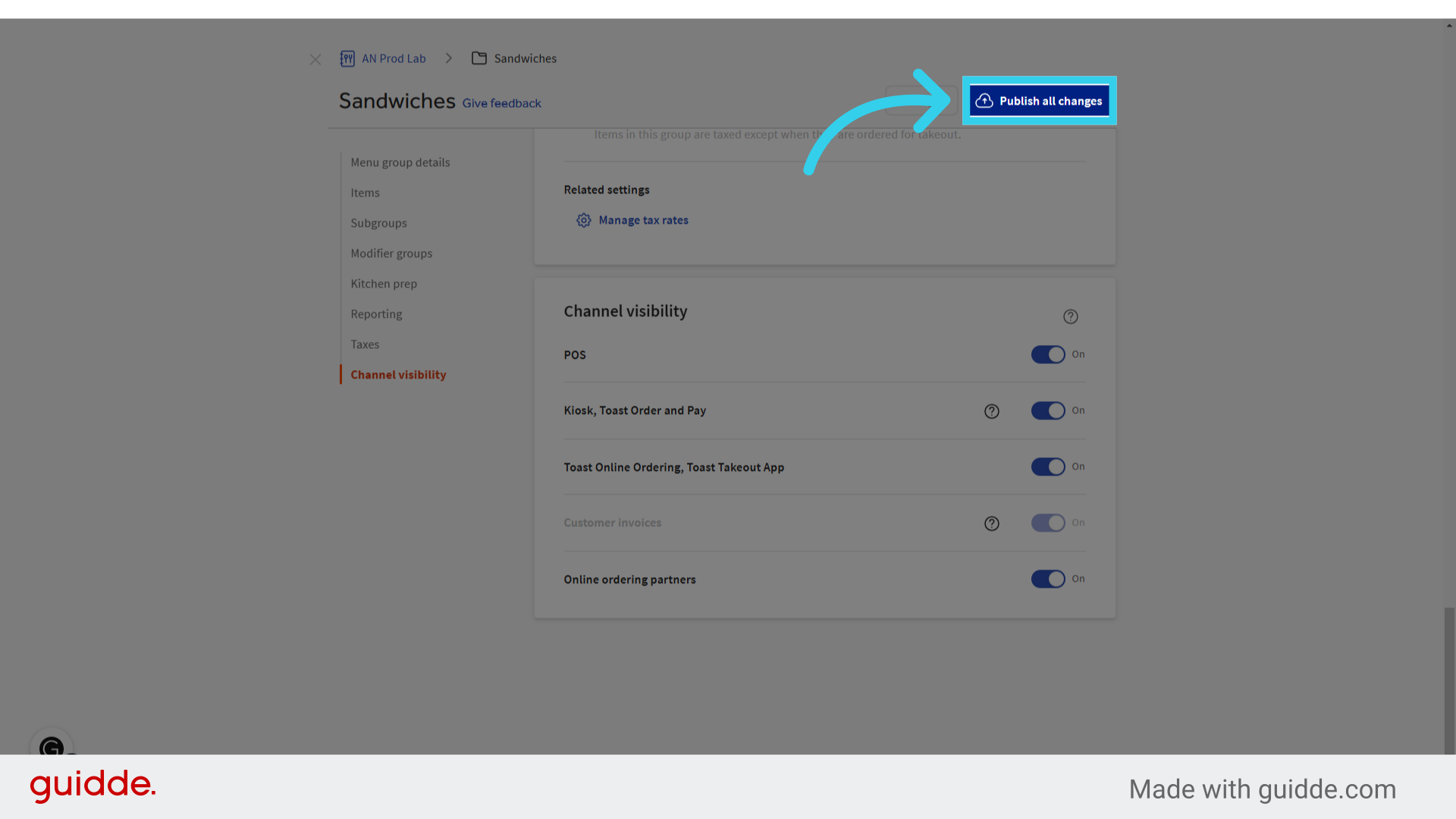
If you've created new items/categories for your Menu, and you're not seeing them in your Kiosk menu, they may not be visible to the GRUBBRR/Kiosk channel in Toast. We can update this setting in the Toast portal by following the steps below.
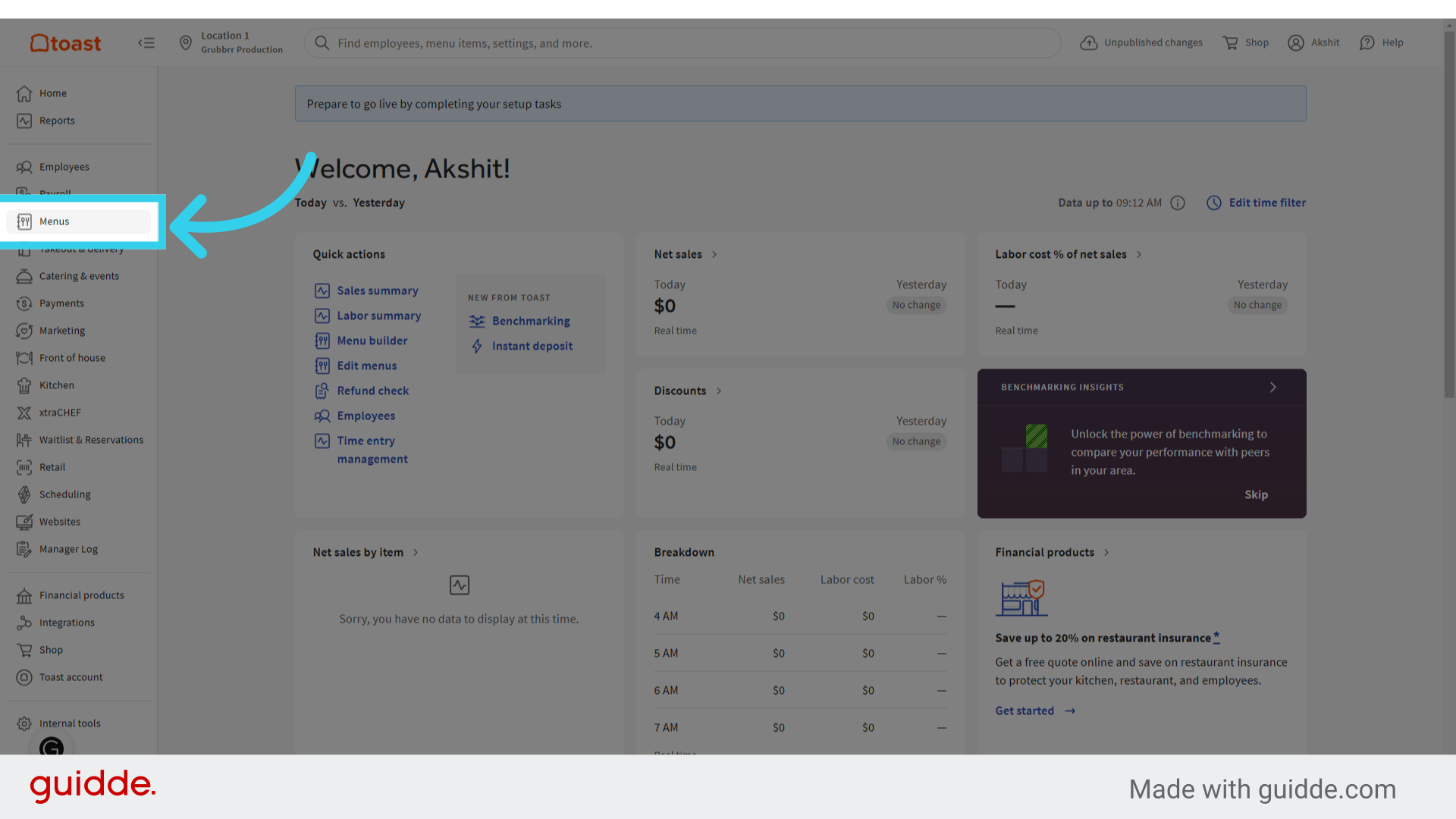
1. Click "Menus"
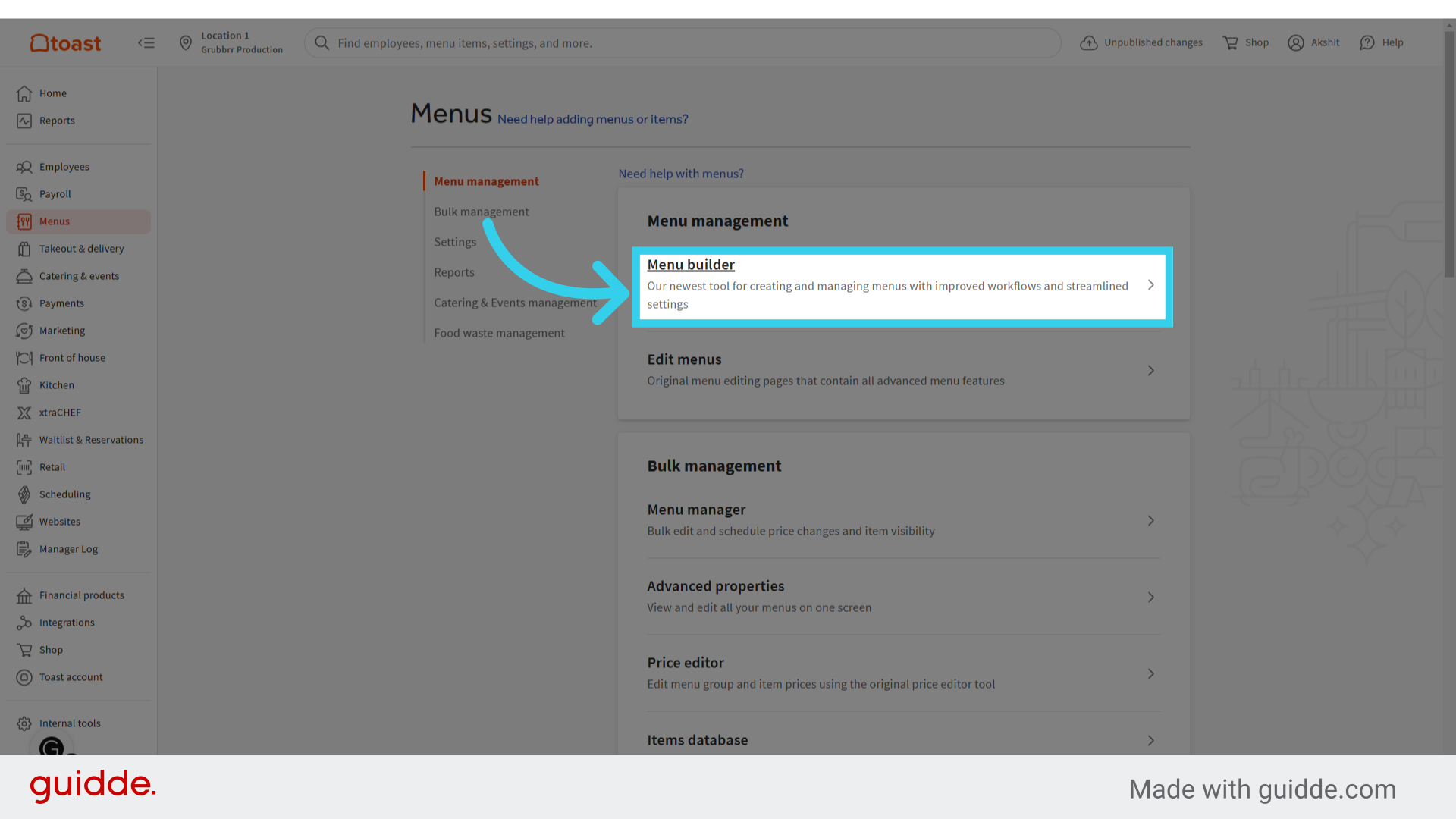
2. Click "Menu Builder"
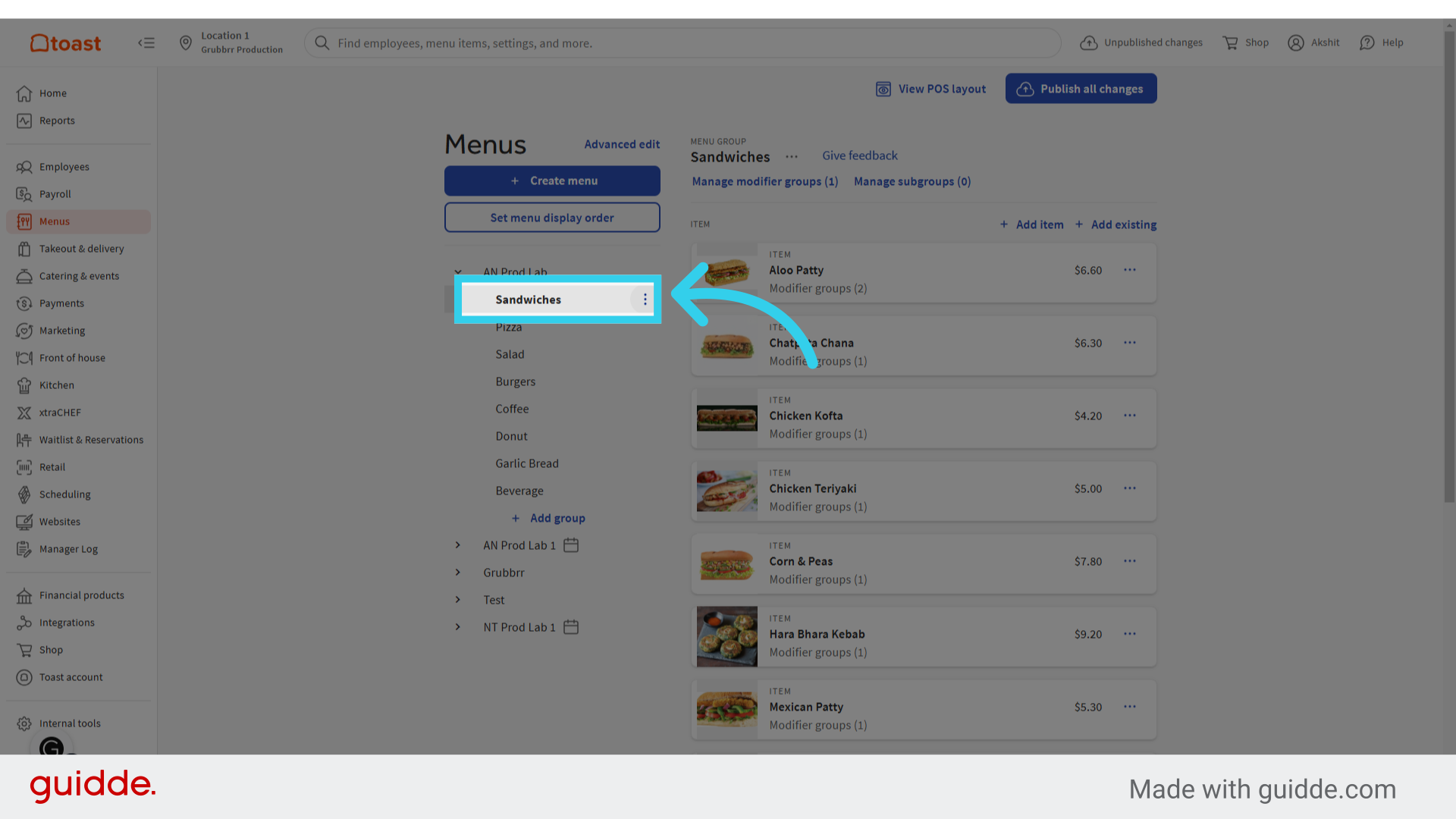
3. Find the category or item you want to update, and click the "⁝" button
4. Click "Edit"
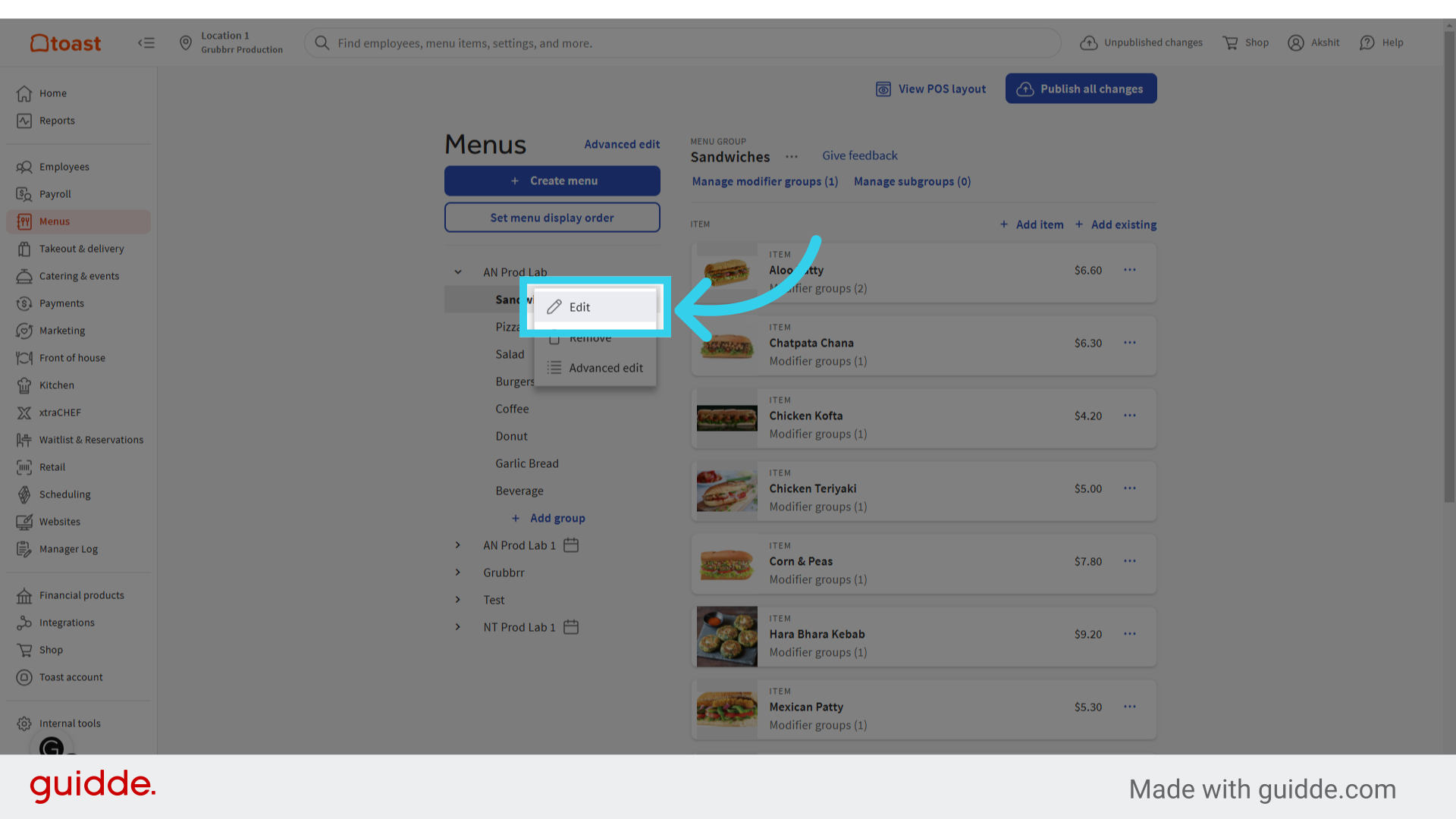
5. Click "Channel visibility"
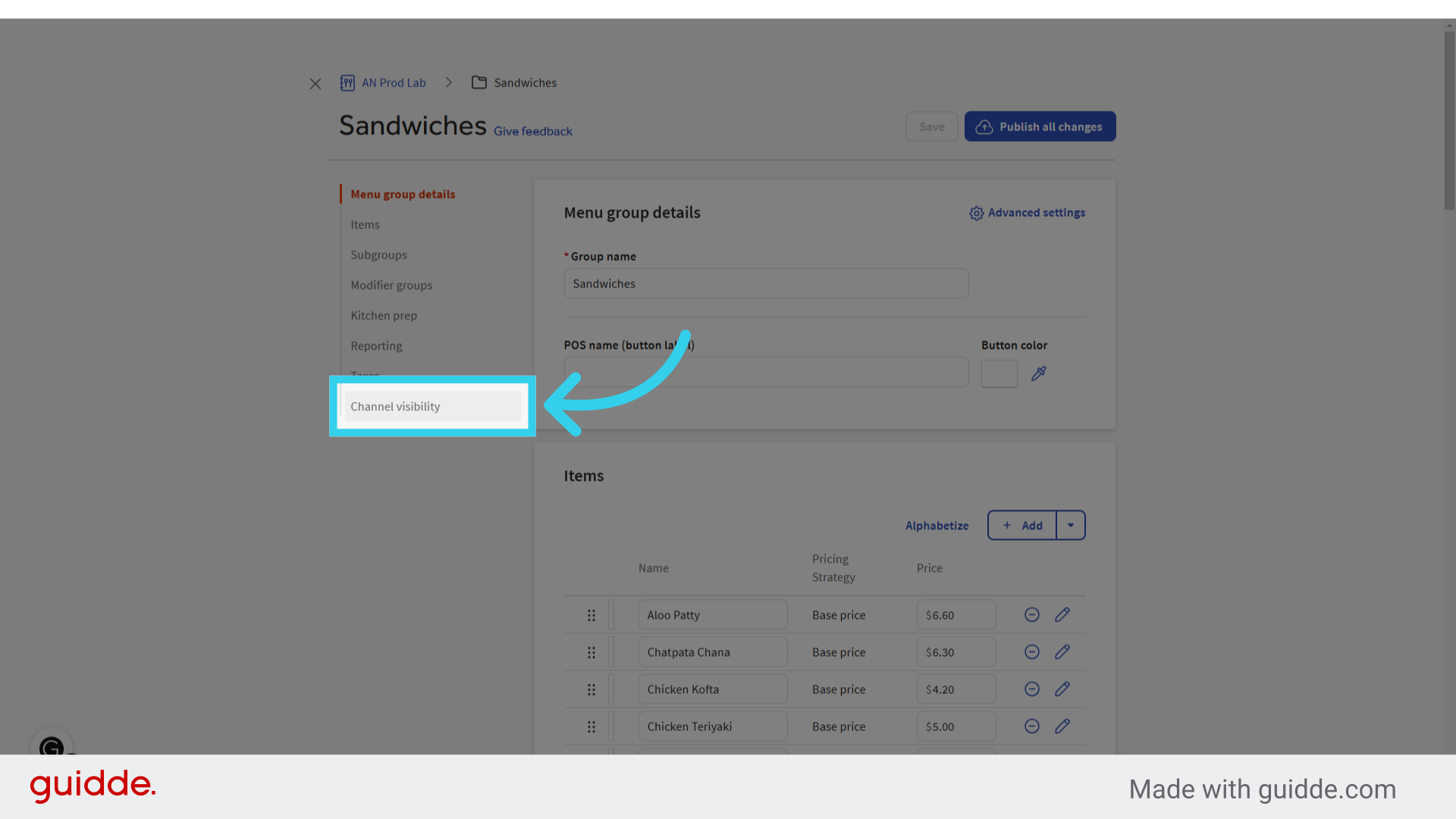
6. Make sure that the item or category is marked "On" for your Kiosk channel
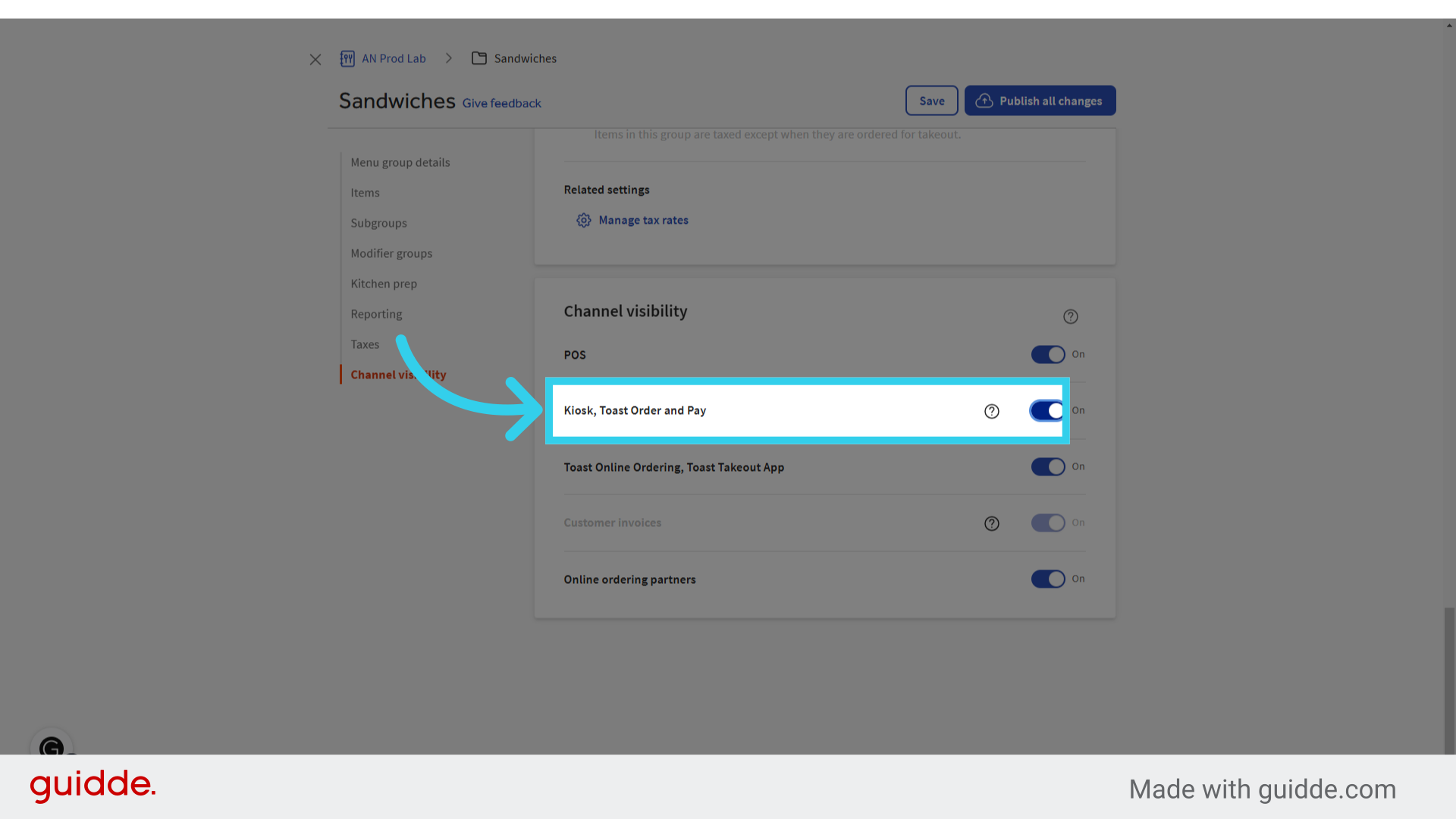
7. Click "Save"
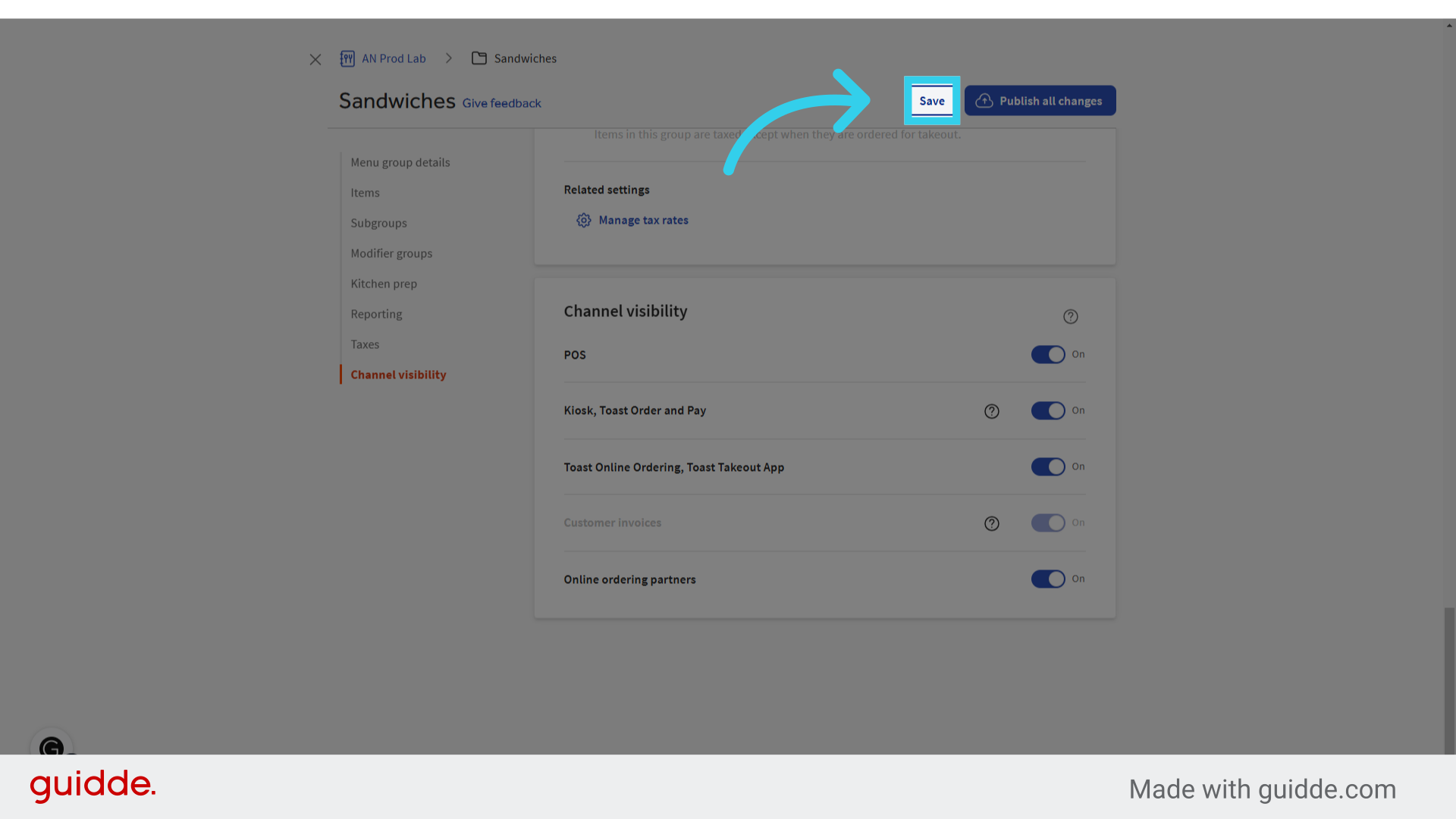
8. Click "Publish all changes"
Can GRUBBRR Pull My Store Hours from Toast?
GRUBBRR Kiosks running on version 14+ of our Kiosk Application can automatically pull any store hours you've configured in Toast, and open/close alongside your POS. For more information about setting up business hours in the Toast Portal, please check Toast's documentation here.