How to enable "Add as Is" for items in the GRUBBRR Portal
Last updated: August 8, 2026
Can customers skip modifying their items on the Kiosk?
Menu Best Practices: How to Enable the "Add as Is" Feature on your GRUBBRR Kiosk
Some guests like to add lots of customizations to the items in their cart; others can quickly become overwhelmed if they have to make too many choices during the ordering process. This "click fatigue" can create a negative ordering experience and may even cause some guests to abandon their Kiosk orders. Luckily, GRUBBRR's Kiosk makes it possible to have the best of both worlds, thanks to our "Add as is" function.
Note: Requires version 9.1 or later of the GRUBBRR Kiosk Application

We can configure this setting on an item-by-item basis in the GRUBBRR Portal by following the steps outlined below.
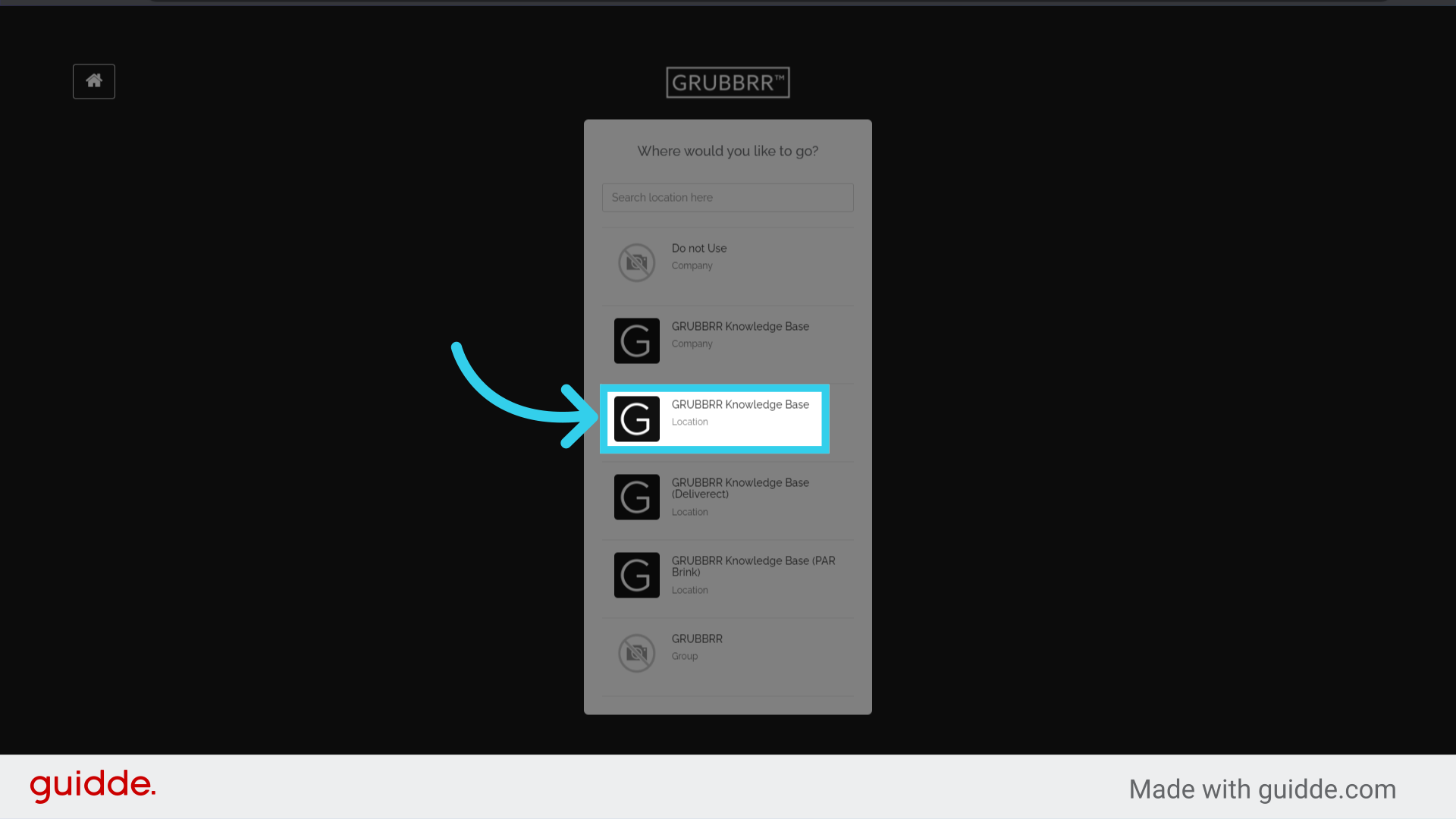
1. Sign in to the GRUBBRR Portal to manage your menu
This can be managed at the Company or Location level
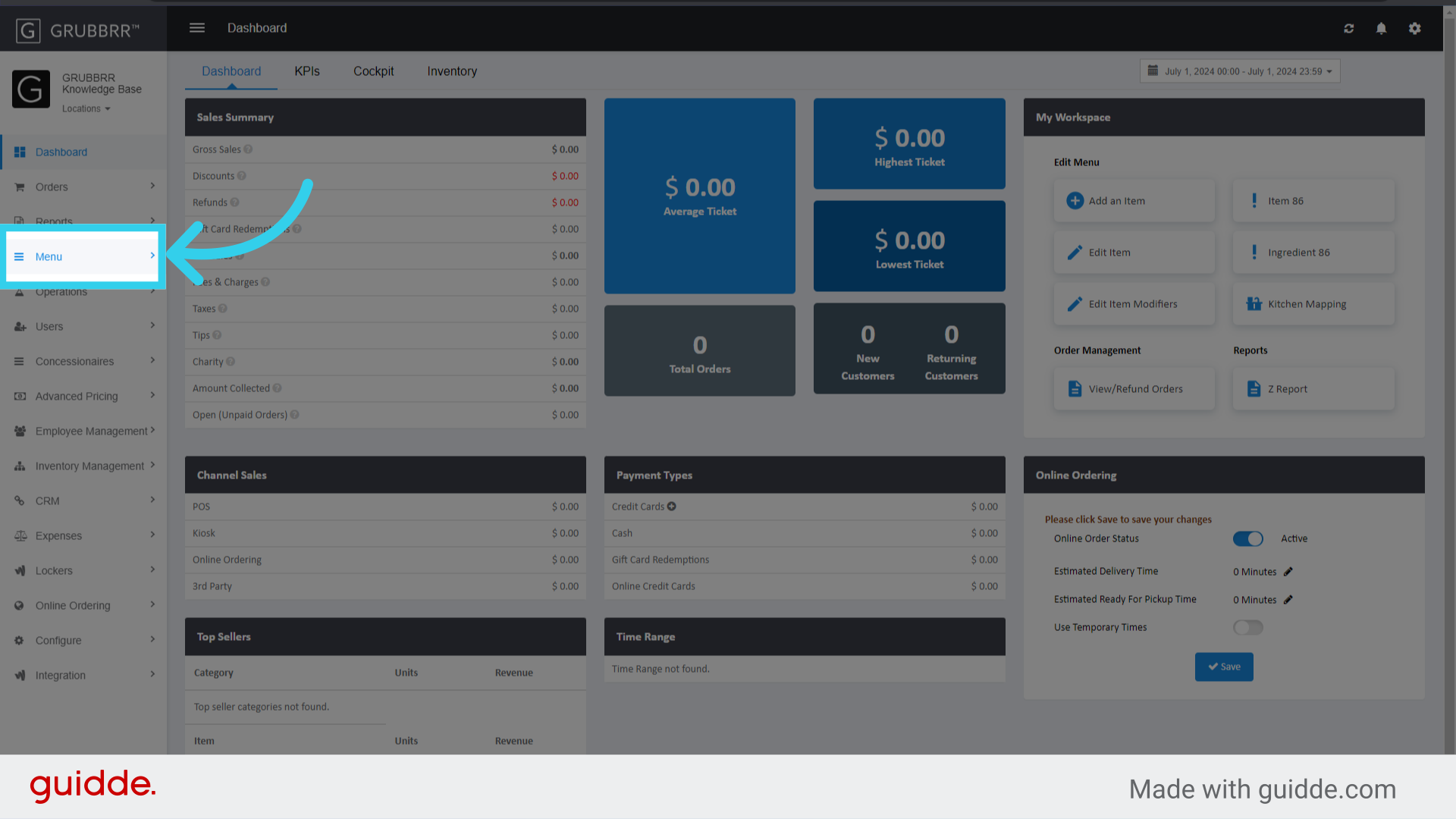
2. Click "Menu"
3. Click "Catalog Management"

4. Click "Items"

5. Click "Edit"

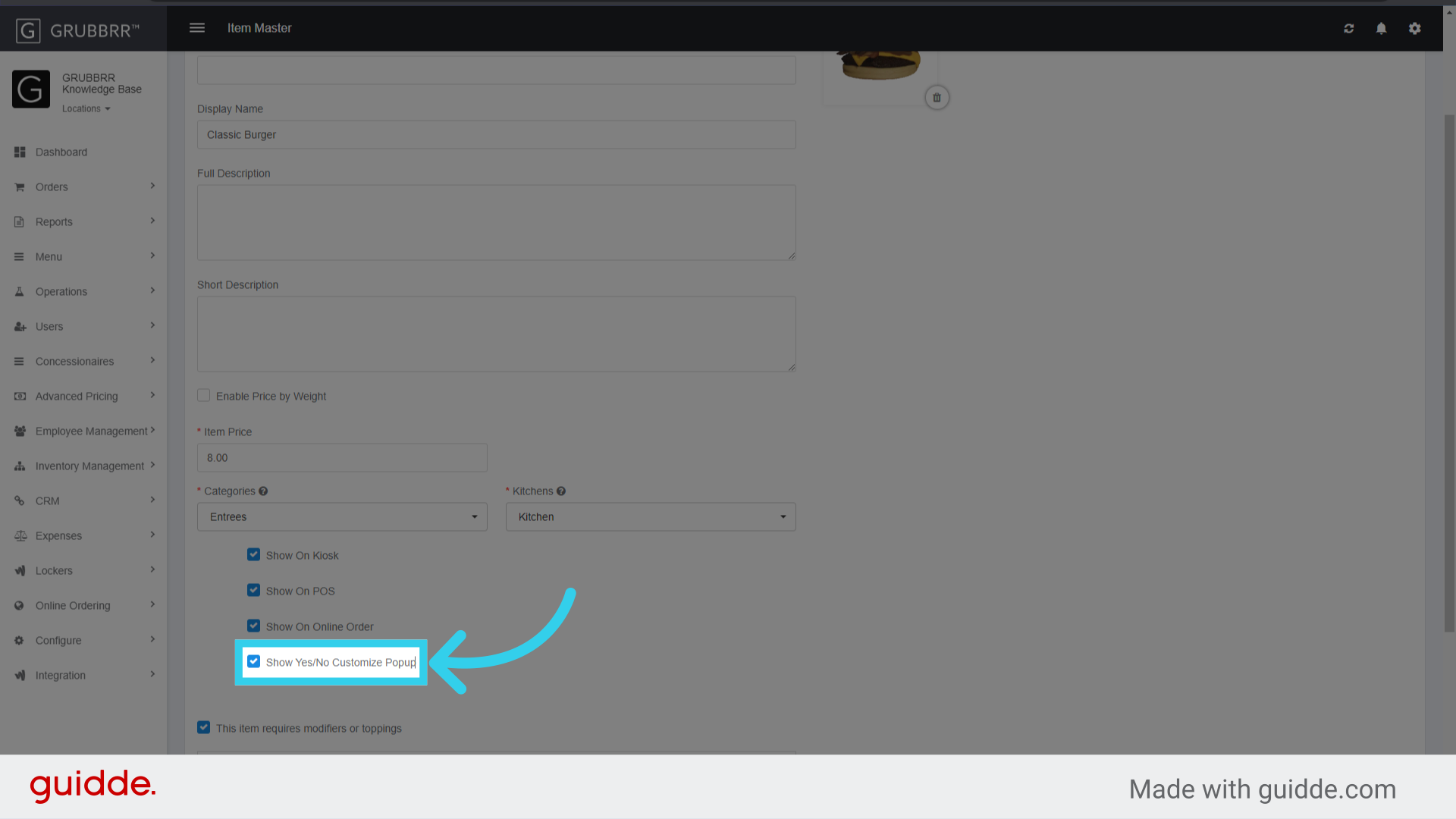
6. Enable "Show Yes/No Customize Popup"
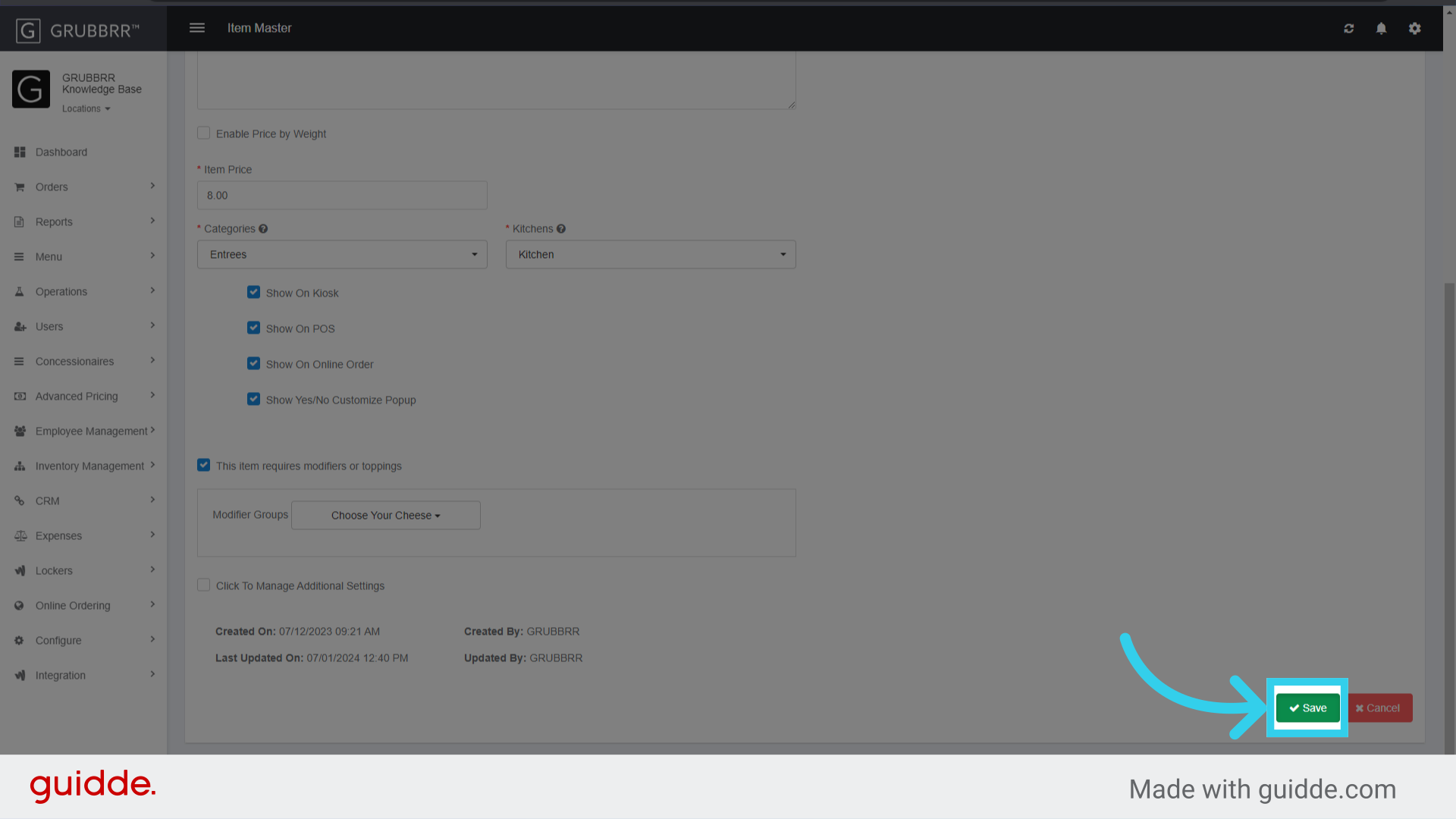
7. Click "Save"