How to Use Menu Tags in the GRUBBRR Portal
Last updated: August 8, 2026
Can the Kiosk highlight when an item includes allergens, like nuts, or alert customers that they're ordering a spicy item?
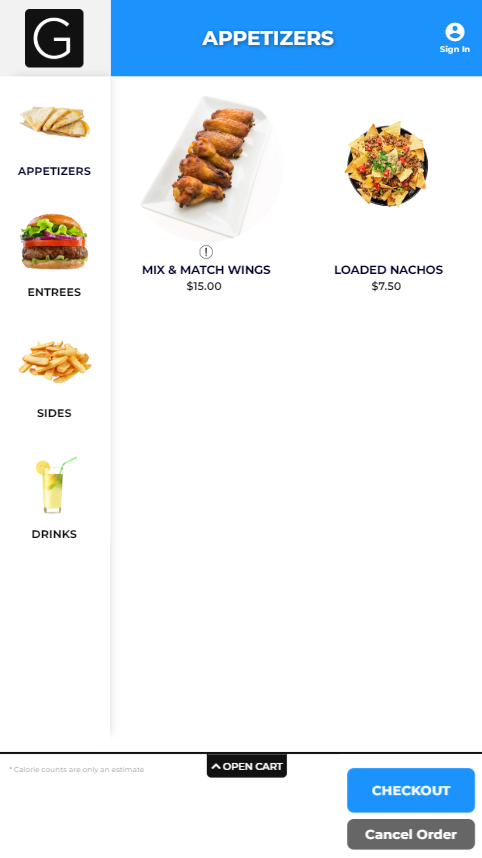
Item tags distinguish items by their characteristics, such as being vegan, gluten-free, fat-free, or vegetarian. On the GRUBBRR Kiosk, you can choose to show item tag images next to items so your customers can quickly determine information about them.
How to Create Item Tags
You can create new tags for your menu items using the Menu Manager in the GRUBBRR Portal, both for location-level and company-level menus. To create a new item tag:
- Log in to the GRUBBRR Portal, and navigate to the level where you"ll be updating your Kiosk menu (company or location)
- Select "Menu" from the left sidebar menu
- Select "Catalog Management" from the dropdown
- Select "Item Tags" from the dropdown
- Select "+Add New" in the upper right-hand corner of the screen
- Enter a name for the item tag
- Upload an icon image for the item tag
- Select "Save"
How to Activate and Deactivate Item Tags
To change the status of an Item Tag from active to inactive or vice versa, select the Status icon next to the Item Tag.
When the Item Tag's status is red, it is inactive. It can not be applied to menu items and will not display on your Kiosk. When the status is green, the Item Tag is active.
Assigning Tags to Items
Once you've created all of the tags you want to use on your Kiosk menu, you're ready to assign them to your items. To tag an item:
- Select "Menu" from the left sidebar menu
- Select "Catalog Management" from the dropdown
- Select "Items" from the dropdown
- Select "+Add New" to create a new item, or select the "Edit" icon in the Action column of the item list to update an existing item
- Select "Click to Manage Additional Settings"
- Select the applicable Item Tags from the list
- Select "Save" to apply your changes
- Repeat as needed
Showing Item Tags on the Kiosk
The Kiosk doesn't show tags for menu items by default. If you want to show
- Select "Configure" from the left sidebar menu
- Select "General Settings" from the dropdown
- Select "Kiosk" from the tabs at the top of the screen
- Select the "Show Item Tag Images" checkbox
- Select "Save" at the bottom of the page
- Select "Sync" to push the update to your Kiosk