How to manage Users & Roles in the GRUBBRR Portal
Last updated: August 8, 2026
How can I give other members of my team access to the GRUBBRR Portal?
Creating Portal Users
Access to the GRUBBRR Portal is managed through users and roles. We give users access to the company or location level and then assign them roles to control which features/settings they can access. To create a new user, sign in to the GRUBBRR portal at the appropriate level, then follow the steps outlined below.
1. Click "Users"

2. Click "User List"
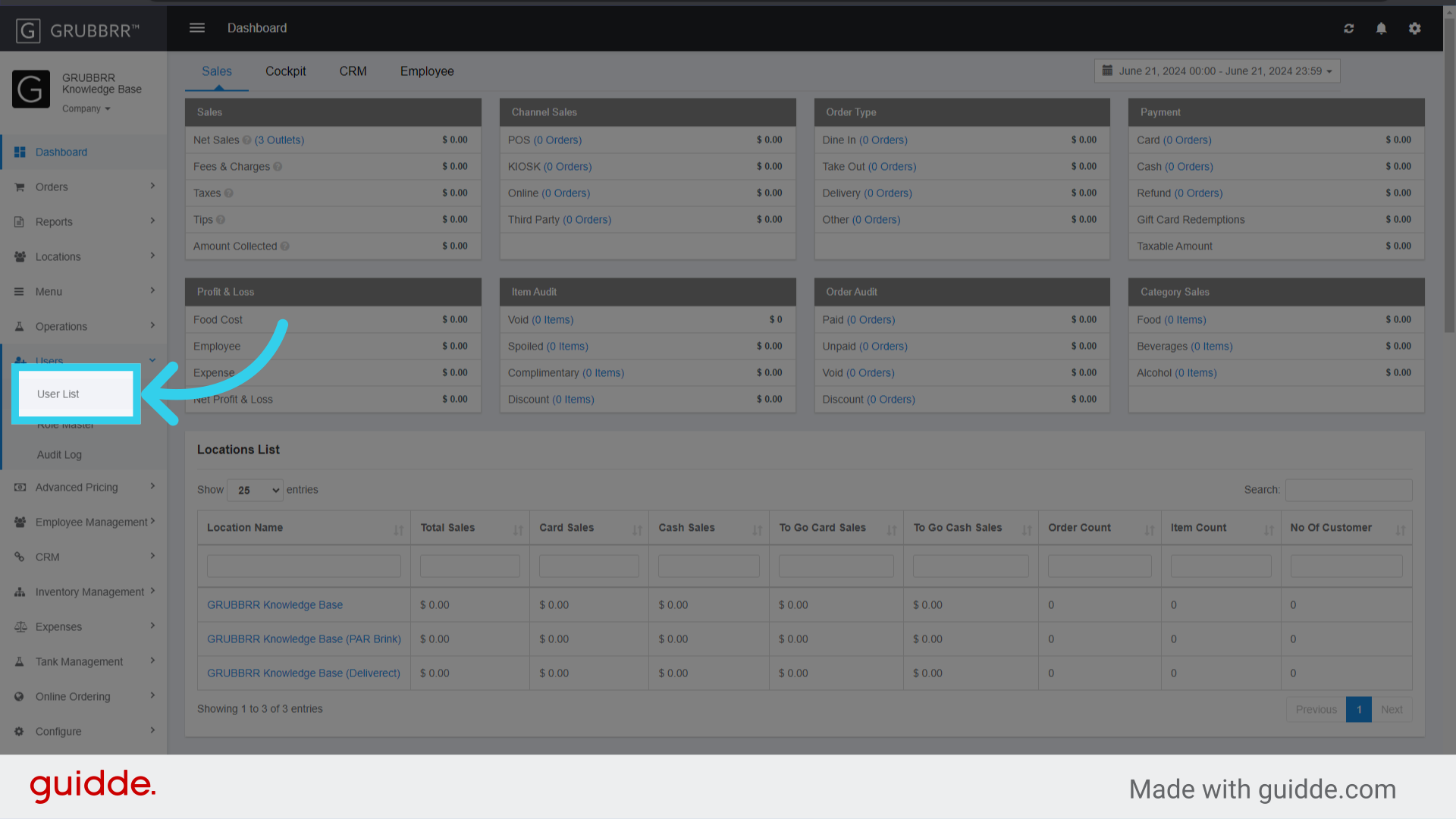
3. Click "Add New"
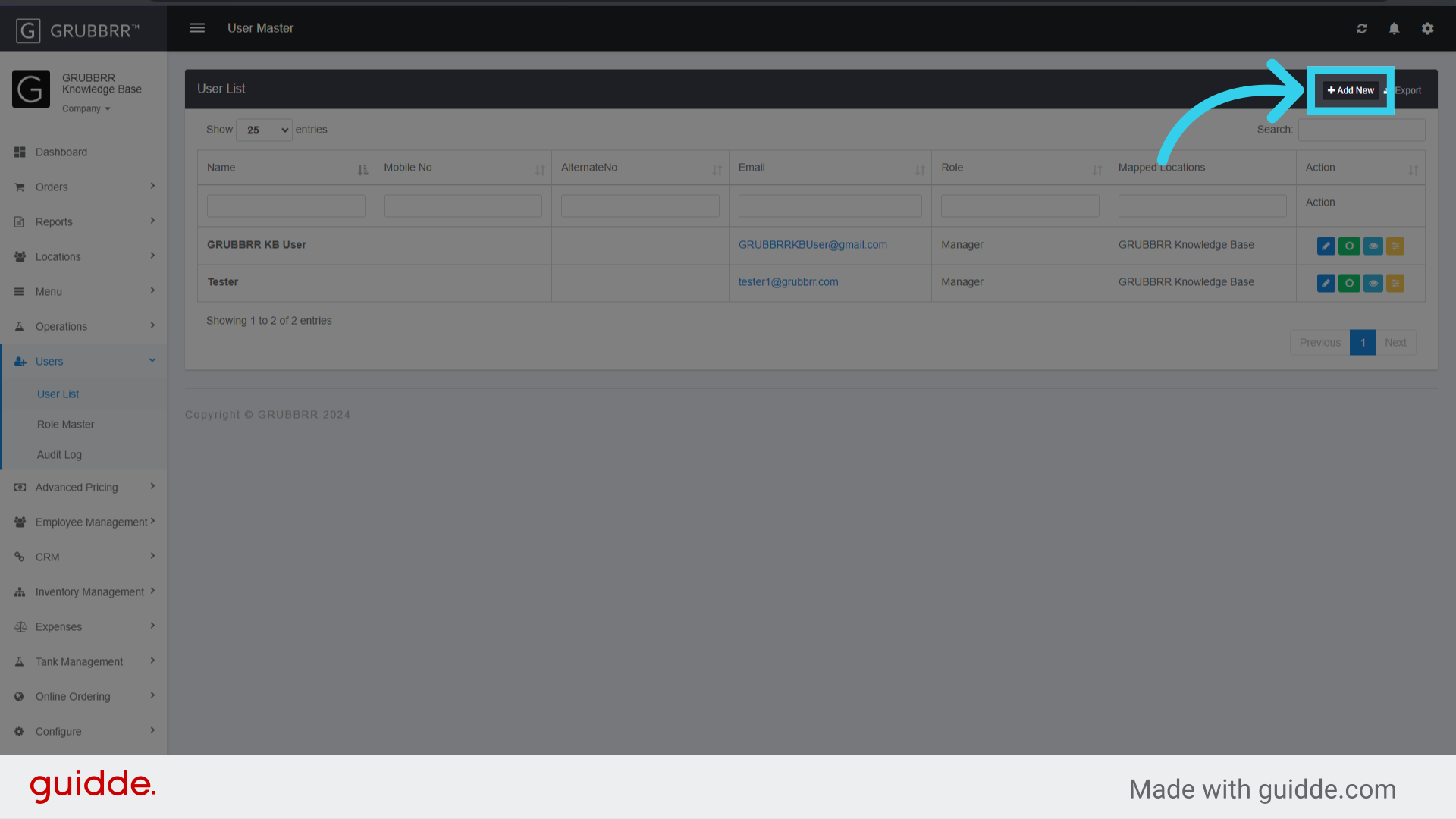
4. Enter a name for the user
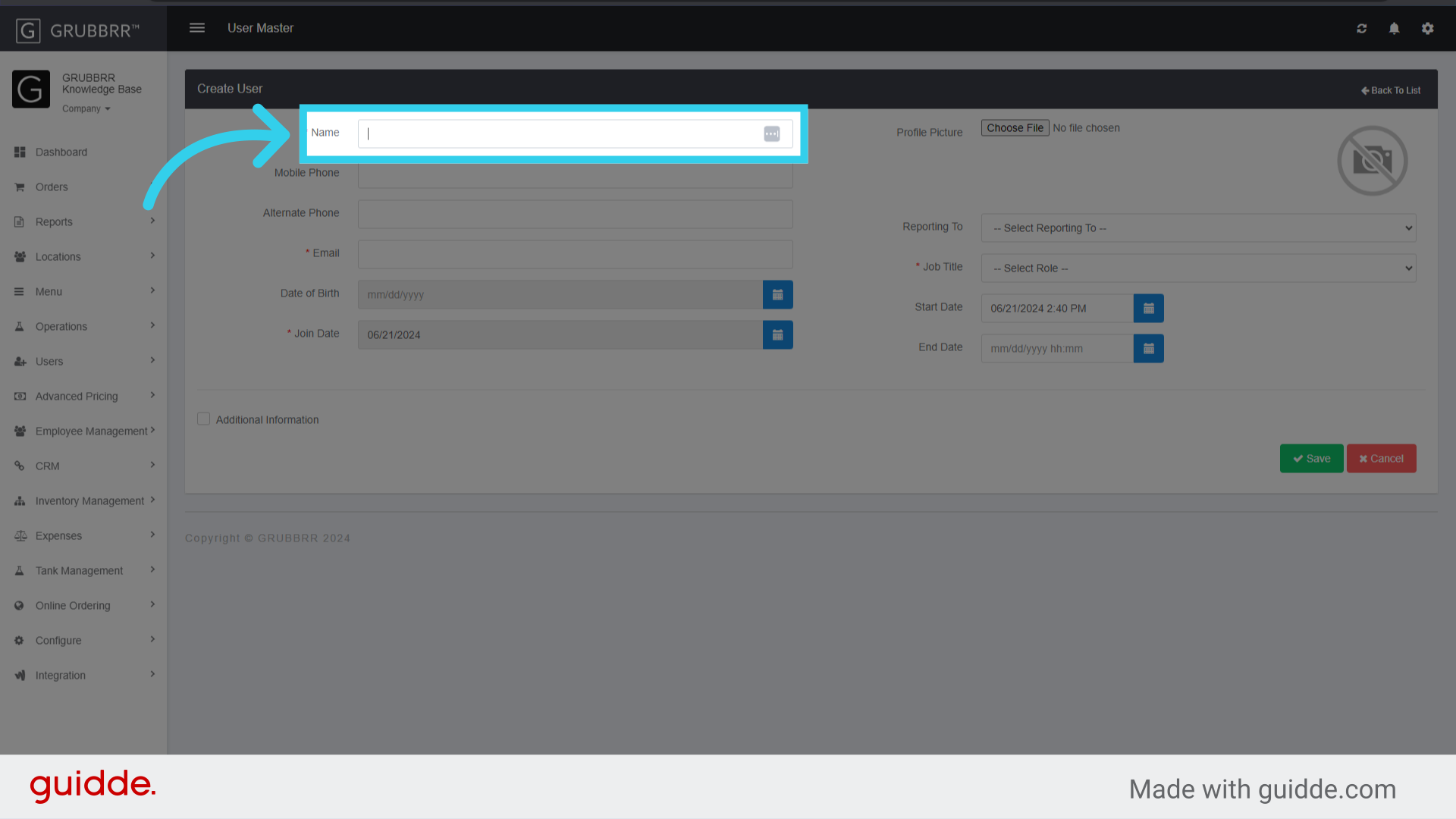
5. Enter an email for the user
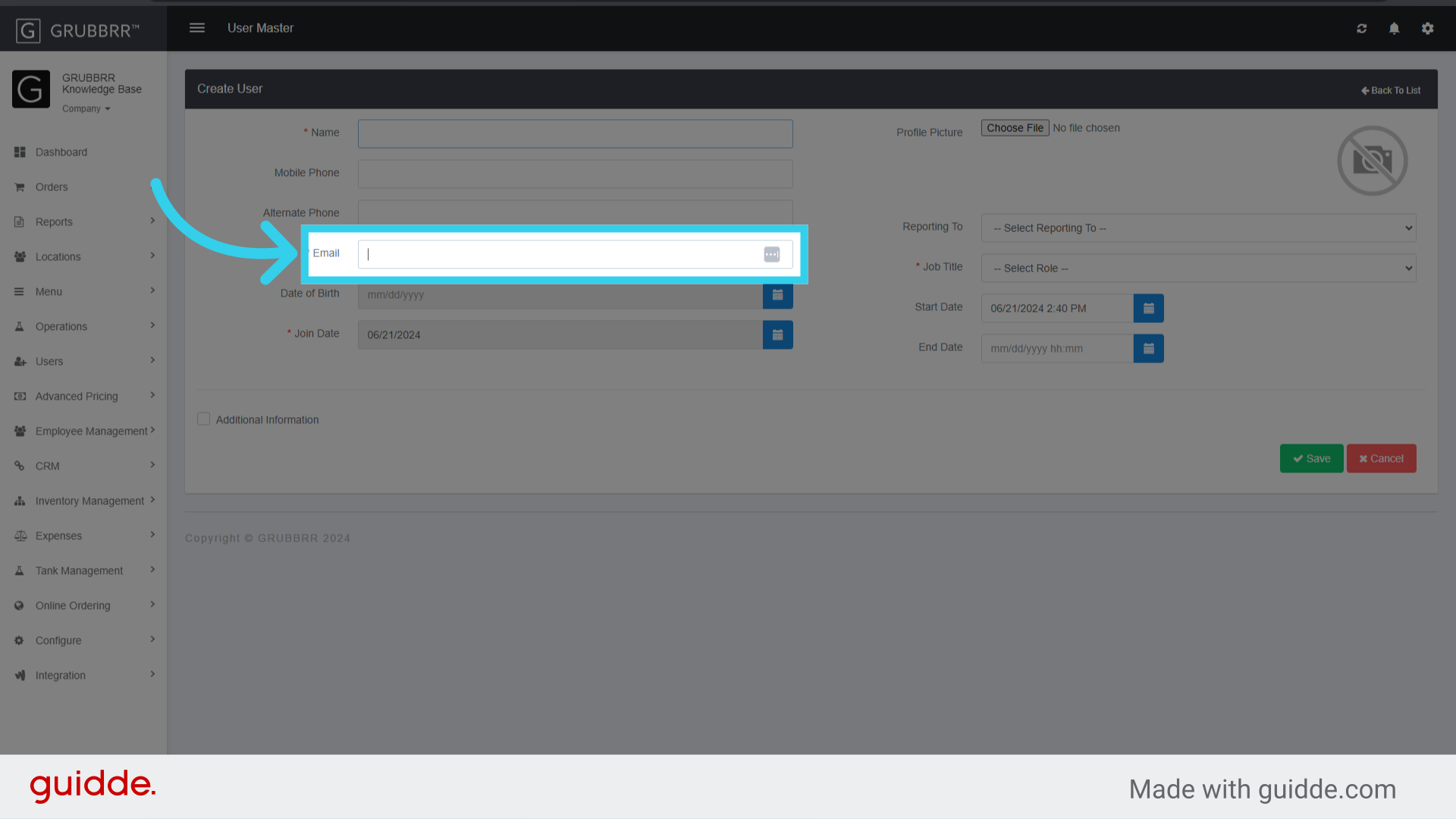
6. Select the user's role from the dropdown

7. Click "Save" to apply your changes

Managing User Roles
Roles determine a user's permissions in the GRUBBRR Portal; if a client desires, we can create different User permission sets for their company's employees. If the Onboarding Questionnaire does not include any users, you can skip to the next section.
1. Click "Users"

2. Click "Role Master"

3. Click "Add New"
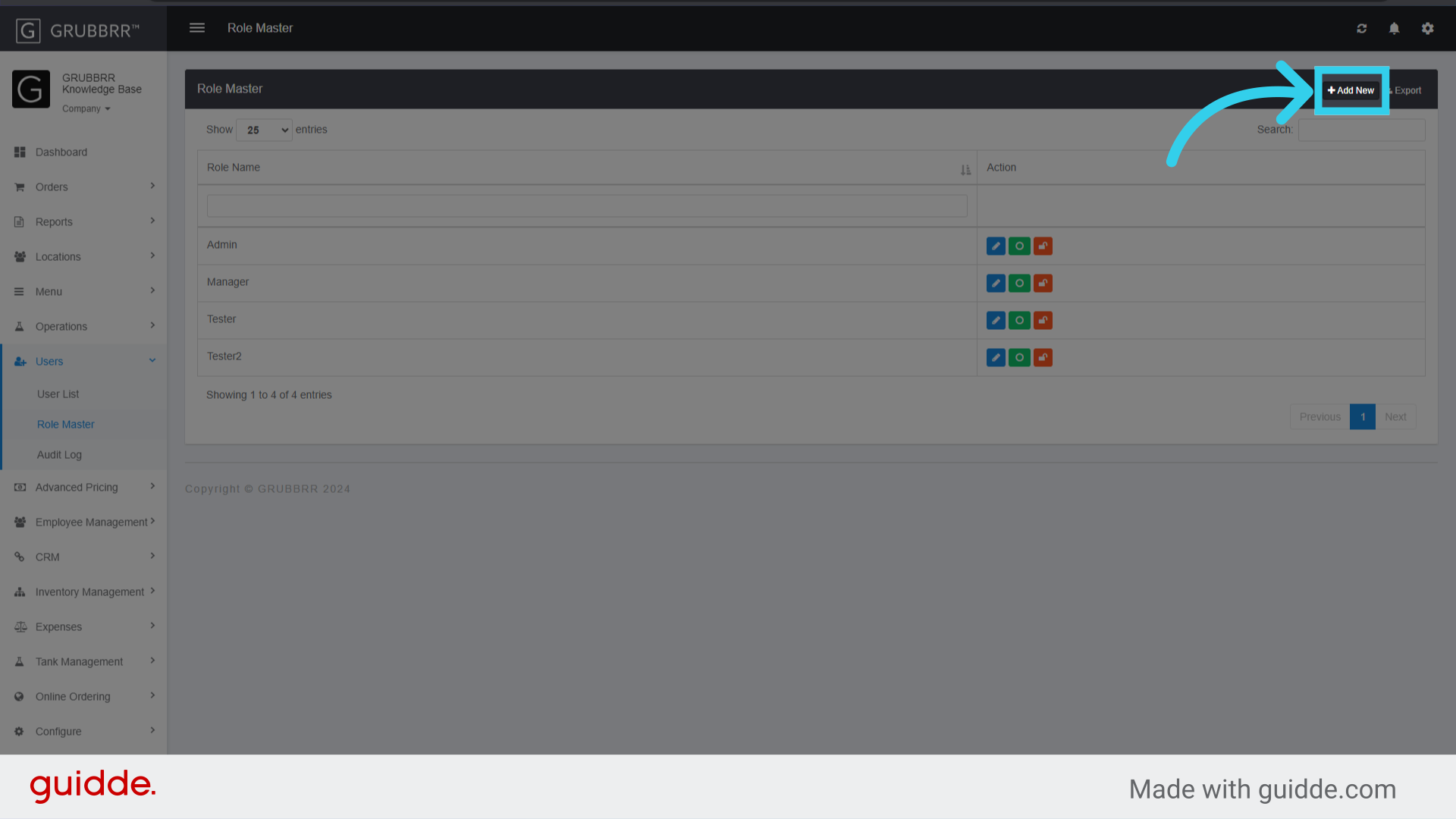
4. Enter a name for the role

5. Click "Save"

6. Click "privileges"

7. Grant the user access to the required features/settings, then click "Save"

Available User Settings
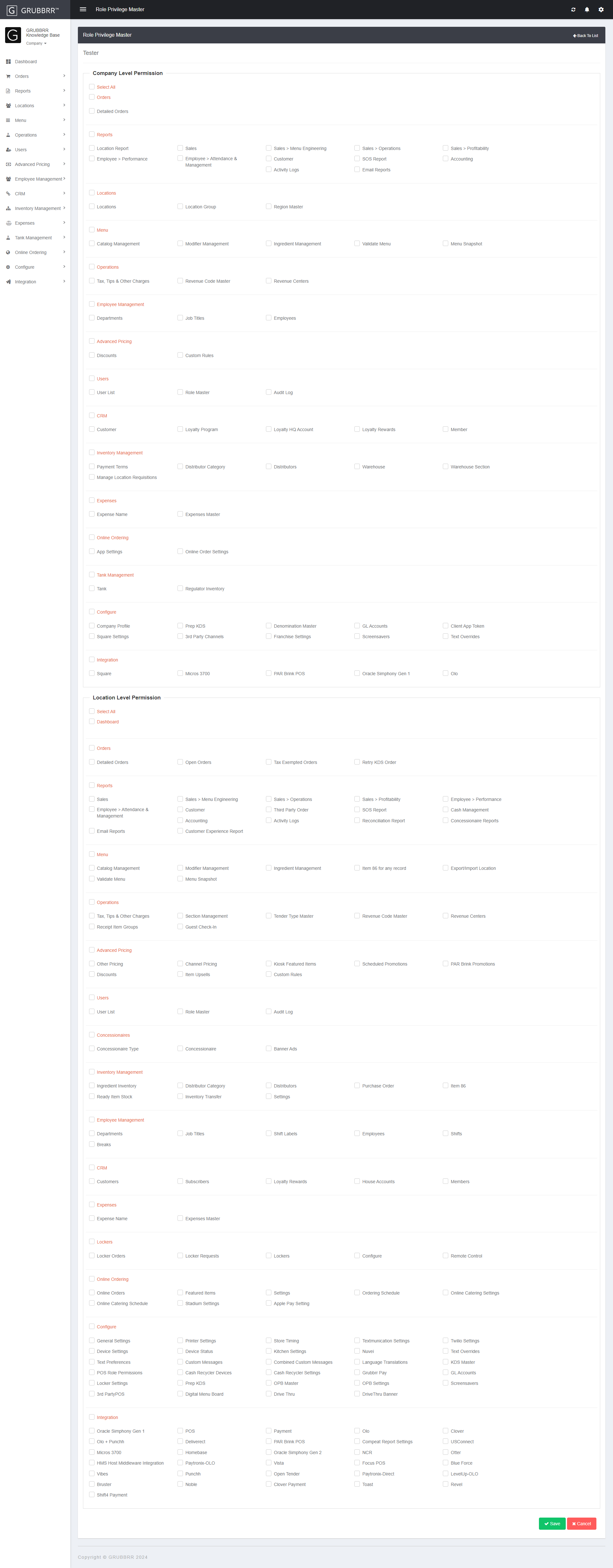
The image below provides a detailed list of role permissions available in the GRUBBRR Portal. For a more detailed look, right-click the image and select "Open Image in New Tab" to see it in full-scale.