How to set up Default Modifiers in the GRUBBRR Portal
Last updated: August 8, 2026
Can I "preselect" or recommend modifiers for items on my standalone Kiosk menu?
Menu Best Practices: Setting Default Modifiers
When we mark a modifier as "default," it tells the Kiosk to automatically include it when a guest adds an associated item to their cart. For example: lettuce, tomato, onion, and pickles make good default modifiers for a burger, since we assume that many people ordering a burger will want these toppings. When this setting is enabled, guests can choose to opt out of any ingredients they don't want, rather than needing to opt into each modifier with every order.
The major advantage of configuring default modifiers in the GRUBBRR Portal is that it significantly reduces the number of clicks required for guests to complete their orders, making the process faster and more convenient. That's why GRUBBRR recommends mapping default modifiers for items with many customization options and a recognizable "base" that guests commonly order.
You can map default modifiers through the Common Modifier or Item Modifier interfaces by following the steps outlined below.
Setting Default Common Modifiers
1. Click "Menu"
Remember, the menu can be configured at the Company or Location level. Make sure to sign in to the correct level in your portal!

2. Click "Modifier Management"
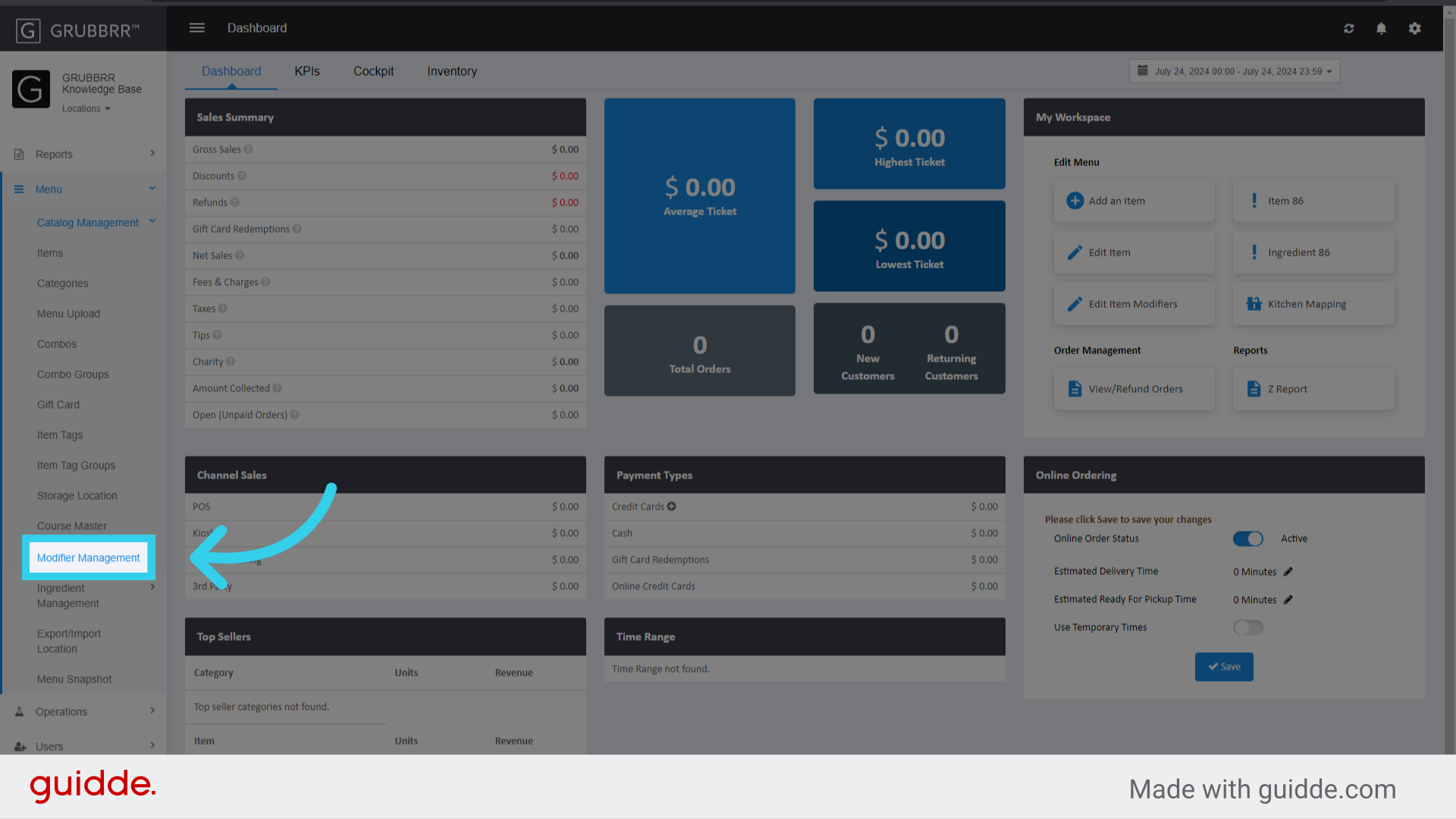
3. Click "Common Modifiers"
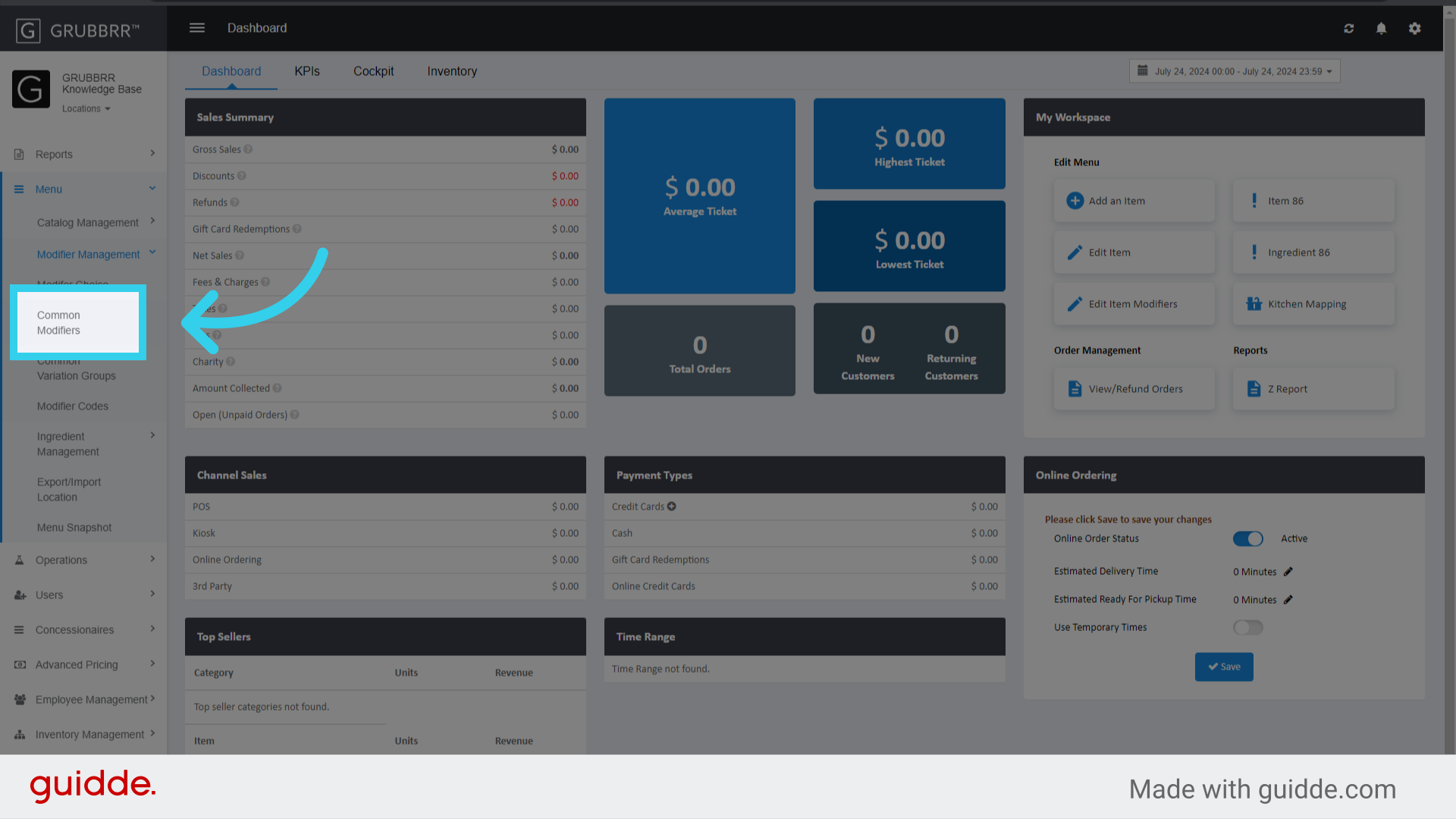
4. Click "Edit"
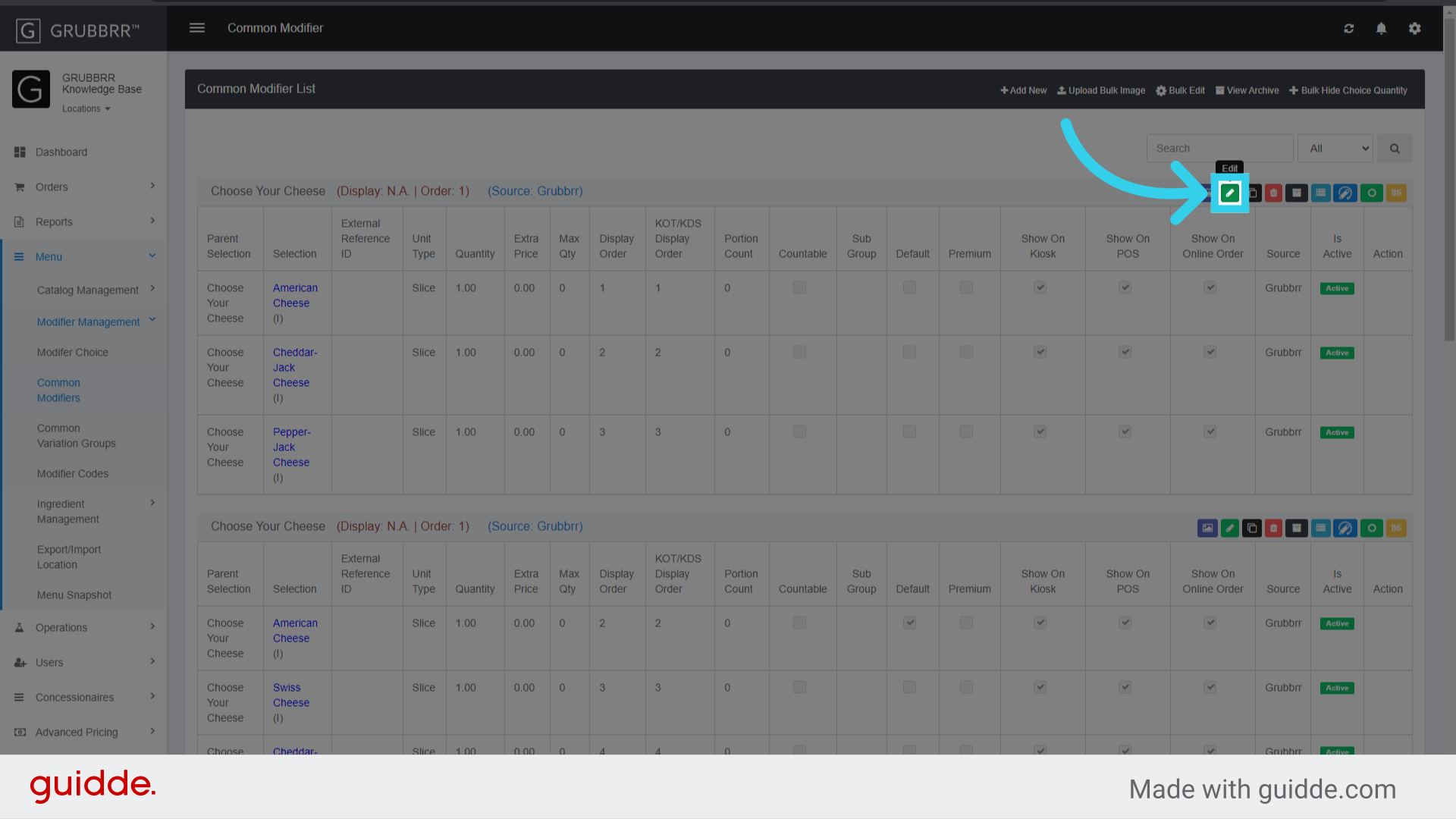
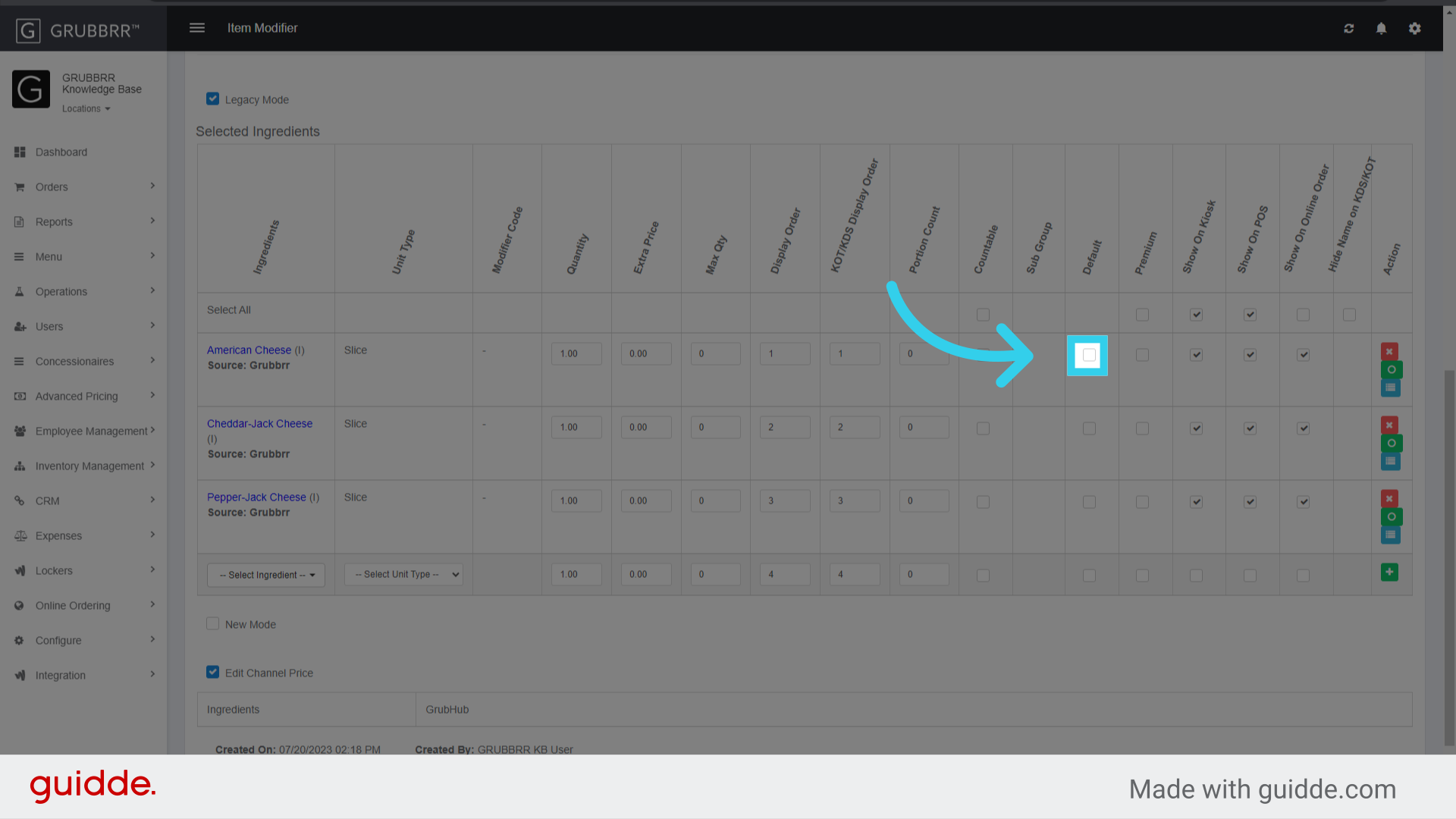
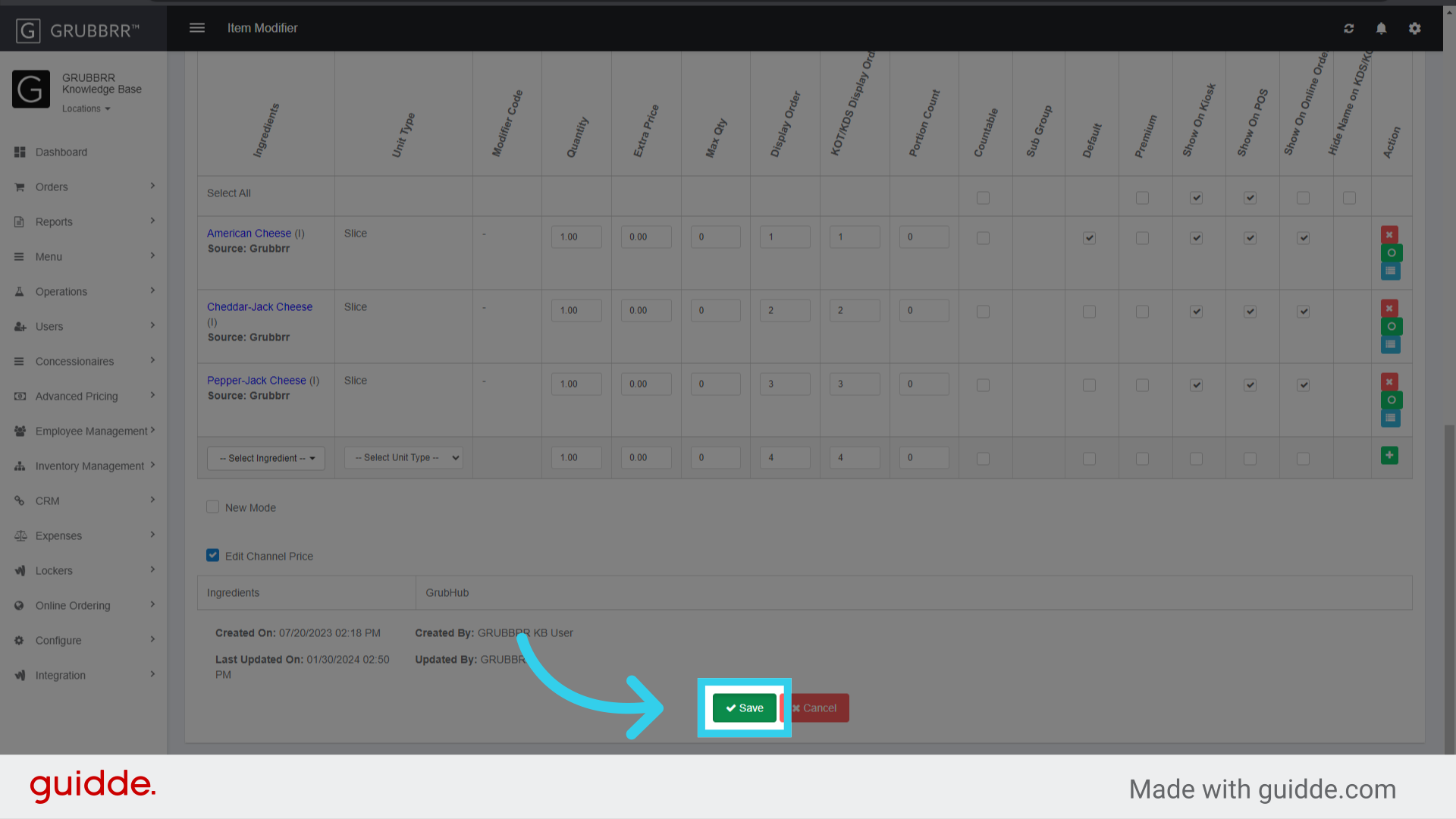
5. Click here to mark the modifier(s) in this group as "default"
You can mark as many default modifiers as you like, up to the "max selection" allowed by your modifier group
6. Click "Save"
Setting Default Item Modifiers
1. Click "Menu"

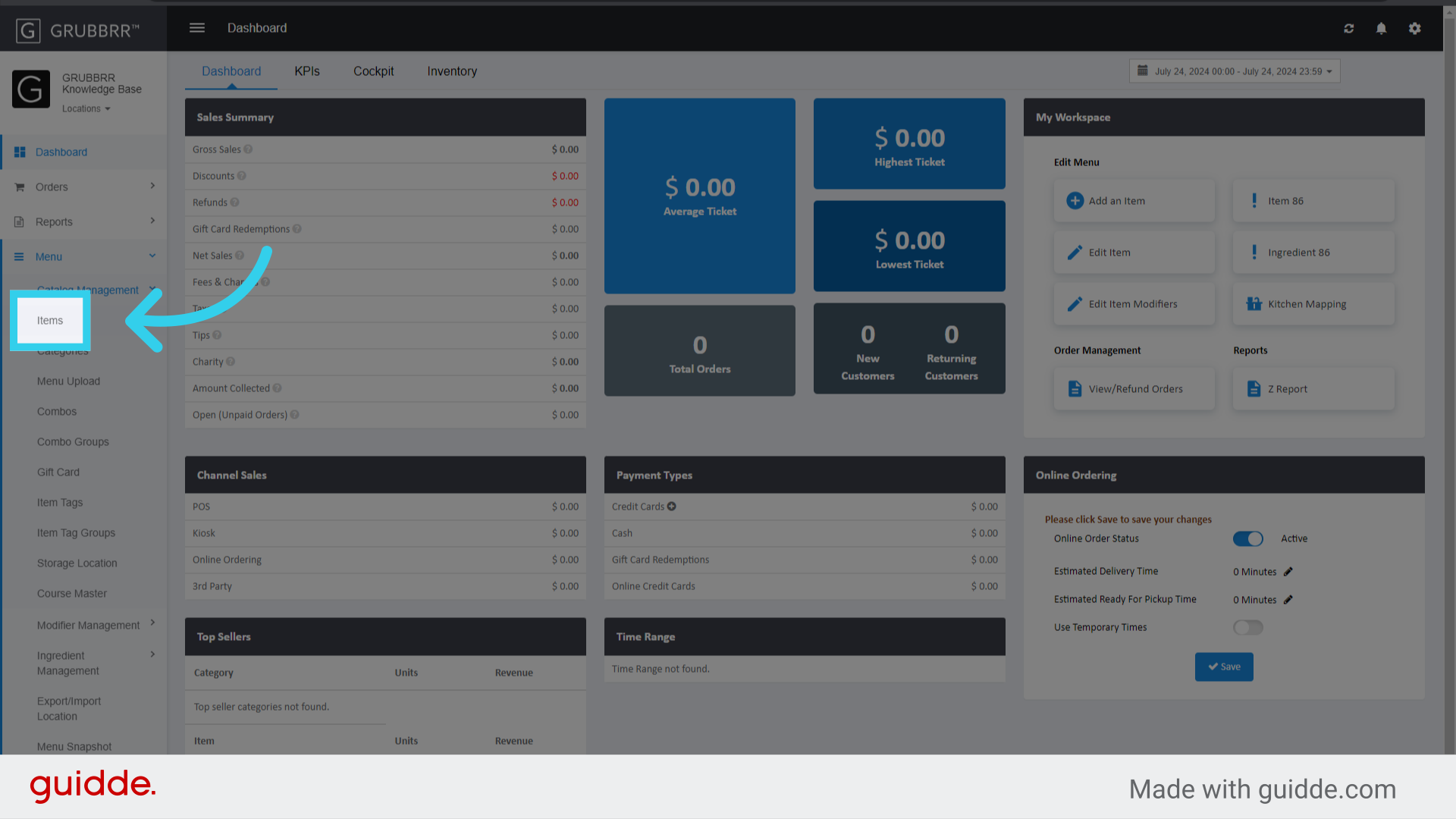
2. Click "Catalog Management"

3. Click "Items"
4. Click "Manage Modifiers"

5. Click "Edit" on the modifier group you want to edit

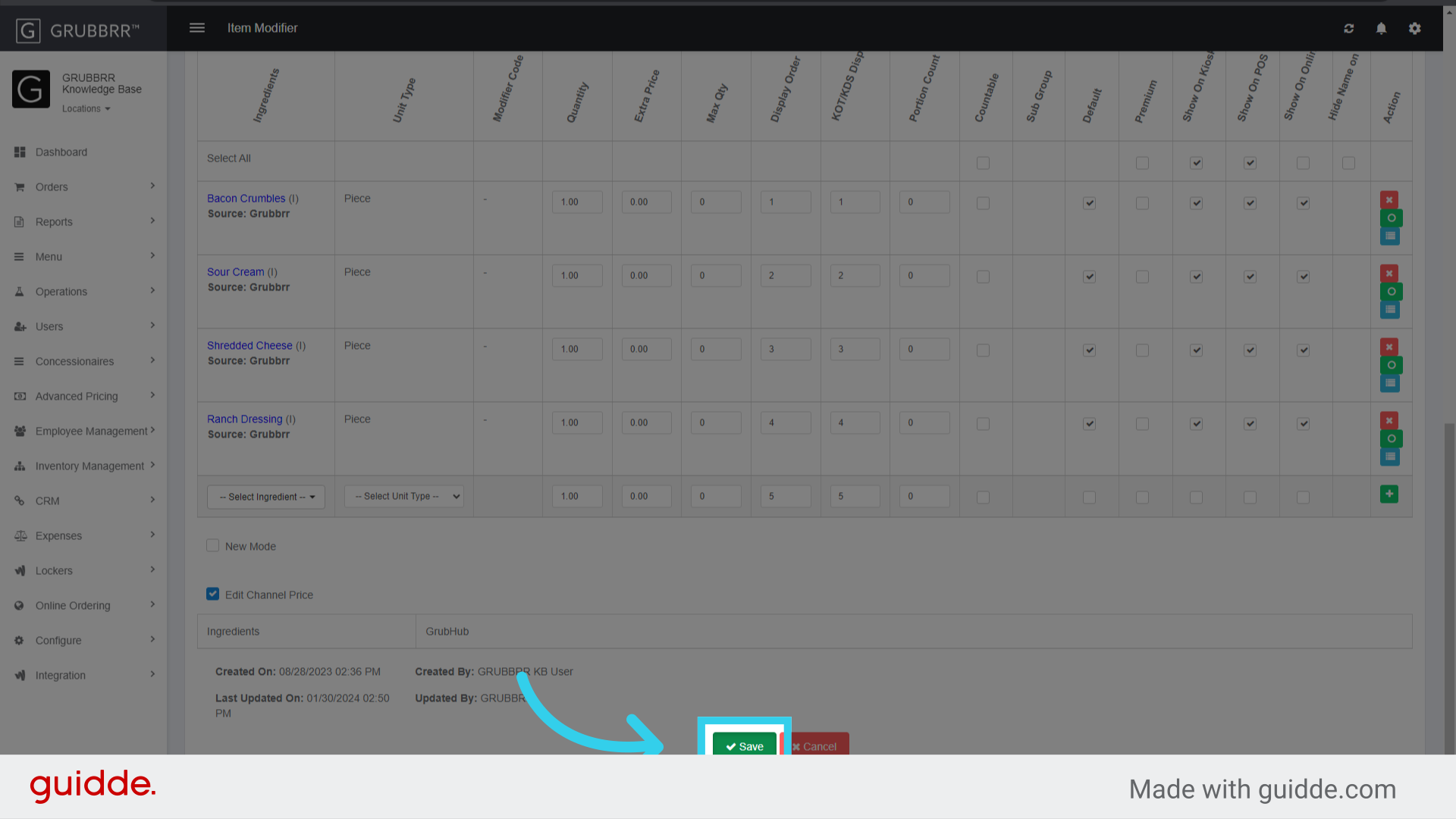
6. Click here to mark the modifier(s) as "default"
You can mark as many default modifiers as you like, up to the "max selection" allowed by your modifier group

7. Click "Save"
8. Remember to click "Sync" to push changes to your Kiosk!
