How to add Barcodes to Menu Items in the GRUBBRR Portal
Last updated: August 8, 2026
I'm using my Kiosk as a self-checkout solution; how do I add barcodes to my items?

If you want to use your Kiosks as a self-checkout solution, you will need to add barcodes for all relevant items through the Portal's menu manager. This functionality is available for companies using Company-level or location-level menu management; for this guide, we'll be managing the menu at the location level.
Go to portal.grubbrr.com
1. Click "Menu"

2. Click "Catalog Management"

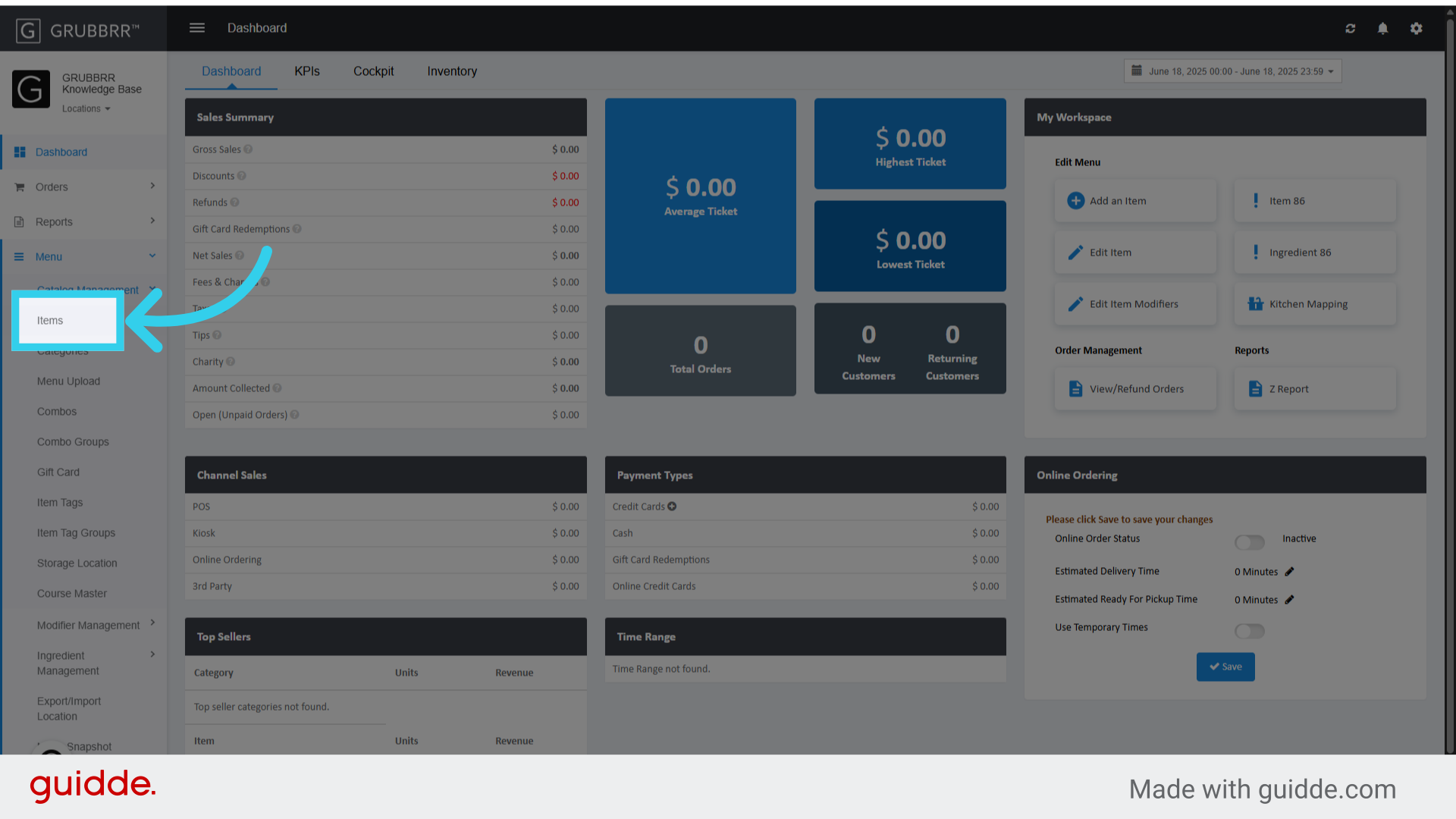
3. Click "Items"
4. Find the item you want to update, and click "Edit"

5. Click here to open the Additional settings menu

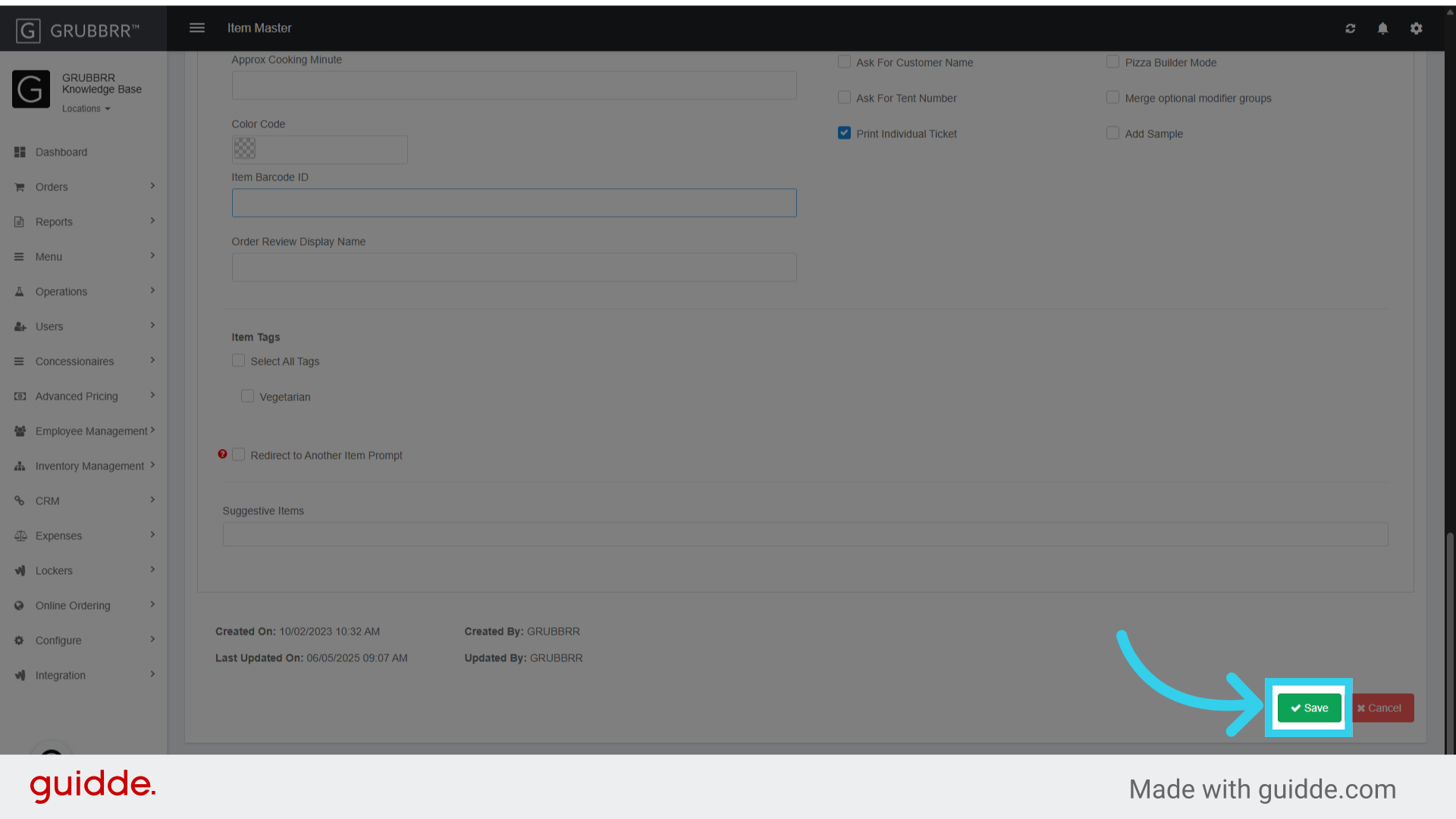
6. Enter the item's full barcode here
If you leave out any numbers from the barcode, the Kiosk will not be able to scan the item.

7. Click "Save" to apply your changes
8. And click "Sync" to push your new configurations to the Kiosk
