How to Add Custom QR Codes to your Kiosk Receipts in the GRUBBRR Portal
Last updated: August 8, 2026
Does GRUBBRR offer customer engagement tools that I can use after a customer finishes ordering on the Kiosk?
With GRUBBRR's receipt customization, you can add a custom Bar- or QR code to receipts printed from your GRUBBRR Kiosk. This is a powerful tool to build customer engagement with your self-ordering solution. Want to give guests a quick-and-easy way to sign up for loyalty? How about offer a coupon to incentivize customers to come back and use the Kiosk again? Maybe you just want to link to your brand's social media? If any of these sound appealing, you can enable customizations to your receipts by completing the steps outlined below.
1. Sign in to the GRUBBRR Portal at the Location level

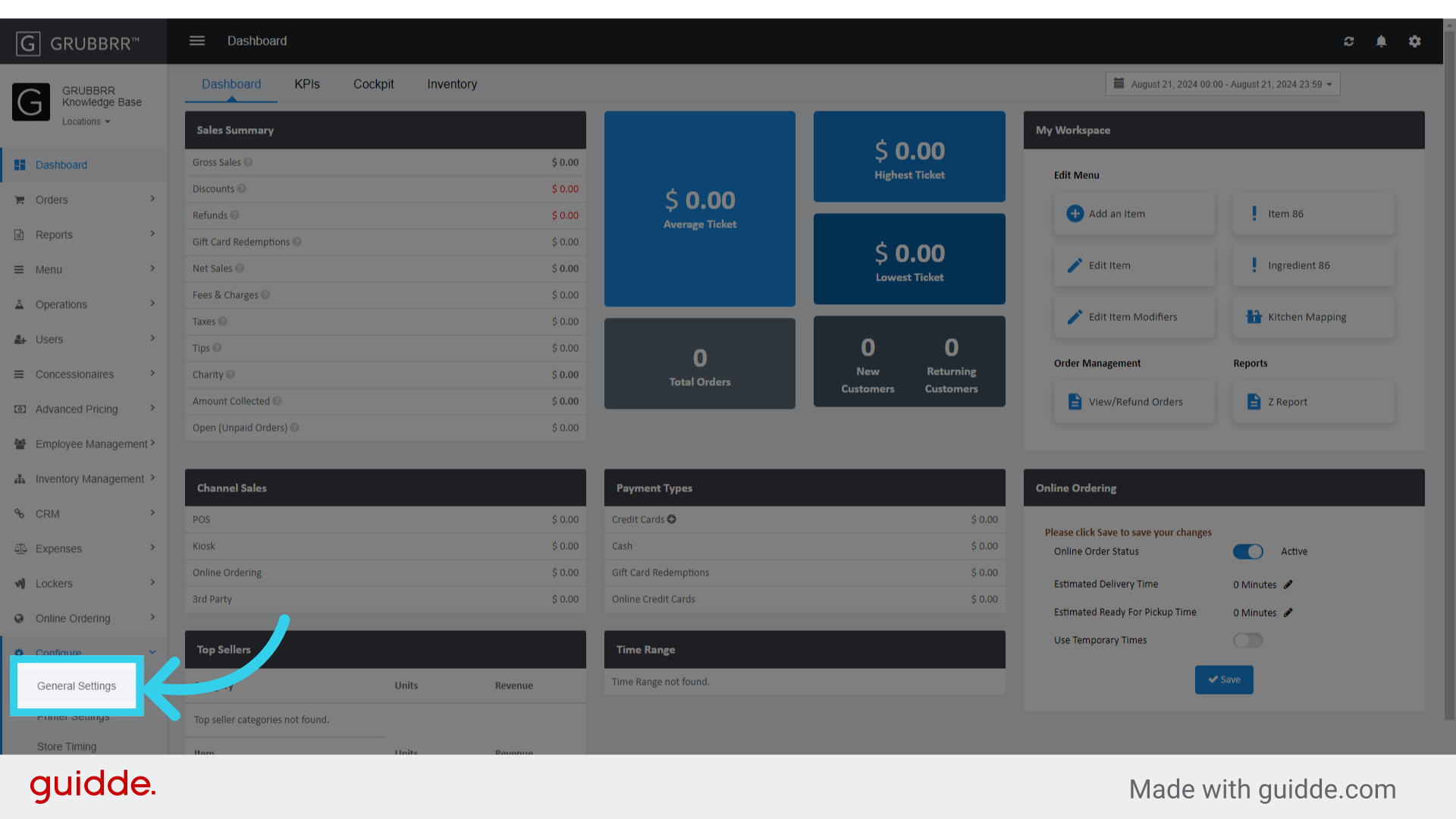
2. Click "Configure"

3. Click "General Settings"
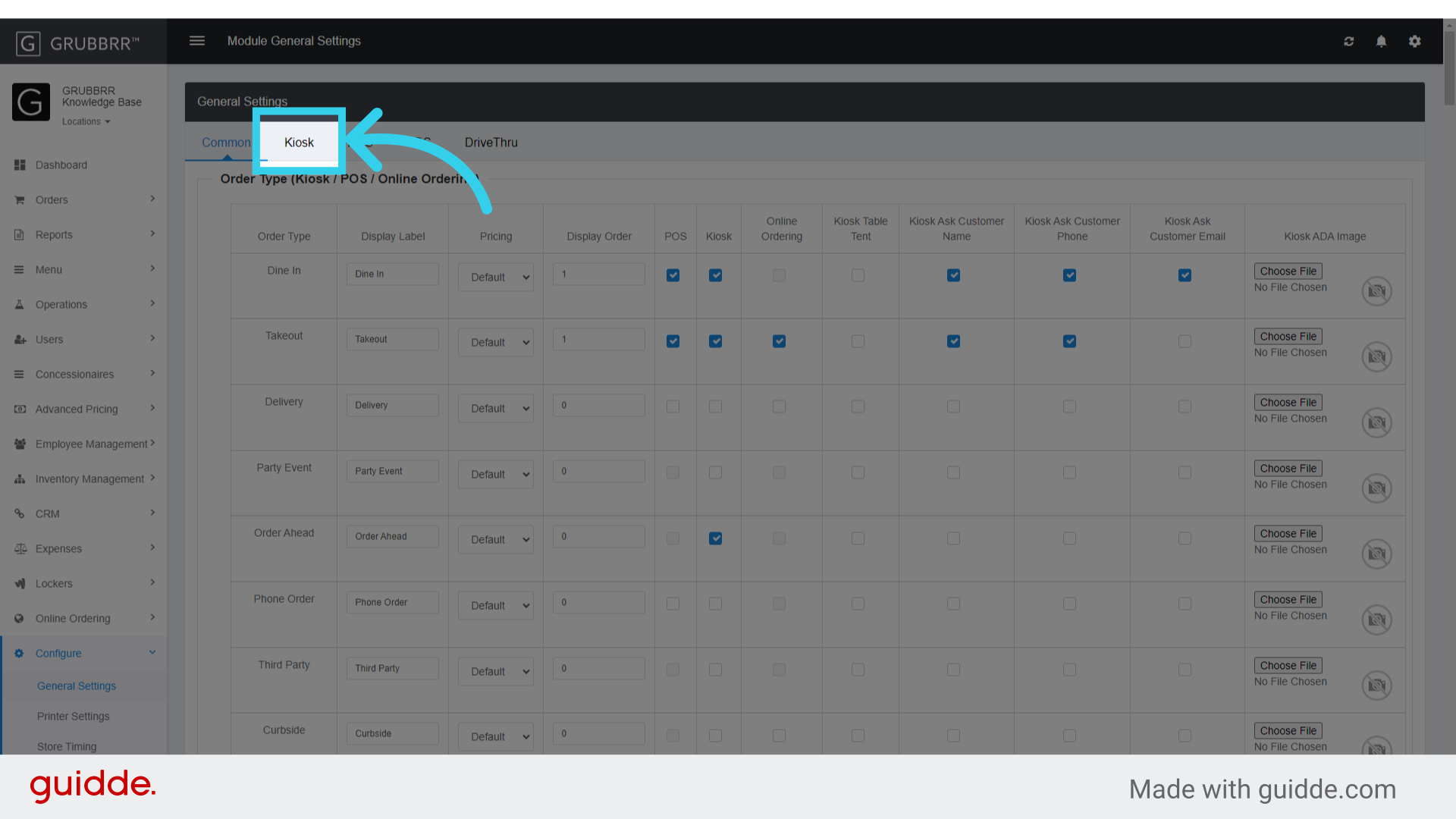
4. Click "Kiosk"
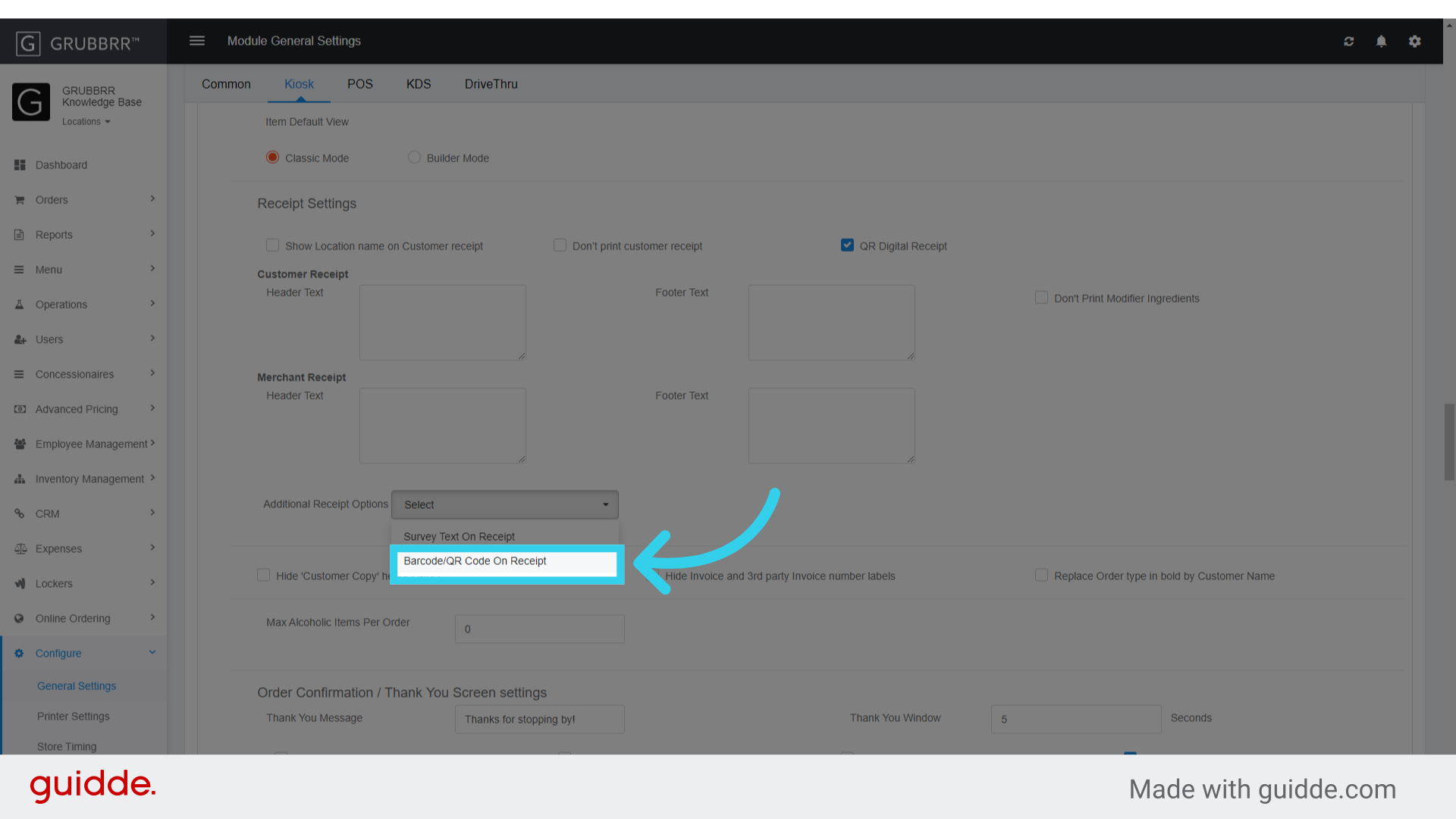
5. Scroll or Search for the "Receipt Settings" section

6. Click the "Additional Receipt Options" dropdown

7. Click "Barcode/QR Code On Receipt"
8. Selectwhether your receipts will show a Bar- or QR Code

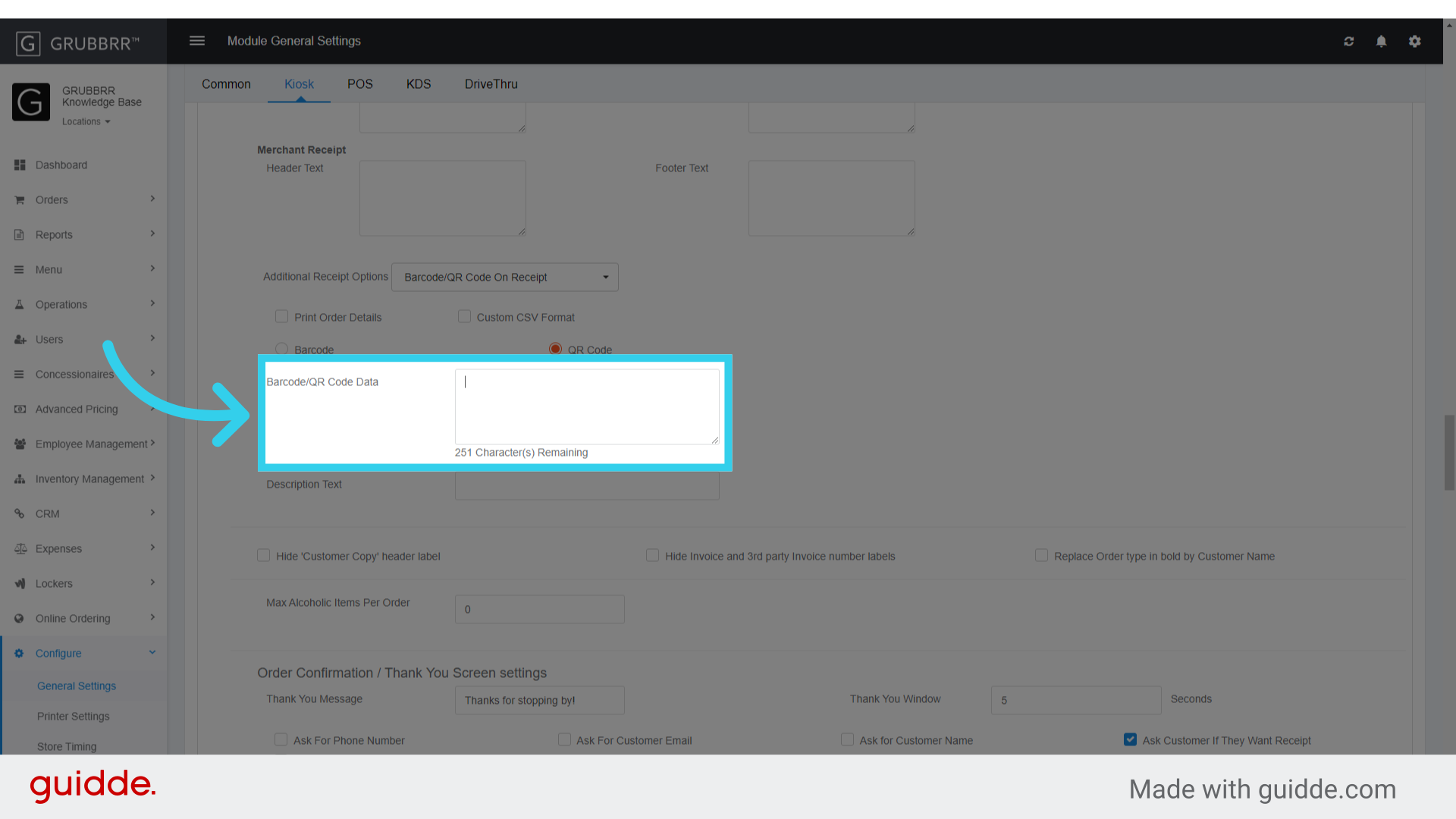
9. Enter the data to include in the receipt code
Generally, this will be a web link - whether to your social media, loyalty sign up, etc.
10. Enter a description to let customers know what the code does

11. Click "Save"

12. Click "sync" to push changes to your Kiosks
