How to Find/Edit Access Codes for the Kiosk in the GRUBBRR Portal
Last updated: August 8, 2026
Why do I need an Access Code for my Kiosk? How do I use it?
The GRUBBRR ecosystem requires access codes for logging in and out of devices. Access codes are also used on the POS for opening and closing tills, opening the cash drawer, and other functions. On the kiosk, you can access settings and reporting by tapping the logo on the screensaver 5 times and then entering an access code.
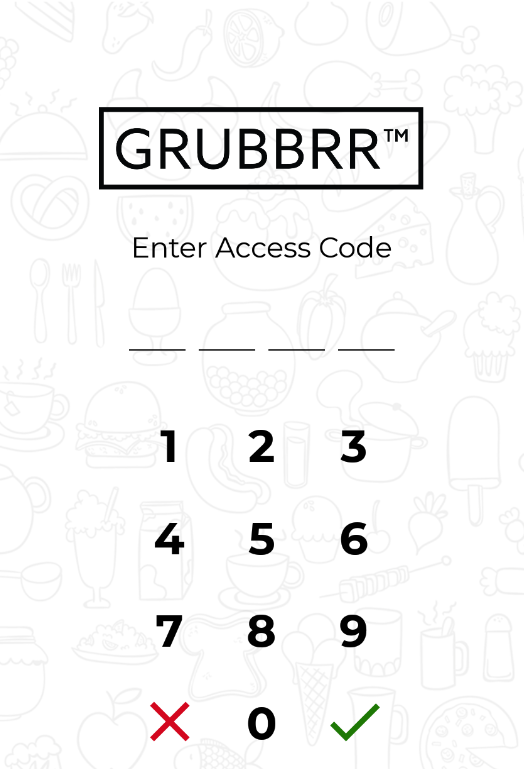
When you receive your GRUBBRR products you will already have at least one access code configured. You can change your access code or add additional codes from the GRUBBRR Portal.
Adding or Changing Access Codes
GRUBBRR creates access codes for "Employee" Accounts, which are configured through the GRUBBRR Portal. To add or edit access codes, follow the steps outlined below.
1. Sign into the Portal at the Location level

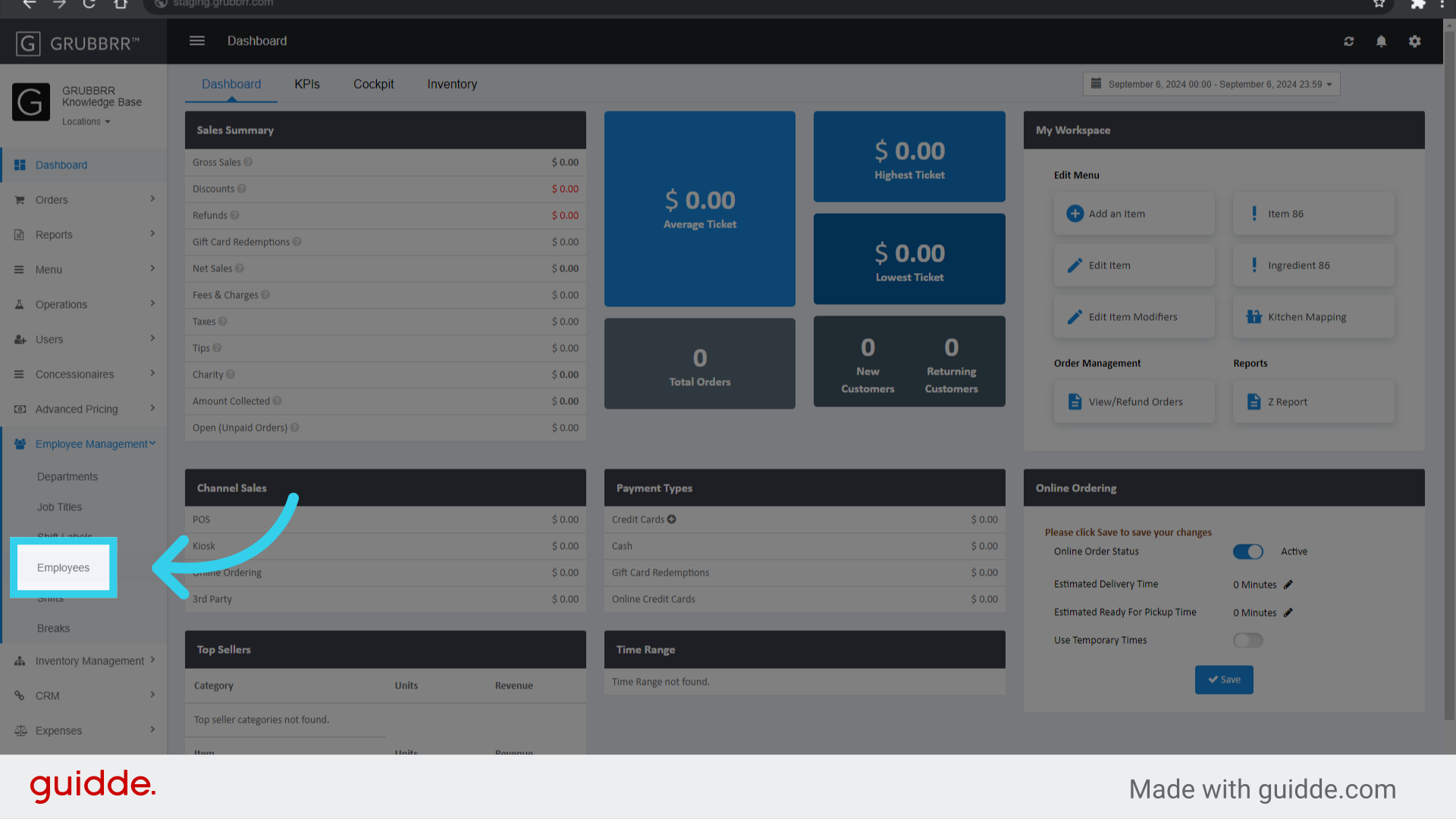
2. Click "Employee Management"

3. Click "Employees"
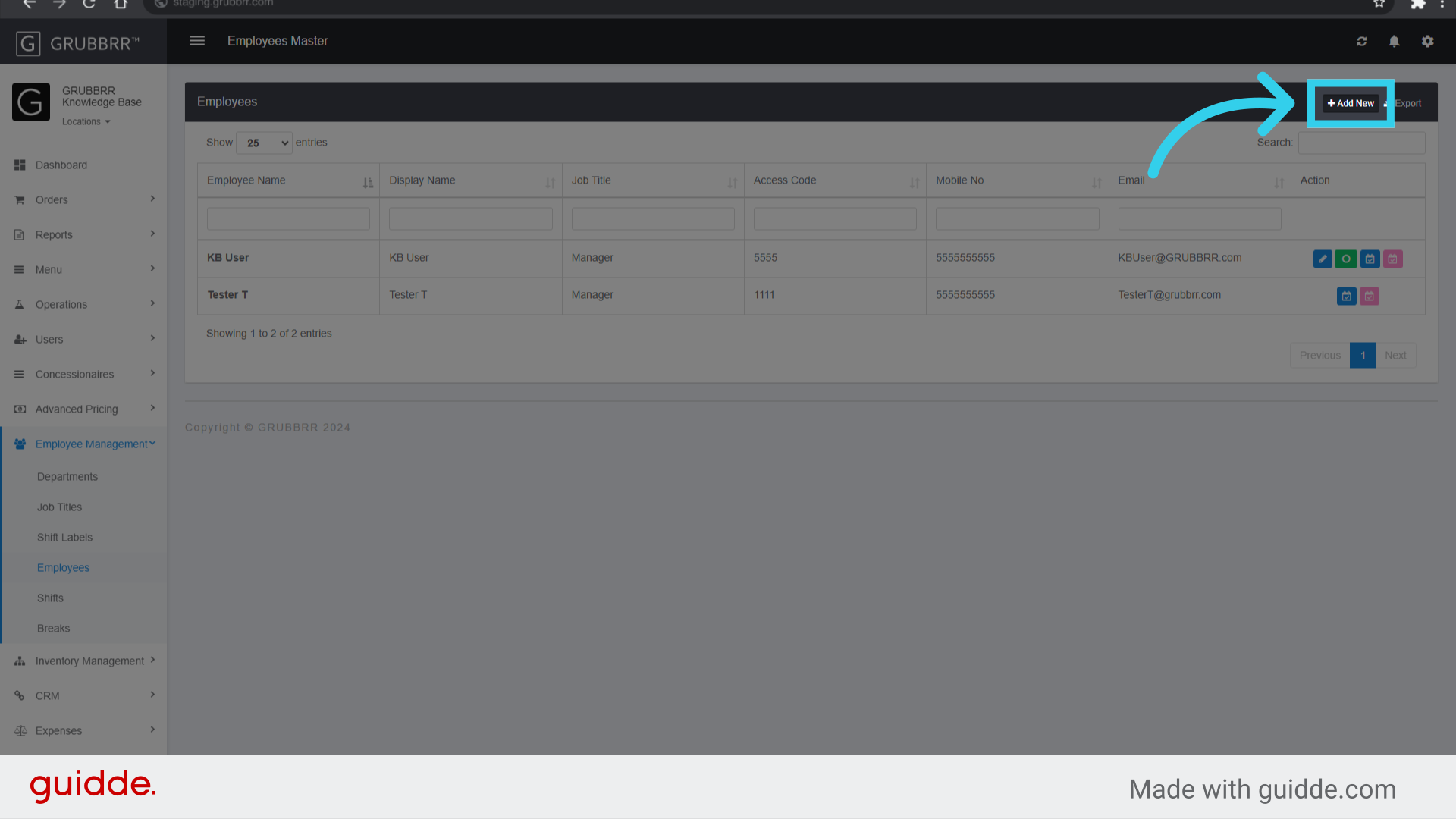
4. Click "Add New"
Or click "Edit" if you'd like to update an existing access code
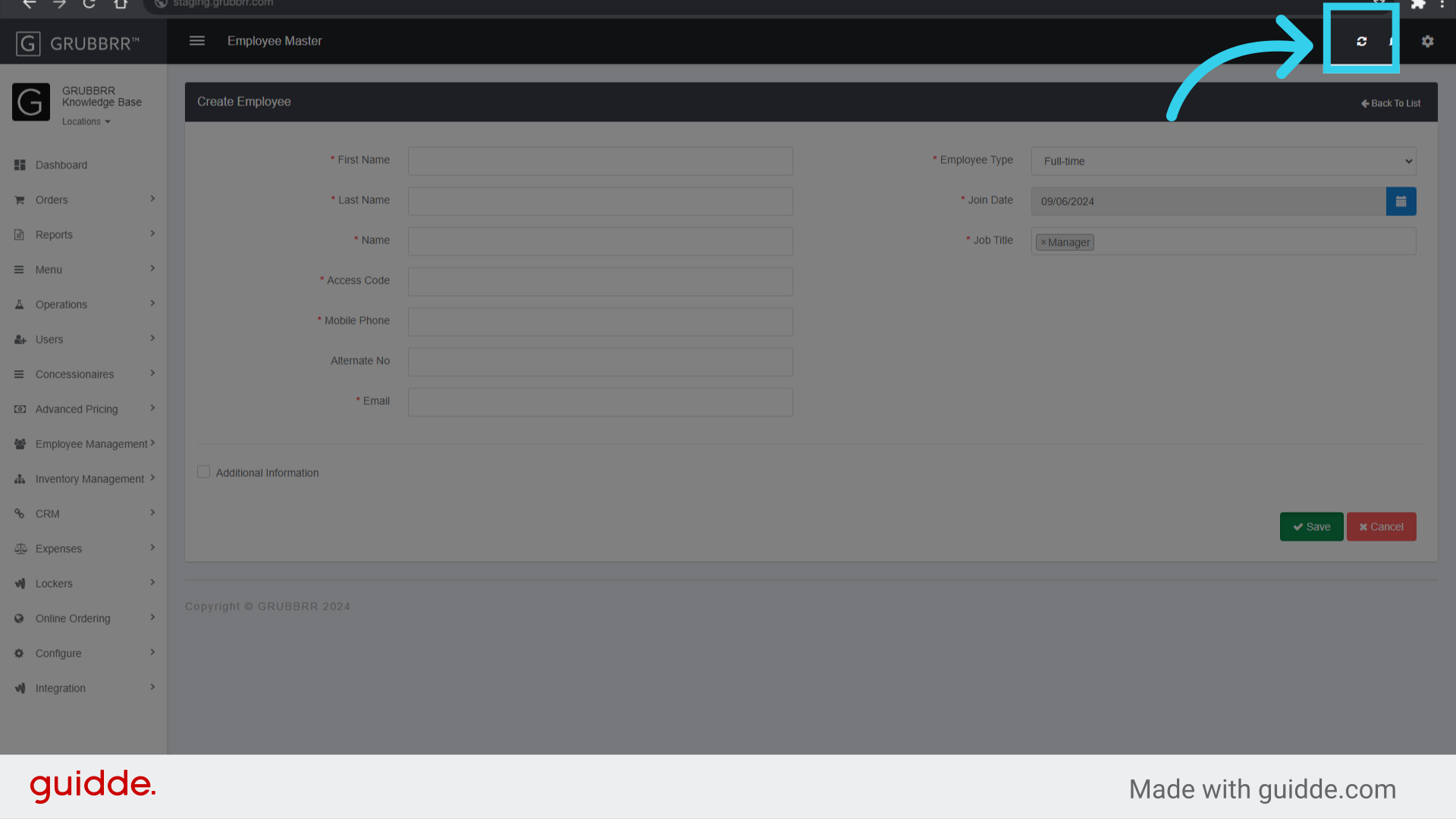
5. For New Access Codes: Enter a Name for the Employee
This can be a generic placeholder for the Portal
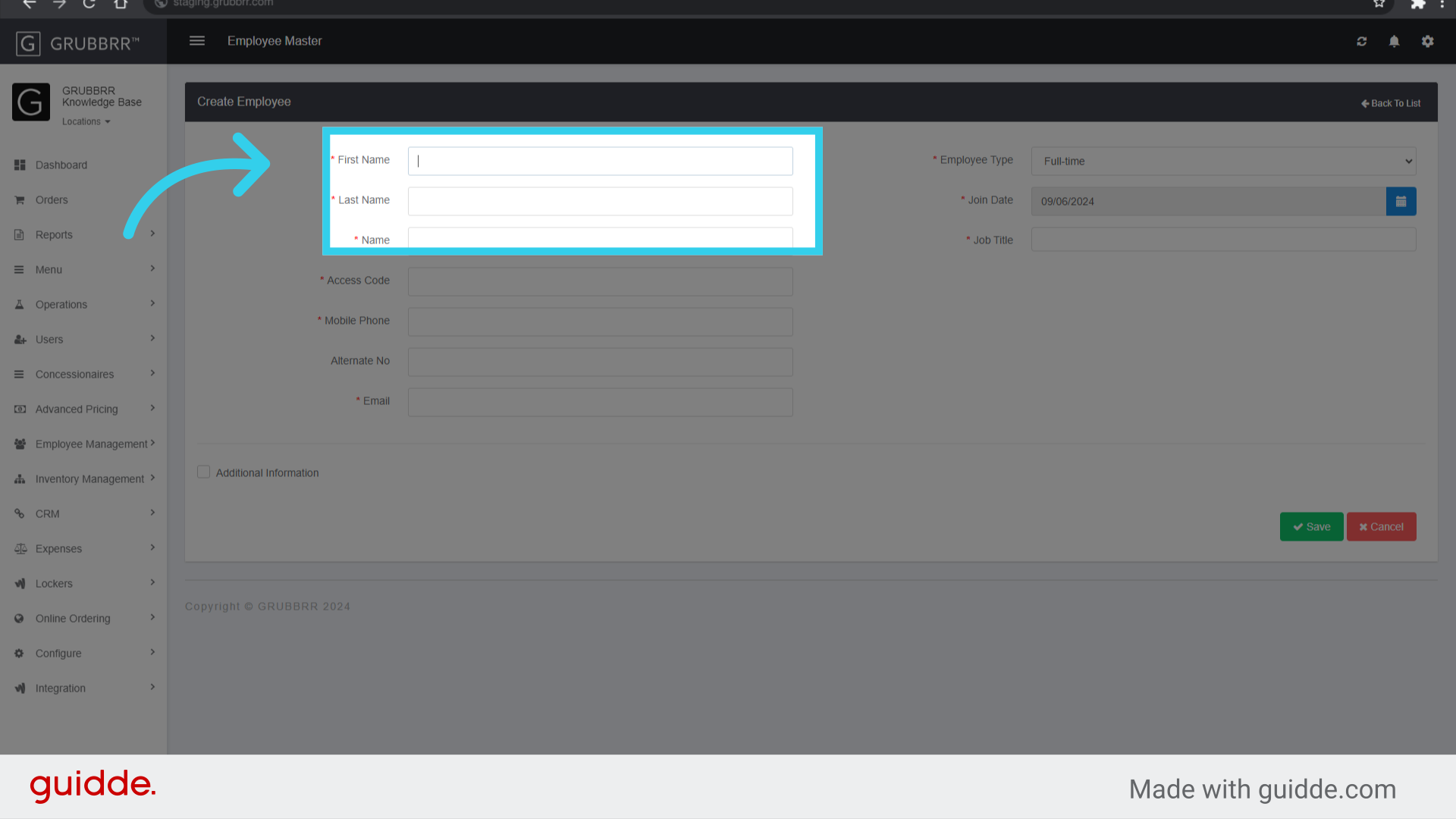
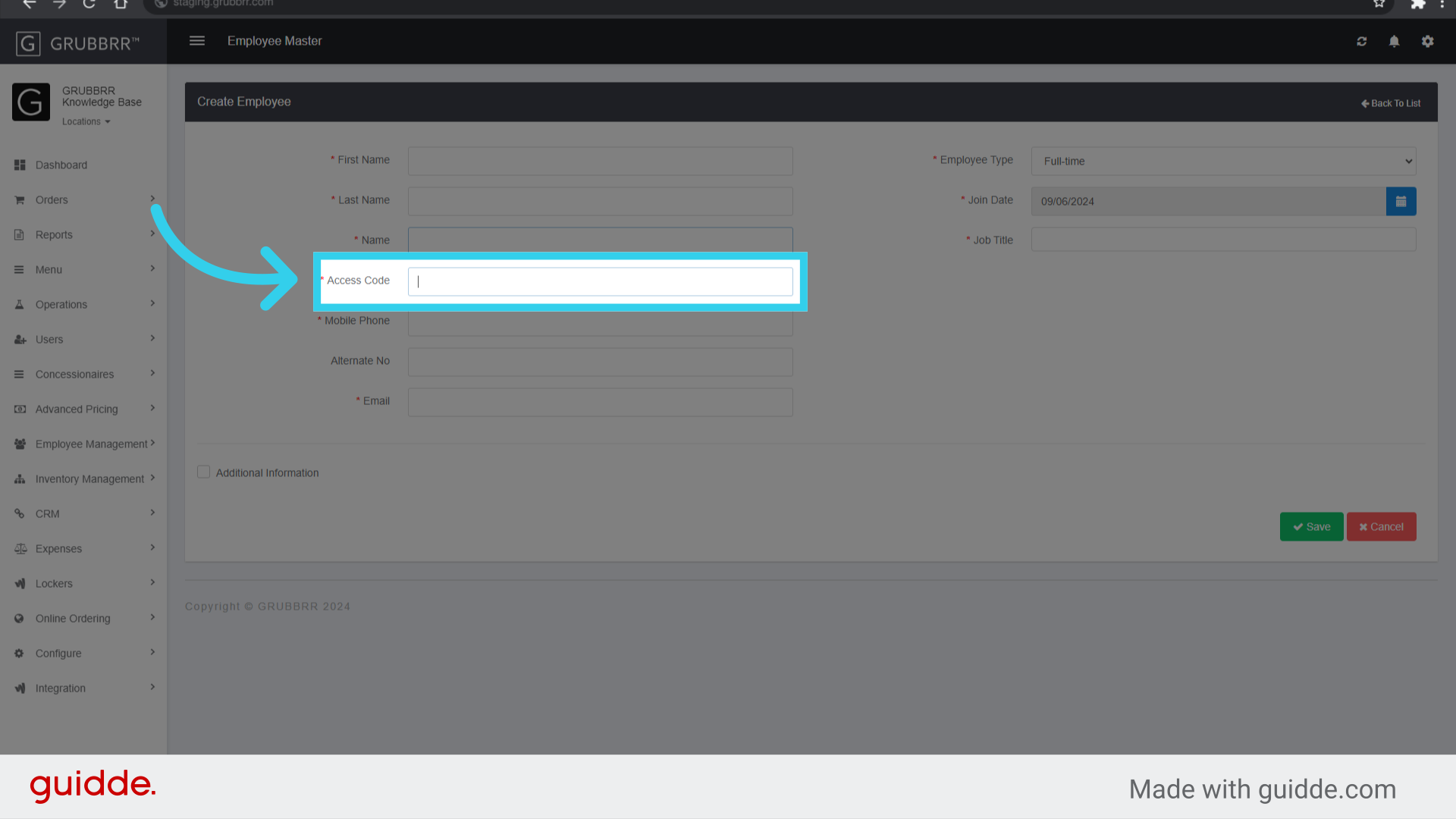
6. Assign a custom 4-digit access code to the employee
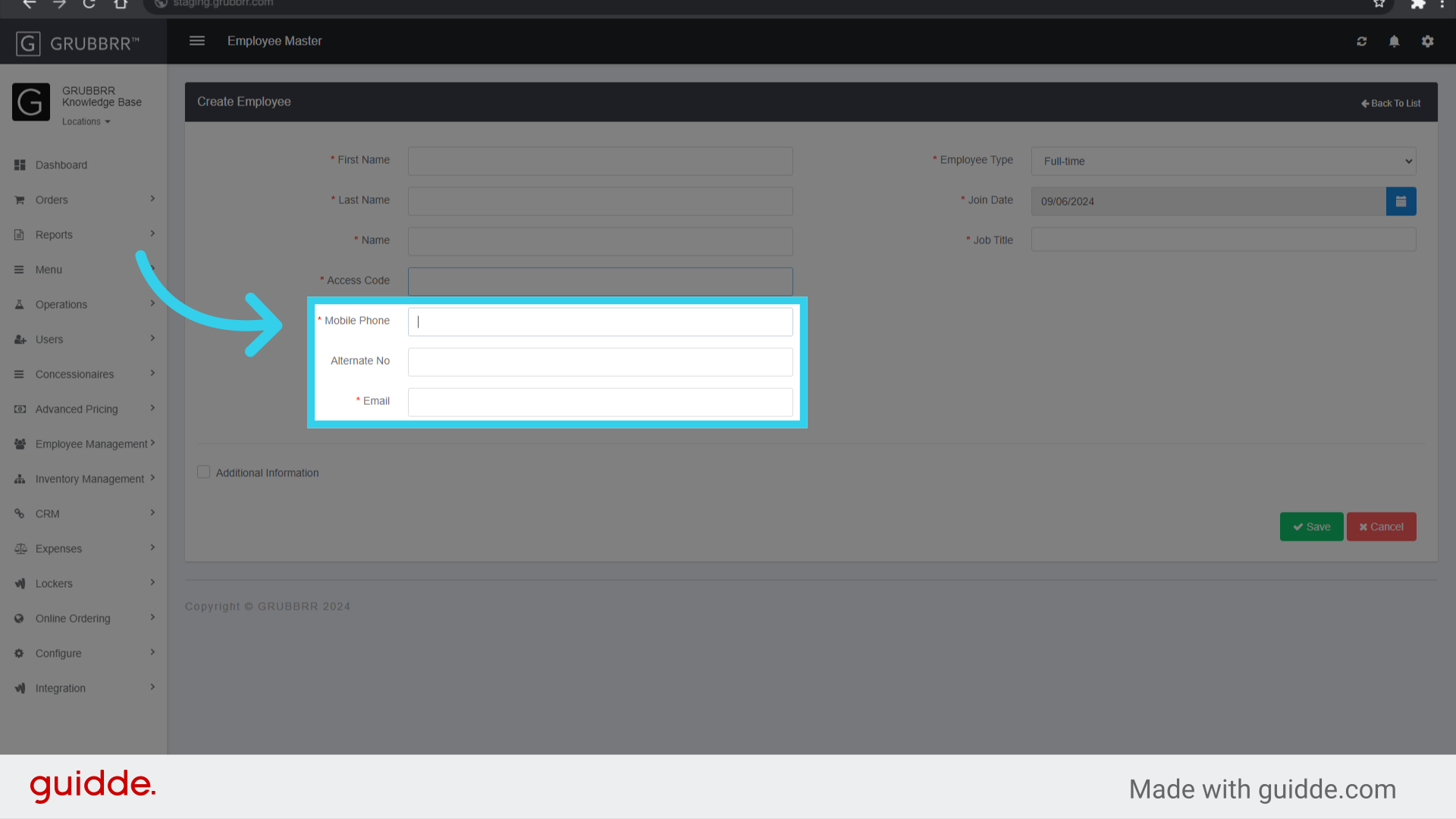
7. Assign a phone number and email to the Employee
This can be a placeholder, such as (555)555-5555
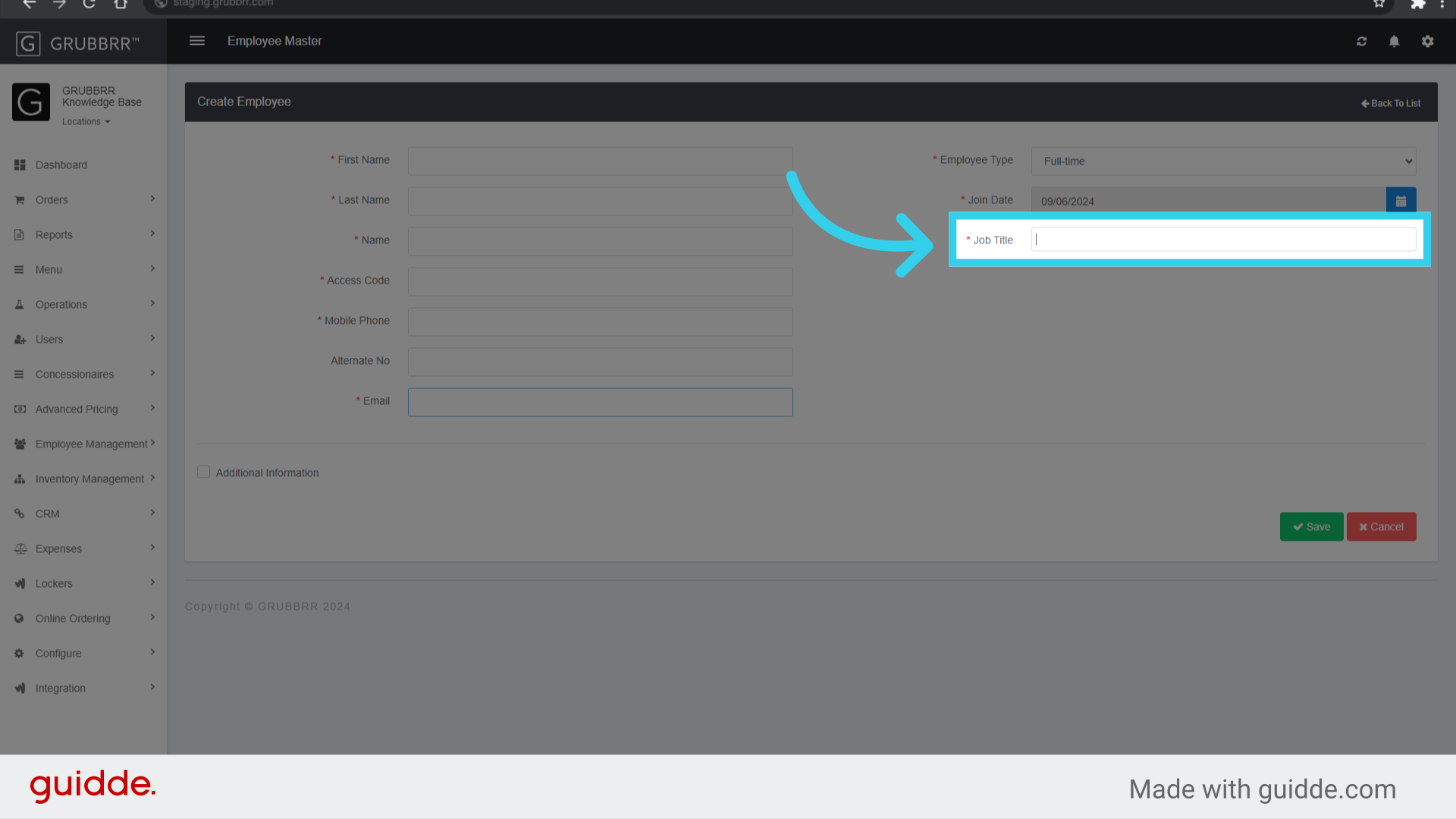
8. Assign the Employee a Role
This can be a placeholder
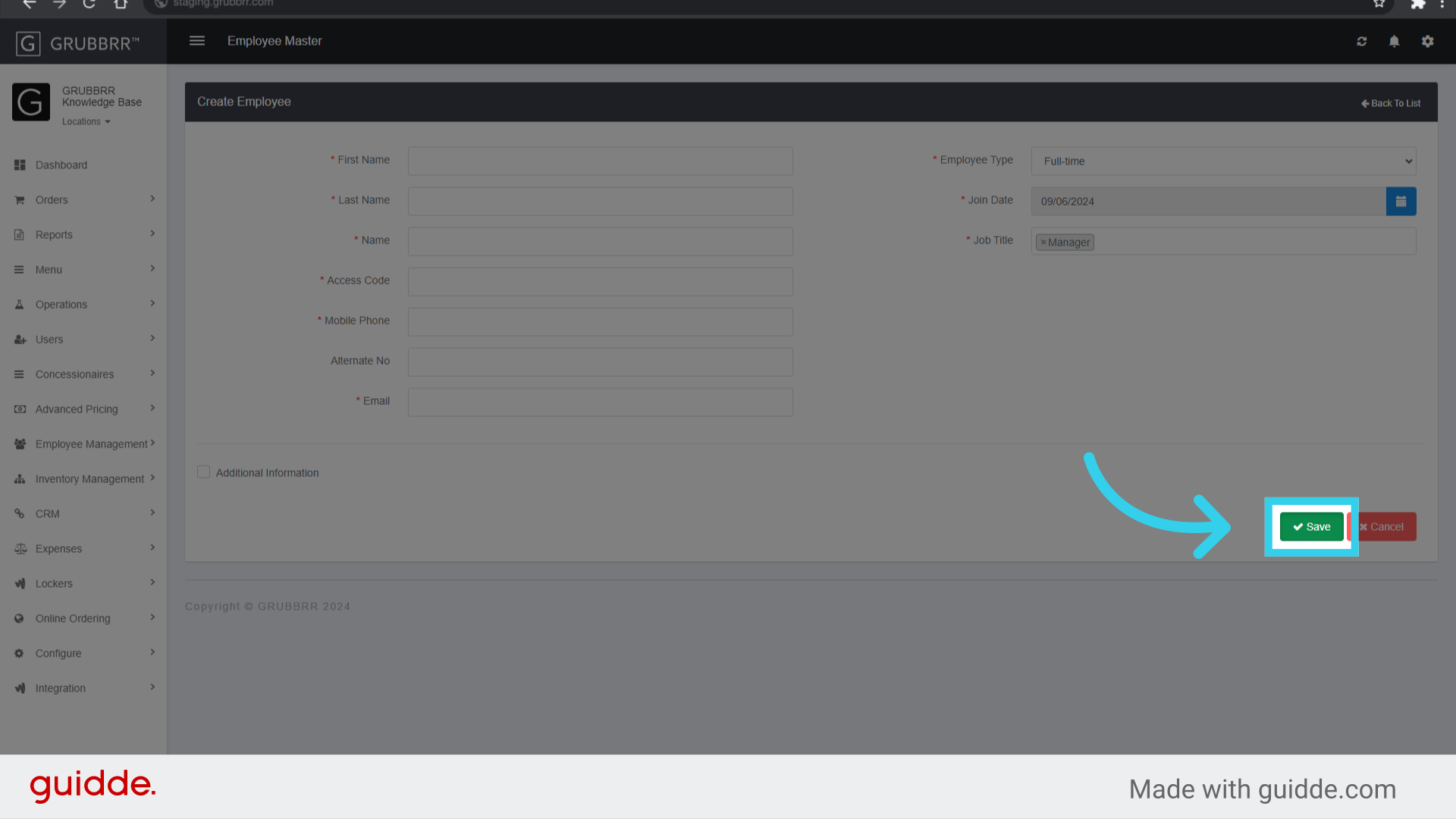
9. Click "Save"
10. Click "Sync" to push changes to your Kiosk