How to Configure Alcoholic Items in the GRUBBRR Portal
Last updated: August 8, 2026
My menu includes alcoholic items. What can I do to make sure that these items aren't sold to minors?

If you want to sell alcoholic items on your GRUBBRR Kiosk, our system can display a pop-up requiring users to validate their age before adding the item to their cart. It's important to note that this feature is configured at the item level- meaning you'll need to manually enable it for each alcoholic item you want to offer on your kiosk.
Because this is tied to specific items on your menu, this setting may be configured at the location level, or through your company-level menu. For this guide, we'll demonstrate at the location level.
Go to staging.grubbrr.com
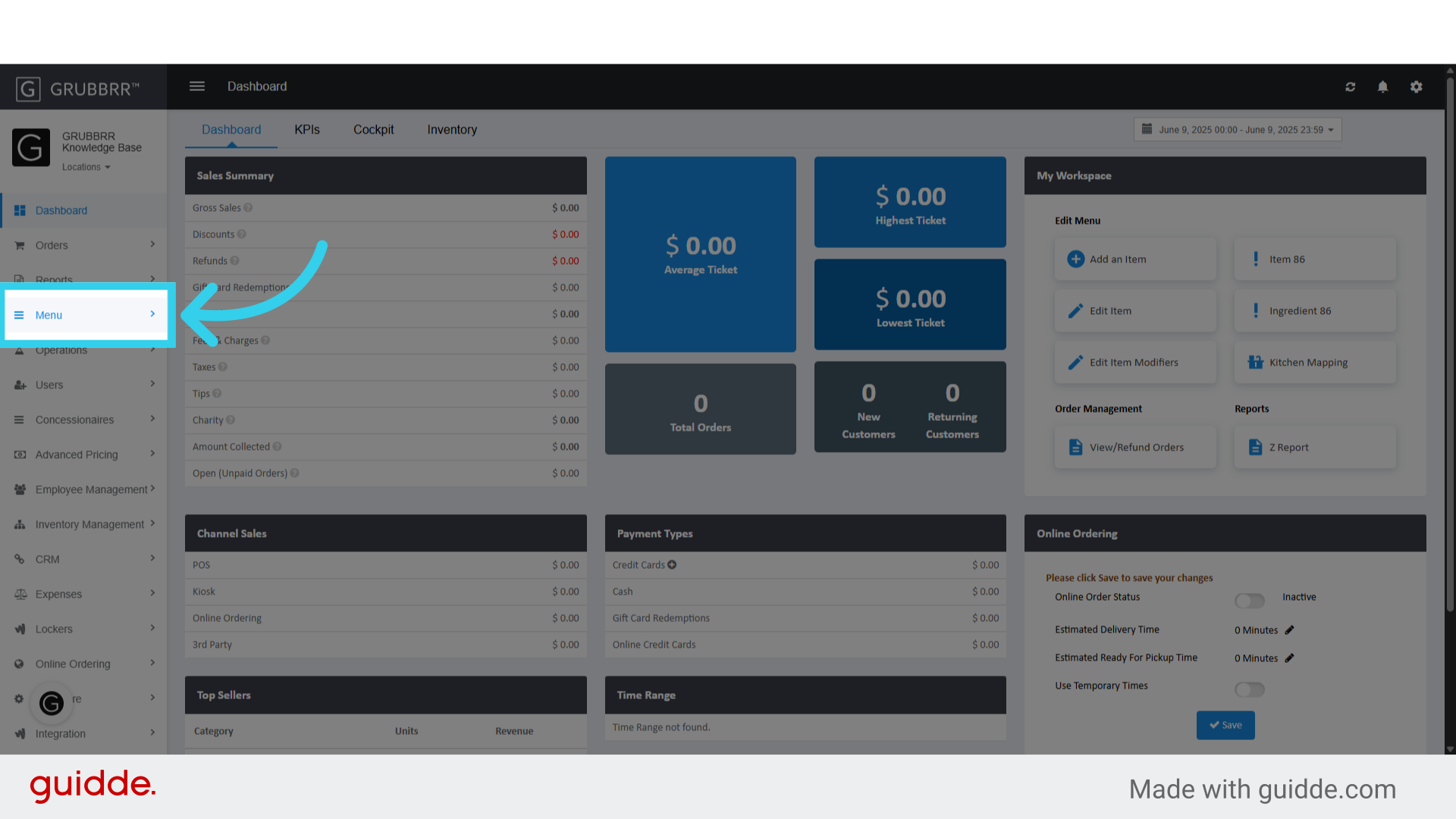
1. Click "Menu"
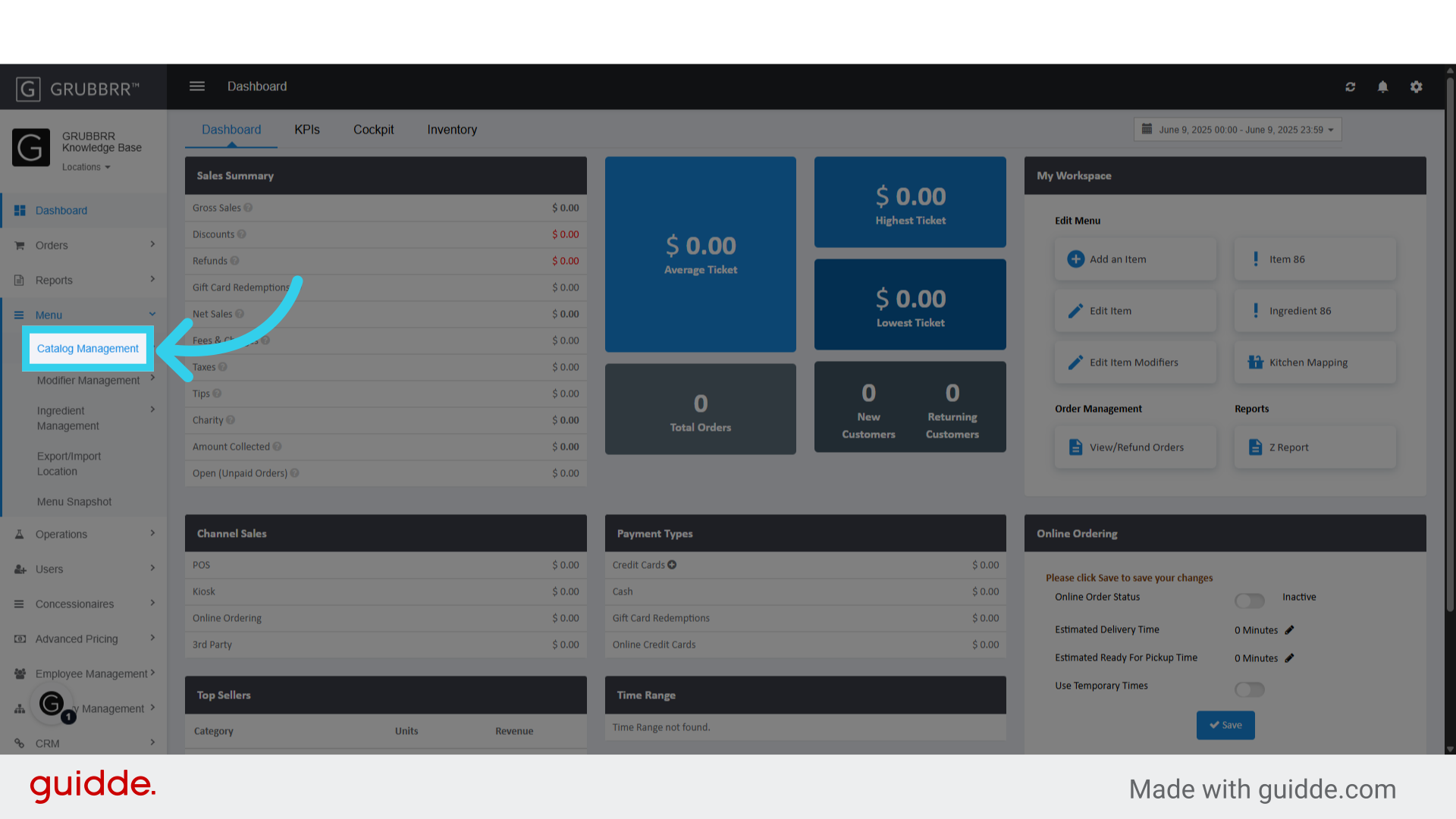
2. Click "Catalog Management"
3. Click "Items"

4. Scroll or search to find the item you wish to update
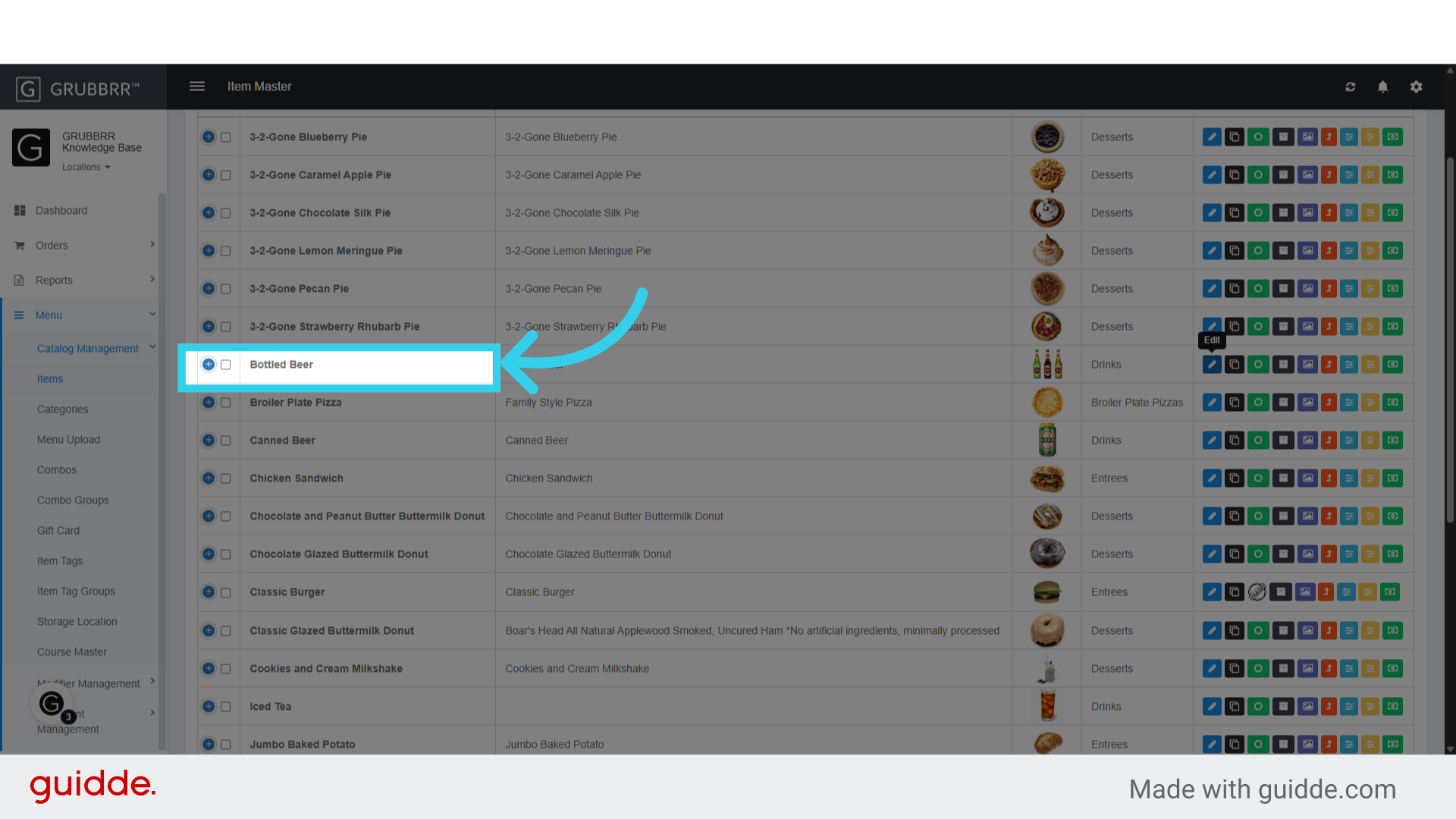
5. Click "edit" in the action column

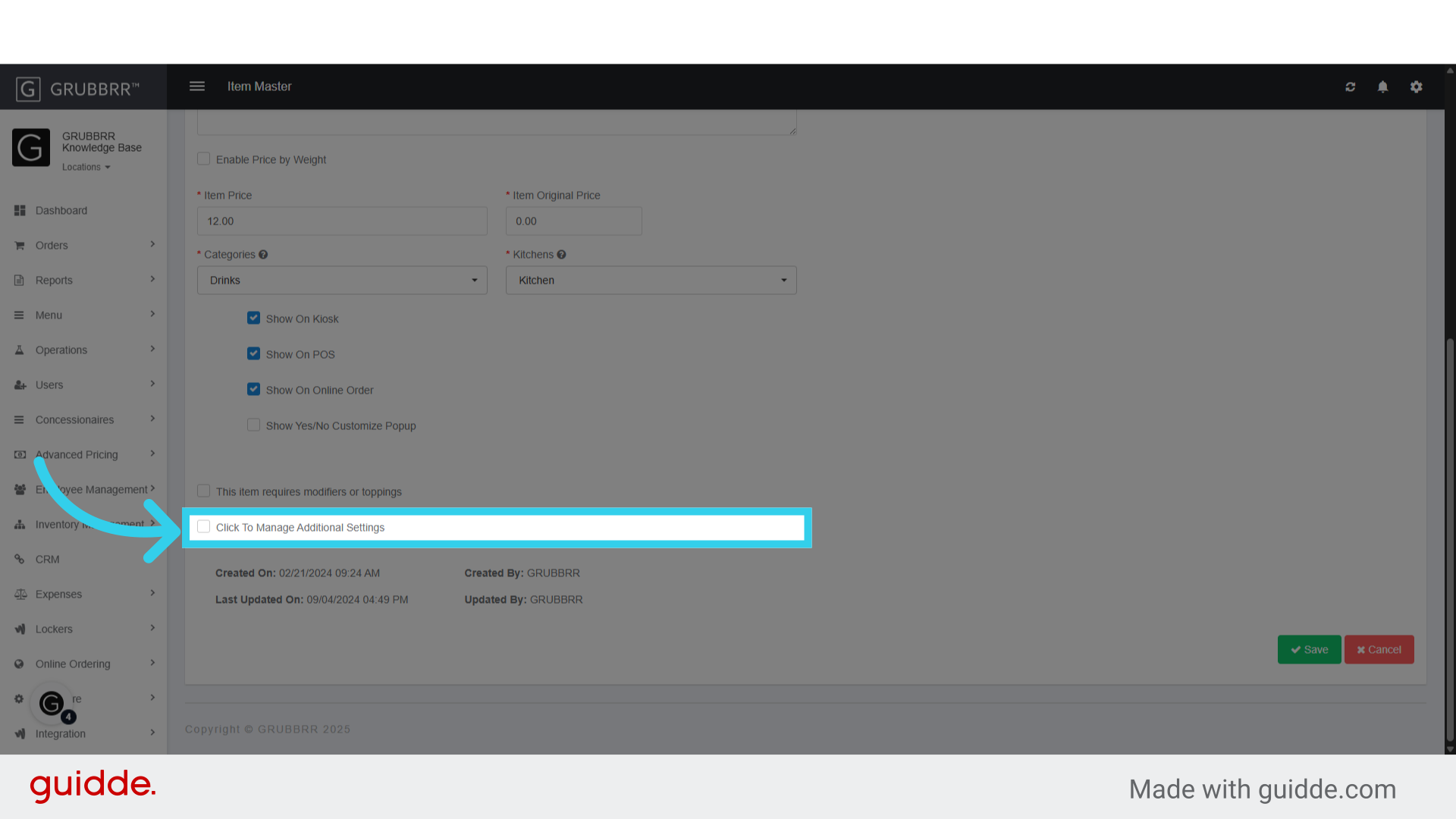
6. Click here to open the Additional Settings menu
7. Click "Reporting"

8. Click the "Category Sales Type" dropdown and select "Alcohol"

9. Click "Save" to apply your changes
Repeat this process for additional menu items as needed.

10. Once you've made all of your changes, click here to push the new settings to your Kiosk
