How to Add New "Member Pay" Users to the GRUBBRR Portal
Last updated: August 8, 2026
I use Member Pay for my Kiosks; how do create new users for this feature? How do I control how much each user can spend in a month?

This guide will walk you through the steps to add individual members to the Portal in Grubbrr.
Go to portal.grubbrr.com
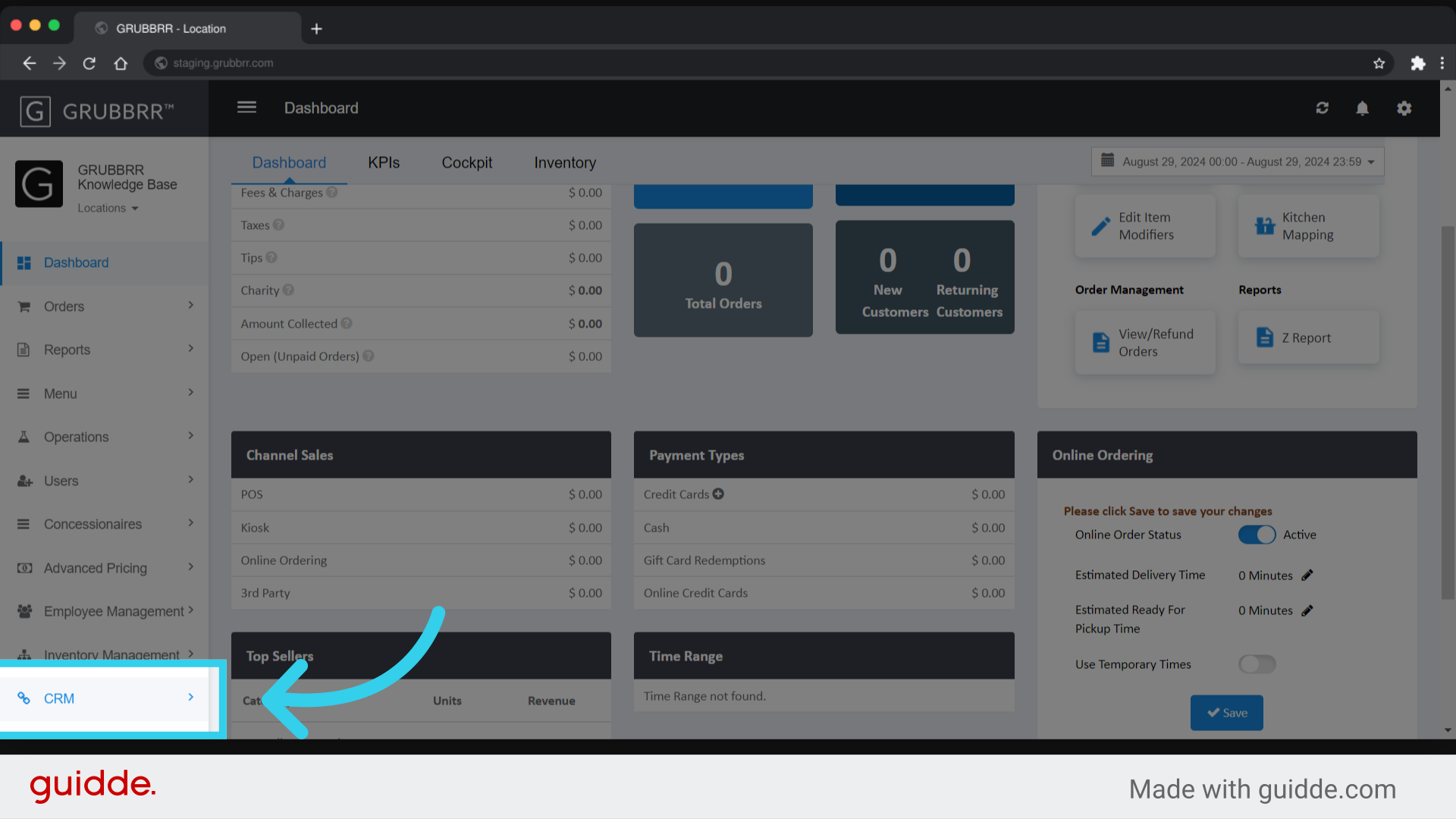
1. Click "CRM"
2. Click "Members"

3. Click "Add New"

4. Enter the user's full name

5. Select the Member's type from the dropdown
Depending on your solution, users will generally either be created as a "Student" or an "Employee." You can create shared accounts by creating "Departments."

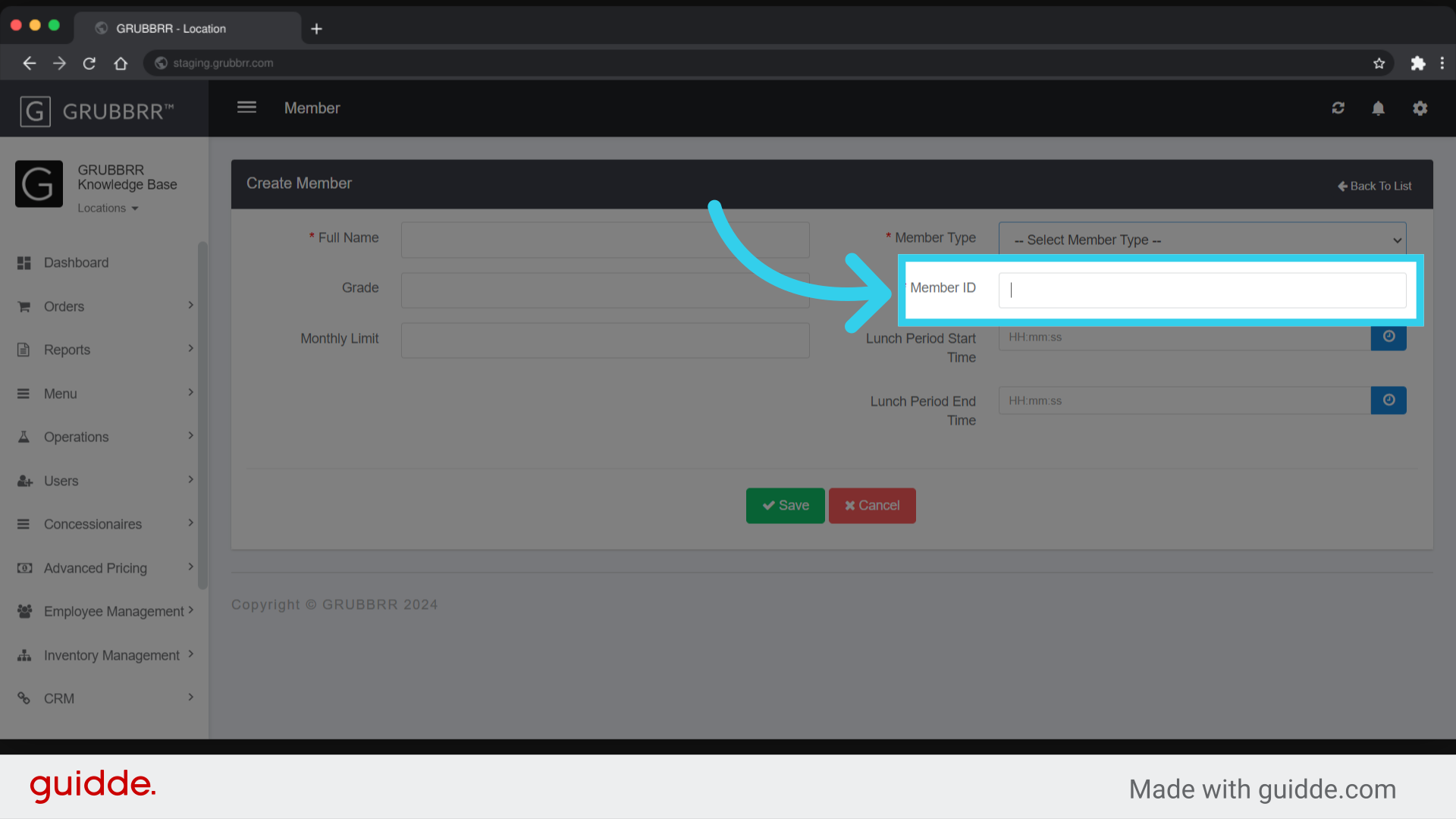
6. Enter the Member's ID
The Member ID is how the end user will sign in and pay, so its important to ensure that this is 100% accurate!
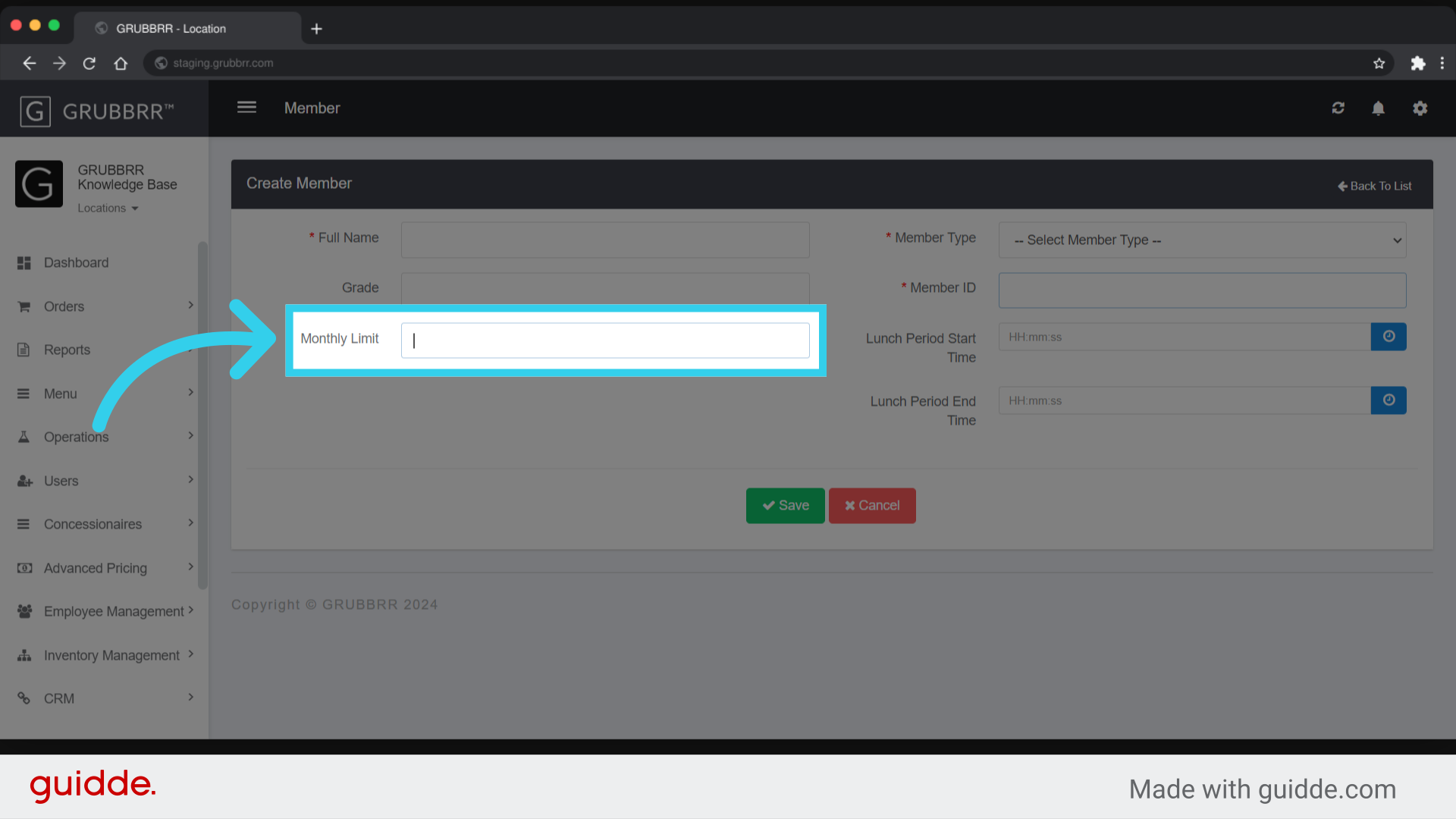
7. Enter the monthly limit that can be charged to the account
This is a flat dollar amount that will be reset on the first of the month.
8. Click "Save"
