How to add Custom Text Overrides to your Kiosk in the GRUBBRR Portal
Last updated: August 8, 2026
Can I change the messages displayed on my Kiosk when it's set to use an alternative language (Spanish, French, etc.)?
GRUBBRR offers automated localization controls for Partners using our Kiosk solution; however, we want to ensure that our multilingual menu UI is aligned with your brand's needs. That's why we've added enhanced Text Overrides that Partners using version 12.6+ of our Kiosk solution can enable to tweak the menu interface on their devices. Note: This feature does not apply to menu items, categories, etc.
With custom Text Overrides, you can now replace our automatically generated UI translations with custom messaging that best fits your Brand voice. You have as much control as you need- whether you want to customize one or two elements, or the entire menu! You can use text overrides at the location level by following the steps outlined below.
Go to portal.grubbrr.com
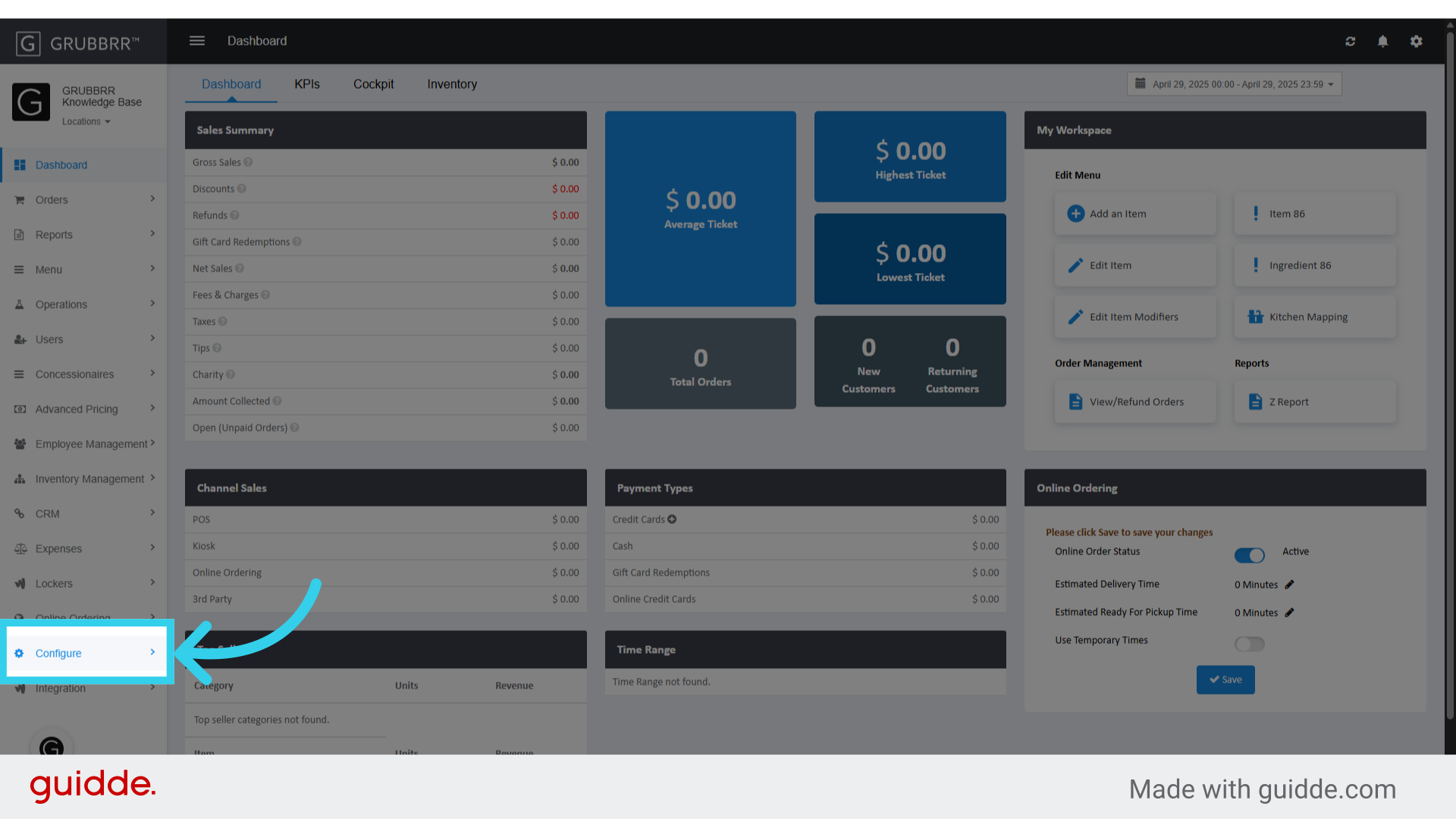
1. Click "Configure"
2. Click "Text Overrides"

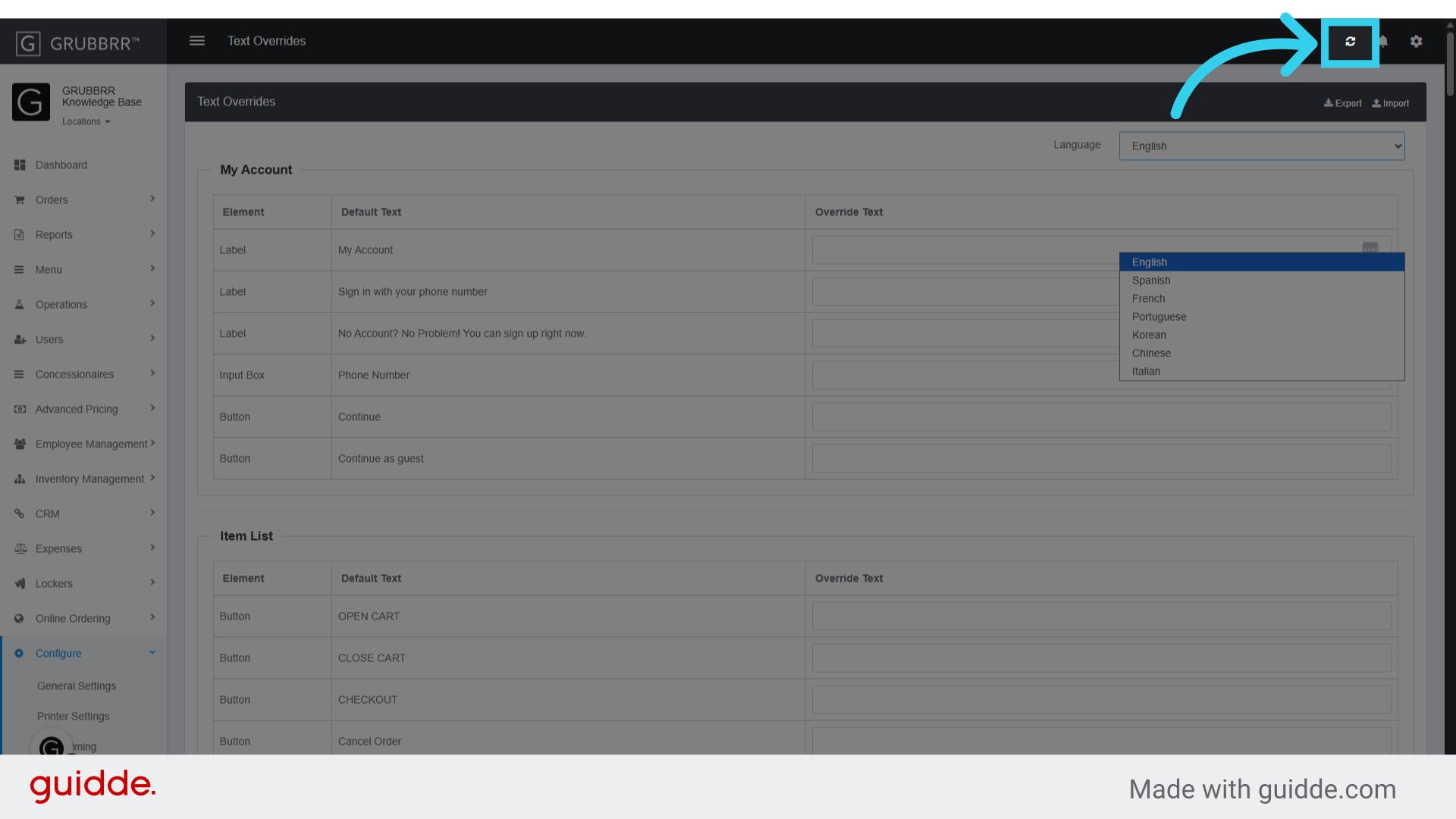
3. Click here to select which language you want to customize

4. The "Element" column in each table tells you what you'll be affecting on your Kiosk menu
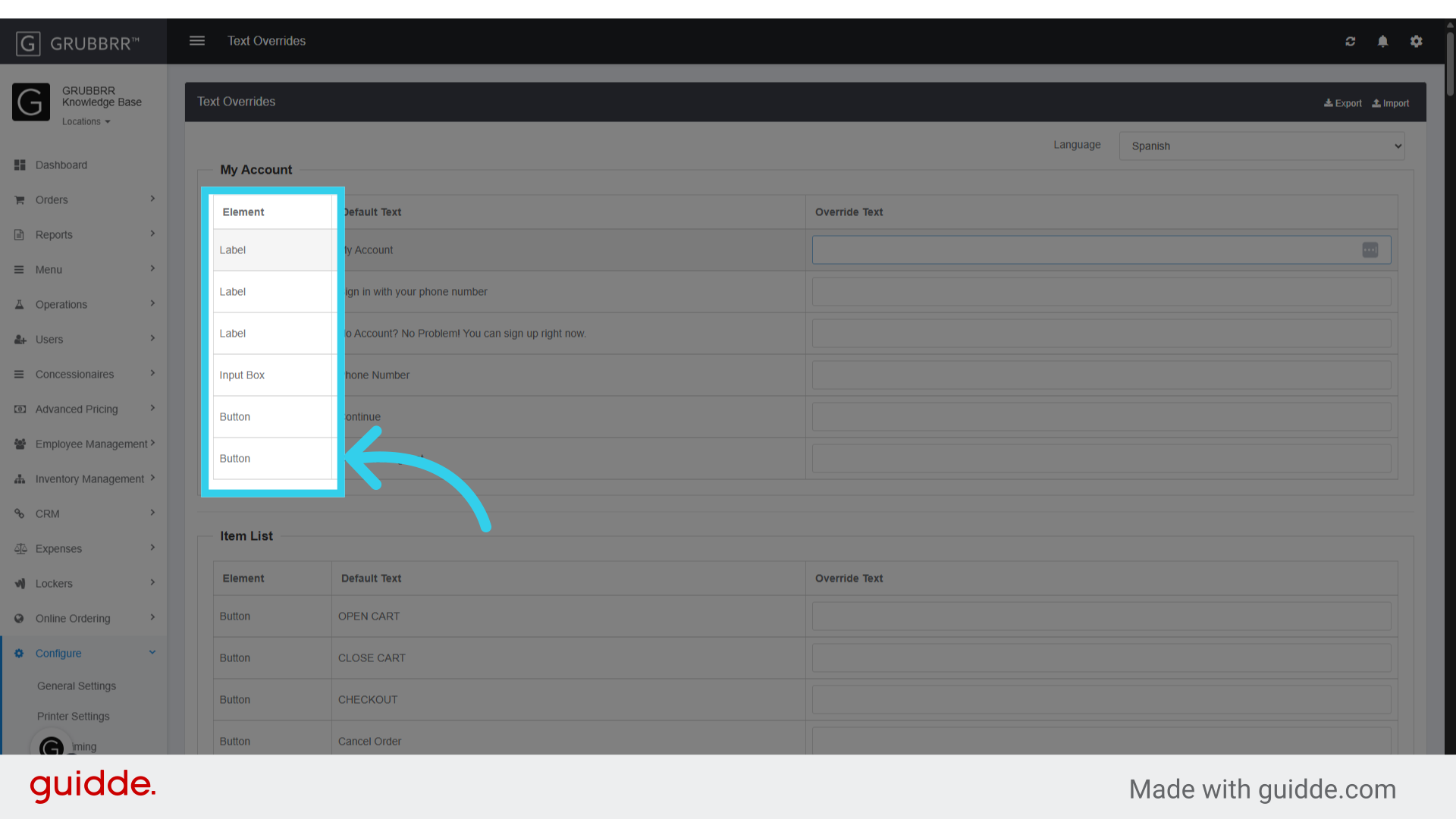
5. The "Default Text" column shows the standard UI messaging in English

6. And we can enter our Override Text here

7. To make it easier for us to track changes, overrides are broken down into broad categories, such as elements related to user accounts...

8. Elements related to Order Reviews...

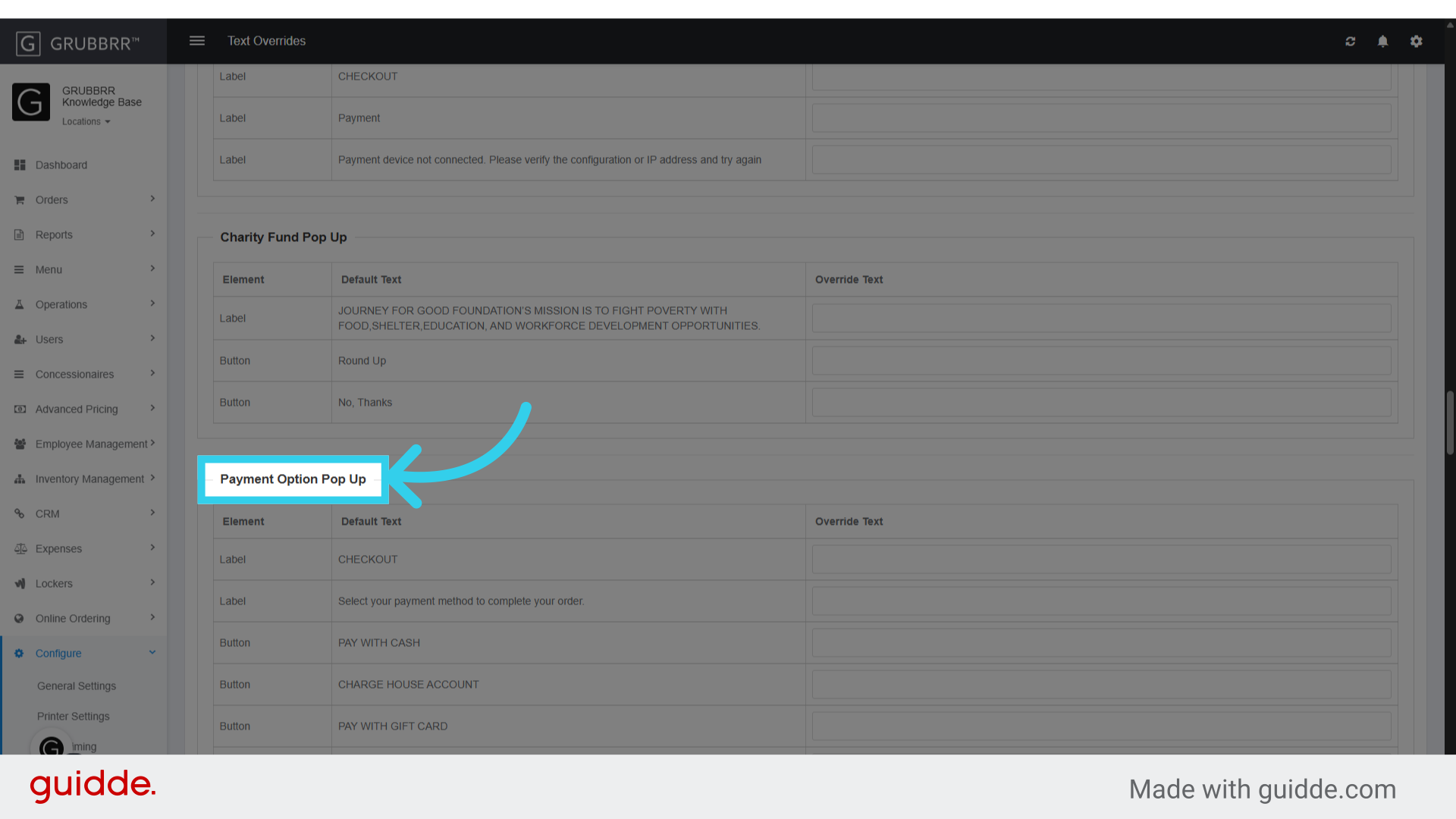
9. Even payment options
10. Once you've finished applying your overrides, click here to save your changes

11. You can repeat the process for other languages...

12. Or click "Sync" to push the changes to your Kiosk