How to Manually Update your Item Inventory in the GRUBBRR Portal
Last updated: August 8, 2026
I've enabled Inventory Tracking for my menu items; now, how do I create a baseline inventory? How do I add more items to an existing inventory in the Portal?

Once you've enabled inventory tracking for your menu items, our next step is to manually update your "on hand" stock. The GRUBBRR portal will automatically begin subtracting sold items from this listing, so it's best to update these settings outside of normal business hours. This will ensure that your records are accurate and up to date when your location opens.
In this guide, we'll show you how you can manually add items to, and remove items from, the "on hand" stock for a location in the GRUBBRR Portal.
Go to portal.grubbrr.com
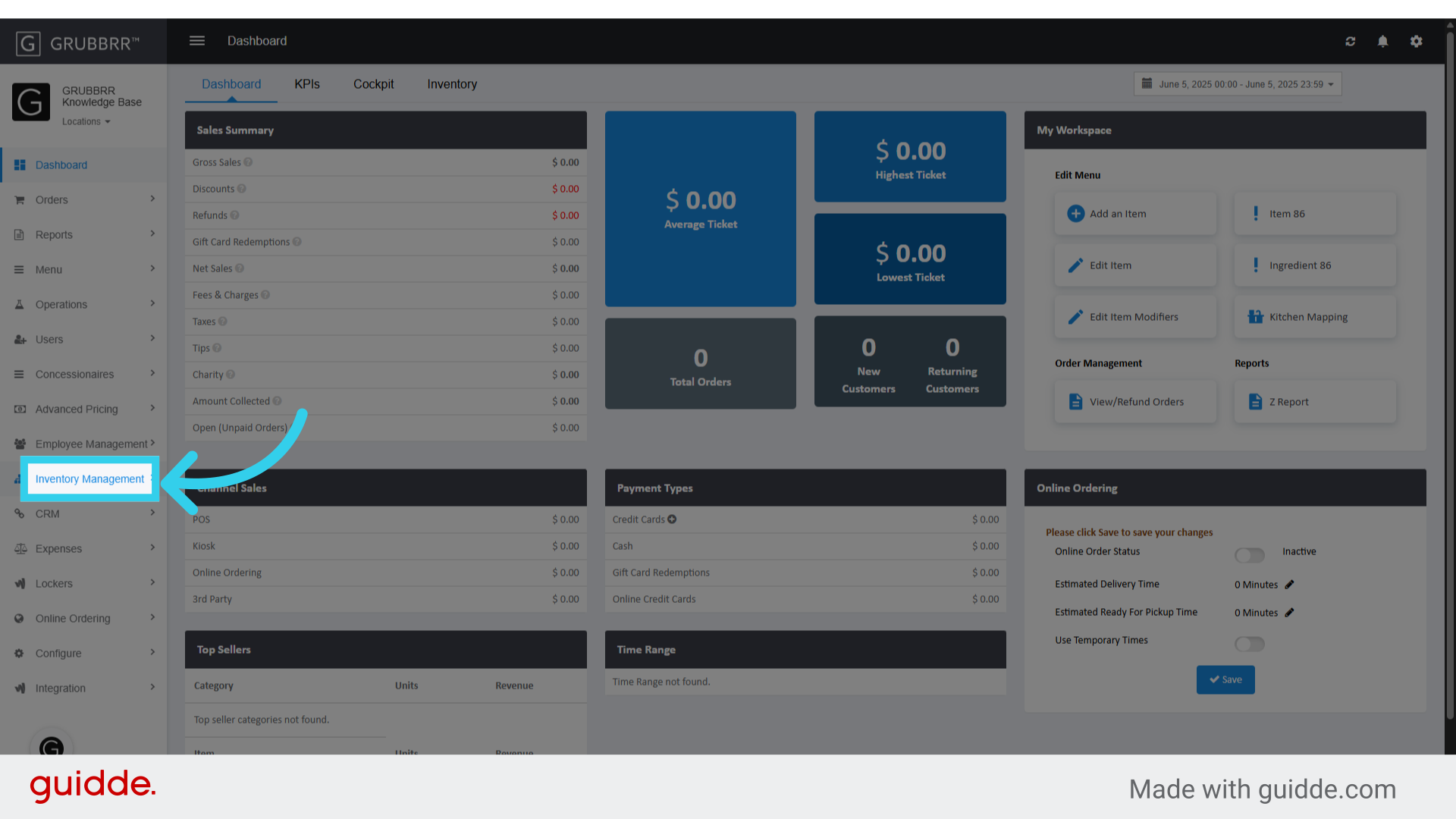
1. Click "Inventory Management"
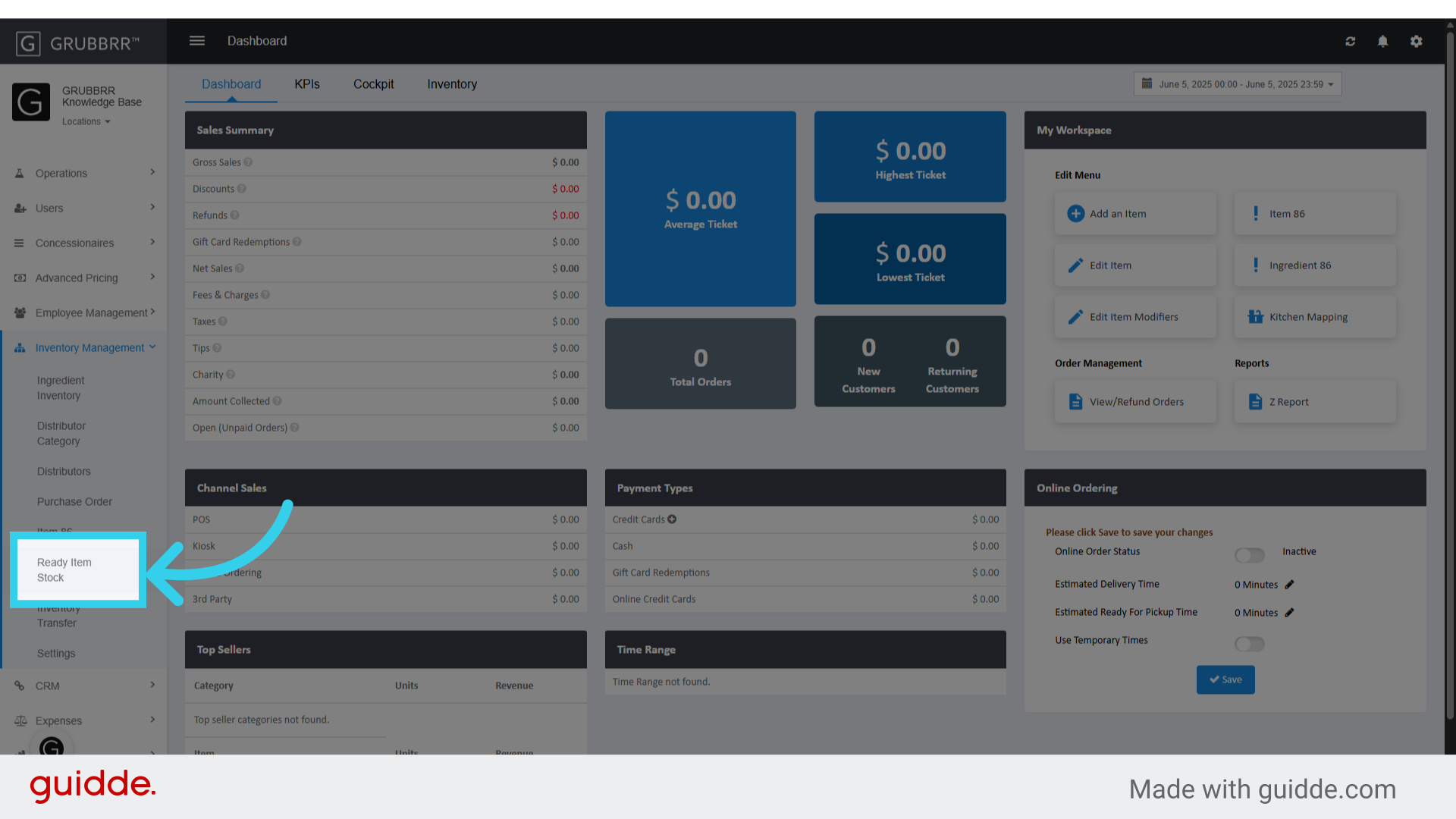
2. Click "Ready Item Stock"
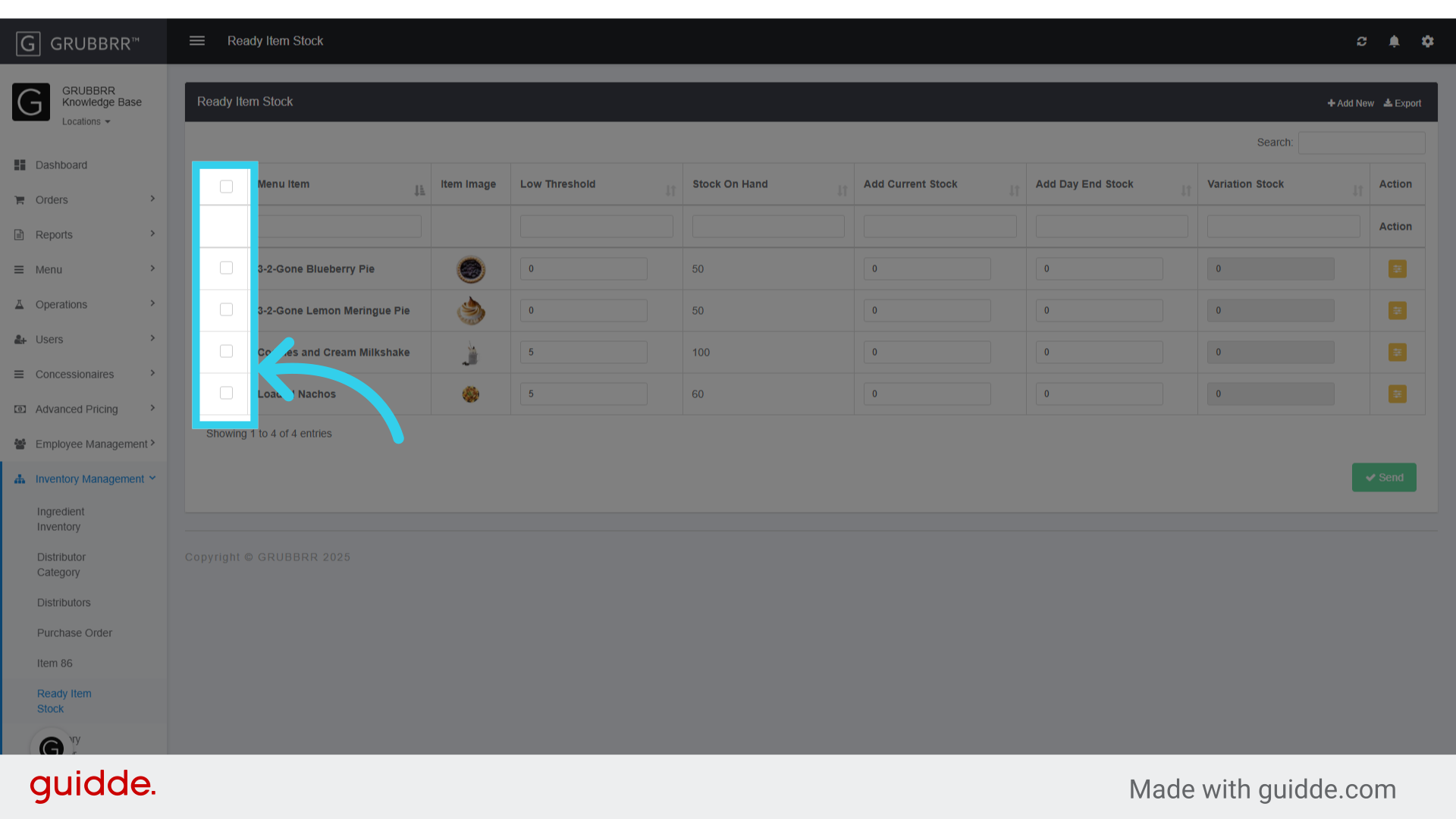
3. Select the item(s) you want to update in this column
4. If you've configured Email alerts for inventory, the "Low Threshold" determines when a notification will be sent to the email(s) on file

5. You can add a number manually, or use the up-down toggles in this field to change the low threshold value

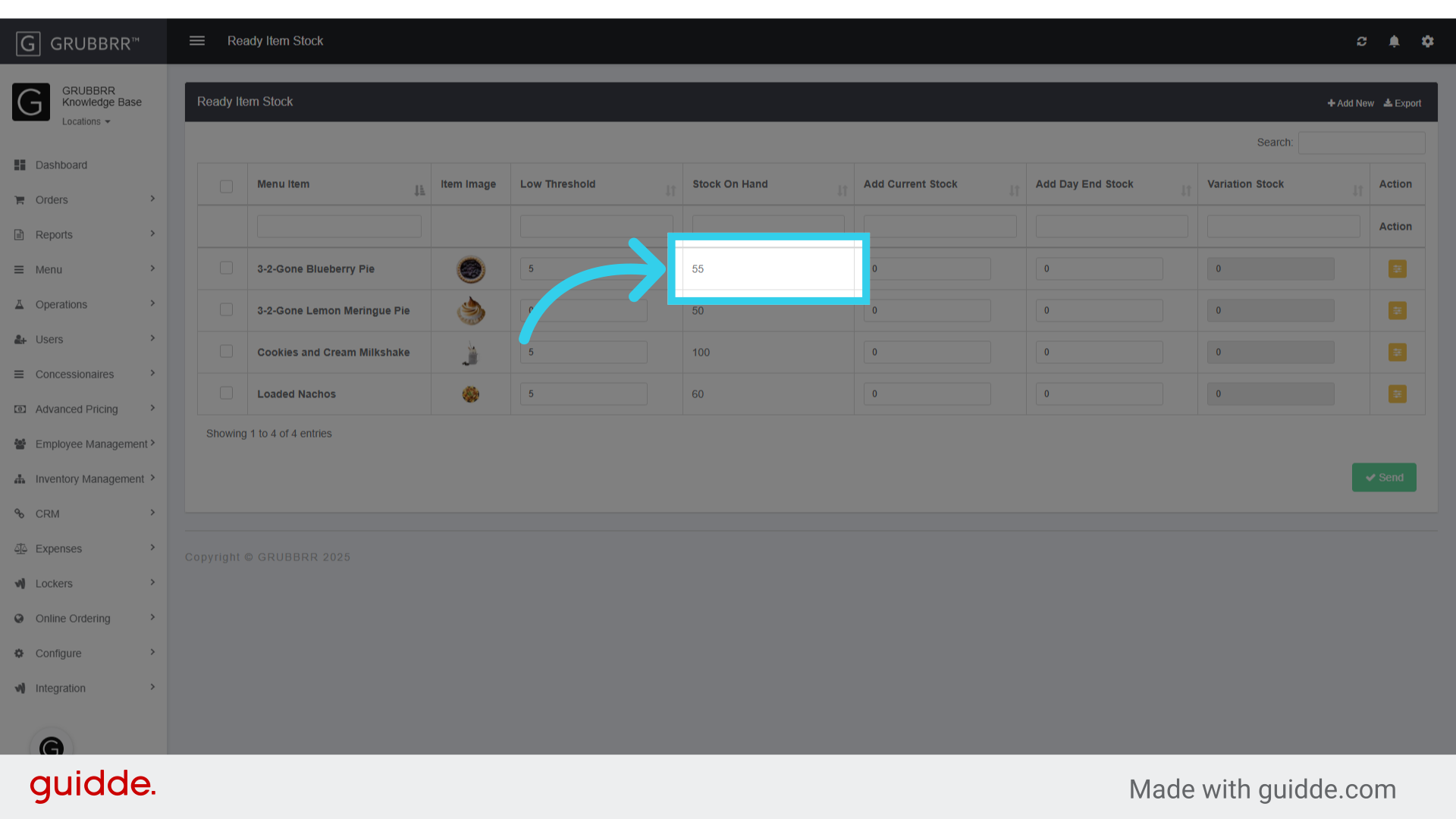
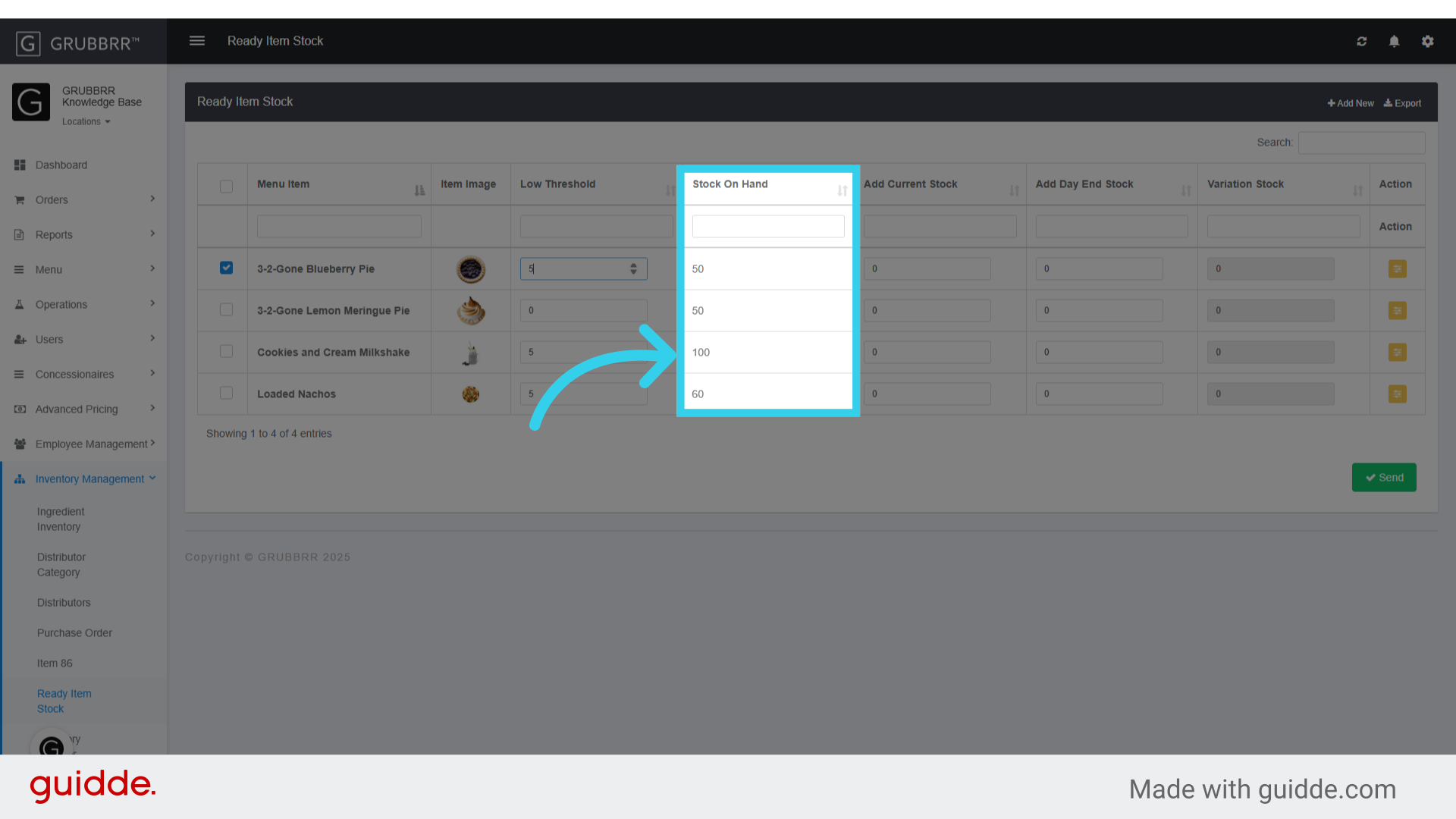
6. The "Stock on Hand" column shows your current inventory of the item
7. You can manually change an item stock in the "Add Current Stock" field
Note: You can both add and subtract from your stock with this field.

8. When you've finished making changes, click "Send" to apply your inventory updates

9. Any changes will be visible once the page refreshes