How to Edit the Customer Info Dialogue Box in the GRUBBRR Portal
Last updated: August 8, 2026
Can I change the messaging my Kiosks use when asking for a customer's name, phone, or email?
If your GRUBBRR Kiosk is configured to ask for a customer's name, phone, or email, then your guests will see a screen like the one below when they go to finalize their order:
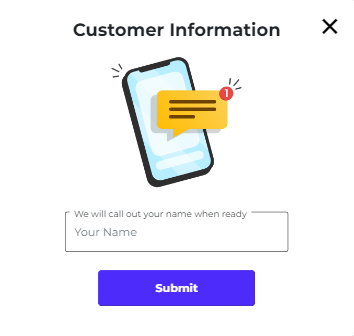
Your GRUBBRR system will automatically generate messages for this screen based on the settings you configured in your GRUBBRR Portal. You aren't limited to these preset messages; in this article, we'll explain how to configure the Customer Info Dialogue to best suit your business needs.
Components of the Customer Information Dialogue Box
Depending on the settings you have configured in your GRUBBRR Portal, there can be up to five different configurable options on your Customer Information Dialogue.
- The Header is the text displayed in large, bold font at the top of the dialogue screen.
- The Customer Info Image is the icon that displays under the Header
- The Name, Phone, and Email Hints are the small, gray messages that appear above the text boxes.
Configuring your Customer Info Dialogue Box
You can configure the text that appears on the customer information dialogue by following the steps outlined below.
1. Sign in to the GRUBBRR Portal at the Location level

2. Click "Configure"

3. Click "General Settings"

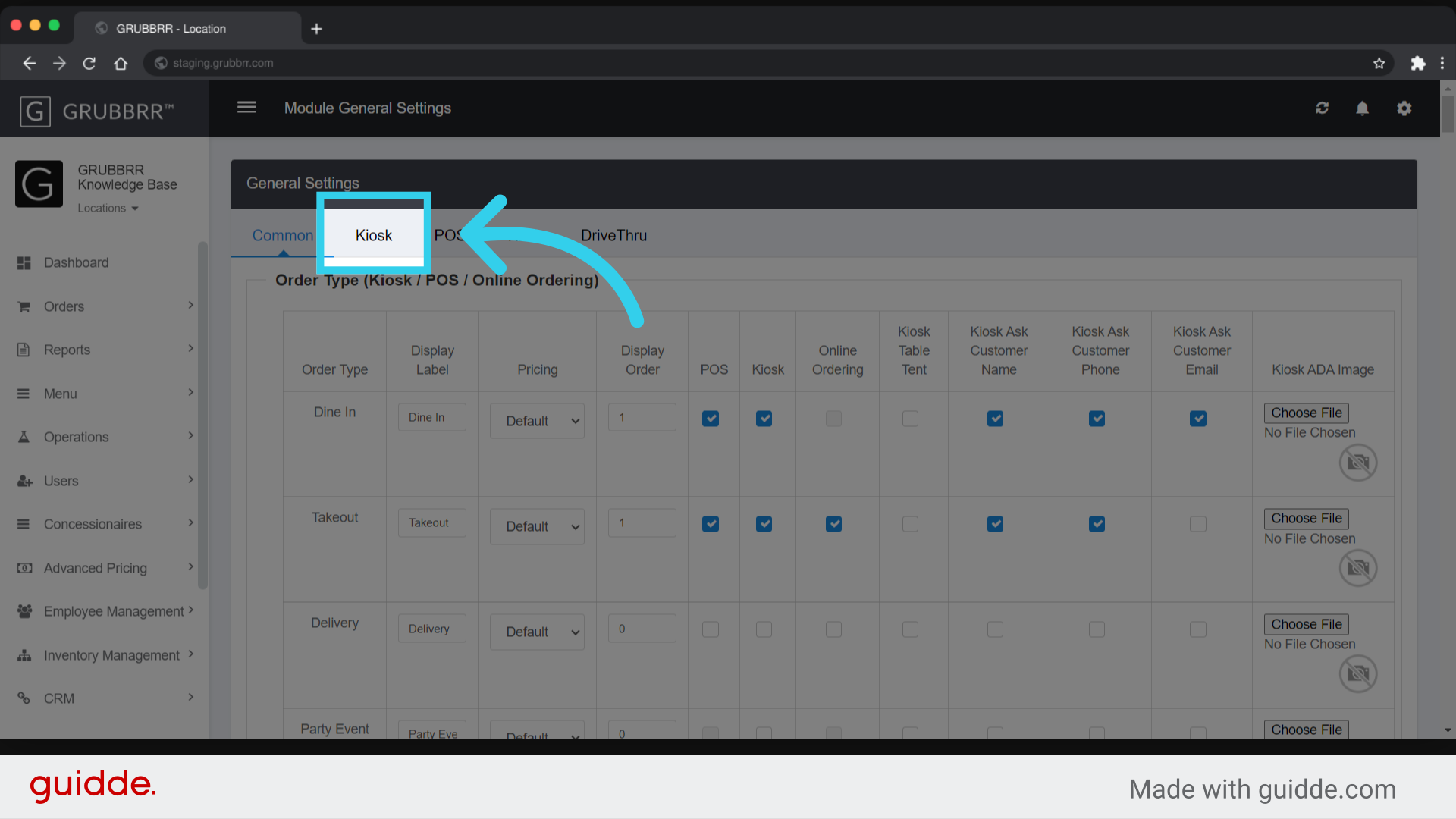
4. Click "Kiosk"
5. Scroll or use Ctrl+F to search for "Customer Info Dialogue in Payment Screen"

6. Enter your desired Header
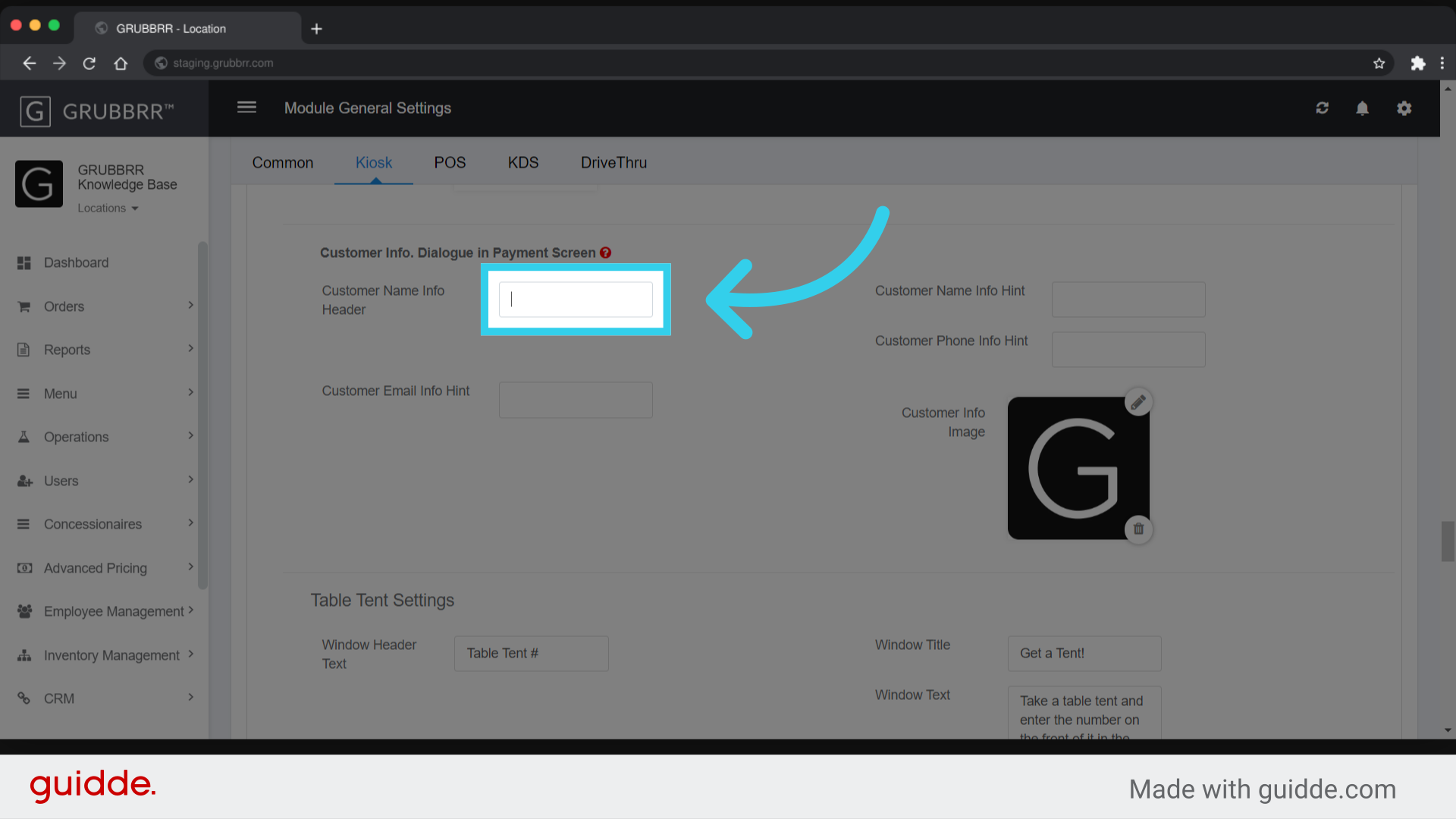
7. Enter a "Customer Name" Hint

8. Enter a "Customer Phone #" Hint
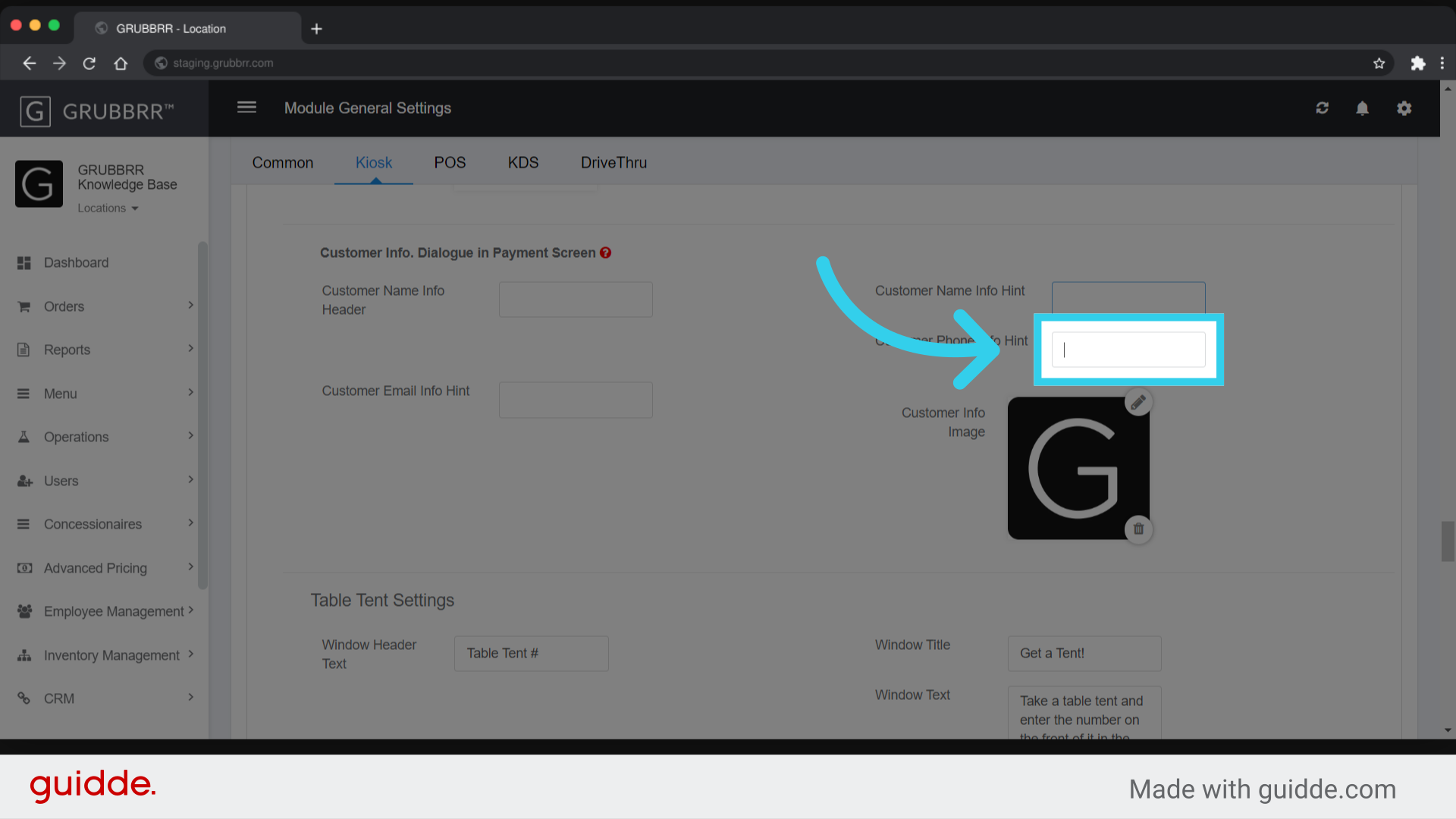
9. Enter a "Customer Email" Hint
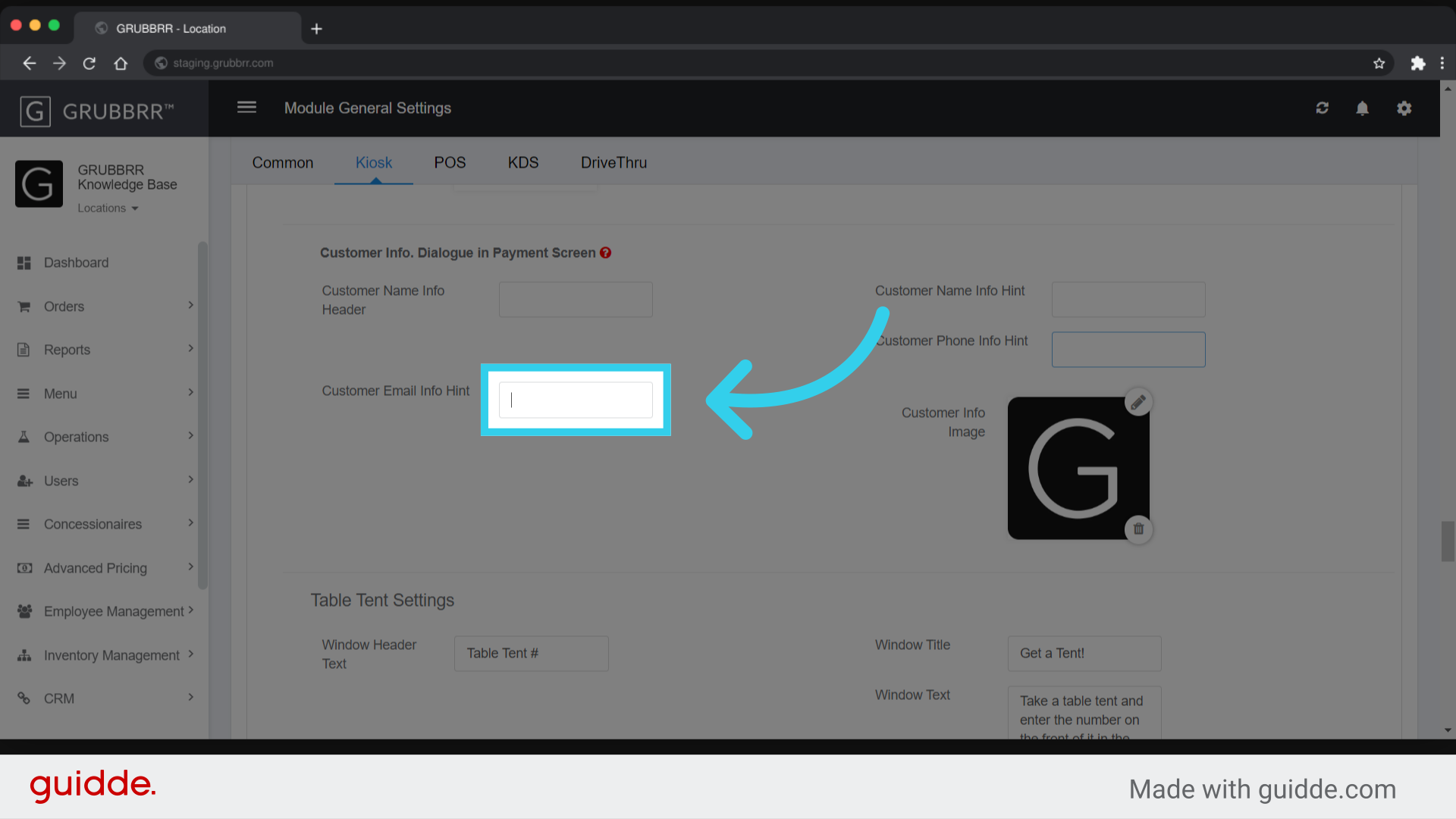
10. Click here to upload a custom graphic for the pop-up

11. Click "Save"
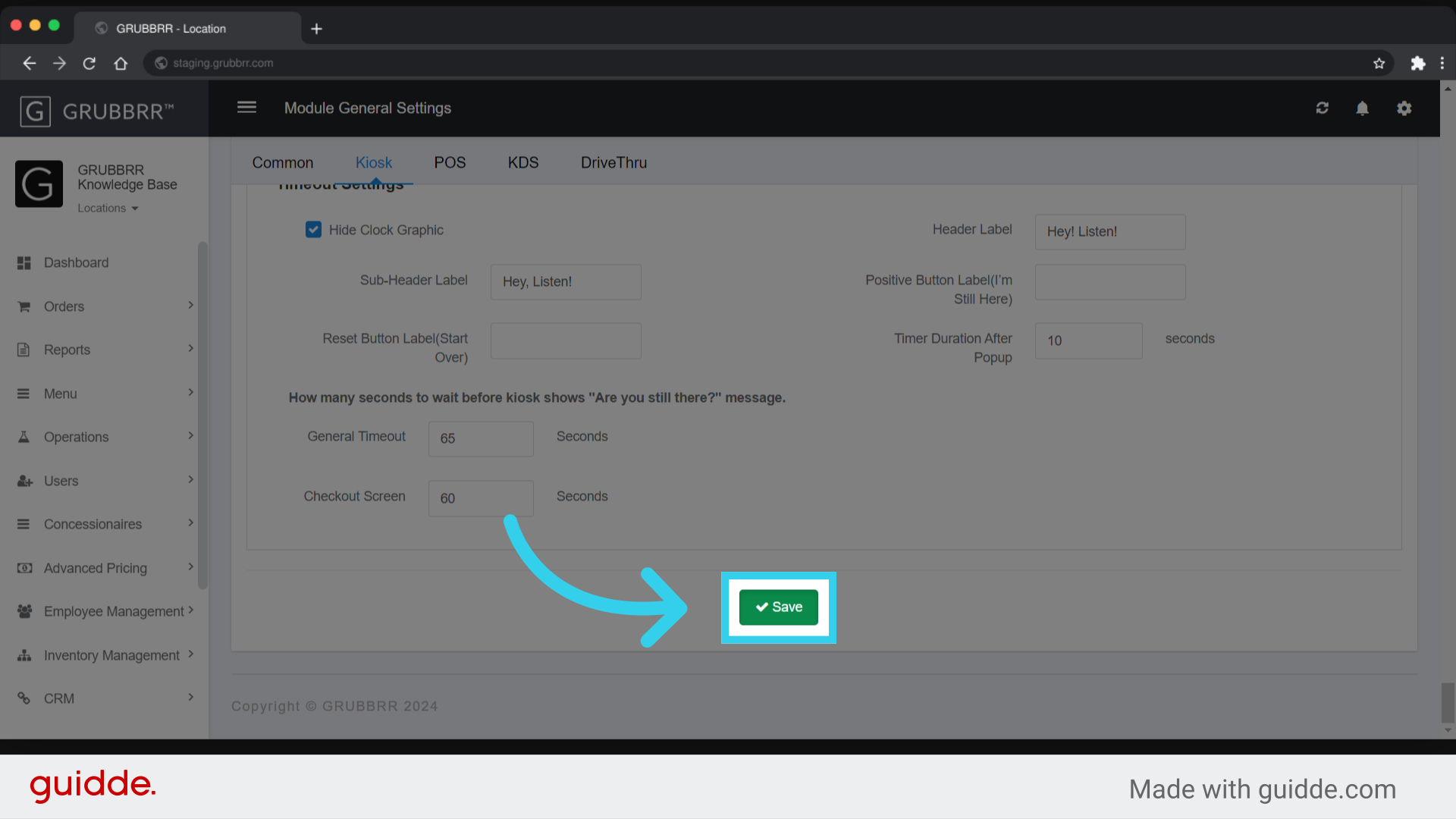
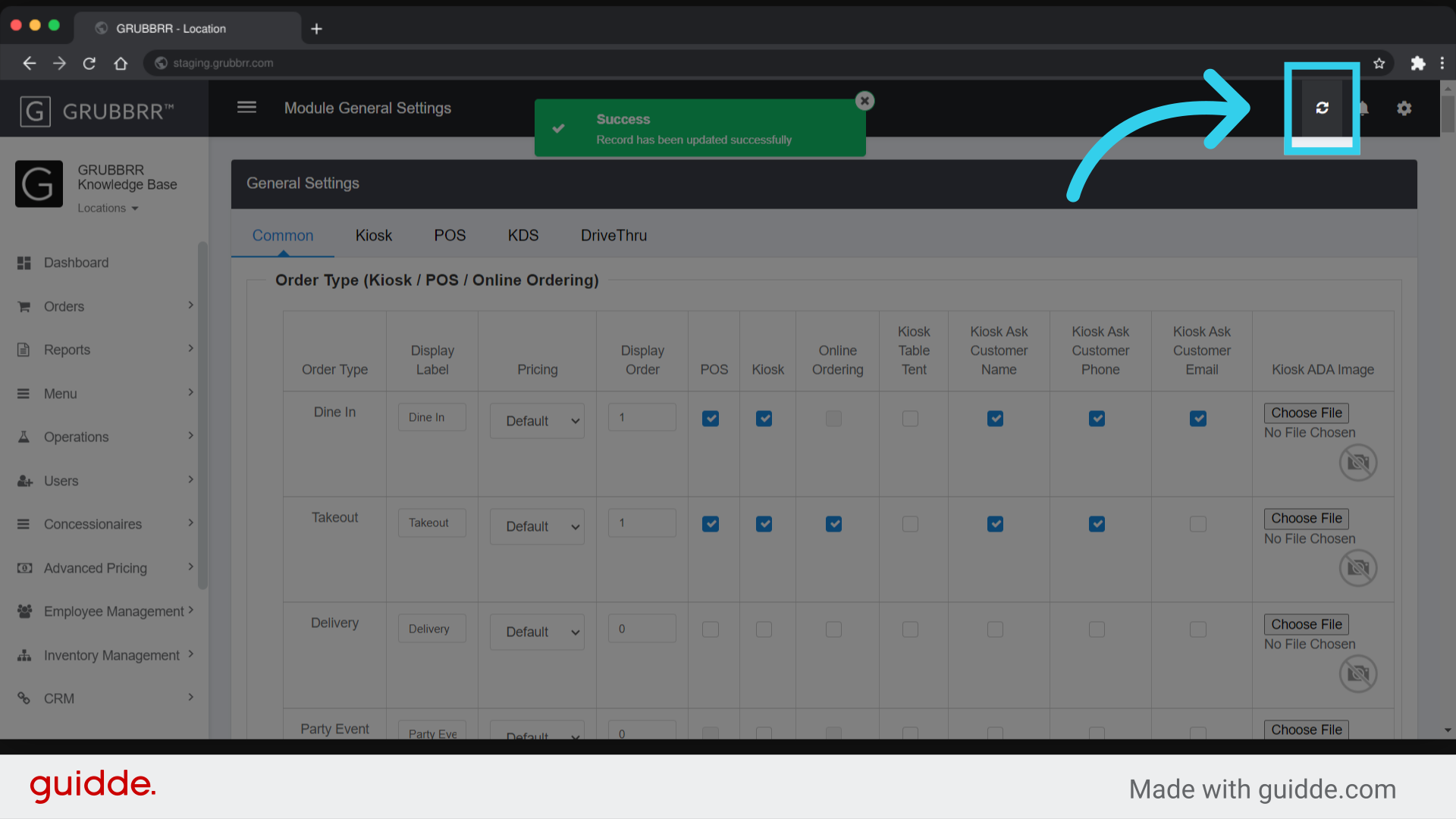
12. Click "Sync" to push your changes to the Kiosk