How to Refund Kiosk Orders through the GRUBBRR Portal
Last updated: August 8, 2026
How do I refund customers for an order on the GRUBBRR Kiosk?
We can provide full or partial refunds for Kiosk orders through the GRUBBRR portal. Please note that these refunds are not connected to any POS systems that we've integrated with your GRUBBRR devices; they are processed through a virtual terminal linked directly to your GRUBBRR portal during the company creation process. As such, any refunds that we process through GRUBBRR will not appear in your POS records.
1. Sign in to the GRUBBRR Portal at the Location level

2. Click "Orders"

3. Click "Detailed Orders"

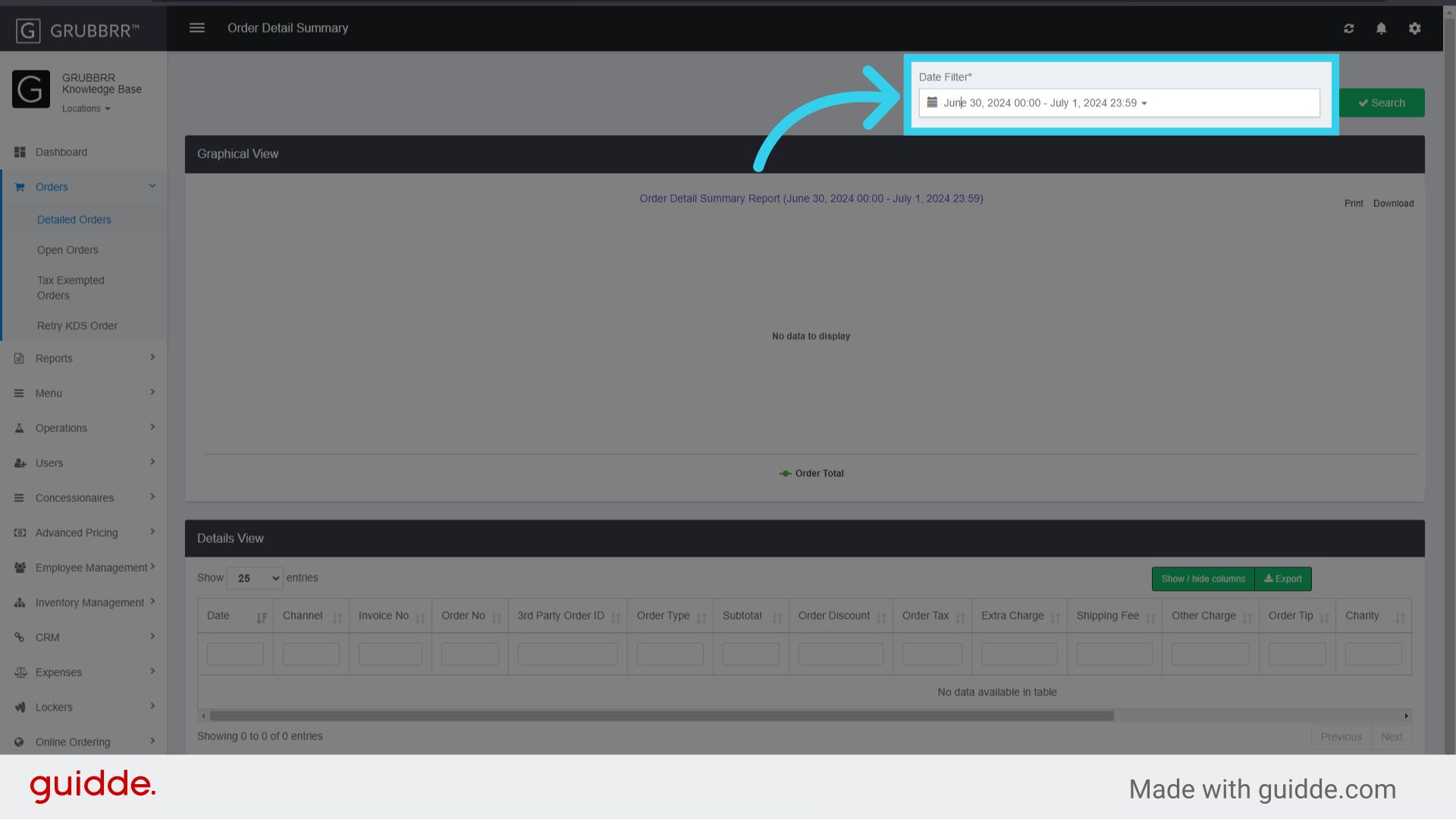
4. Use the Date Filter to search for transactions on a specific day, or within a range of dates
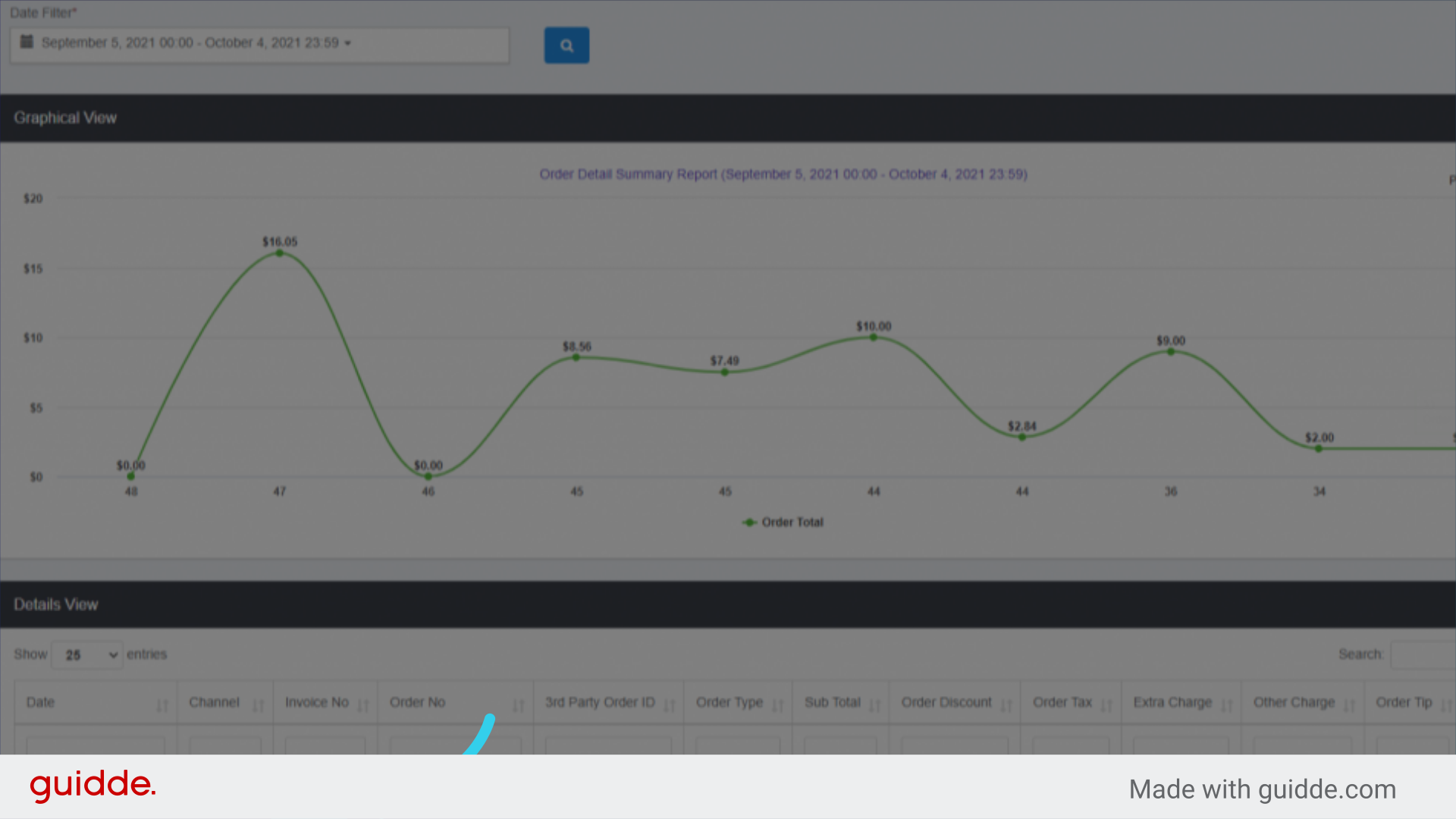
5. Click the blue "Invoice Number" button to open a detailed invoice for the order
6. Click "Refund" to open the Refund Options screen
Remember, GRUBBRR must have a valid virtual terminal ID (submitted with the initial VAR sheet) to use this feature!

7. "Refund By Item" allows us to reverse charges for individual item(s) in the order

8. "Refund by Amount" allows us to manually enter the dollar amount we want to refund

9. "Full Refund" completely reverses the transaction
