How to Create Combos in the GRUBBRR Portal
Last updated: August 8, 2026
How do I create a combo for my Kiosk menu?
A combo is a group of items that your Kiosk automatically bundles together, sometimes at a discounted rate. Creating a combo requires us to:
- Create Combo Groups
- Create a Combo containing those groups
- Map menu items to those groups within a combo
You can follow the steps below to complete this process.
1. Combos can be managed at the Company or Location level

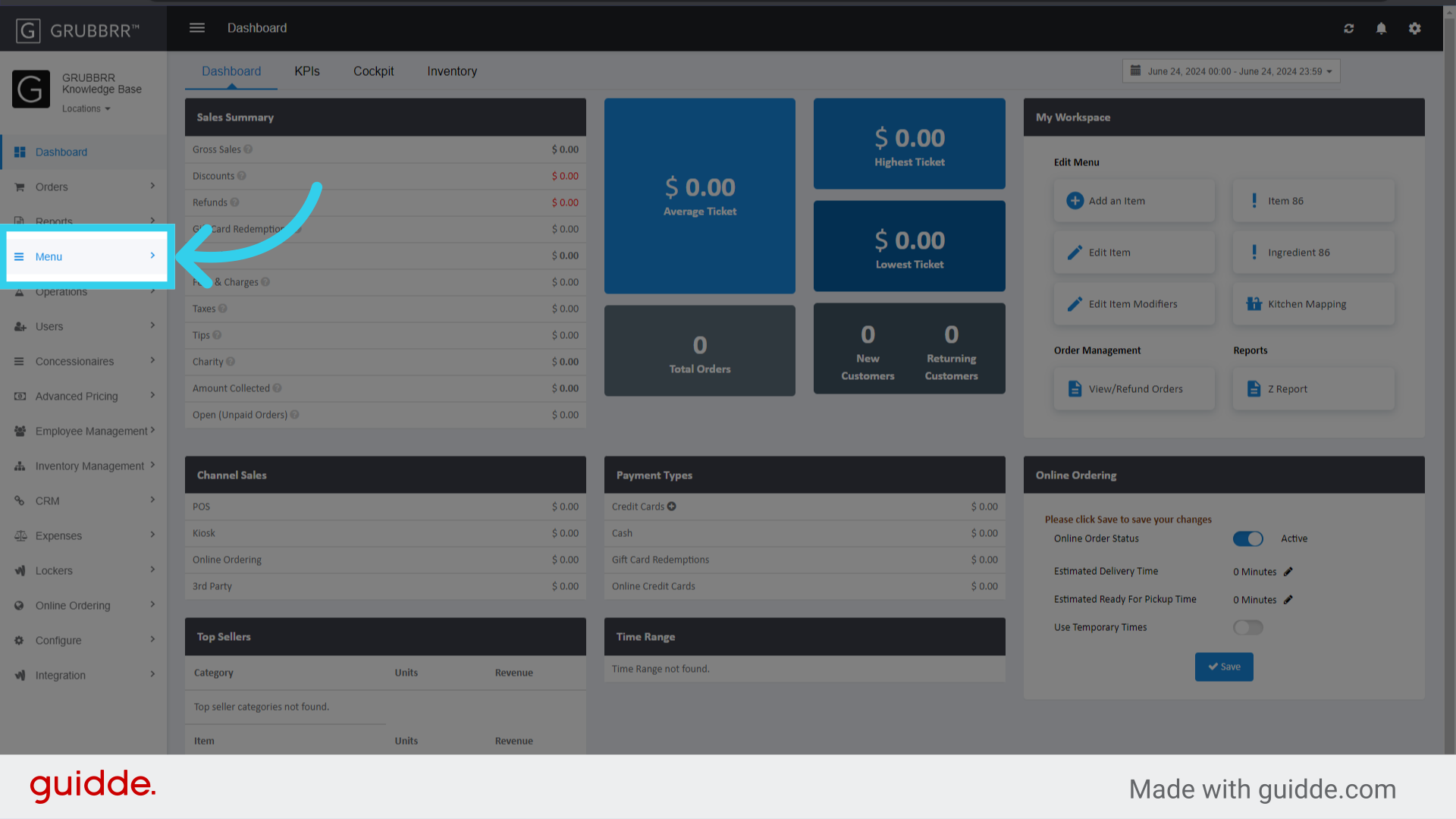
2. Click "Menu"
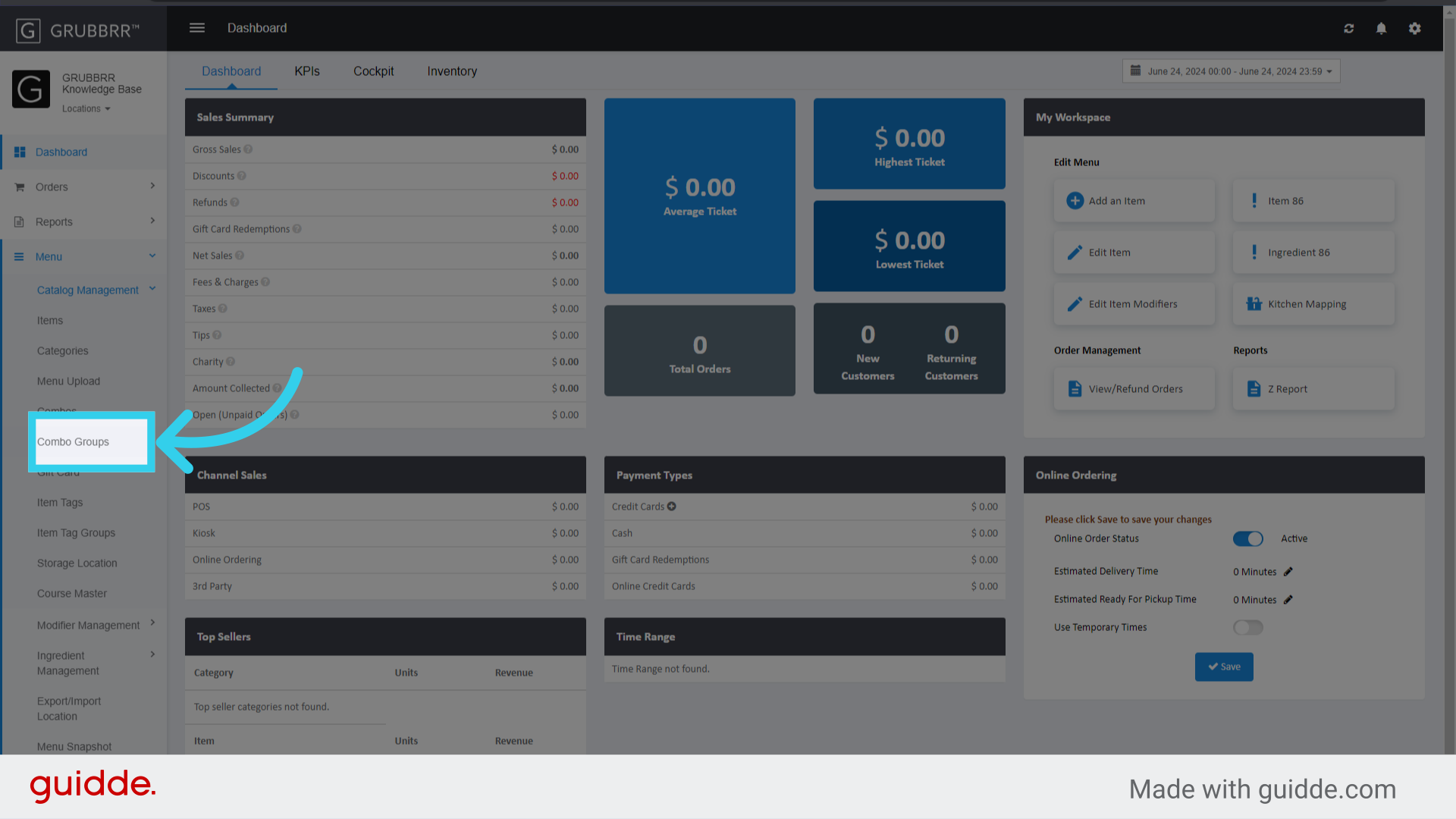
3. Click "Catalog Management"

4. First, click "Combo Groups"
5. Click "Add New"

6. Give the combo group a clear, identifiable name
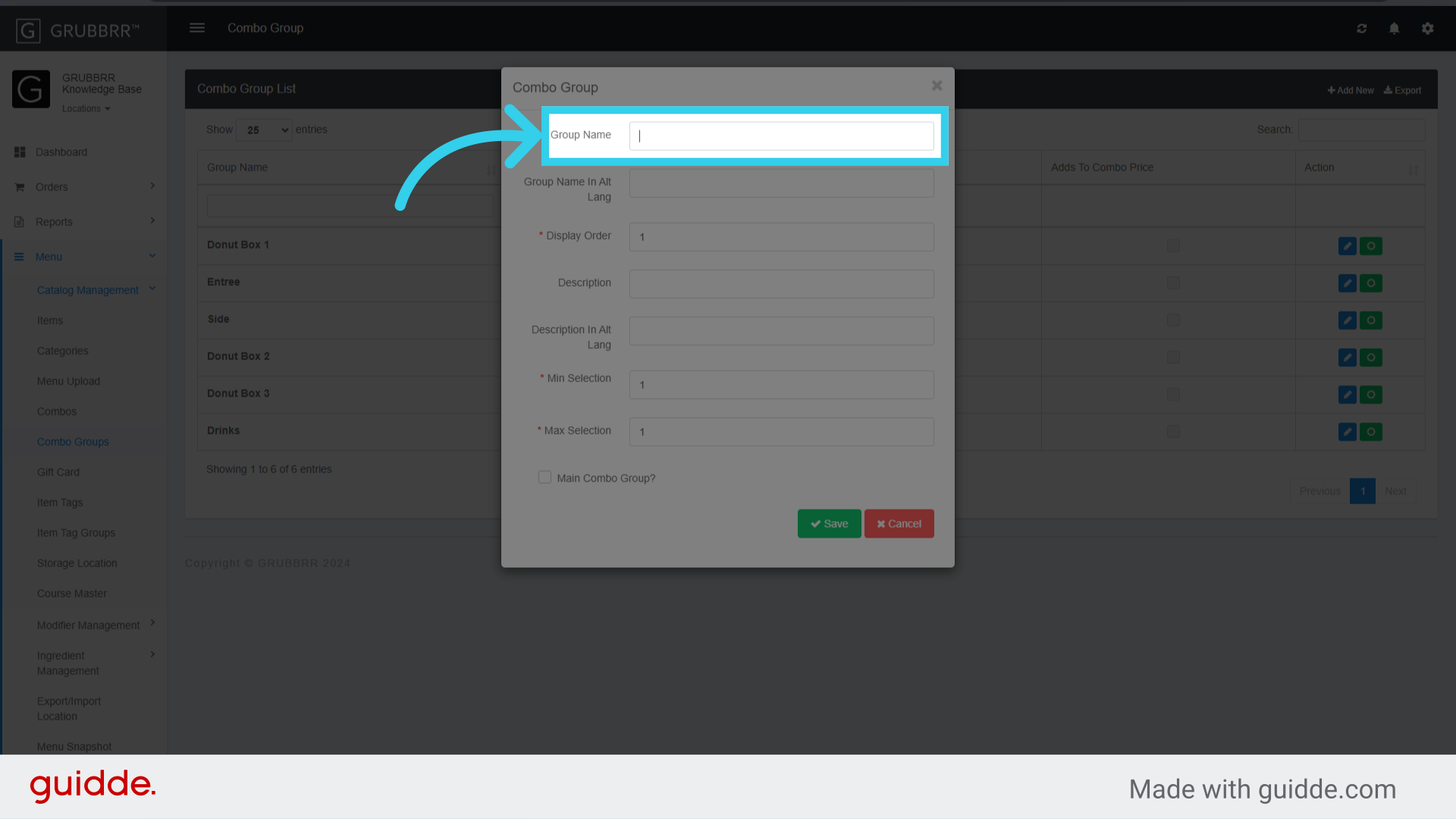
7. Assign the combo group a display order

8. Define the minimum number of items that can be selected in this combo group

9. Define the maximum number of items that can be selected from the combo group

10. Optional: Select "Main Combo Group" to enable Make it a Combo upsells for items in this group

11. Click "Save"
Repeat this process for each combo group you'll use on your menu

12. Next, click "Combos"
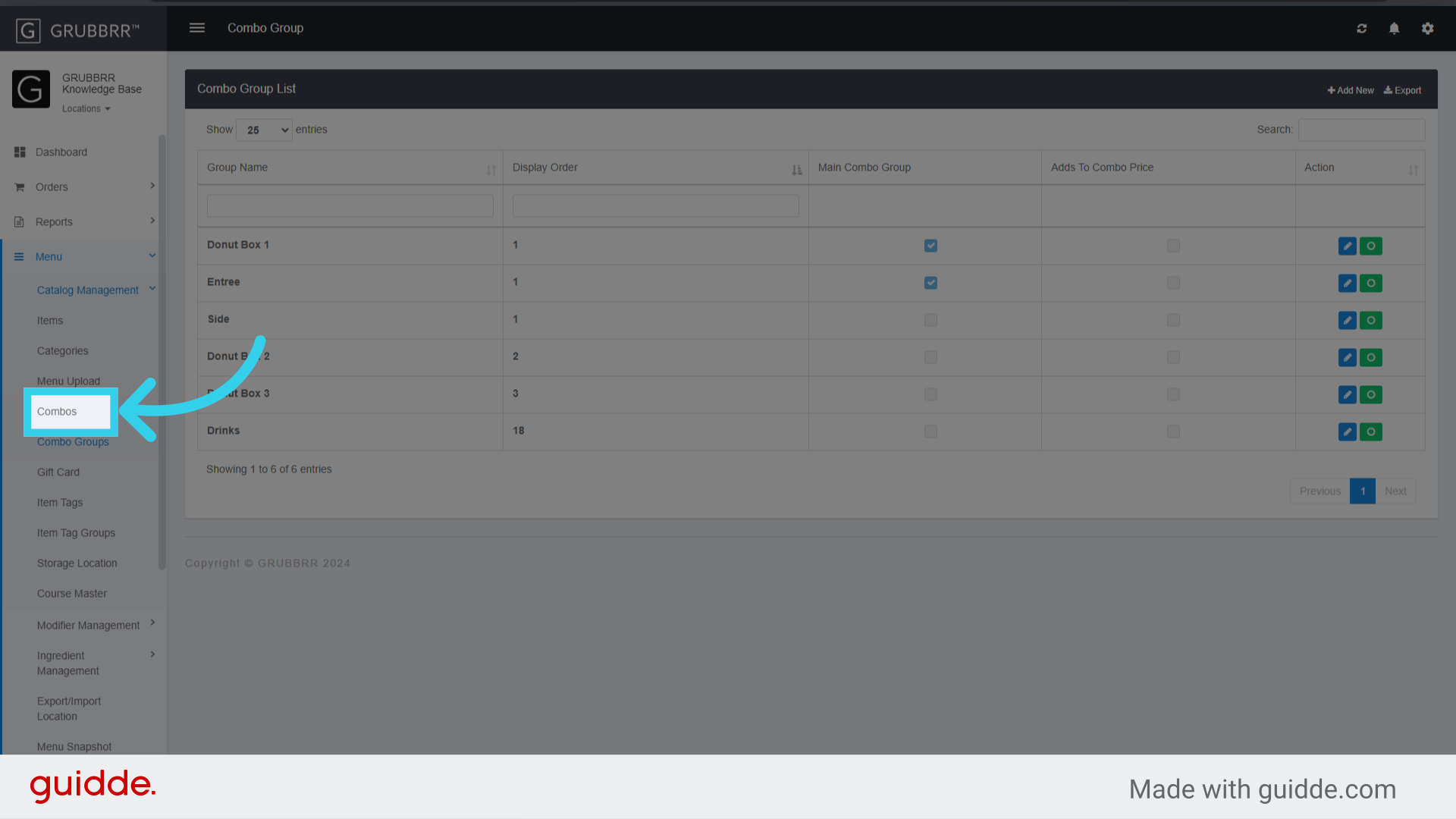
13. Click "Add New"
Or click "edit" to update an existing combo

14. Give the combo a name
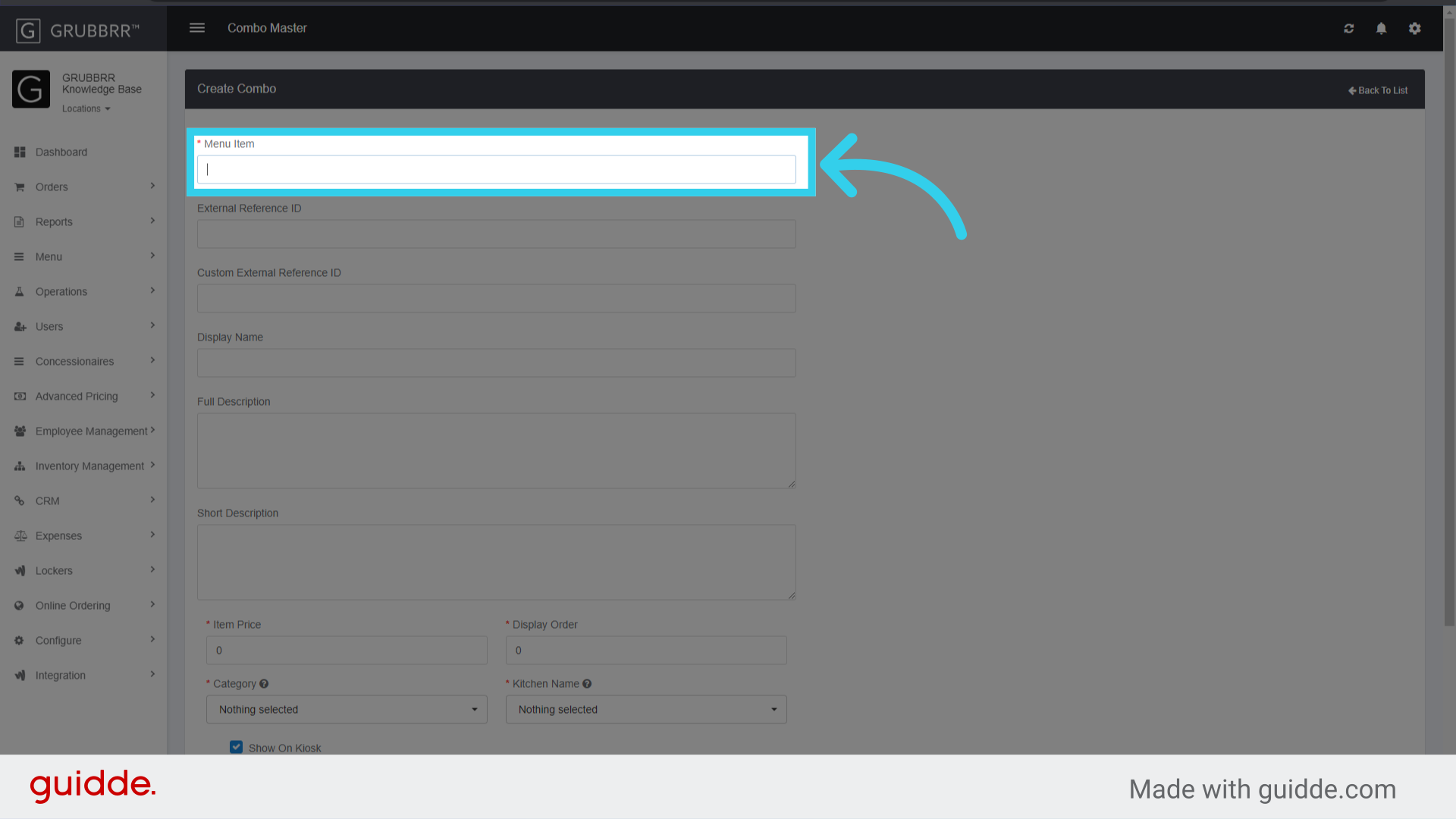
15. Enter a description of the combo

16. Define the combo's price
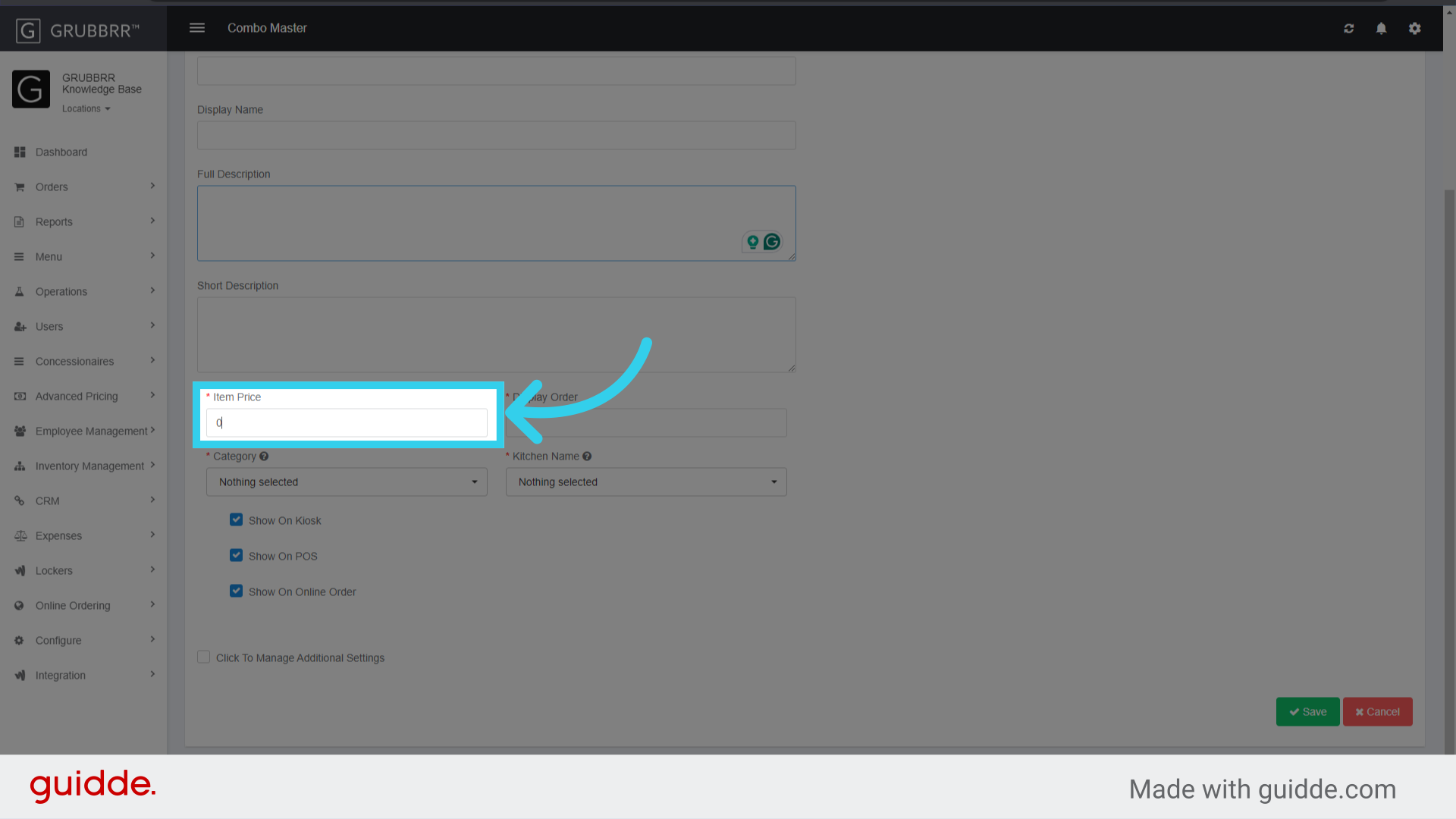
17. Assign a display order for the combo
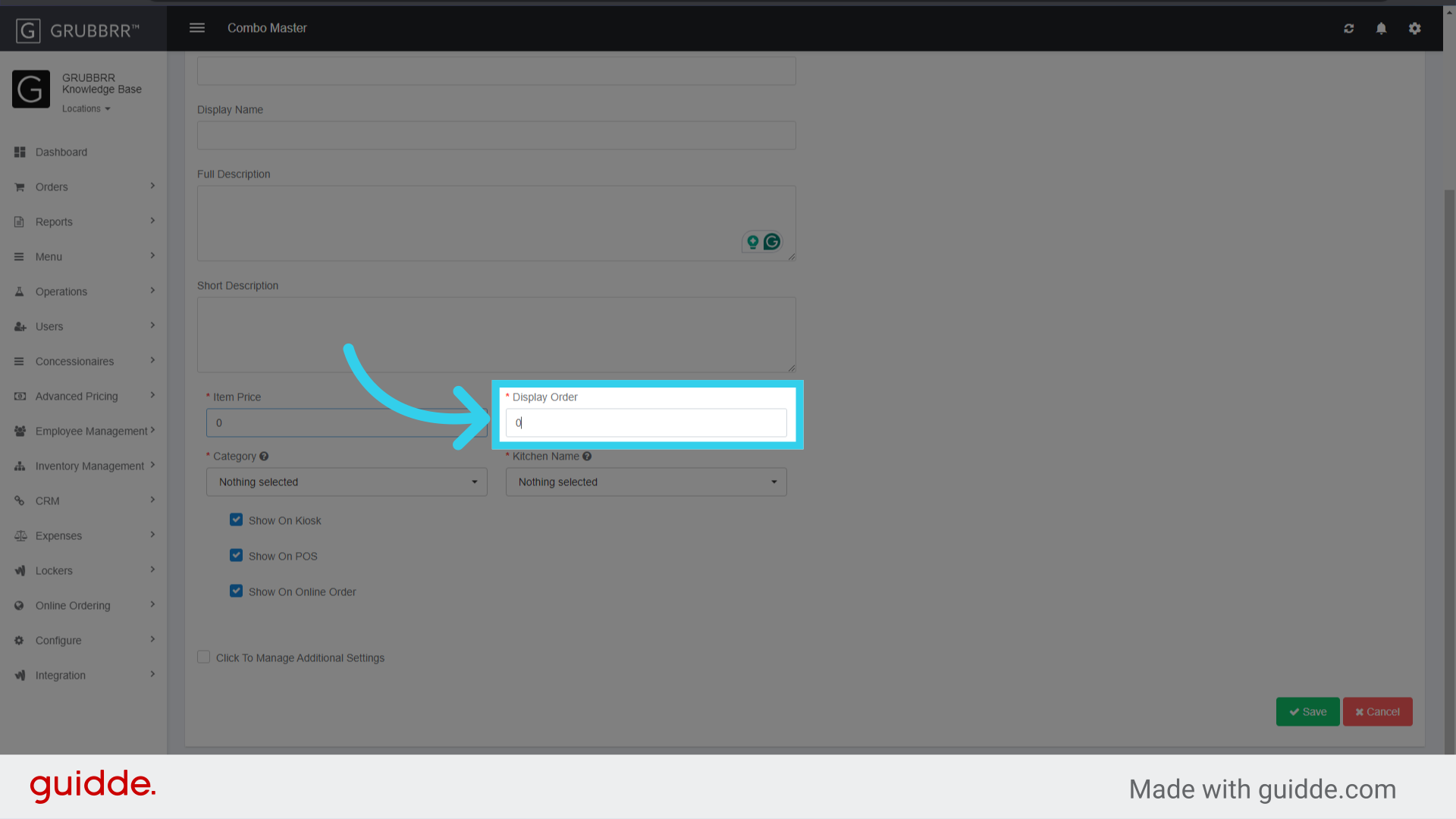
18. Assign the combo to a category
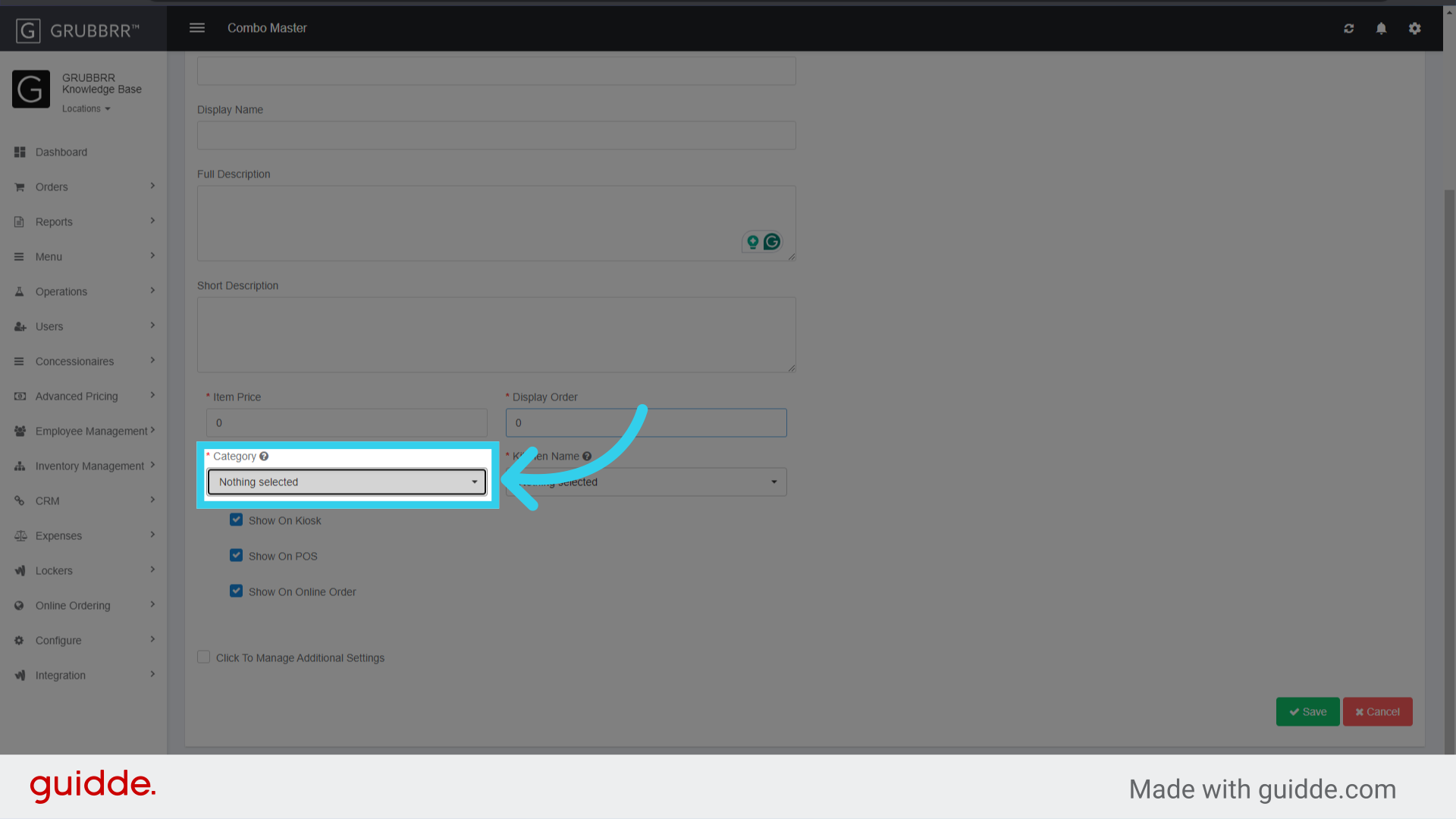
19. Assign the combo to a Kitchen

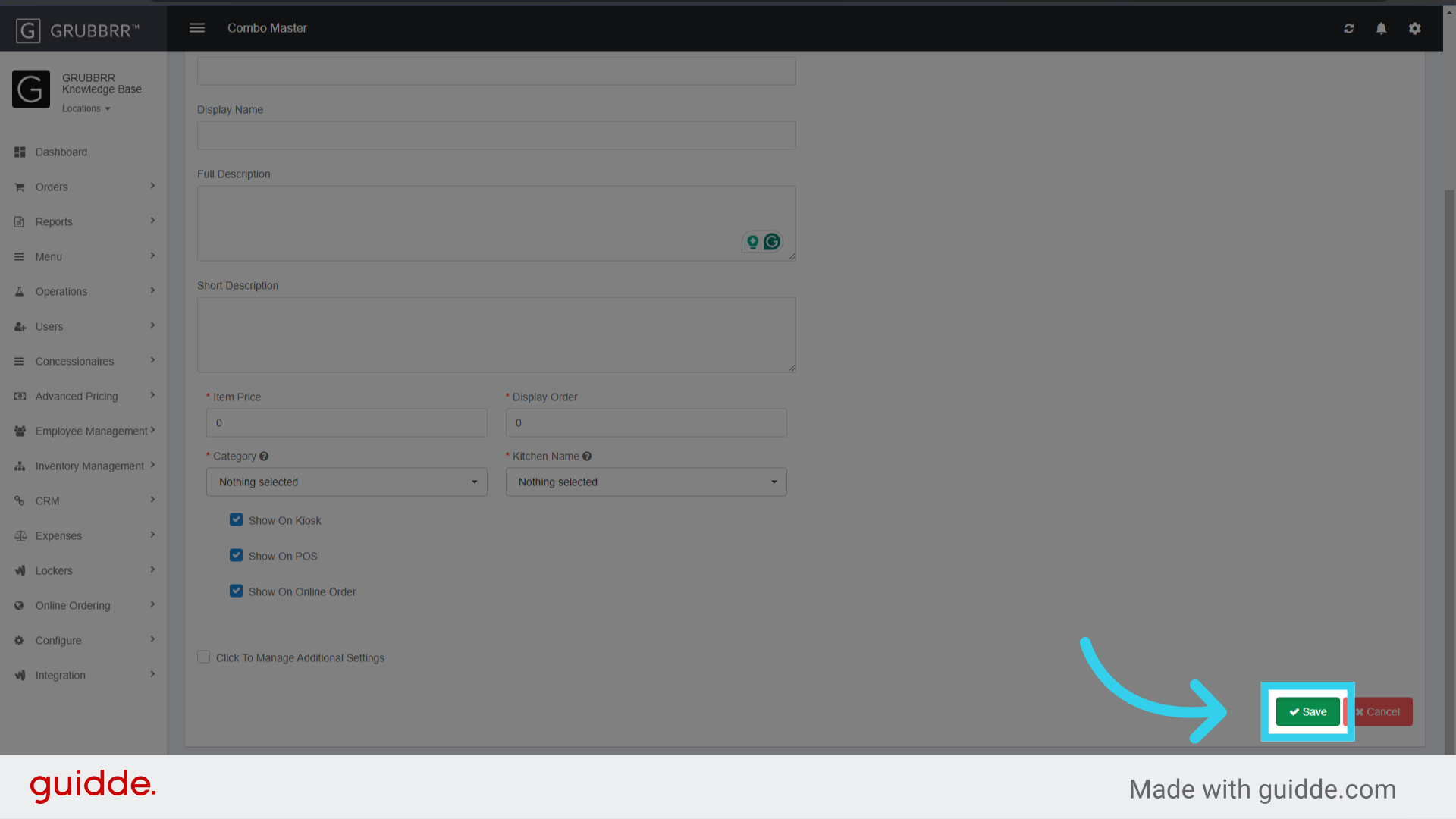
20. Click "Save"
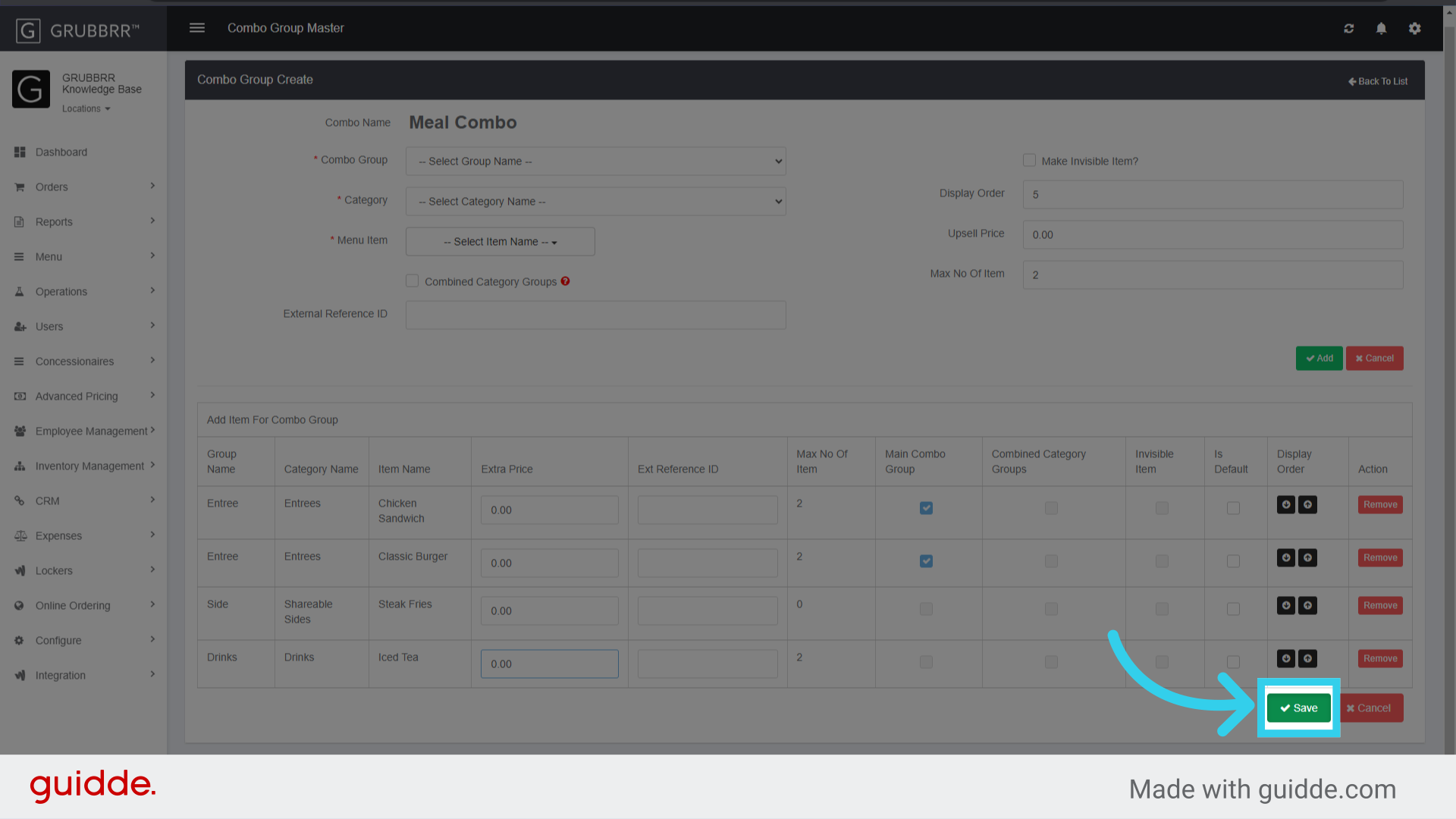
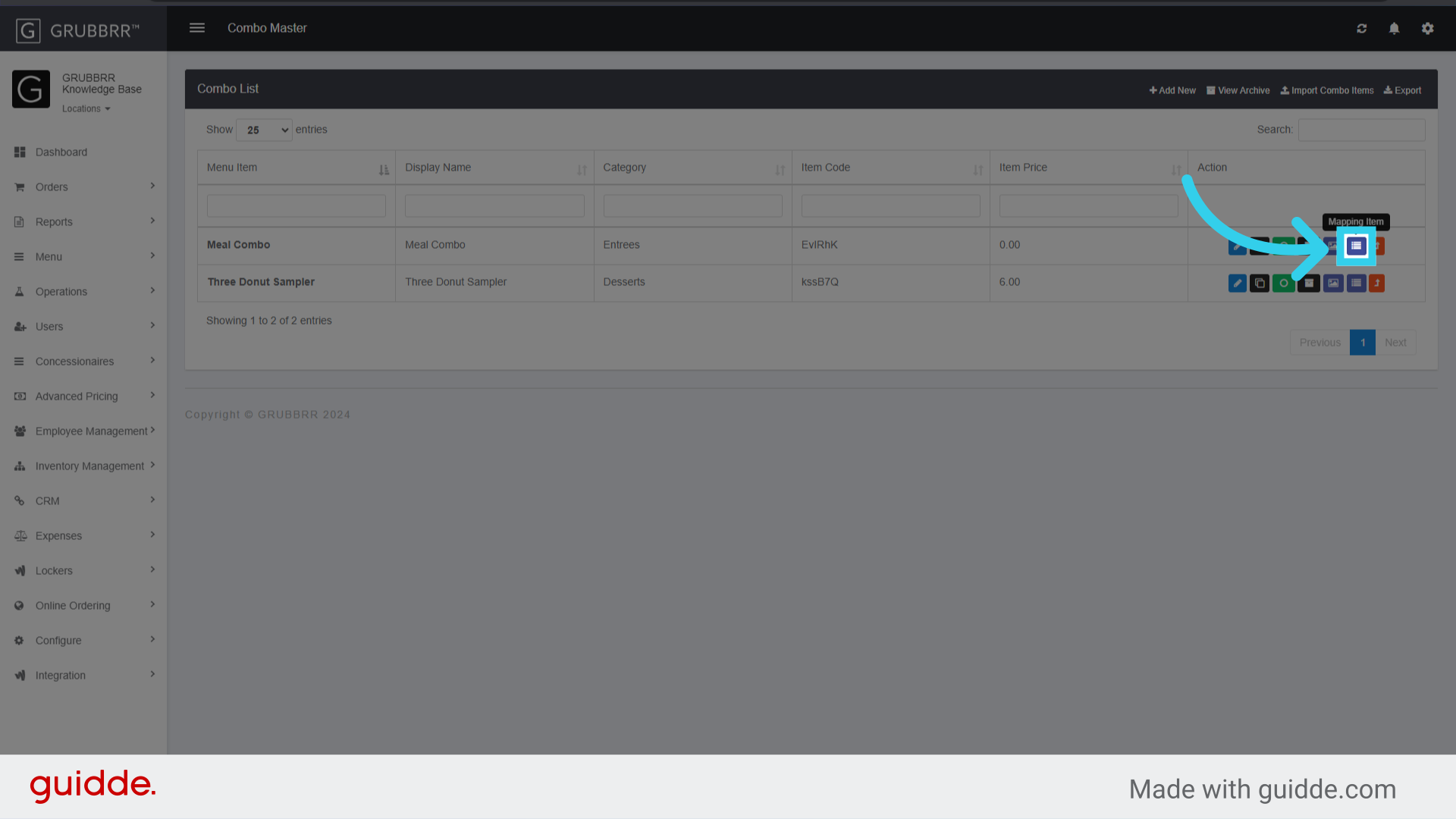
21. Click "Mapping Item"
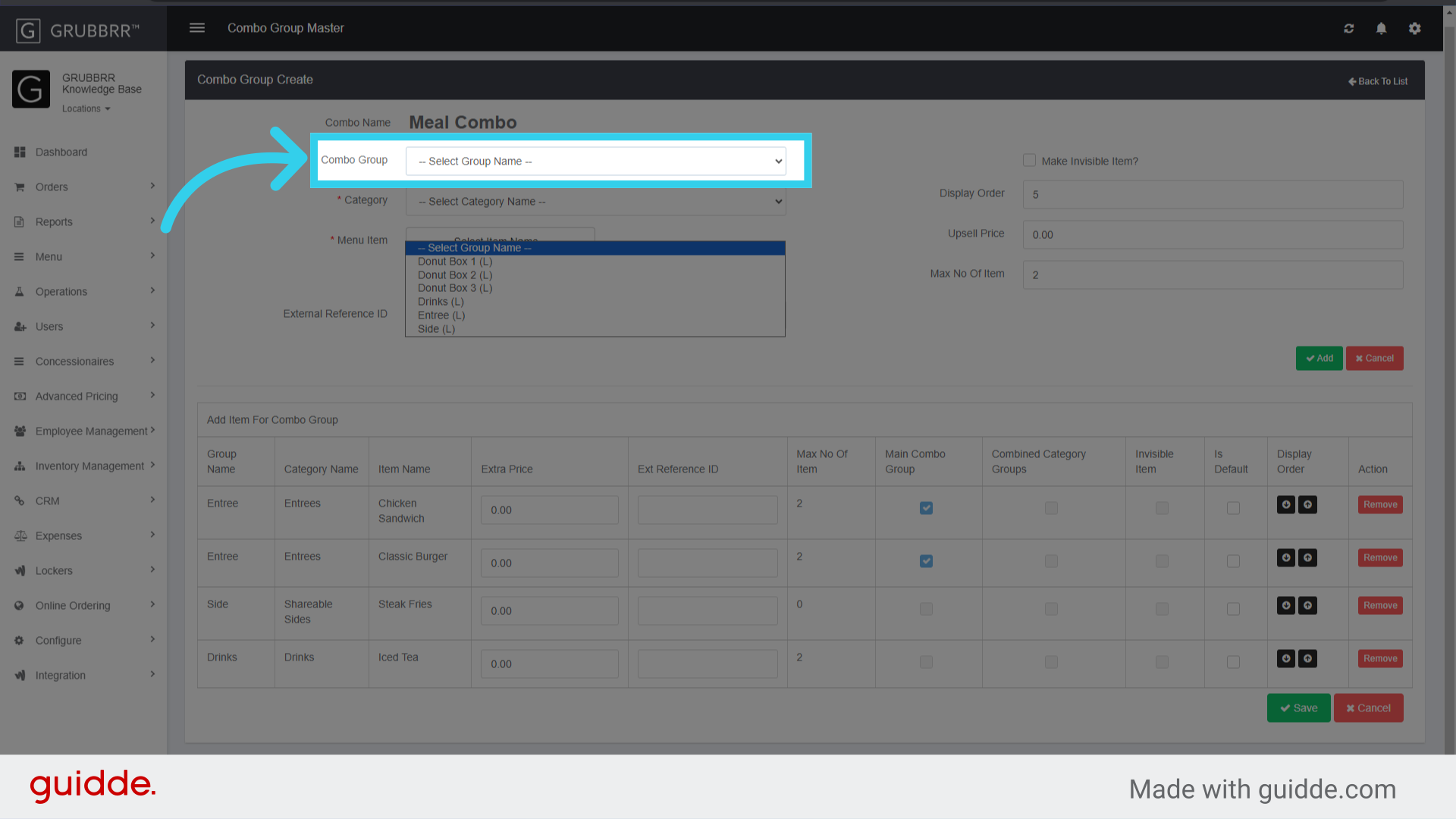
22. Select the first combo group to include
23. Select a category to pull items from

24. Select items to include in the combo group
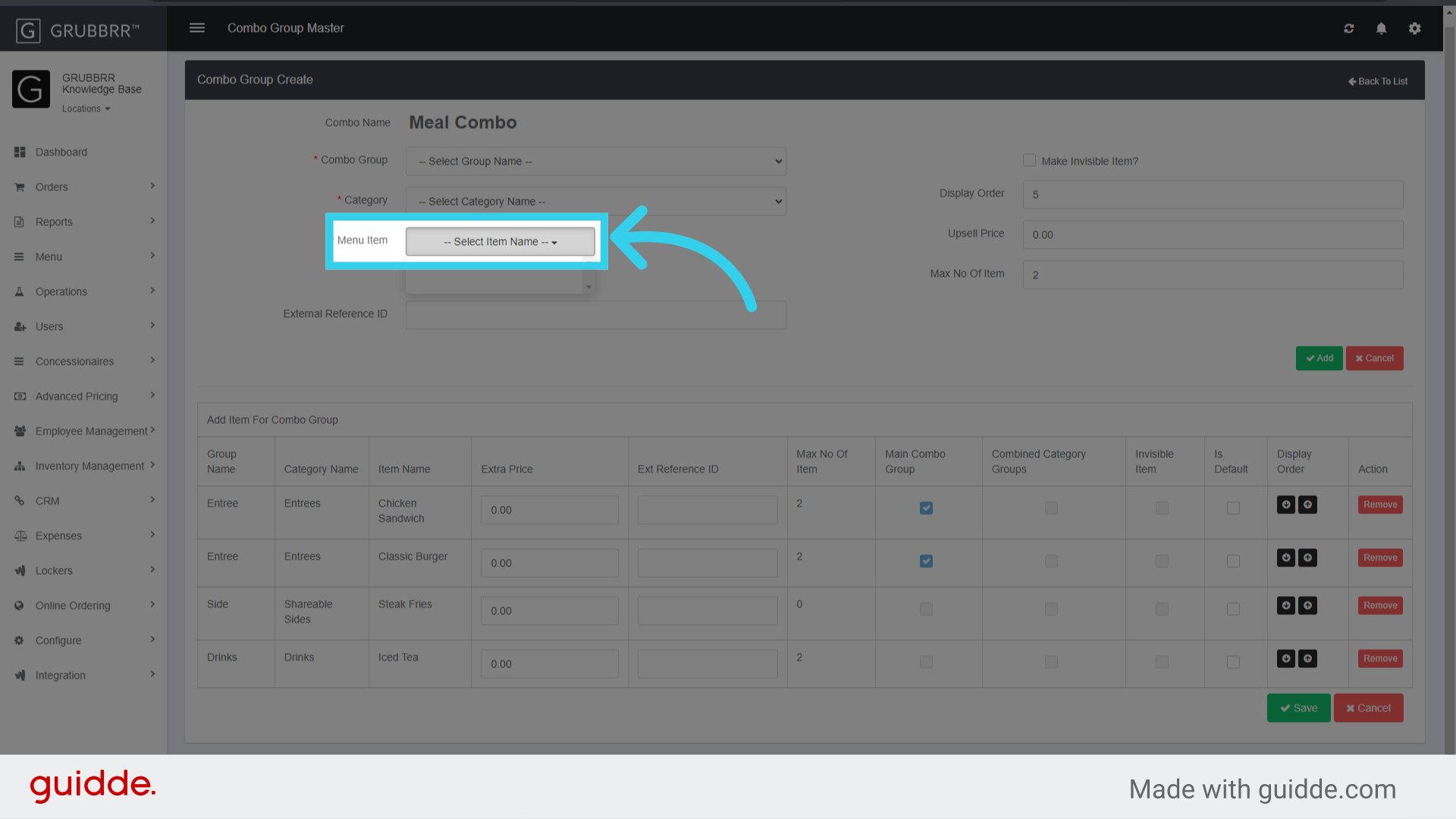
25. Assign the combo group a display order

26. Click "Save" to apply your changes