How to Review your Kiosks' Order History in the GRUBBRR Portal
Last updated: August 8, 2026
How are Kiosk orders tracked in the GRUBBRR Portal?
Can I refund Orders from my GRUBBRR Kiosk?
We can pull detailed order reports from the GRUBBRR Portal at the location level. The Detailed Orders panel allows us to review all orders submitted during a selected time period, review detailed printouts of all items in an order, and even issue refunds. To access these reports, follow the steps outlined below.
1. Sign in to the GRUBBRR Portal at the Location level

2. Click "Orders"

3. Click "Detailed Orders"

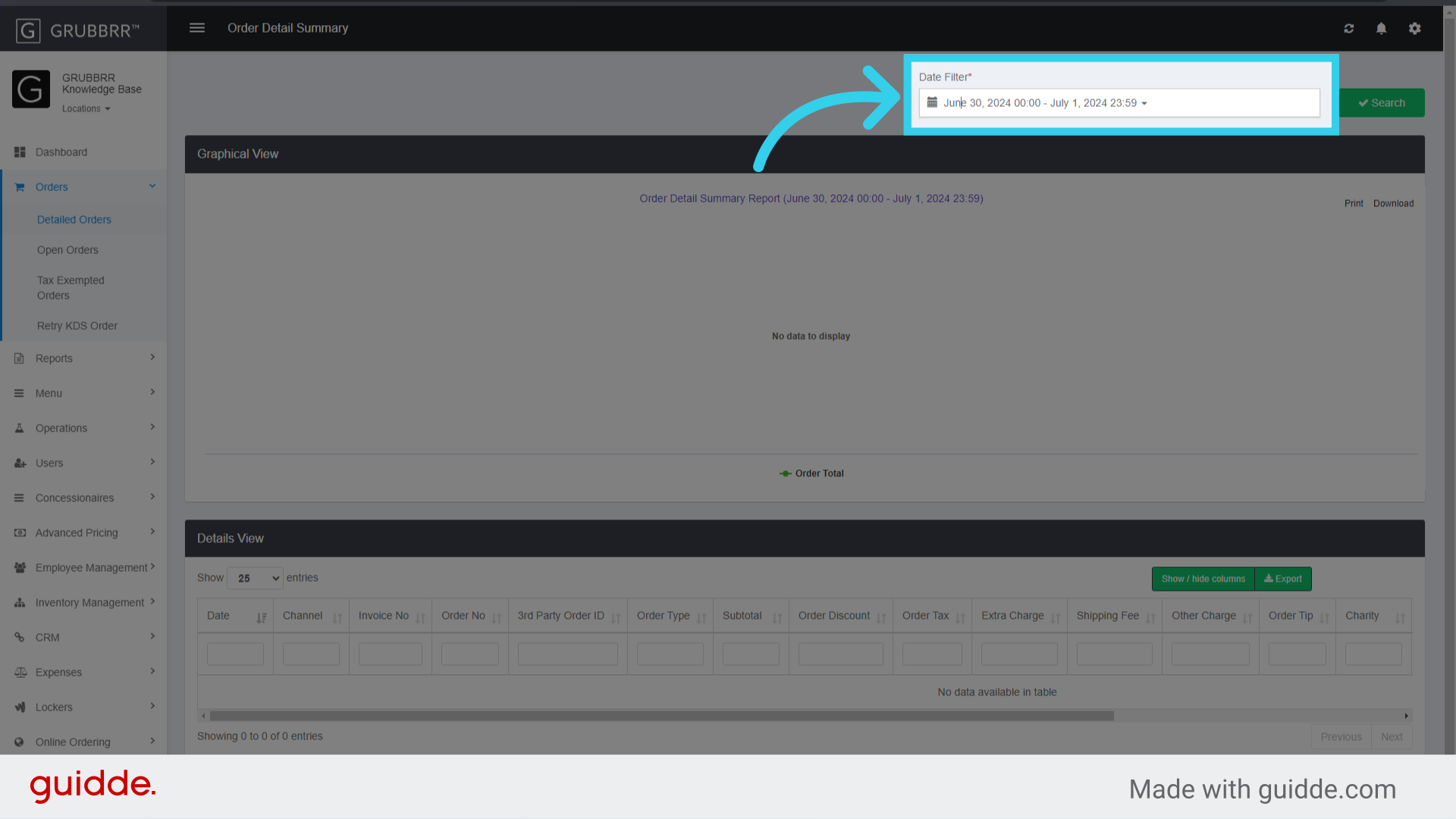
4. Use the Date Filter to search for transactions on a specific day, or within a range of dates
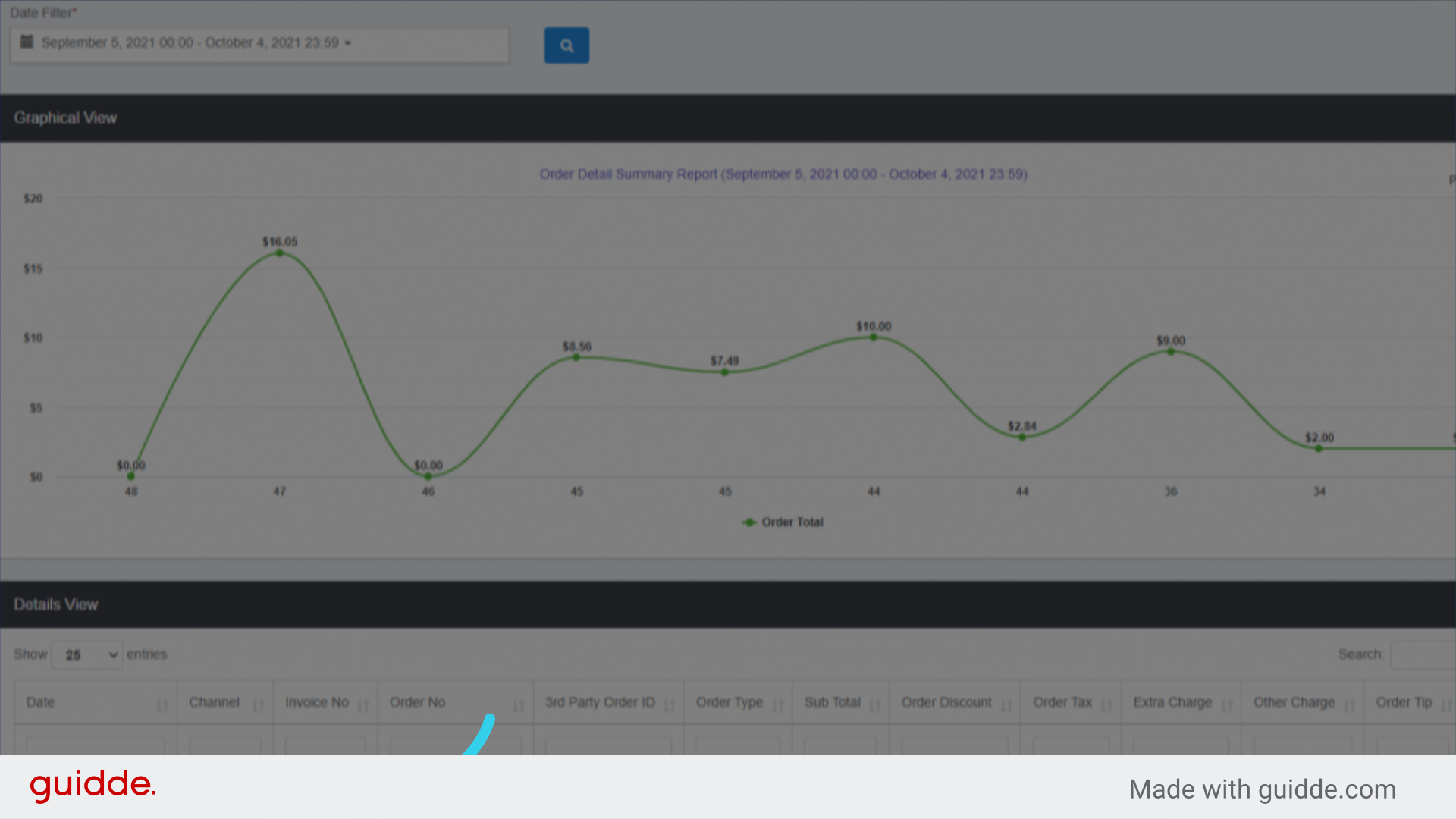
5. The "Graphical View" tile tracks order trends over time

6. The "Details View" tile breaks down each transaction in depth

7. Click the blue "Invoice Number" button to open a detailed invoice for the order
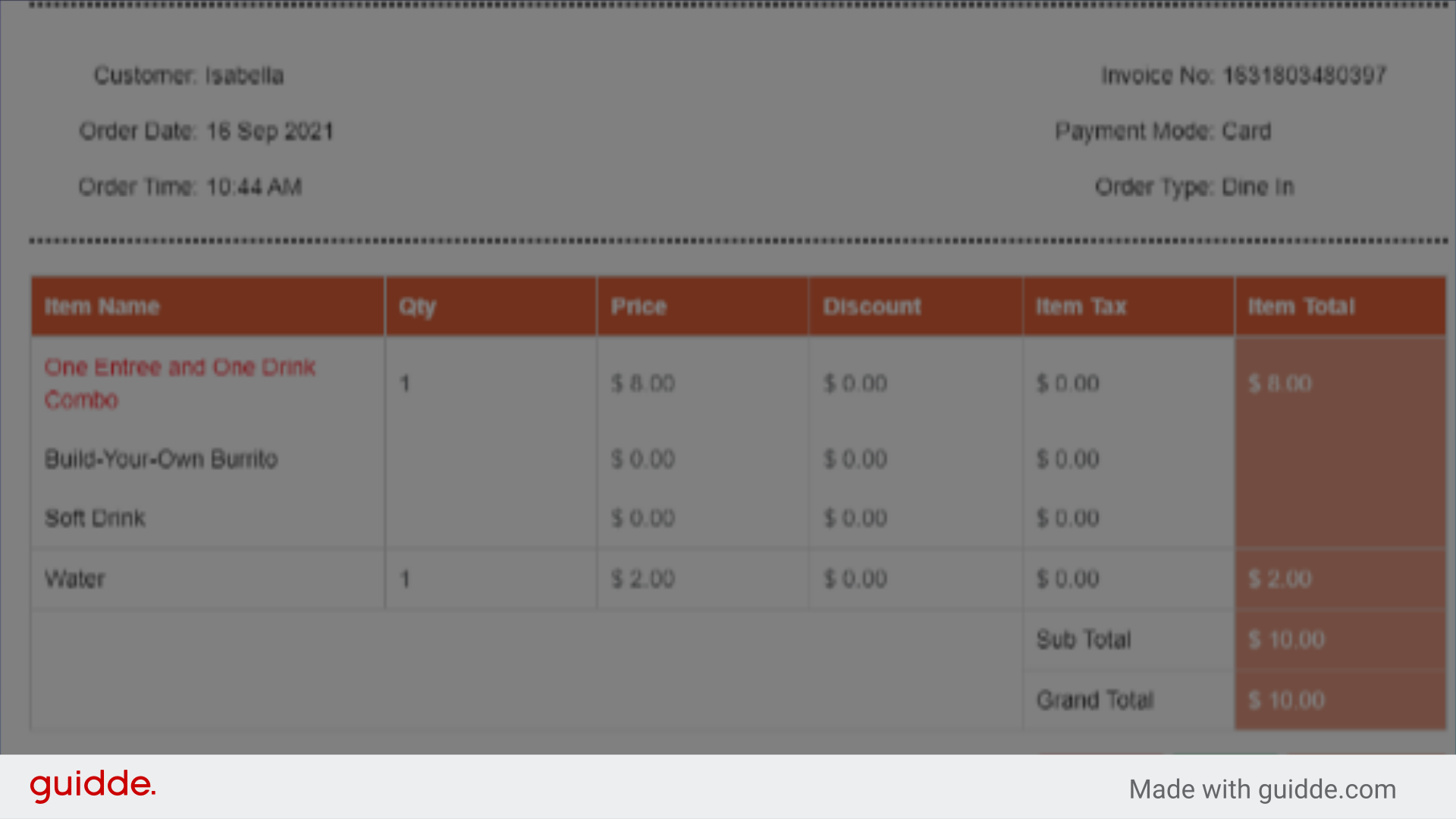
8. The Detailed Invoice screen allows you to review the order and even process refunds
You can read more about refunding orders through the GRUBBRR Portal here.