How to configure Order-Level Upsells in the GRUBBRR Portal
Last updated: August 8, 2026
Does the Kiosk have an option to offer upsells at the end of an order?
One of GRUBBRR's most popular features is the automated upsell on our kiosks. Upsells can be configured on an item-level or order-level basis. The Kiosk offers order-level upsells to guests when they first hit "Pay" during order confirmation. This gives guests one final chance to add any high-interest items to their cart before finalizing their order. We can configure order-level upsells in one of two ways.
1. Click "Configure"

2. Click "General Settings"

3. If desired, you can enter custom text to appear on your Order-Level upsell pop-up here

4. "Upsell by Course" lets us create a preset list of items that the Kiosk will offer as order-level upsells

5. If you're using "Upsell by Course," you can configure how many items the Kiosk shows on the upsell prompt here

6. "Upsell by Category" lets you select a menu category, and the Kiosk will prompt customers to visit that category before finalizing their order

7. Once you've made your configurations, click "Save" to apply your changes

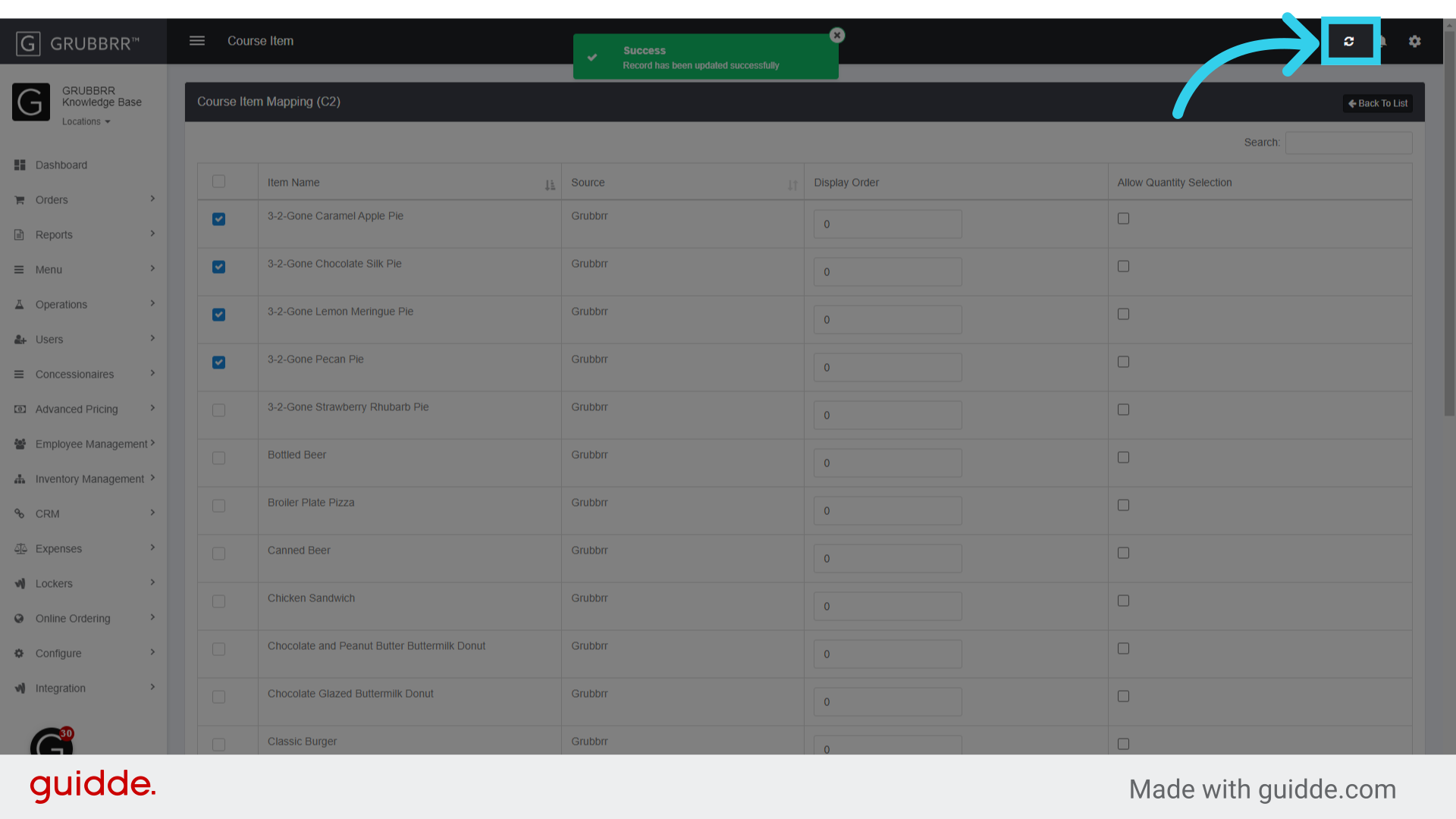
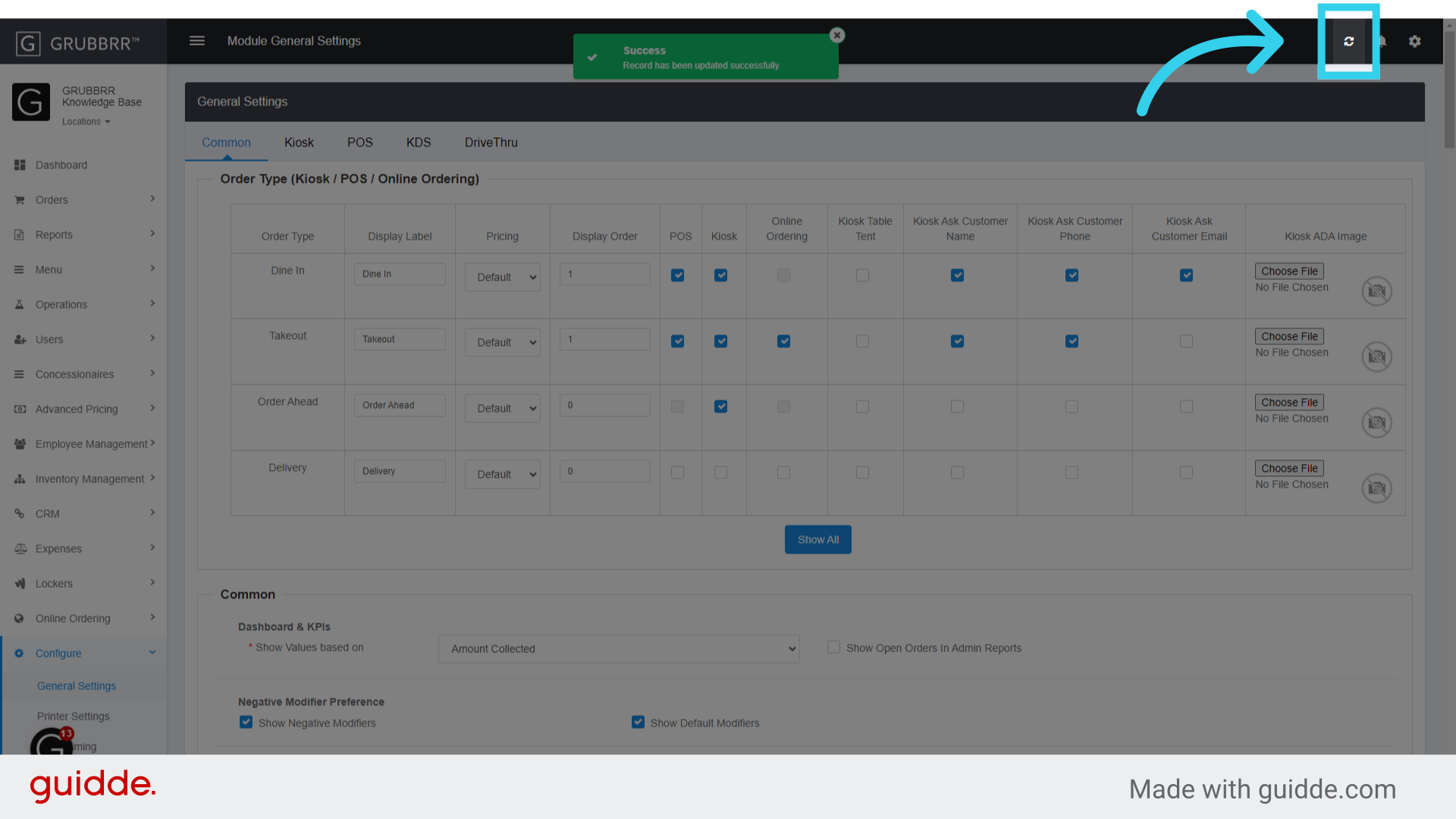
8. Remember to sync any changes to your Kiosk!
Configuring "Upsells By Course"
If you're using "Upsell by Course" on your Kiosk, you can create your order-level upsells using the Course Master tool in the GRUBBRR Portal. The flow for this process is similar to the flow we use to create item-level upsells; any items that you add to the "first course" will automatically tell the Kiosk to offer any items in the "second course" when customers finalize their orders. To create a new order-level upsell using the course master:
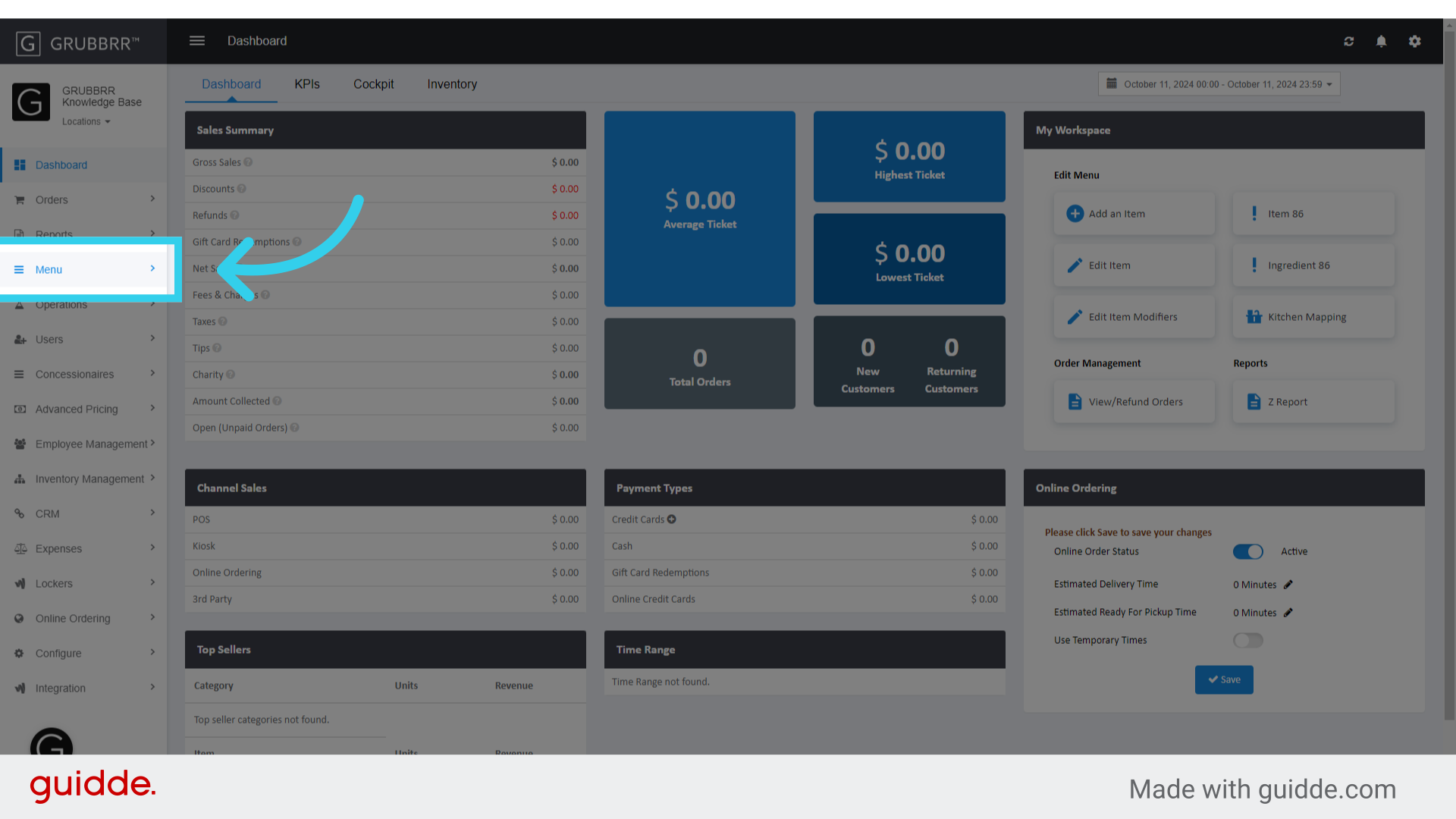
1. Click "Menu"
Access the main menu.
2. Click "Catalog Management"
Navigate to Catalog Management section.

3. Click "Course Master"
Select Course Master option.

4. First, click "Item Mapping" in the Course 1 row
Proceed to the next step.

5. Use this toggle to add a menu item to this course
Proceed to the next step.
6. Click "Update All" to apply your changes
Update all changes.

7. Click "Back To List"
Return to the list view.

8. Now, click "Item Mapping" in the Course 2 Row
Proceed to the next step.

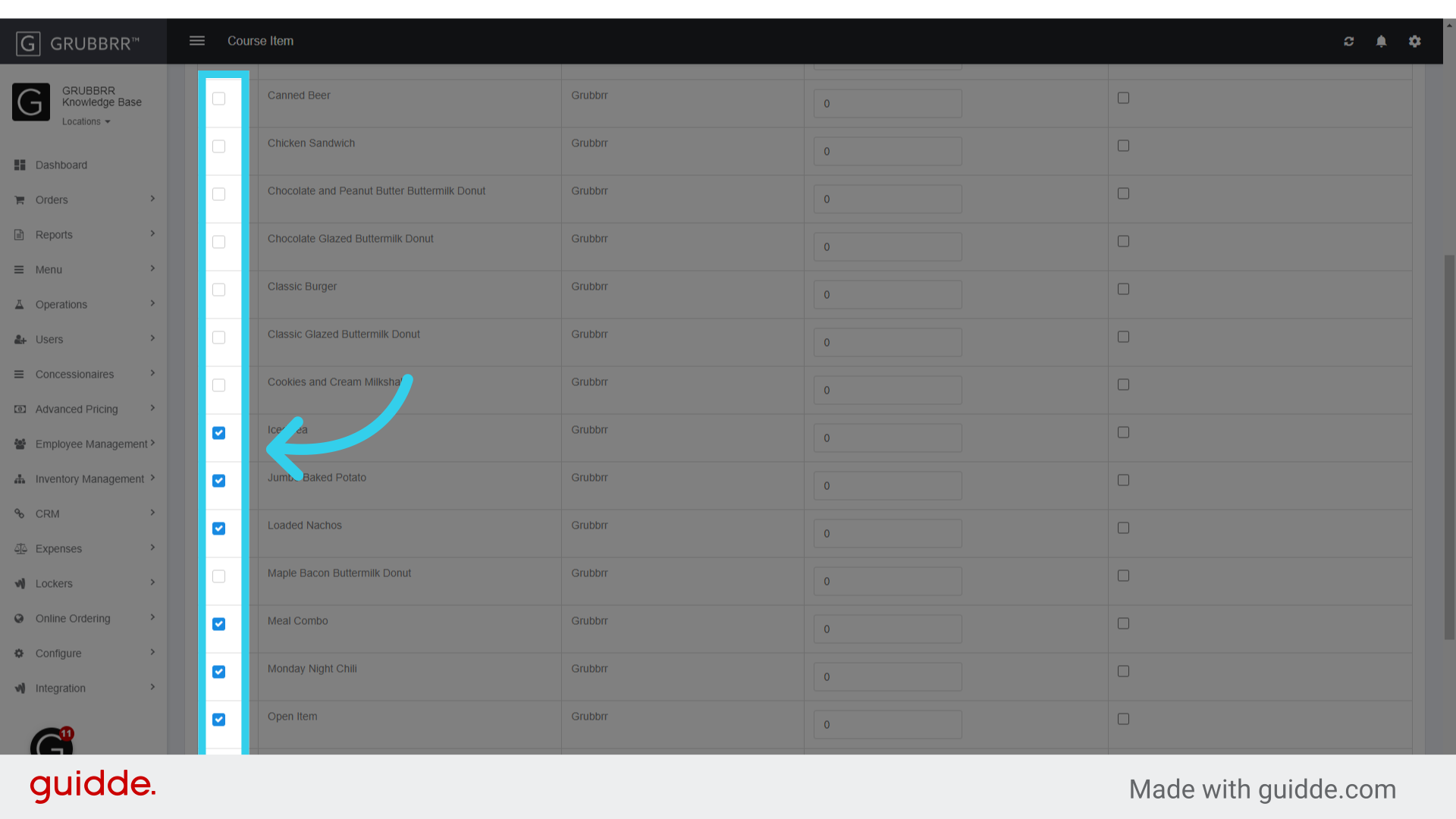
9. Use this toggle to add your desired item(s) to this course
Select "true" option.
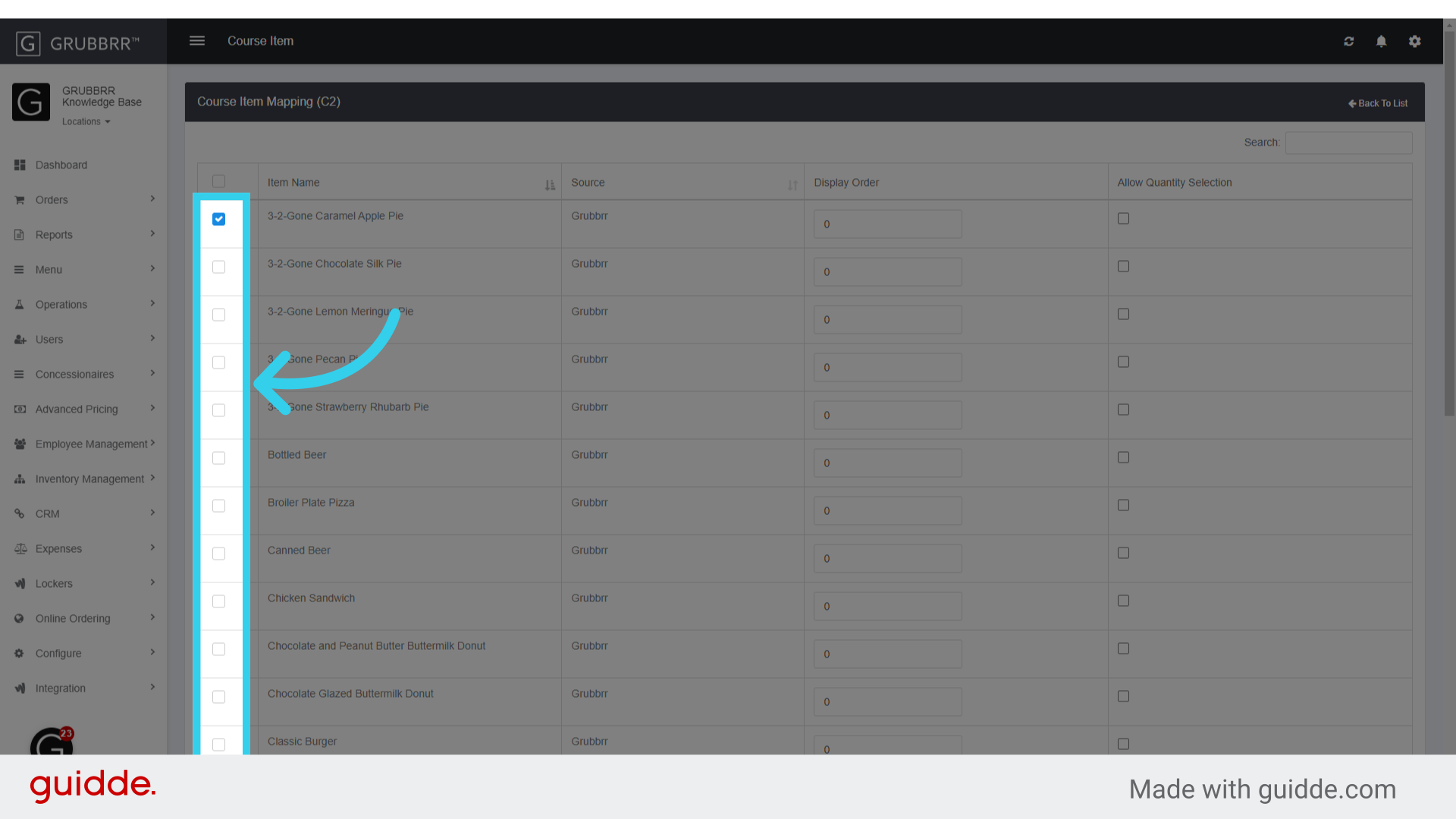
10. Click "Update All" to finalize your changes
Update all changes.

11. Remember to sync your changes to the Kiosk!
Return to the list view.