How to use "Lunch Overrides" in the GRUBBRR Portal
Last updated: August 8, 2026
We use the GRUBBRR Kiosk for school lunches; can we set up the device so students can preorder for a specific lunch period?
GRUBBRR's "Lunch Override" function is designed for schools that use a rotating lunch schedule. With this feature, users can create up to five unique lunch periods in the GRUBBRR portal. Then, when a student signs in at the Kiosk, they'll be given the ability to select which lunch they have that day. This additional flexibility helps ensure that staff is able to accurately prep for different lunch periods throughout the day. To enable this feature:
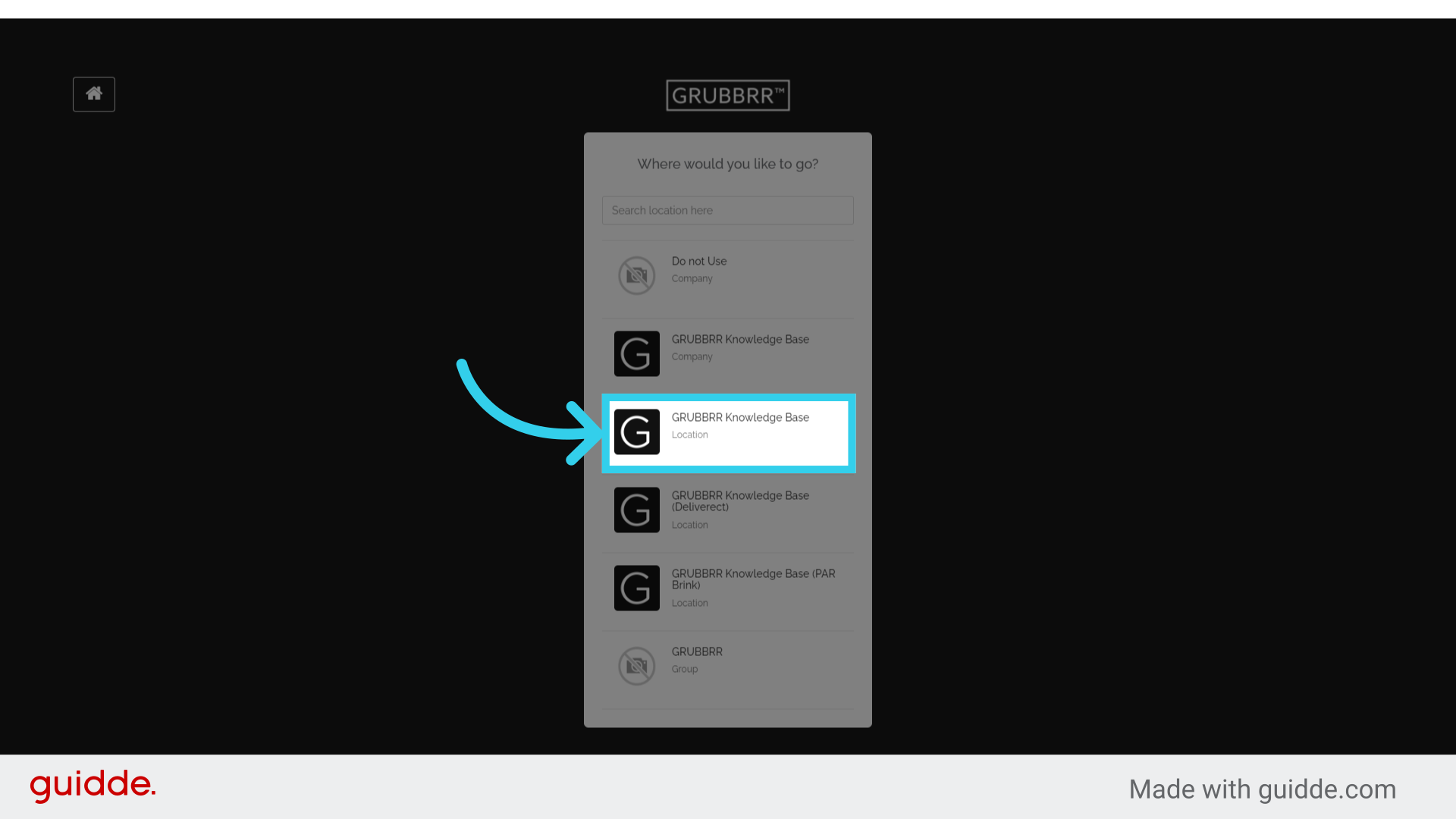
1. Sign into the GRUBBRR Portal at the Location level
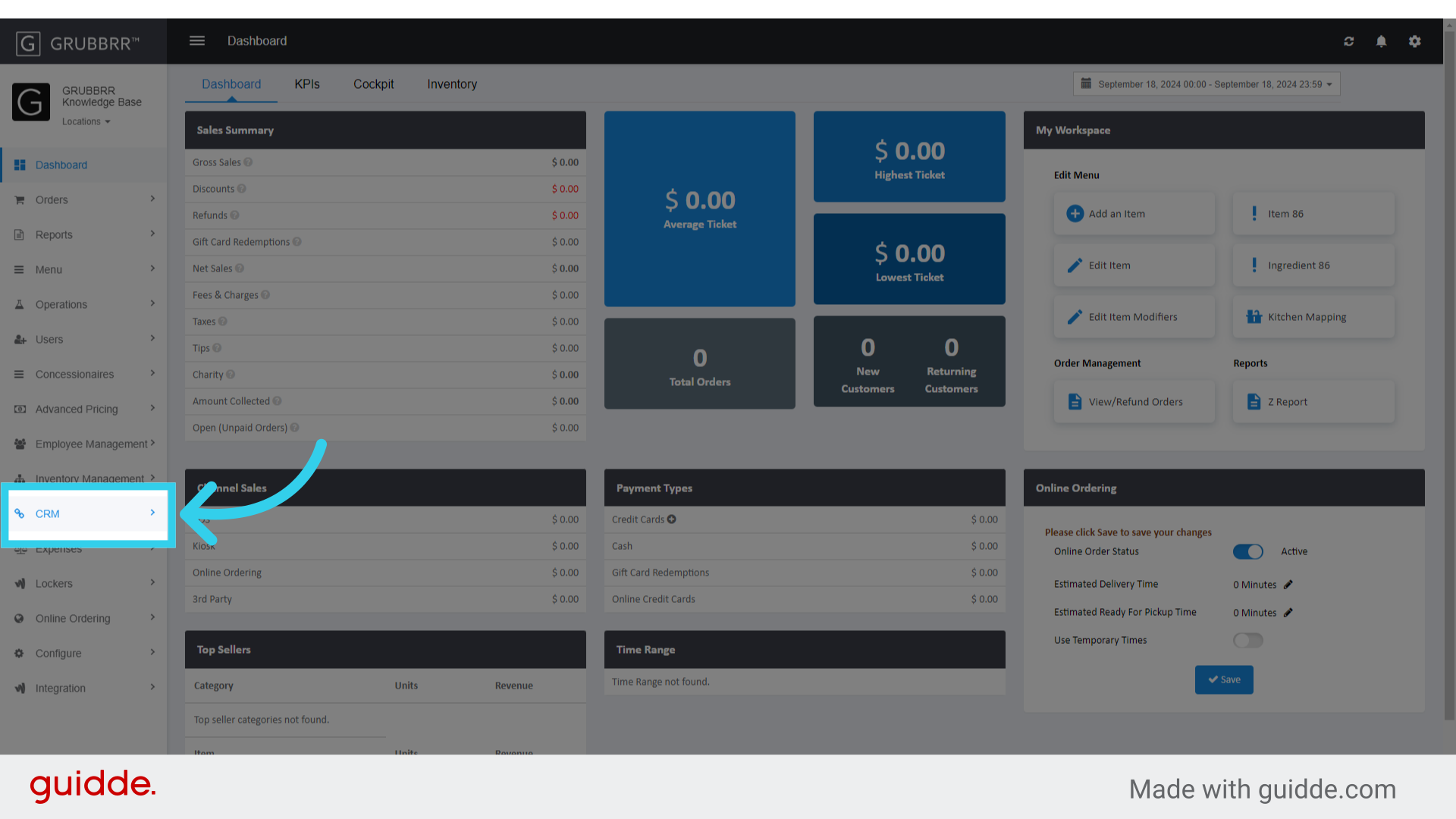
2. Click "CRM"
3. Click "Lunch Period Override"
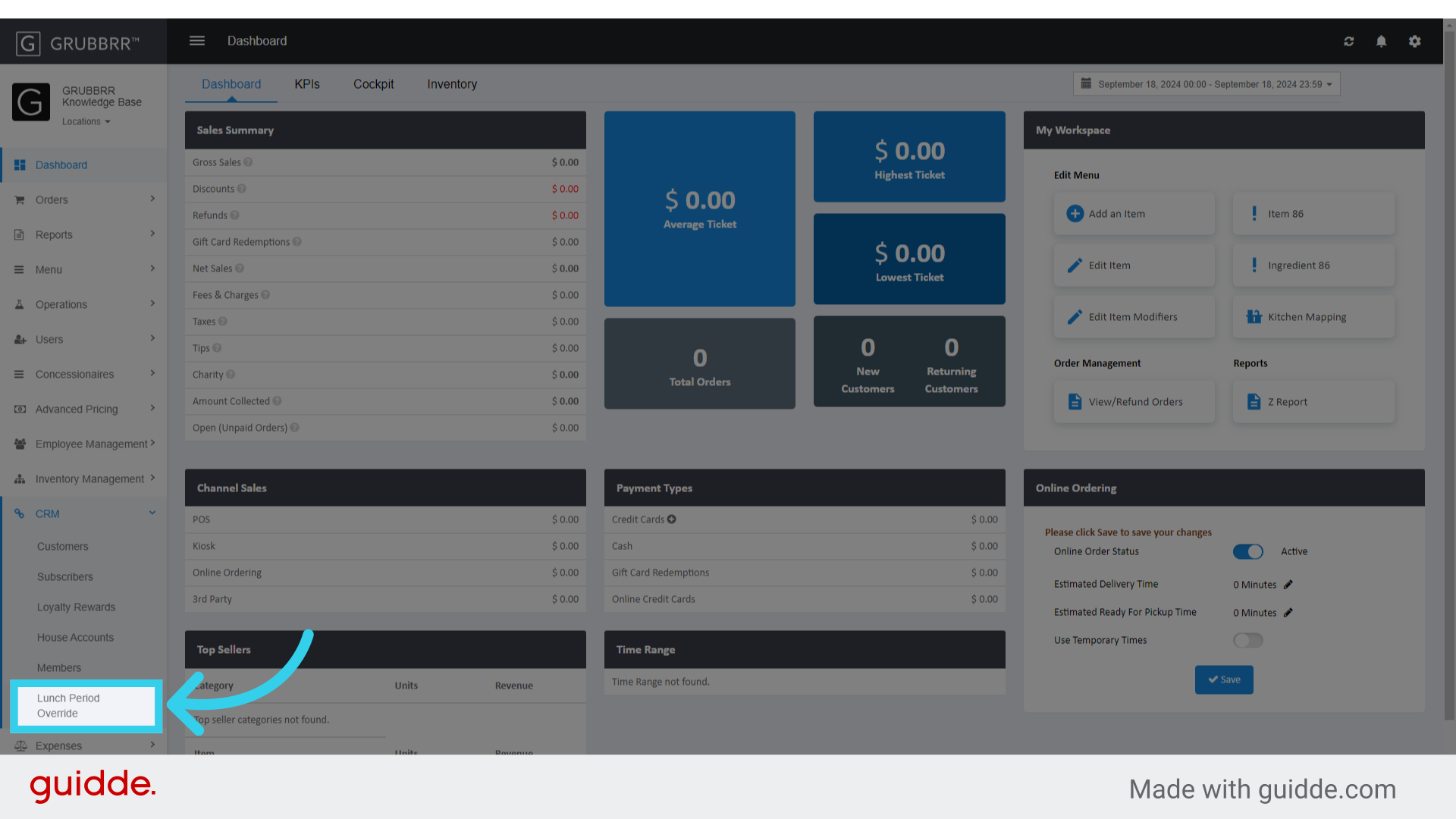
4. Remember- creating any overrides will replace all individual lunch periods we've created in the Member list
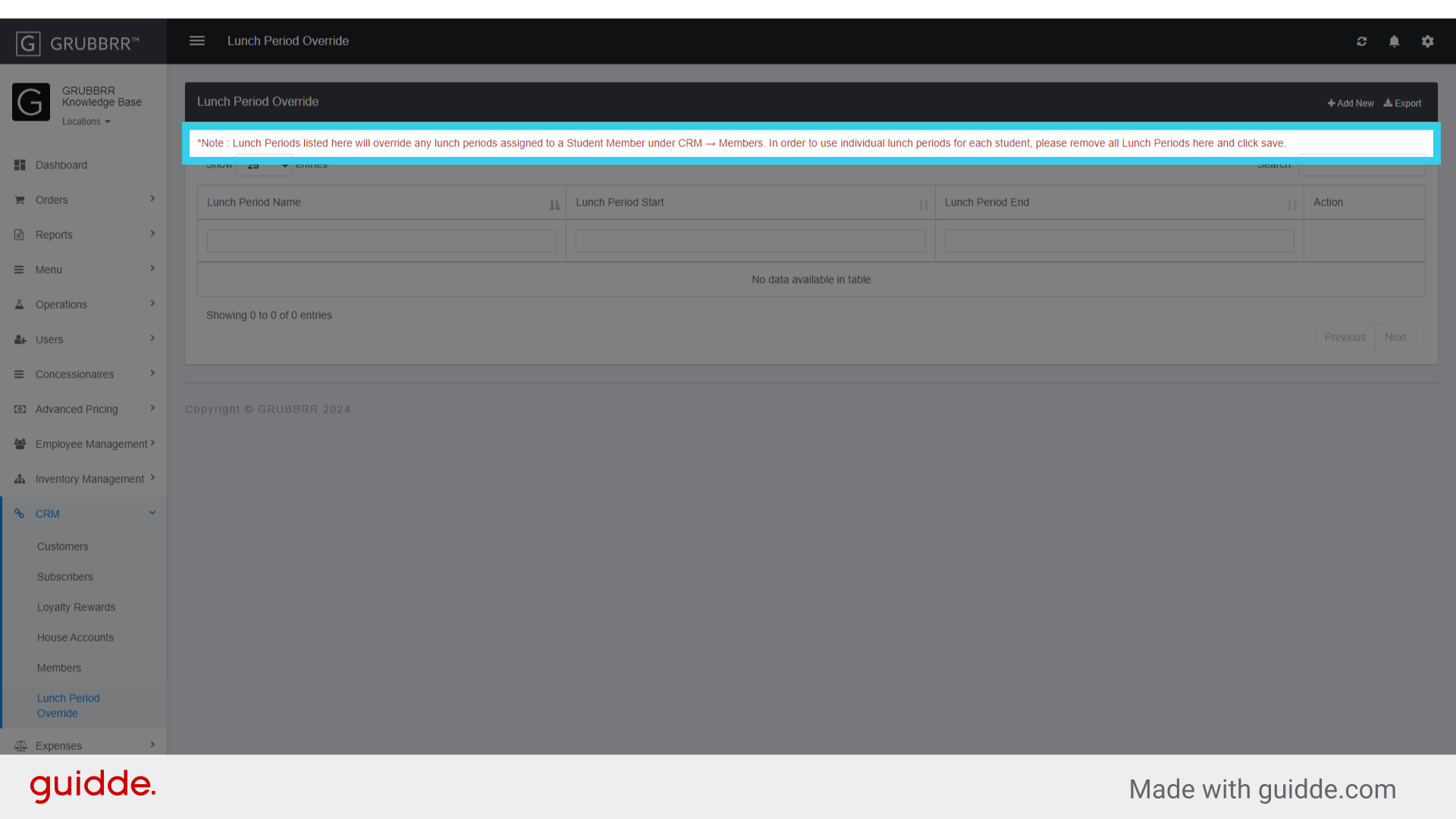
5. Click "Add New"

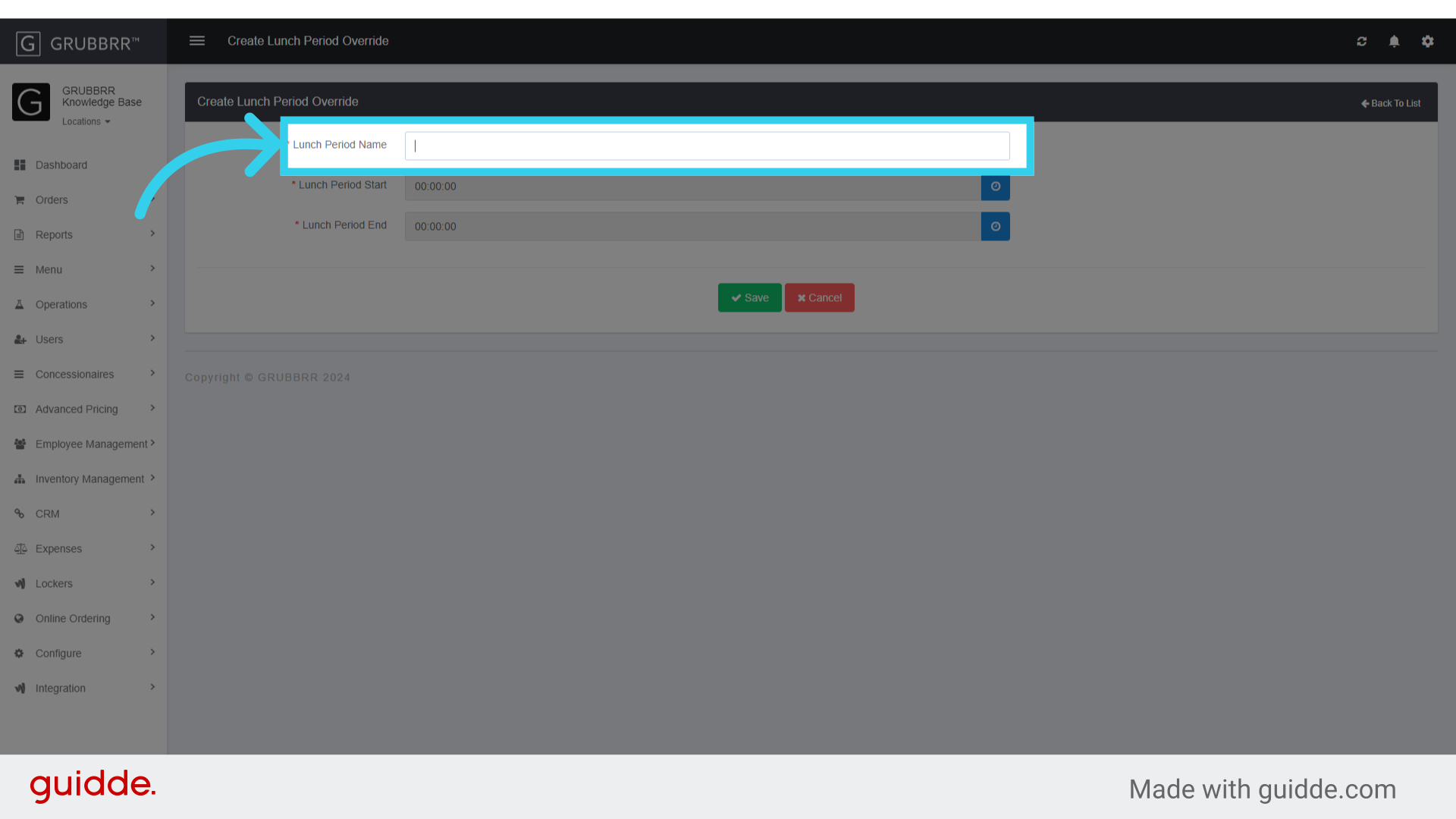
6. Enter a name for the new lunch period
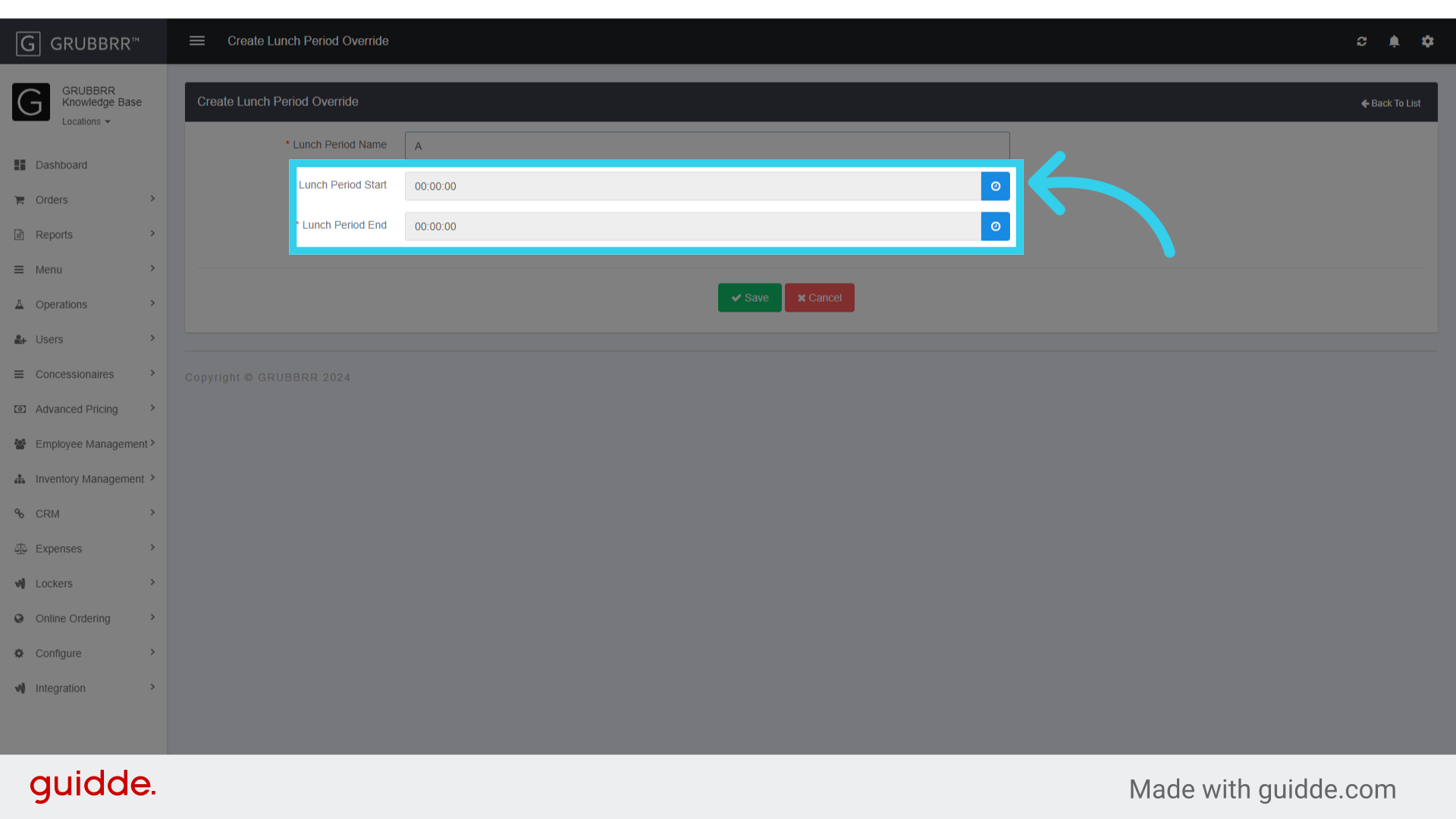
7. Use the 24-Hour clock tool to define a start and end time for the lunch period
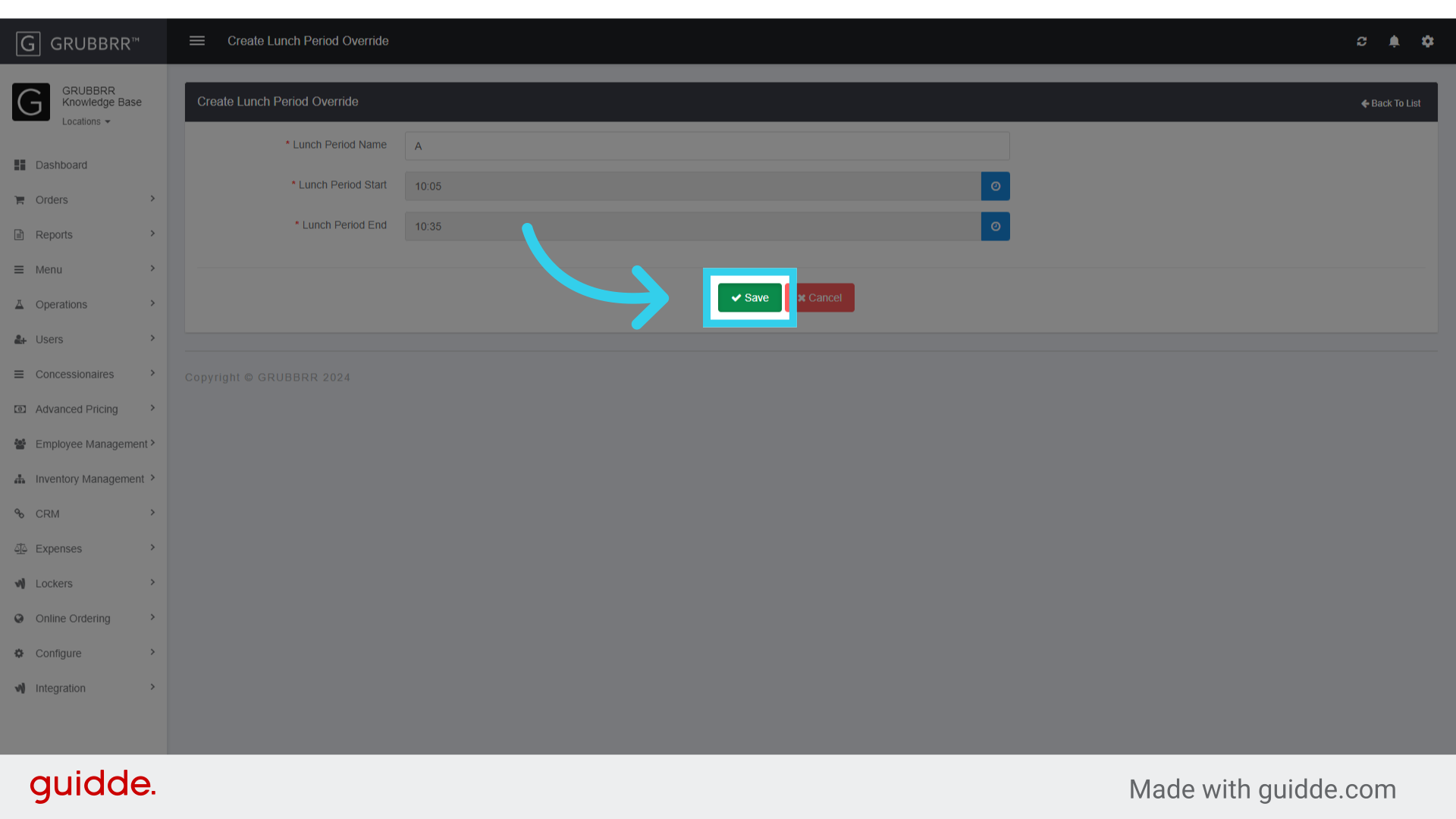
8. Click "Save"
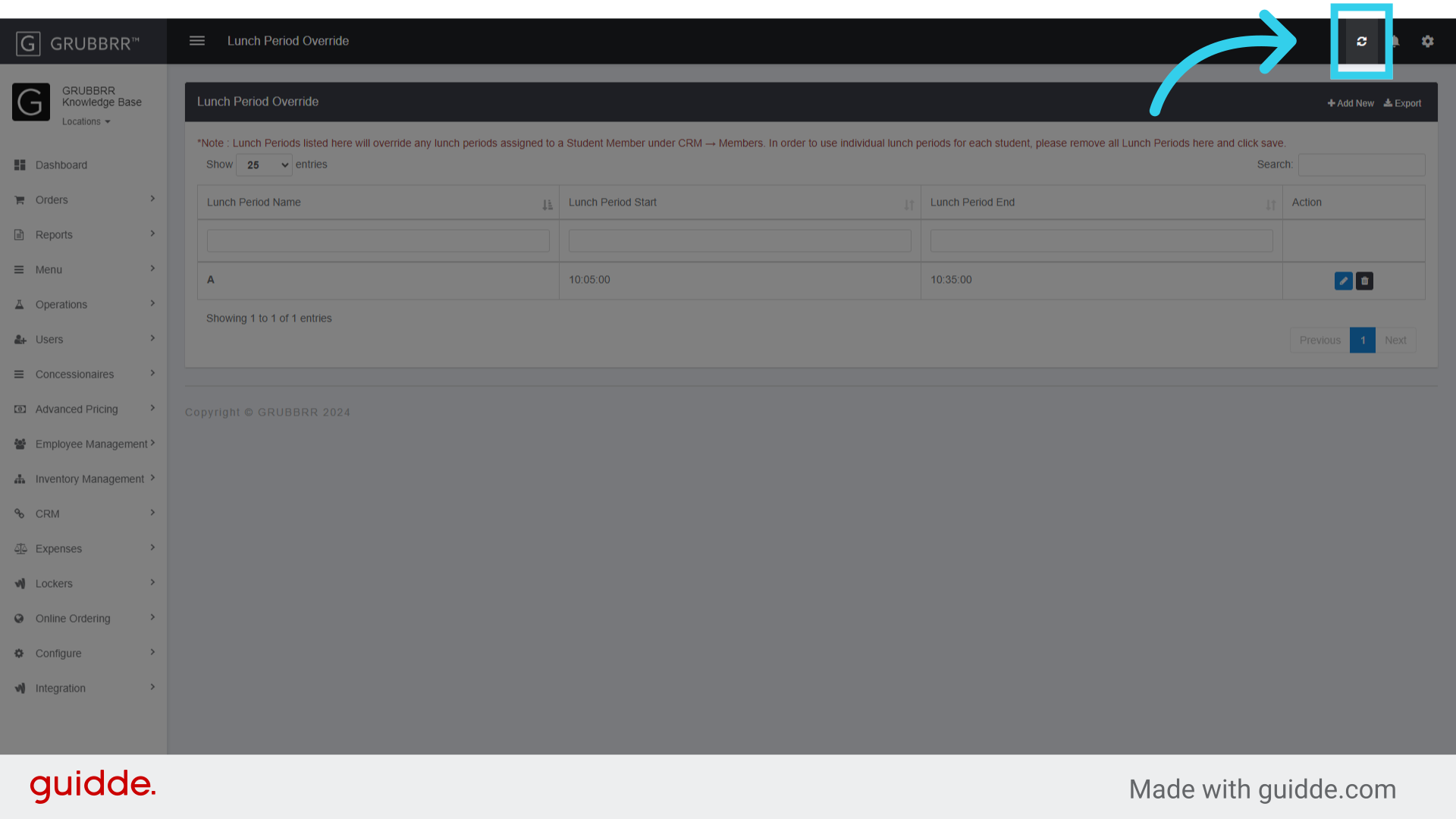
9. Click Sync to send your new overrides to your Kiosks