Introduction to the GRUBBRR Portal Dashboard
Last updated: August 5, 2026
Signing In
To access the GRUBBRR Portal, log in to portal.grubbrr.com using the username and password provided by GRUBBRR support. Make sure to sign in and follow along with the guide, so you can see the examples we cover in the context of your Brand!
1. The first link in this list takes us to the Company Level in the Portal
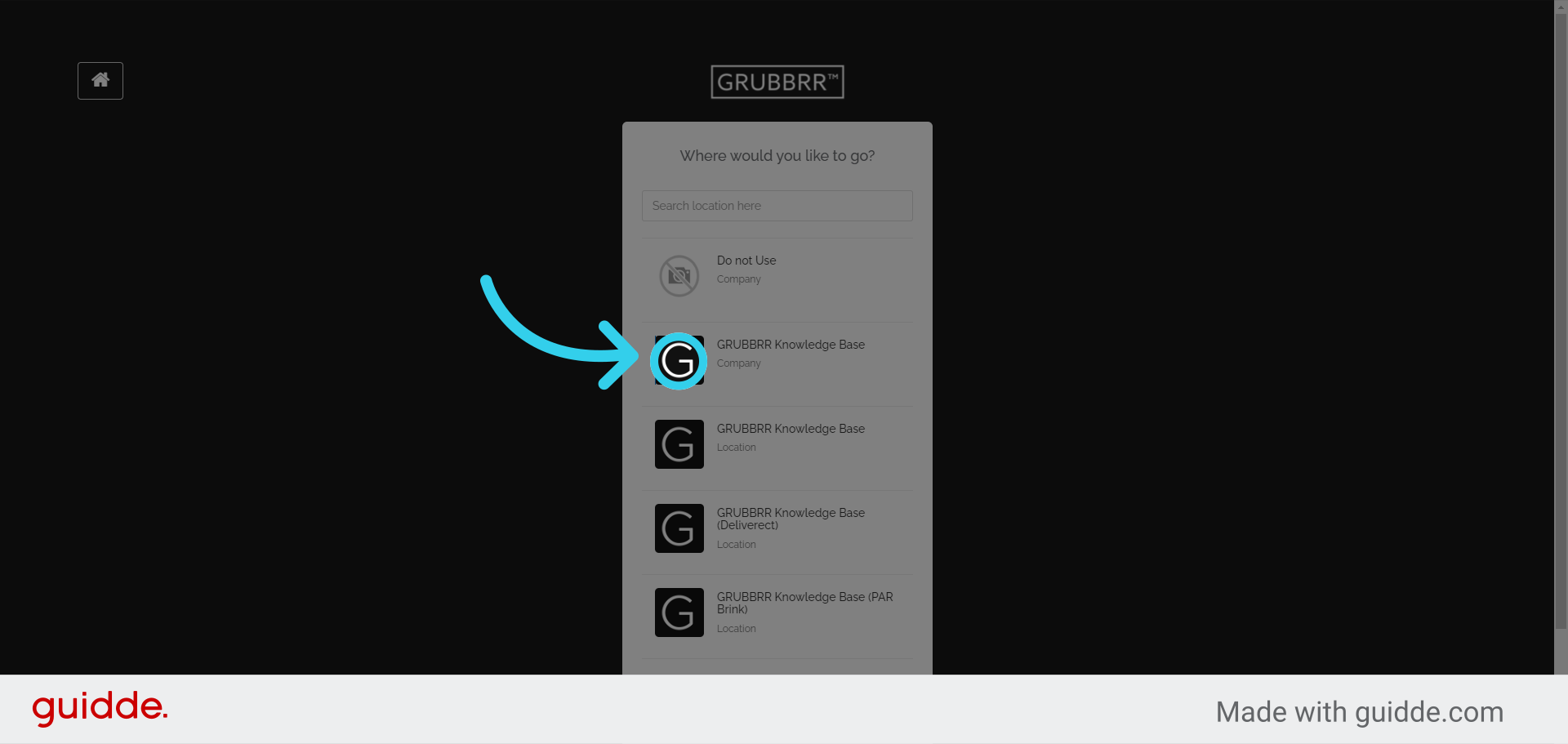
2. These links all take us to individual locations

3. Click to navigate to the Company Dashboard
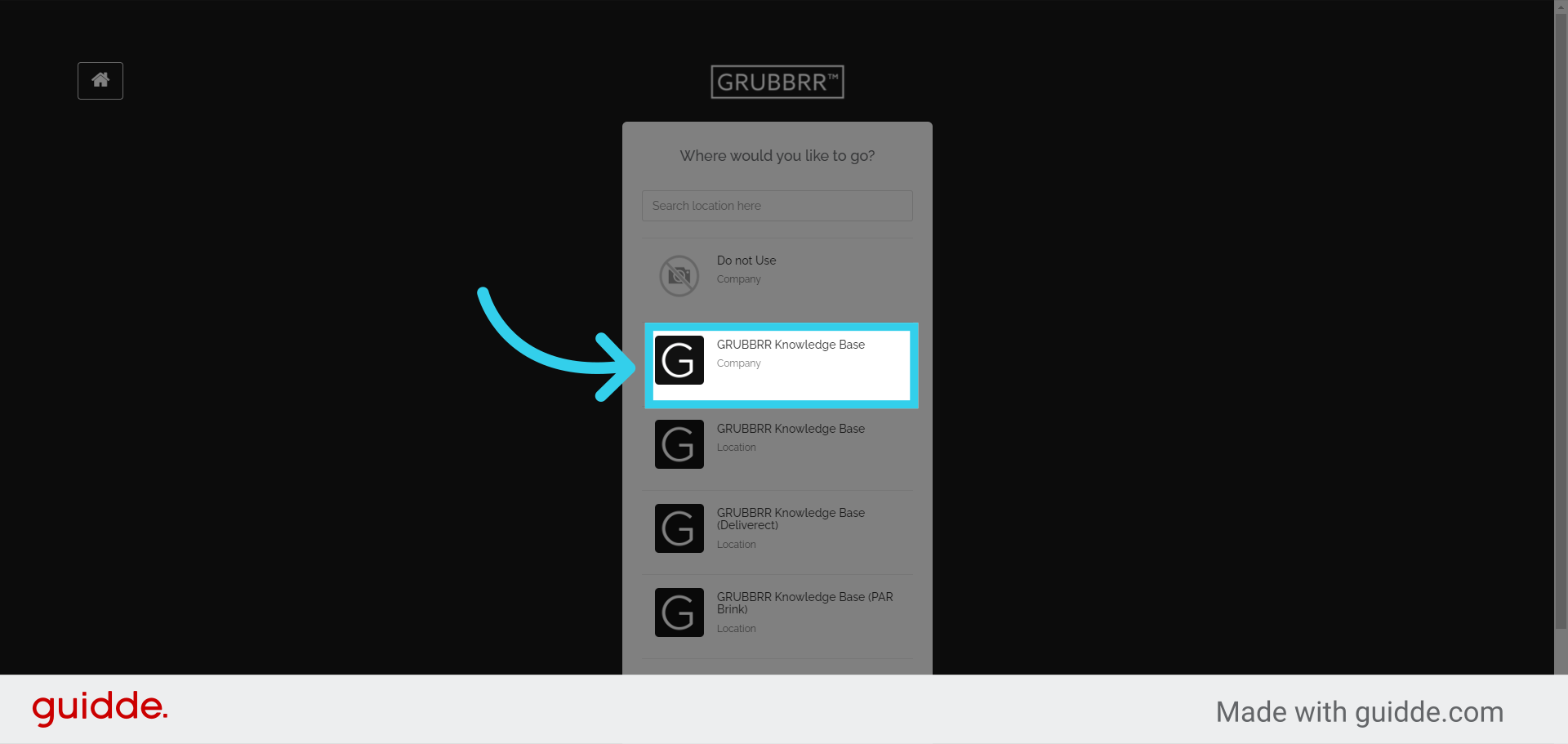
4. The Company Level Dashboard allows you to track KPIs across all active locations from a single page
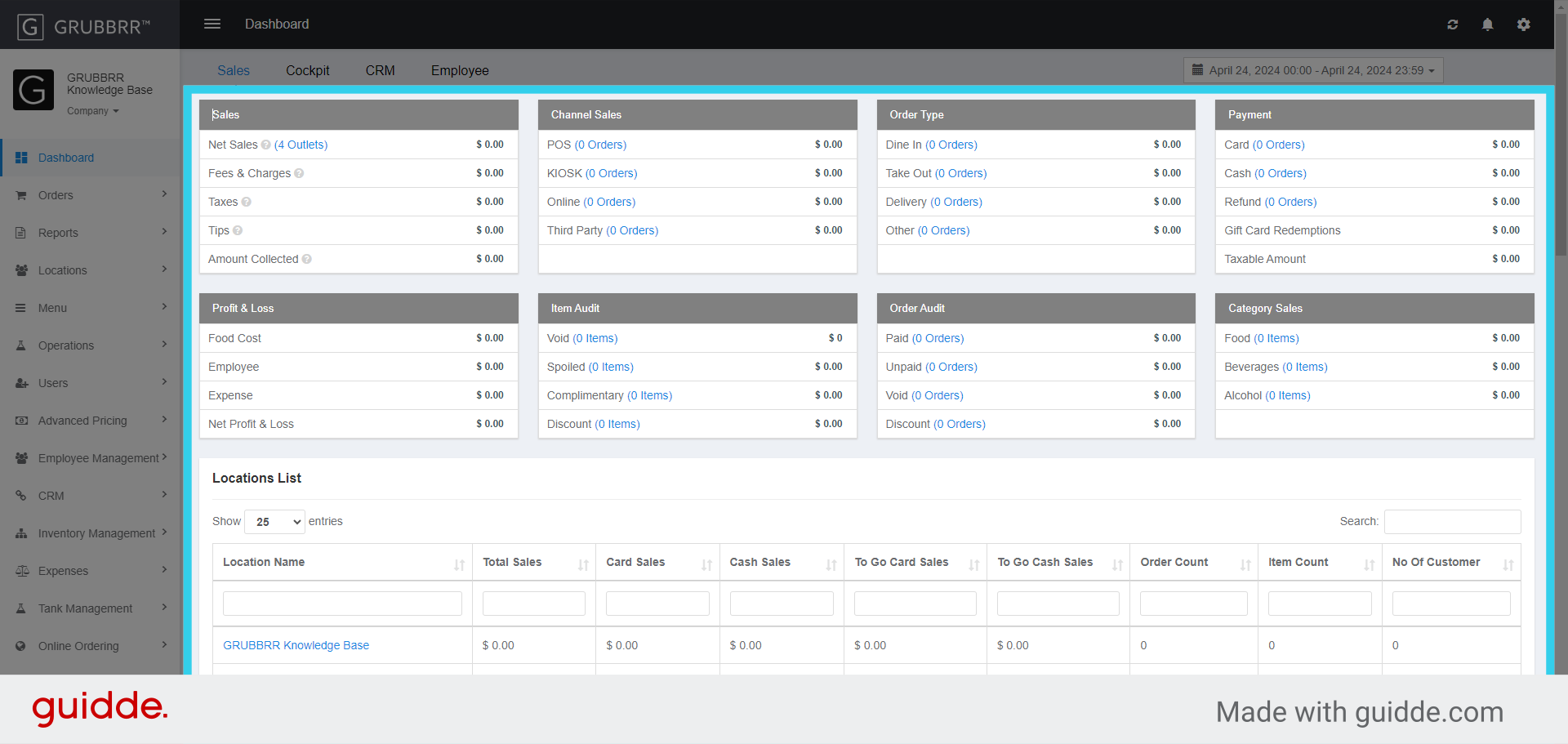
5. From the Cockpit, you can monitor the status of devices (Kiosks, KDS, etc.) at all locations

6. Navigate to a Location-level Dashboard by clicking this dropdown
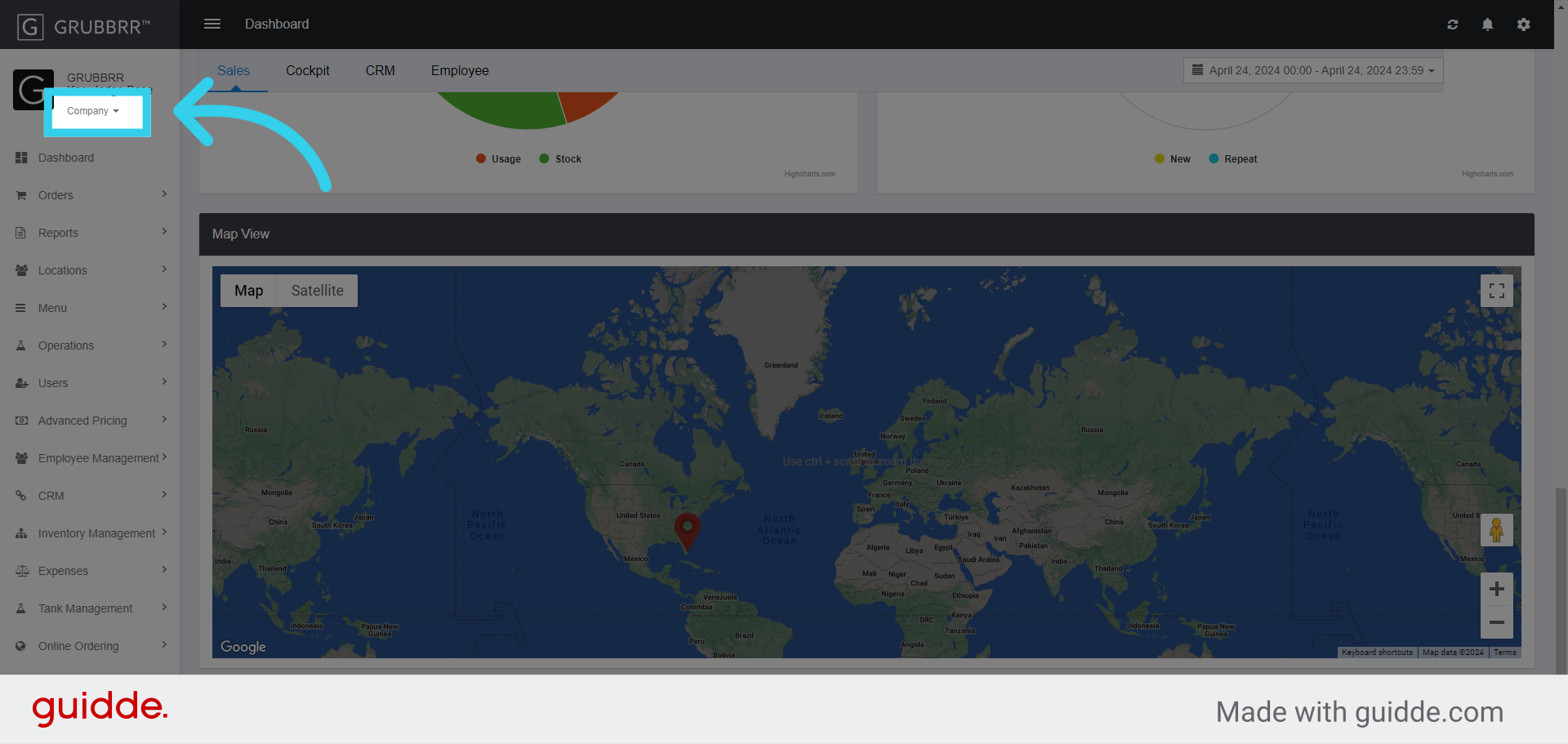
7. Select the Location you want to access from the list

8. The Location Dashboard shows high-level reports for Sales, Item Mix, Payment Types, and more
Hover over any of the values in these tables to see the formula used to calculate this data

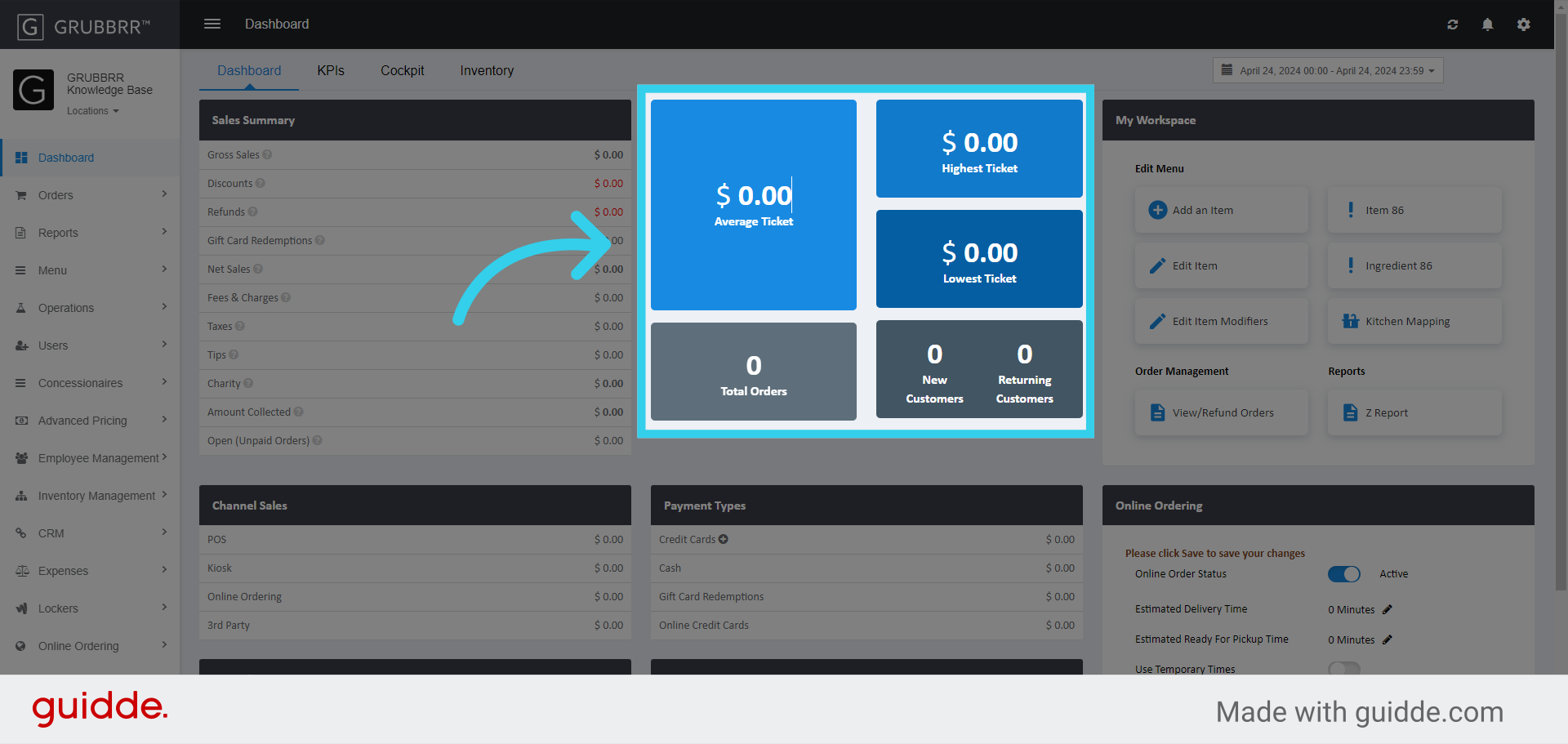
9. The Blue and Gray tiles in the middle of the Dashboard track KPIS at a glance
The KPI panel highlights specific performance indicators, such as average, highest, and lowest tickets. If your customers choose to provide contact information during their transaction, the system can also tell you how many of your sales were to new or returning customers
10. The "My Workspace" Tile provides quick access to common Portal tasks
You can add/edit/86 items, map items to kitchens, or view/refund orders. Clicking on any of the buttons in this panel sends you directly to the appropriate page

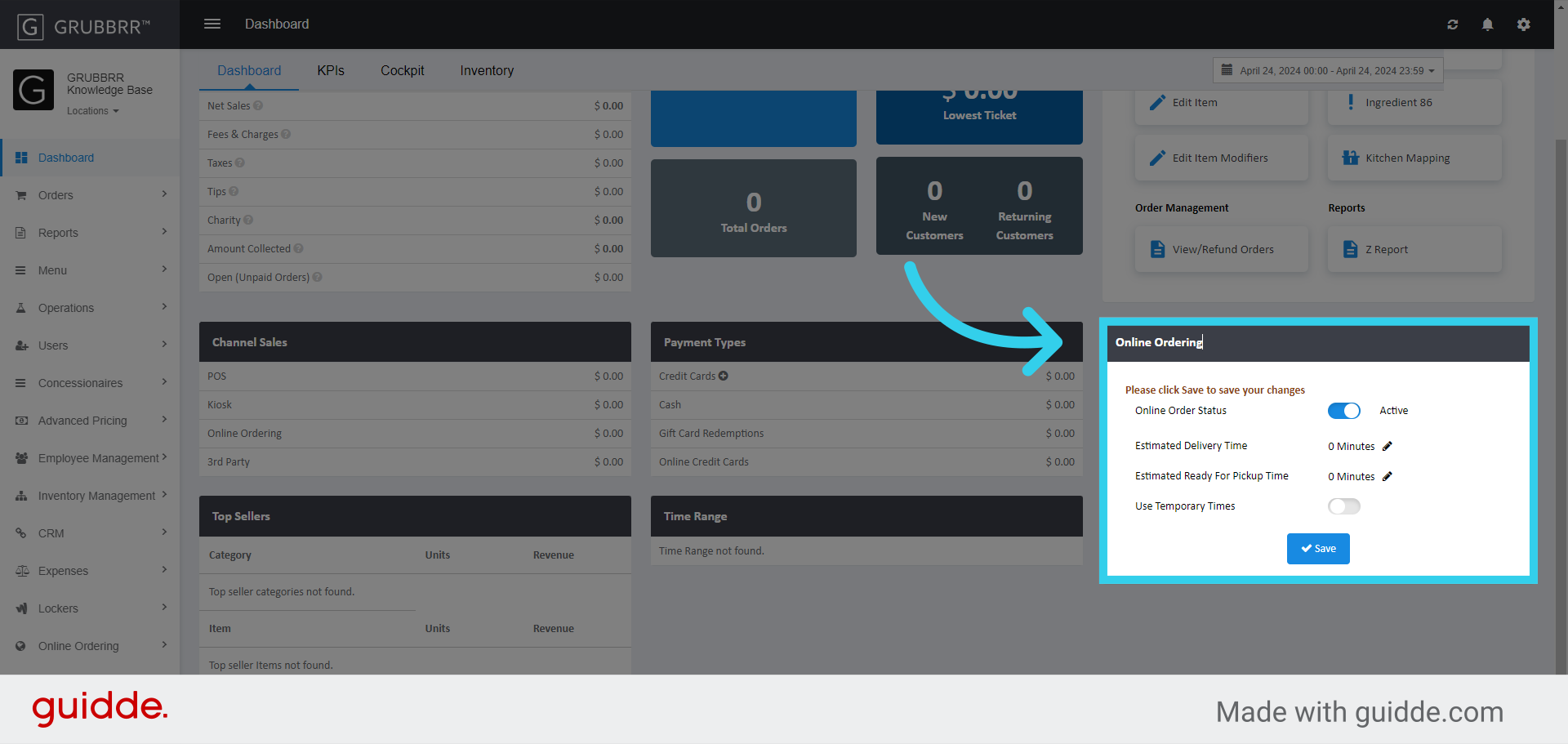
11. If you're using GRUBBRR's Online Ordering feature, change settings quickly with the "Online Ordering" tile
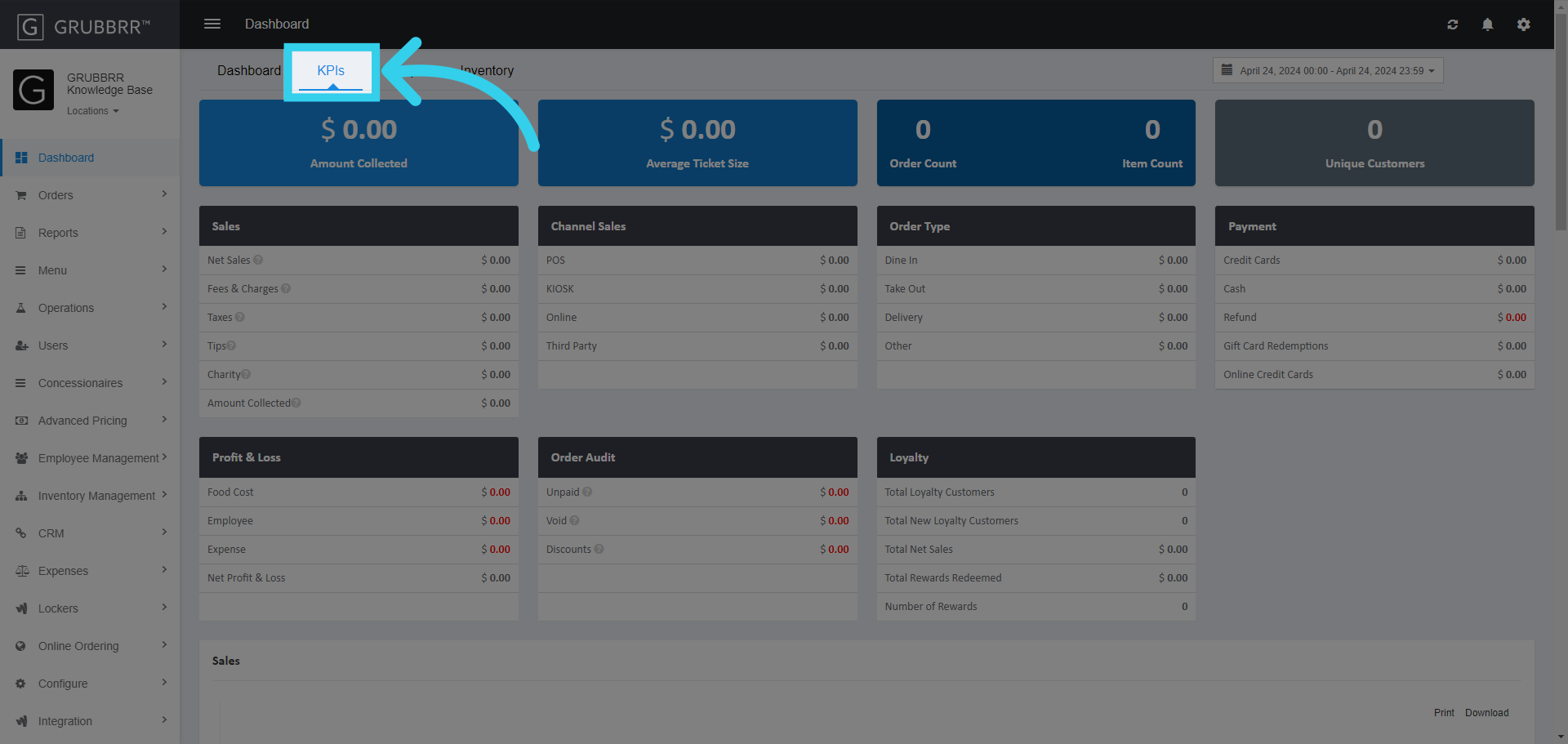
12. Access more detailed KPI reports by clicking the "KPI" tab at the top of the page
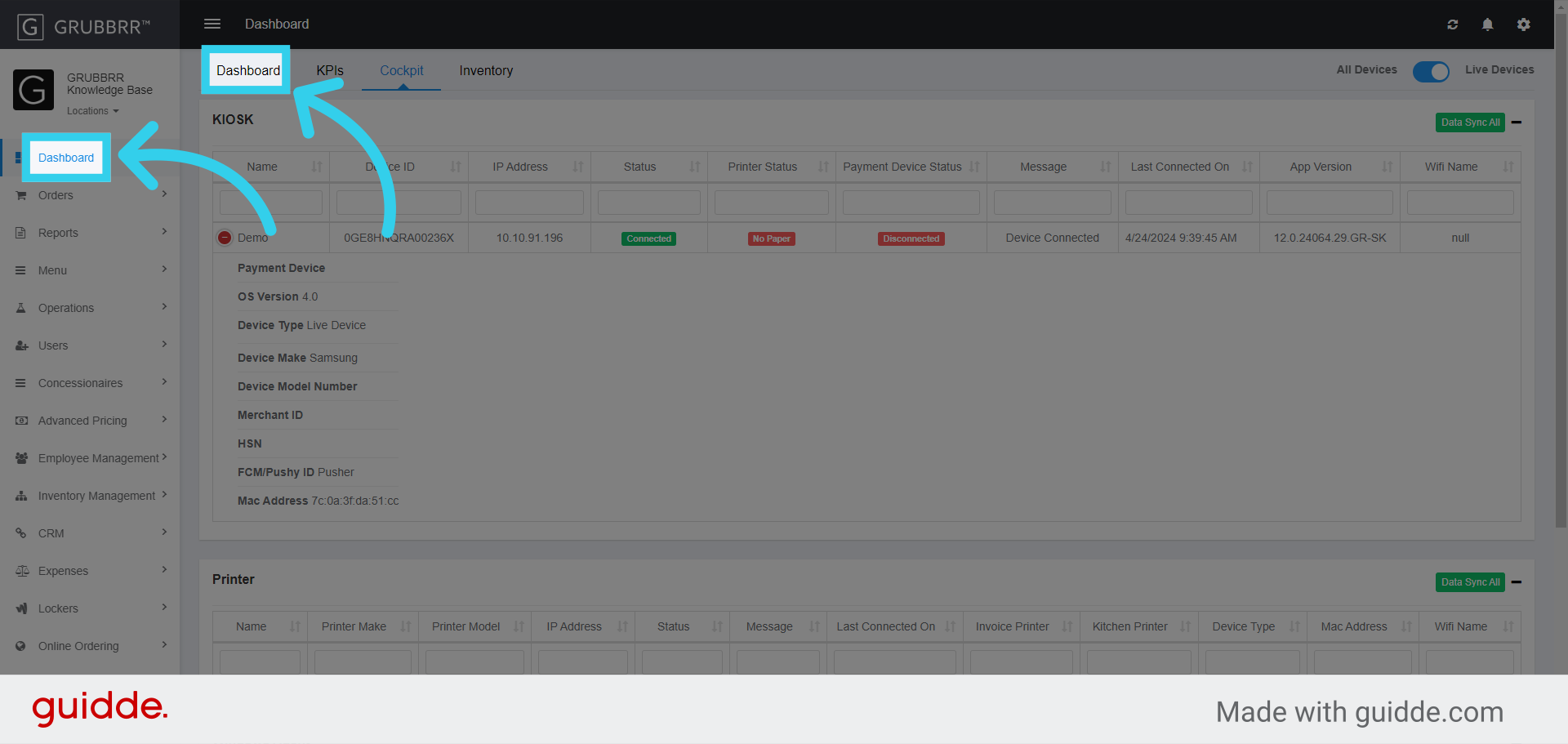
13. The "Cockpit" tab allows you to see detailed status reports of Kiosks, Printers, KDS Devices, and more
Click the blue "Plus" button next to a device to see more detail

14. Click "Dashboard" to return to the main page
Procedure Warnings: