How to Upload New Members to the GRUBBRR Portal in Bulk
Last updated: August 8, 2026
Is there a way to upload Member IDs for my entire staff at once, or do they need to be created individually?

If you're first rolling out a new Member Pay solution at your location, it may be more efficient to upload members in bulk instead of creating them one by one. To make this process easier, the GRUBBRR portal offers the ability to download, customize, and upload a preformatted database, so that you can enroll all of the members for a location with a single upload.
You can upload a new Member database to a location in the GRUBBRR portal by following the steps outlined below.
Go to staging.grubbrr.com
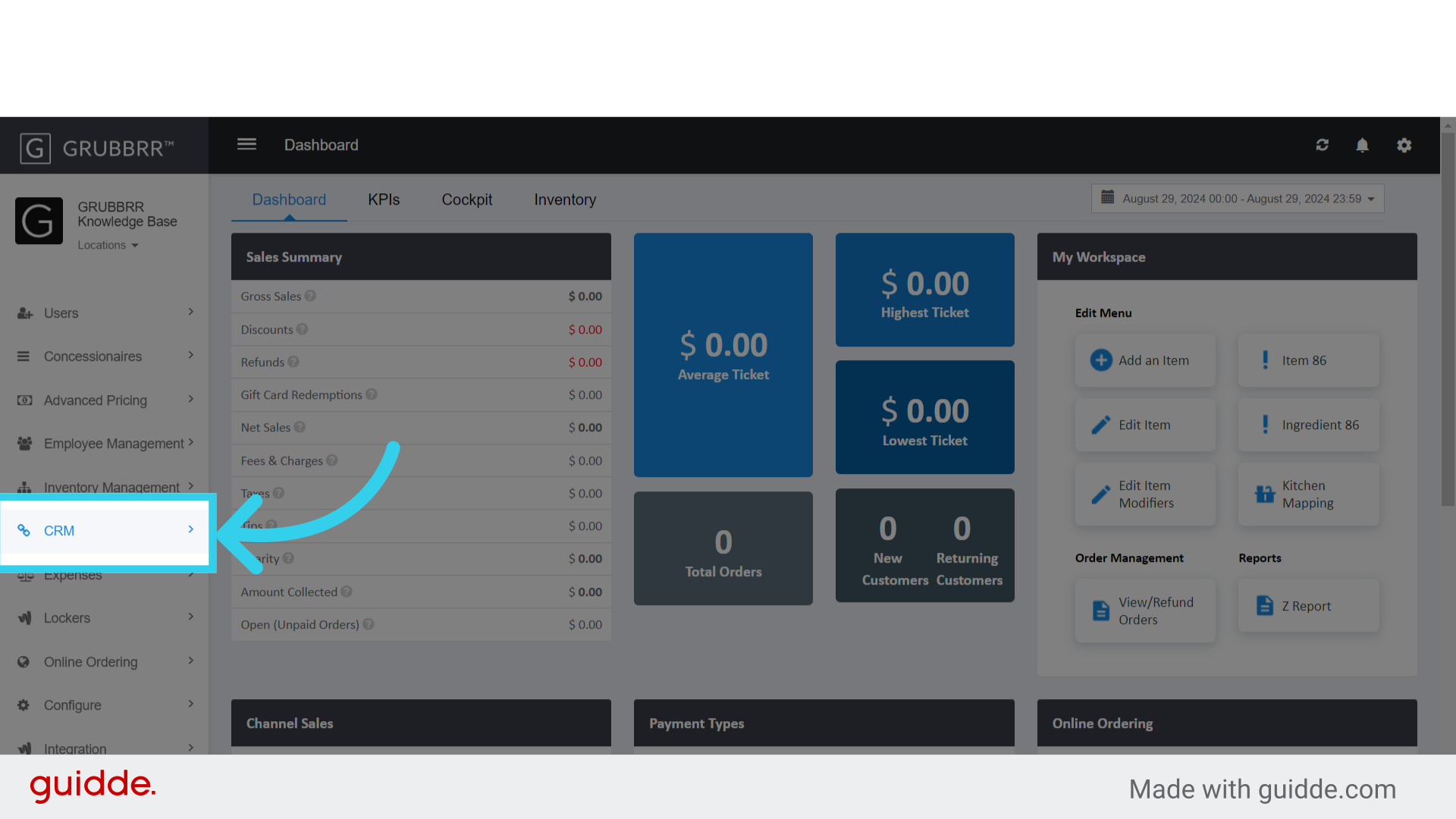
1. Click "CRM"
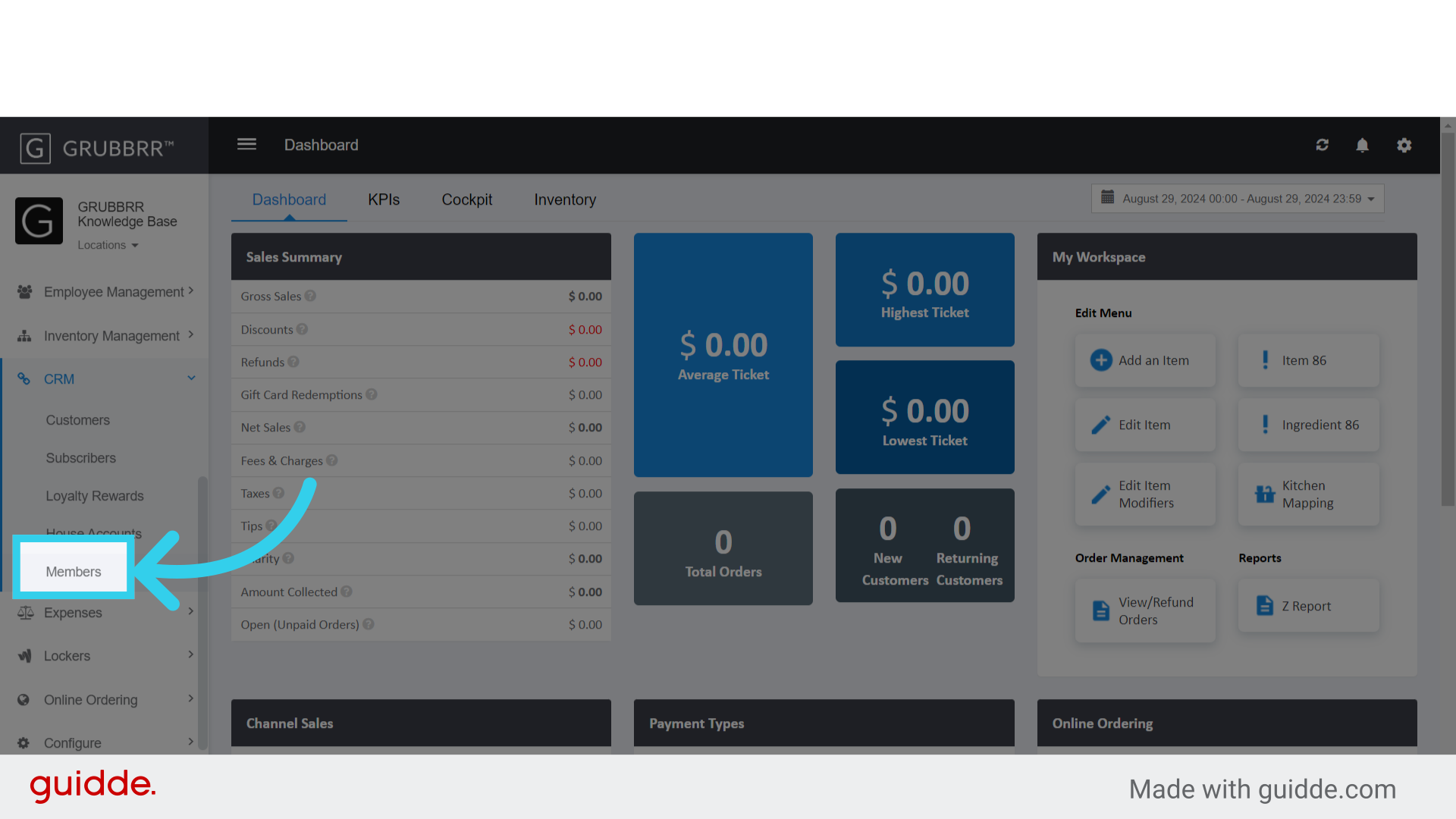
2. Click "Members"
3. Click "Import Member"

4. Download the Member ID Template

5. Assign each member a unique ID
This is how users will sign in to complete their Kiosk orders.
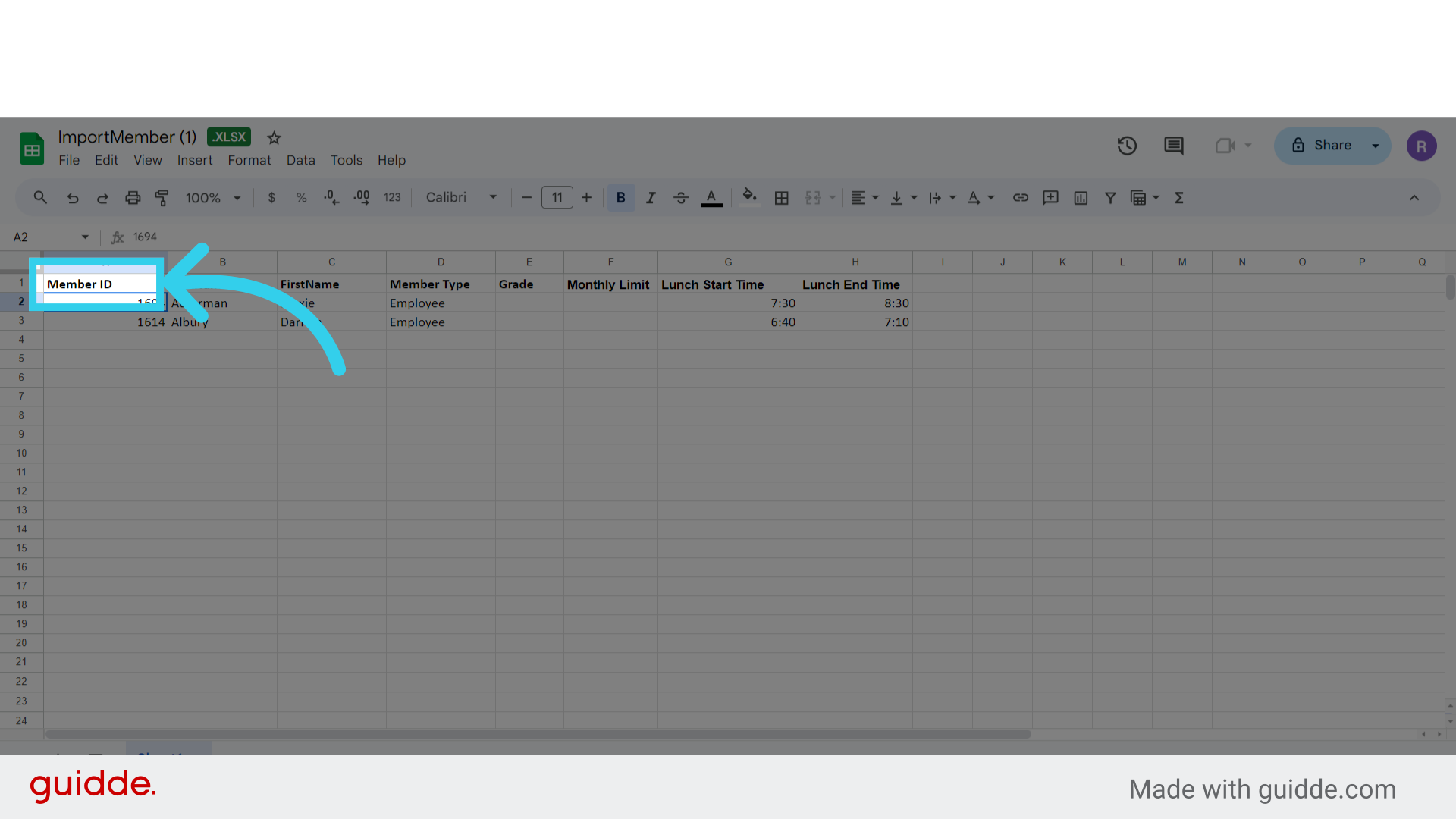
6. Enter each member's full name

7. Assign each member a Type
Depending on your implementation, most users will be "Student" or "Employee." However, you can create shared accounts by creating "Departments."

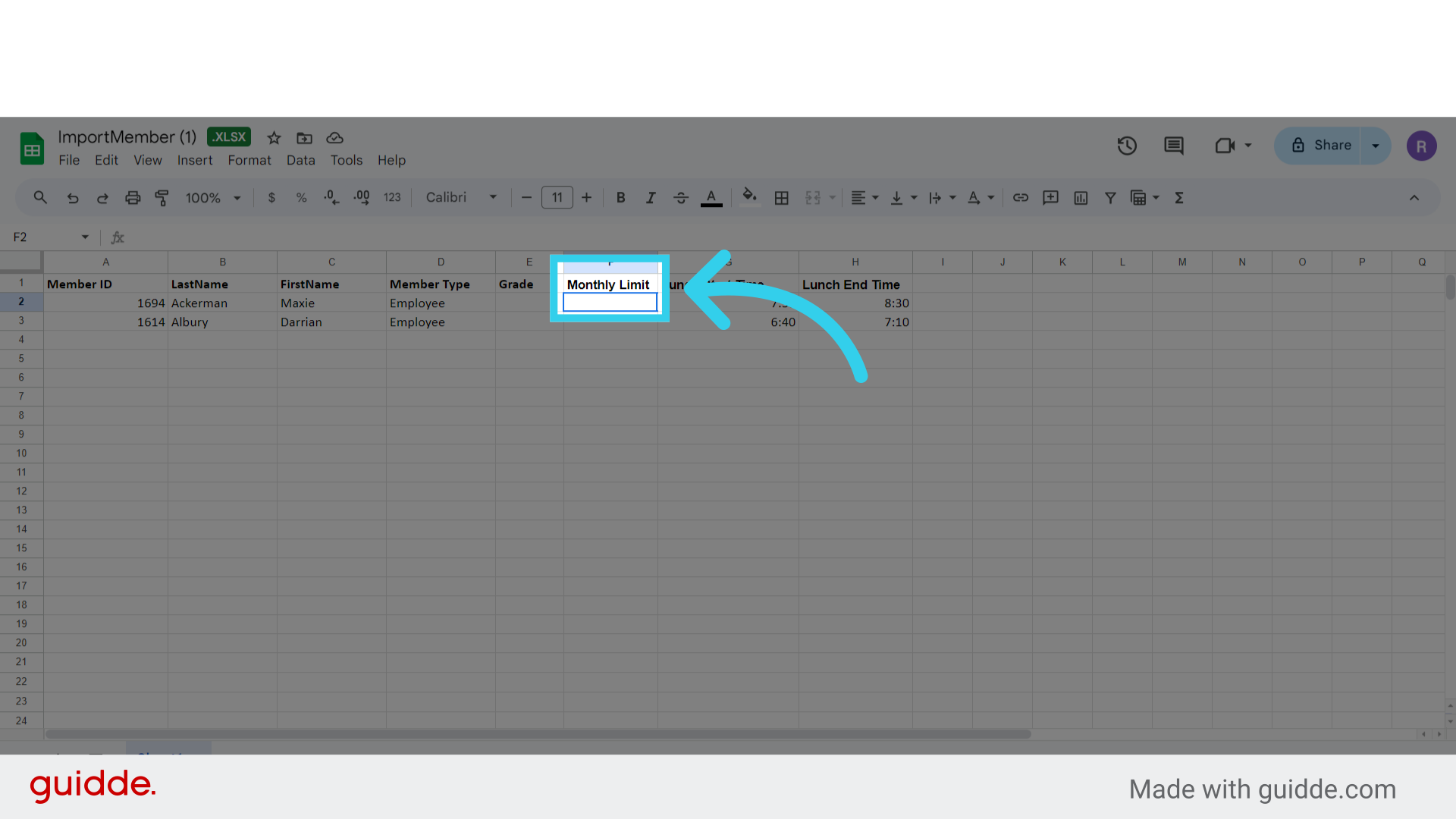
8. Assign the user a monthly limit for their account
This is a dollar amount that refreshes on the first of the month.
9. Once you're ready to import your member list, click here to upload the .xls file from your computer

10. Click "Continue" to upload your data
