How to Schedule Daily Report Emails in the GRUBBRR Portal
Last updated: August 8, 2026
Is there a way to automatically receive Sales data from my GRUBBRR Kiosks?
If you want GRUBBRR to send you daily Sales Summary reports, you can easily configure this option through the GRUBBRR Portal. With our Email Report function, the system will email dashboard-style Summary reports to any subscribed users. To activate this function, follow these steps:
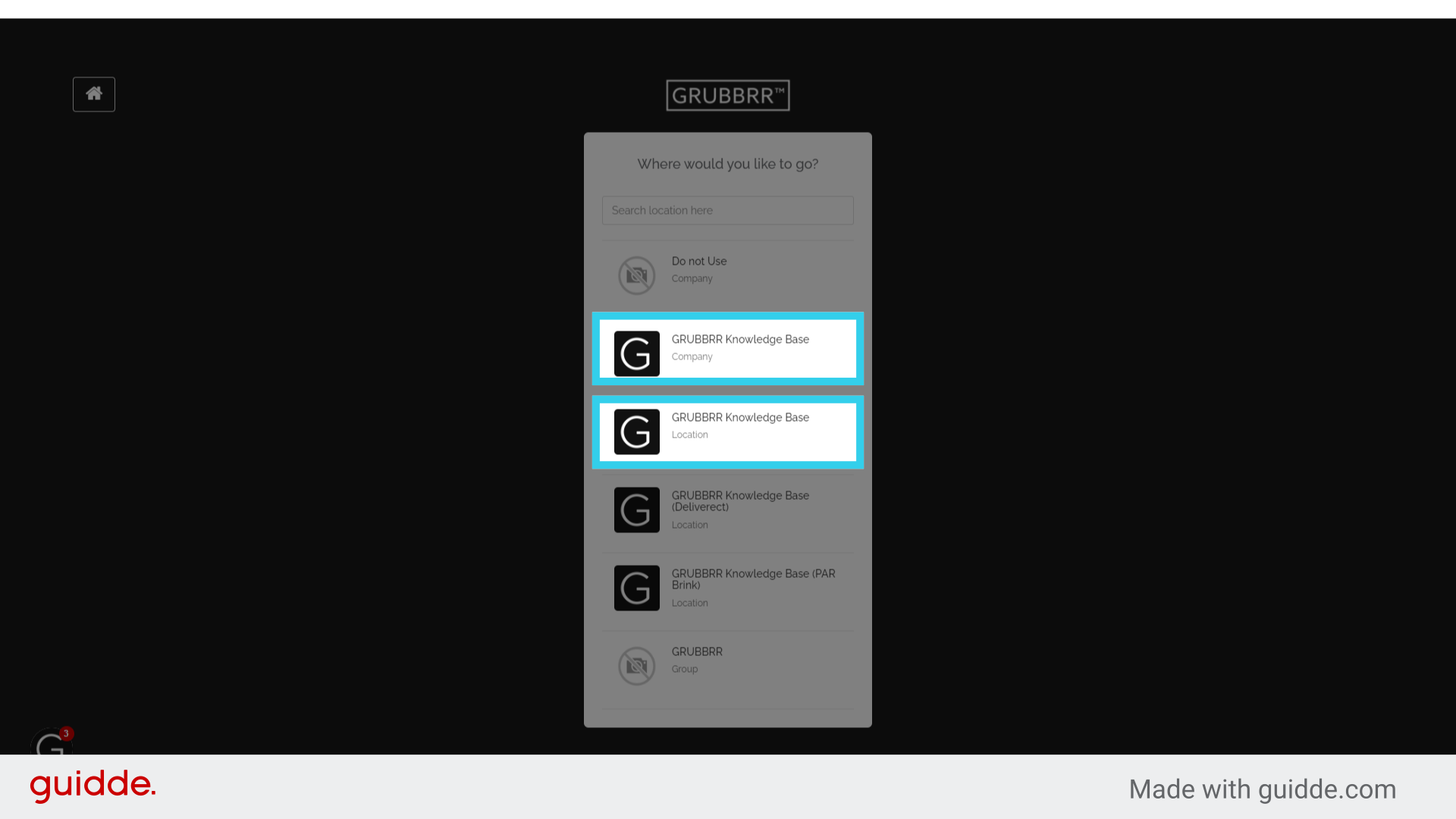
1. You can enable email reports at the Company or the Location level
Enabling email reports at the Company level will send a compiled report for all of your active locations at once.
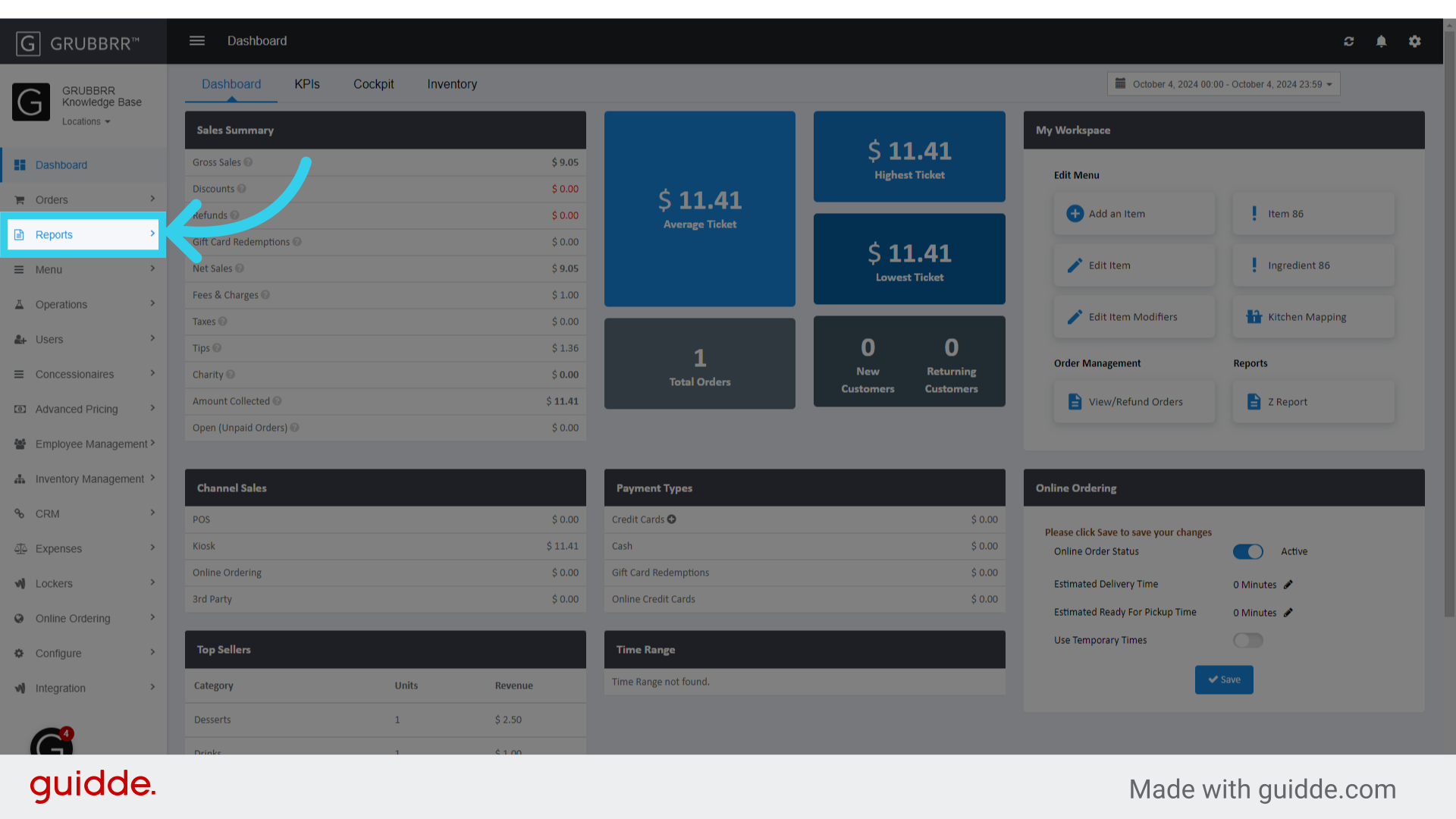
2. Click "Reports"
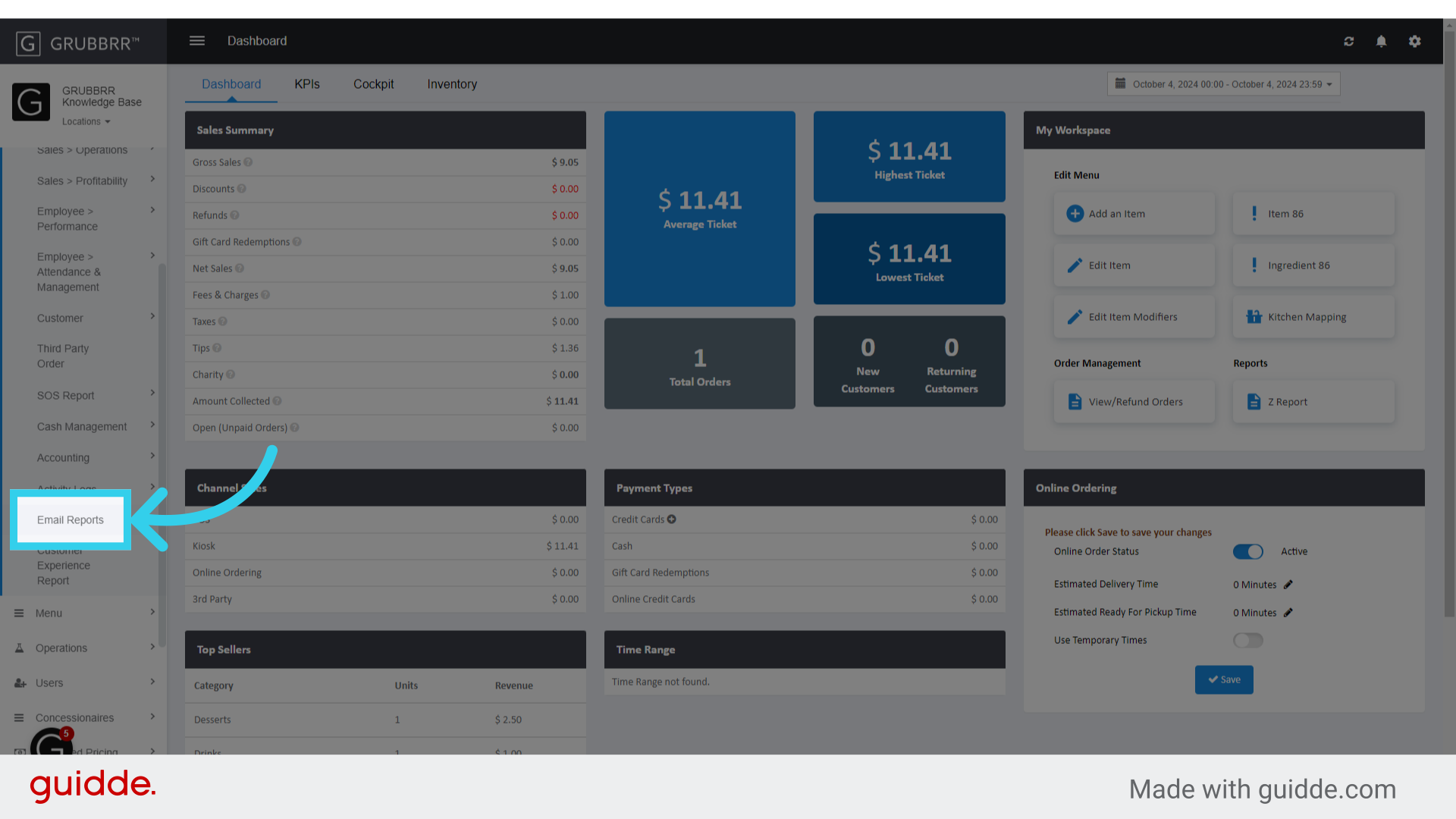
3. Click "Email Reports"
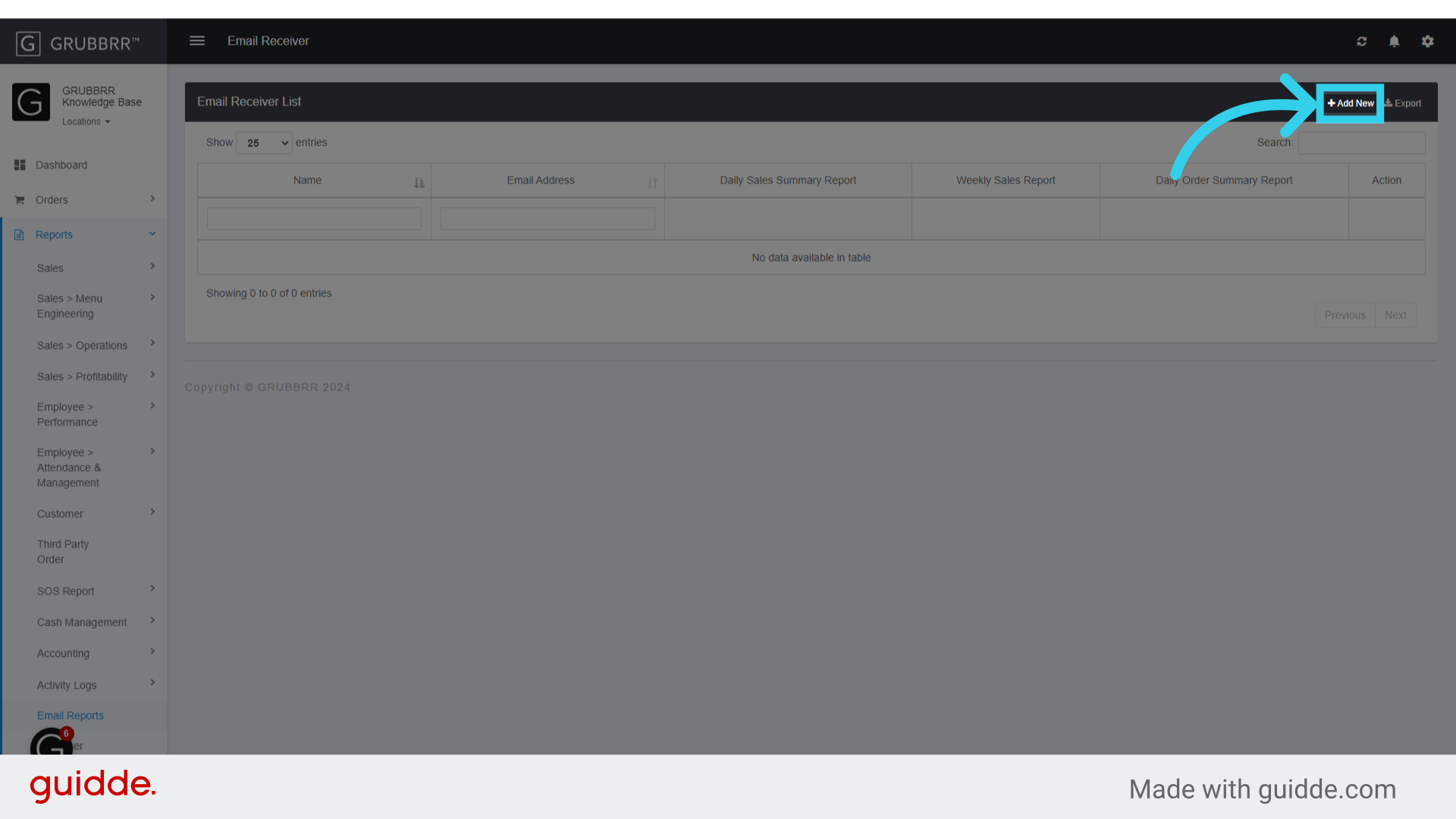
4. Click "Add New"
5. Enter the name of the person who will receive daily reports
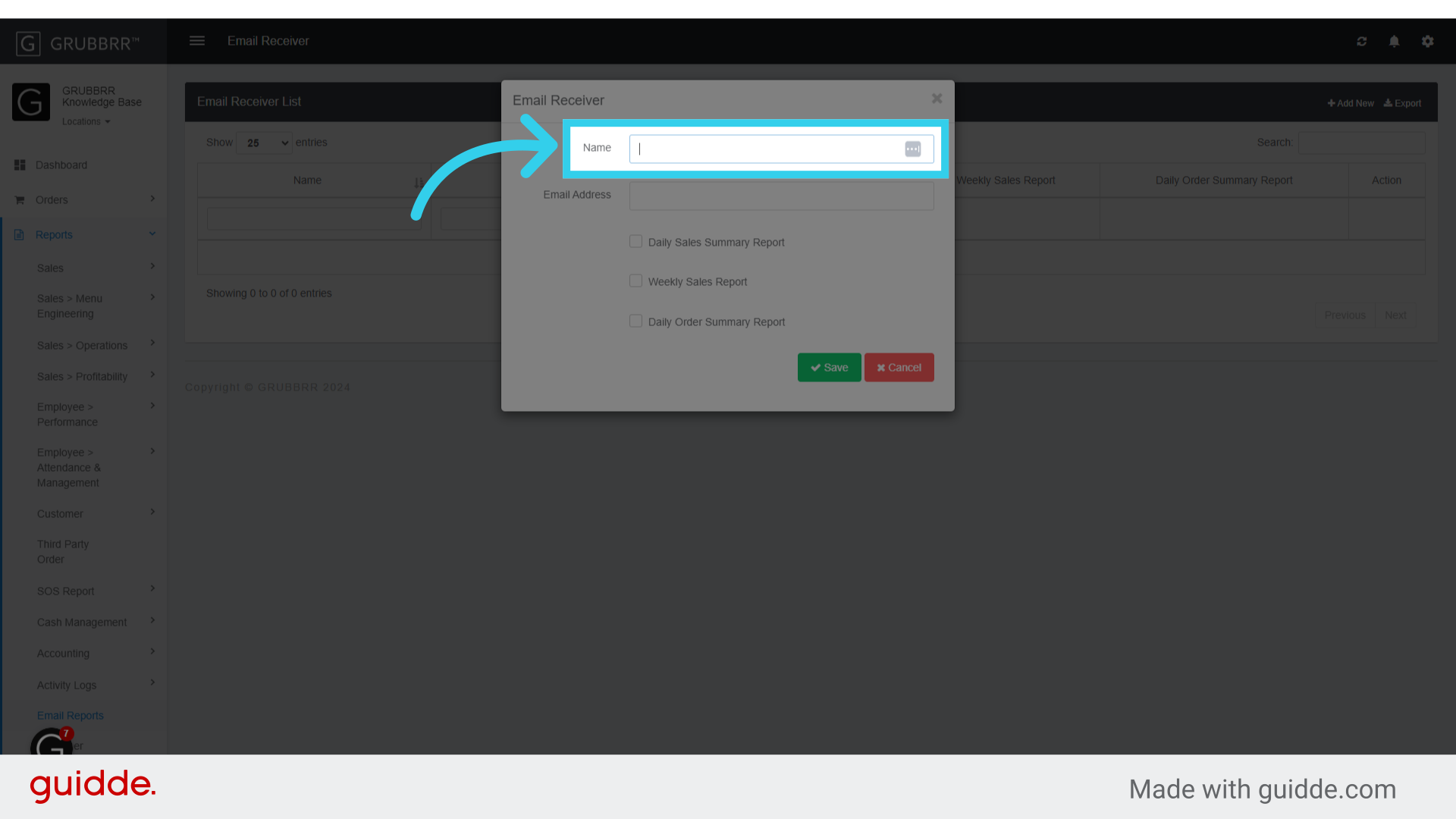
6. Enter a valid email address for the individual
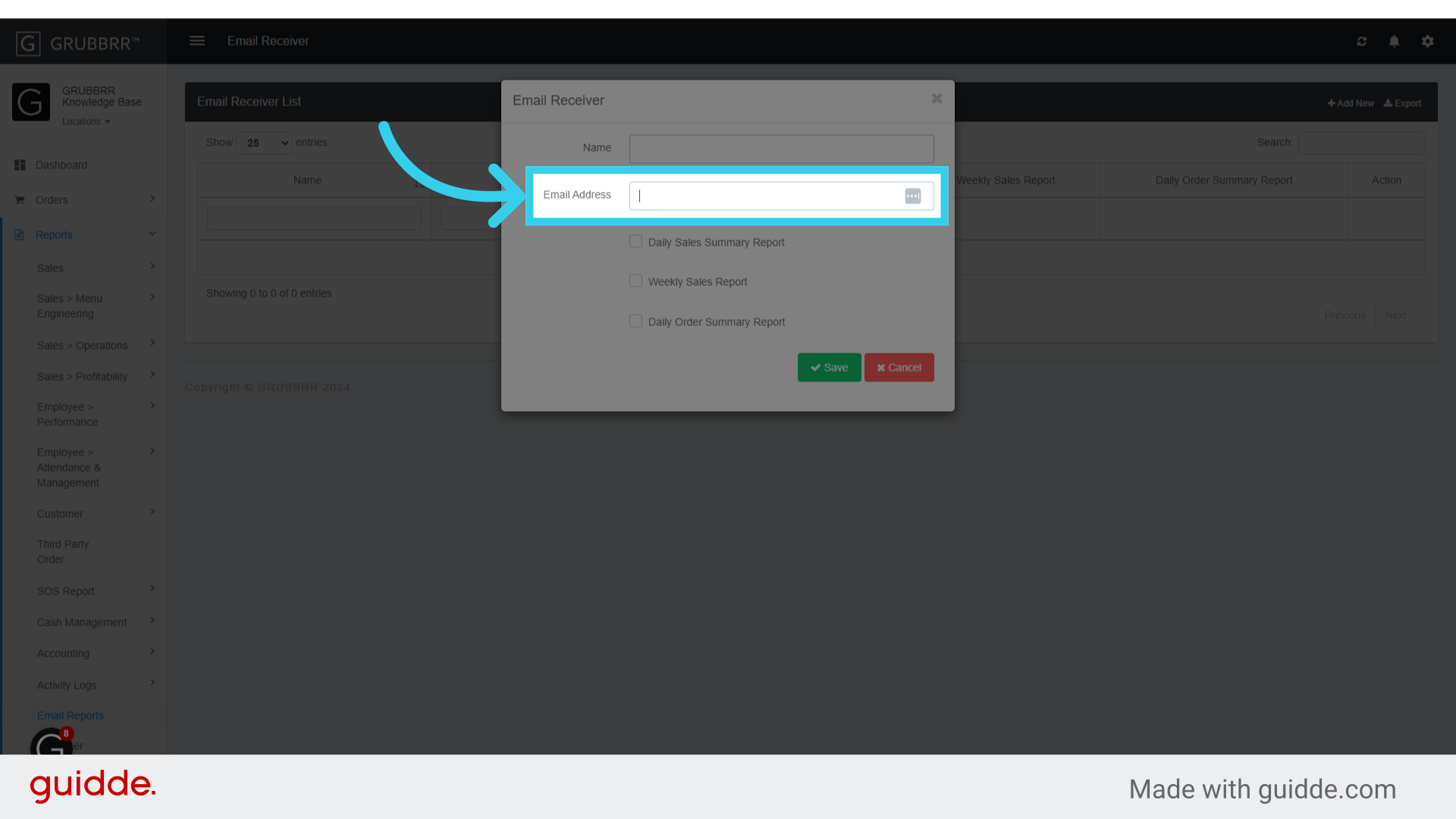
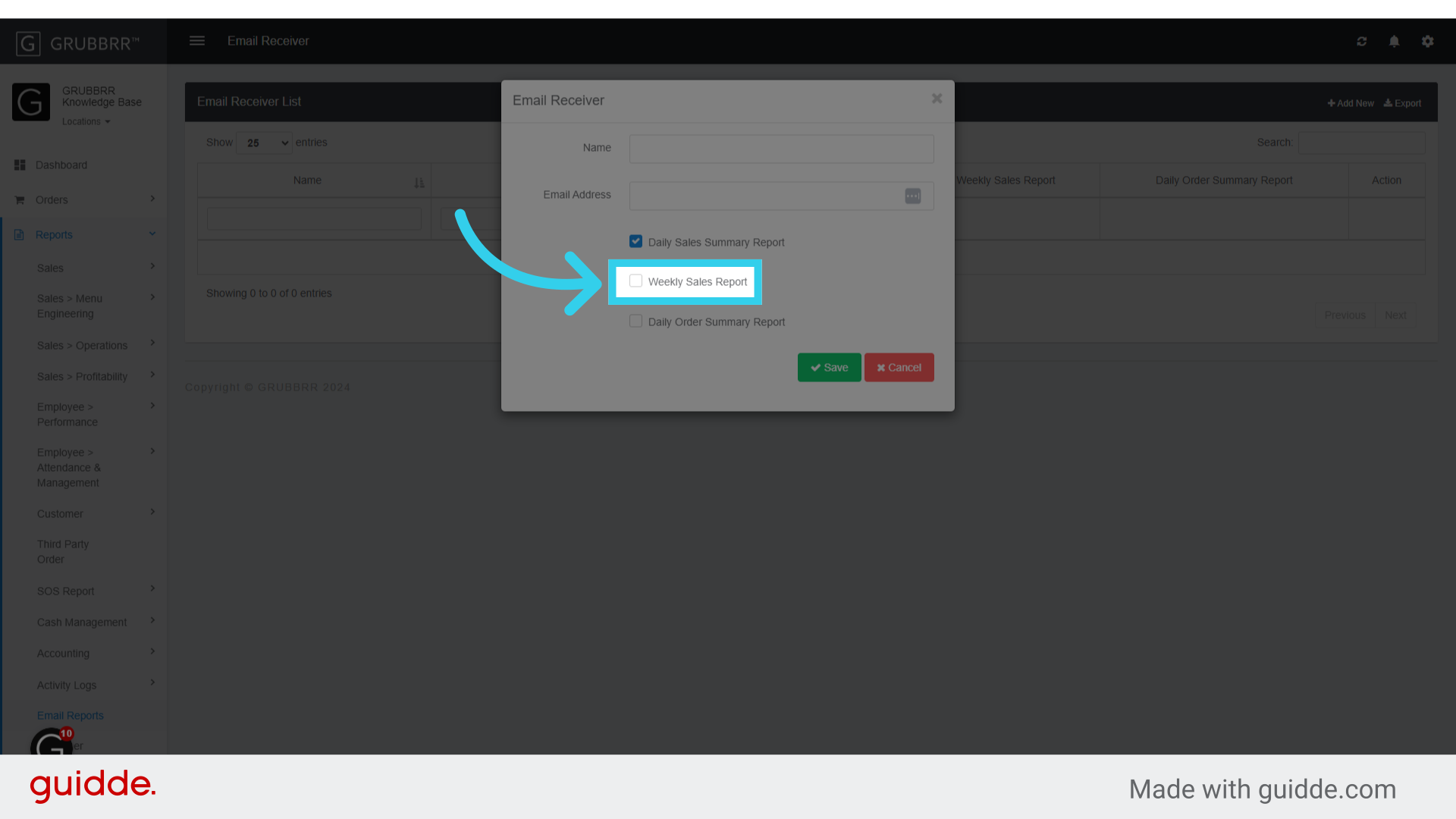
7. Users can receive a Daily Sales Summary...

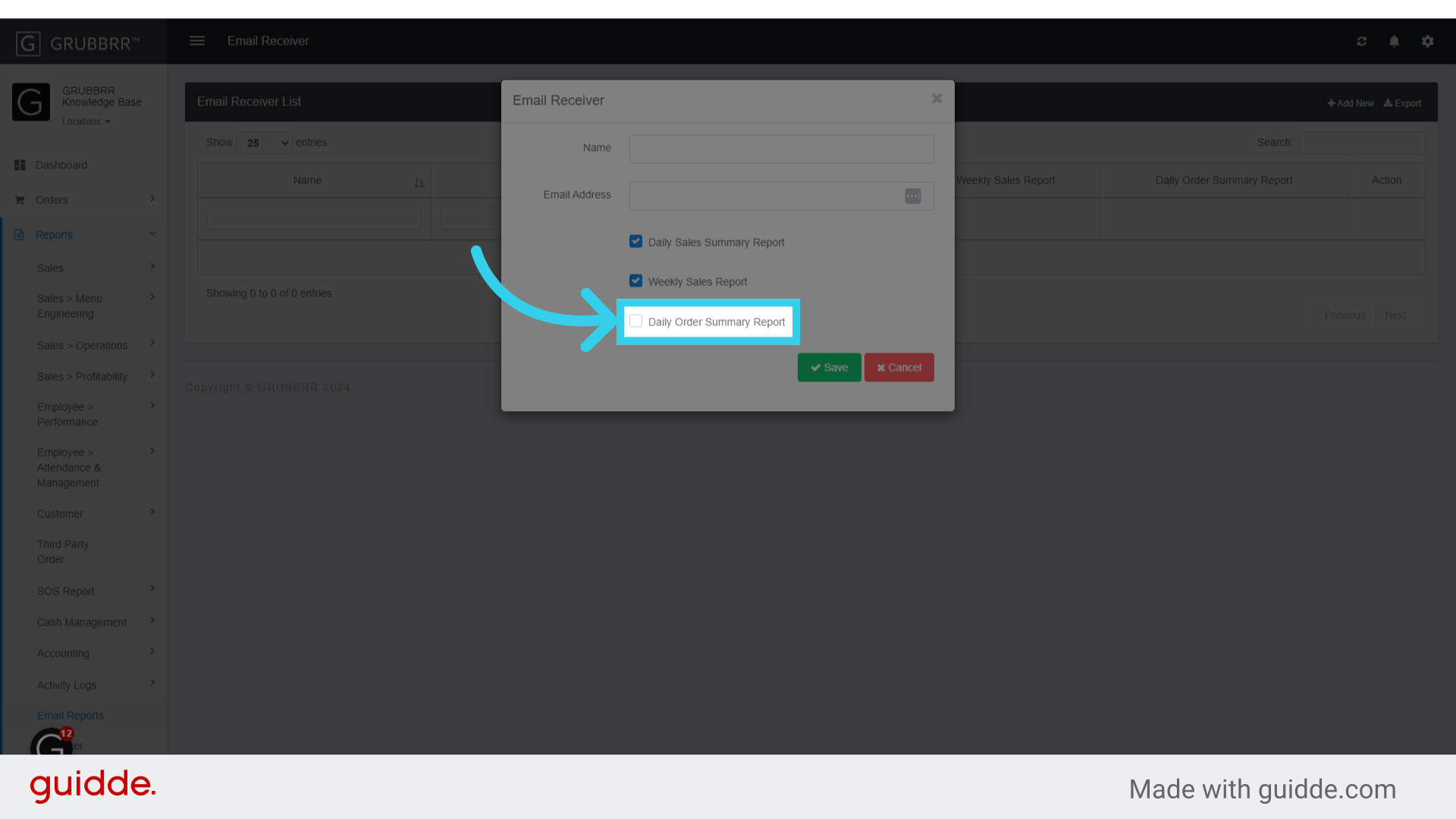
8. ... A Weekly Sales Report...
9. ... and/or a daily order summary from the portal
10. Click "Save" to apply your settings

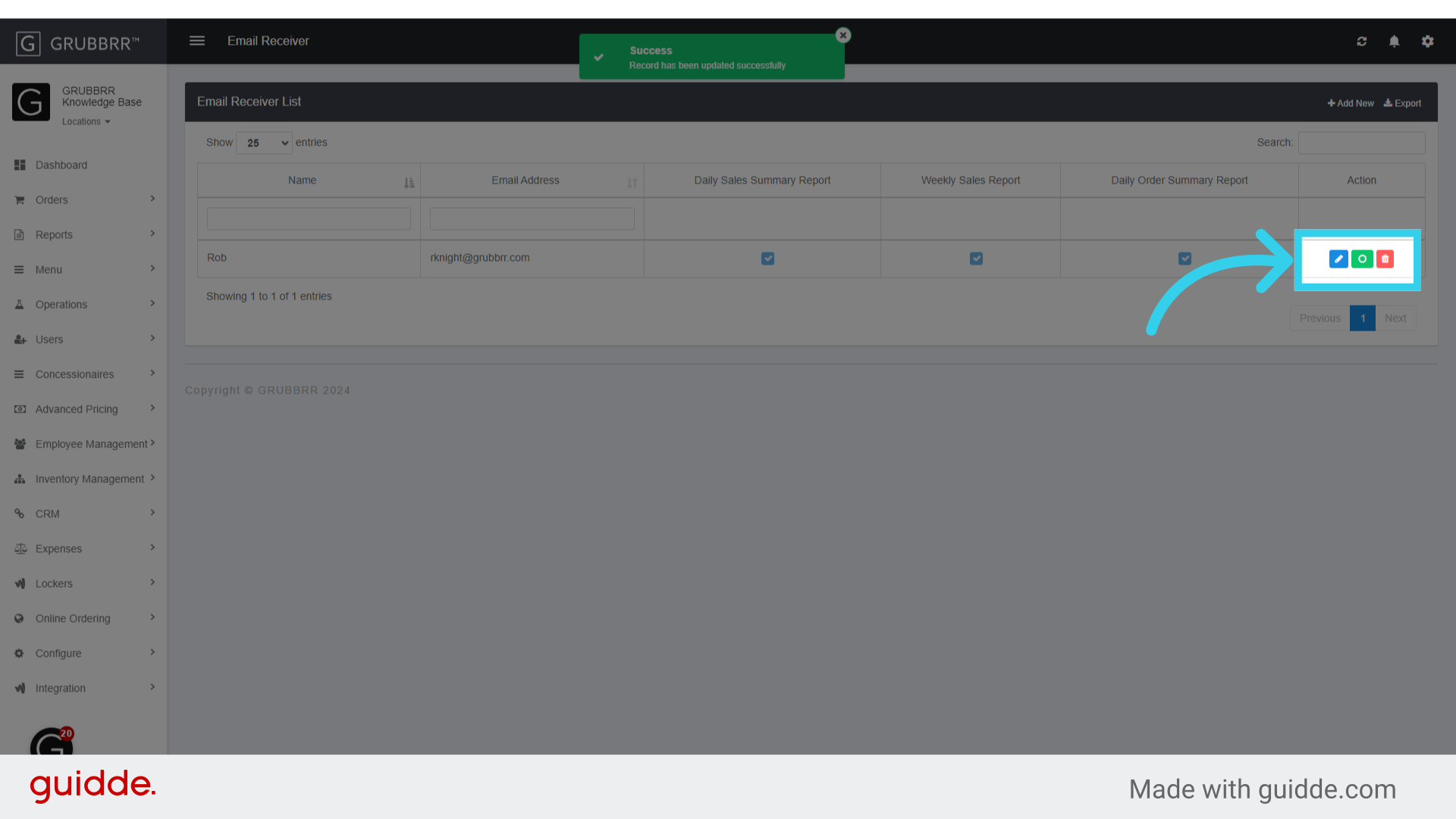
11. Once you've created a new email report, you can edit, pause, or delete daily reports with these buttons
Anyone you add as an Email Receiver will get a report nightly at 11:59 PM local time. You can see a template of these reports by clicking the link below.