How to Enable Inventory Tracking for Menu Items in the GRUBBRR Portal
Last updated: August 8, 2026
I use GRUBBRR without a POS integration, and I want to manage inventory of items for my location. How does the system know what items I want to track?
Before we can manage and track a location's inventory through the GRUBBRR portal, we need tell the system which items it needs to track. This is an item-level setting which can be enabled for location-level or company-level menus.
In this guide, we'll show you how to turn on inventory tracking for menu items at the location level.
Go to staging.grubbrr.com
1. Start by signing in to the location that you want to update

2. Click "Menu"
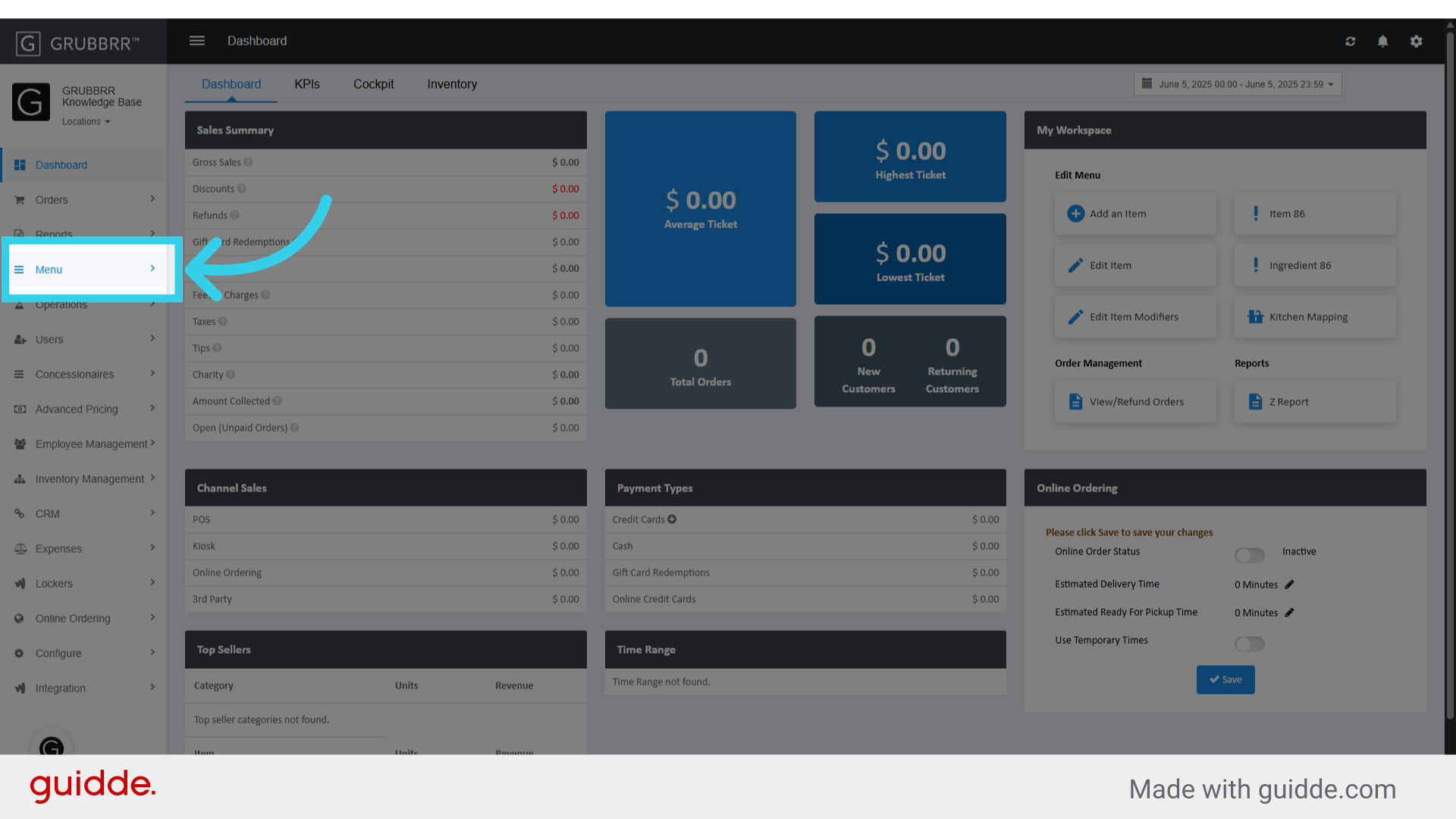
3. Click "Catalog Management"

4. Click "Items"
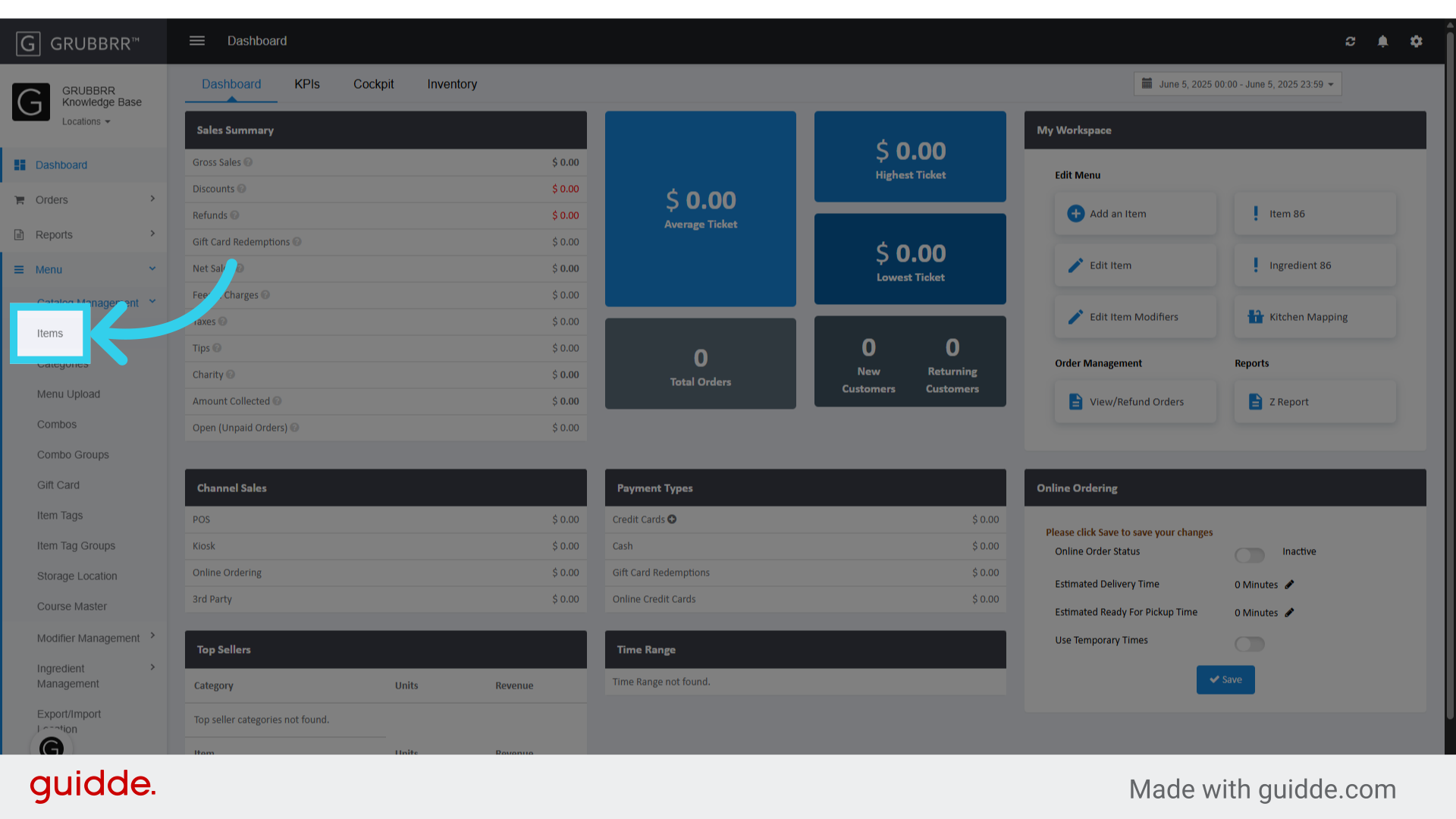
5. Find the item you want to update, and click the "Edit" in the action column of the item listing

6. Click here to open the Additional Settings menu
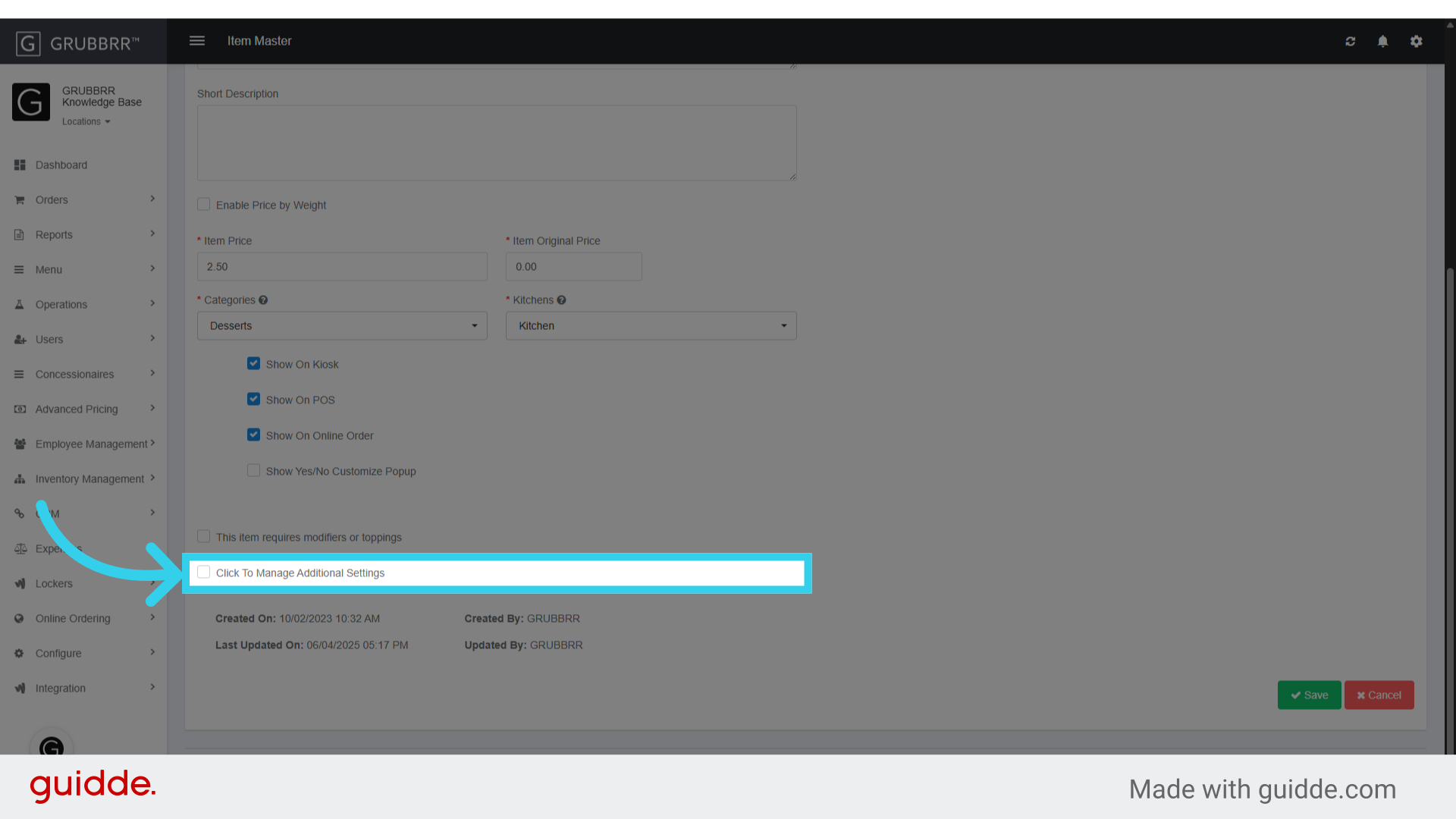
7. Click "Inventory"

8. Click "Track Inventory"

9. Click "Save" to apply your changes
Repeat this process as needed for all menu items you want to track.
