How to Enable Aggregate Mode for High Volume Modifiers in the GRUBBRR Portal
Last updated: August 8, 2026
My menu has items that could have higher-than-average modifier selections (i.e., multi-flavor selections for a wing concept); is there a way to simplify how customers make these selections on the Kiosk?
If you're using version 12.6+ of GRUBBRR's Kiosk application, you have access to GRUBBRR's aggregate mode for modifiers. This feature is great for brands that offer customers lots of choices in their modifier list- like, for example, Wing concepts that allow their guests to create custom mixes of drums and flats, or even of multiple sauce flavors.
Traditionally, the Kiosk expects users to "count up" when adding modifiers; so, if the user needs to make twenty selections, they would need to tap twenty times to complete their order. However, when Aggregate Mode is enabled, the Kiosk will allow the users to "count down" instead, making the ordering process significantly easier.
You can enable Aggregate mode through Modifier Settings by following the steps outlined below.
Go to portal.grubbrr.com
1. Click "Menu"

2. Click "Modifier Management"

3. Click "Common Modifiers"

4. Use the search tool to find the modifier group you want to edit
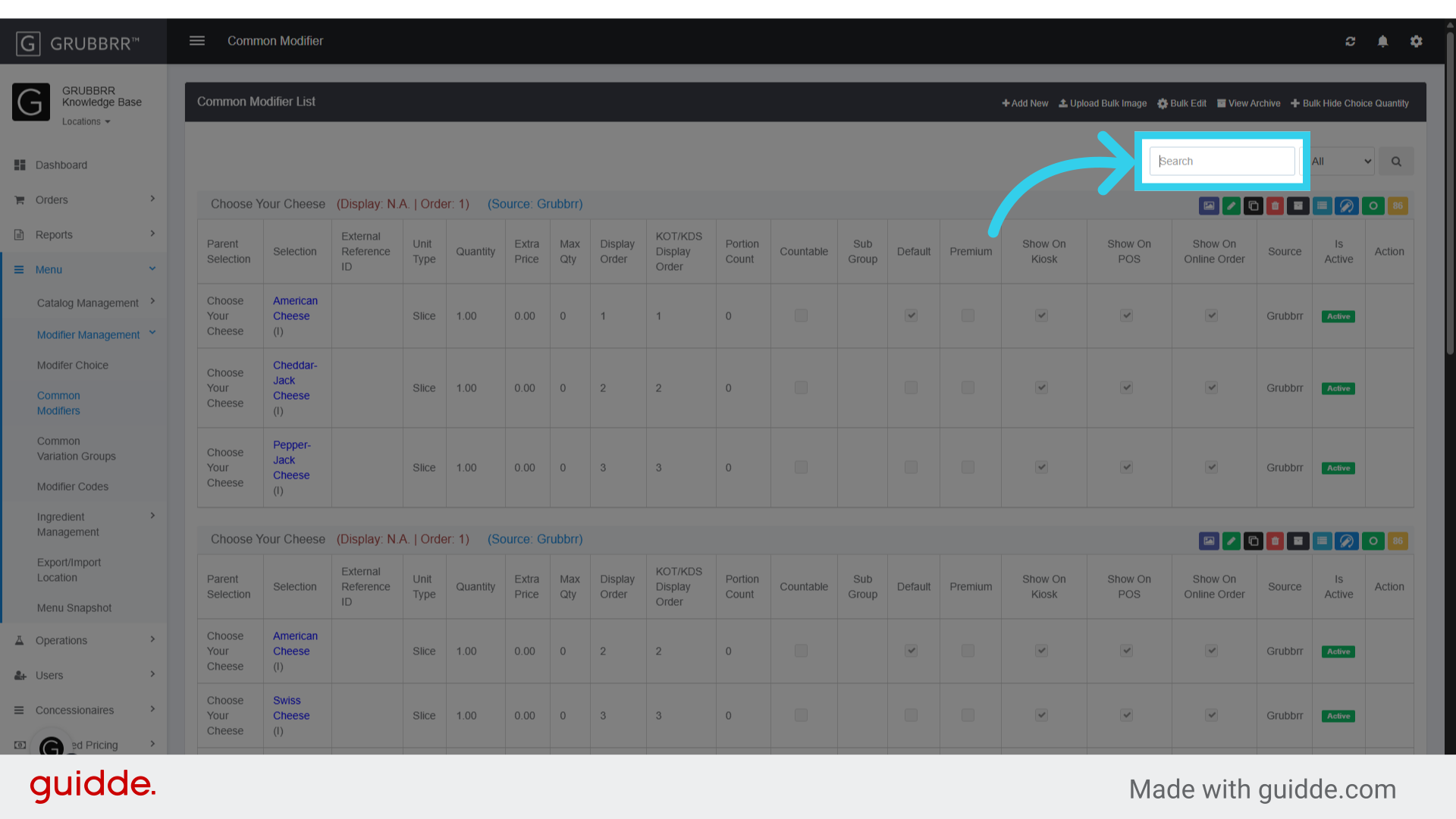
5. Click "Edit"

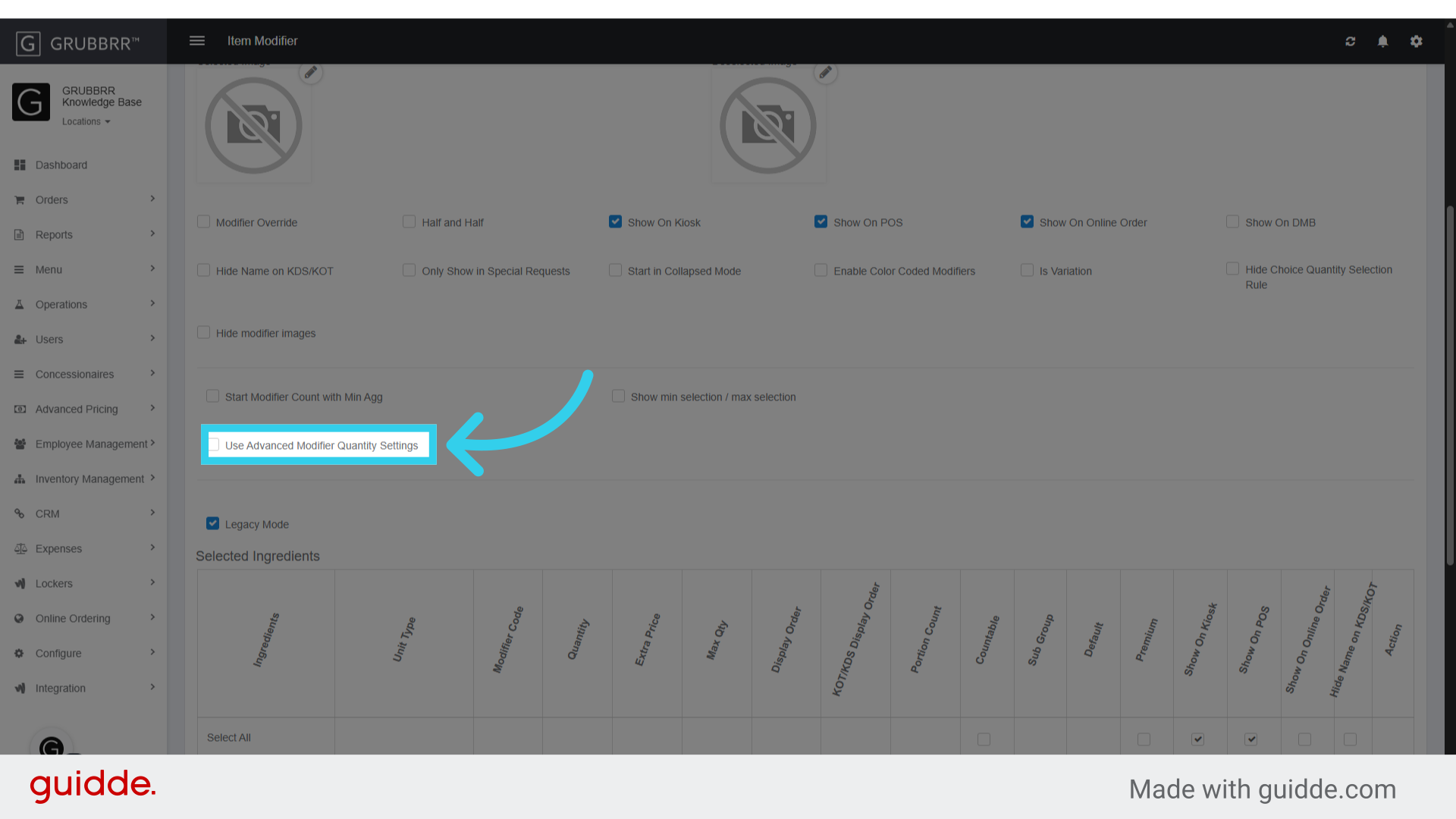
6. Click "Use Advanced Modifier Quantity Settings"
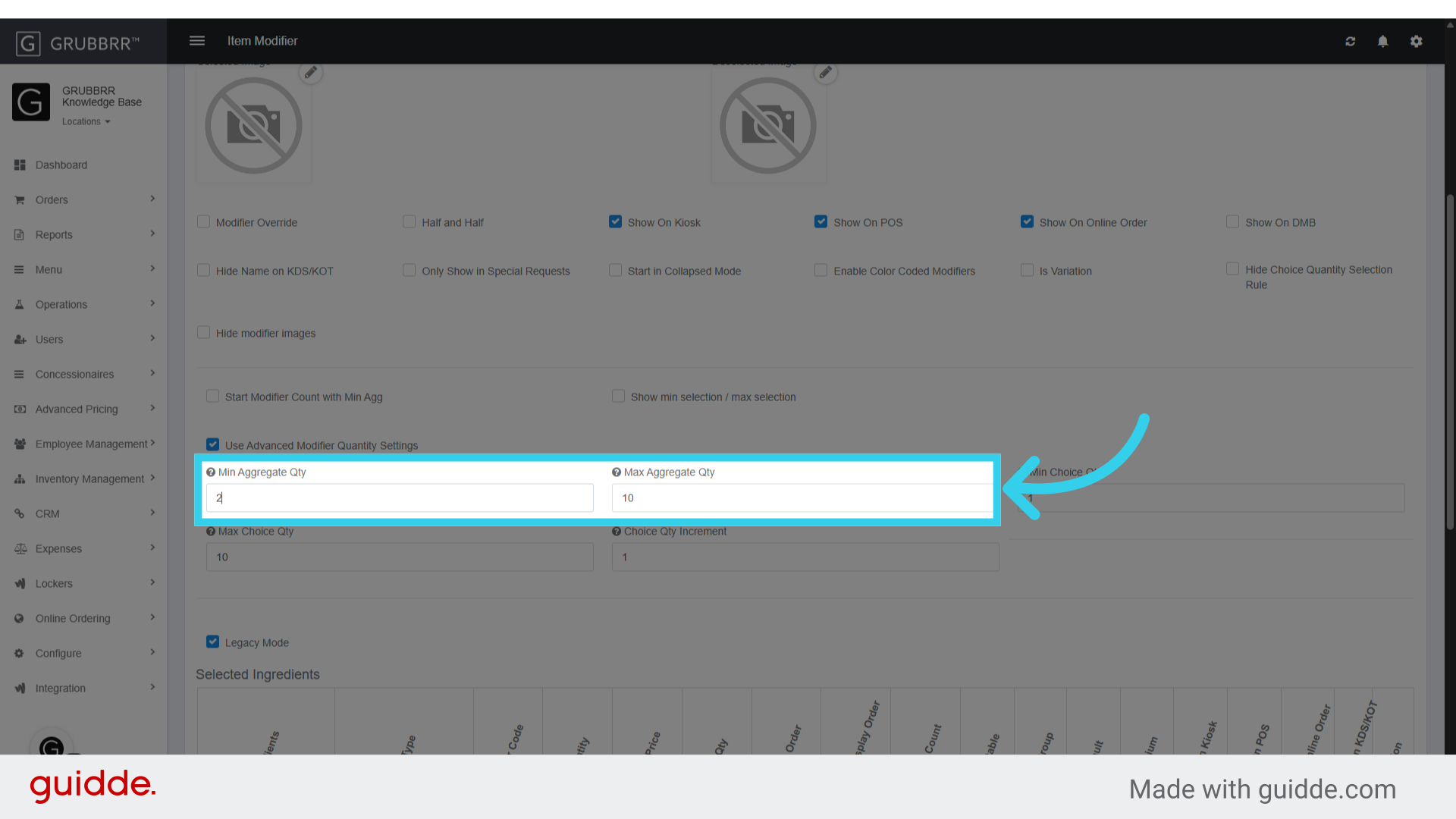
7. The "Minimum" and "Maximum Aggregate Quantities" will help us control how modifier selections are added to the user's cart.

8. Make sure to set both to the maximum number of selections a guest can make for this modifier group!
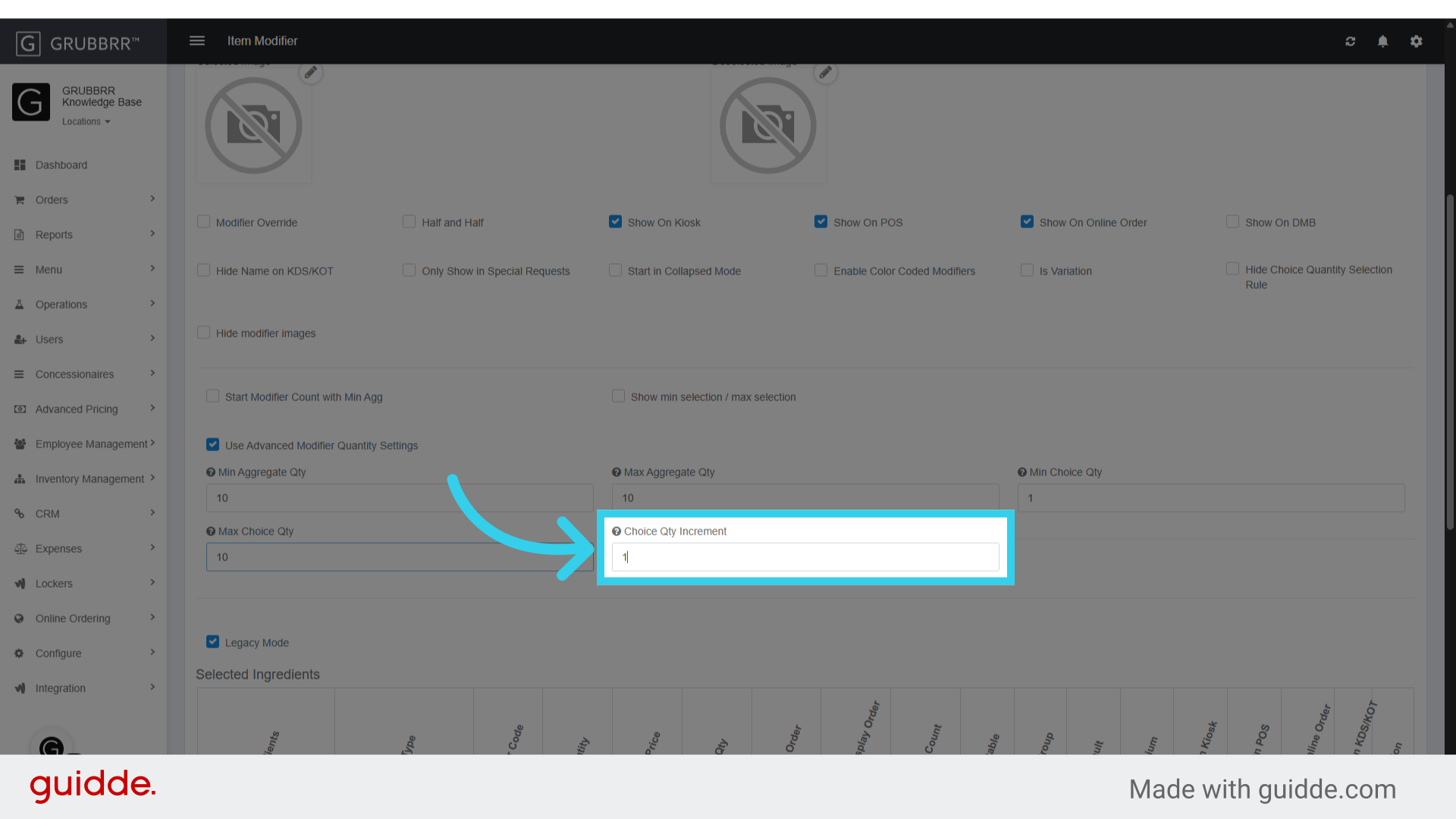
9. "Minimum" and "Maximum Choice Quantity" set the limits for how many selections users can make for this modifier as a whole

10. And "Choice Increment" determines how many selections we add or subtract from each modifier per click
11. Make sure to turn on "Start Modifier Count with Minimum Aggregate"

12. Click "Save" to apply your changes

13. And "Sync" to push them to the Kiosk
