How to Create and Manage Tables in the GRUBBRR Portal
Last updated: August 8, 2026
How do I find the QR Codes for Tabletop orders? How do I create new QR codes in the Portal?

GRUBBRR offers contact-free ordering via QR code as part of our integration with the HMS Host middleware. With this unique flow, customers can scan a QR code at their table to create or join an order, browse the location's Online Ordering menu, and pay directly on their phone. Before we can use this feature, though, we need to ensure that we have:
-
Activated online ordering for the location, and
-
Created tables at the location level in the GRUBBRR Portal
In this guide, we'll provide a high-level look at where tables are created, and how you can add new tables to a location.
Go to portal.grubbrr.com
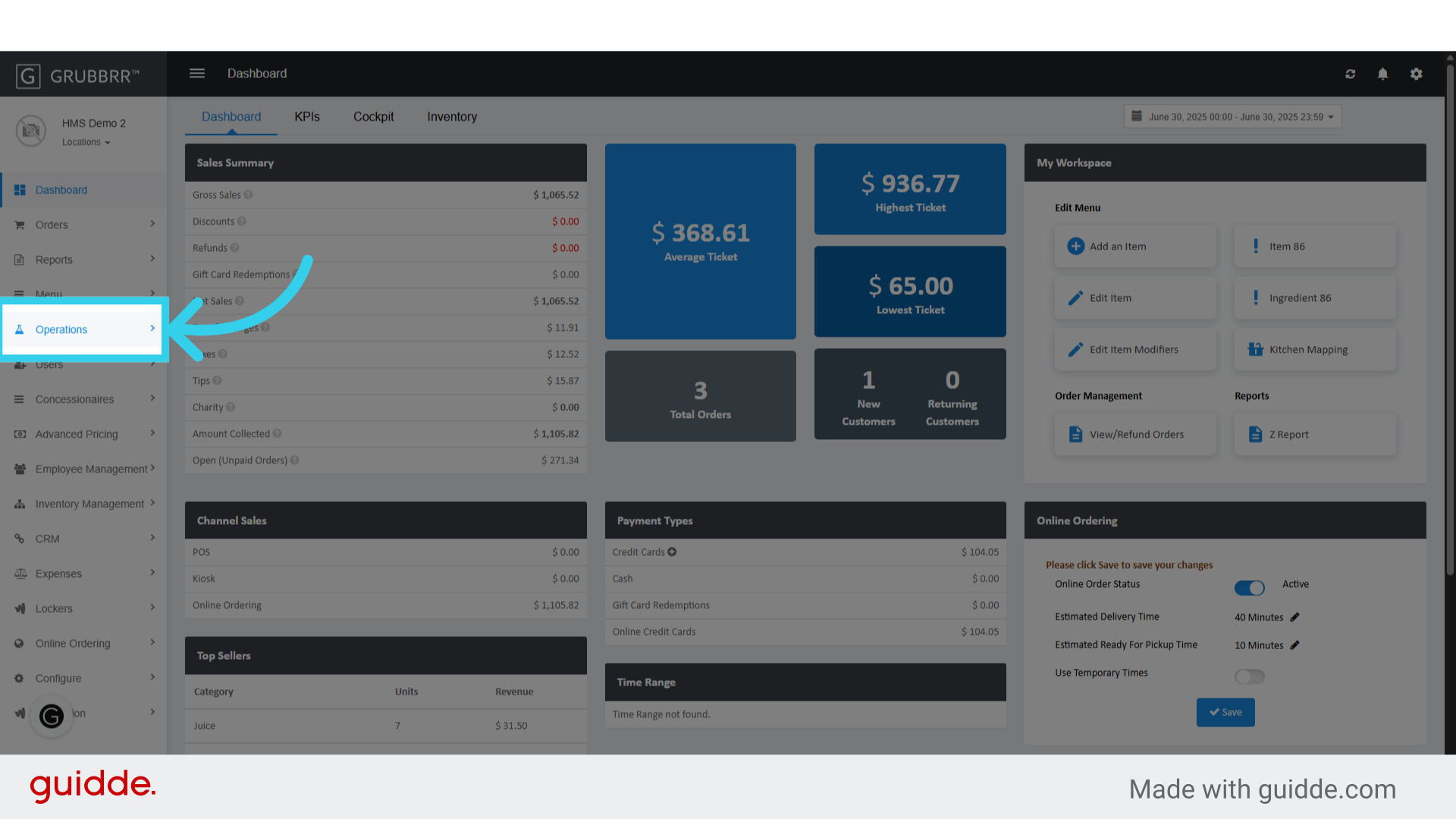
1. Click "Operations"
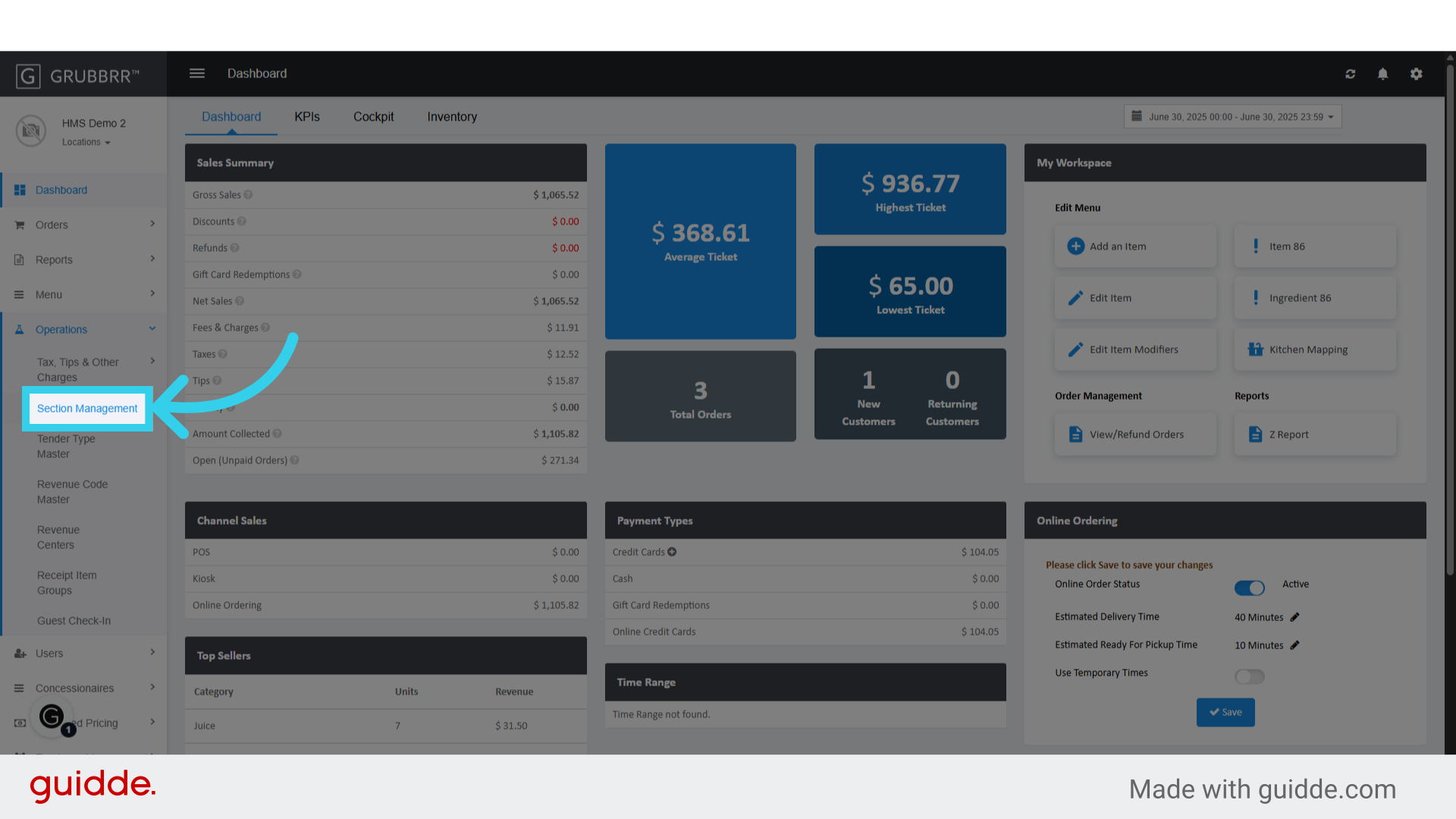
2. Click "Section Management"
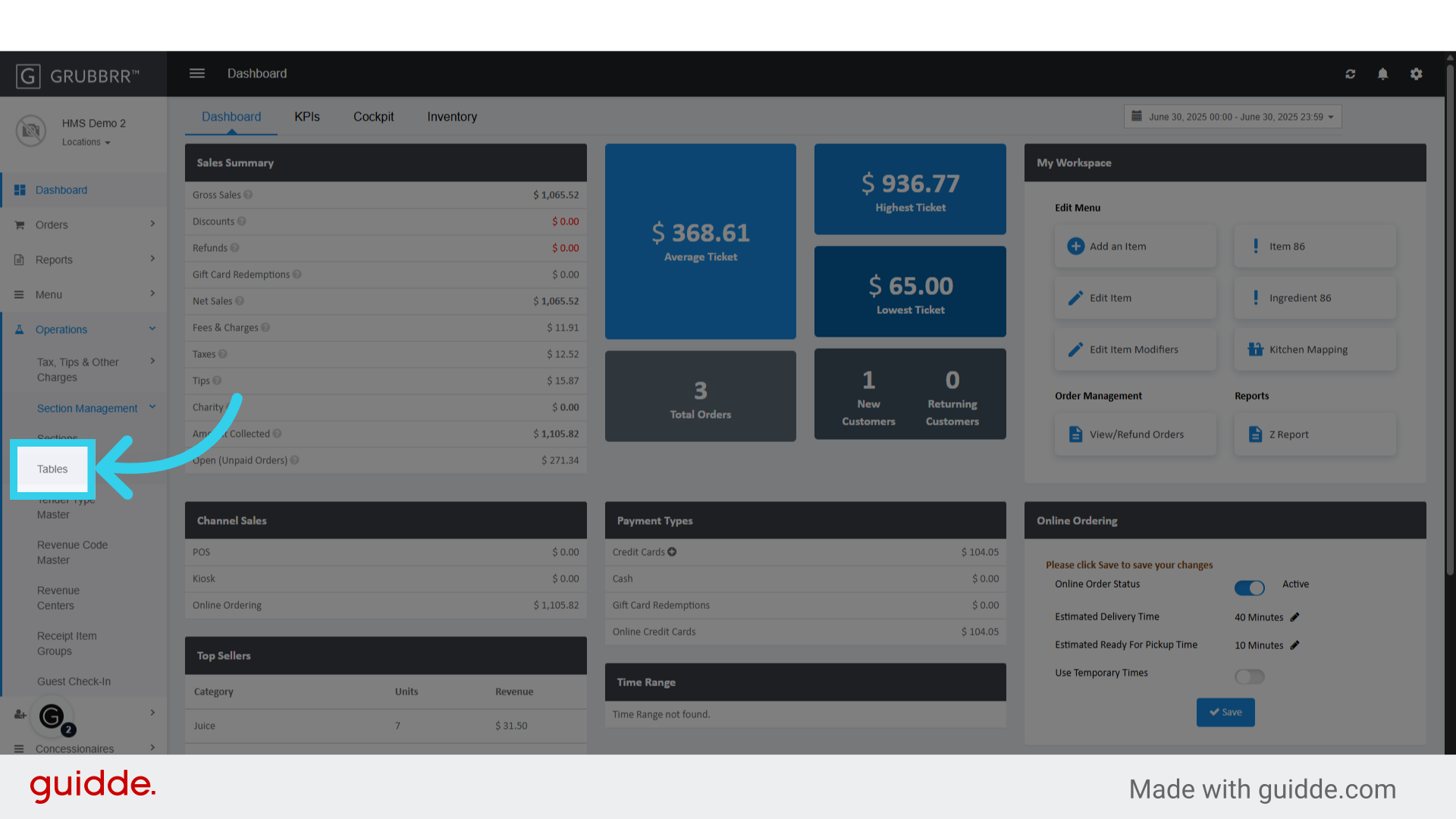
3. Click "Tables"
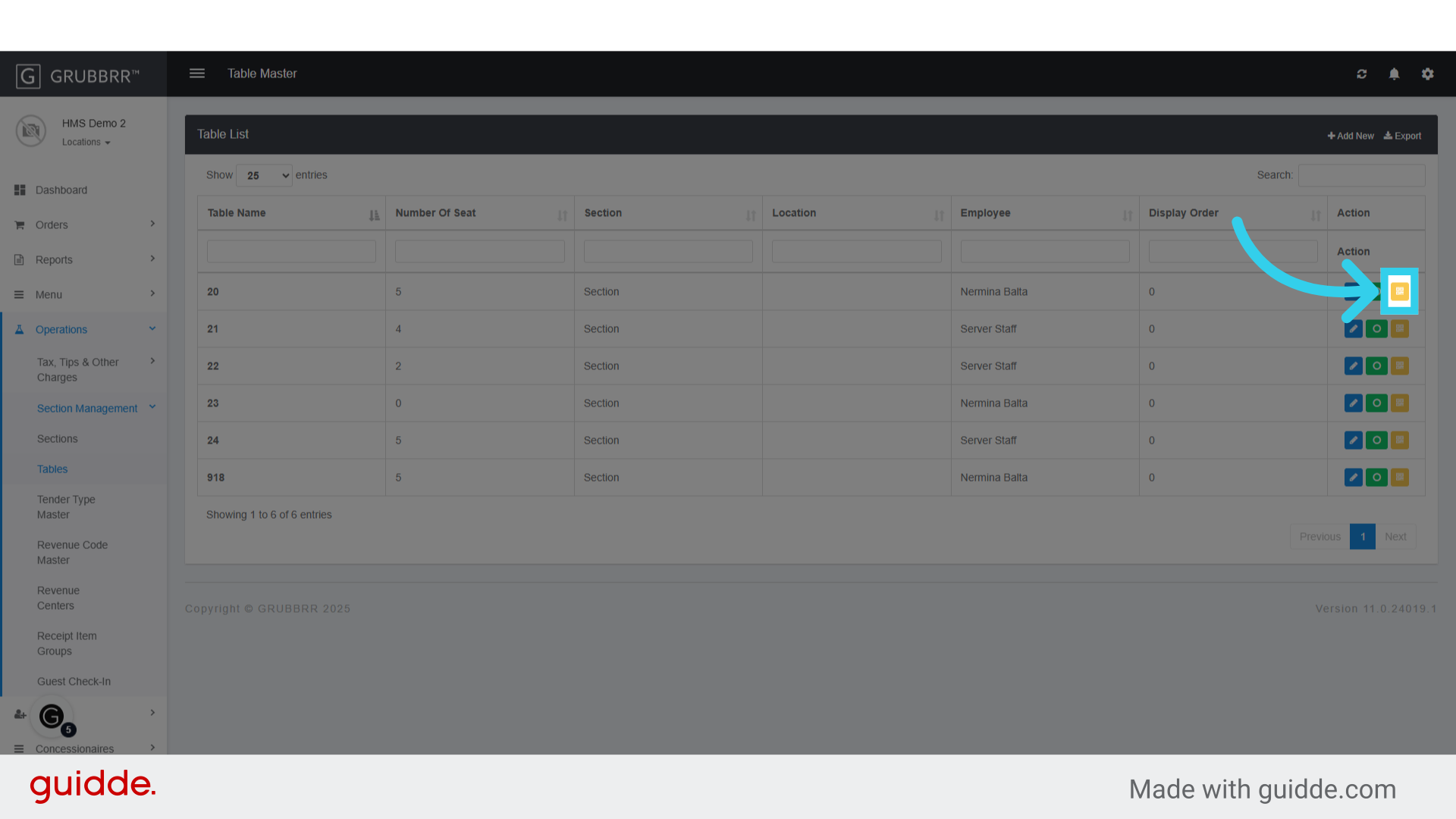
4. In the Action column, we can edit existing tables...

5. Activate or Deactivate them in our system...

6. Or access the table's related QR code for mobile ordering
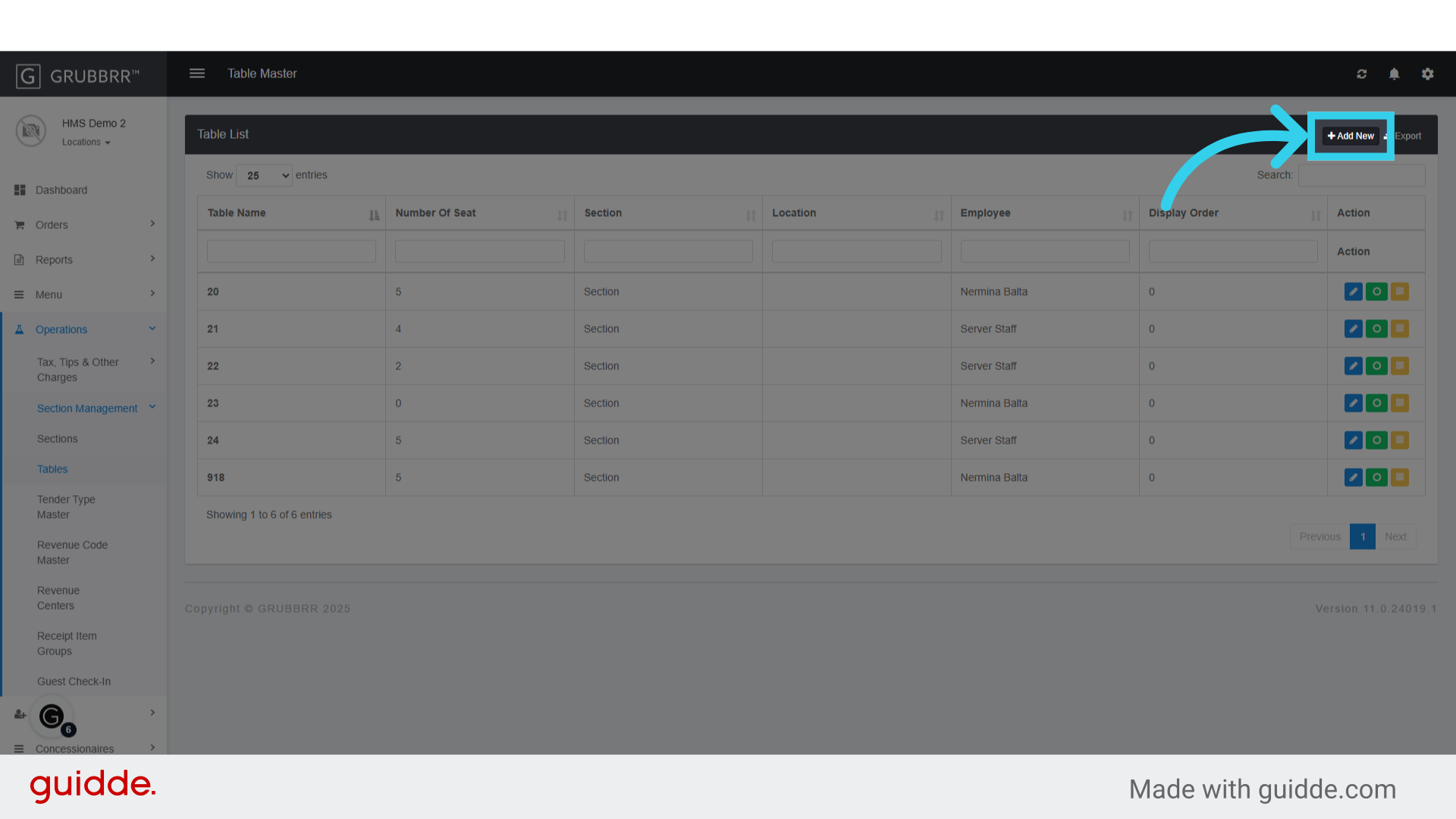
7. Click here to add a new table to the system
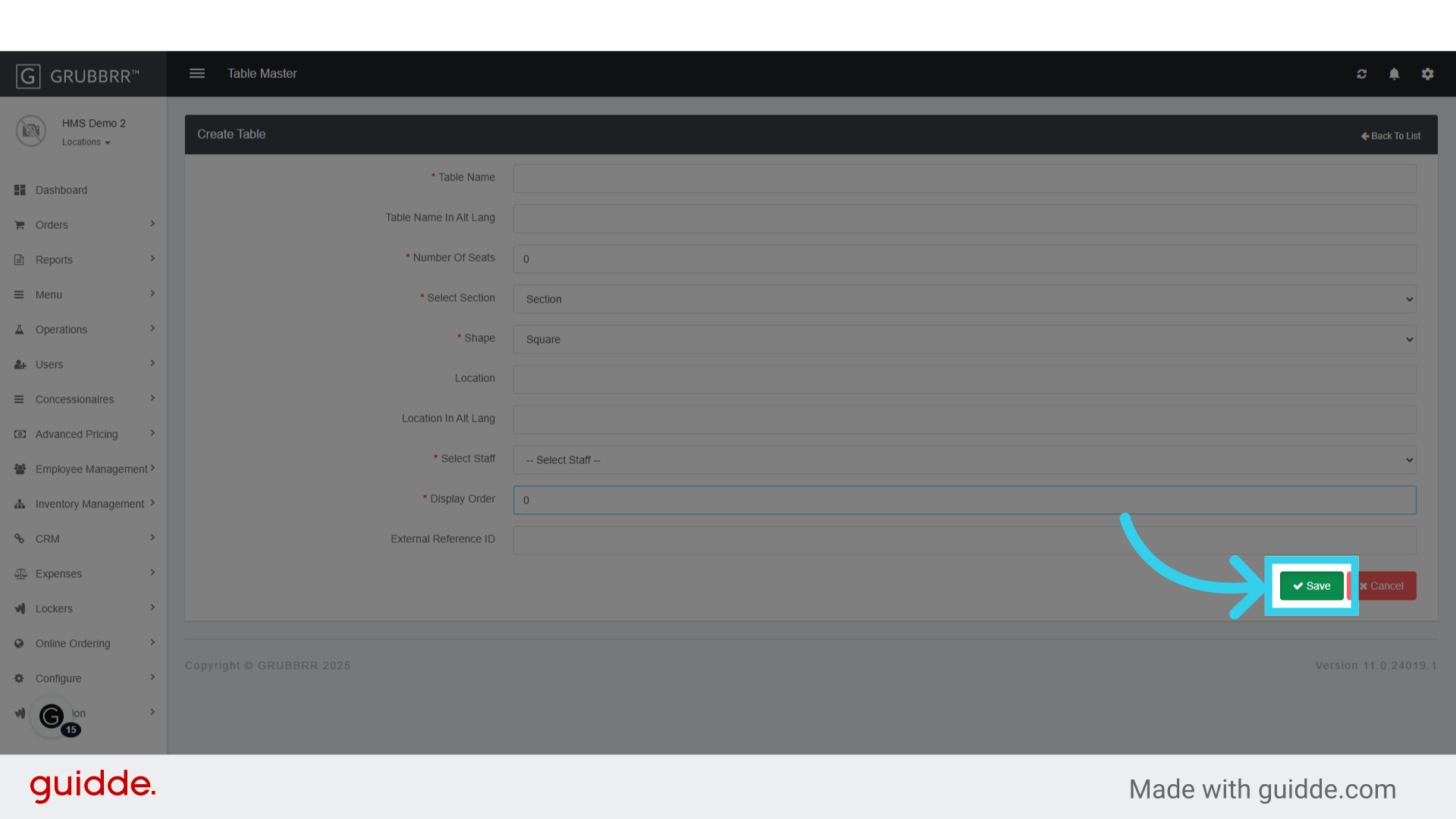
8. Each table we create needs a unique name

9. And a preset number of seats
Specify the number of seats for the table.

10. We also need to assign the table to a section...
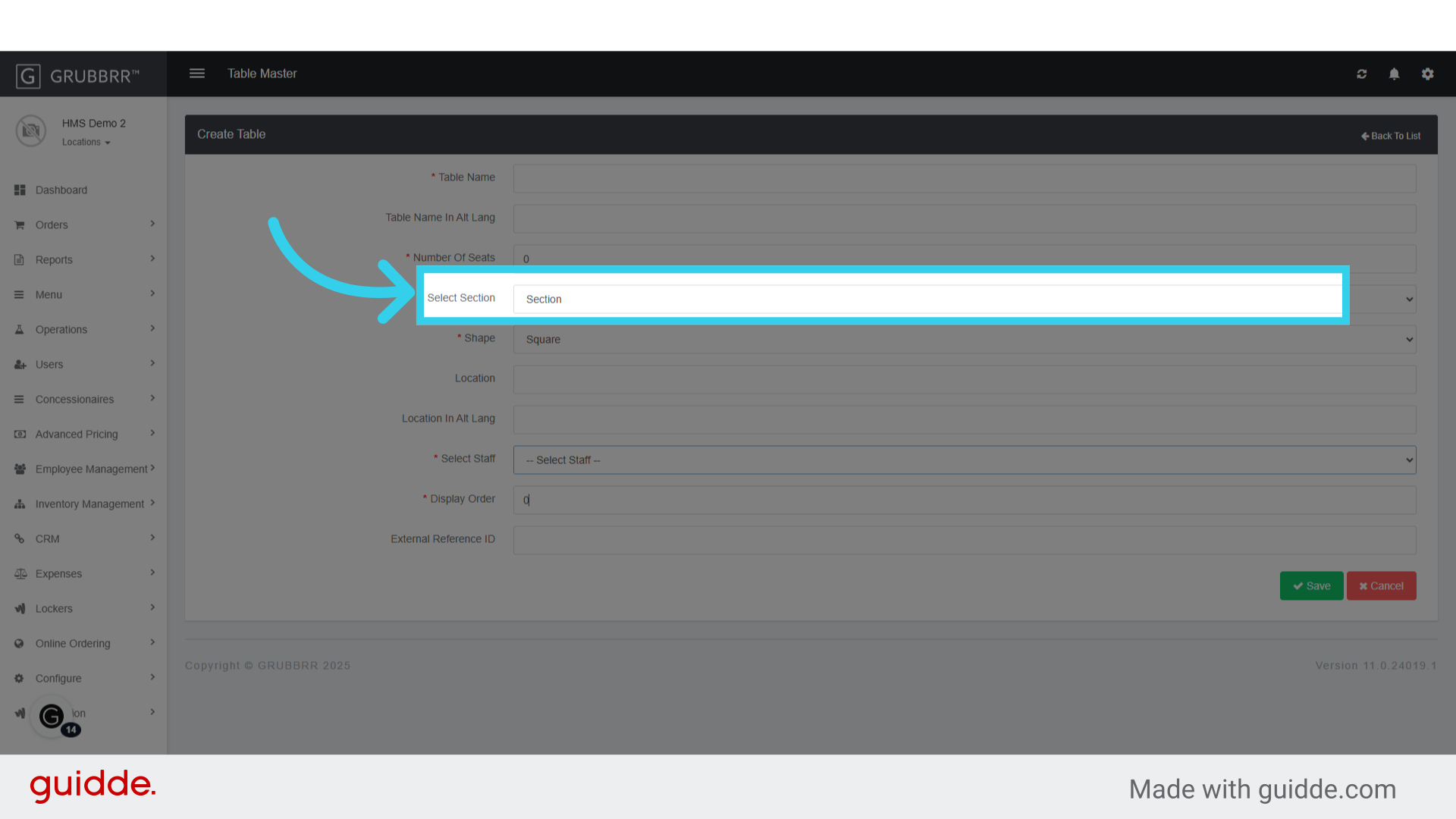
11. We also need to assign the table to a section...

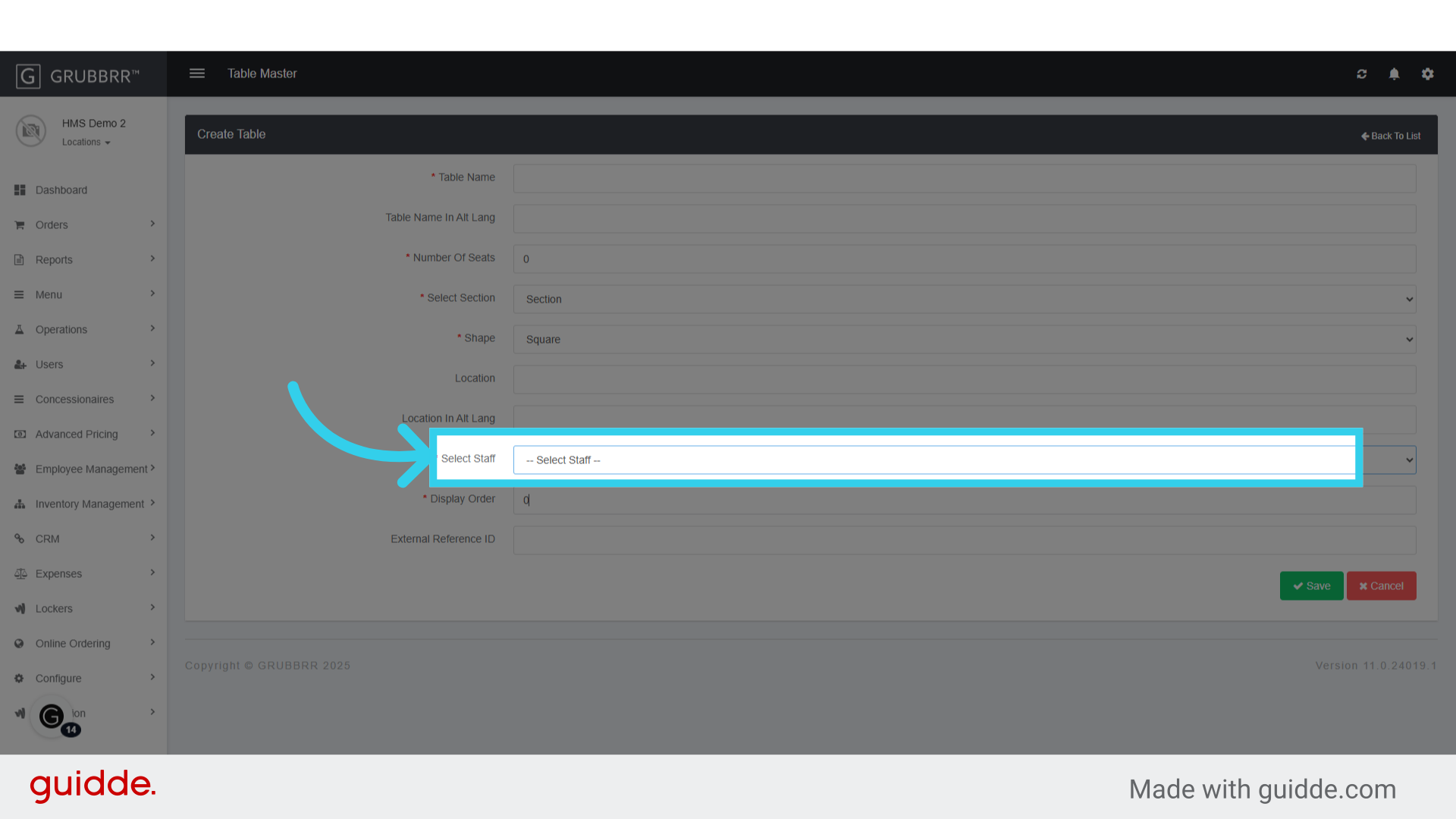
12. Assign the table to appropriate staff...
13. And assign it a place in the Portal's internal display order

14. Click "Save" when you're ready to finalize your changes