How to set up "Combo Only" items in the GRUBBRR Portal
Last updated: August 8, 2026
Can I hide combo-specific Items from the rest of my Kiosk menu?
GRUBBRR's "Combo Item Only" feature gives you additional control over how items are displayed on your Kiosk menu. If you have an item that you don't want available as a "standalone" item, like a Kid's Meal entree, you can simply enable this flag at the item level, and the item won't show up in your basic menu flow anymore. To mark an item as "Combo Only":
1. Click "Menu"

2. Click "Catalog Management"

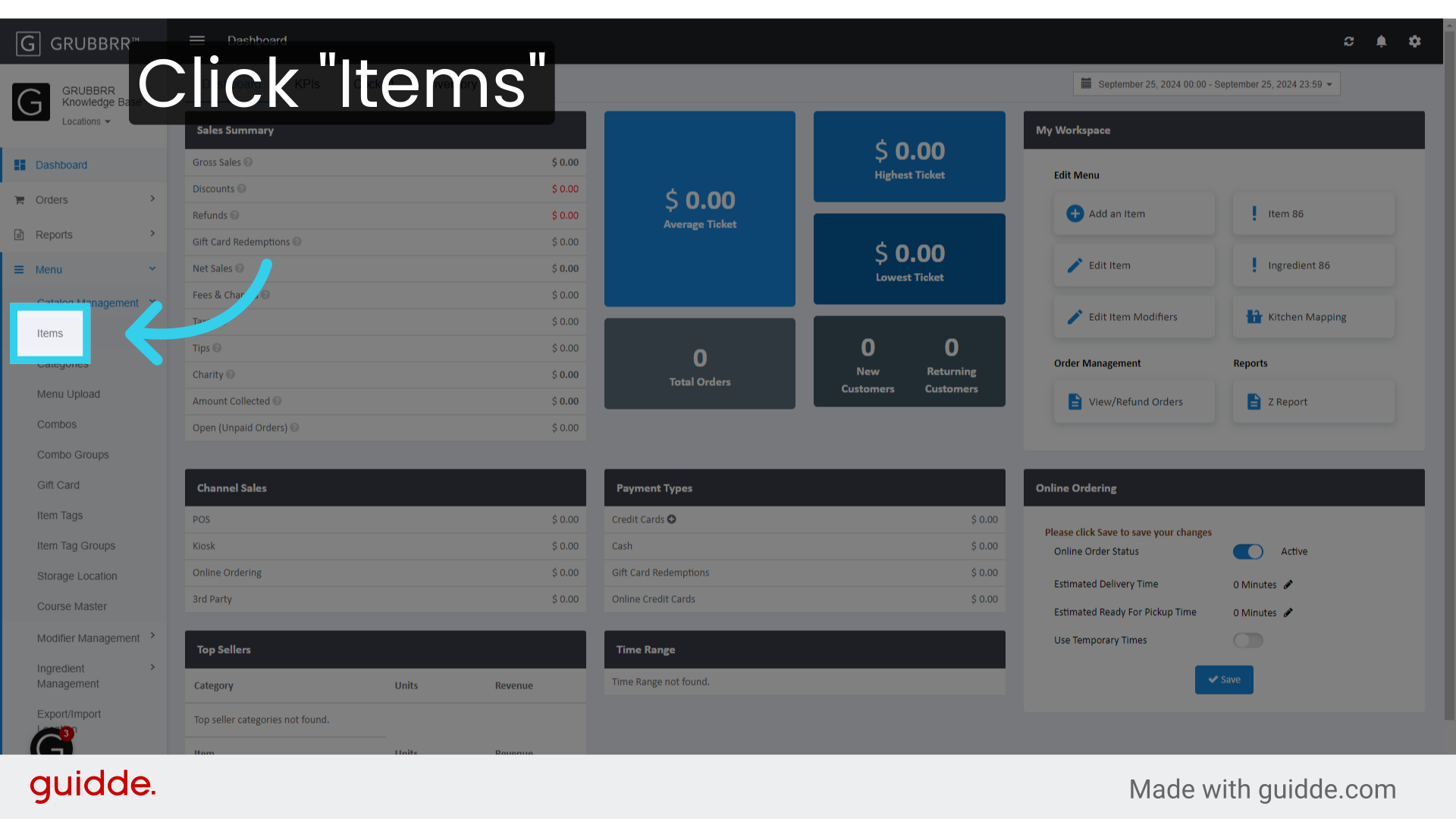
3. Click "Items"
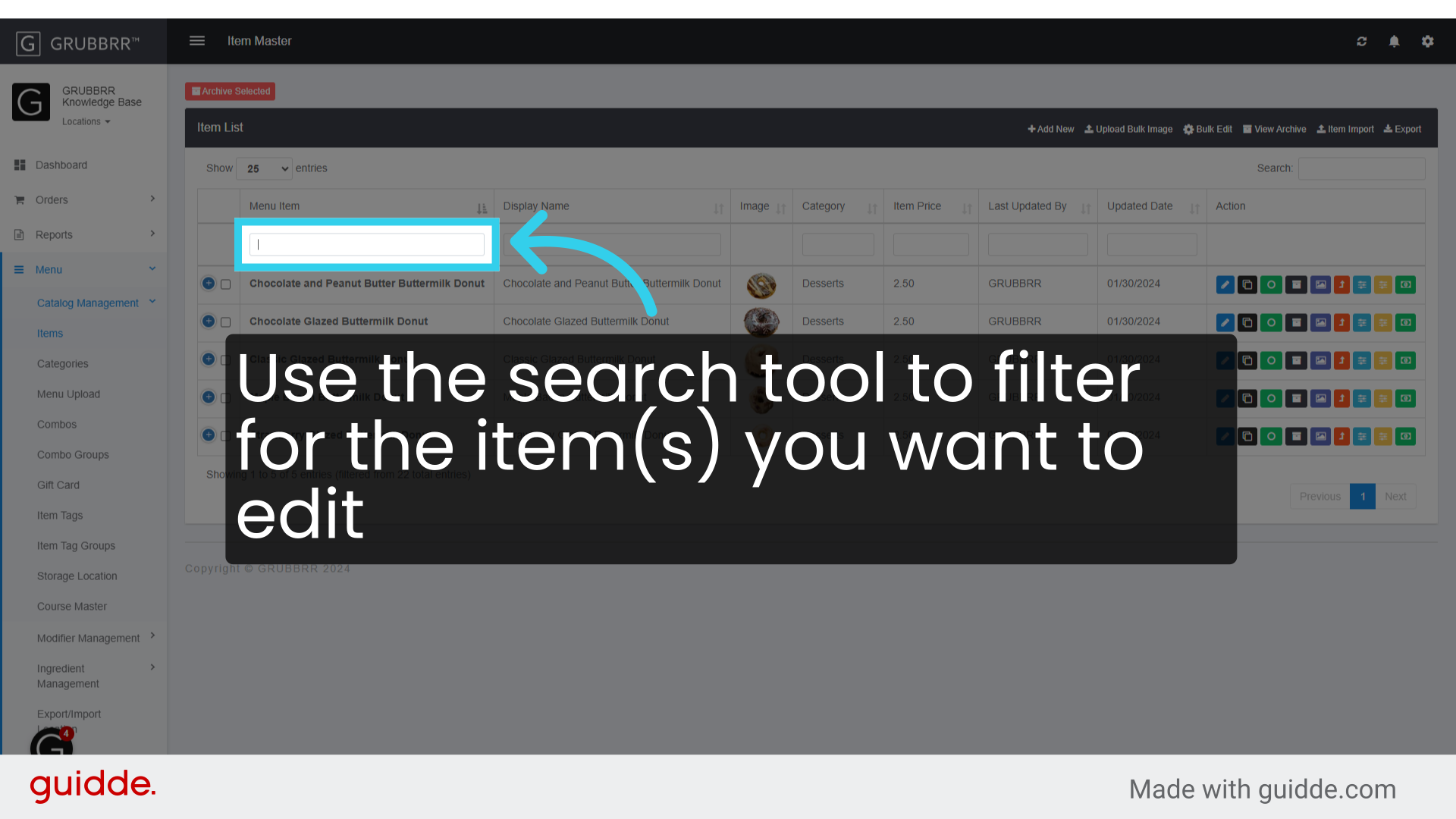
4. Use the search tool to filter for the item(s) you want to edit
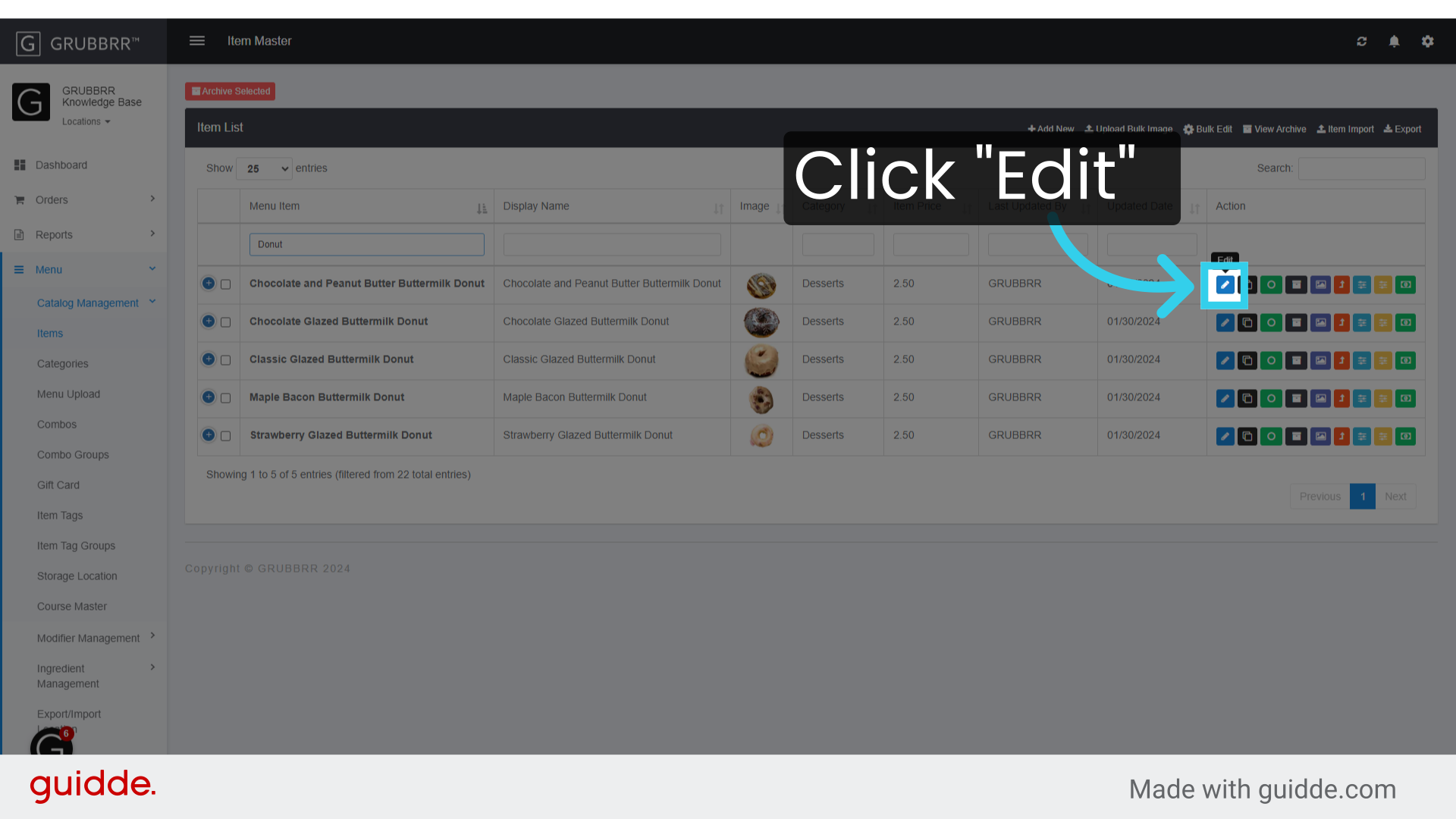
5. Click "Edit"
6. Click here to open the Additional Settings menu

7. Enable the "Combo Item Only" Flag

8. Click "Save" to apply your changes and return to the item list
Repeat the process for any other items you want to mark as "Combo Only"

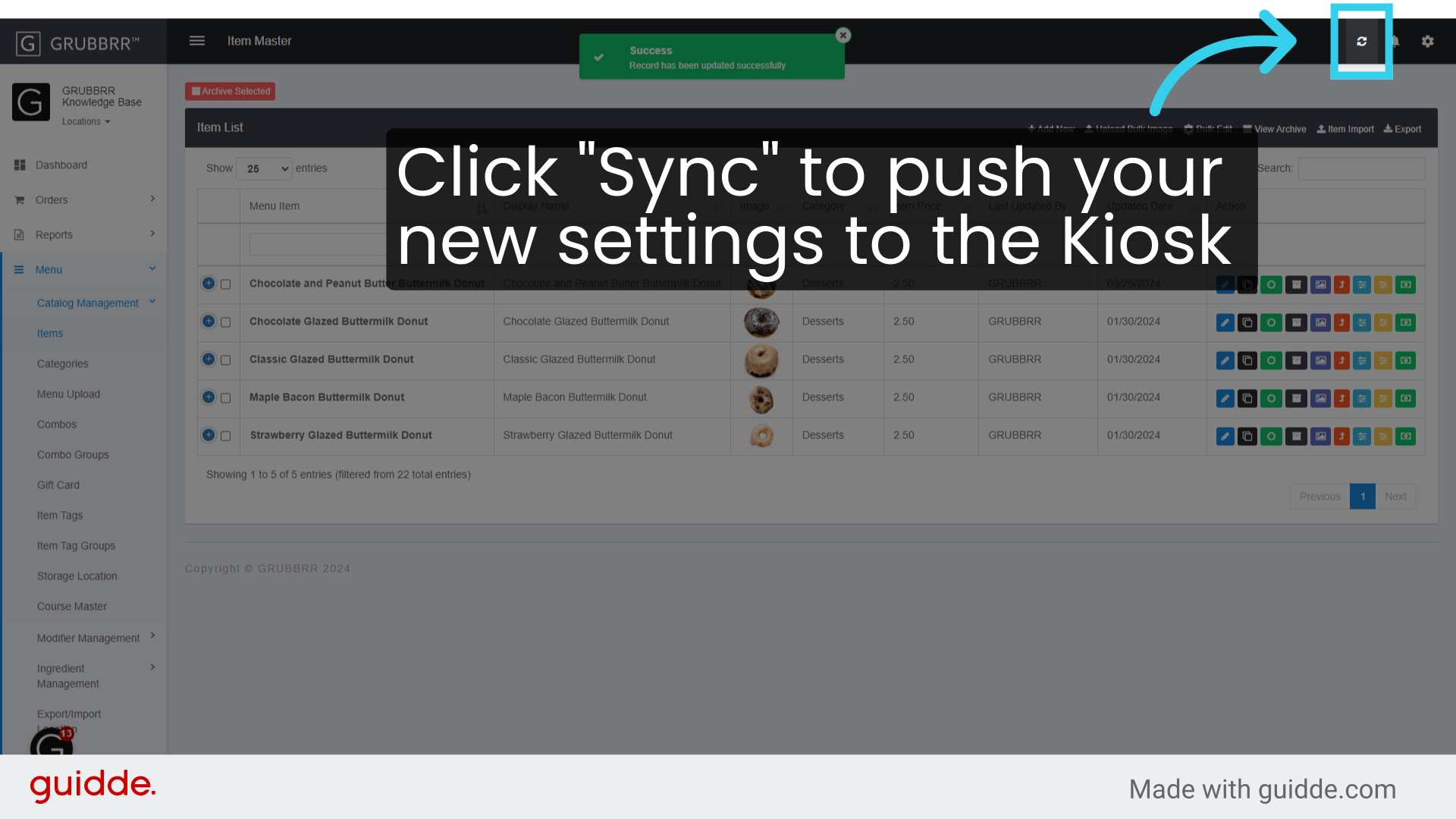
9. Click "Sync" to push your new settings to the Kiosk
The images below show a Kiosk without "Combo Only" items, and another version where all donuts are only available through the Three Donut Sampler Combo.