How to Link a Printer to the GRUBBRR Portal
Last updated: August 8, 2026
How do I add a Kitchen Printer or KDS Printer to my location in the Portal?
GRUBBRR can link with external printers to print KOTs, KDS tickets, and backup receipts for orders on the Kiosk. You can link a new external printer to your Portal at the location level by following the steps outlined below.
1. Sign in to the GRUBBRR Portal at the Location Level

2. Click "Configure"

3. Click "Printer Settings"

4. Click "Add New"
Or click "edit" to update an existing printer

5. Enter a name for the device

6. Assign an App ID to the printer
This is a user-defined value, which we will refer to if we need to troubleshoot the device

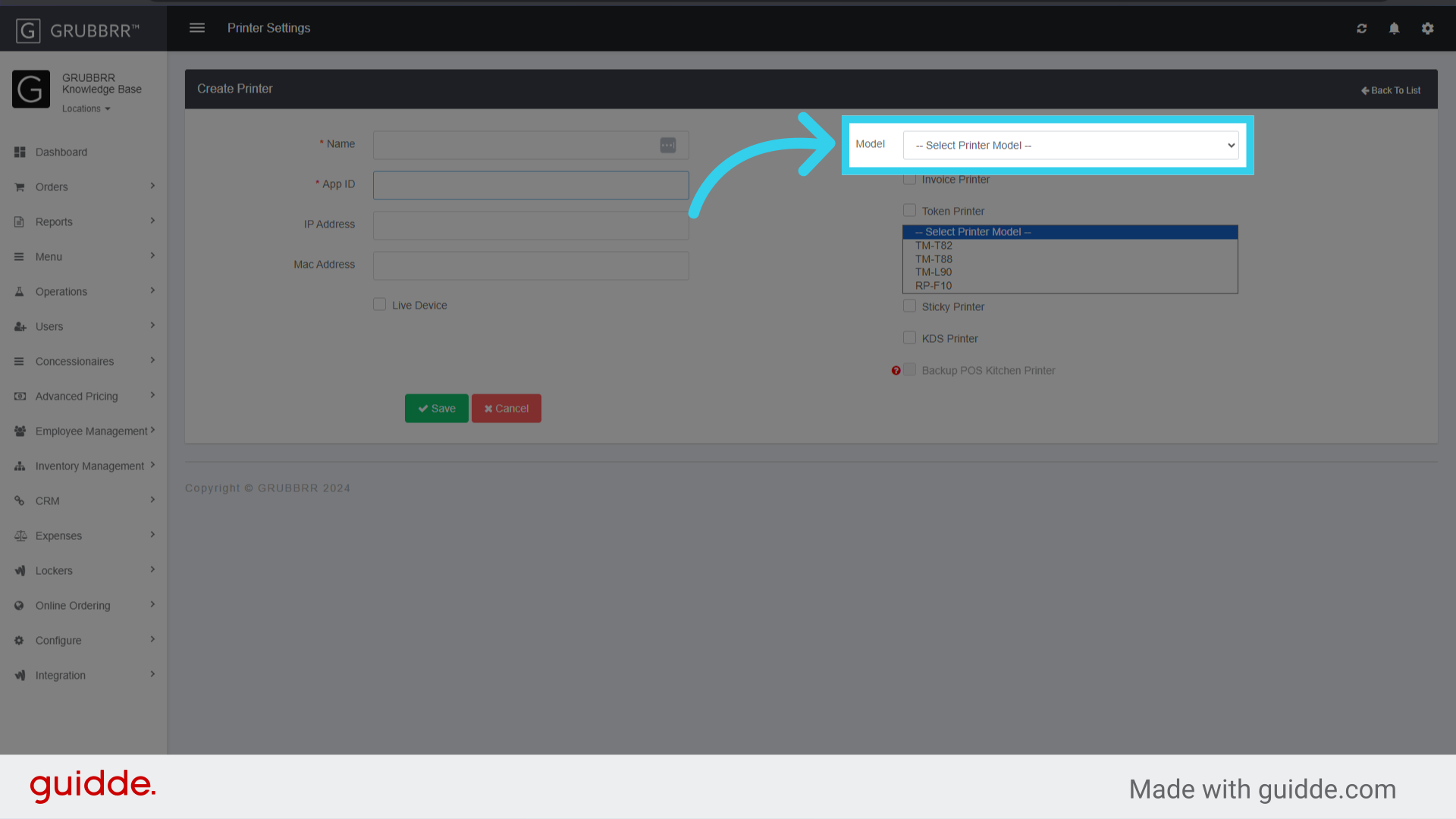
7. Select the printer's model from this dropdown
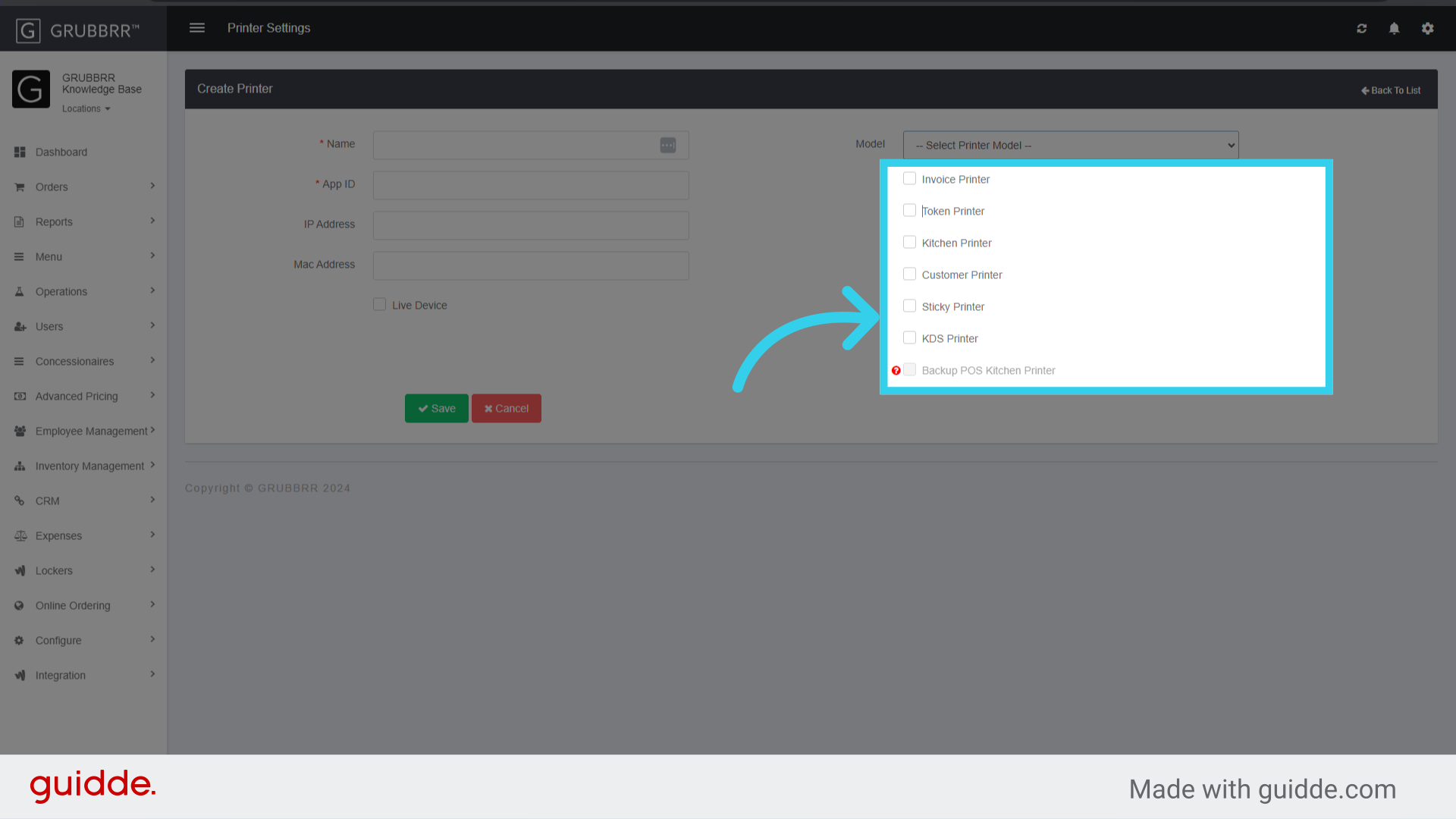
8. Enable the appropriate Printer Function here
9. Mark the device as Live

10. Click "Save"
