How to Set up the Olo + Punchh Integration in the GRUBBRR Portal
Last updated: August 5, 2026
Clients using GRUBBRR's Olo integration also have the option to integrate with Punchh loyalty. Please note: This additional integration does not replace or overwrite their existing Olo integration.
How to Find the Punchh SSO Client ID and Secret
To find the SSO Client ID and SSO Client Secret, the client must:
- Access the Punchh Portal
- Select Whitelabel from the left sidebar menu
- Select OAuth Apps from the dropdown
-
Select any of the applications
-
Copy down the SSO Client ID and SSO Client Secret
How to find the POS Location Key in Punchh
To find the location key, the client must:
- Log in to the Punchh Portal
- Select Settings from the left sidebar menu
- Select Locations from the dropdown
- Select the appropriate location
- Select POS from the tabs at the top of the screen
- Copy down the Location Key
We will need the Location key for every location where the Kiosk will be deployed.
How to Get the Client's Business Key
To receive the business key, the client must contact Punchh support and request it.
The business key will be the same for all locations within the same company.
Portal Setup
Super-Admin Configurations
Before clients can use a loyalty program on their Kiosk, we have to enable it at the SuperAdmin level in the GRUBBRR Portal. You can do so by signing in with the appropriate Super-Administrator account and following the steps outlined below.
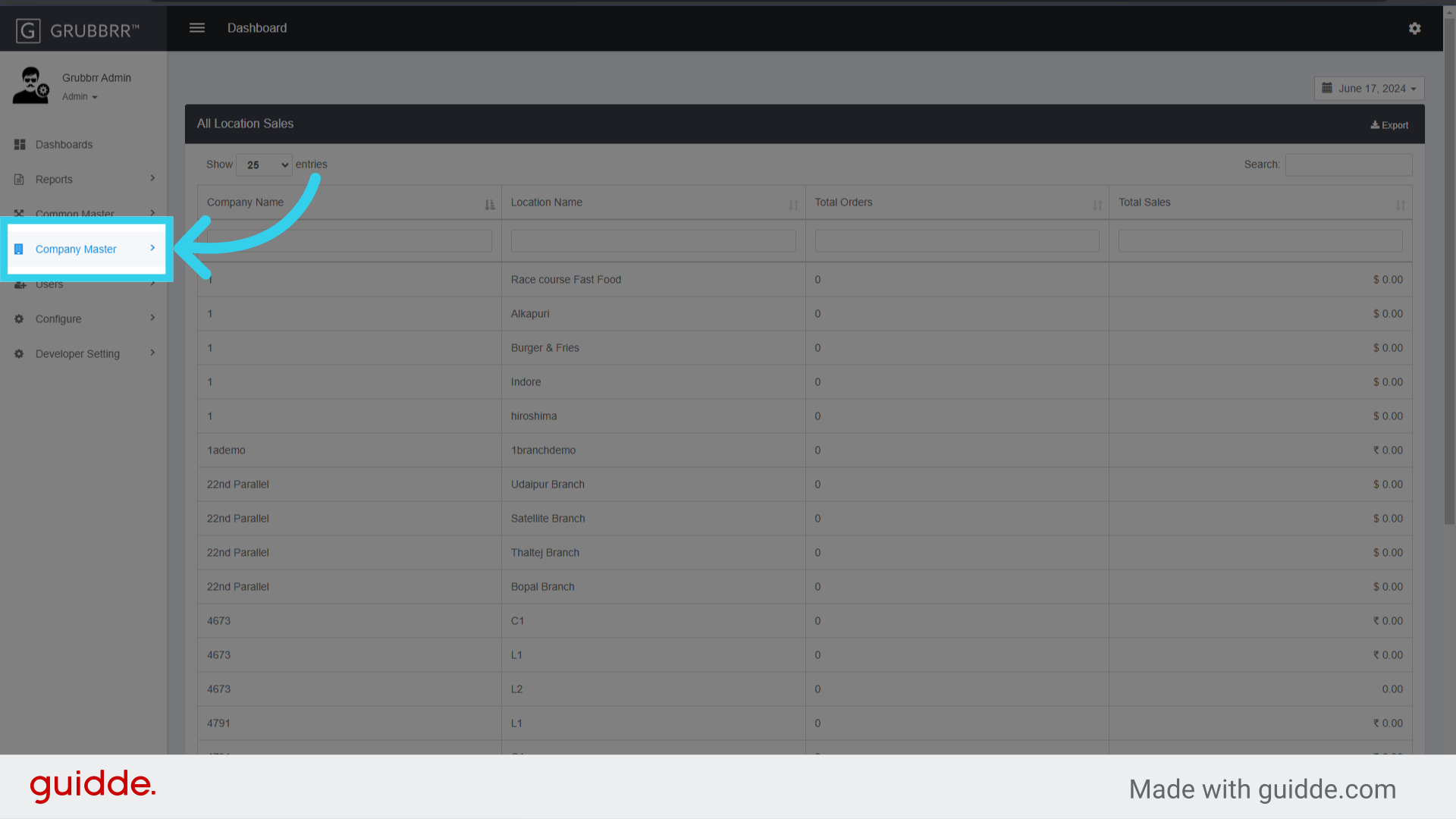
1. Click "Company Master"
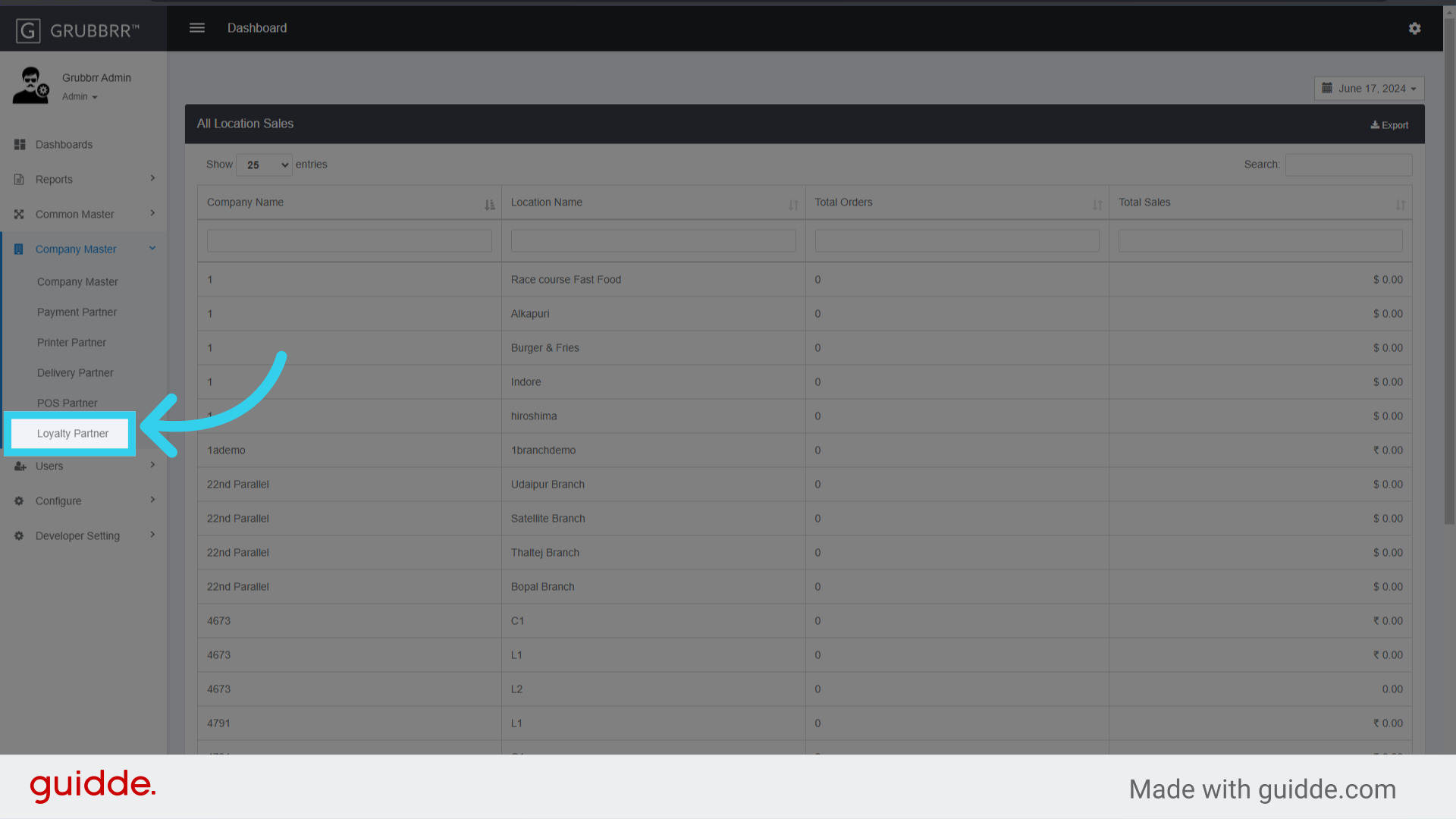
2. Click "Loyalty Partner"
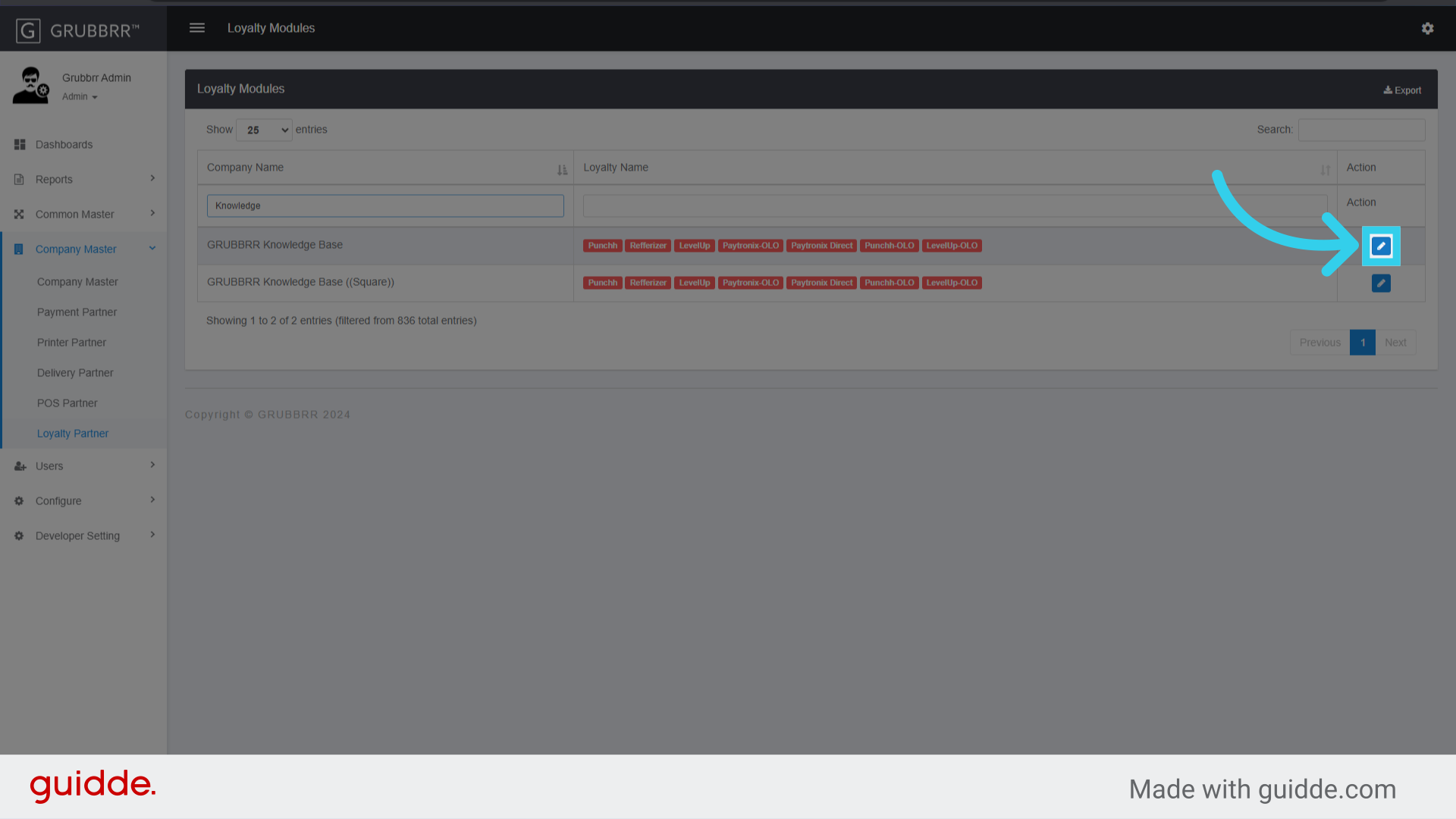
3. Search for the Company you wish to edit

4. Click "Edit"
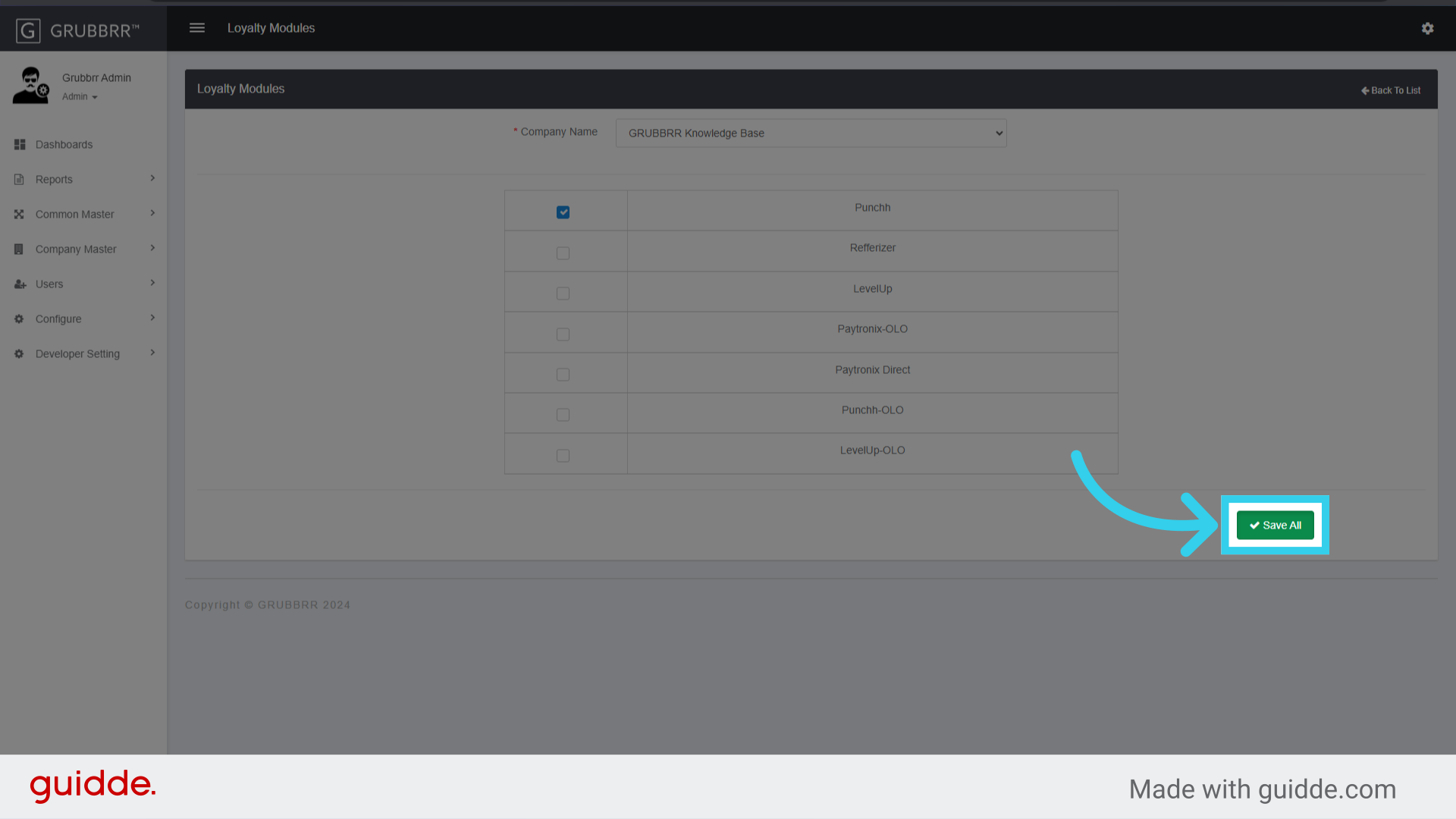
5. Enable the appropriate Loyalty Partner

6. Click "Save All"
Company-Level Configurations
Once we've enabled Punchh as a loyalty partner at the SuperAdmin level, we'll need to assign it to individual locations at the Company level. This process will need to be repeated for each location in the Company's portal.
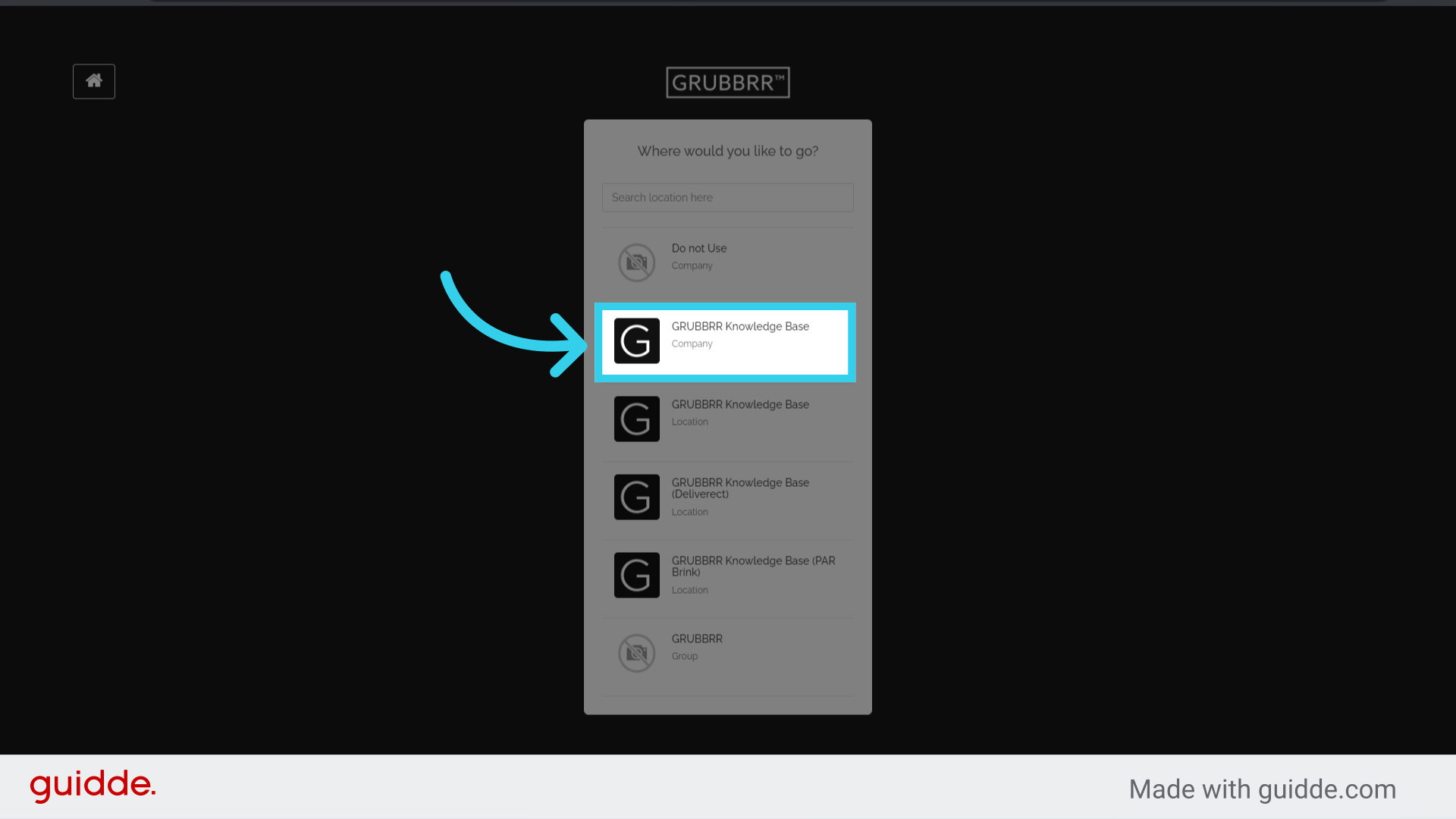
1. Sign in to the GRUBBRR Portal at the Company Level
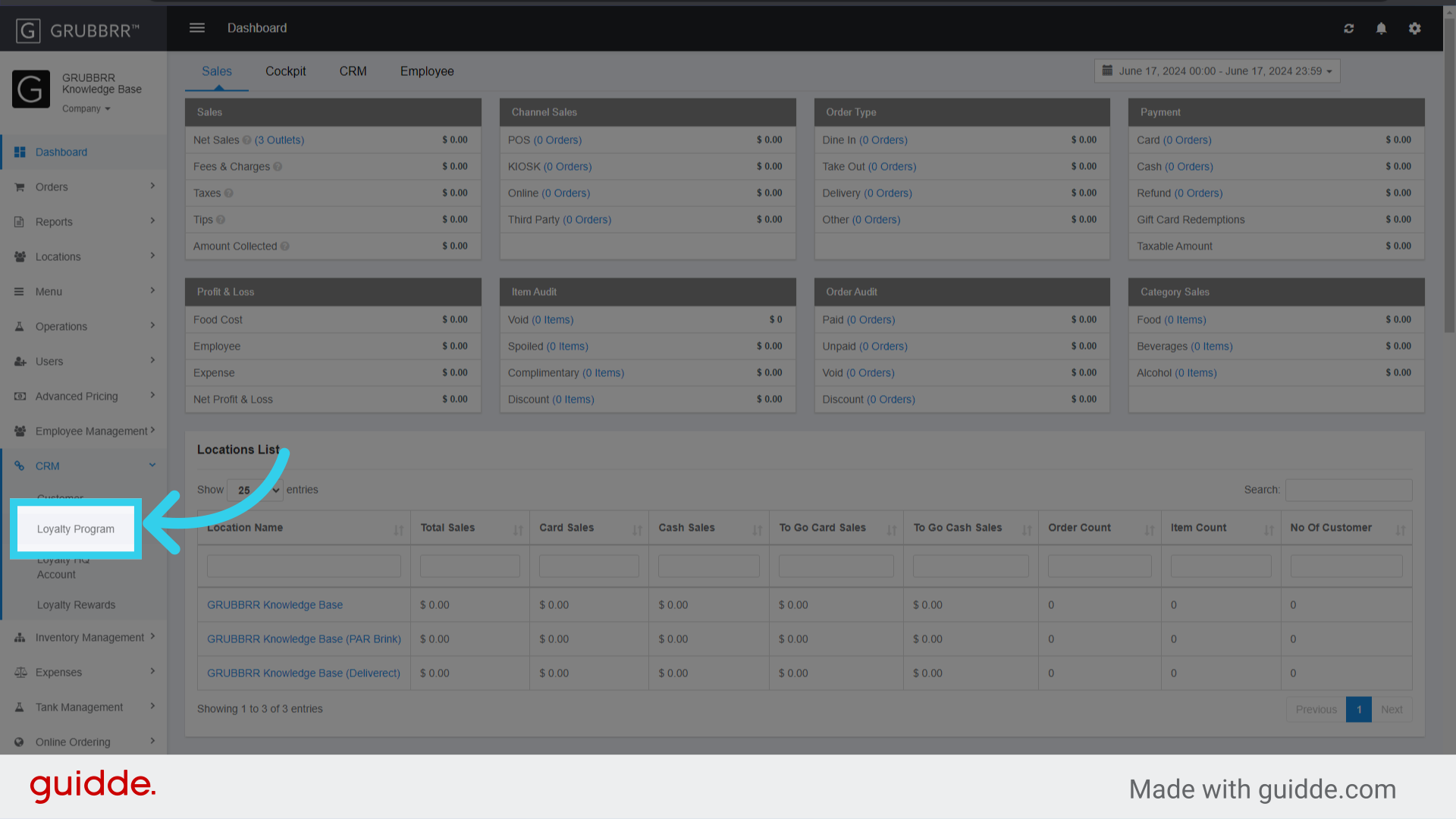
2. Click "CRM"

3. Click "Loyalty Program"
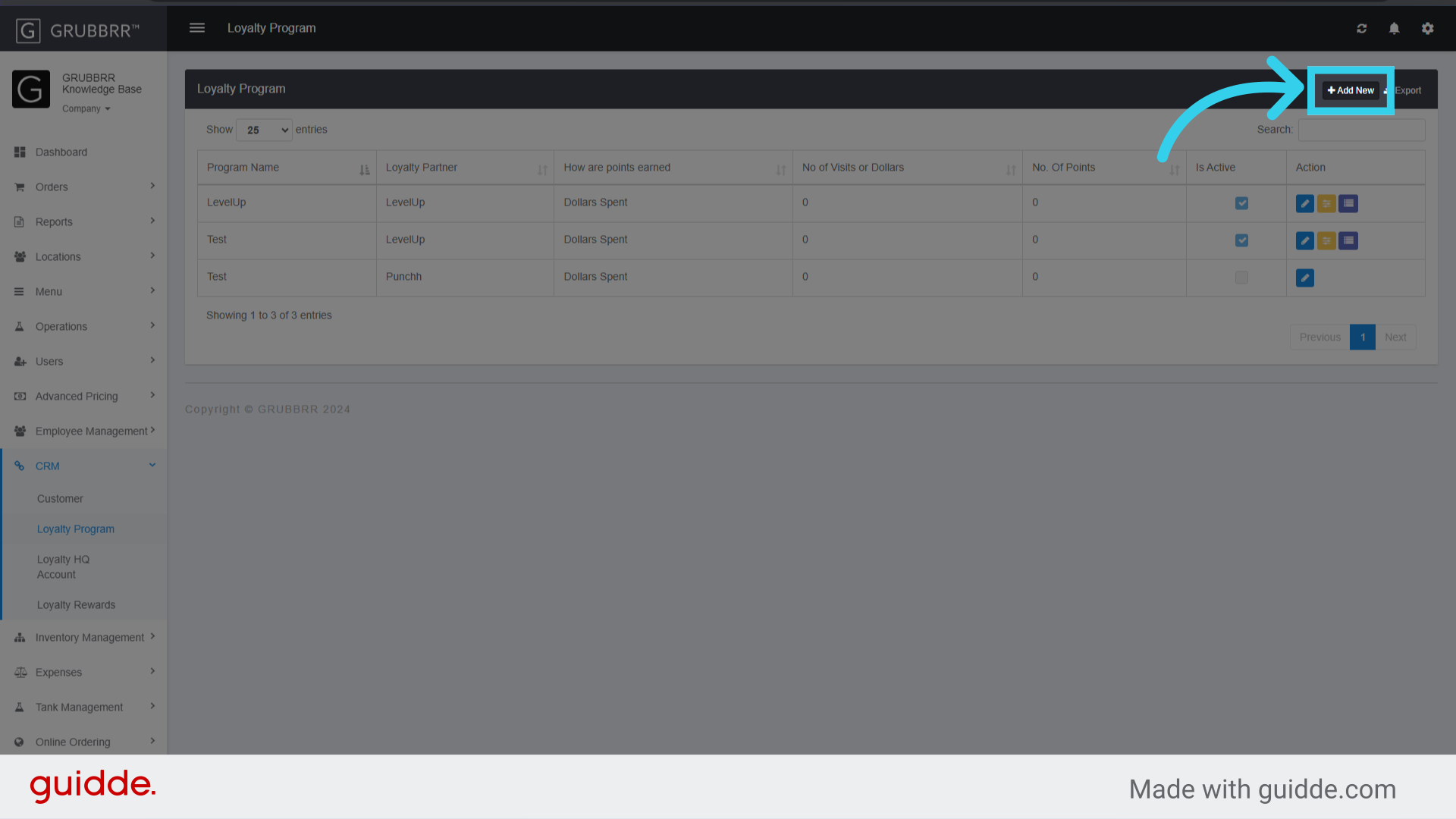
4. Click "Add New"
5. Enter a clear, descriptive name for the loyalty program
It's a good practice to name the loyalty program for the specific location it is assigned to.

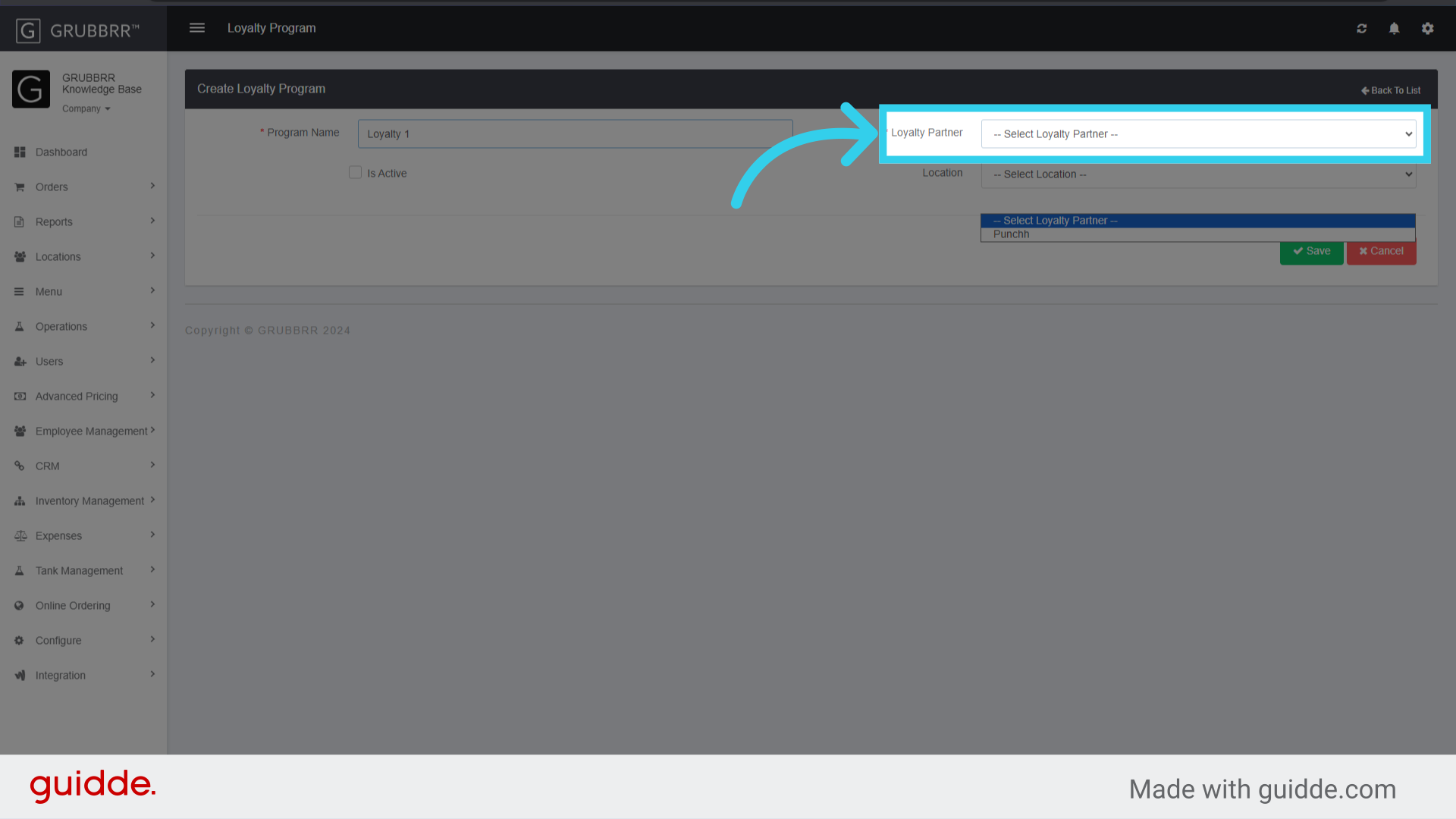
6. Select the appropriate program from the Loyalty Partner dropdown
7. Click "Is Active" to enable the Loyalty Program

8. Assign the Loyalty Program to a Location from this Dropdown
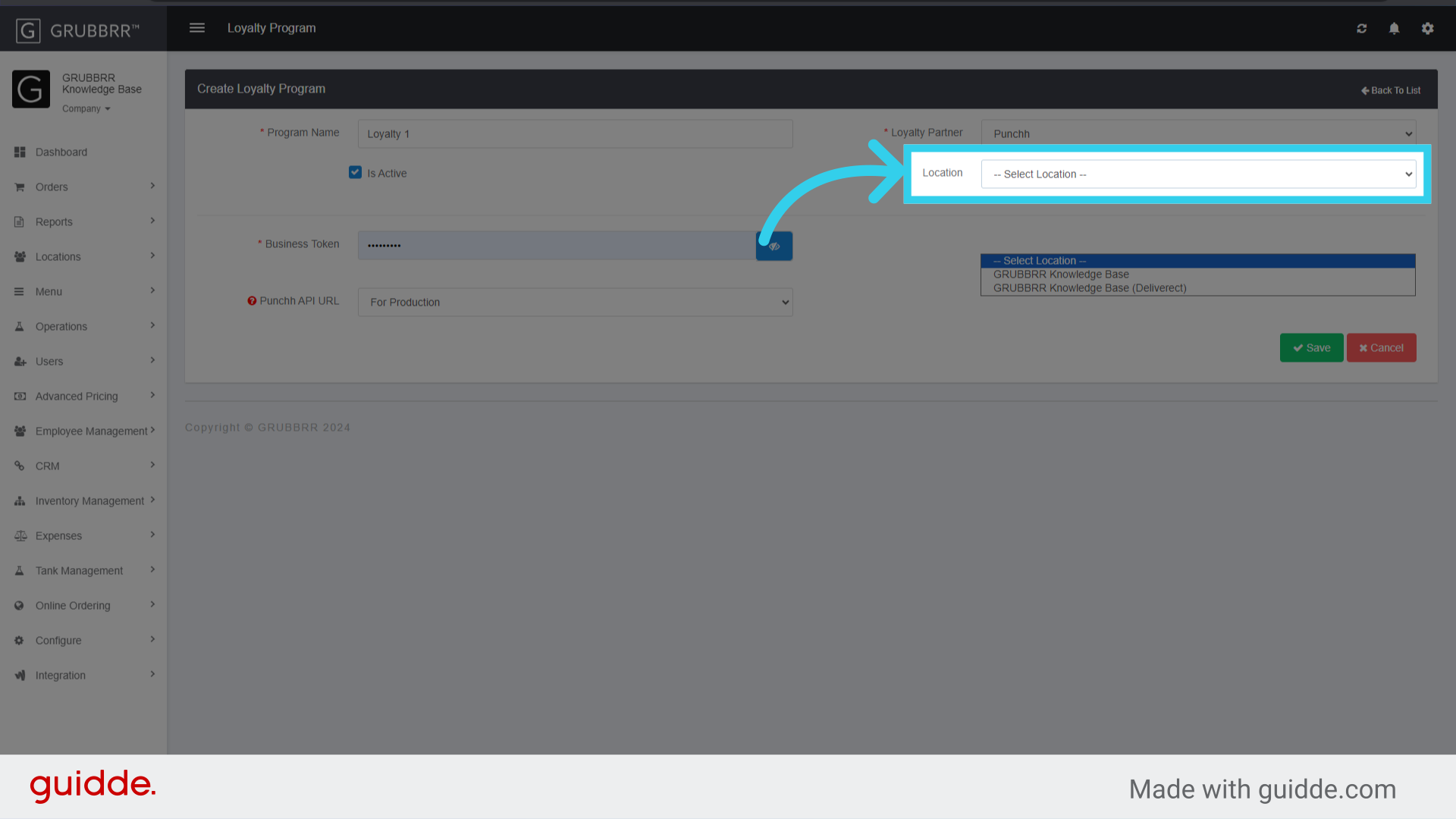
9. Enter the Client's Punchh Business Token here
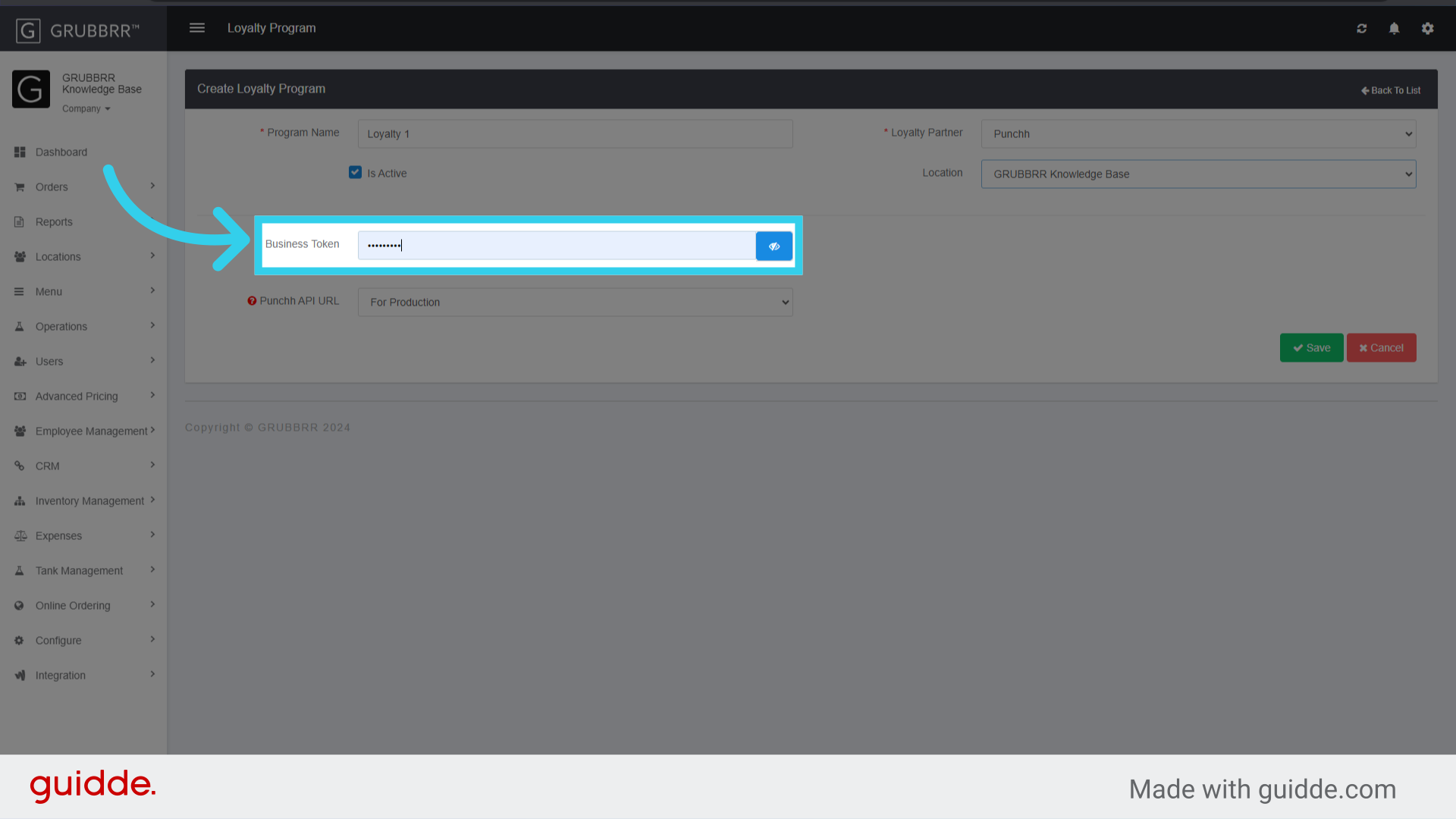
10. Select "For Production" from the "Punchh API URL" Dropdown
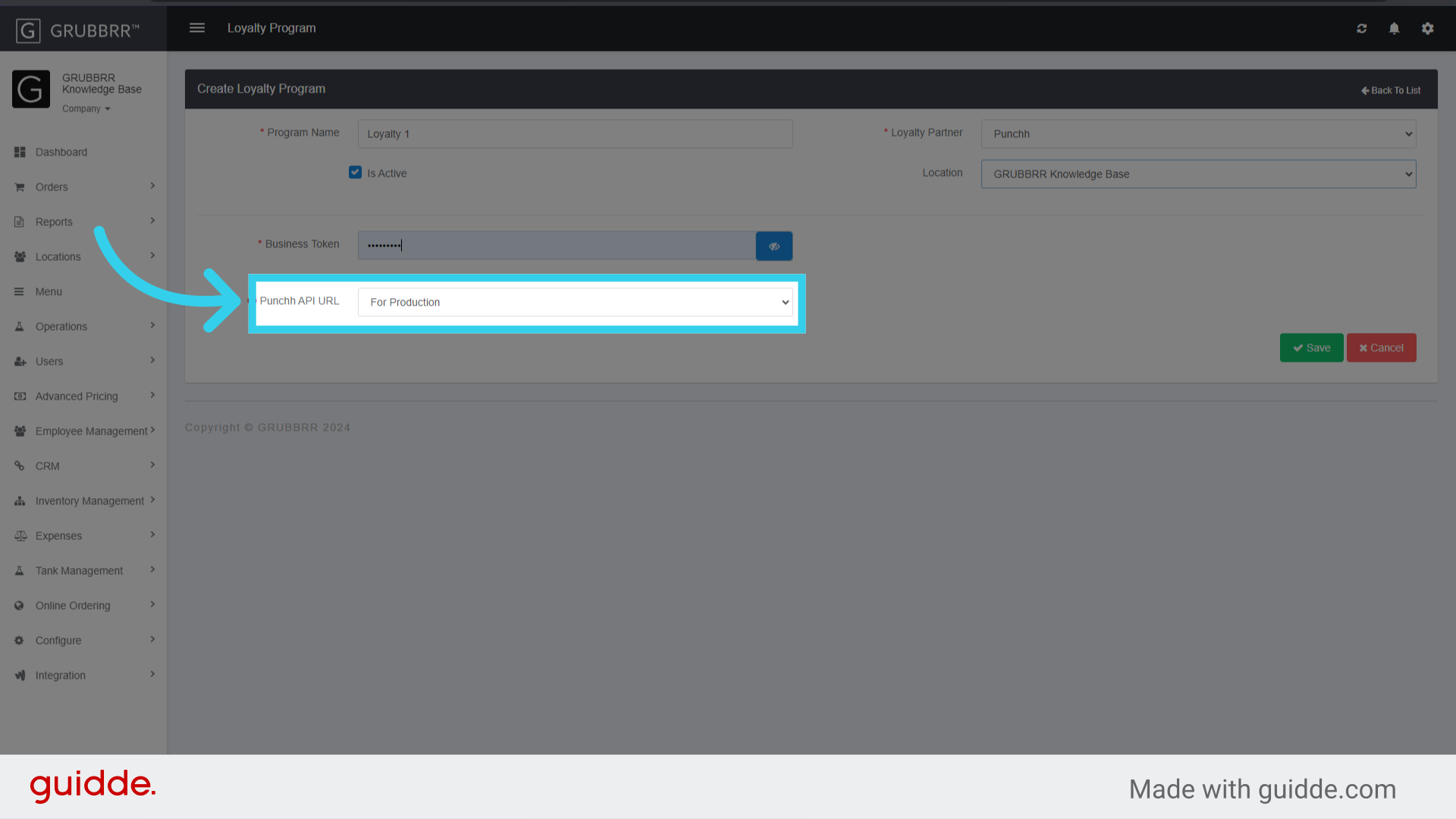
11. Click "Save"
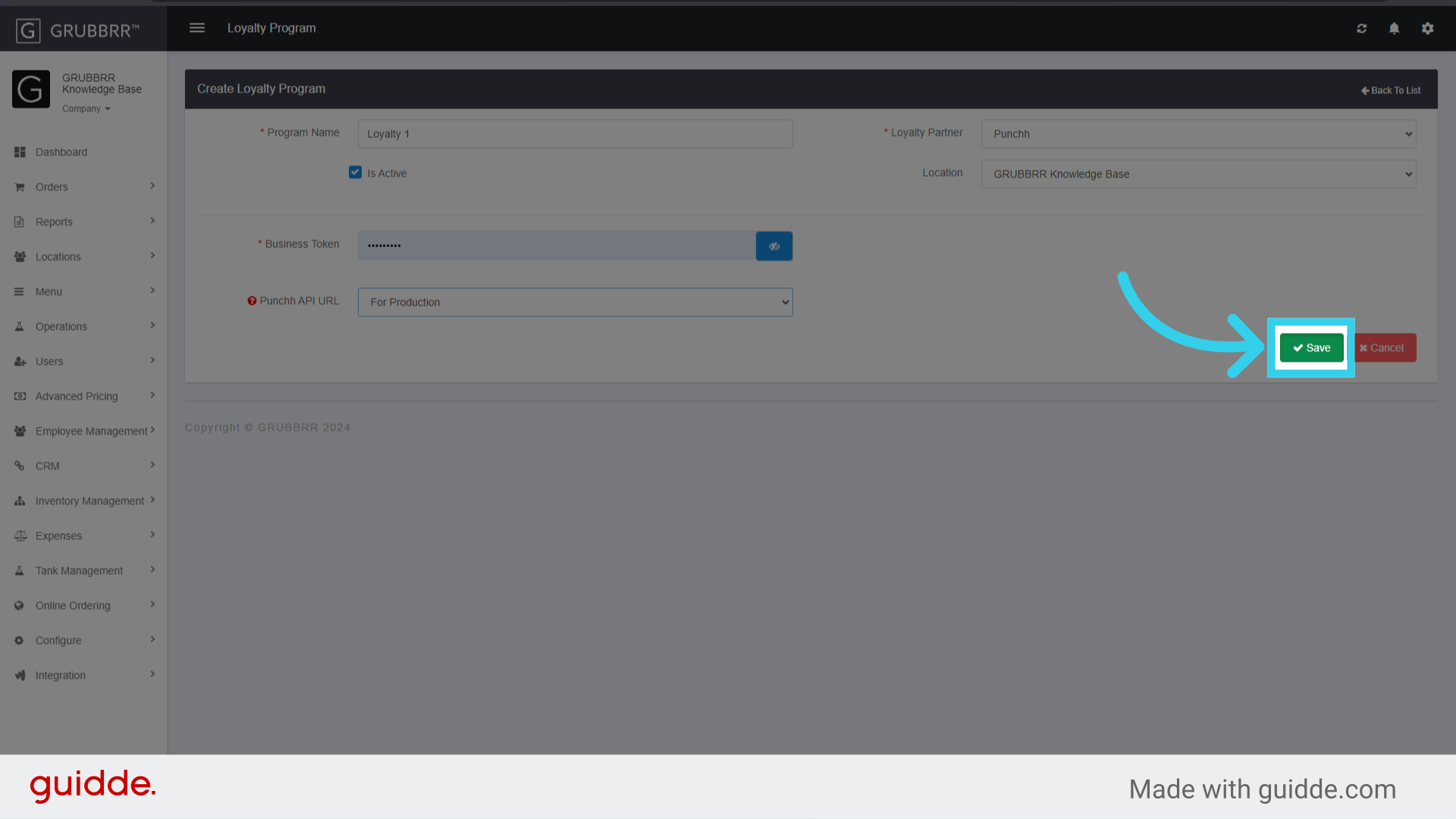
Location-Level Configurations
Connecting the Integration
Learn how to enable Olo & Punchh at the location level in Grubbrr. Follow these engaging steps to set up the integration seamlessly and efficiently.
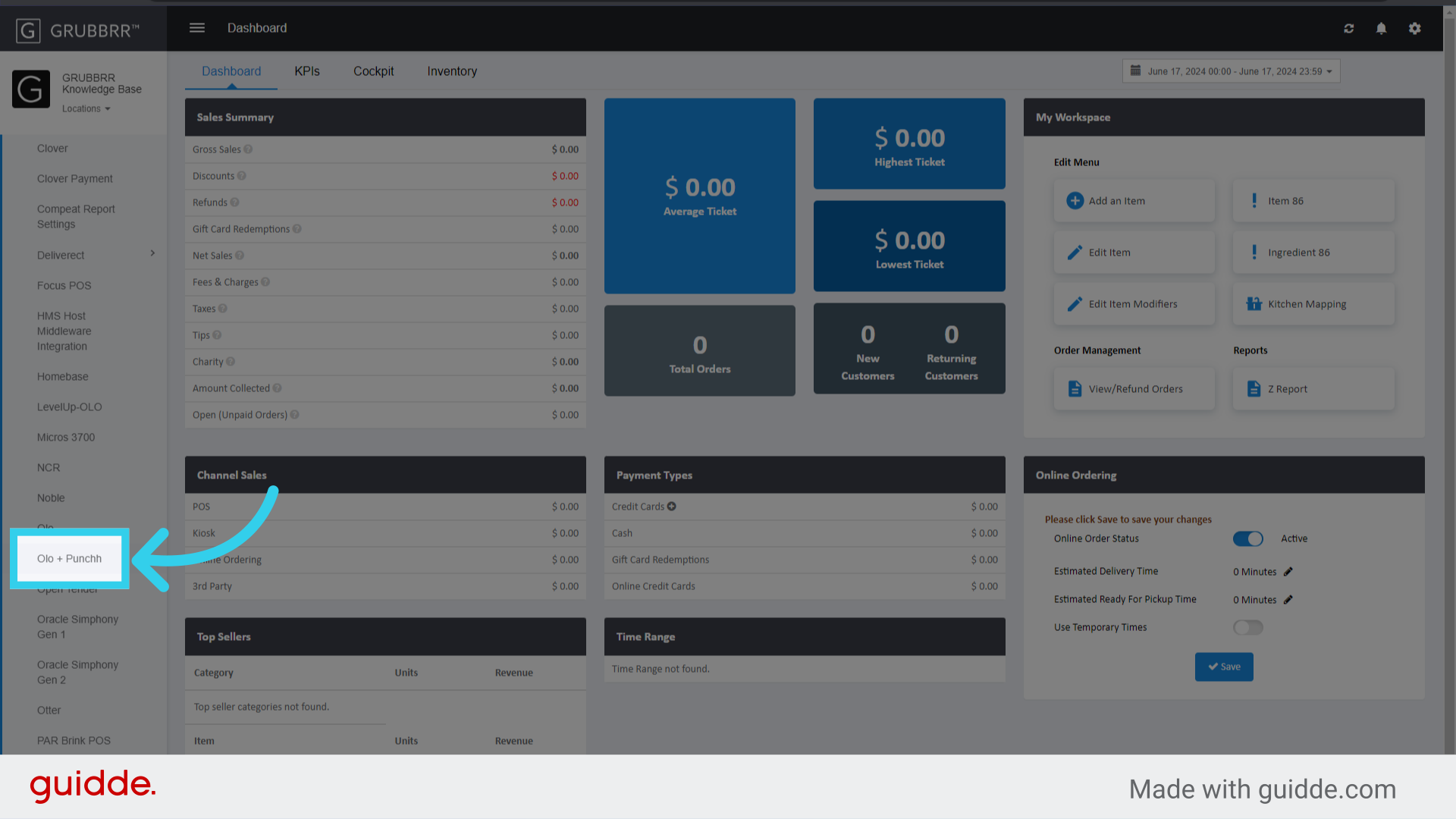
1. Sign in to the Portal at the Location Level

2. Click "Integration"

3. Click "Olo + Punchh"
4. Enter the appropriate Single Sign On URL
The default is https://authapi.punchh.com/api/auth/

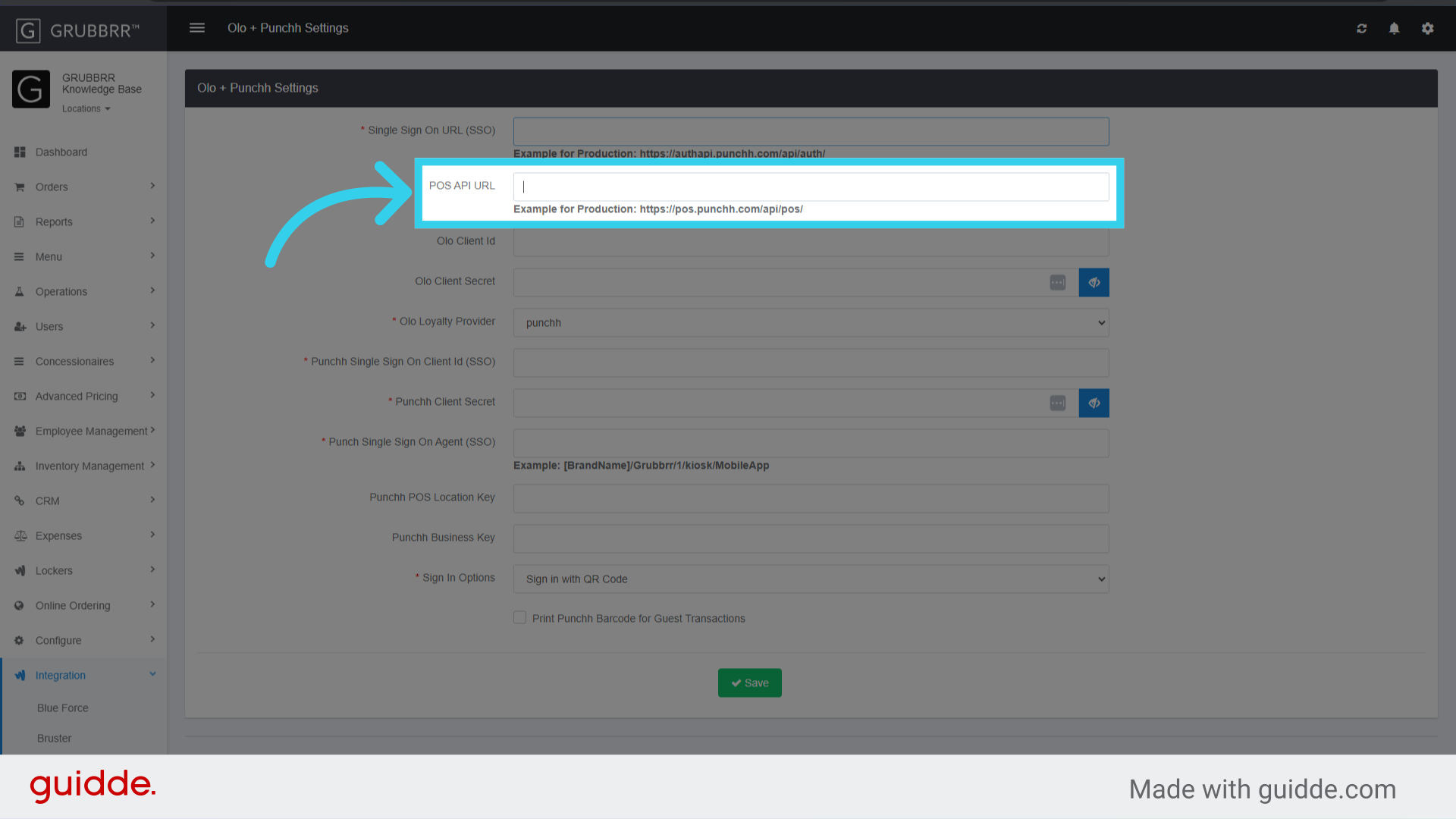
5. Enter the POS API URL
The default is https://pos.punchh.com/api/pos
6. Enter the Olo Client ID

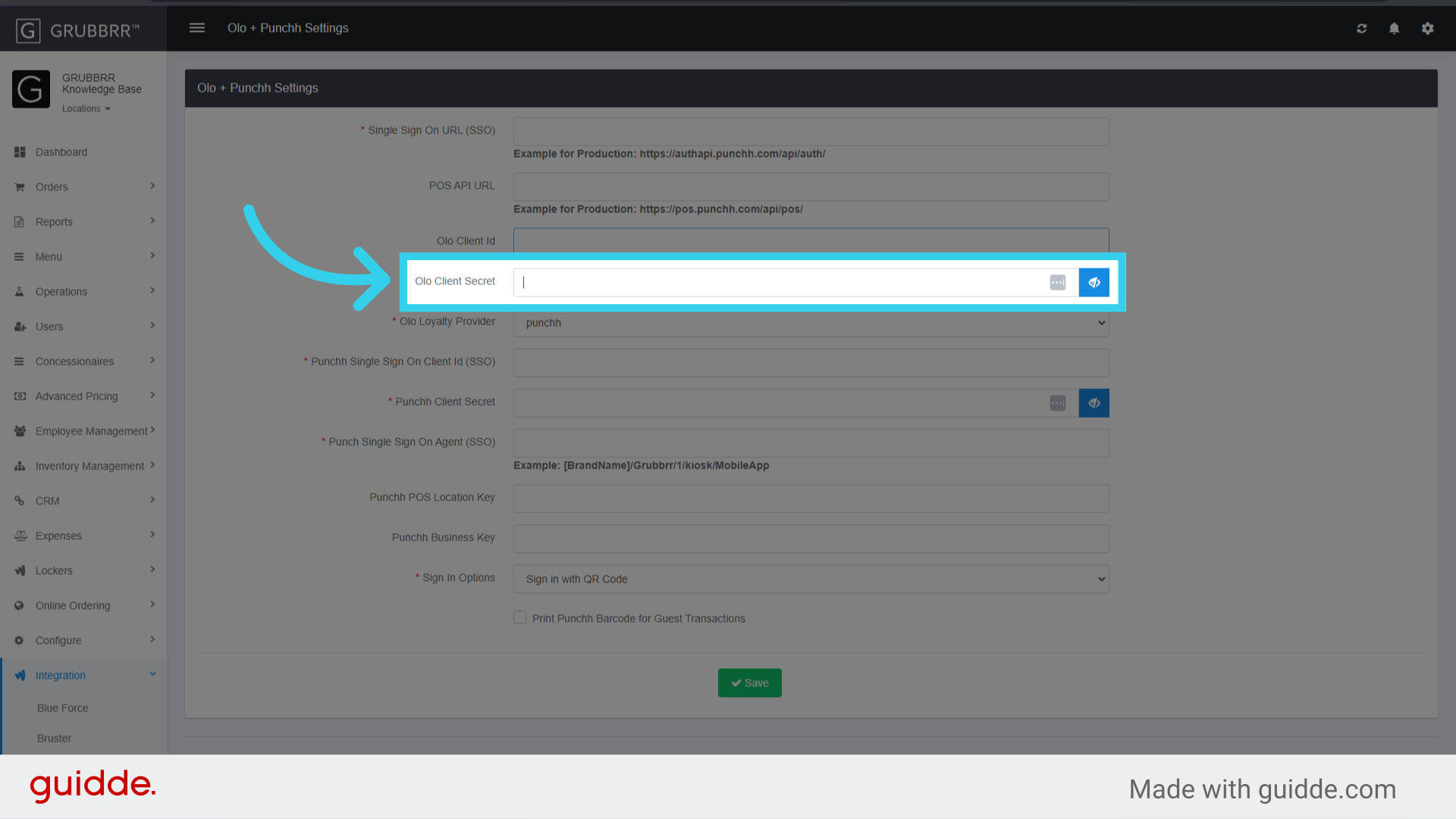
7. Enter the Olo Client Secret
8. Select Punchh or Punchhms from the Olo Loyalty Provider dropdown

9. Enter the Punchh Single Sign On Client ID

10. Enter the Punchh Client Secret

11. Enter the Punchh Single Sign On Agent URL

12. Enter the Punchh POS Location Key

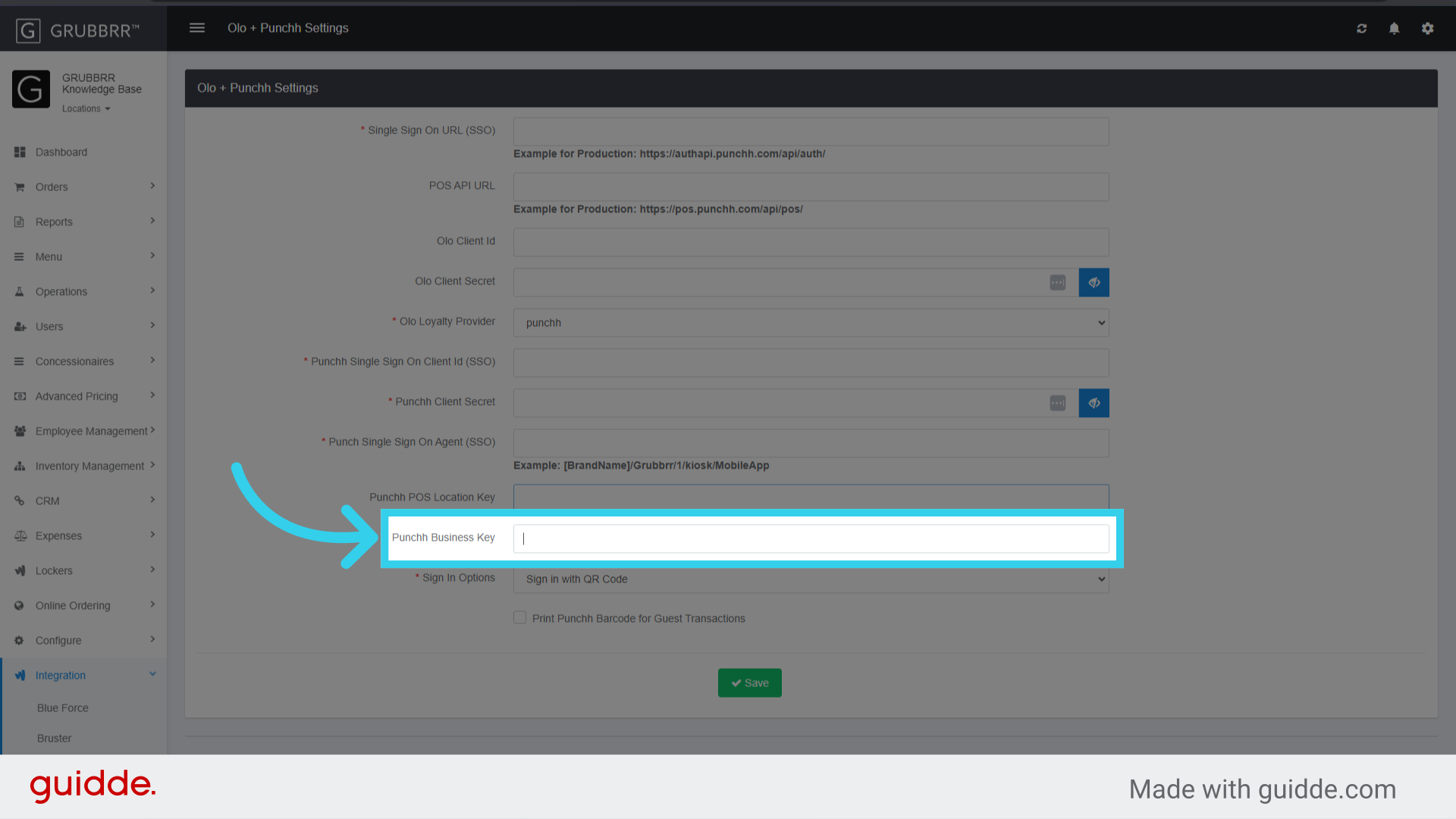
13. Enter the Punchh Business Key
14. Select the client's preferred Loyalty Sign-In Options

15. Click "Save" to apply your settings

Configuring General Settings
Finally, we'll need to enable Loyalty login and redemption on all Kiosks at the location. Both relevant flags are located in the Configuration section of the GRUBBRR portal, only at the location level.
1. Click "Configure"
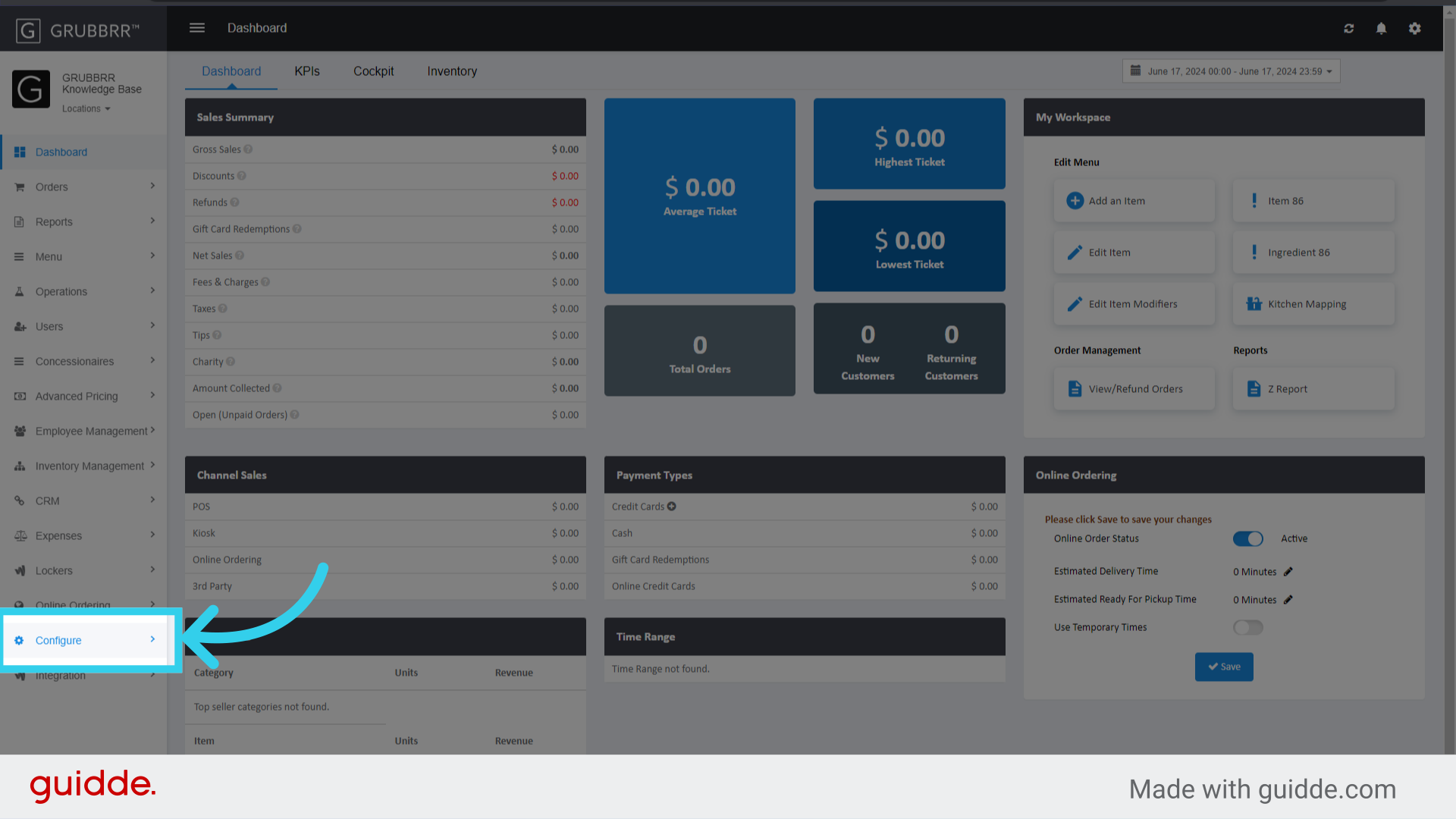
2. Click "General Settings"

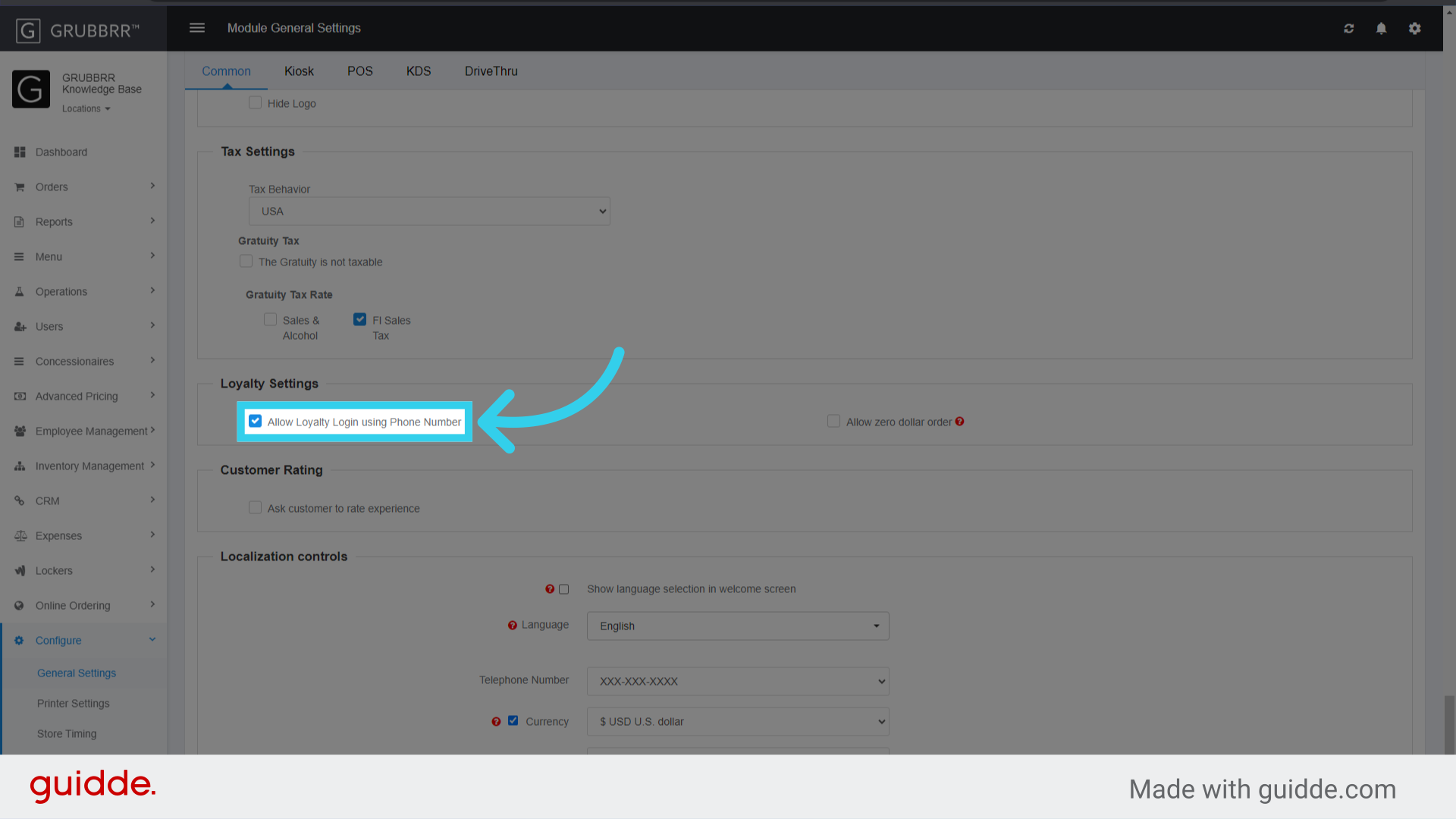
3. Enable "Allow Loyalty Login Using Phone Number"
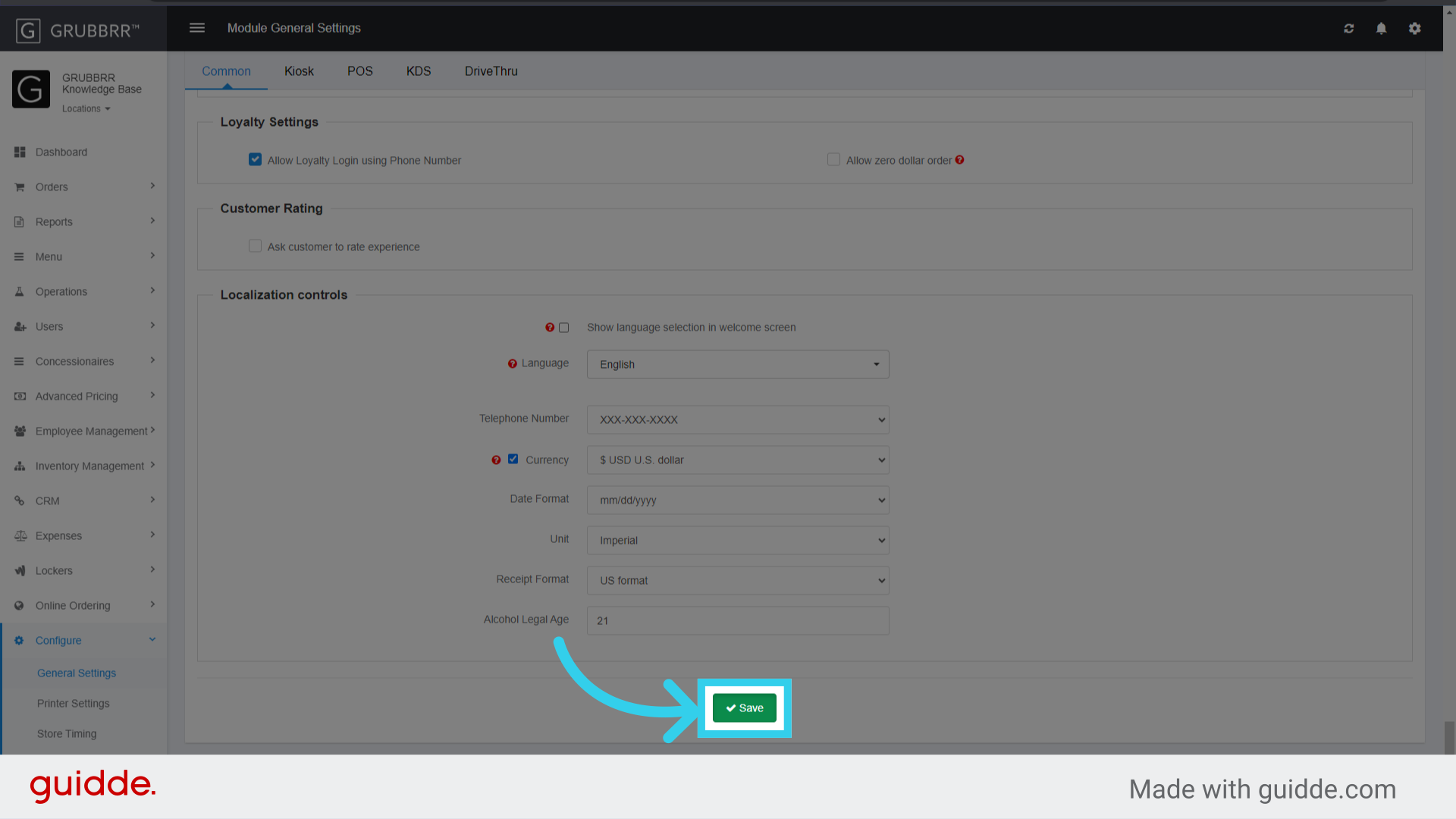
4. Click "Save"
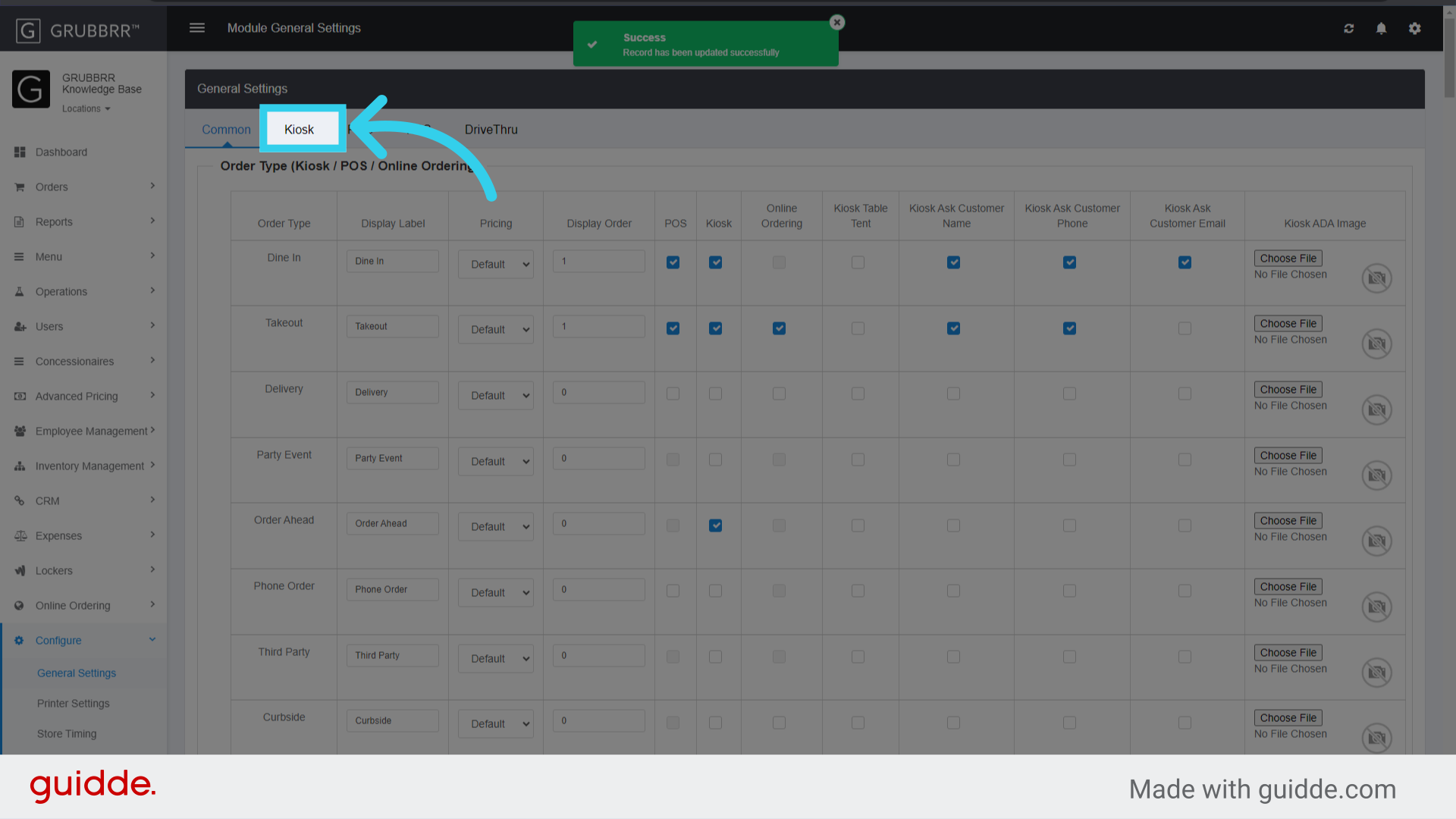
5. Click "Kiosk"
6. Enable "Use Loyalty Redeem"

7. Click "Save"

8. Click "Sync" to Apply your new settings to your Kiosk

Procedure Warnings:
Before we can integrate with any loyalty vendor, the client must first notify them of their intent to use GRUBBRR Kiosks. We must have already integrated the client's Olo menu with the GRUBBRR portal. Also, the client must have already set up their account in Punchh and notified Punchh of their GRUBBRR Kiosk project so that Punchh can onboard us into their system. Once we've been onboarded, Punchh will provide us with API access and the following authentication tokens:
- The Punchh SSO Client ID
- The Punchh SSO Client Secret
- Their Punchh POS Location Key
- Their Punchh POS Business Key
We'll also need to pull the client's Olo Client ID and Olo Client Secret from the Olo integration page.
Olo's Phone Login Agreement form
If a client wants to allow customers to sign into loyalty with a phone number, they will need to fill out Olo's Phone Integration agreement form, available here. Olo will not enable phone logins until they have received this agreement.