"Going Live" at a New Location in the GRUBBRR Portal
Last updated: August 8, 2026
What settings do I need to change to show that a location is "live" in the Portal?
Going Live with a New Location in the GRUBBRR Portal
When a new location is ready to go live in our portal.grubbrr.com environment, there are two important steps that support team members should take. First, we need to turn off the "Demo" flag for the location, so that we can include it in our ongoing system monitoring. Second, we need to turn on automated daily sales report emails for key stakeholders at that location. Details on completing these two steps are outlined below.
Turning off the "Demo" Flag
Removing the "Demo" flag from a Location tells GRUBBRR's system that the location is an active, non-lab store. We use this information for billing and monitoring purposes. To remove the Demo flag from a location, sign in to the Portal at the company level and follow the steps outlined below.
1. Sign in to the GRUBBRR Portal at the Company Level

2. Click "Locations"
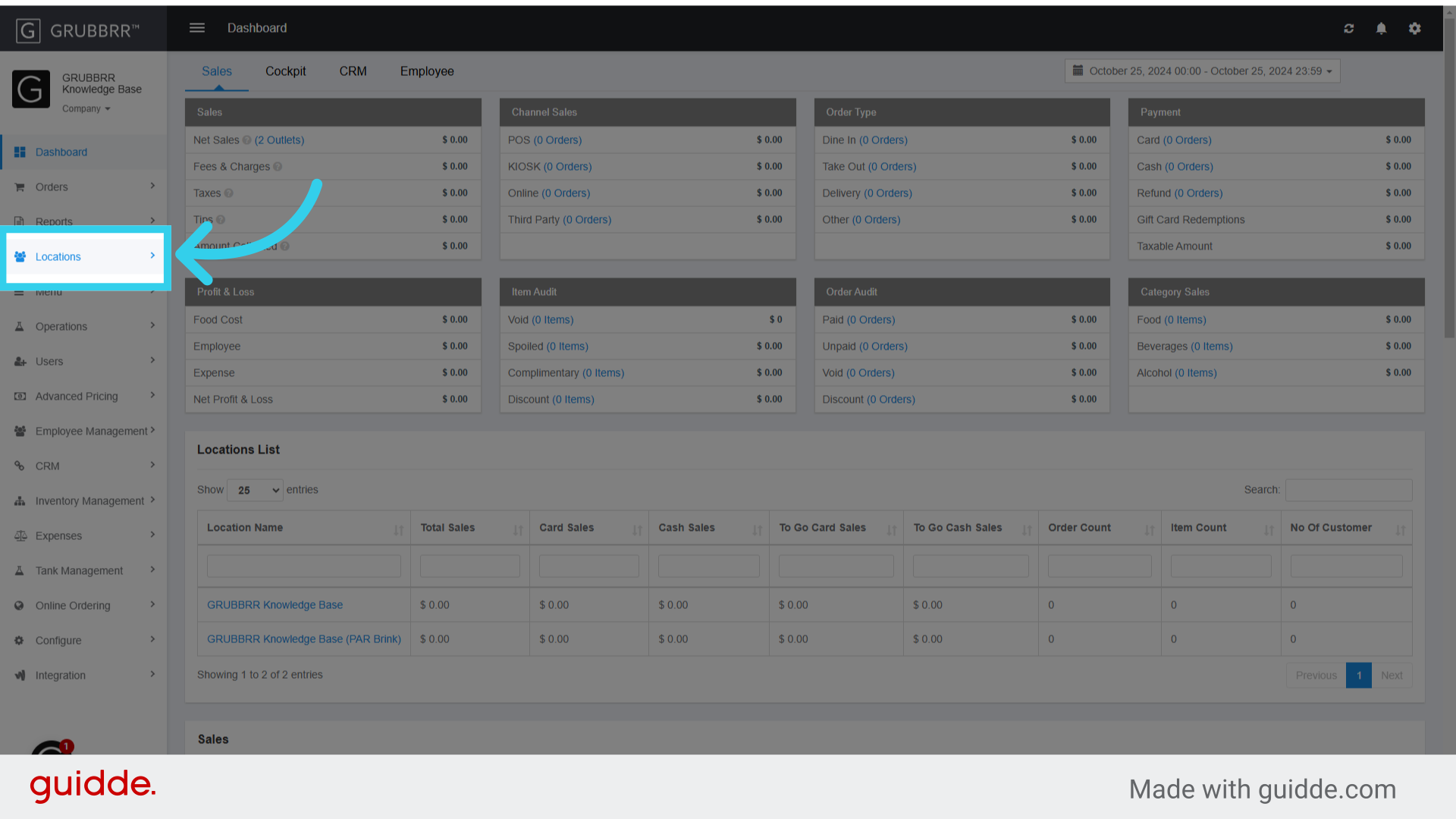
3. Click "Locations" again

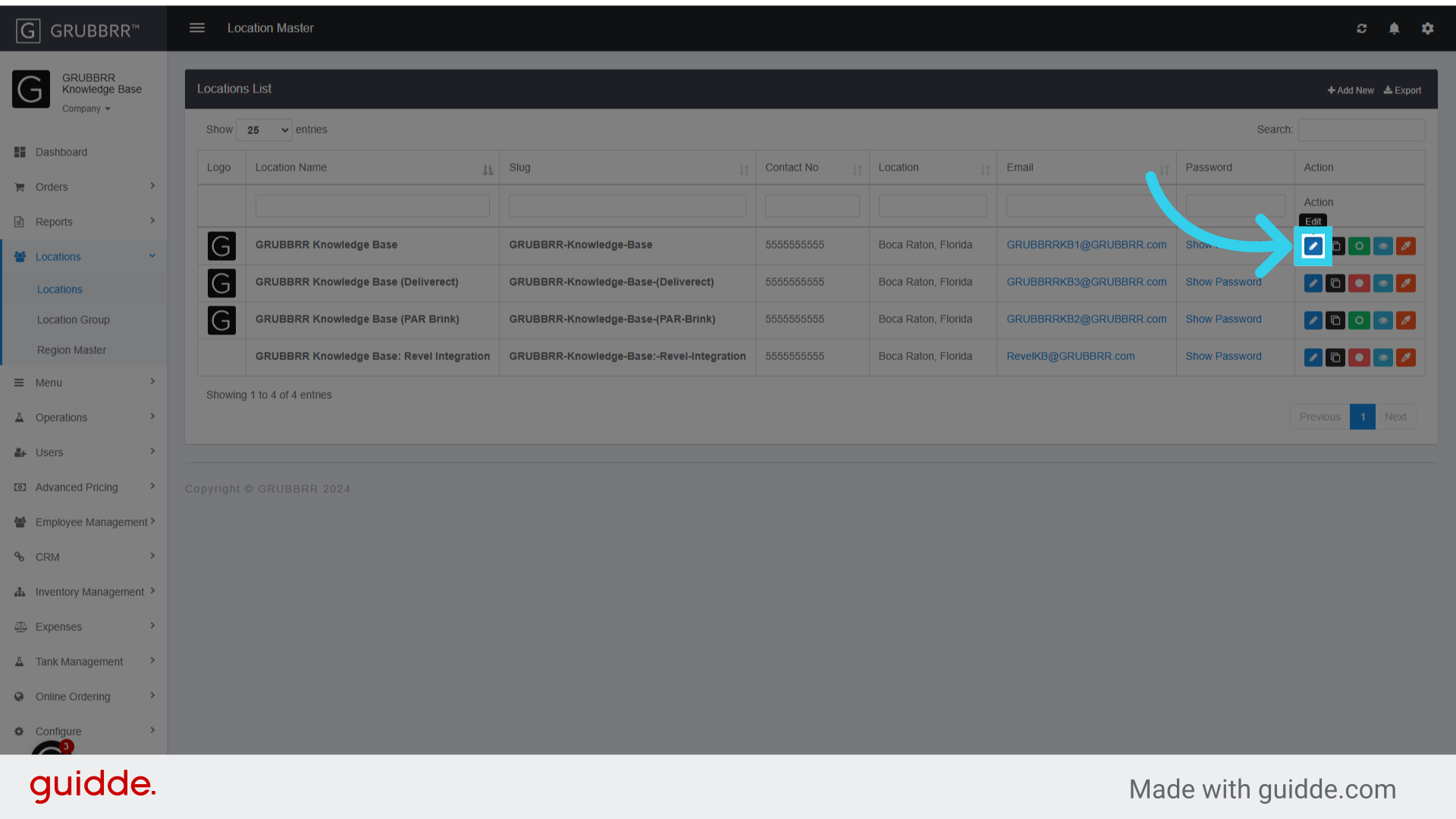
4. Click the "Edit" button for the location you want to update
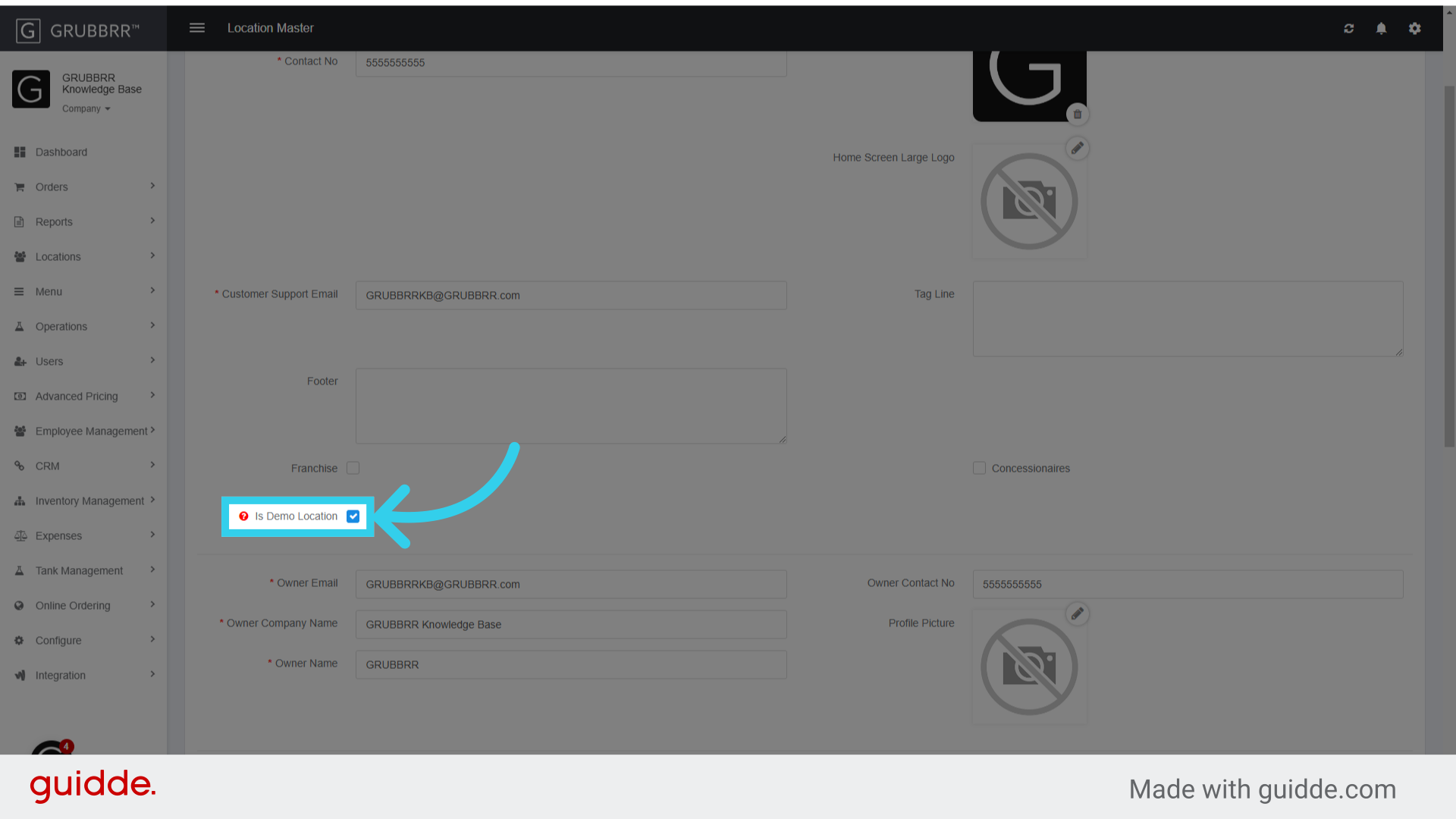
5. Click here to remove the "Is Demo Location" flag
6. Click "Save" to apply your changes

Enabling Automatic Email Reports
The GRUBBRR Portal can send automatic email reports to pre-defined points of contact for a location. This is a great way for our clients to start seeing the impact of their new self-ordering solution early, with data presented in a clear, easy to read format. When a new location goes live, your team will be expected to turn on automatic reporting for that location by following the steps below.
1. First, copy the relevant POC Emails from the Account Details page in Salesforce

2. Switch to the Location page in the GRUBBRR Portal

3. Click "Reports"
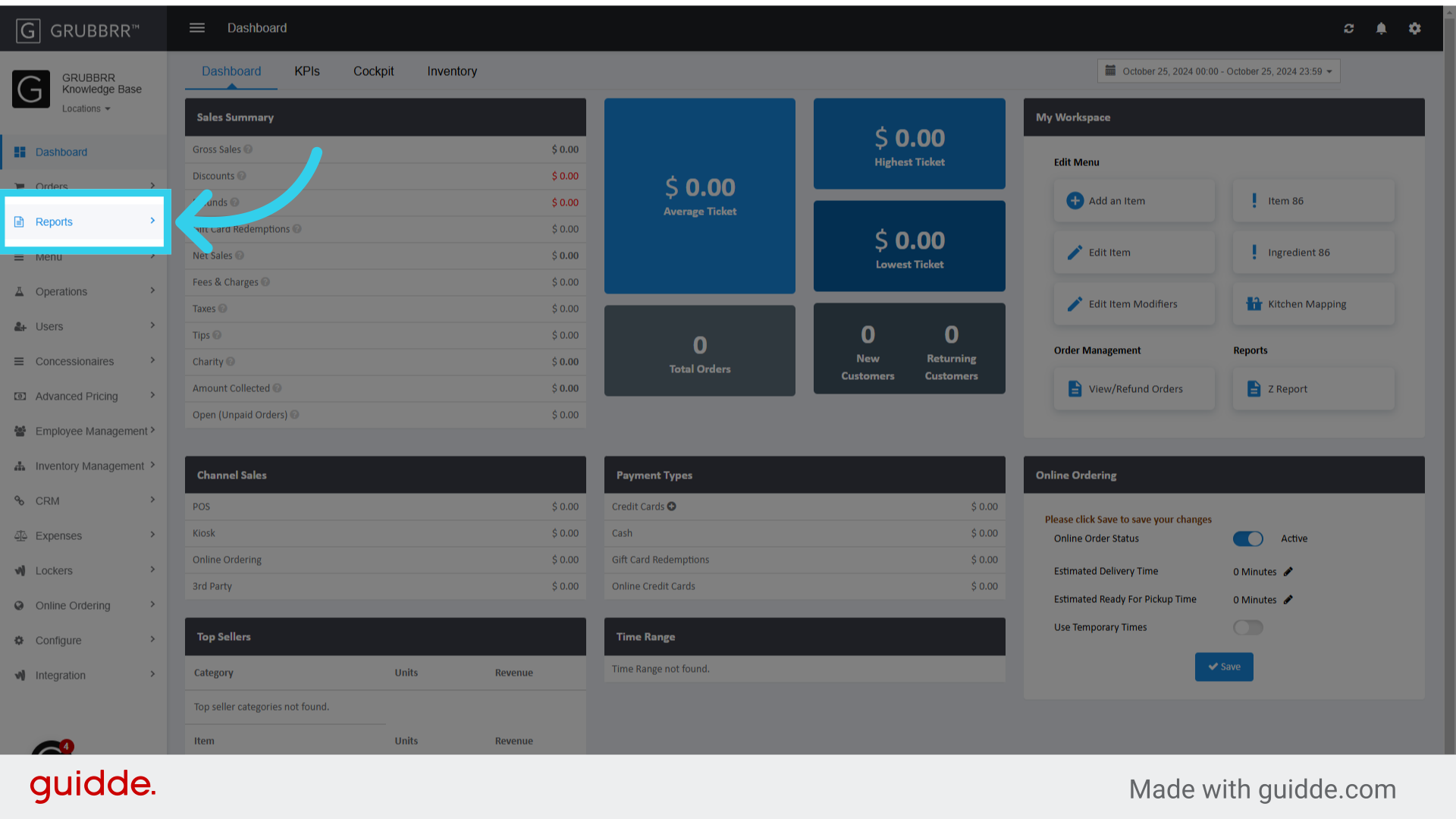
4. Click "Email Reports"

5. Click "Add New"
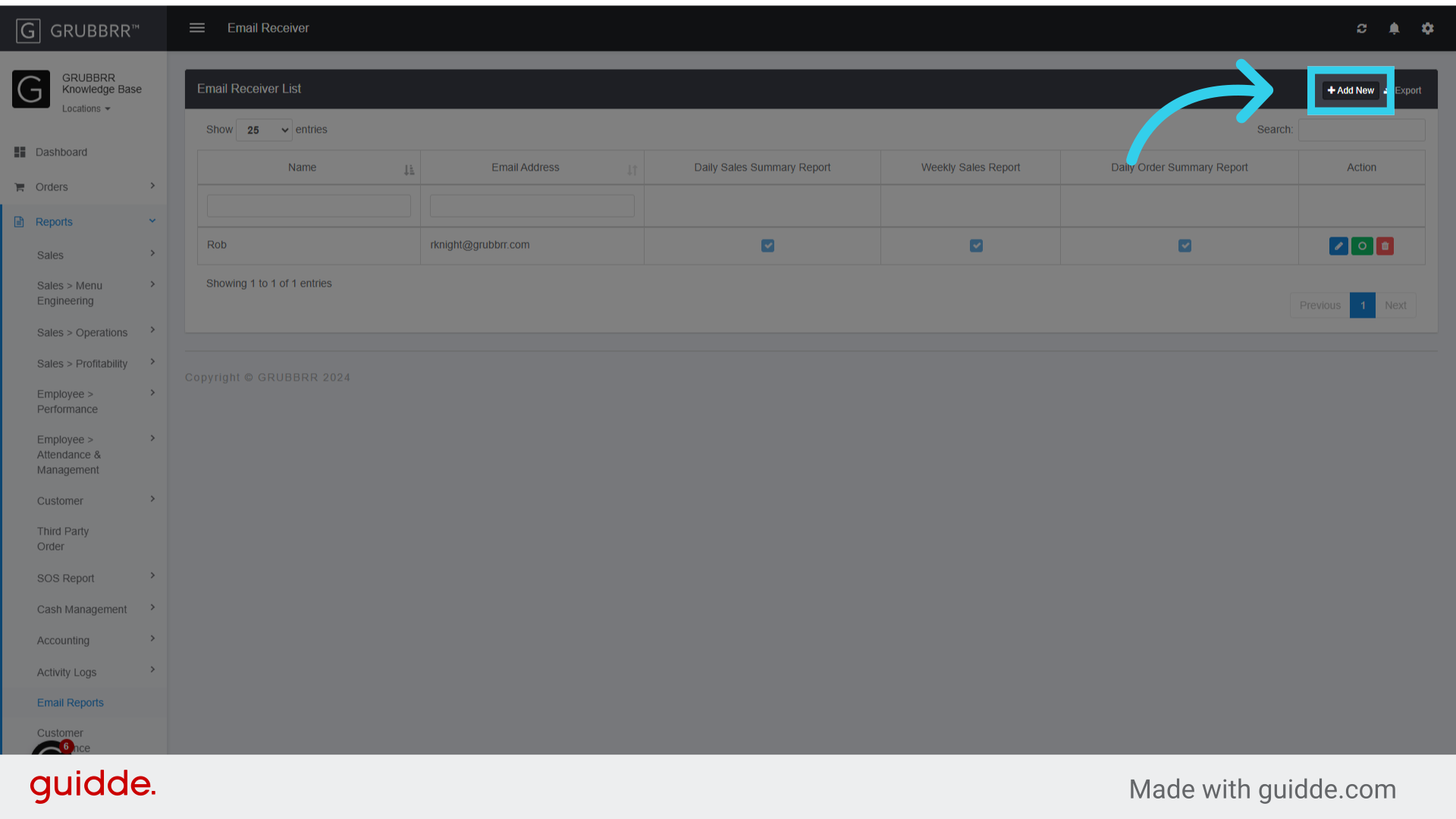
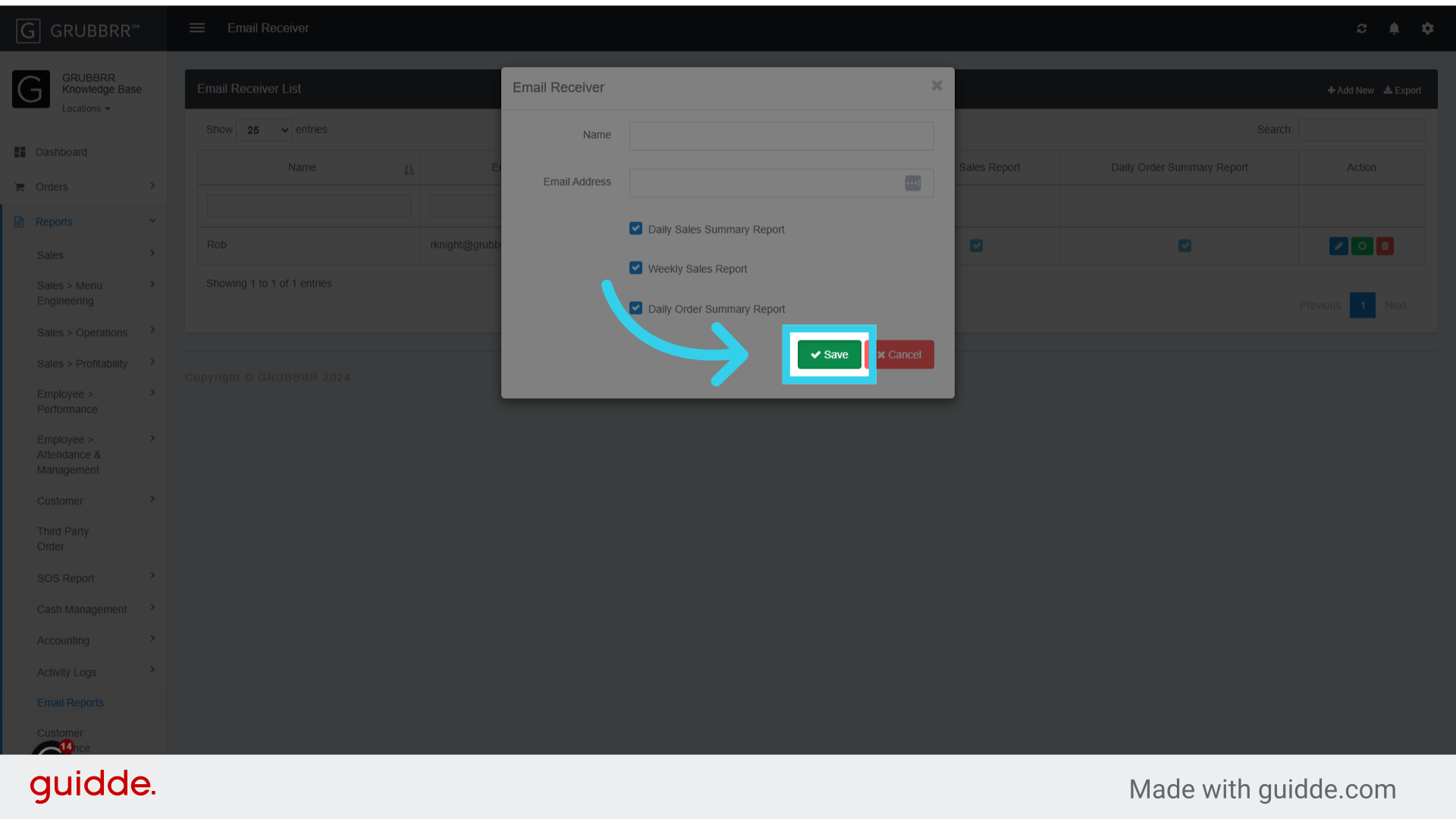
6. Enter the POC's Name
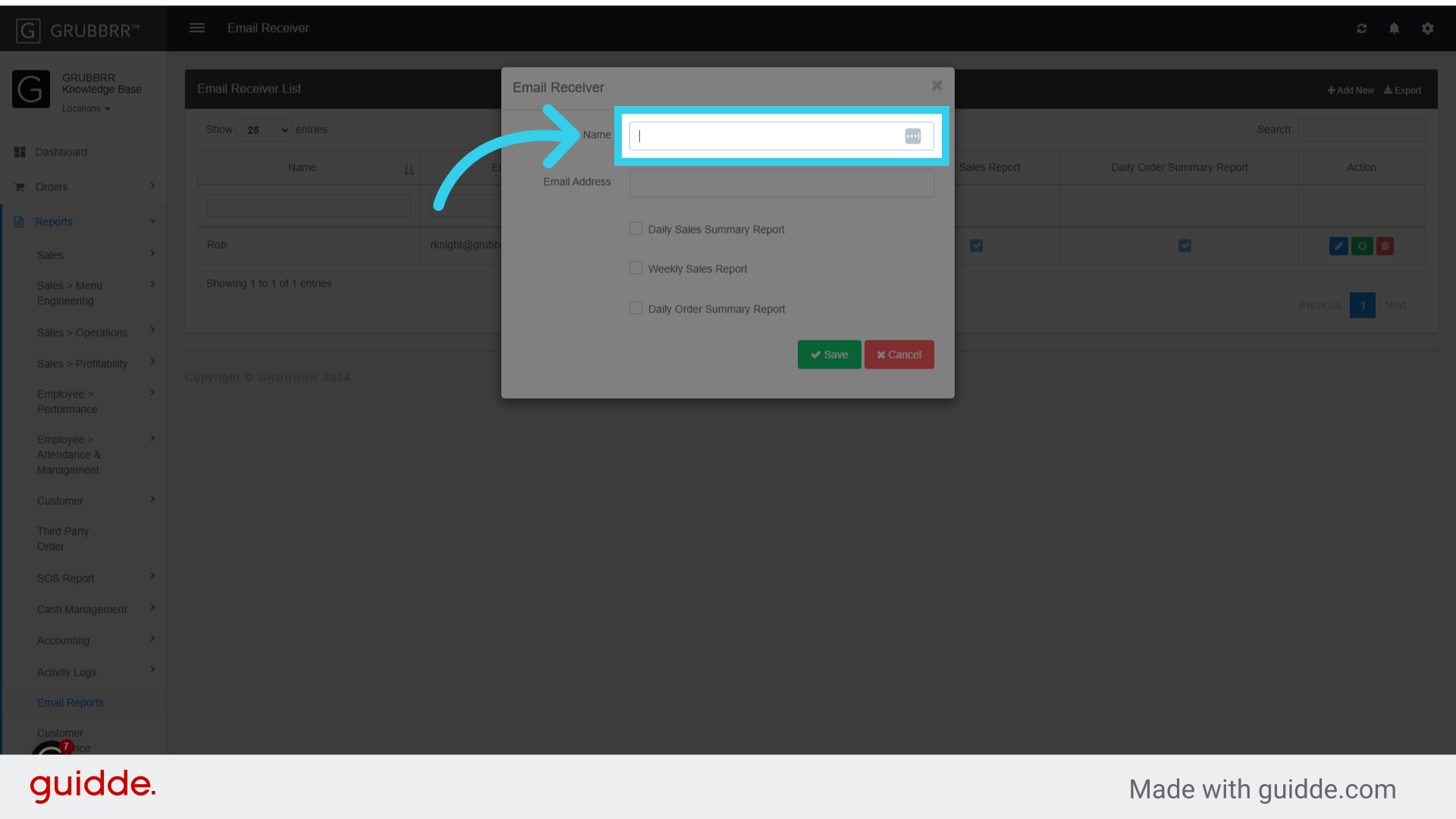
7. Enter the POC's Email Address
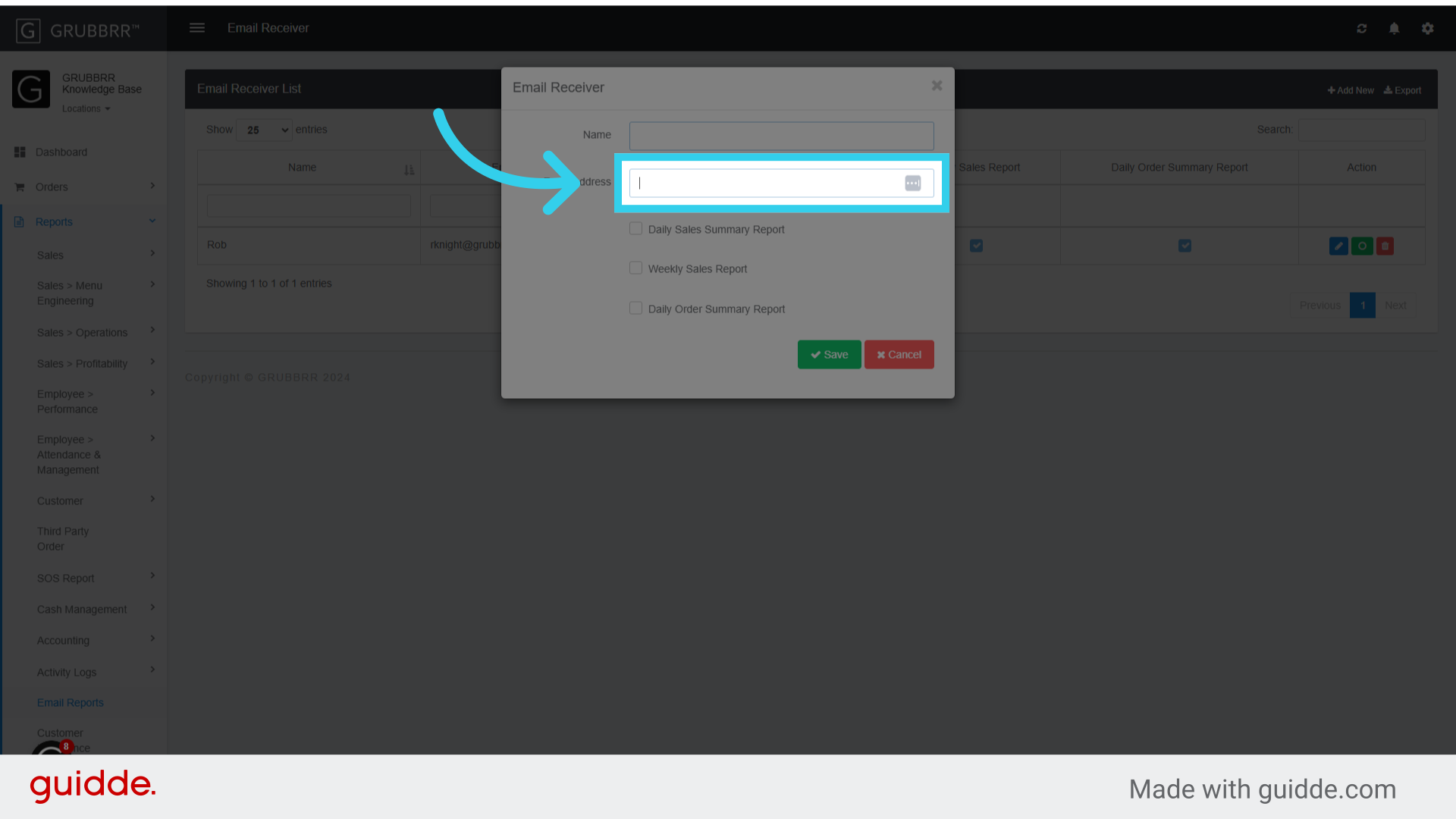
8. By default, we recommend enabling Daily Sales Summary Reports...

9. ... And Weekly Sales Reports

10. Click "Save" to apply your changes