Revel FAQs
Last updated: August 19, 2026
How do we pull Combos from Revel?
There are two types of Combos in the Revel POS: Group combos, composed of two or more combo groups, and Linked combos, which assign unique Combo Groups to specific menu items. While the GRUBBRR portal can import and display both combo types, it's important to understand their differences and how they behave in the POS and the GRUBBRR portal.
Group Combos
Users build Group Combos in Revel, much like GRUBBRR's standalone solution. Clients create two or more combo groups (i.e., entree, side, and drink) and map menu items to these groups. GRUBBRR's portal pulls these combos and the associated combo groups when we sync with the client's menu and lists them using their assigned names in the Combo section of the portal.
Linked Combos
Linked Combos are more complex. In Revel, users can create custom modifier groups called Linked Combos and then assign those combo groups to a specific menu item. For example, the user might make the linked combo Lunch Combo, with the combo groups Lunch Sides and Lunch Drink. They could then map Lunch Combo to the menu item of their choice. It's important to note that linked combos are not exclusive- the client could map those same combo groups to multiple menu items and assign that item to multiple combo groups. The Lunch Combo linked combo can be mapped to various menu items, and those menu items could also be mapped to one or more linked combos.
When we pull linked combos, the GRUBBRR Portal creates a unique combo for each linked combo attached to an entree and names the combos using the [ItemName][LinkedComboName] convention. For example, if the client has mapped two menu items (Hamburger and Chicken Sandwich) to two different linked combos each, we'd see the following:
Hamburger Combo A
Hamburger Combo B
Chicken Sandwich Combo A
Chicken Sandwich Combo B
Click the image below for a more detailed view of these combos in the portal

Impacts
While our system will import and display these combos similarly, we do need to track them separately from Revel. If we are assisting with menu management or troubleshooting, we'll need to make sure that we're:
Reviewing the right JSONs when looking at the menu- when you click export current POS data, the system will print Group Combos and Linked Combos as separate JSON files
Sending the right API calls with Postman- Revel requires separate requests for Group combos vs Linked Combos
What is the Size Modifier in Revel?
The Revel system has a unique modifier group, the Size Modifier, which is automatically enabled for all users. While users can edit the contents of this modifier group, they can not remove or deactivate it in the Revel portal.

Notice how each size modifier in the example above has a unique price. These aren't upcharges; when a user assigns size modifiers to a menu item, the price in this column overrides the default item's price. For example, if the default price of a drink is $2.00, and a kiosk user selects the Large_161 option, the item will be $3.85 in their cart. If a client uses many different Size modifiers, it's essential to ensure that we map the correct options to menu items.
The Size Modifier in the GRUBBRR portal
The GRUBBRR system doesn't treat the Size modifier as a modifier group. Instead, the system treats the different sizes as Variations. You can find details on these variations in two areas of the GRUBBRR Portal:
Select Menu from the left sidebar, then:
To check the sizes of an individual item, select Catalog Management
Select Items
On the item list, select the yellow Manage Variations button in the appropriate item's action column
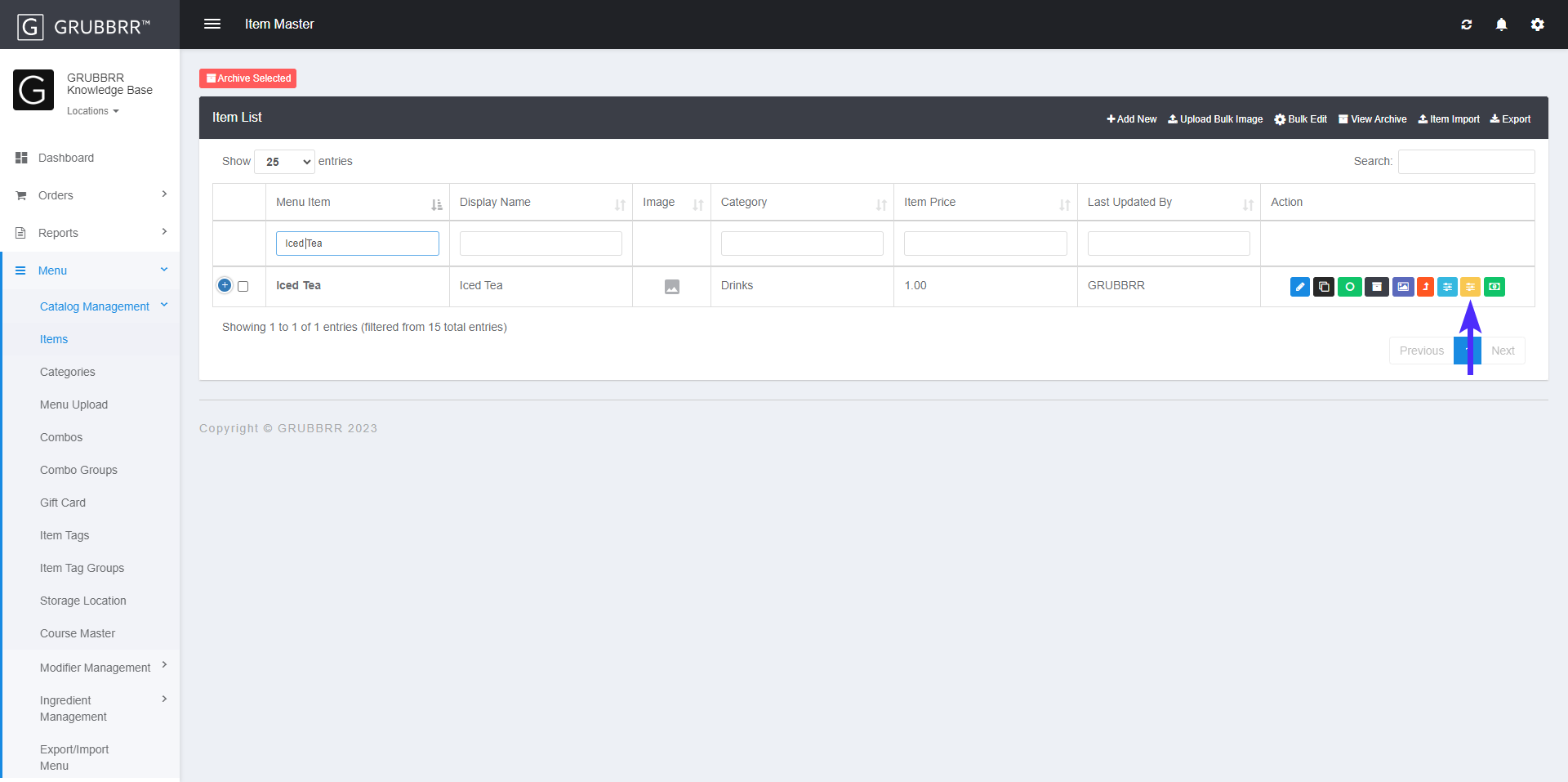
To review multiple variation groups at once, select Modifier Management
Select Common Variation Groups to see a list of all different variation groups pulled from Revel

How do we resolve an "INCORRECT_PRODUCT_PRICE" error?
An "INCORRECT_PRODUCT_PRICE" error is an Order Validation error that we can occasionally encounter on Revel-integrated Kiosks.

This error is generally related to a Revel setting called "Web Order Price Override." When we encounter this issue, we need to contact Revel API support, and ask them to validate that this setting is enabled for the client's location. Remember to include the Establishment ID for the location, so that the Revel team can provide effective assistance.
Revel + Paytronix Troubleshooting: How do we resolve "Dynamic Discount for Barcode "Null" Not Found" errors?
GRUBBRR uses a special open discount, configured in the client's Revel Management Portal, to allow kiosk users to redeem loyalty rewards with their orders. If this discount is improperly configured, though, guests might encounter the following error when attempting to apply a reward to their order:

Here's what to do if we receive a report of this error:
Verify the Cause of the Error
When setting up the Revel Integration, we can select the 3rd Party Discount we'll use for loyalty redemptions from a dropdown list. The list will only pull discounts from Revel that meet all of the following conditions:
The discount must be Dynamic
The discount must be Active
The discount must be Tied to a Dollar Amount, not a percentage
However, our system does not check to see if a barcode is assigned to the discount in Revel's system, and the barcode is what Revel uses to look up the discount in their system. We can verify whether or not the discount has been assigned a barcode by checking App Logs in the GRUBBRR Portal:
Sign in to the client's GRUBBRR Portal at the Location level
Select Reports in the left sidebar
Select Activity Logs from the dropdown
Select App Log
Use the search function to find the appropriate error report, then click View
In the error report, you should see the following:
Under the Request heading, the error will read "discounts":[{"barcode":"null","amount":10}]}
Under the Response heading, you should see "details":{"message":"Dynamic discount for barcode 'null' not found."}}},"message":"success"}
Resolving the Error
This error simply means that the client hasn't assigned a unique barcode to the discount in Revel. Please request that the client assign a unique, alphanumeric barcode to the discount and then complete a sync between Revel and the GRUBBRR Portal.
Remember to run a test transaction when the sync is complete and verify that the promotion is working as expected.
Revel+Paytronix Troubleshooting: How do we resolve "Missing Loyalty Discount ID"
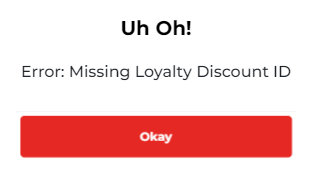
When we connect the GRUBBRR portal to a loyalty program, like Paytronix, we pull available rewards from the loyalty program and configure them as discounts in the GRUBBRR portal. For the most part, this process is automatic; however, these discounts have to be manually enabled. If we skip this step, kiosk users can encounter the error message pictured below:
Verify the Cause of the Error
First, we need to figure out which discount(s) are causing the error. To check if a discount has not been correctly enabled:
Sign in to the client’s GRUBBRR Portal at the Location level
Select Advanced Pricing from the left sidebar
Select Discounts from the dropdown menu
Check in the Action column of the discount list to see if any discounts are flagged as Inactive, as pictured below
Resolving the Error
Change the discount status to Active, and sync your changes to the client’s kiosk.
Please take a test transaction after applying your changes to ensure the discount functions as expected.