How to Create API Tokens in the Clover Admin Portal
Last updated: August 19, 2026
Clover users with administrative access to the Clover Portal can manually create a new API token to share with GRUBBRR. To generate a new API Token, or to update an existing token with the appropriate permissions:
Select "Account & Setup"
Select "Business Operations"
Click "API Tokens"
Click "Create new token" if one doesn't already exist, otherwise click "Edit" next to the token you want to update
Give the new API Token an easy to recognize name (e.g., "GRUBBRR")
Enable the following permissions:
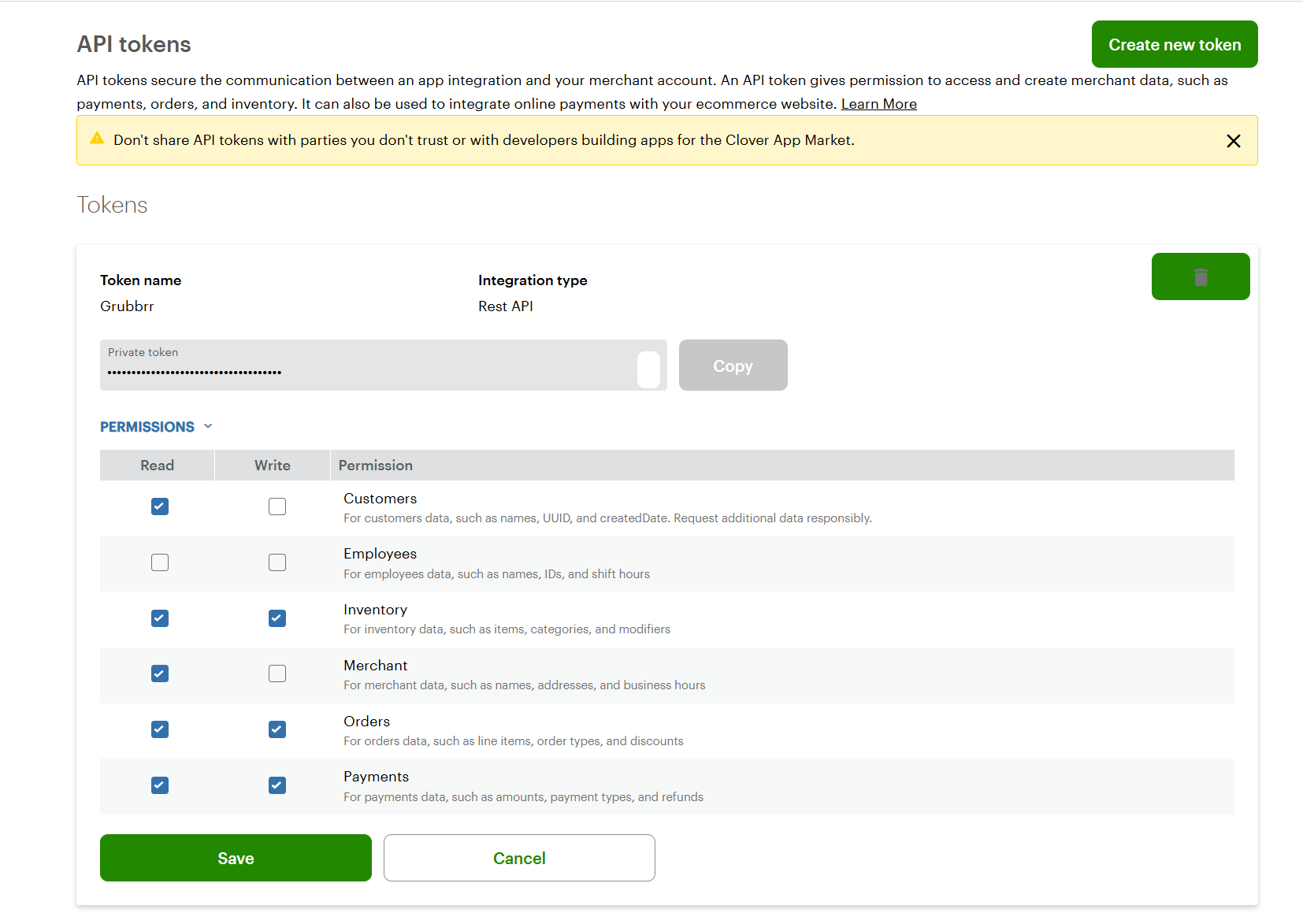
Set read permissions for the "Customers" field
Leave the "Employees" field blank
Set read and write permissions for "Inventory"
Set read permissions for "Merchant" data
Set read and write permissions for both the "Orders" and "Payments" fields
Click "Save" to apply your changes
Now, you're ready to share the updated token with GRUBBRR.
Find the token you just created and reveal its private key by selecting the eye icon.
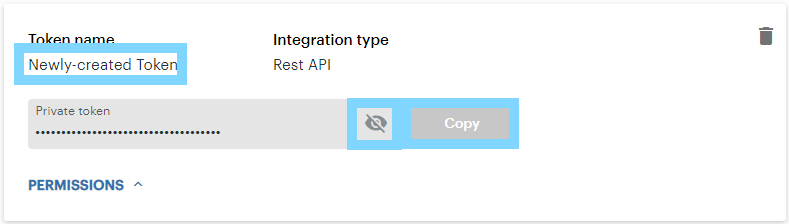
Select "Copy"
Send the token to your GRUBBRR Project Manager, and they will continue the onboarding process.