How does ADA Mode work for Kiosks in the GRUBBRR Console?
Last updated: August 8, 2026
Is version 14+ of the GRUBBRR Kiosk ADA Compliant? What accessibility features are available on the device?
Your GRUBBRR Kiosks can be configured to offer an ADA-Compliant Display mode for users with vision impairments. In this article, we'll show you how to turn ADA display mode on in the GRUBBRR Console, and give you a brief tour of how this feature looks on the Kiosk.
How to Turn on ADA Mode
1. Click "Kiosk Settings"

2. Click "Customizations"

3. Click "Features"
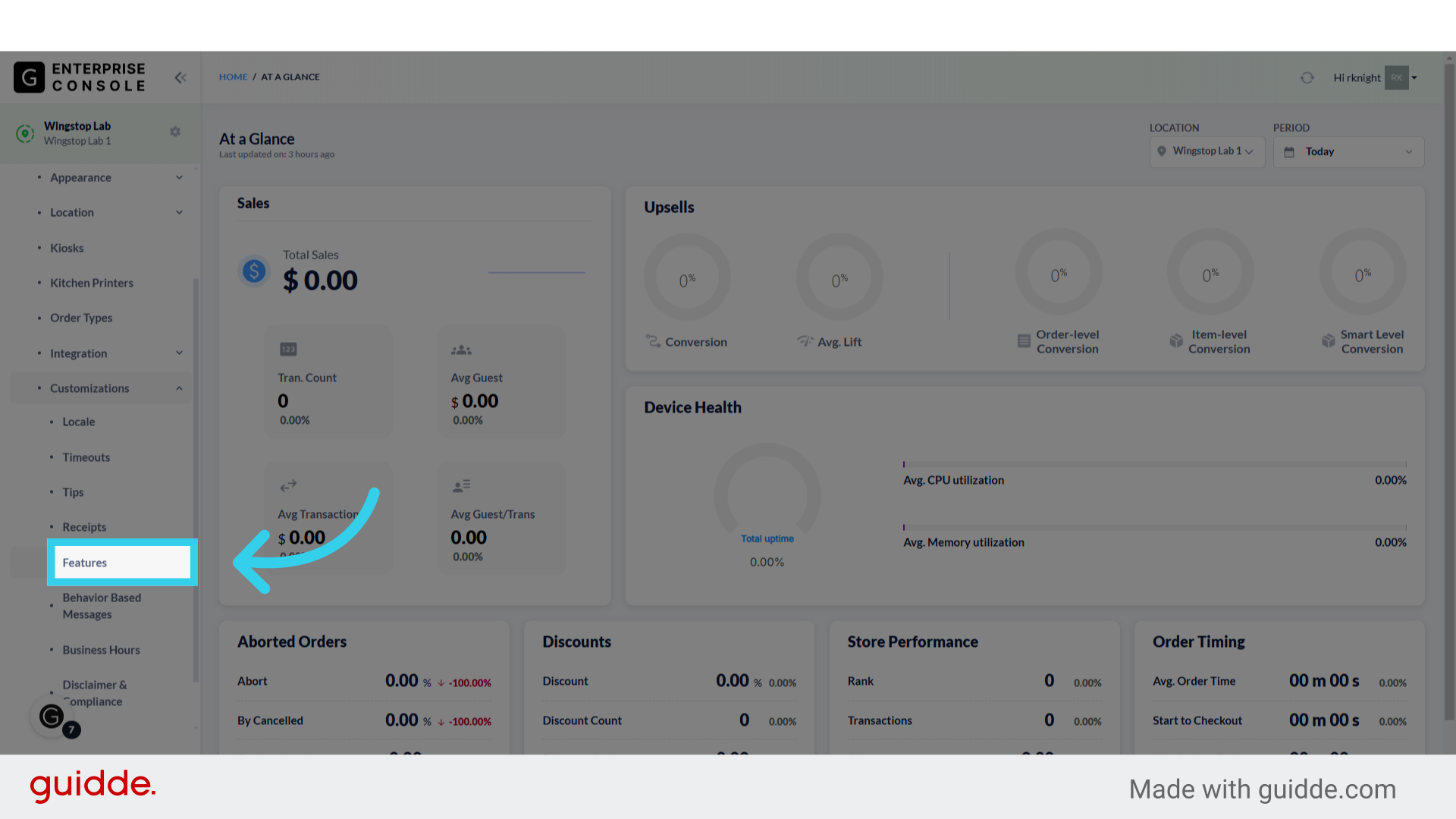
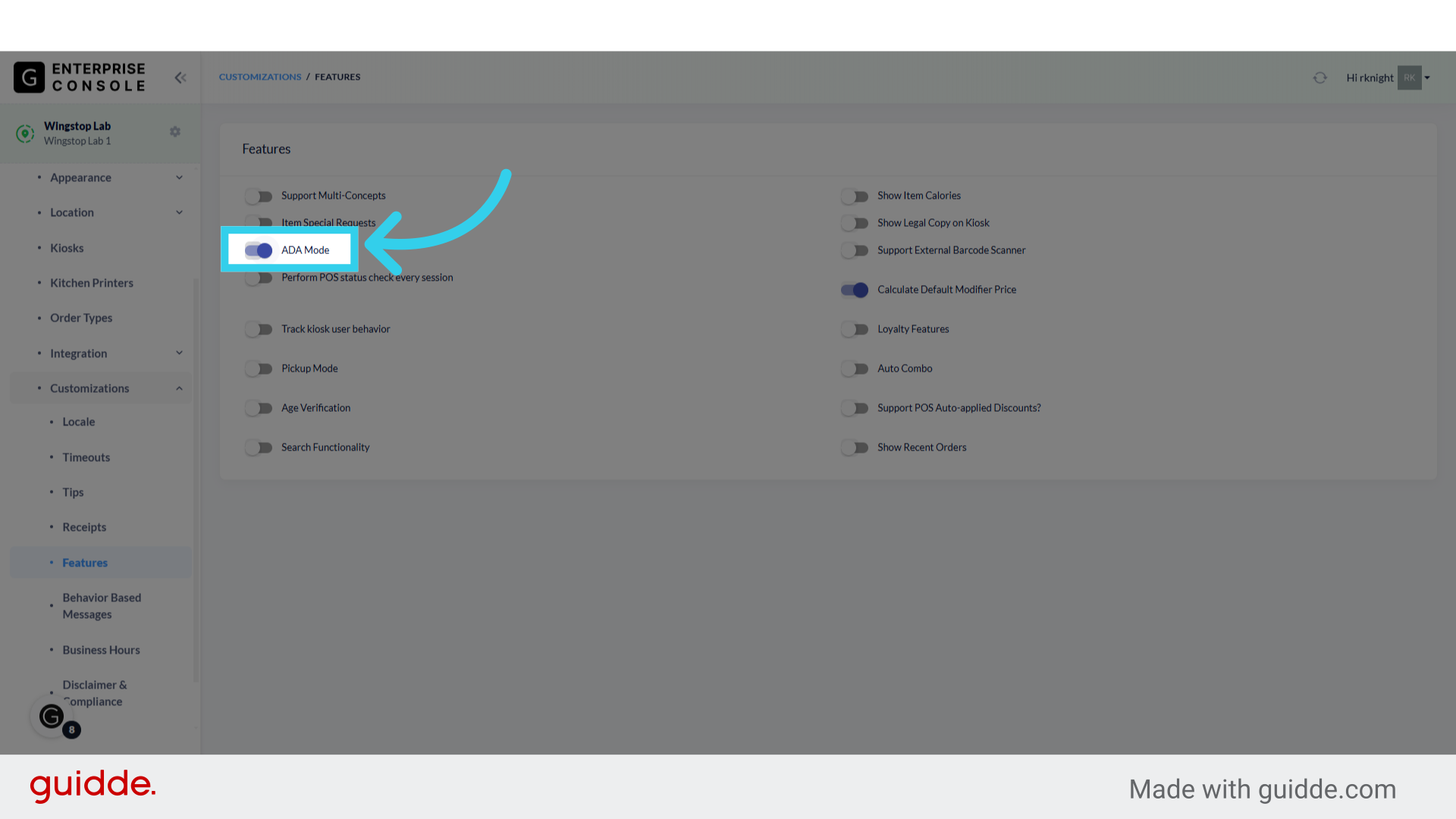
4. Click here to toggle ADA mode on
ADA Mode on the Kiosk
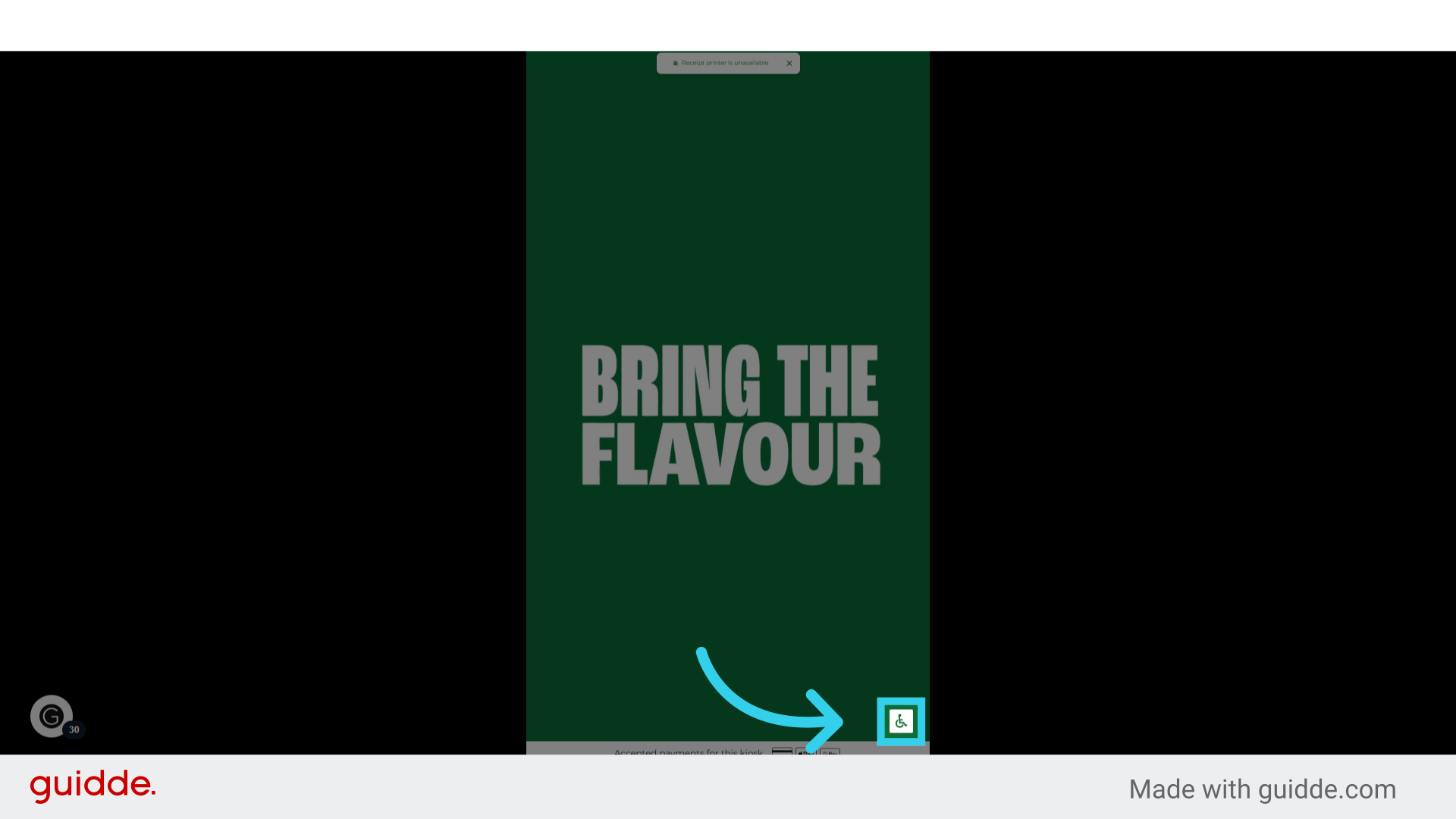
1. Users can tap the ADA Icon to switch to ADA Display Mode
2. ADA Mode replaces the image-based Kiosk grid with text on a high-contrast background
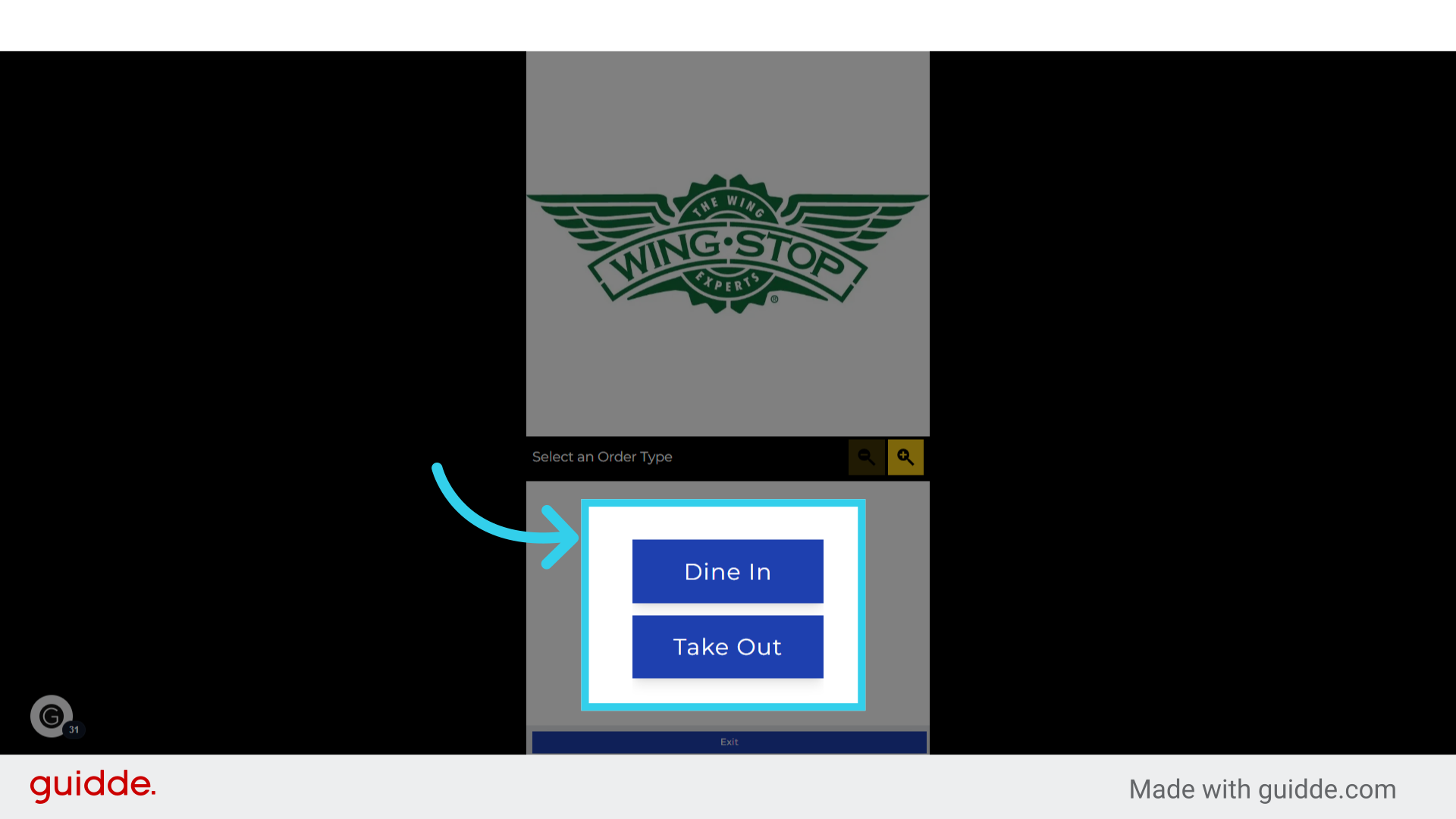
3. Users can tap here to magnify the Kiosk UI up to 200%

4. Users can tap the negative magnifier to shrink the text as needed

5. Initially, Categories are displayed as a vertical window of high-contrast text boxes

6. When users tap on a Category...

7. The Kiosk switches to a vertical list of menu items
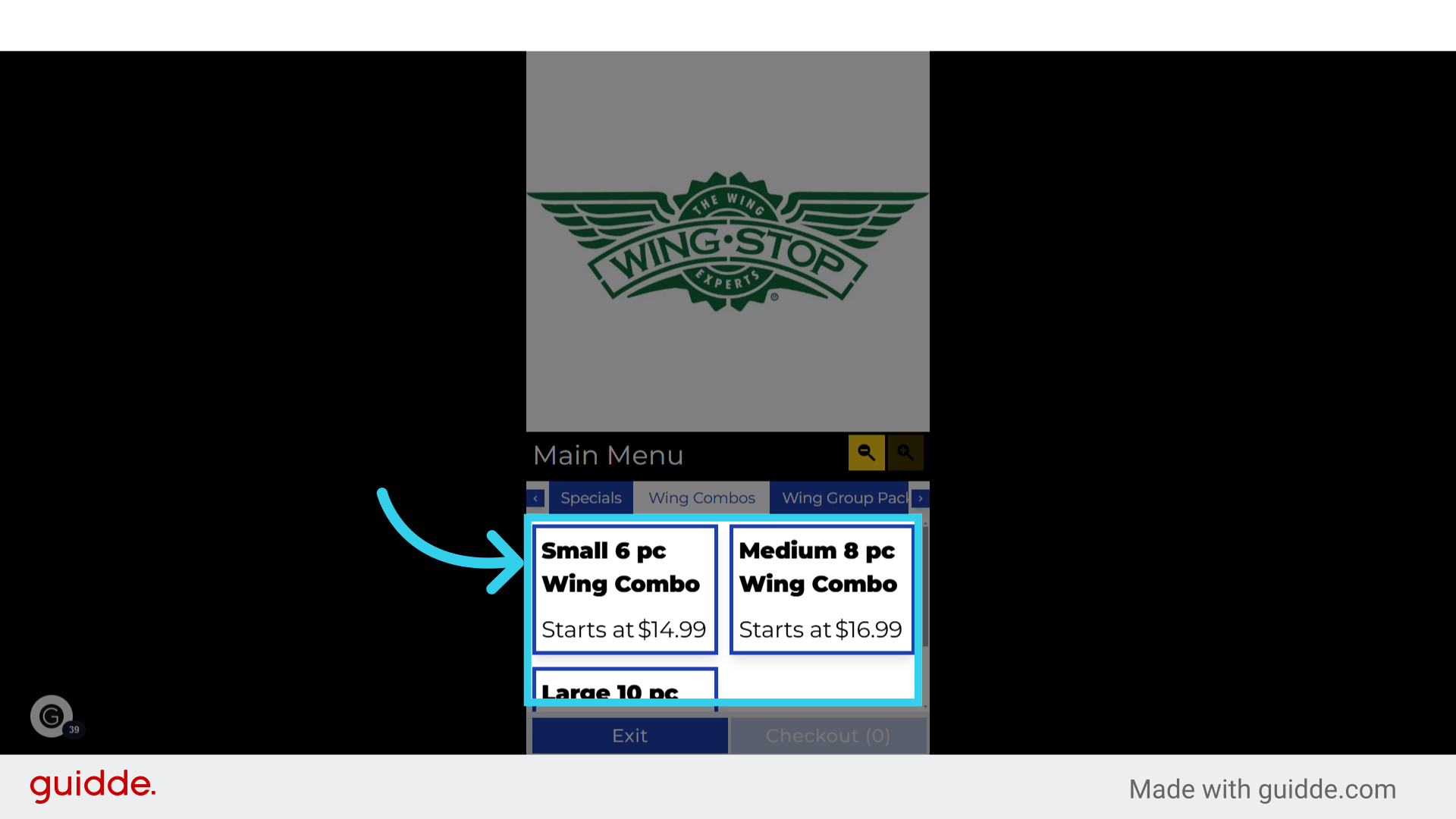
8. And categories are displayed as a horizontal scroll bar at the top of the menu

9. Users can tap the left and right arrows here to navigate the category list
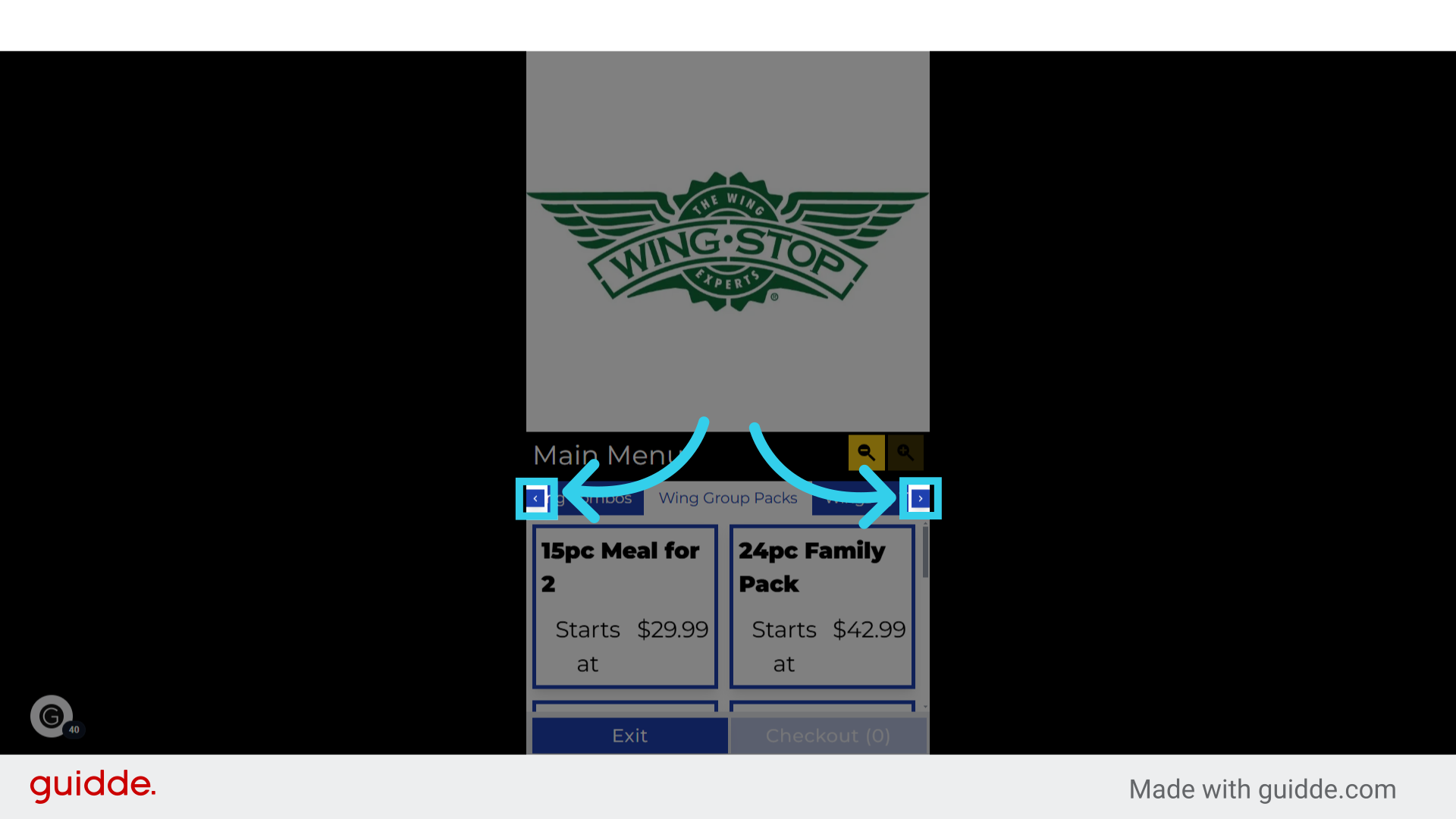
10. The item list will change to reflect the currently active category
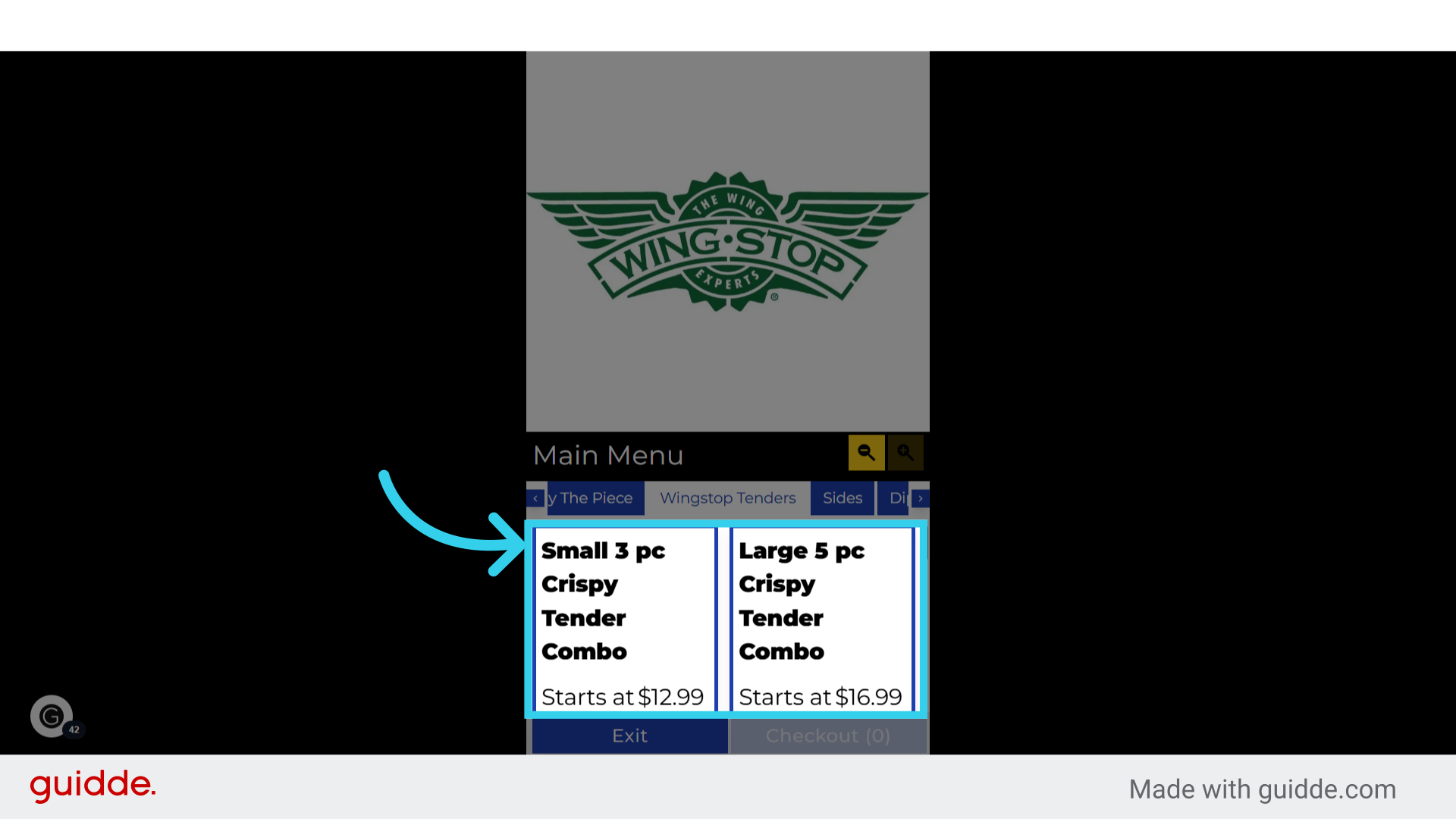
11. If users tap on an item...

12. The Kiosk will switch to Item View
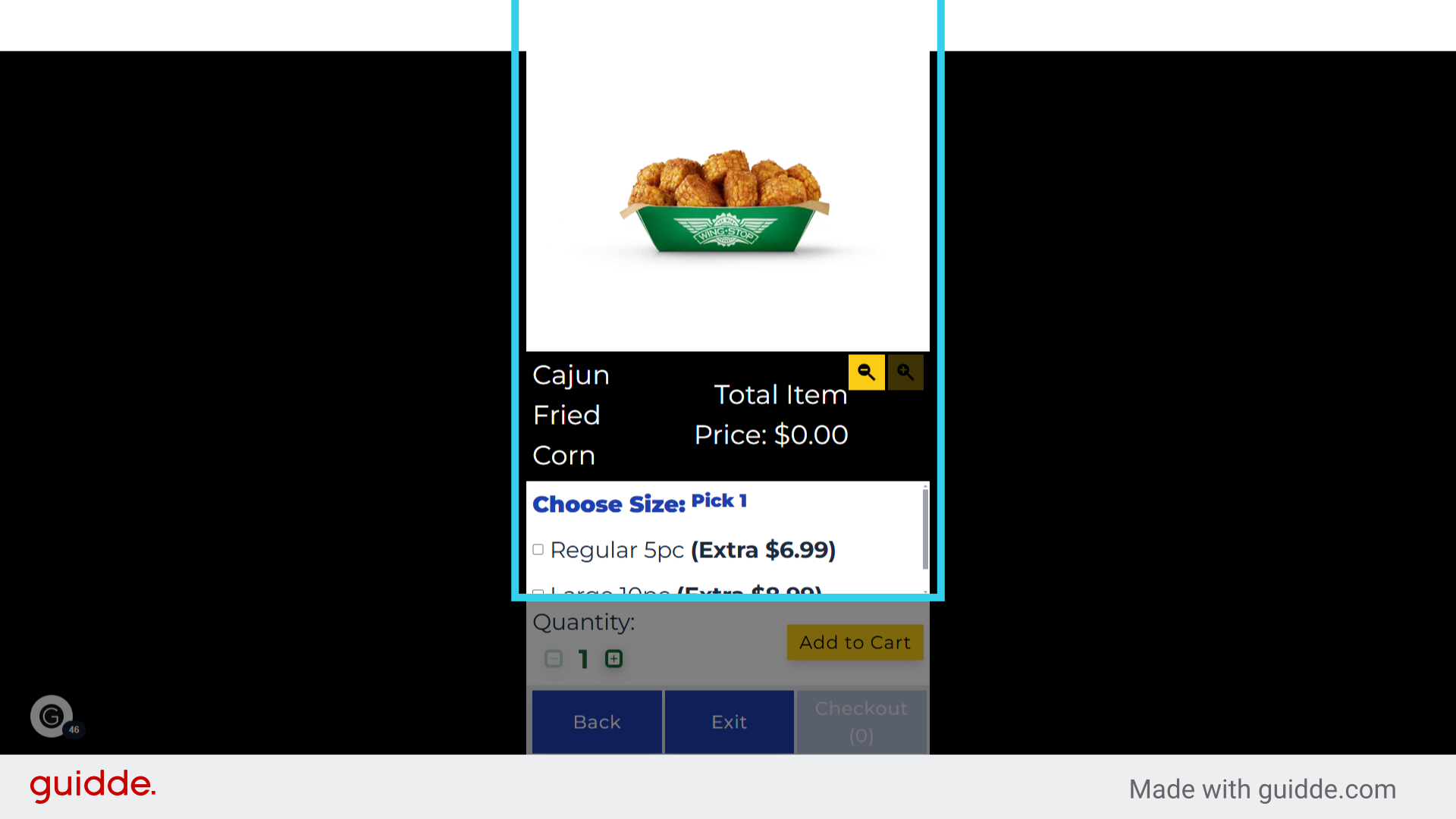
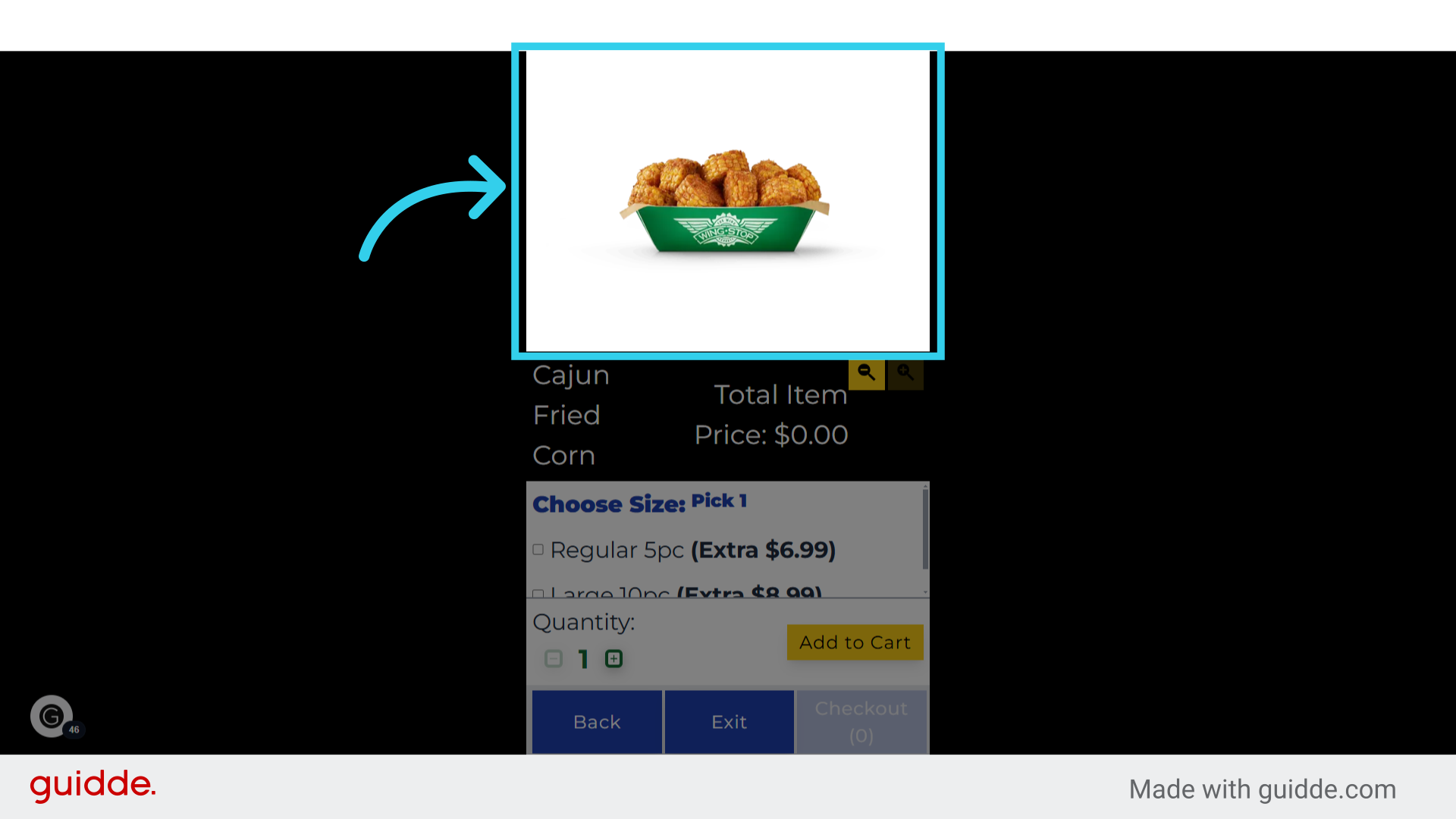
13. The Item Image will show at the top of the screen
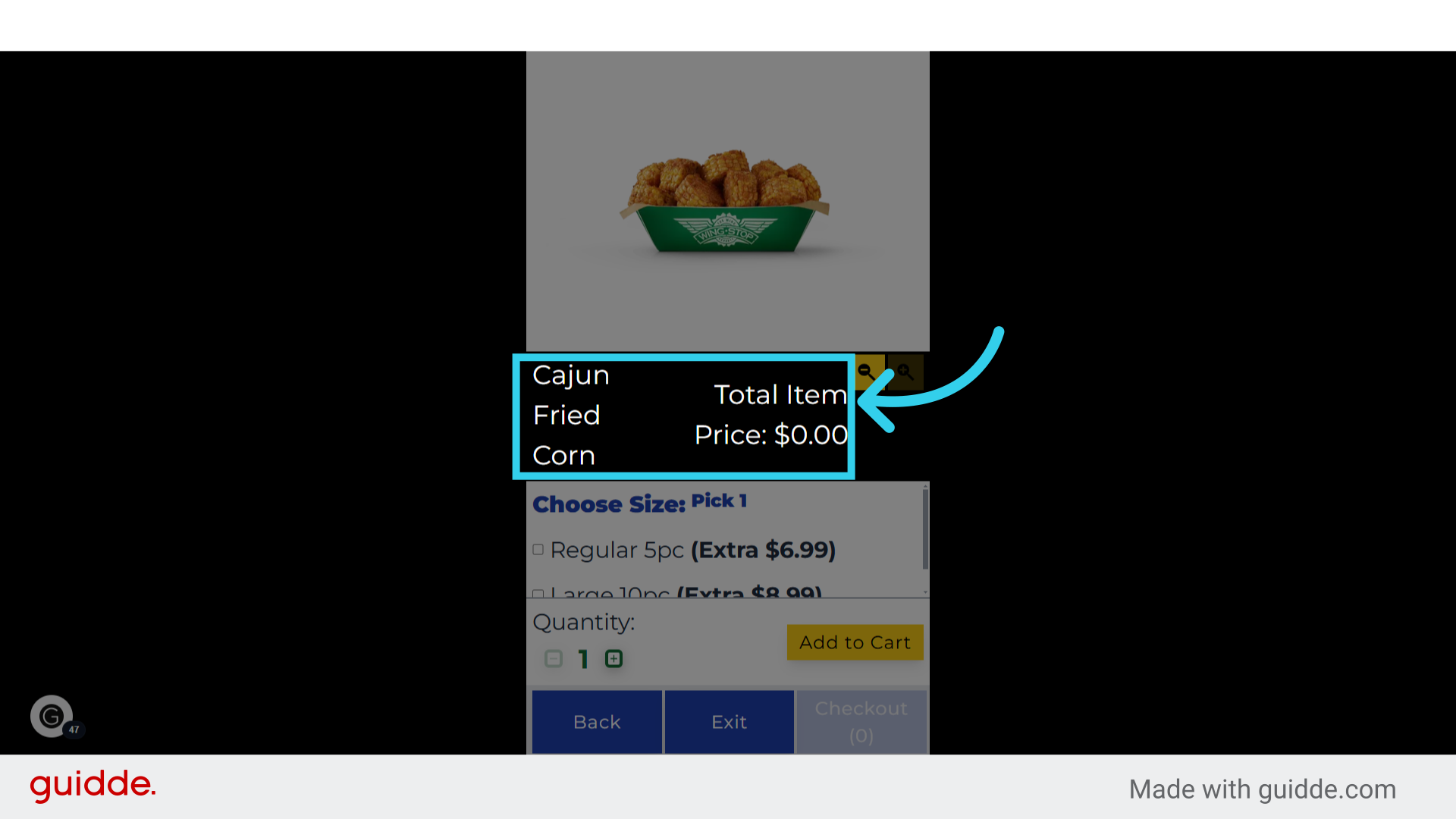
14. The Item name and price will be displayed in the middle of the screen
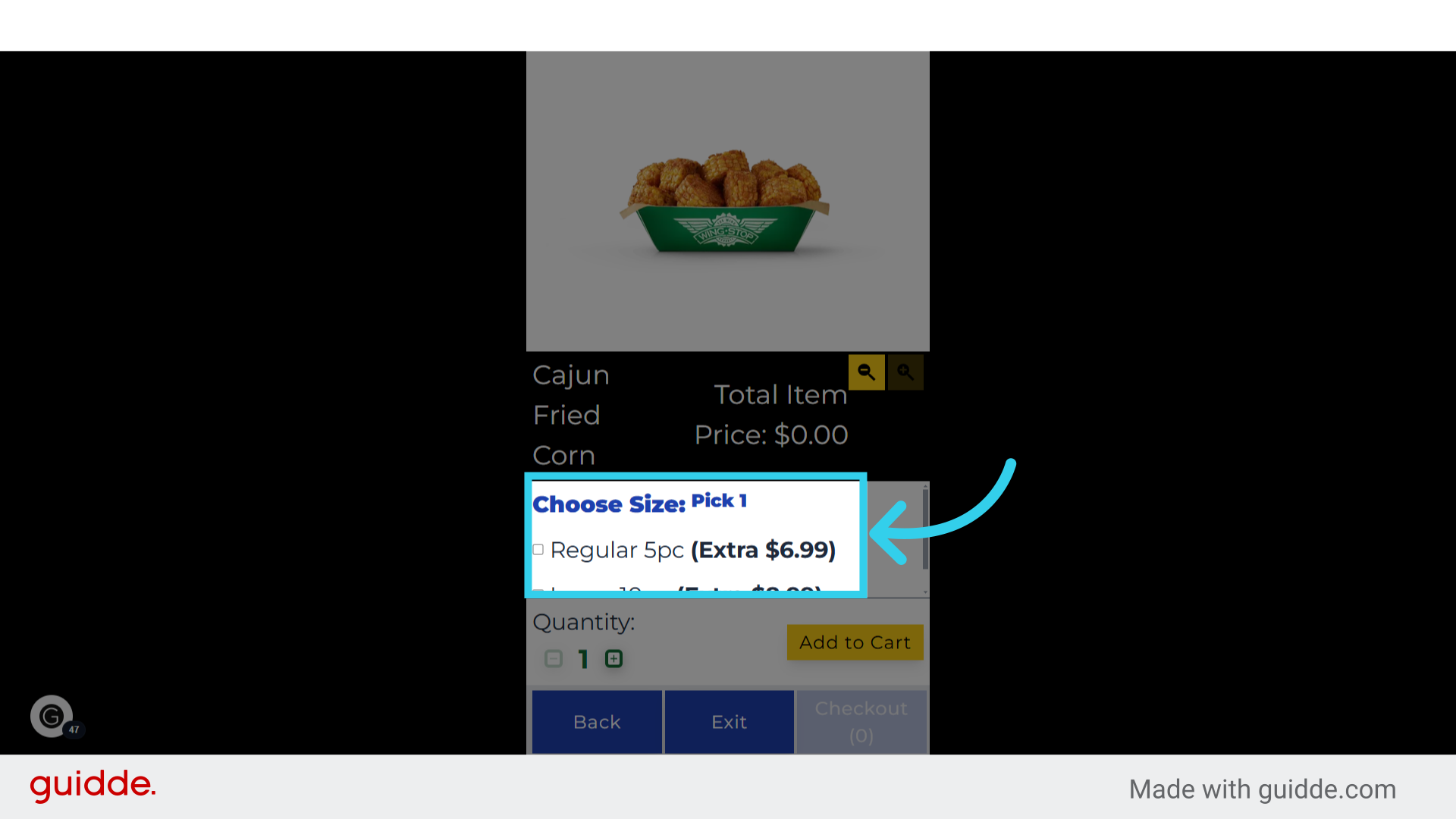
15. And modifiers will be listed as plain text here
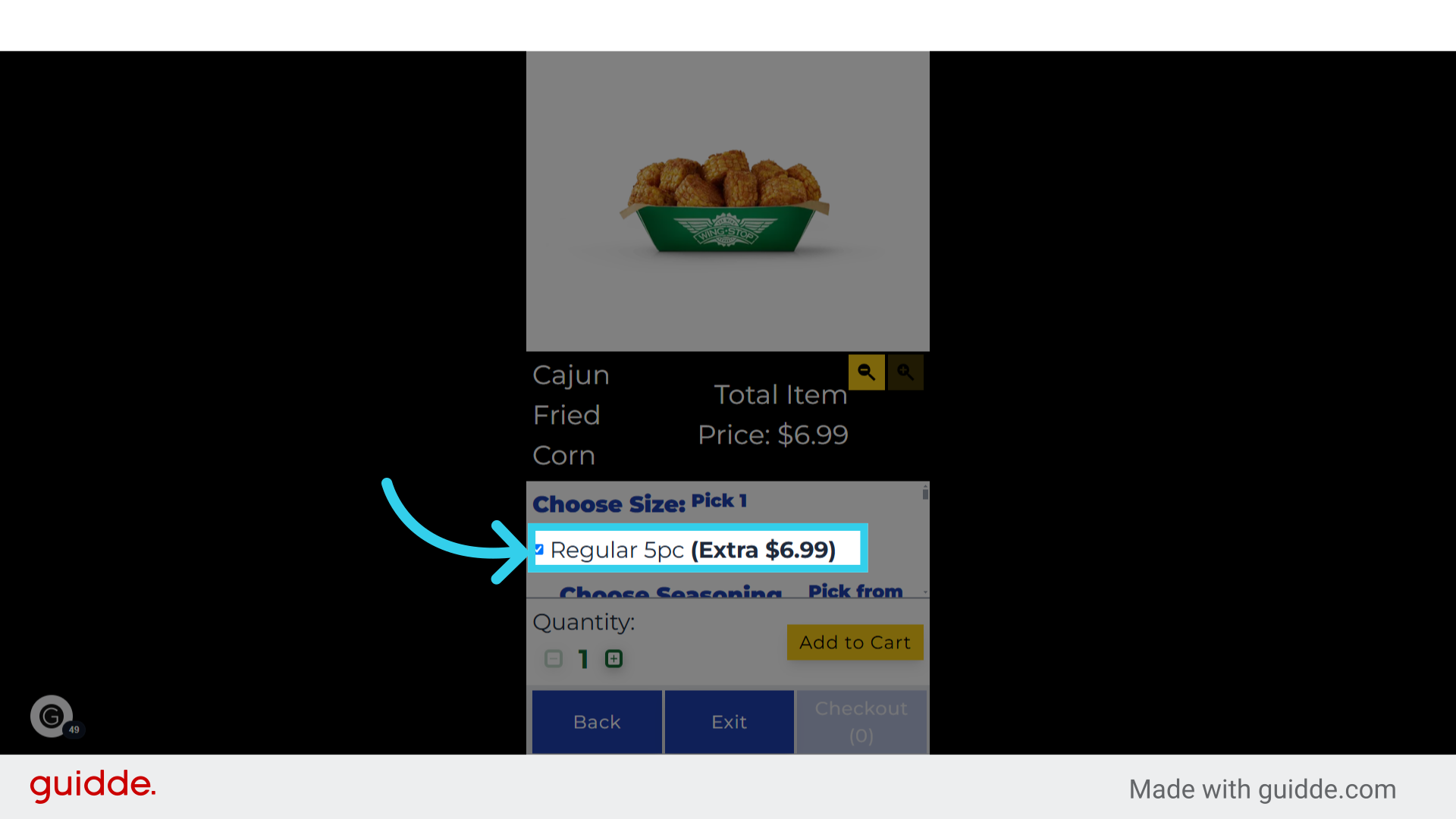
16. Tapping a selection

17. Adds the modifier to the item
18. Users work their way down the list to finish modifying their item

19. Users can add multiple instances of their item by using these toggles
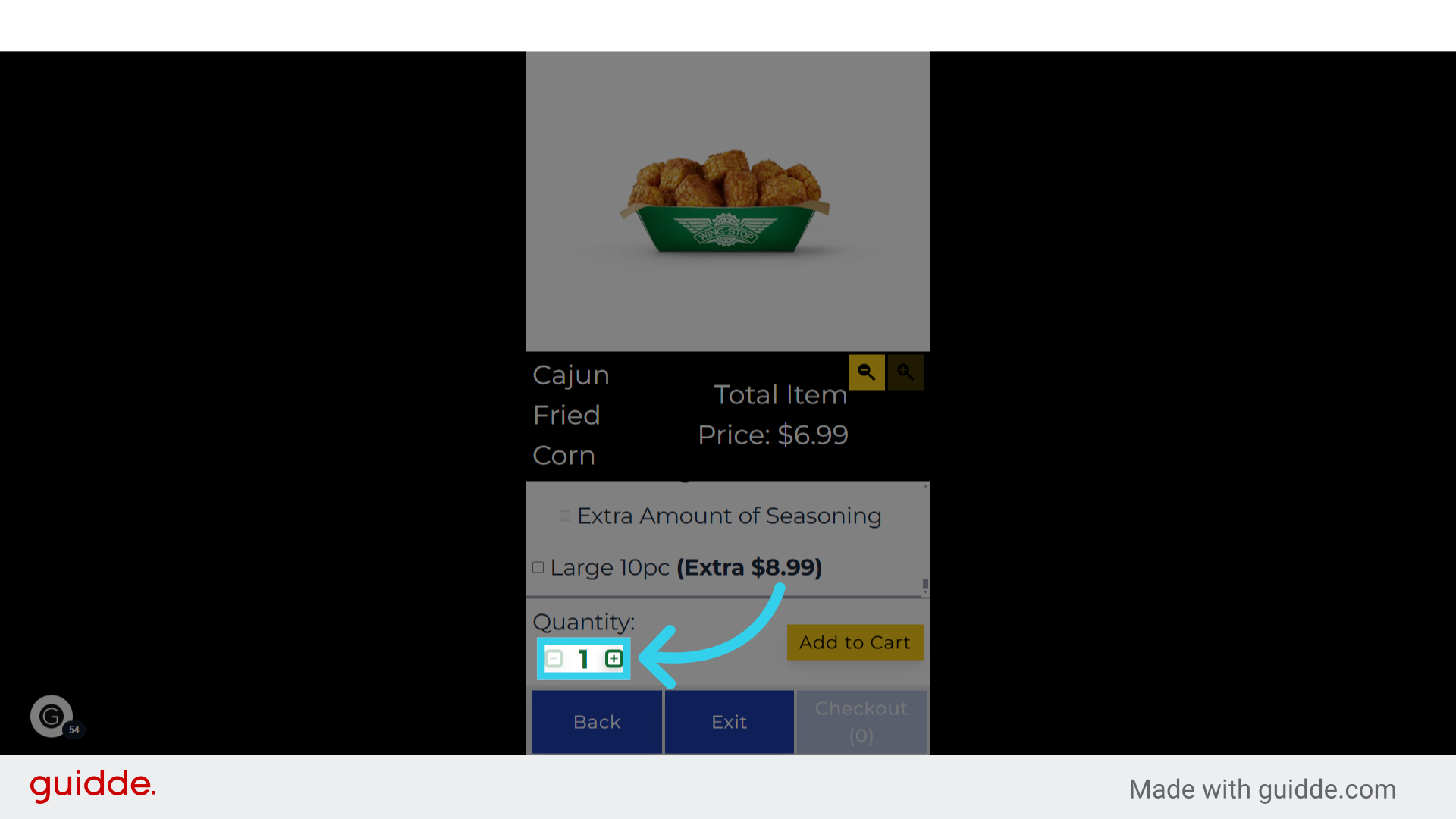
20. Once users finish modifying their items, they can click "Add to Cart"
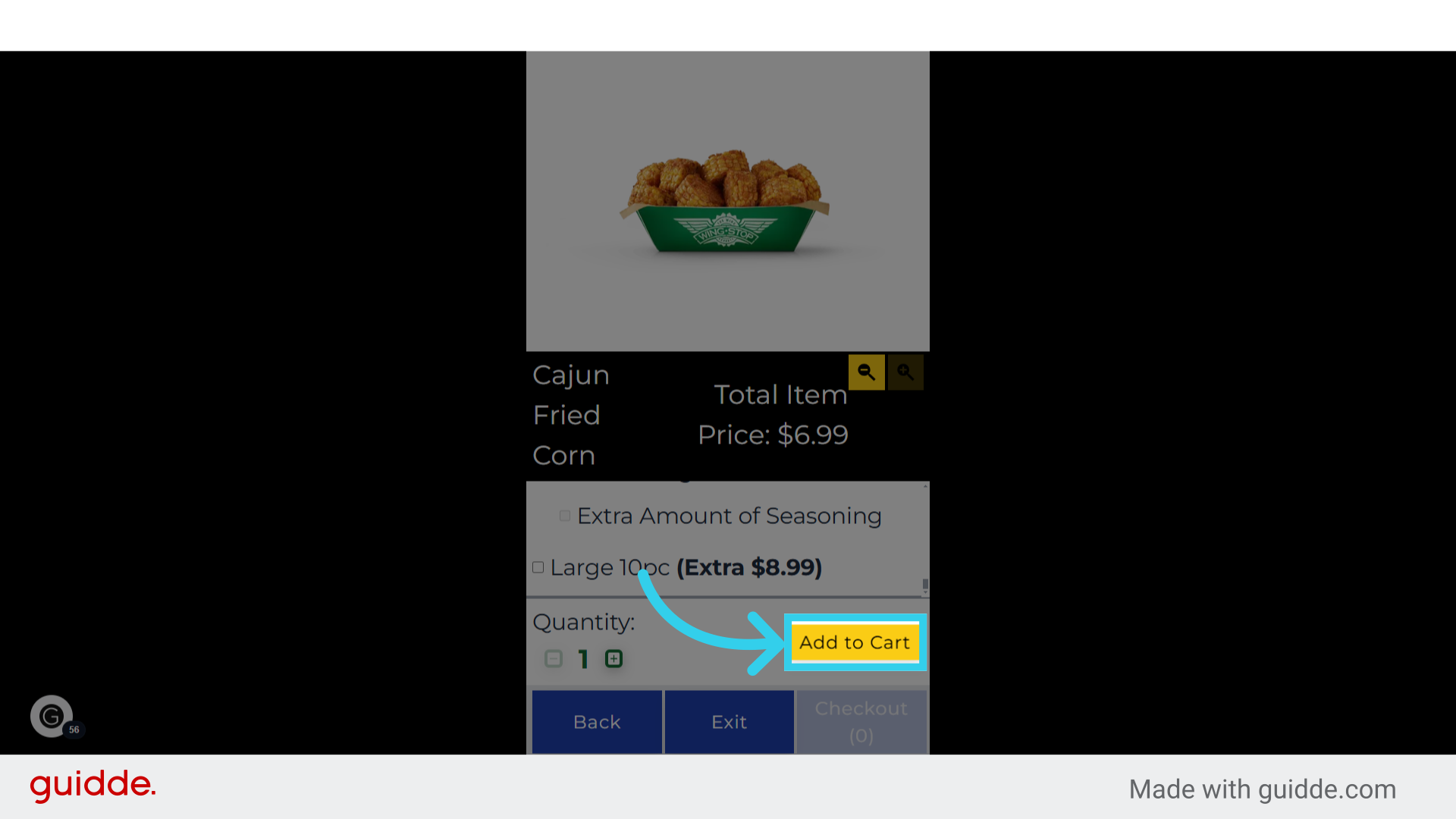
21. And the Kiosk will take them back to the Category view

22. Tapping "Checkout" will direct the user to the Order Confirmation screen
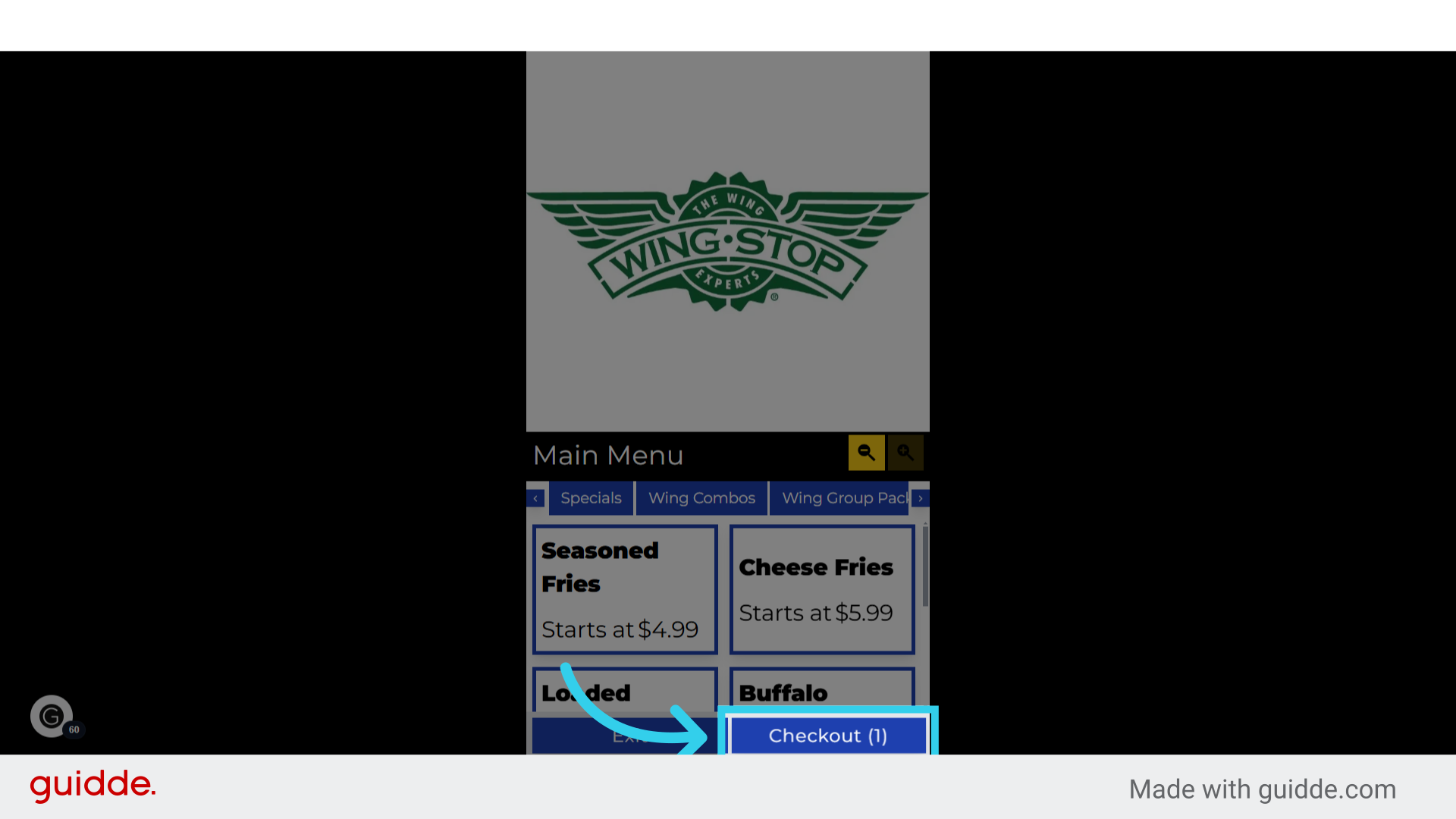
23. Where they can apply any coupons or close out their order
