How to Link a KDS to the GRUBBRR Portal
Last updated: August 8, 2026
How do I connect a new KDS to my GRUBBRR Portal?
Your KDS is an essential device for the flow of your kitchen. From your KDS, you can complete orders, view order history, cancel, cancel, delay, and un-complete, search, filter, and re-print order tickets. By default, all GRUBBRR KDS devices come configured for countertop display; however, you can also source your own wall mount to install these devices.
1. Sign in to the GRUBBRR Portal at the Location Level

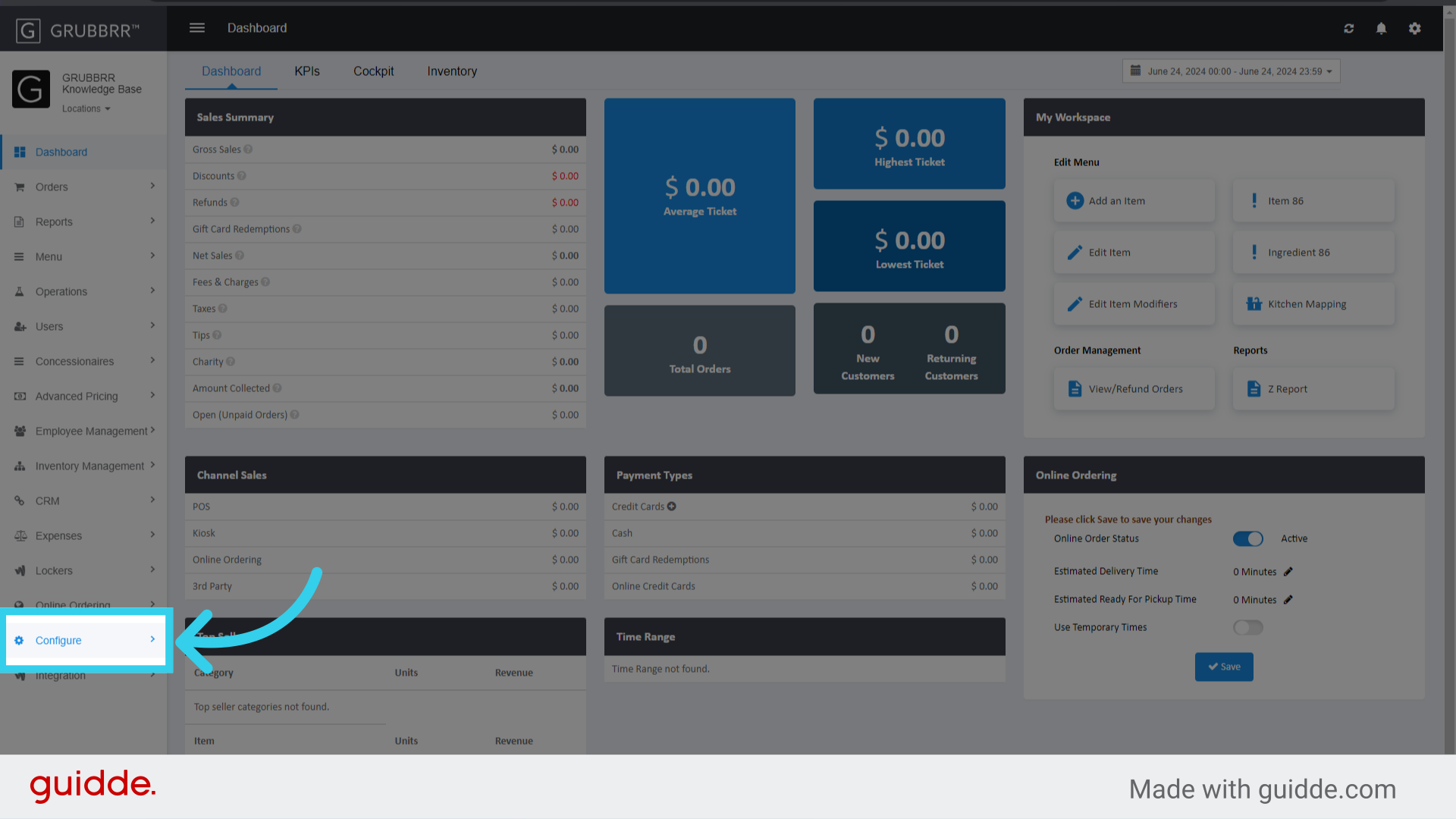
2. Click "Configure"
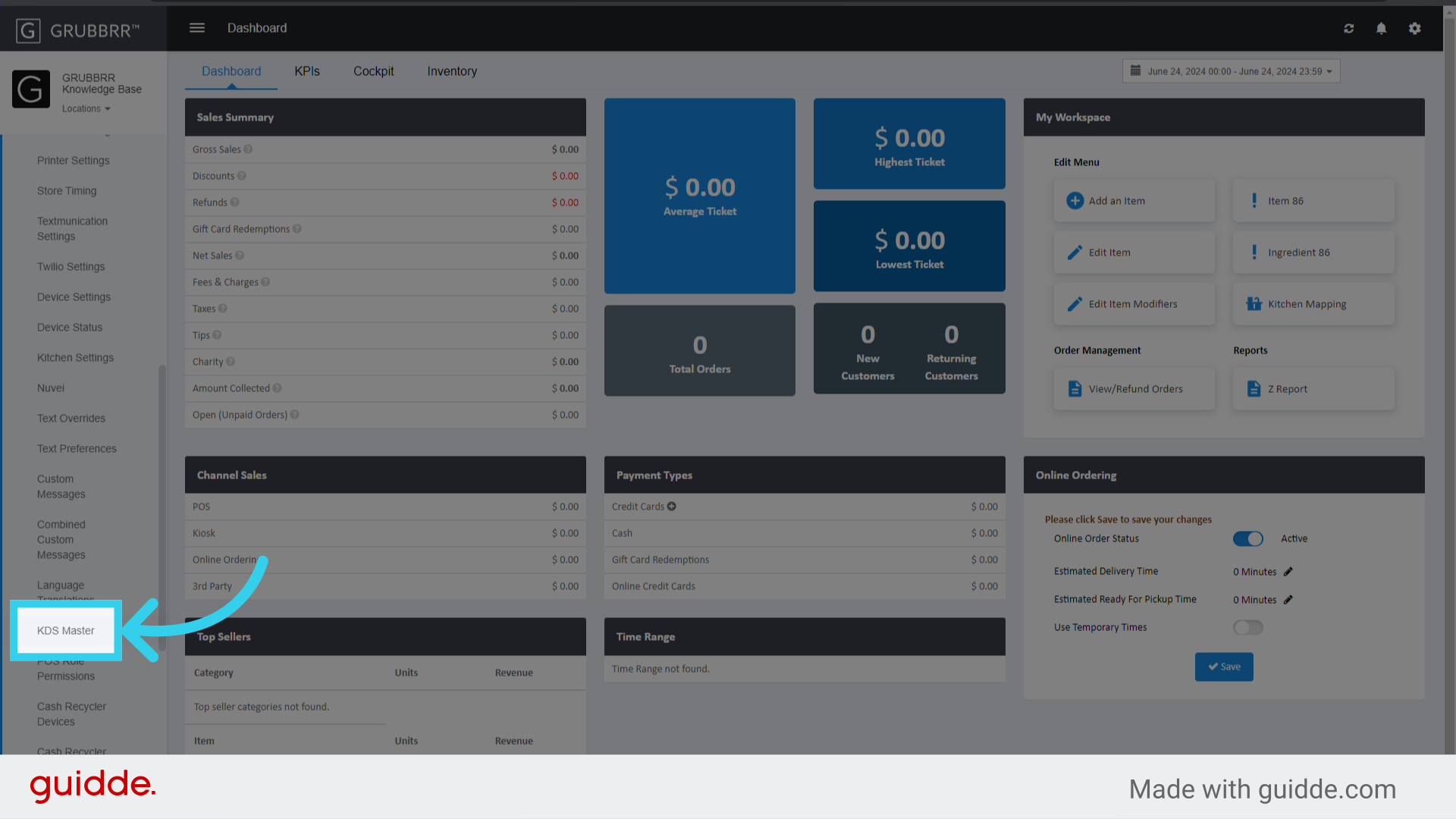
3. Click "KDS Master"
4. Click "Add New"

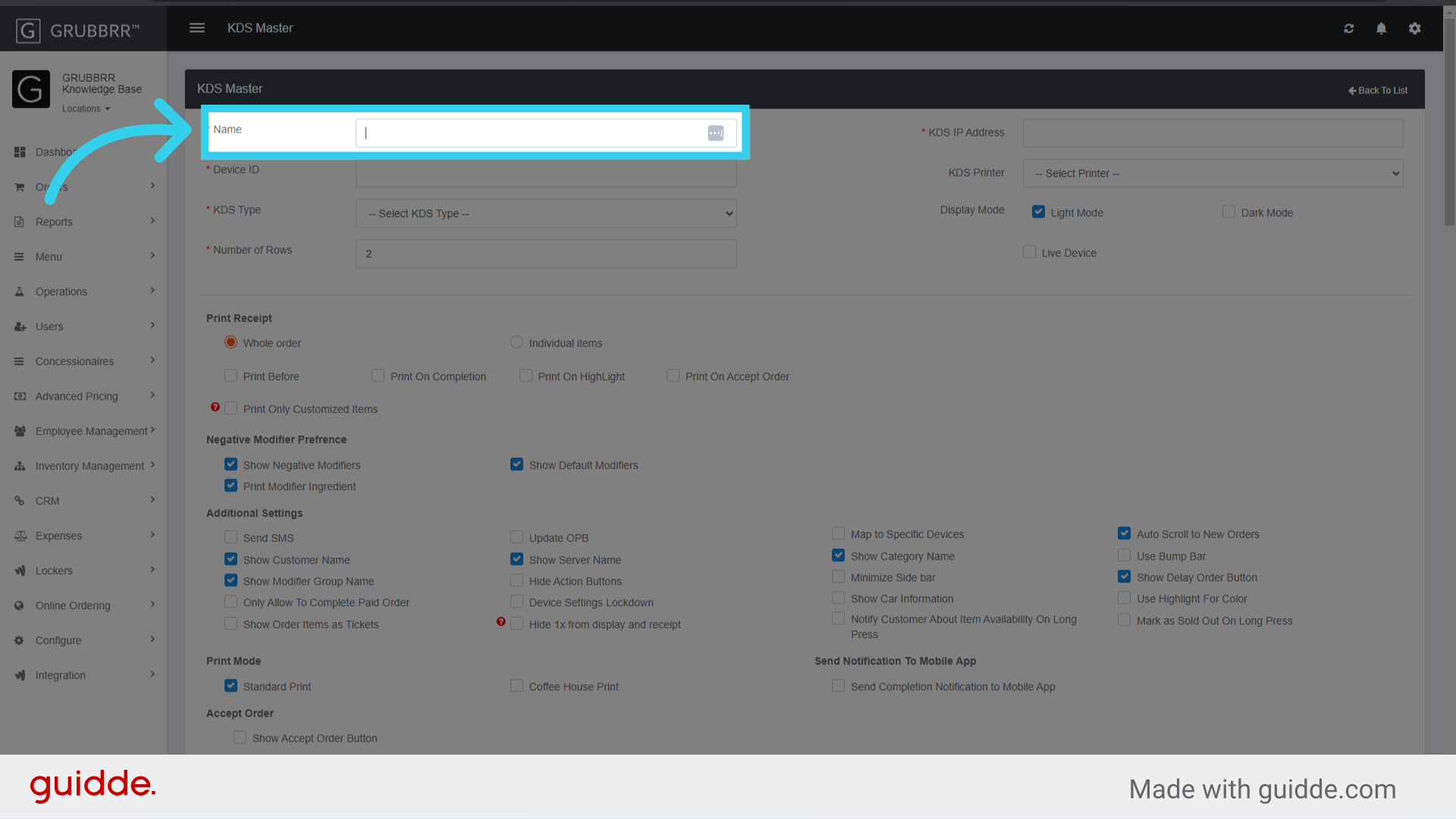
5. Give the device an easily identifiable name
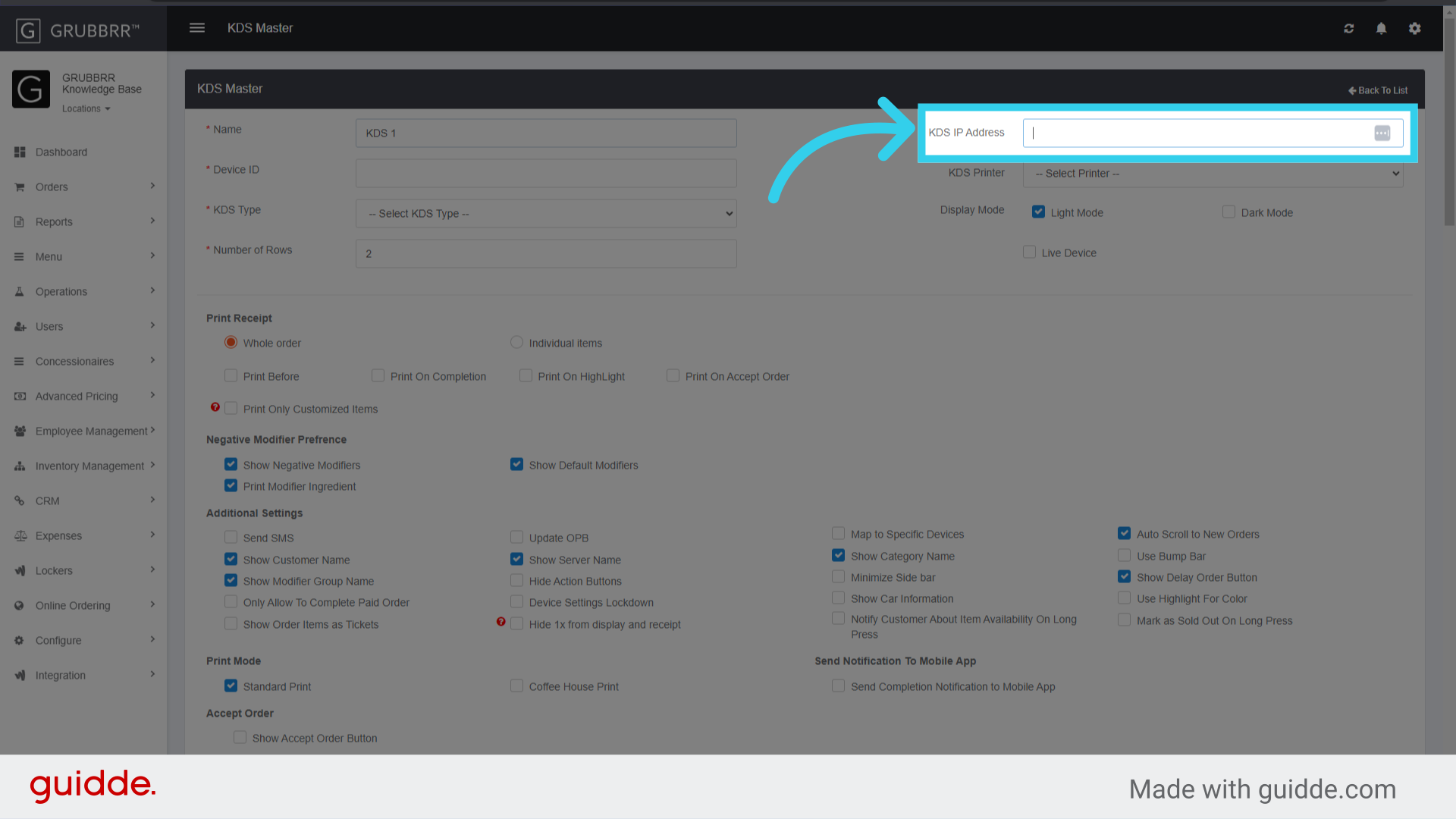
6. Enter the IP address of the KDS device
7. Enter the KDS' App ID

8. Select an available KDS Printer from this dropdown
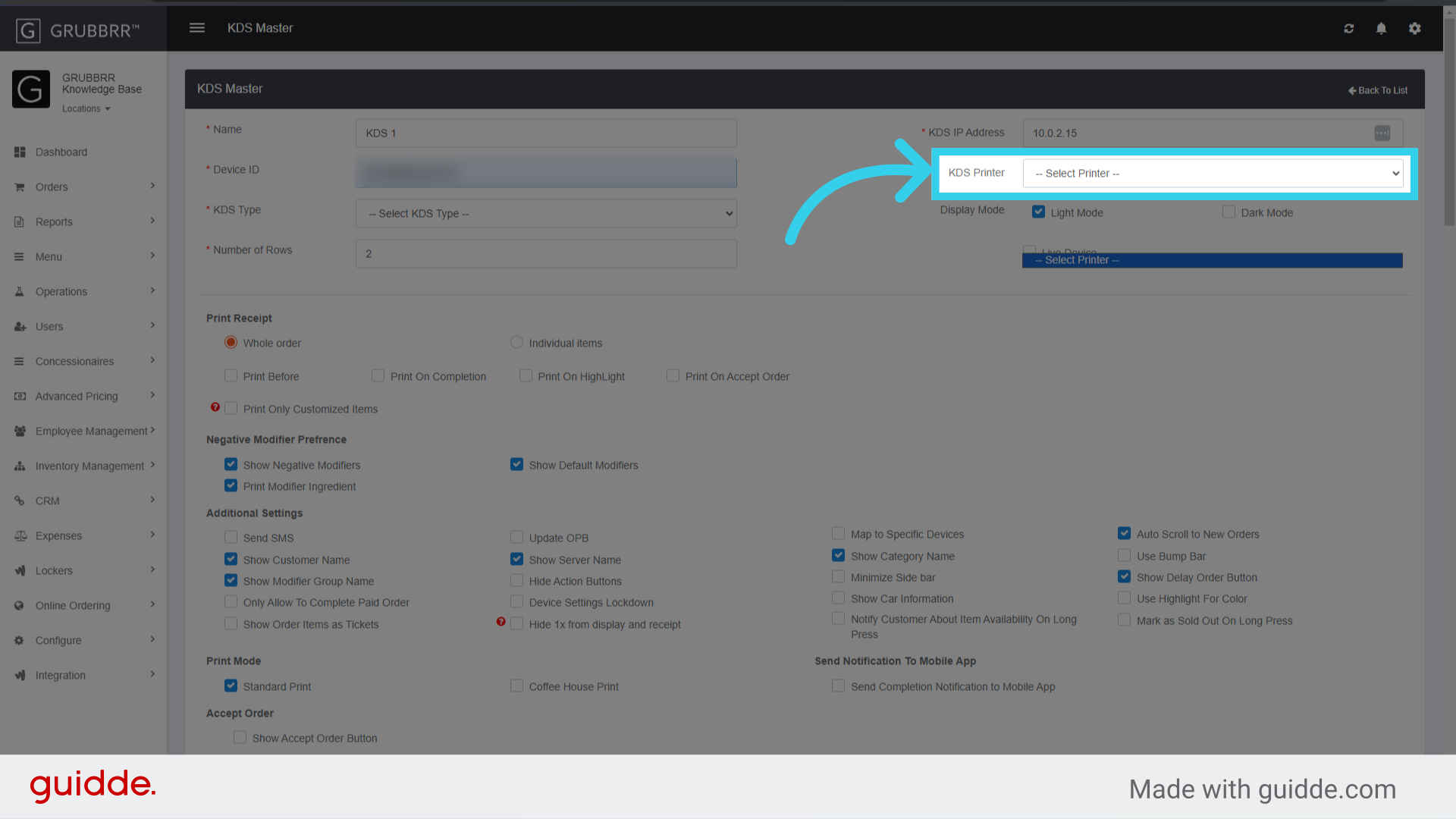
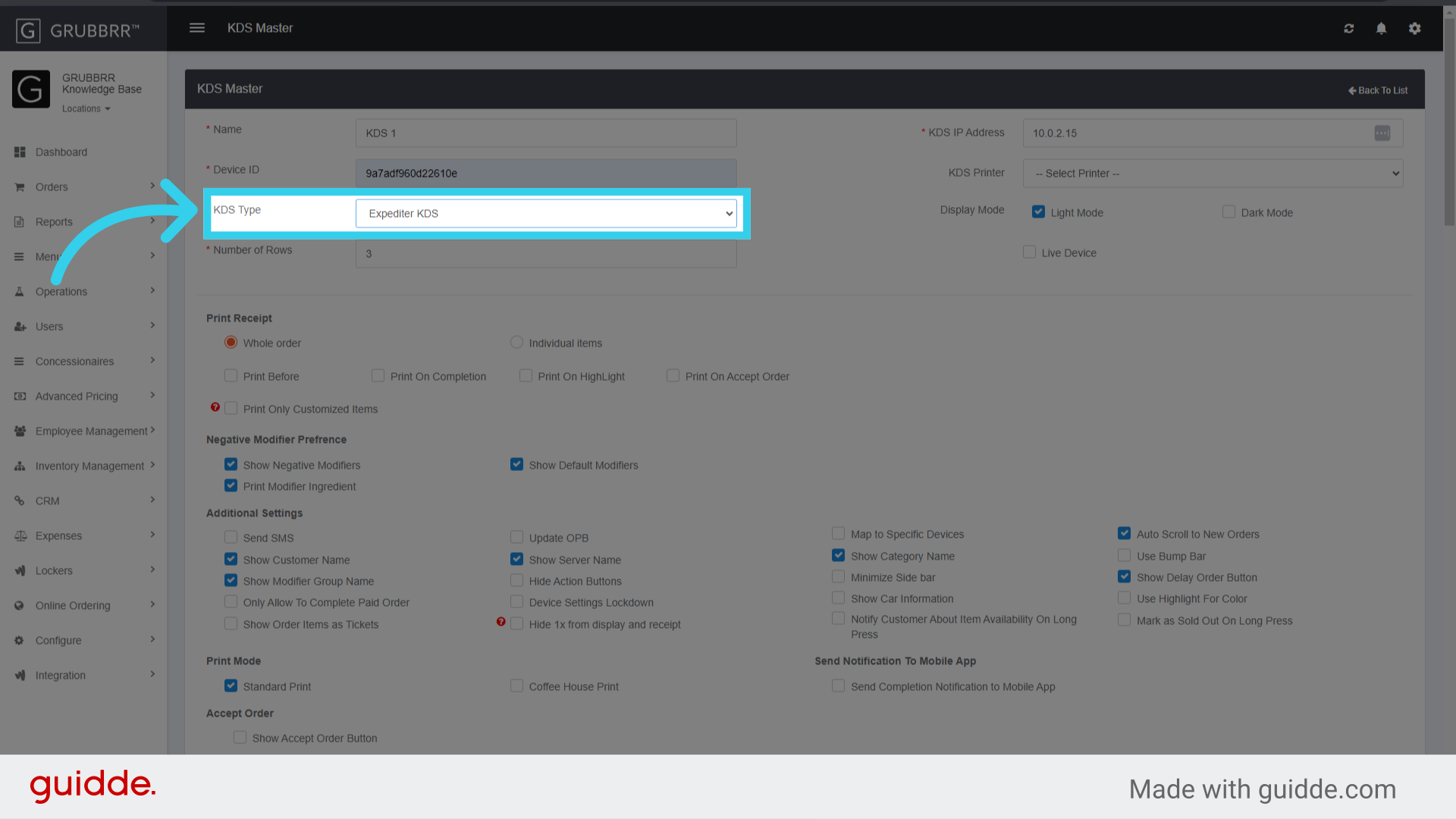
9. Select the KDS type from this dropdown
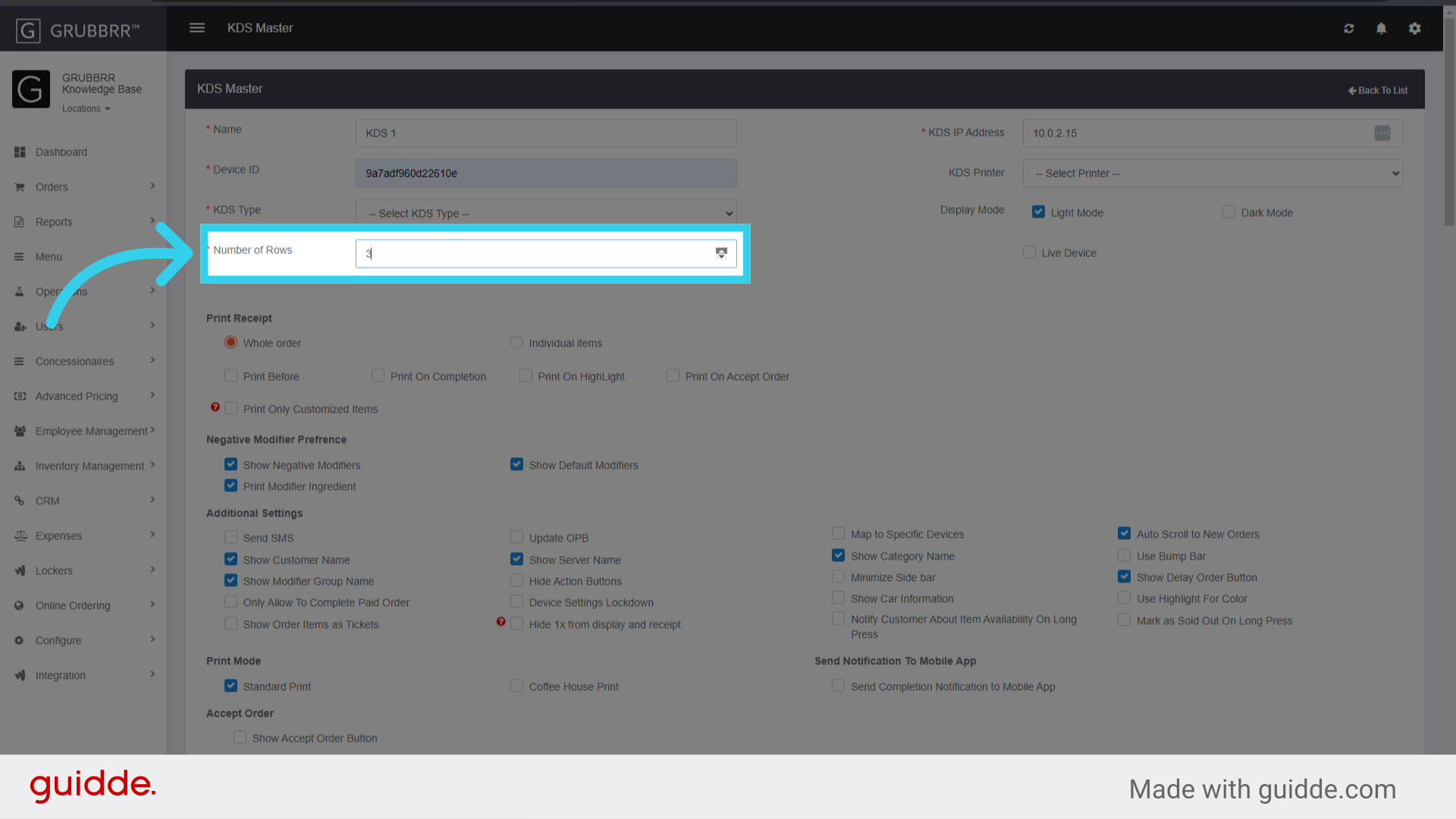
10. If desired, configure the number of rows the KDS will use for order tickets
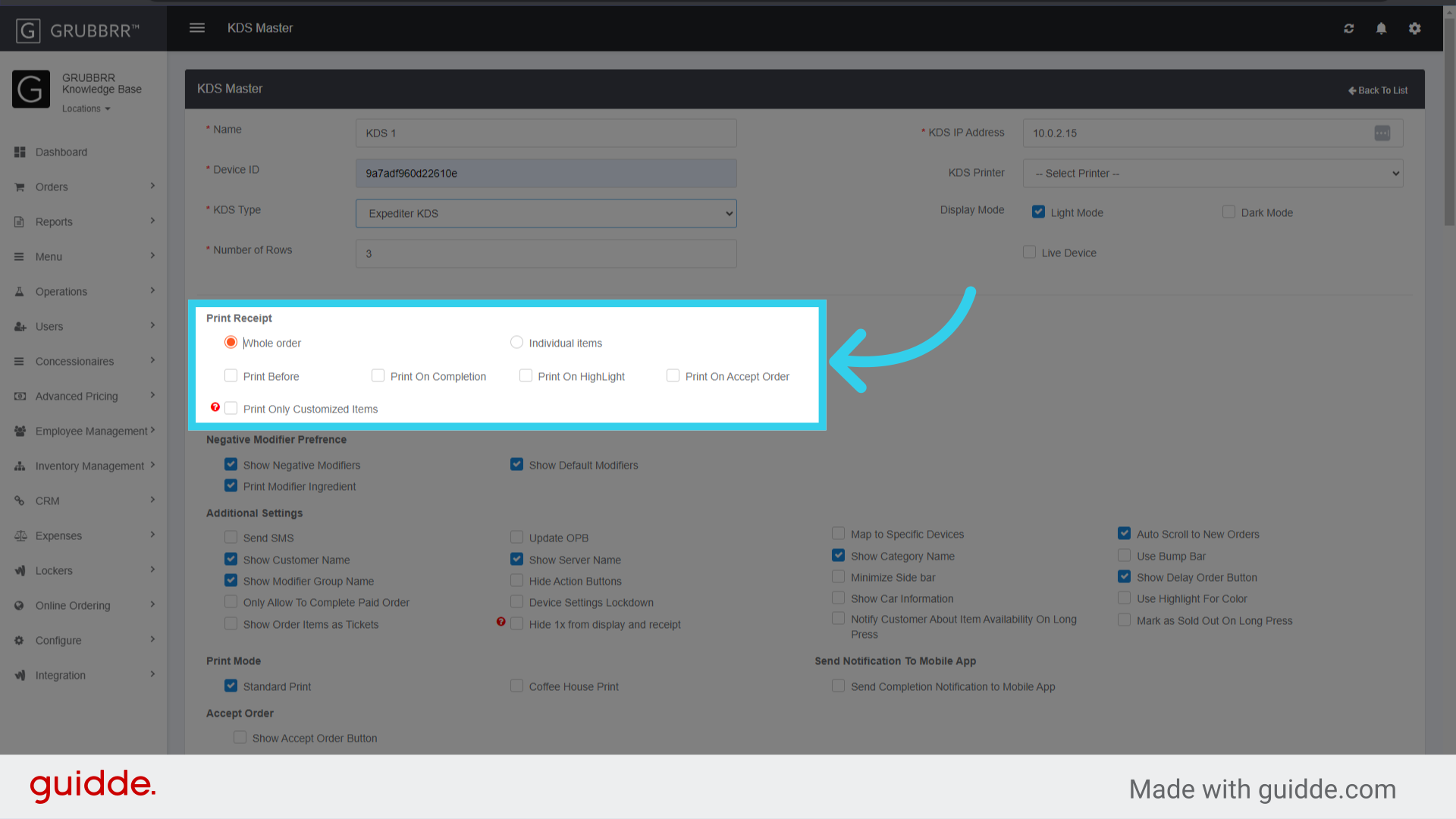
11. Enable any desired receipt settings
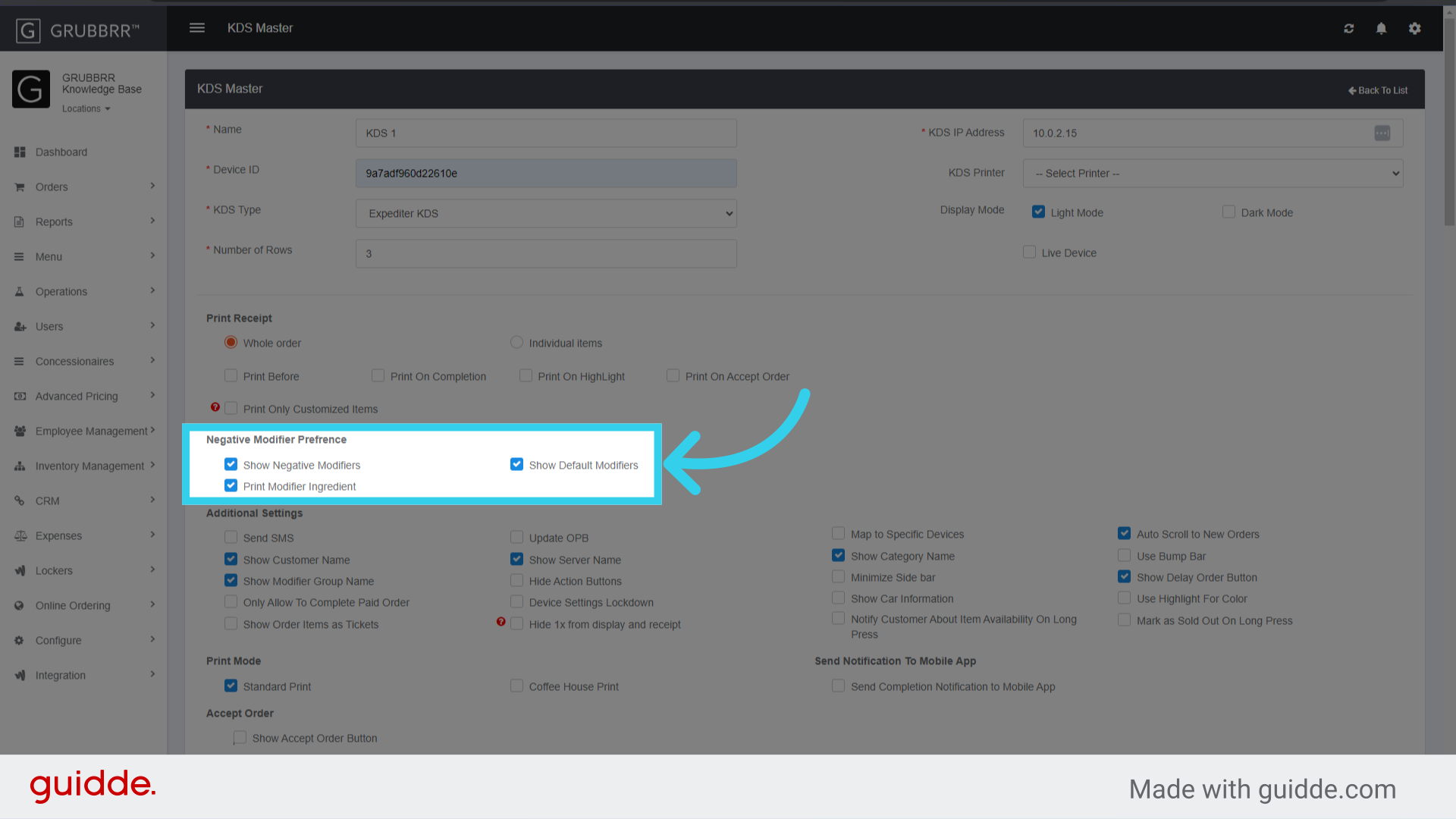
12. Enable any desired Negative Modifier Settings
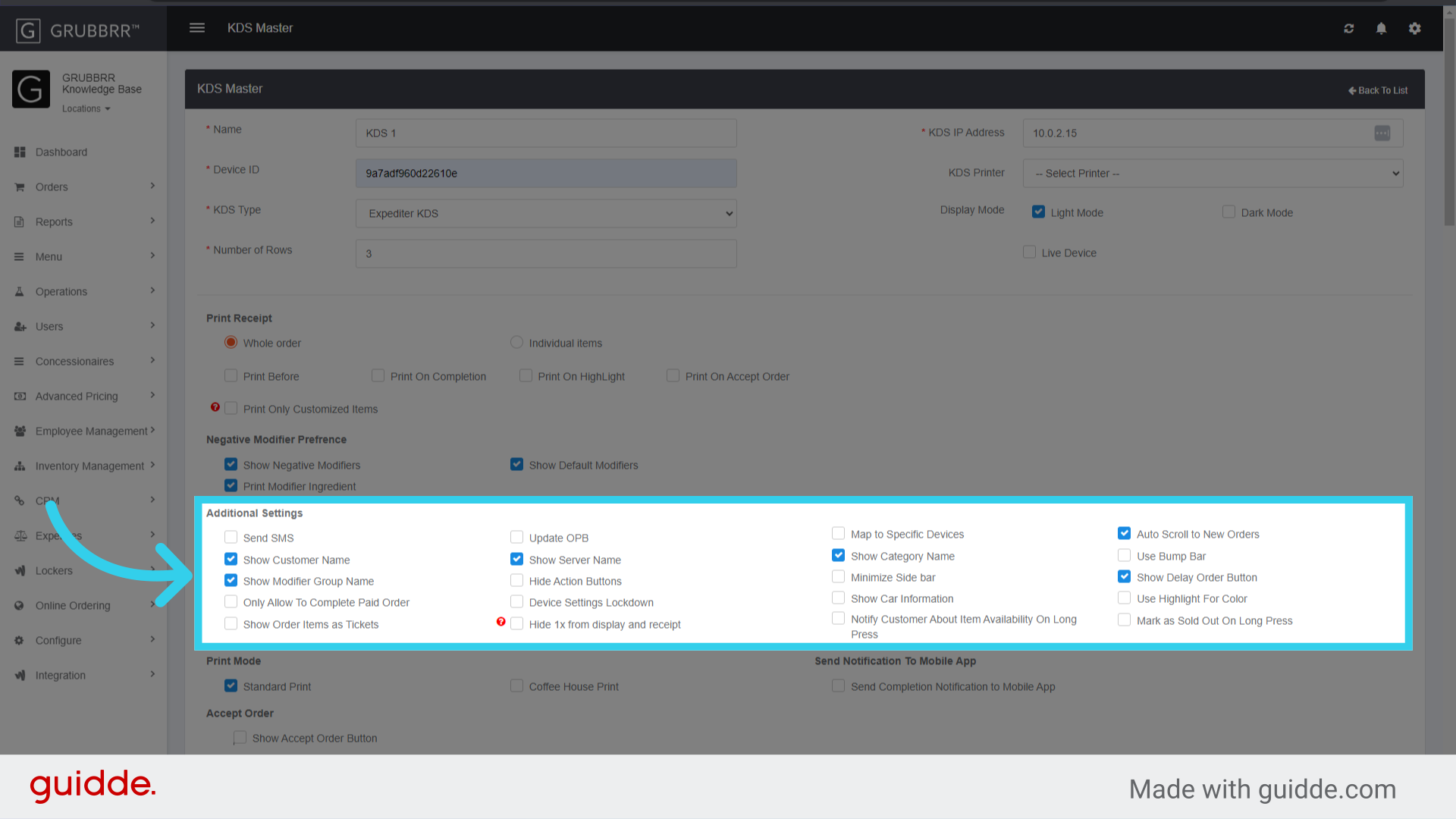
13. Activate any desired Additional Settings
14. Enable "Standard" or "Coffee House" print mode

15. Configure display settings for any active order types

16. Click "Save" to apply your changes
