How to use "Bulk Edit" Features in the GRUBBRR Console
Last updated: August 21, 2026
If you need to make sweeping changes across your Kiosk menu- for example, deactivating multiple menu categories or uploading a standardized placeholder image for multiple items or modifiers- you can use GRUBBRR's Bulk Edit feature to streamline the process. You can access Bulk Edit controls through the GRUBBRR Menu Manager by following the steps outlined below.
Go to console.grubbrr.com
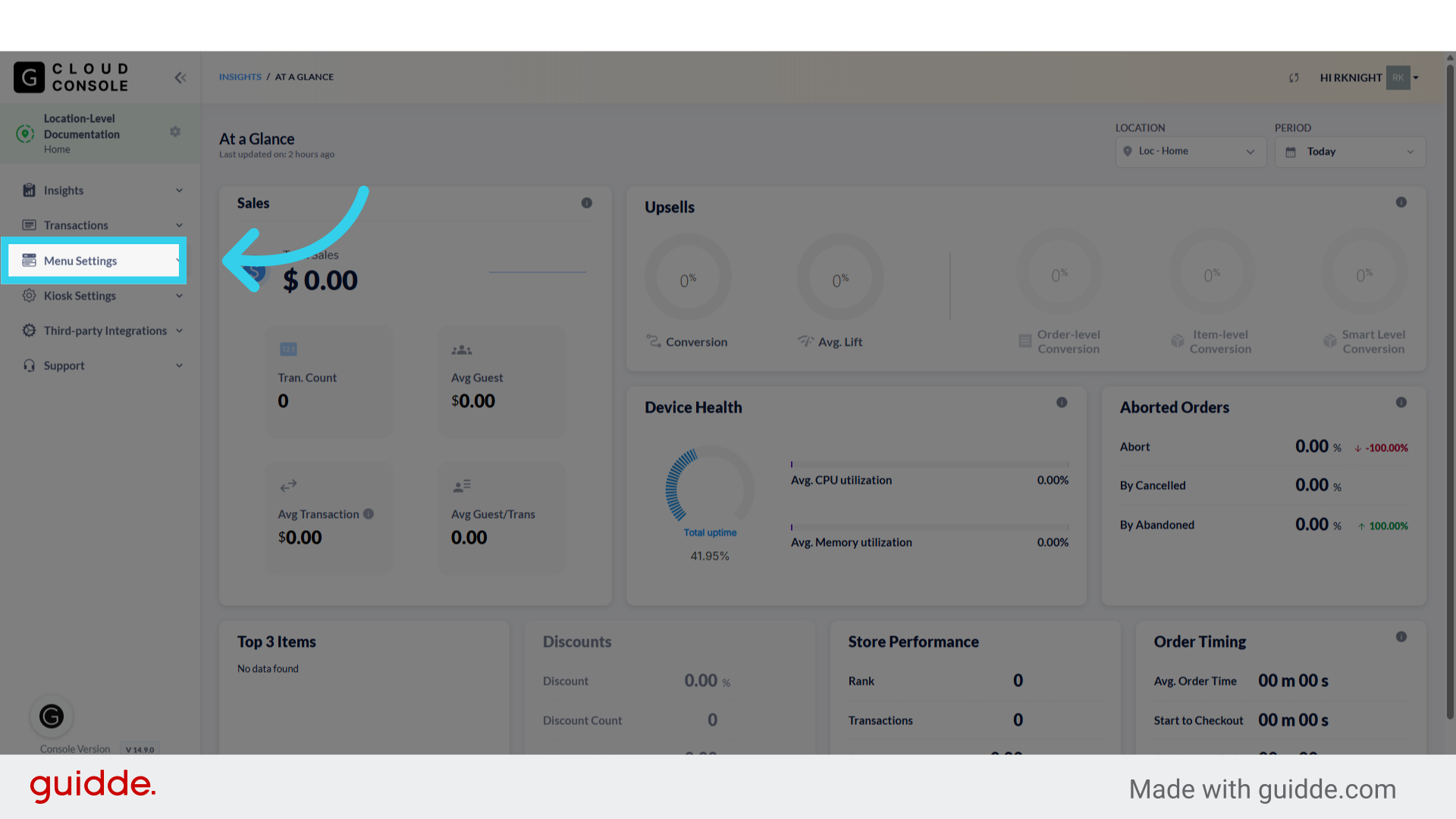
1. Click "Menu Settings"
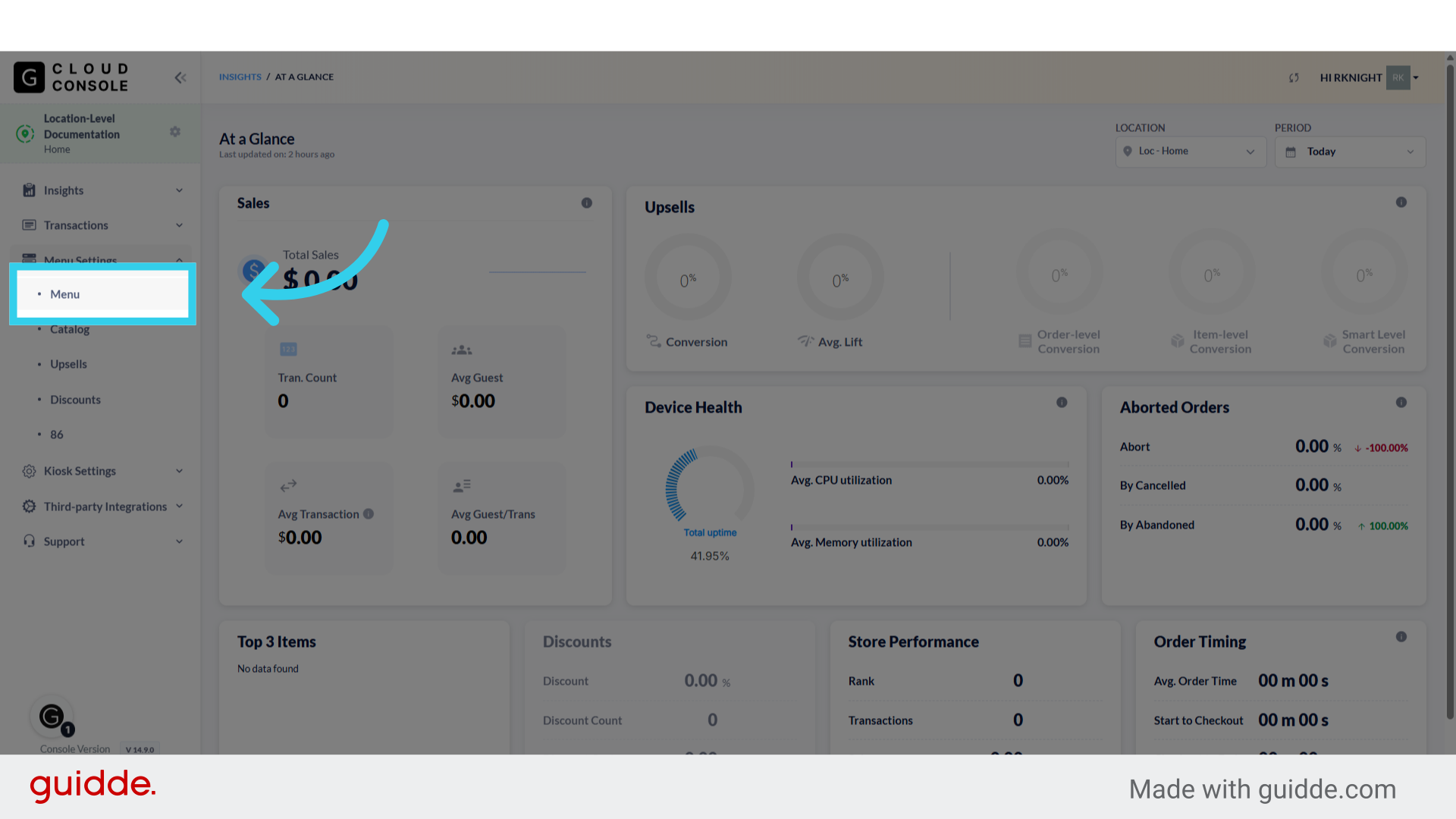
2. Click "Menu"
3. We can use Bulk Edit to update Categories...

4. Items...

5. And Modifiers
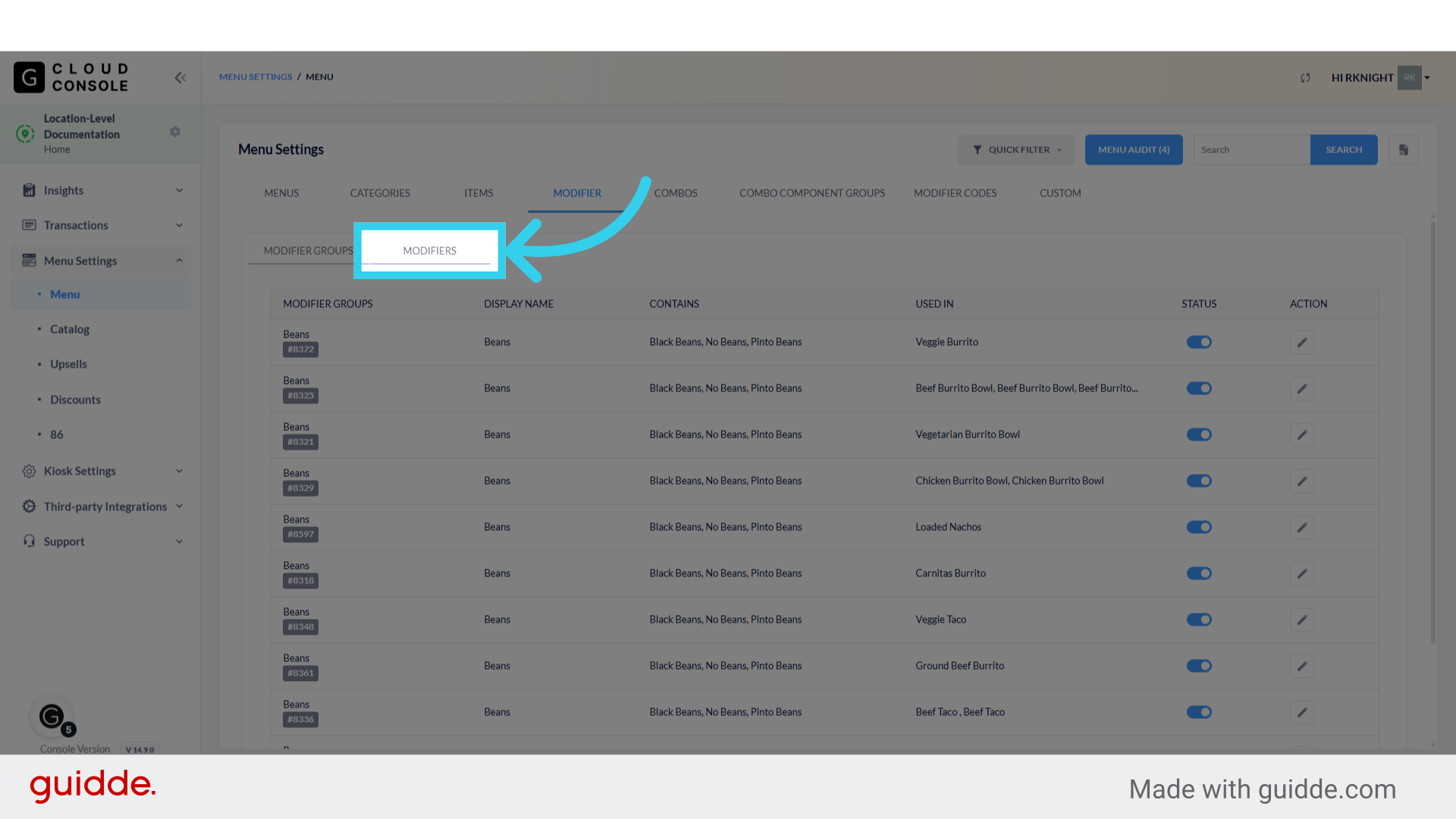
6. We can use the filter, audit, and search tools to limit the display to specific items that we want to update

7. To enable bulk editing, we start by clicking the checkboxes to the left of the items we want to update
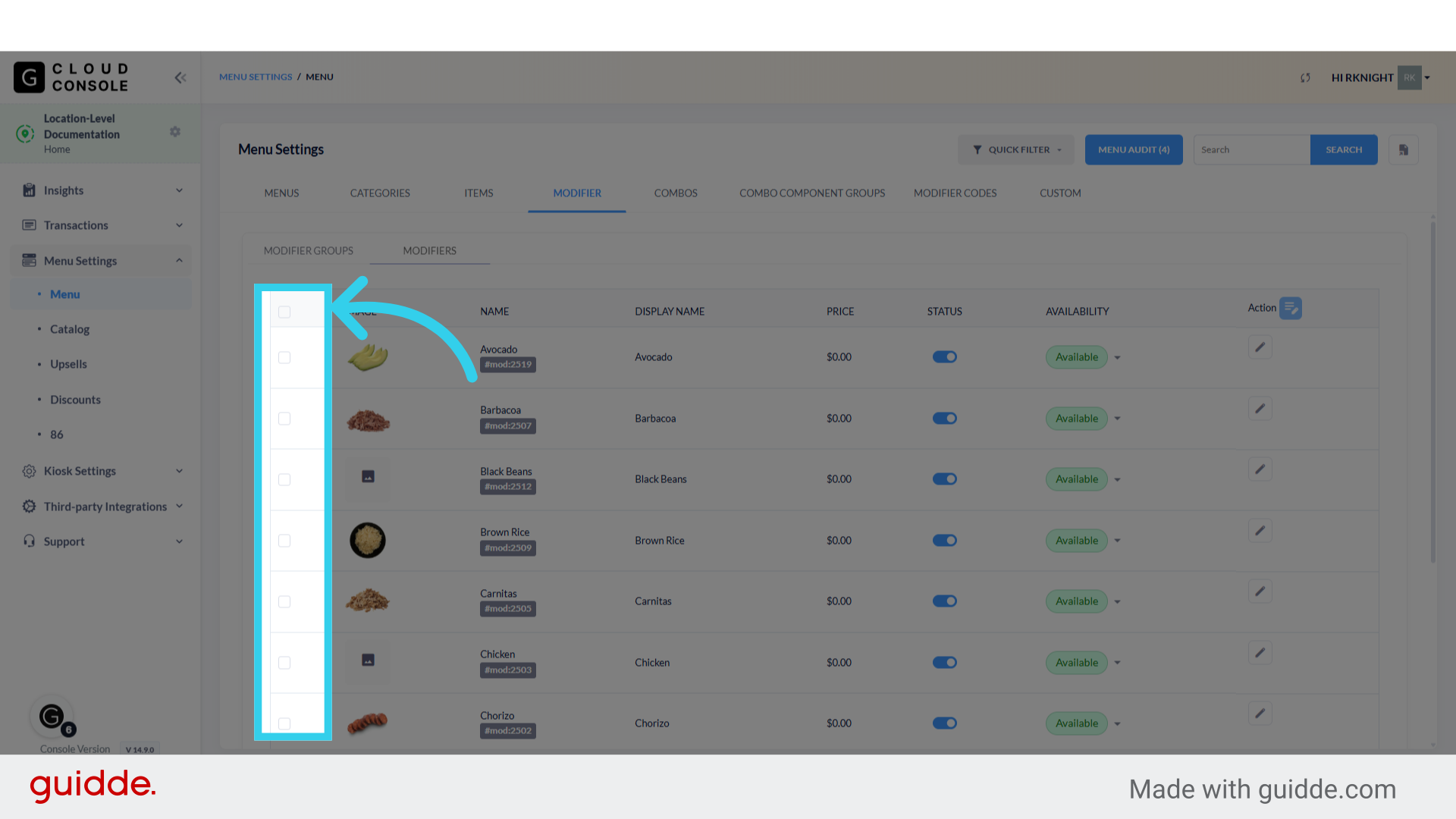
8. Then we can click the blue "Bulk Edit" button at the top of the action column
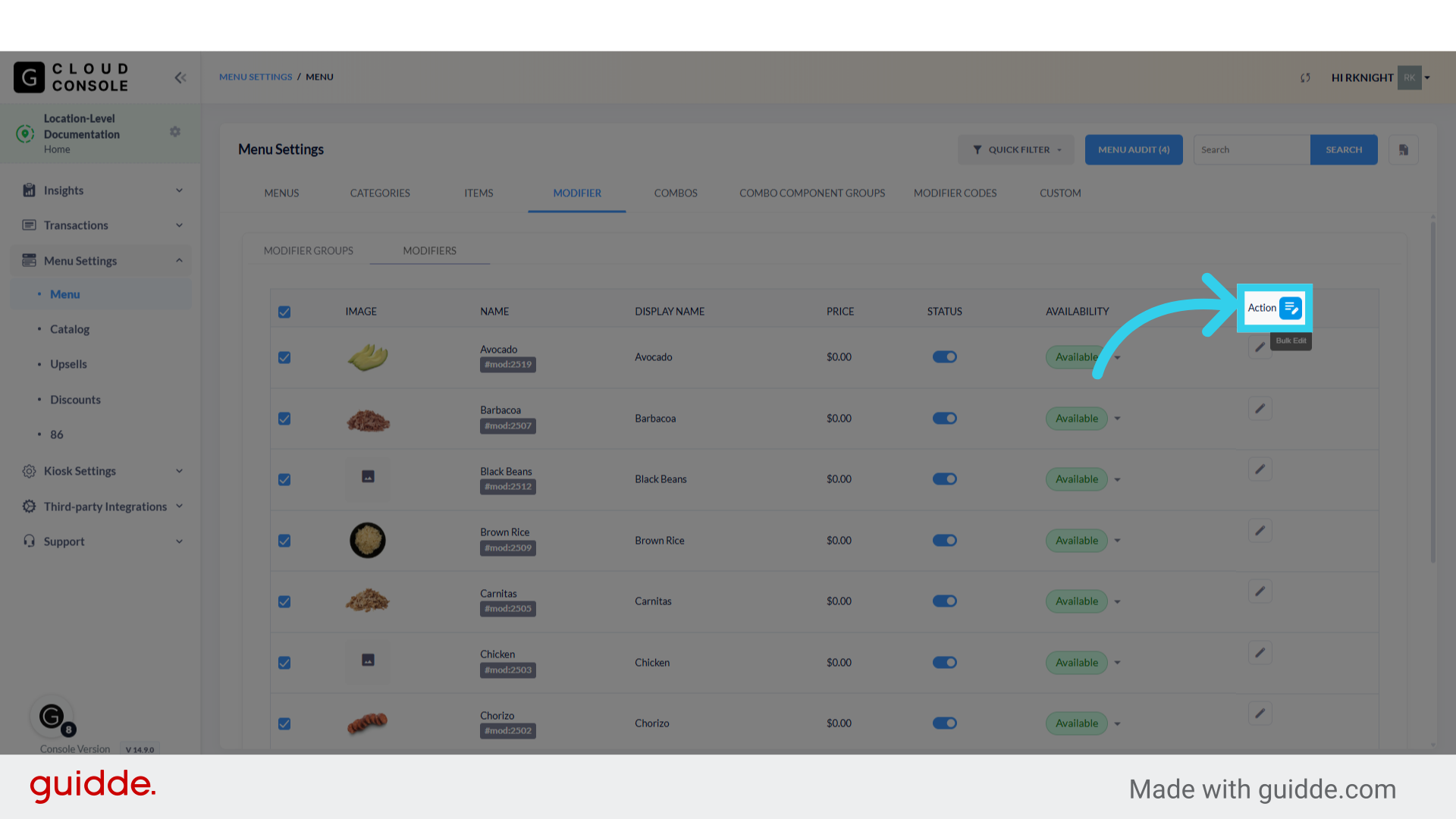
9. It's important to note that categories...

10. Items...

11. And modifiers each have unique "bulk edit" options available

Bulk Edit Options
As mentioned above, the GRUBBRR Enterprise Console supports unique editing options for categories, items, and modifiers.
For categories, we can:
Activate or deactivate multiple categories at once
Upload a single placeholder image that will be displayed for all selected categories
For items, we can:
Activate or deactivate multiple items at once
Set the selected items to display in Standard, Builder, or Pizza modifier mode
Enter a common calorie value for all selected items
Upload a single placeholder image that will be displayed for all selected items
For modifiers, we can:
Assign a generic Display Name for all selected modifiers
Activate or deactivate multiple modifiers at once
Enter a common calorie value for all selected modifiers
Upload a single placeholder image that will be displayed for all selected modifiers