PAR Brink Troubleshooting: What to do if Items Automatically Archive Themselves after a Menu Sync
Last updated: August 8, 2026
Why are some items automatically archiving, rather than being added to a client's PAR Channel Menu?
Occasionally, we've encountered an issue where clients using a PAR Channel Menu (as described in our Kiosk-Ready Menu guide) are seeing items automatically archive after a menu sync. This could be a result of the item not being mapped to the correct menu in PAR. If that's the case, the client must re-map the item in the PAR portal before we can use it on their Kiosk menu.
In this guide, we'll walk you through the process of identifying whether an archived item has been mapped correctly in PAR.
1. Click "Menu"

2. Click "Catalog Management"

3. Click "Items"

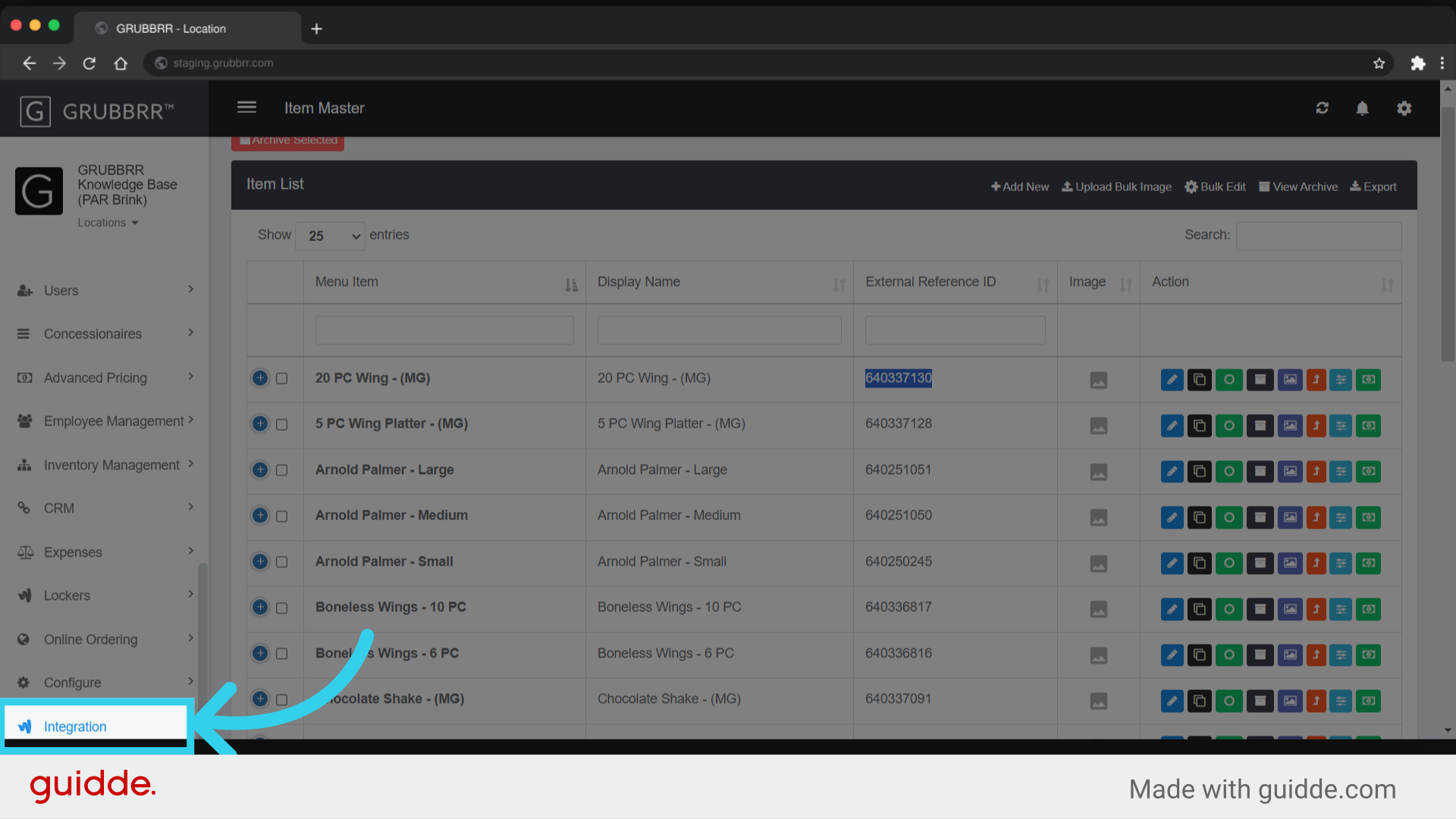
4. Copy the External Reference ID of the item you want to verify

5. Click "Integration"
6. Click "PAR Brink POS"

7. Click "Export Last Imported POS Data"

8. Switch to your preferred JSON Viewer and open the "Menu.json" file you just downloaded
More details about this process can be found here.

9. Find the ID of the Channel Menu we pull

10. Search for the item's External Reference ID
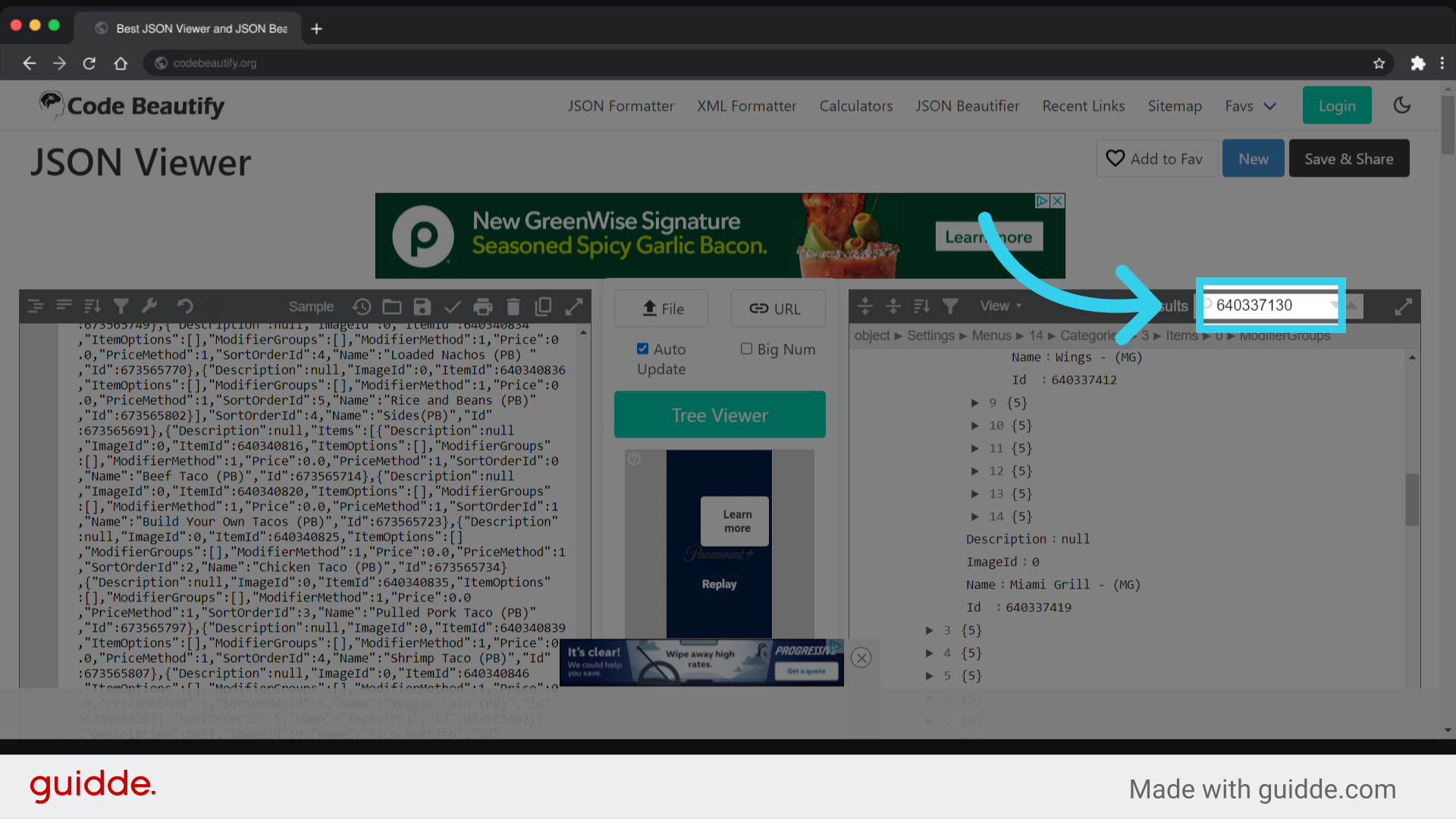
11. If the item does not appear in the appropriate Menu List, the client will need to update the PAR channel menu in their POS
