How to set "Business Hours" in the GRUBBRR Console
Last updated: August 8, 2026
Can I control when my GRUBBRR Kiosk will accept orders?
The Business Hours function in the GRUBBRR Console allows us to configure when customers can use a Kiosk at a given location. These settings also let us customize how the Kiosk looks outside of business hours- i.e., if we want to show a custom banner when the Kiosk is out of service, or if we would prefer to make the device appear "inactive" instead. These settings can be configured at the location level by following the steps outlined below.
1. Click "Kiosk Settings"

2. Click "Customizations"
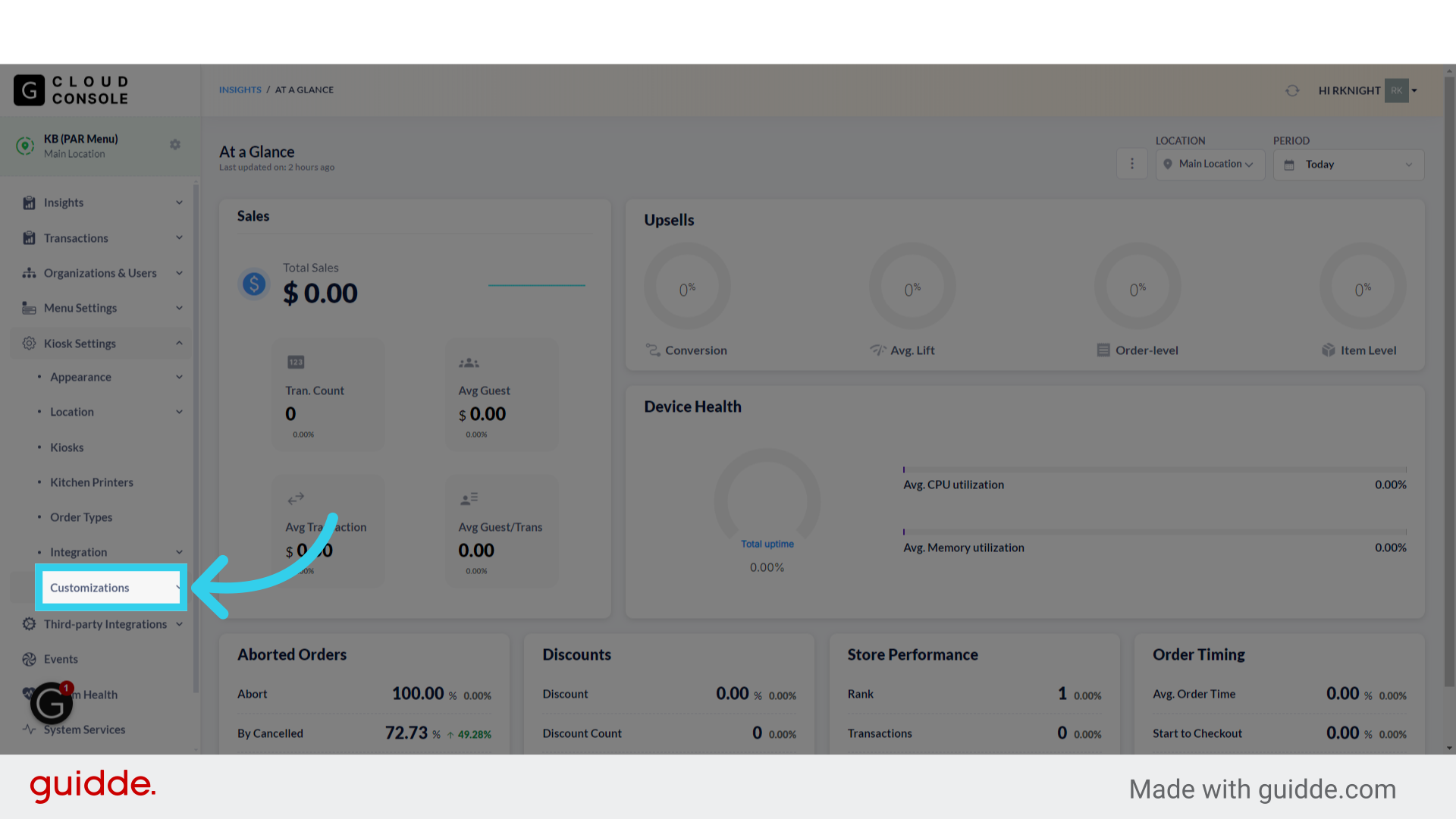
3. Click "Business Hours"

4. Business Hours are off by default- click here to activate this feature

5. Click "Use POS store hours if available"
This function currently works with Olo and Toast.

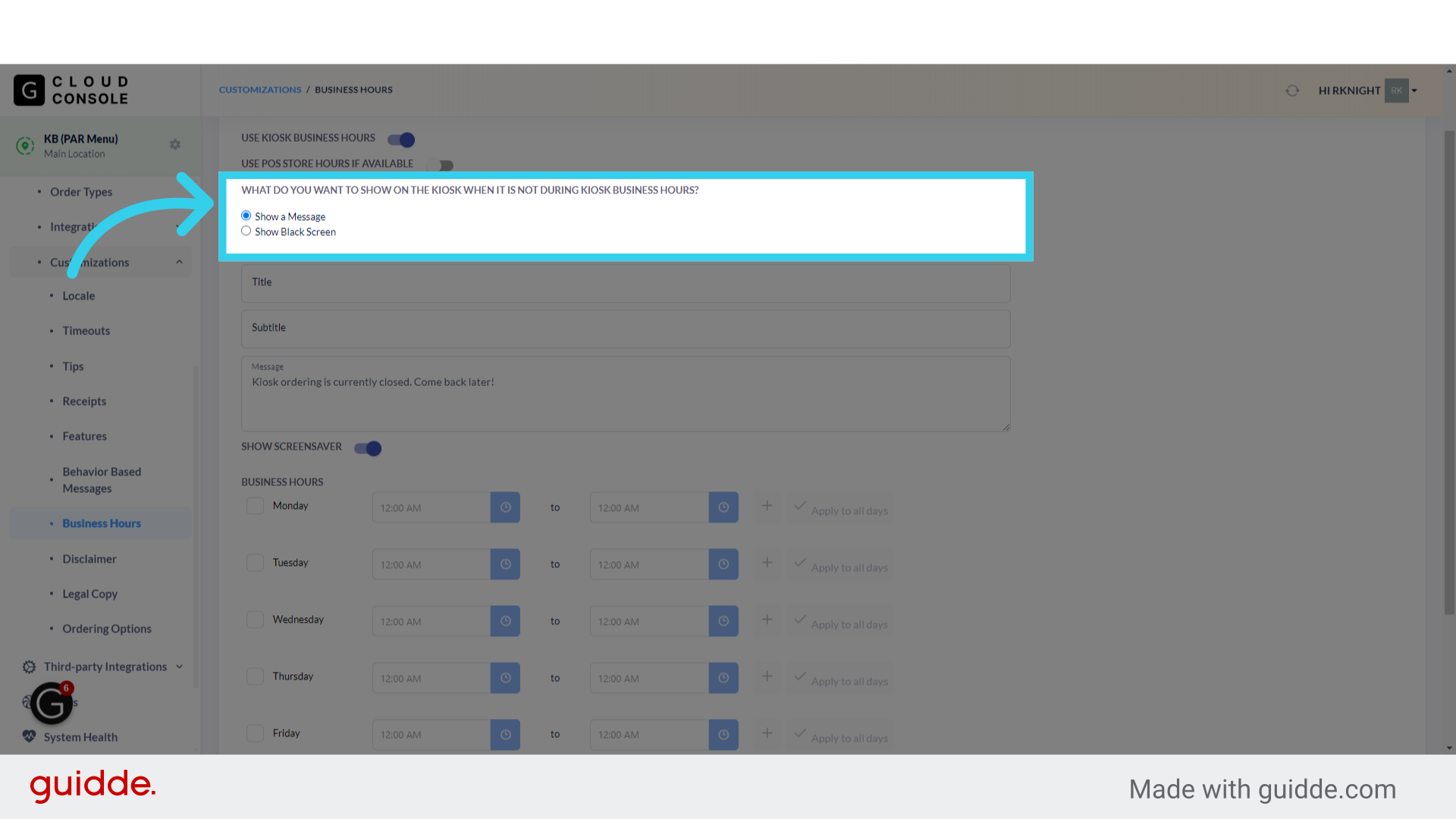
6. First, determine if you want the Kiosk to display a banner or a blank screen outside of business hours
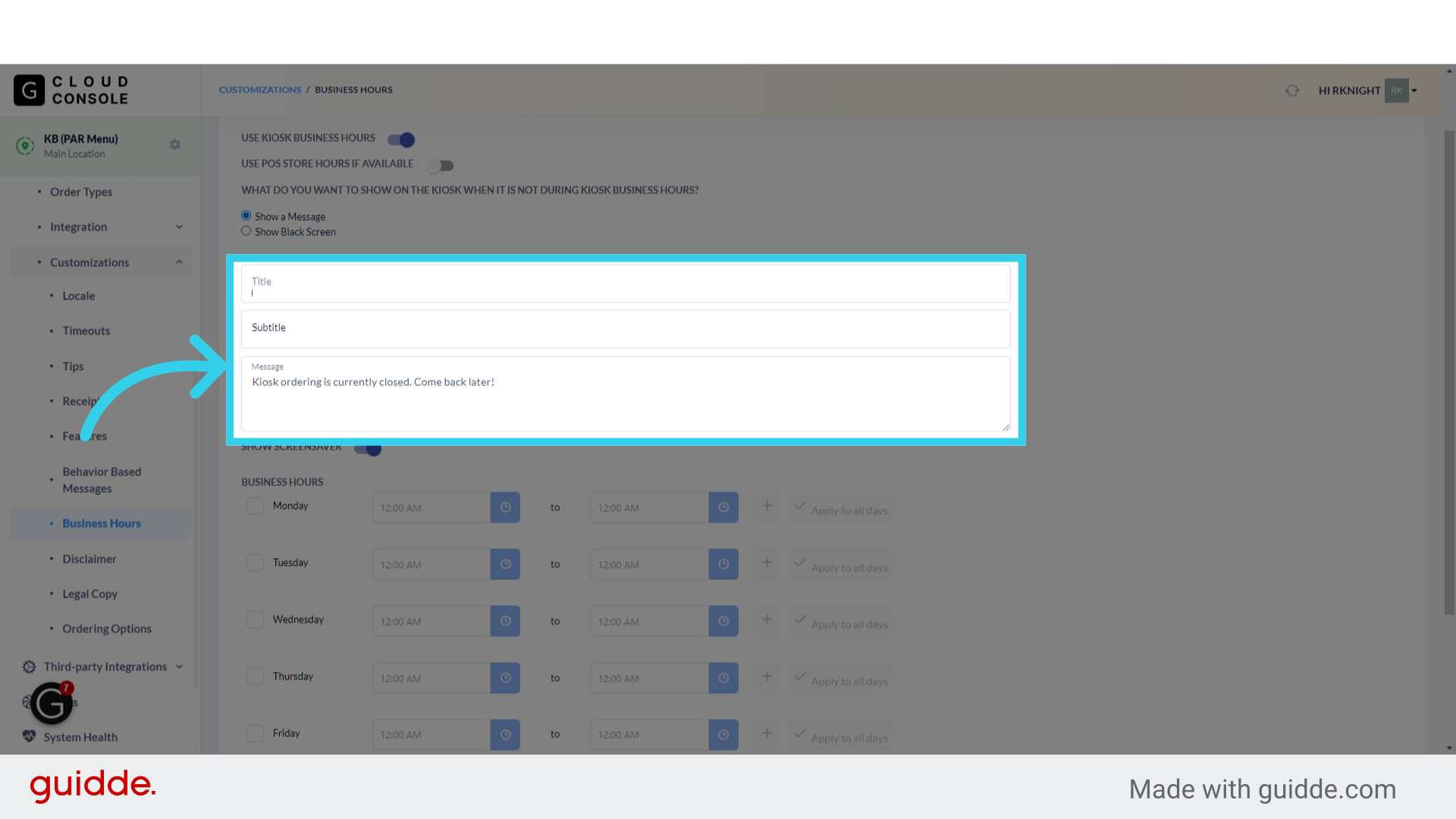
7. If you chose to display a banner, enter a Title, subtitle, and message for the banner here
8. If you're showing a banner, you can elect whether or not to show the screensaver behind the notification

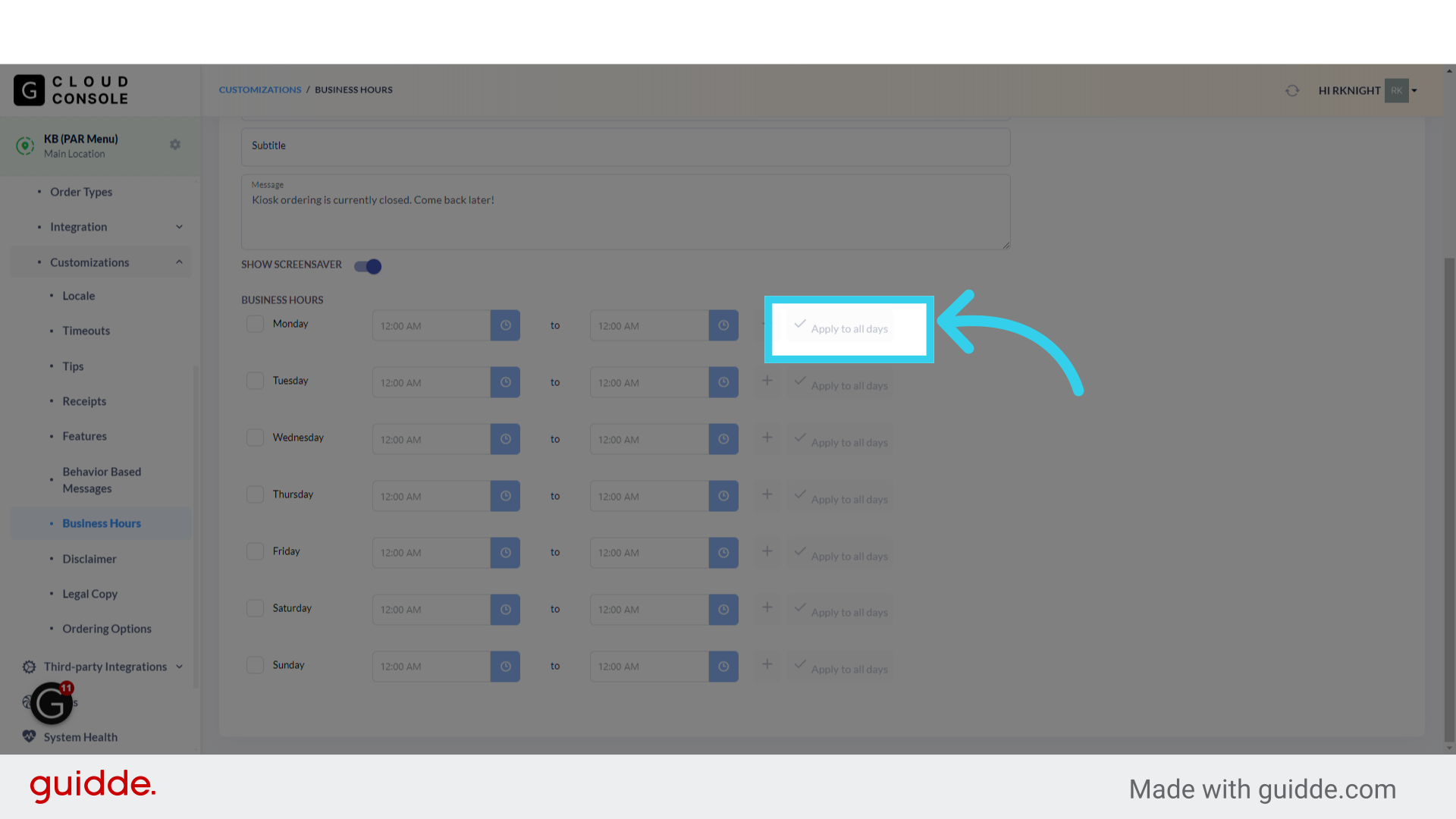
9. Finally, we can configure operating hours here

10. If the client will use the same hours every day, click "Apply to All Days" to simplify the setup process