How to Customize Receipts in the GRUBBRR Enterprise Console
Last updated: August 8, 2026
Can I edit my Kiosk receipts?
Receipts from your GRUBBRR Kiosk can be configured in a variety of ways, depending on your brand's unique preferences. You can configure traditional paper receipts, plus email, SMS, and digital receipt downloads (via QR codes) by signing in to the GRUBBRR Console at the location level, then following the steps outlined below.
Go to reg.gcc.grubbrr.com
1. Click "Kiosk Settings"

2. Click "Customizations"

3. Click "Receipts"
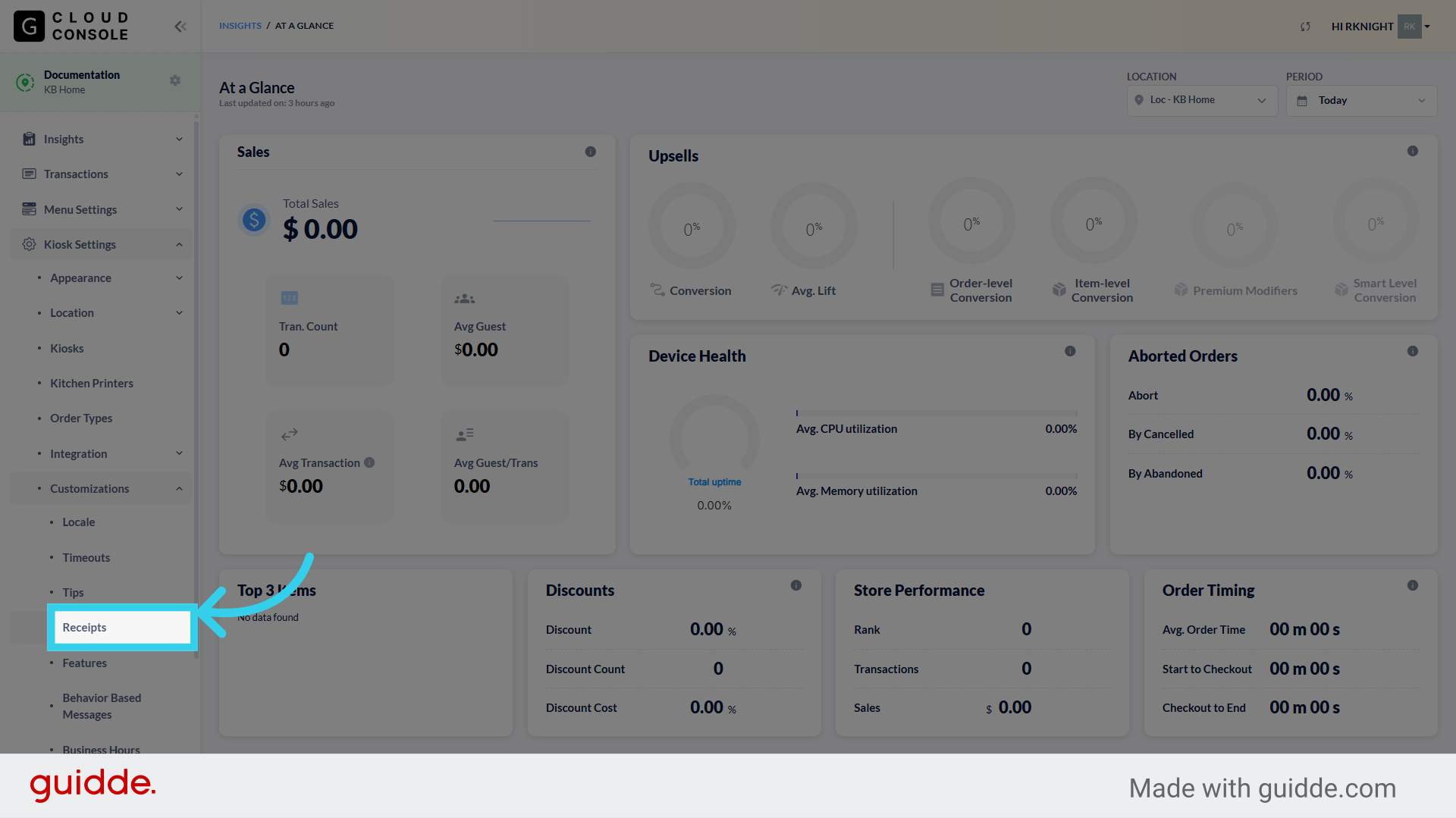
4. First, we can configure how "Contact Info" for your location is displayed on Kiosk receipts
You can change how your address and phone number are displayed on your receipts, or remove the information entirely.
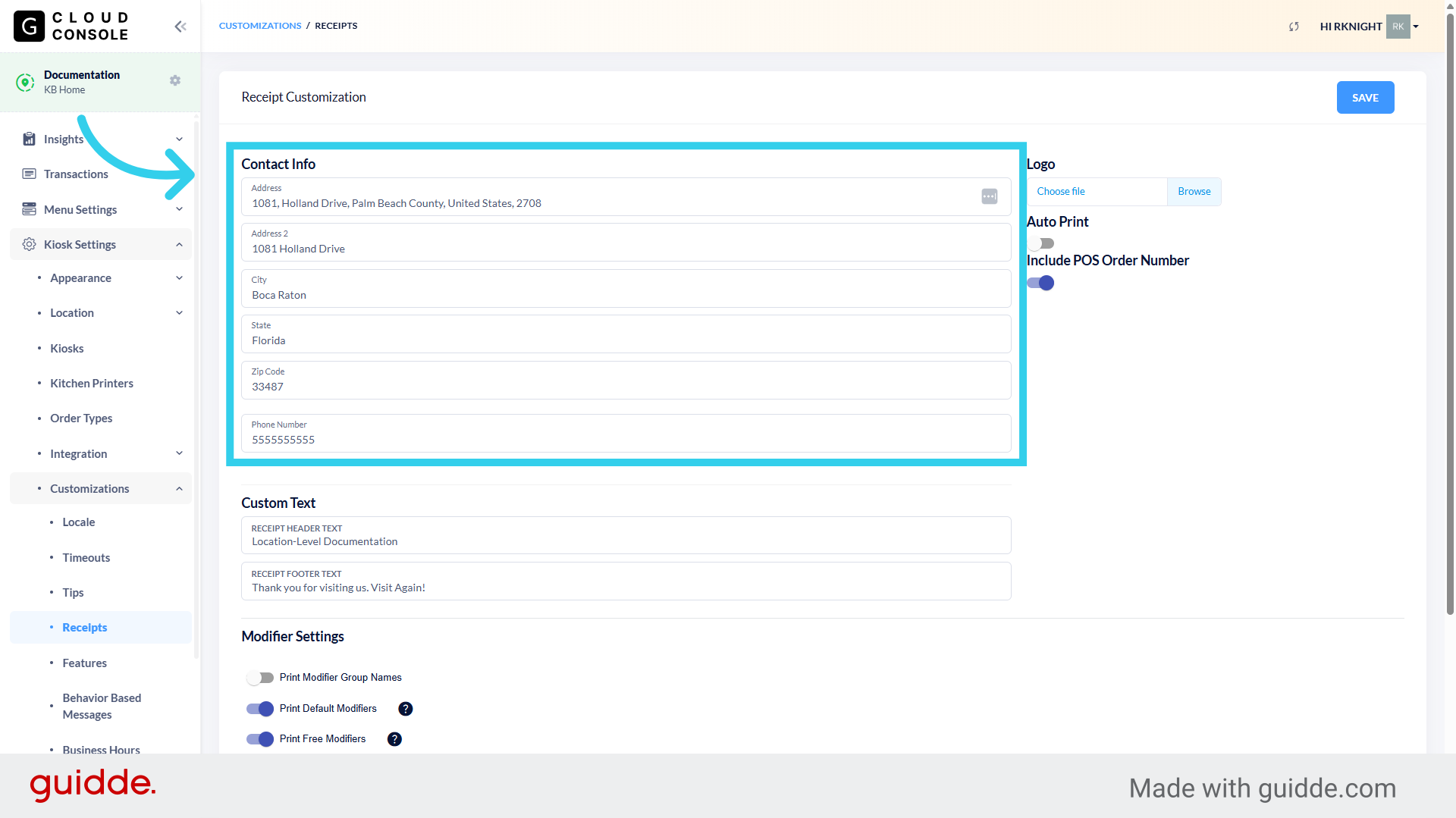
5. You can click here to upload a specific version of your logo that will be added to Kiosk receipts
6. "Auto Print" lets you choose whether the Kiosk will automatically print a paper receipt, or if customers will need to "opt in" to have the receipt printed
This is a great tool if you want to prioritize a "paperless" ordering option

7. If desired, we can set Kiosk receipts to include the order number assigned by the POS
This can make it easier to keep track of orders if the customer needs a refund or other assistance later.

8. If you want to add branded messaging to your receipts, you can add it through the "Custom Text" fields
By default, we use your location's name as the header; however, this can be tweaked according to your brand's needs.

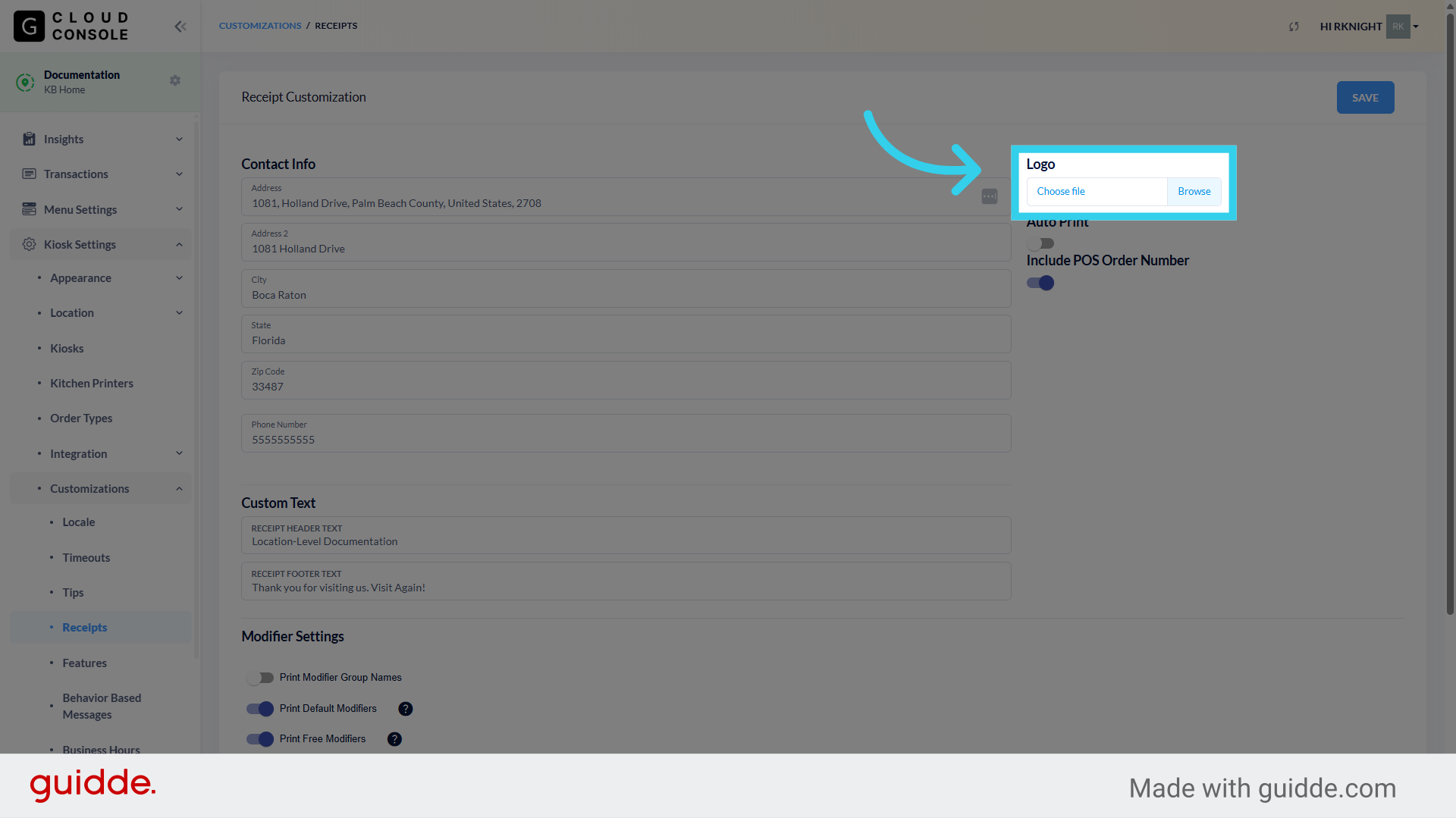
9. The "Modifier Settings" flags allow us to control how item add-ons are tracked and displayed on Kiosk receipts
This allows us to break modifiers down into groups, show any modifiers that the customer received for free, and more
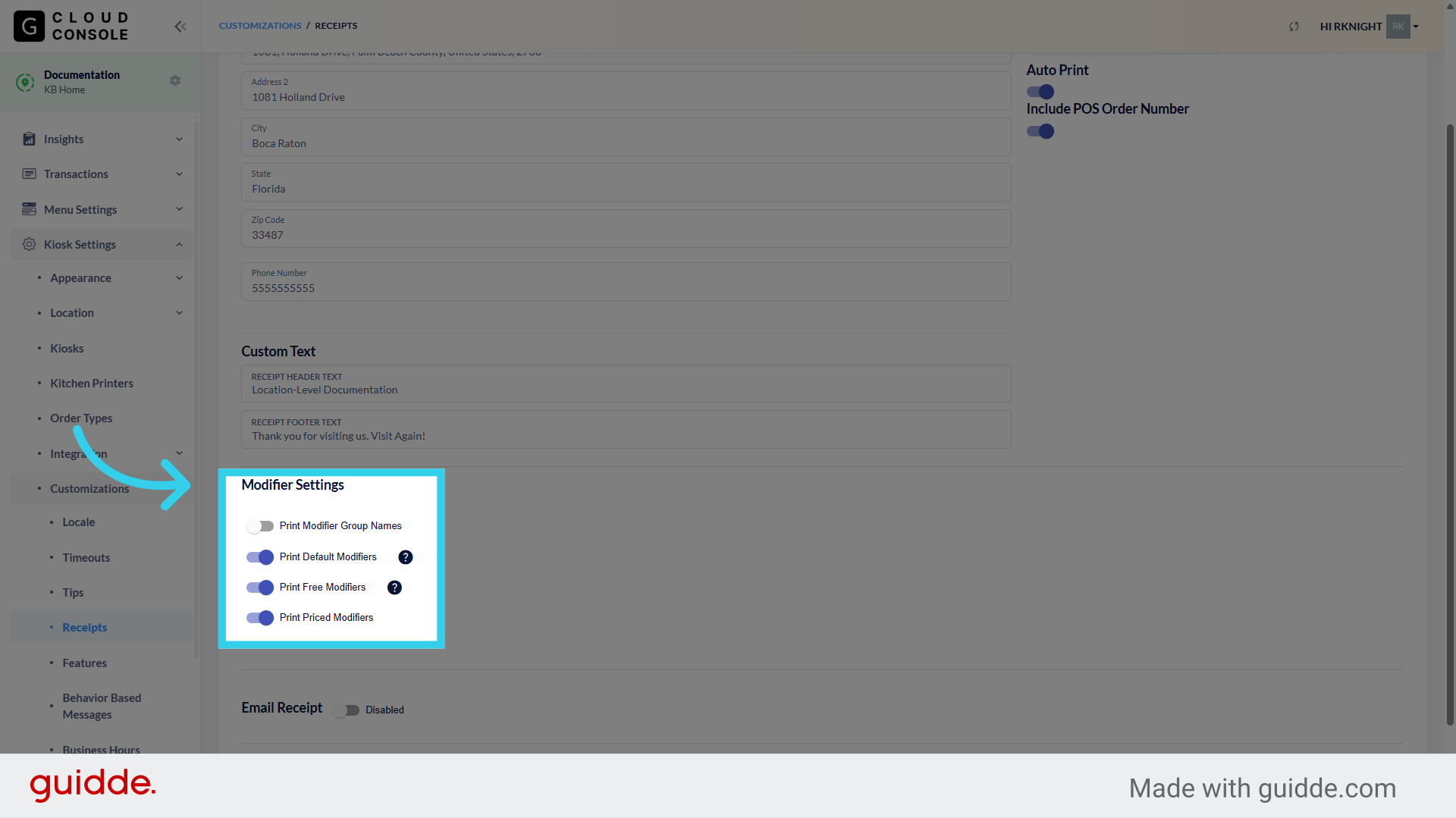
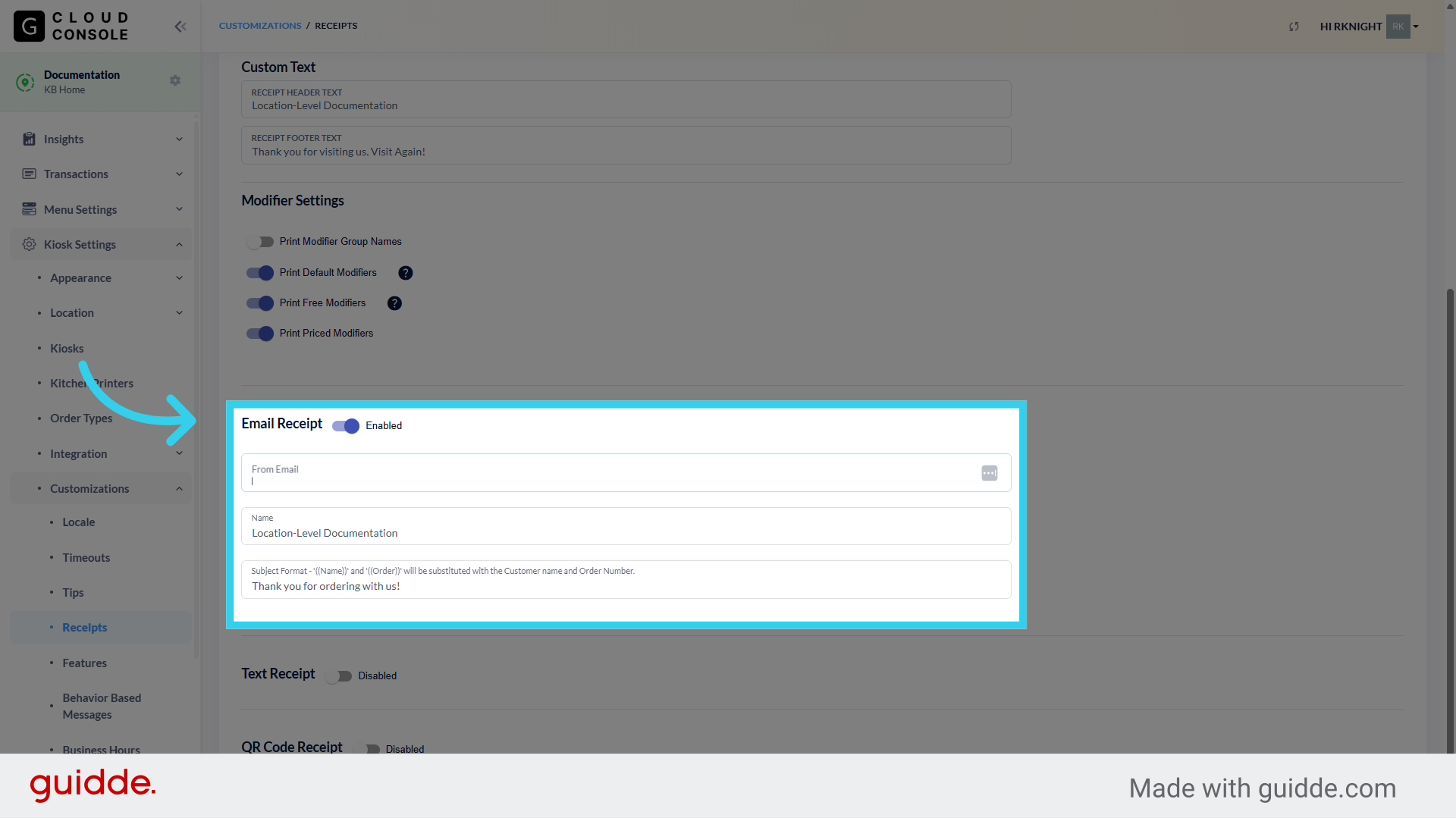
10. If desired, you can allow customers to opt into Email receipts here
You'll need to define a "sender" email for your receipts, and give the email receipts a Name/Title and a subject line that makes them easy for guests to recognize.
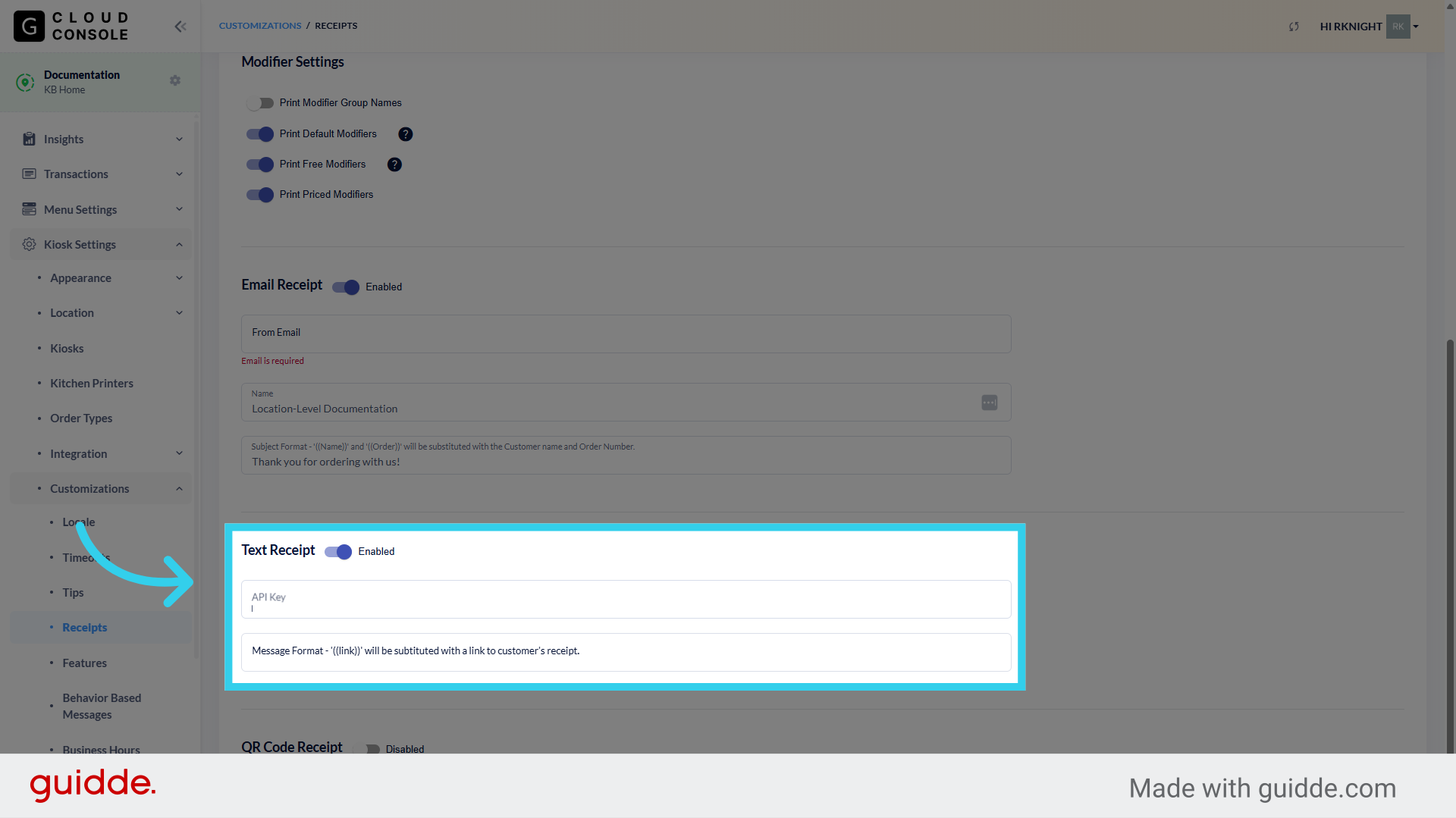
11. SMS/Text Receipts are powered by GRUBBRR's Console platform, and you will need to subscribe to an additional program before they can be enabled.
SMS receipts will send customers a link that allow them to download their receipt on their mobile device.
12. Finally, QR receipts allow users to scan a code on the Kiosk screen for a direct download of their Kiosk receipt
This is a convenient alternative to SMS messaging, powered directly through your Kiosks.

13. If you're using QR and paper receipts, you can set QR as an automatic "back-up" if the Kiosk printer fails
This ensures that receipts are always available, even if the Kiosk is out of paper.
