How to use Age Verification for Alcoholic Items in the GRUBBRR Console
Last updated: August 19, 2026
If you want to sell alcoholic items on your GRUBBRR Kiosk, our system can display a pop-up requiring users to validate their age before adding the item to their cart. This is a two-step process, requiring us to:
Enable age verification as a Kiosk feature, and
Mark which items in the menu require age verification
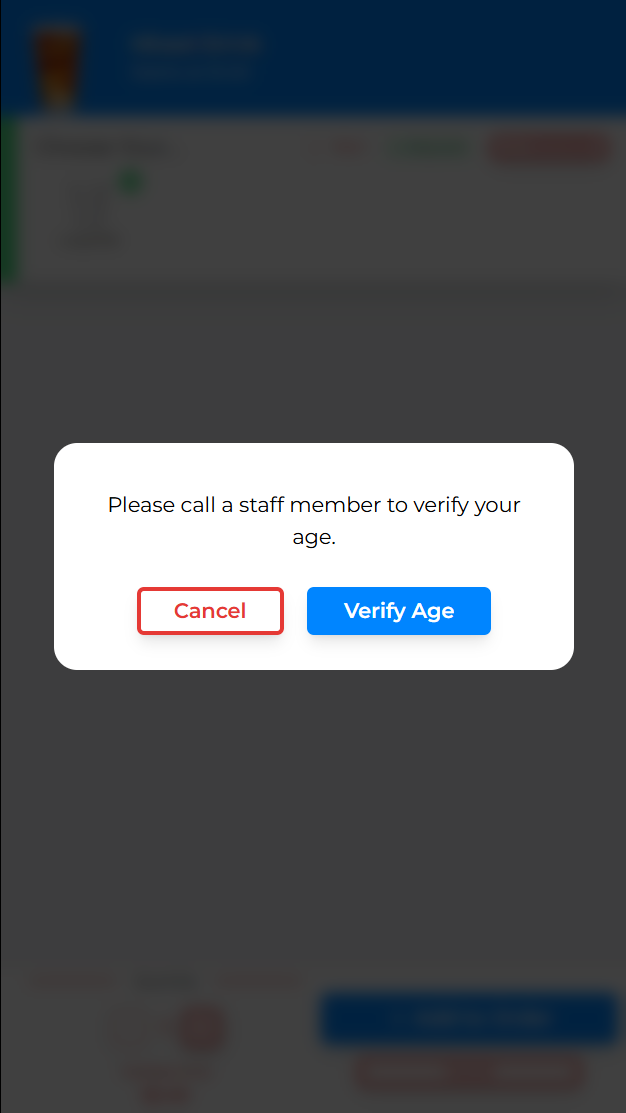
When you've completed both steps, the Kiosk will add an extra step to any orders containing alcoholic items. When customers attempt to add one of these items to their cart, the Kiosk will now ask them to verify their age as pictured below.
How to Enable Age Verification as a Kiosk Feature
Let's start by looking at how we turn age verification on for Kiosks. This can be configured at the location level, or as part of a Kiosk Dataset if your brand uses Enterprise controls. In this guide, we'll walk through the process at a location in the GRUBBRR Console.
Go to gcc.grubbrr.com
1. Open the "Kiosk Settings" dropdown here

2. Click "Customizations"

3. Click "Features"

4. Click here to activate Age Verification on the Kiosk

5. We offer two ID verification flows; the "Self-Validation" option simply requires the user to acknowledge that they are of age to order alcoholic items
This works best for locations where customers will have to pick up their beverages from a counter, where Staff can confirm that the information they provided is correct.

6. "Staff Approval" actively halts the order flow when the customer selects an alcoholic item, and requires a staff member to enter a passcode before the item can be added to their cart
This configuration is great for locations with "Grab and Go" options, as it ensures that all customers have their ID checked before they can finalize their order.

How to Mark an Item as Alcoholic in the Console
Once we've activated Age Verification as a Kiosk feature, we're ready to tell the Console which items will prompt ID checks. This setting is managed on an item-by-item basis, either at the location level or as part of an Enterprise Menu Dataset. You can tag an item as Alcoholic by following the steps outlined below.
1. Click "Menu Settings" in the sidebar

2. Click here to open the Menu Manager

3. You can update a specific category by selecting the appropriate category dropdown, then clicking "Edit" in the additional settings menu

4. Click here to mark the item as Alcoholic

5. Save your changes, then repeat for other items as needed

6. Once you've marked all required items as alcoholic, remember to push your changes to the Kiosk!
