How to set up Behavior Based Messages in the GRUBBRR Console
Last updated: August 8, 2026
Can I add custom pop-ups or alerts to my Kiosk?
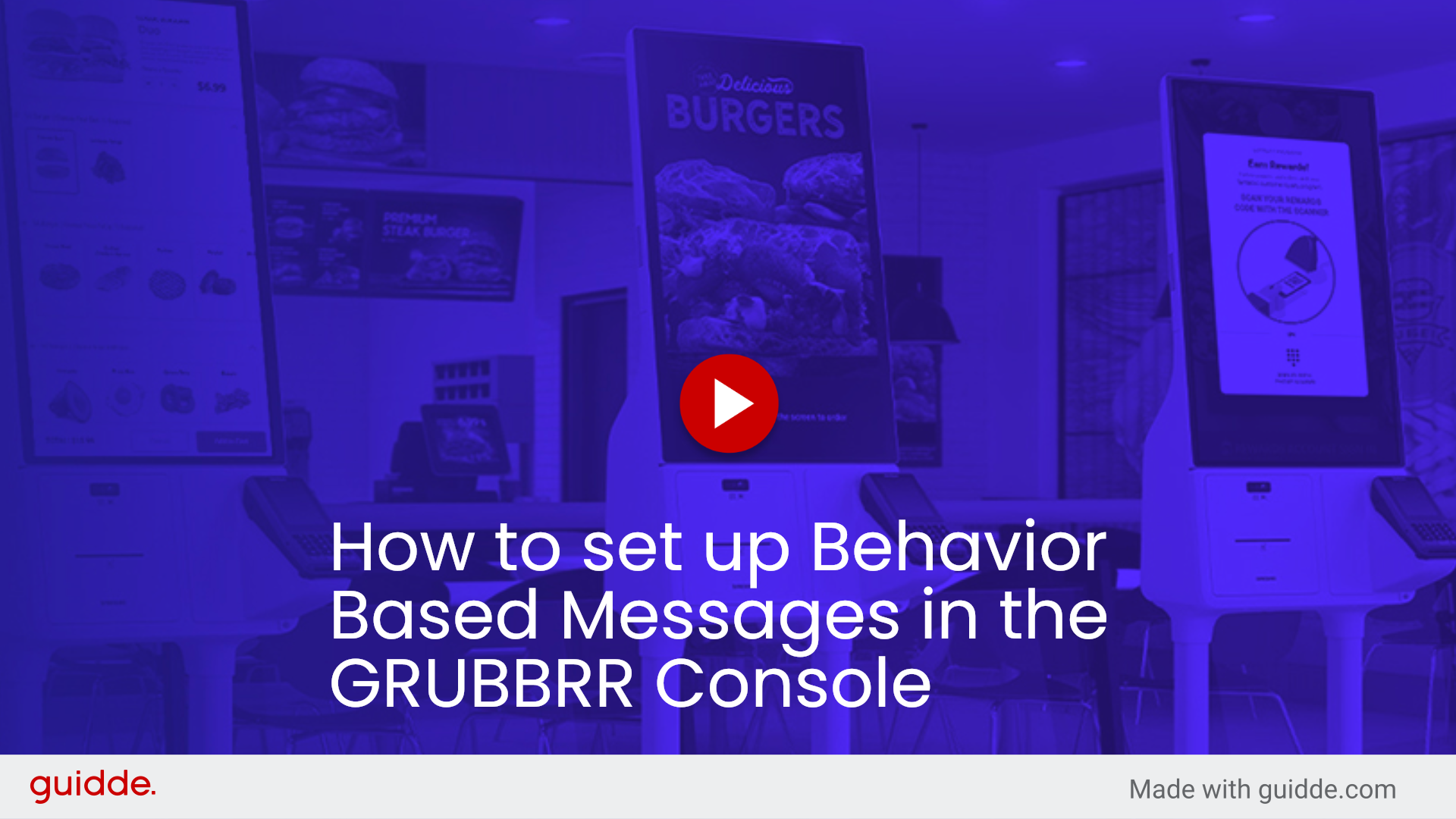
Behavior Based Messages will trigger whenever a customer adds an item, or an item from a selected category, to their order. This is a great way to enhance Kiosk interactivity and engagement, as these messages can be used to guide customers through the ordering process, or as an after-order reminder of what they should do now that their order is submitted. Behavior Based Messages can be configured at the Location Level by following the steps outlined below.
Go to console.grubbrr.com
1. Click "Kiosk Settings"
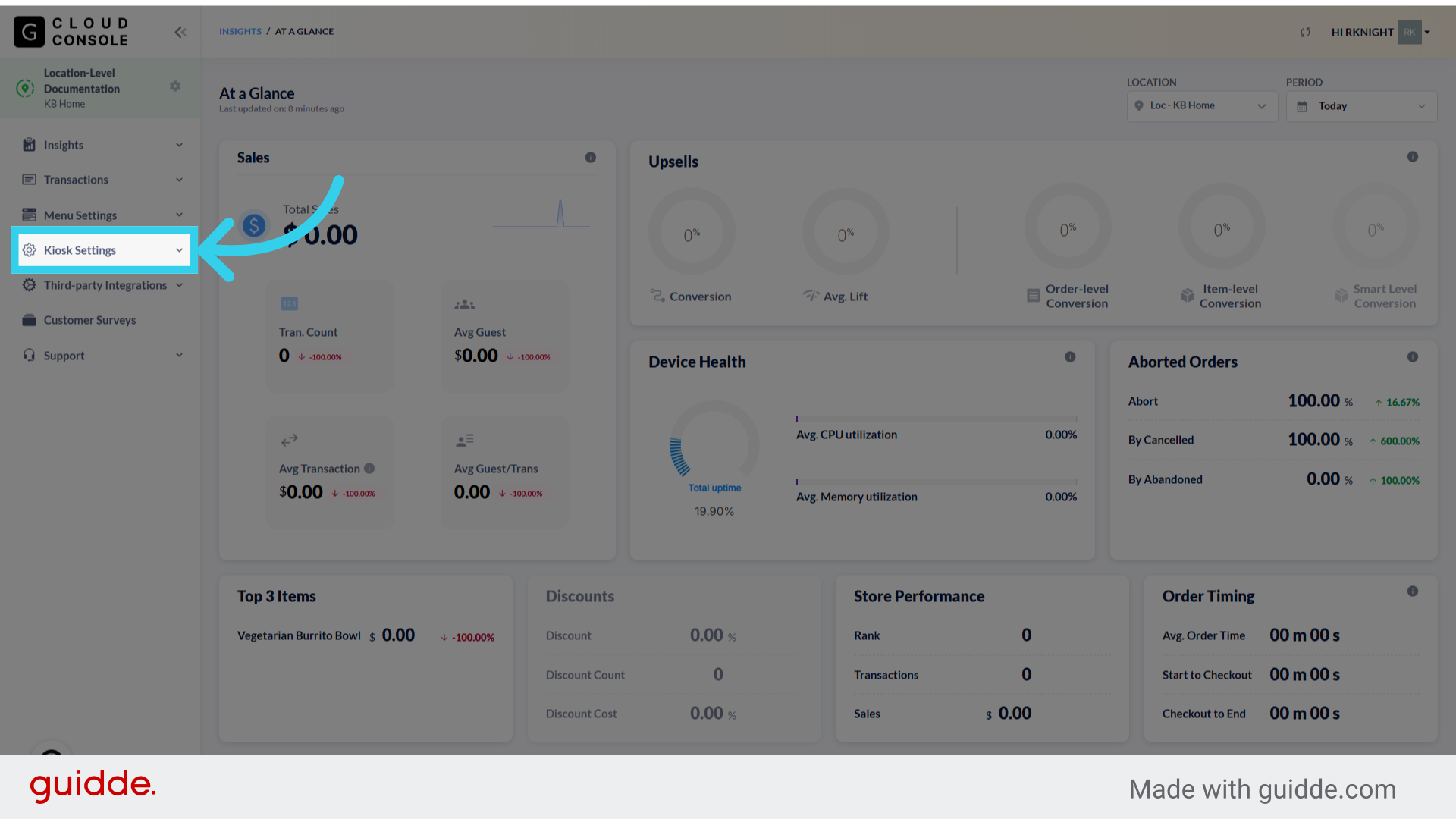
2. Click "Customizations"

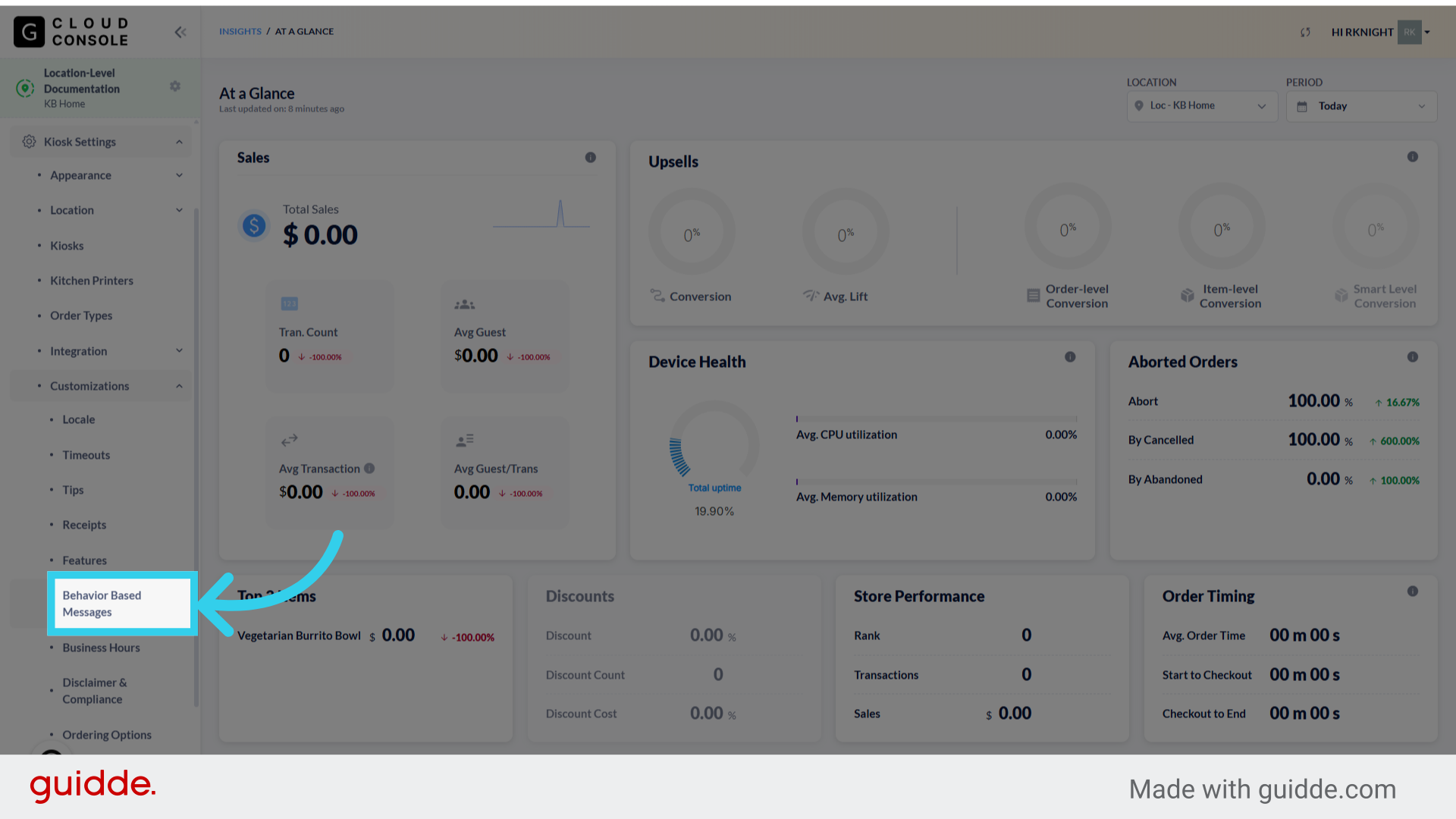
3. Click "Behavior Based Messages"
4. Click "Add New"

5. Behavior Based Messages can be configured in all active Kiosk languages
This allows us to effectively communicate these messages to users in English, Spanish, and French (if enabled for your location).
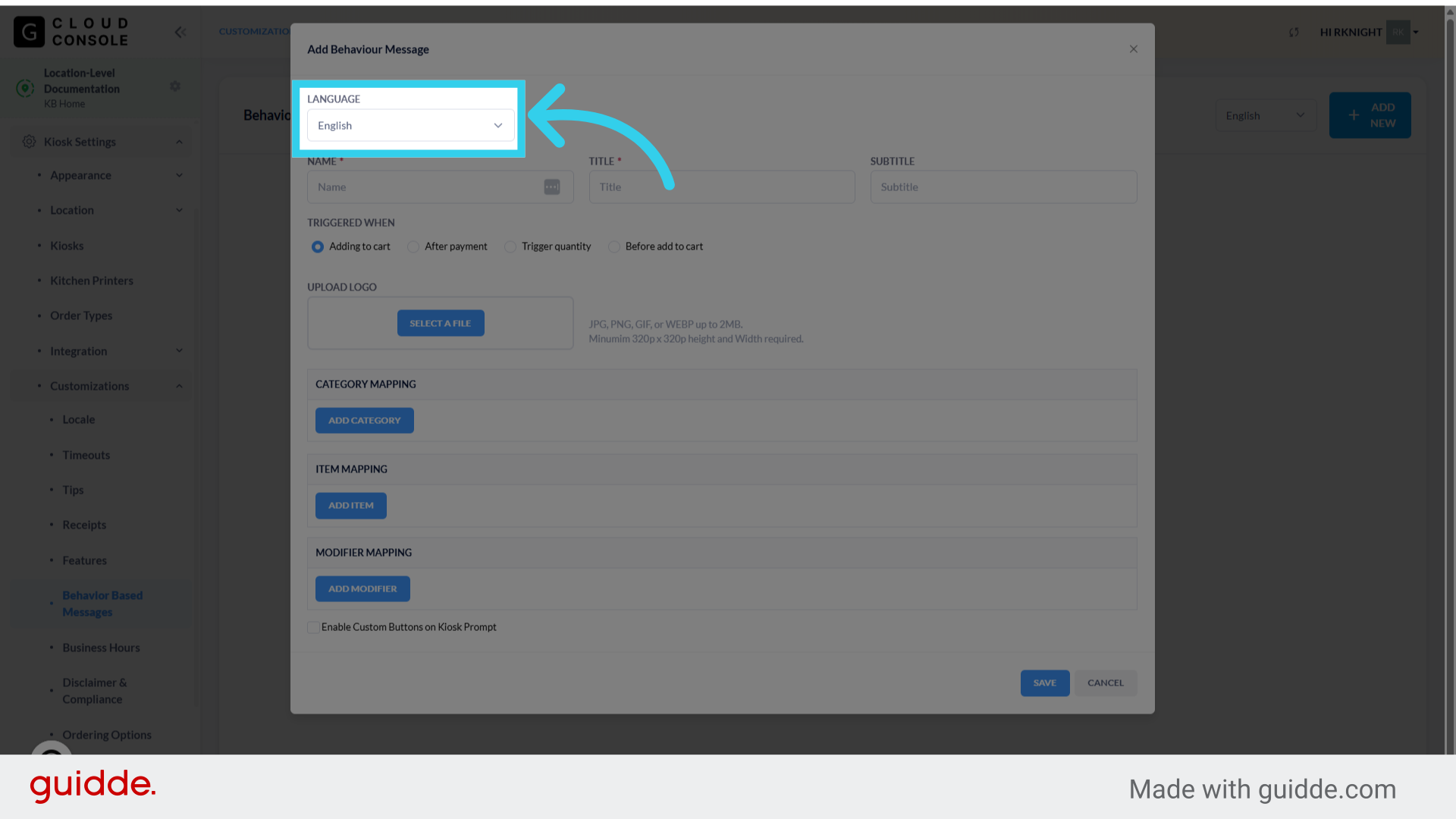
6. Every message should get a clear, descriptive Name
This is how we'll identify the message inside the Console.

7. The "Title" is the text that will display at the top of the custom message pop-up
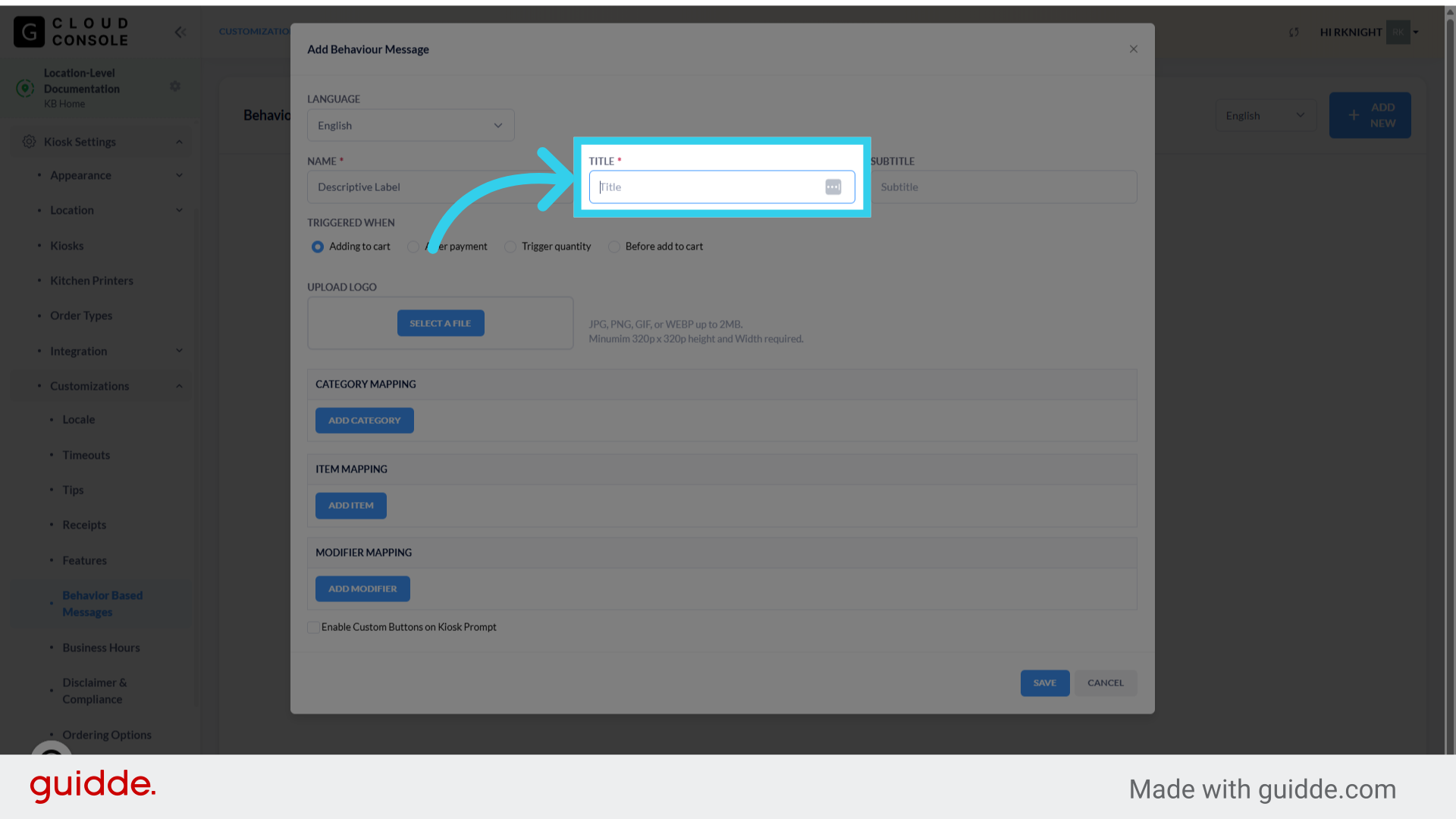
8. We can add additional text or instructions in the "Subtitle" field
This can be used for additional context, or just to provide clear instructions to customers.
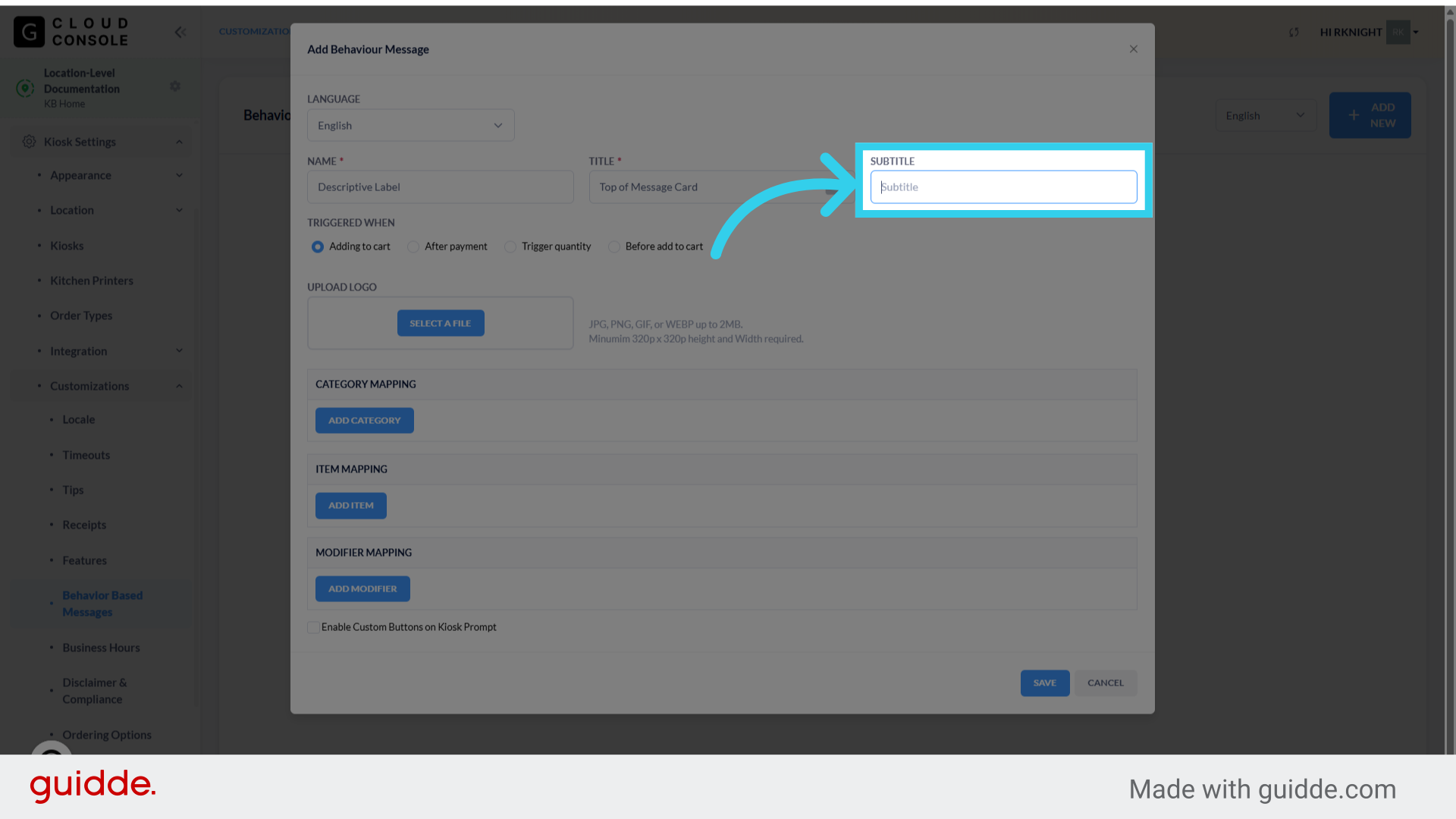
9. Next, we need to define when the Kiosk should show the custom message

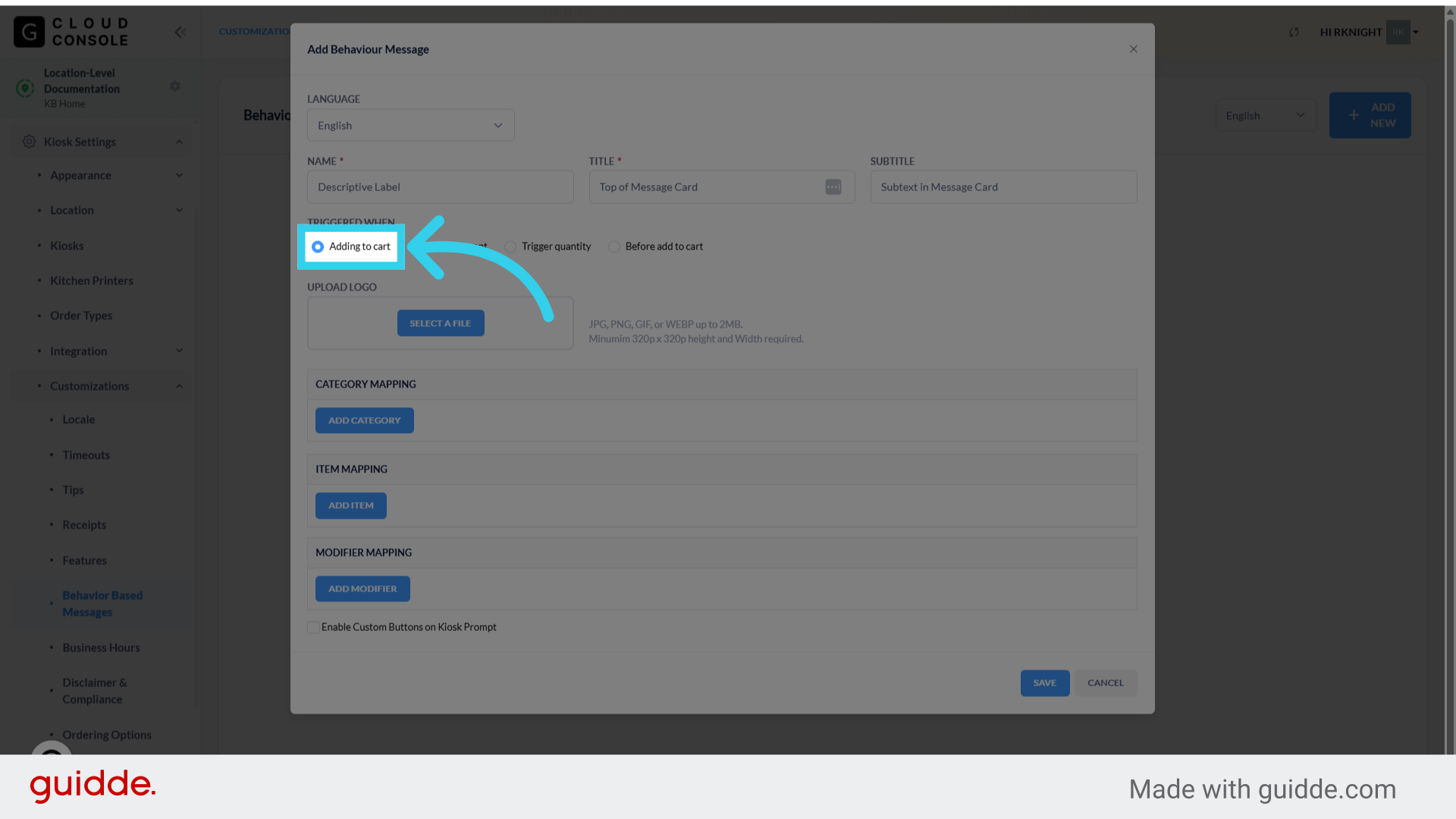
10. Behavior Based Messages can be set to trigger when an item is added to the user's cart...
For instance, we might show a Surgeon General's warning when a customer adds Sushi to their order.
11. After payment has been submitted...
For example, we can direct customers to the counter to pick up a fountain cup for their order before taking their seat.

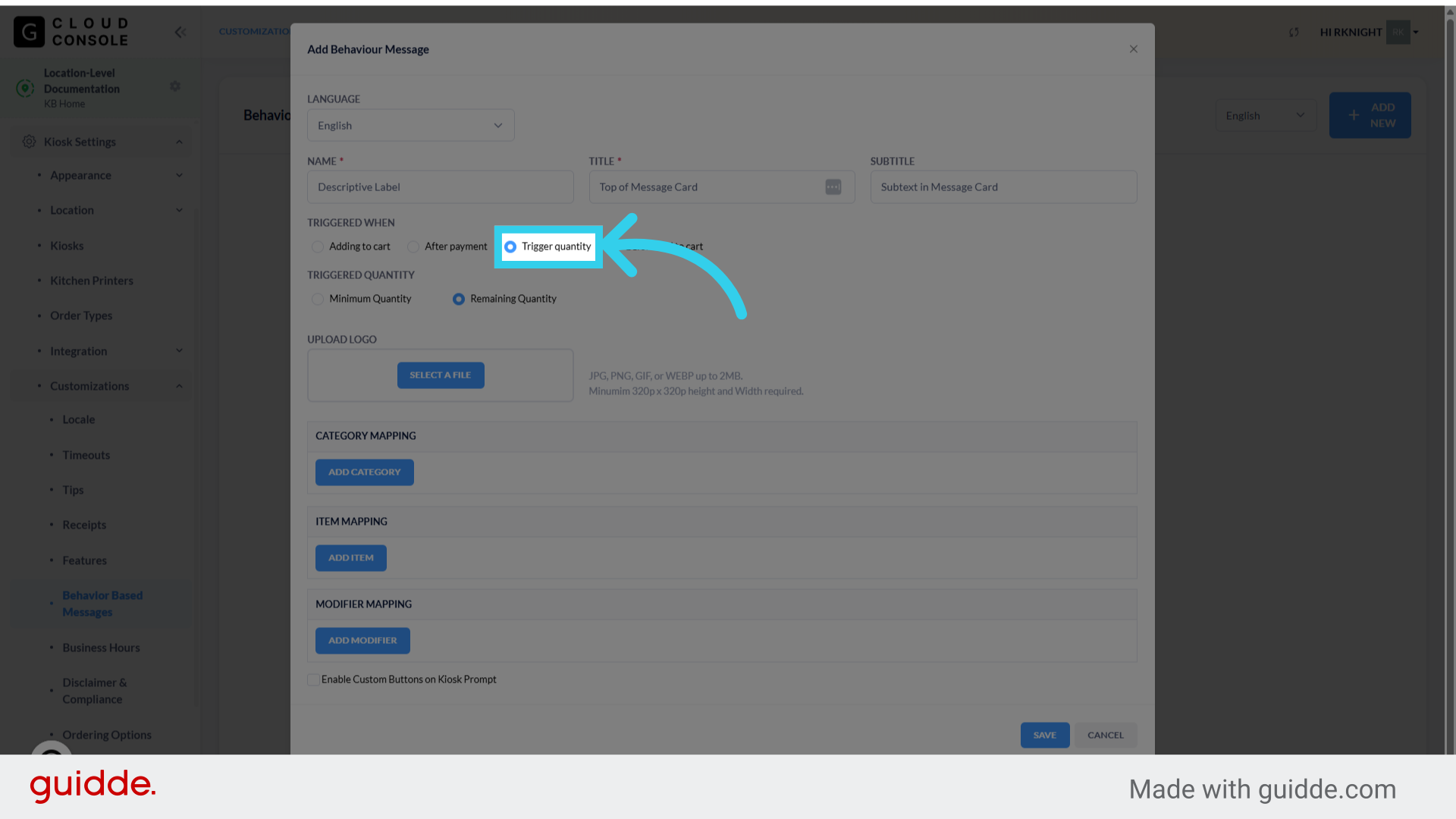
12. In response to users adding a specific quantity of a menu item to their cart...
13. Or before allowing the customer to add an item to their cart
Some GRUBBRR Partners use this functionality to warn customers before they add a particularly spicy item to their cart.

14. Note: Quantity-based notifications can be show when a user has met the required quantity, OR when the user still needs to add items to meet the requirement
This allows us to let customers know when they have met, or are about to meet, a threshold for a specific incentive (such as a BOGO promotion).
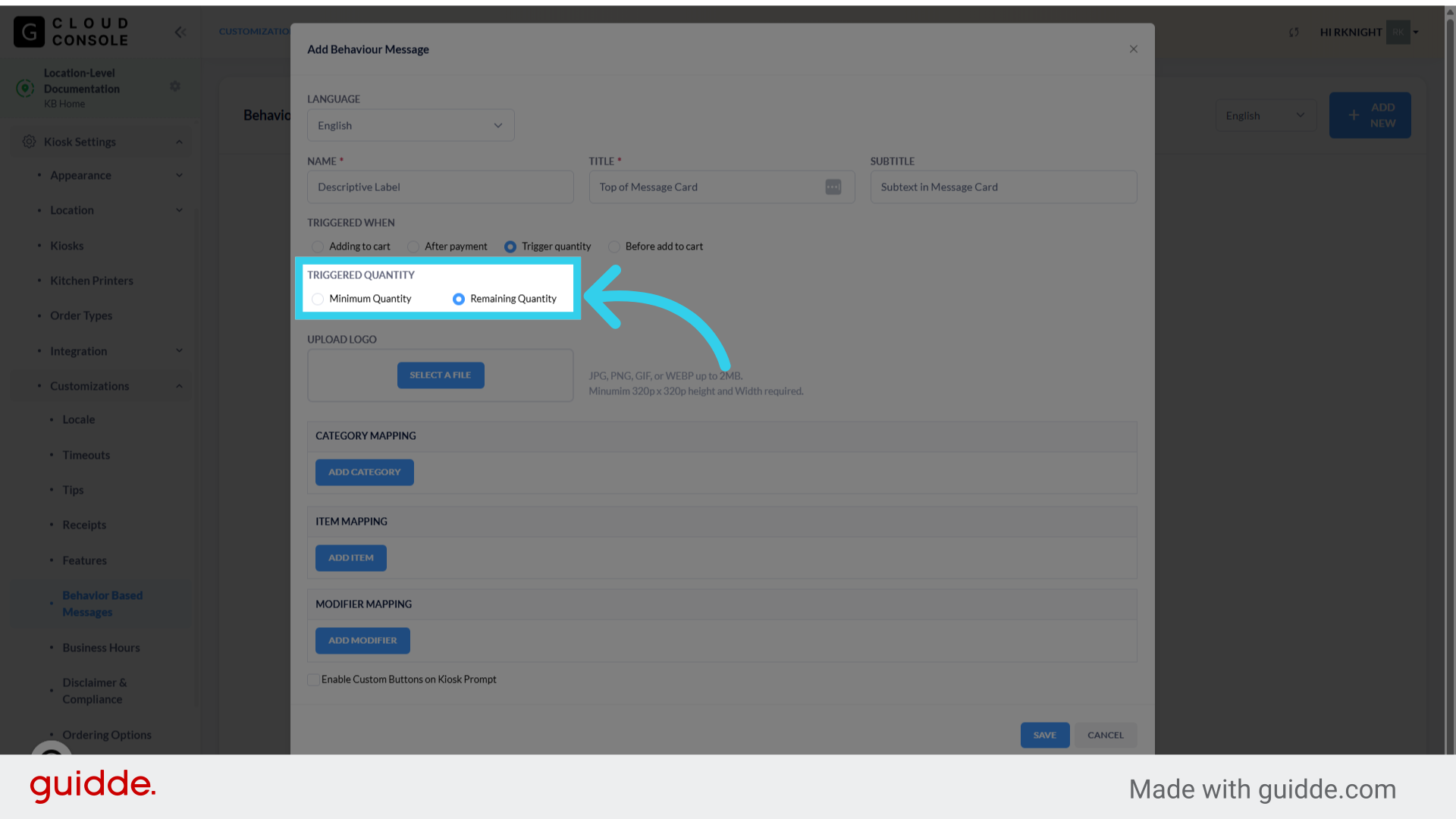
15. We can upload custom logos, images, and animations for custom messages here
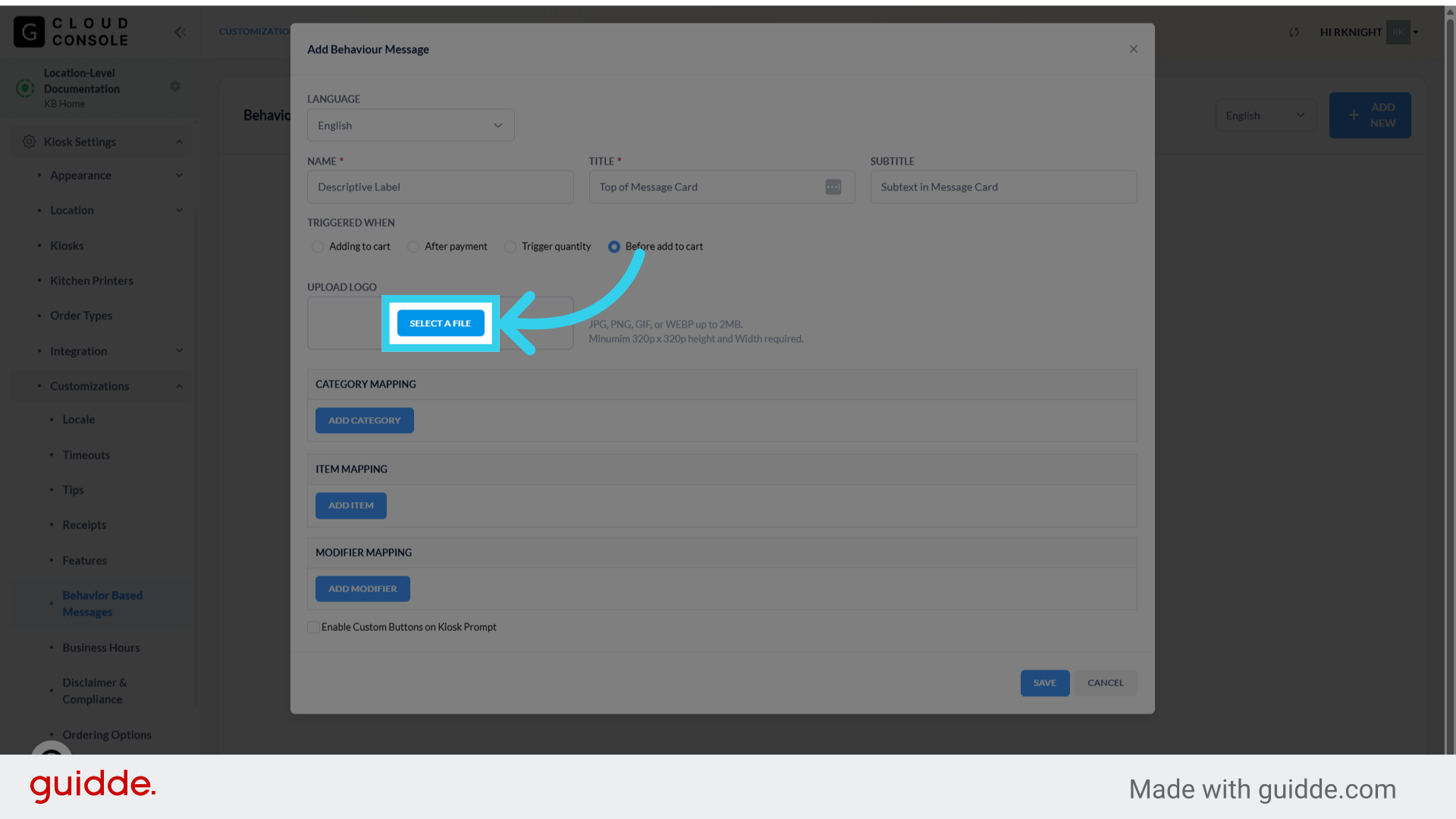
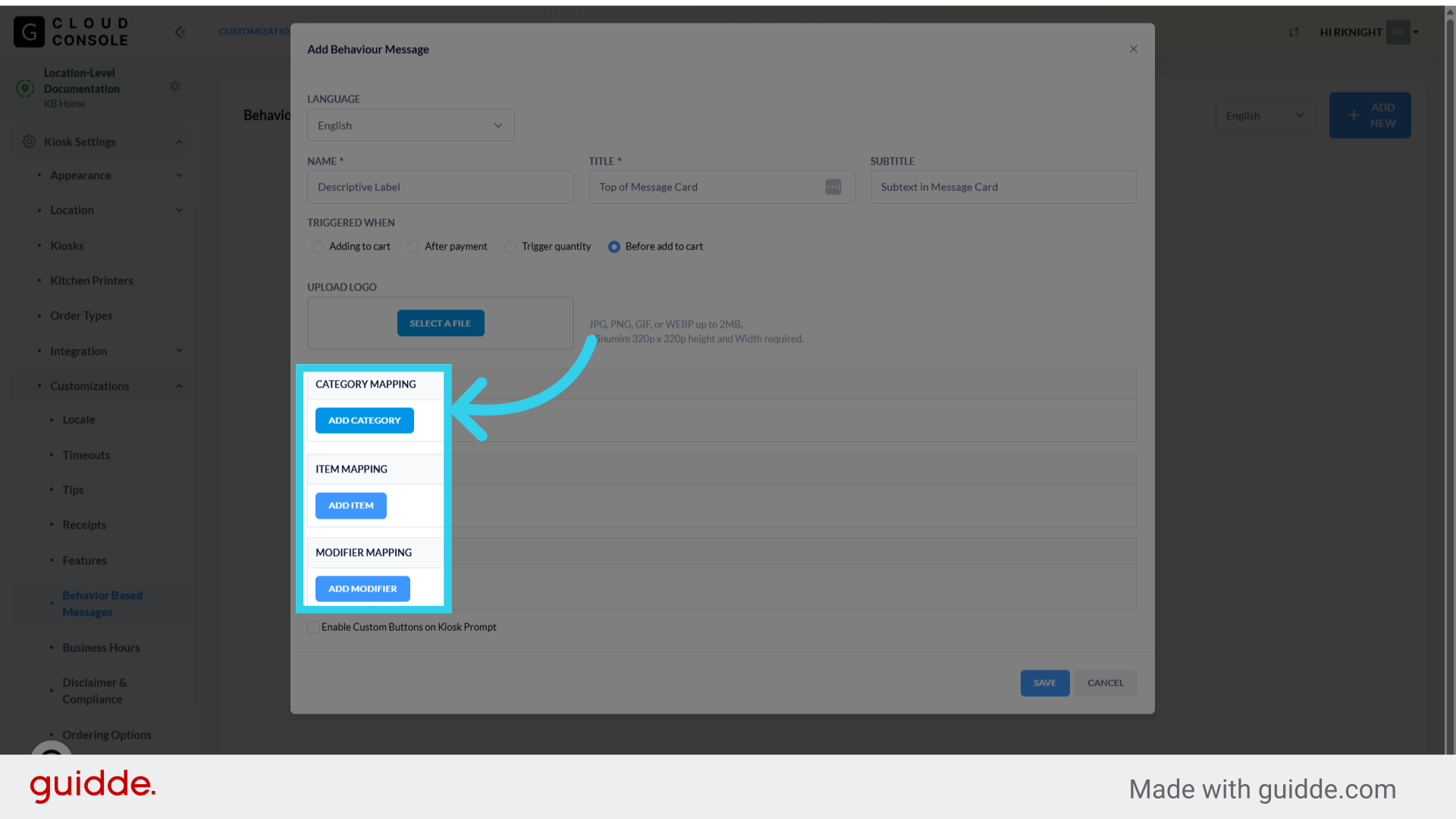
16. Now, we need to define what category, item, or modifier(s) will trigger the message
Behavior Based Messages will not appear on the Kiosk unless an appropriate trigger has been added to cart (i.e., the Kiosk won't direct customers to pick up a cup if they haven't ordered a fountain drink).
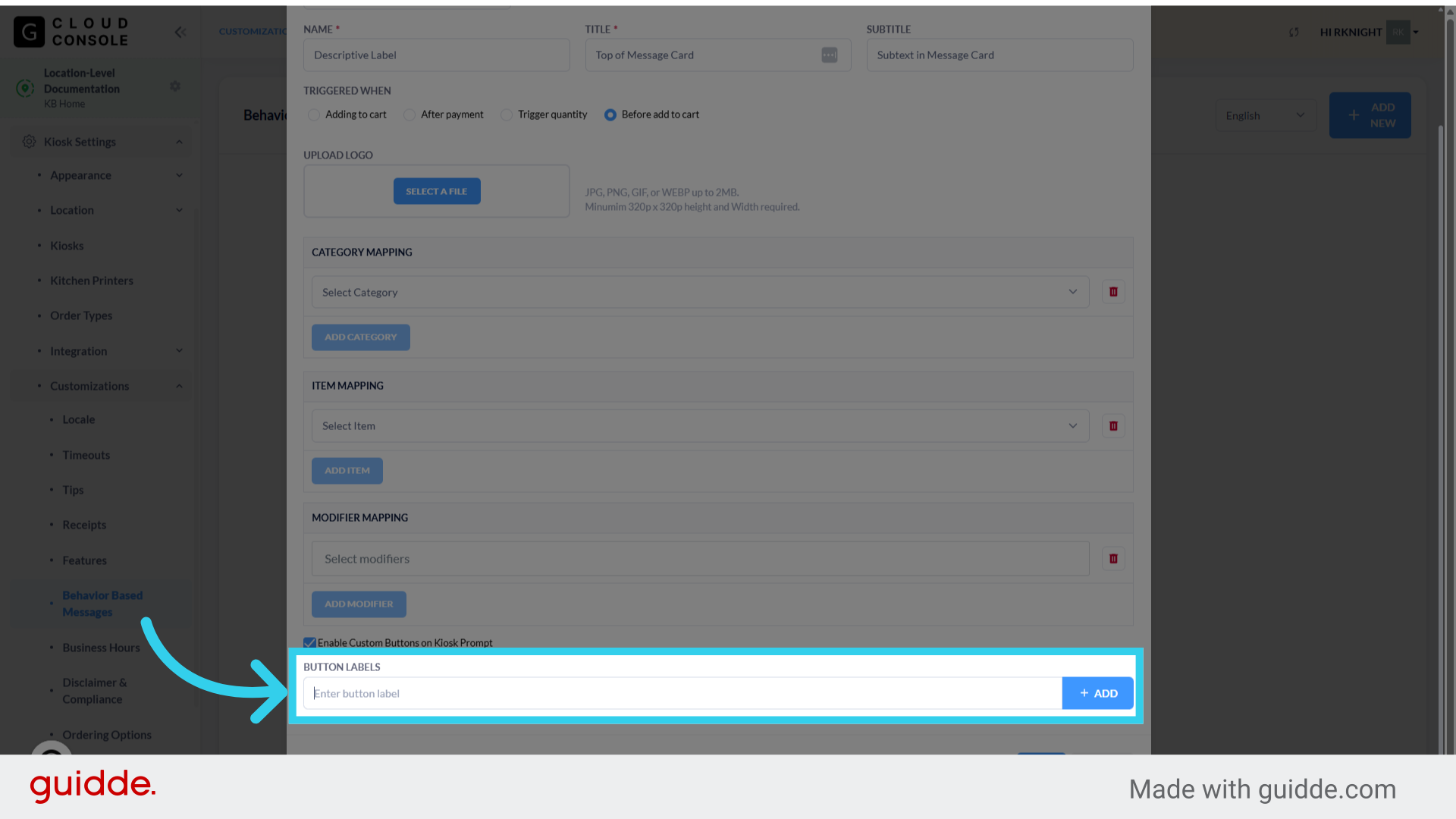
17. Finally, if desired, we can add custom buttons to the Custom Message Pop-up
This allows us to add a step where customers are required to acknowledge the message before they can finalize their order.
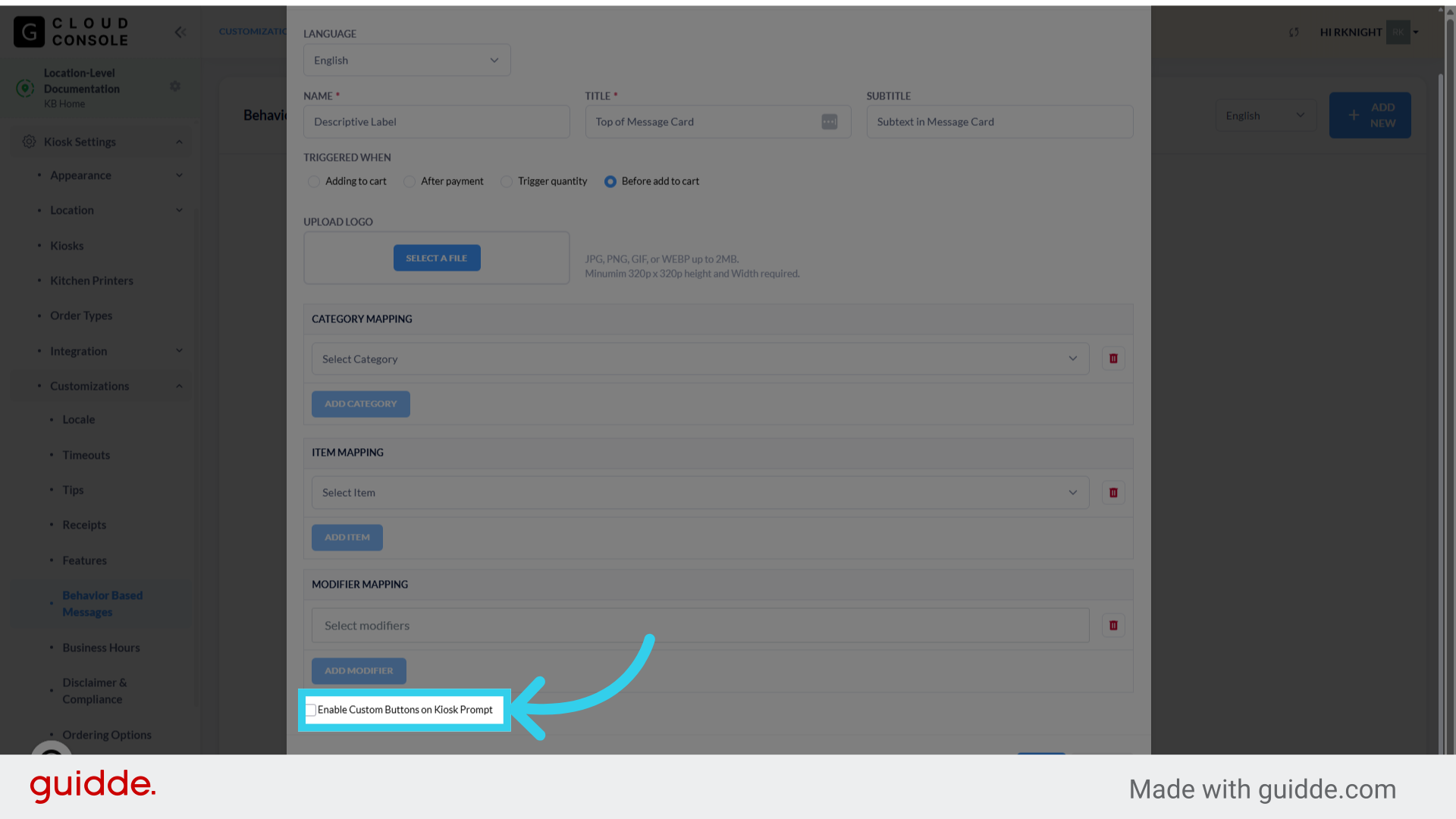
18. We need to create a clear, concise label for each custom button we create
19. Click "Save" to finalize your changes
