How to use Advanced Ordering Options in the GRUBBRR Console
Last updated: August 19, 2026
The GRUBBRR Console gives users enhanced control over their Kiosk's ordering behaviors. In this guide, we'll show you how you can configure item quality limits, turn "Add as Is" mode on or off for your menu, how to limit the number of upsell prompts your Kiosk displays, and more!
Go to console.grubbrr.com
1. Click "Kiosk Settings"

2. Click "Customizations"

3. Click "Ordering Options"

4. Order limits control how many times users can add an item to their cart, how many items they can have in total, and how many discounts they can redeem

5. "Add as Is" mode lets users add items with default modifiers directly to their cart
This bypasses GRUBBRR's standard modifier selection process and minimizes the number of "clicks" it takes for customers to submit their orders. Please note: an item must have default modifiers assigned to for it to be eligible to "Add as is" on the Kiosk.
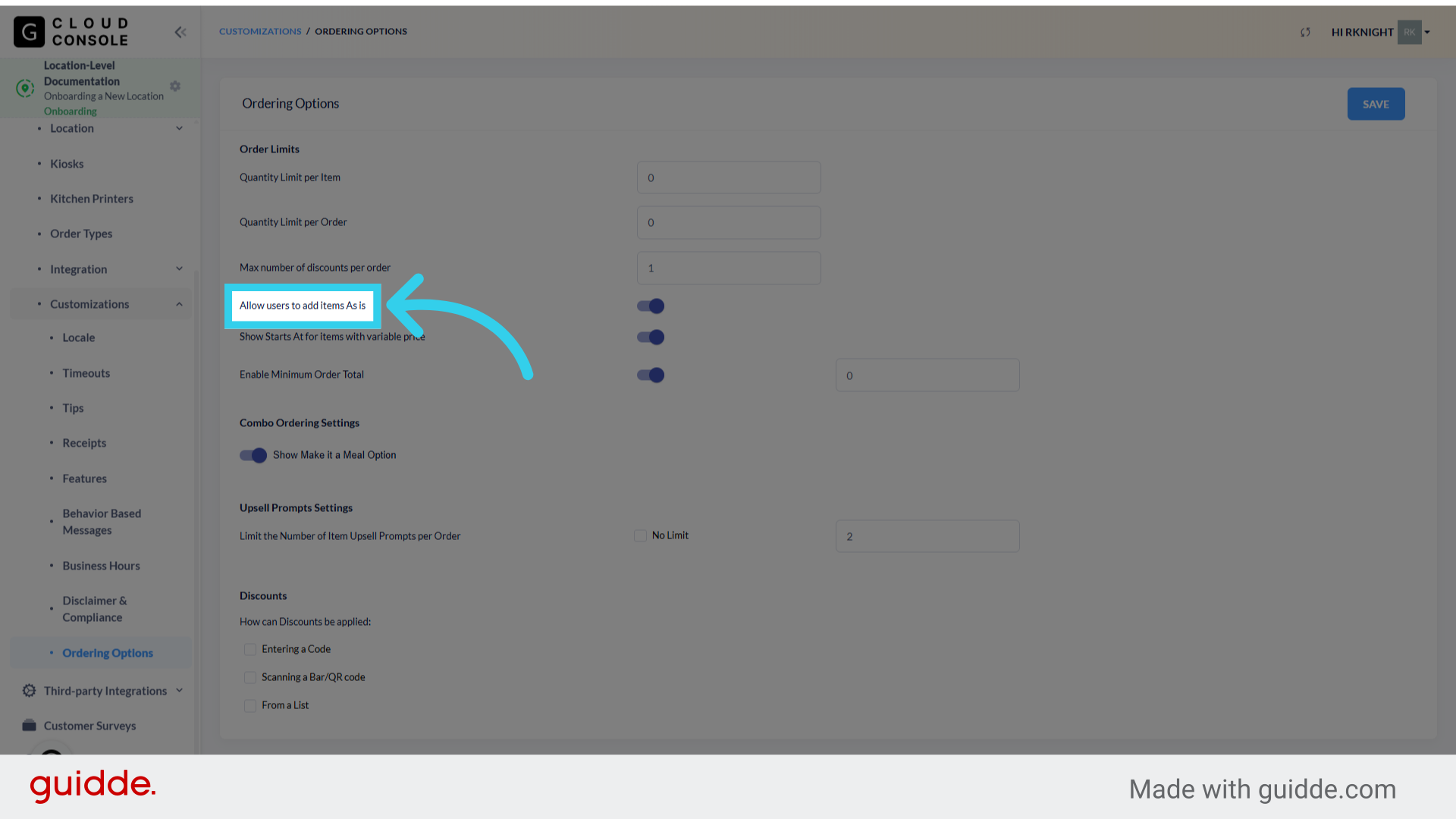
6. "Show Starts at" lets customers know that items with premium modifiers can increase in price

7. You can also Enable Minimum Order Totals for Kiosk ordering

8. "Make it a Meal" upsells allow users to upgrade from single items to pre-configured combos from your menu
Please note: this feature is not supported by all POS integrations. Please work with GRUBBRR's support team to confirm that this feature is right for you.

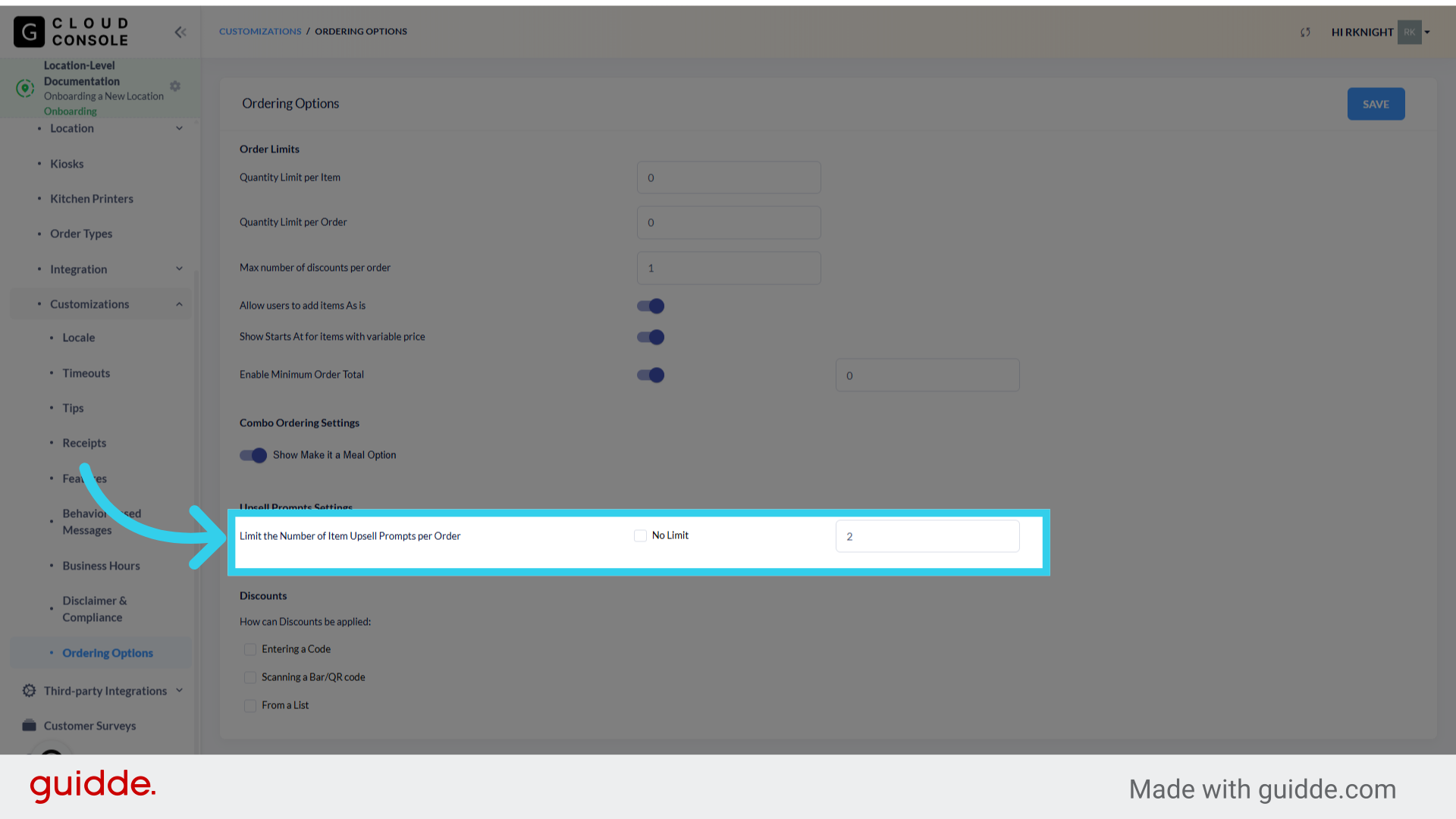
9. Limiting the number of item upsell prompts per order ensures that customers have a pleasant ordering experience
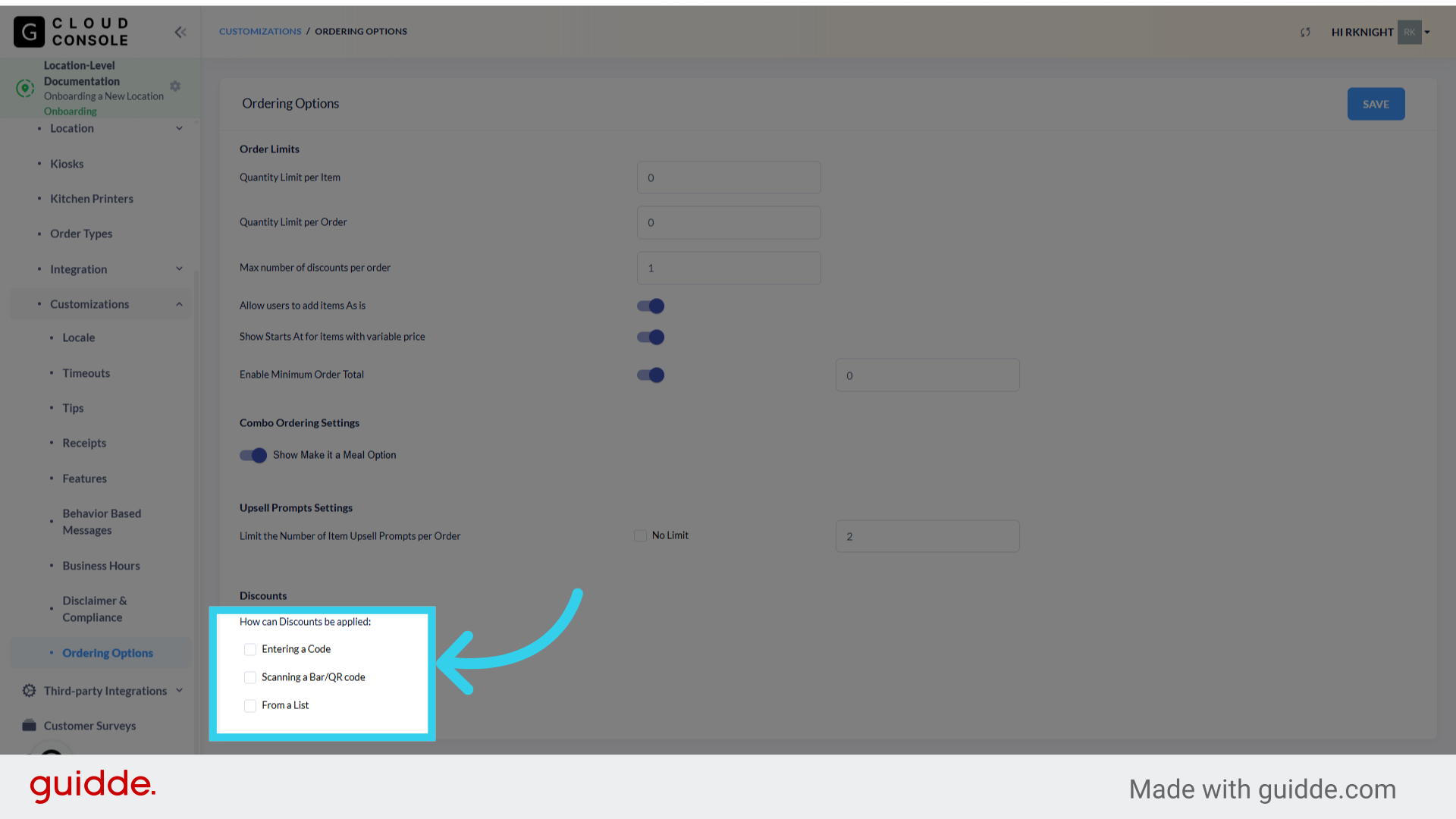
10. Finally, we can control how Discounts can be redeemed on the Kiosk here