How to Update your Menu in the GRUBBRR COnsole
Last updated: August 27, 2026
Your POS is the "source of truth" for all items on your Kiosk menu. GRUBBRR uses automated tools to pull any new items you create in the POS into our platform; however, if necessary, you can "force" an update by following the steps below.
1. Click "Kiosk Settings"

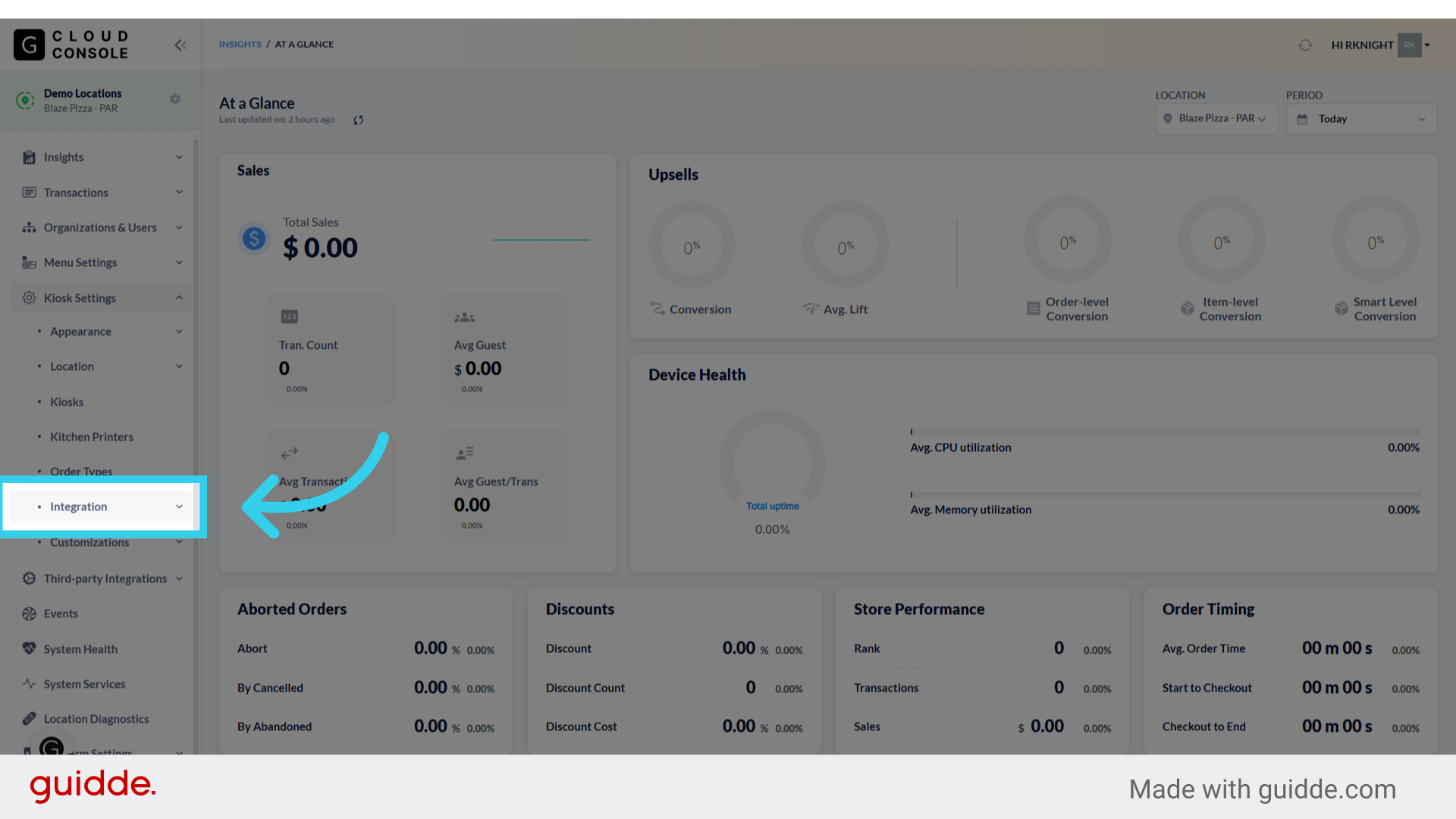
2. Click "Integration"
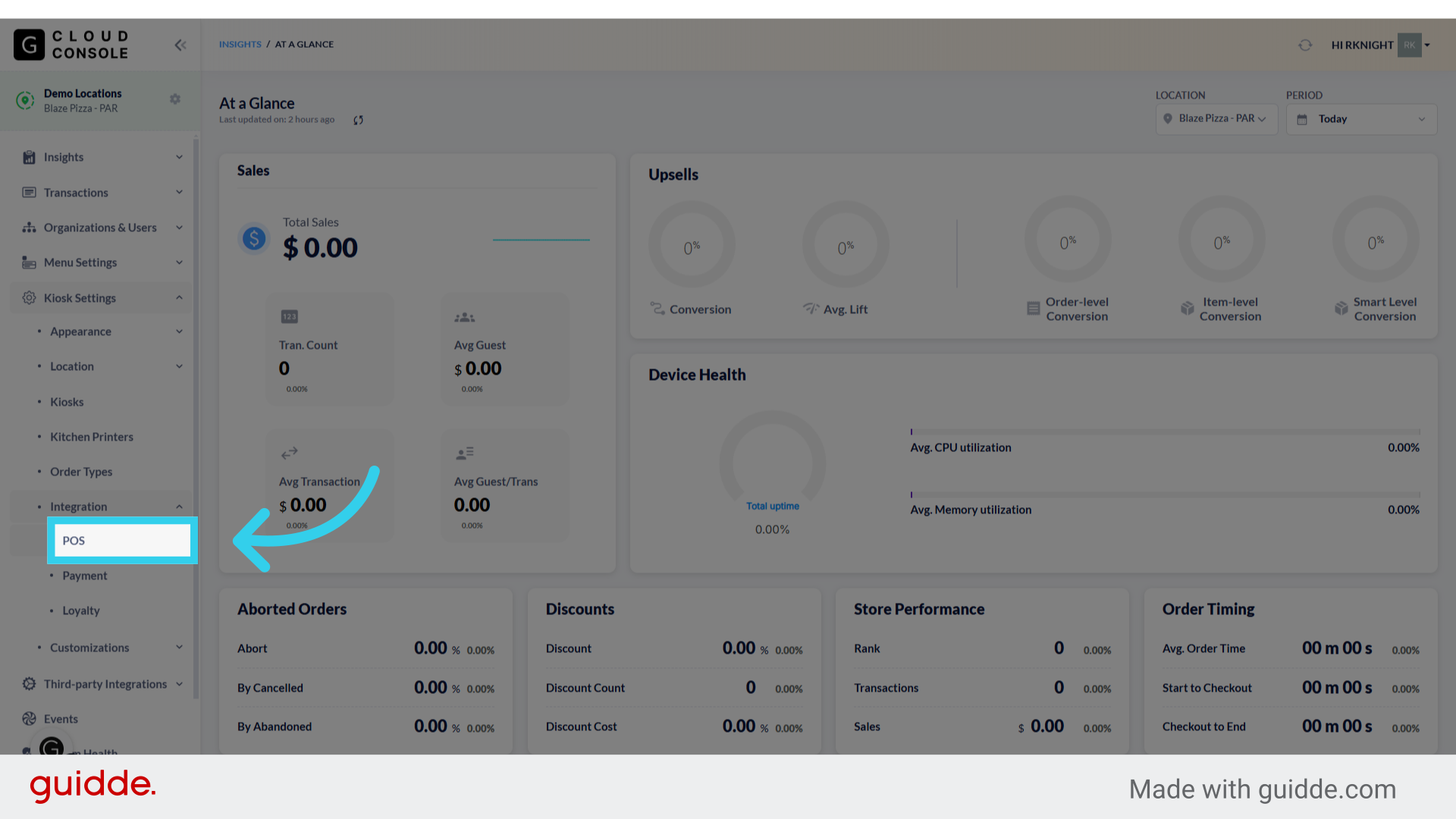
3. Click "POS"
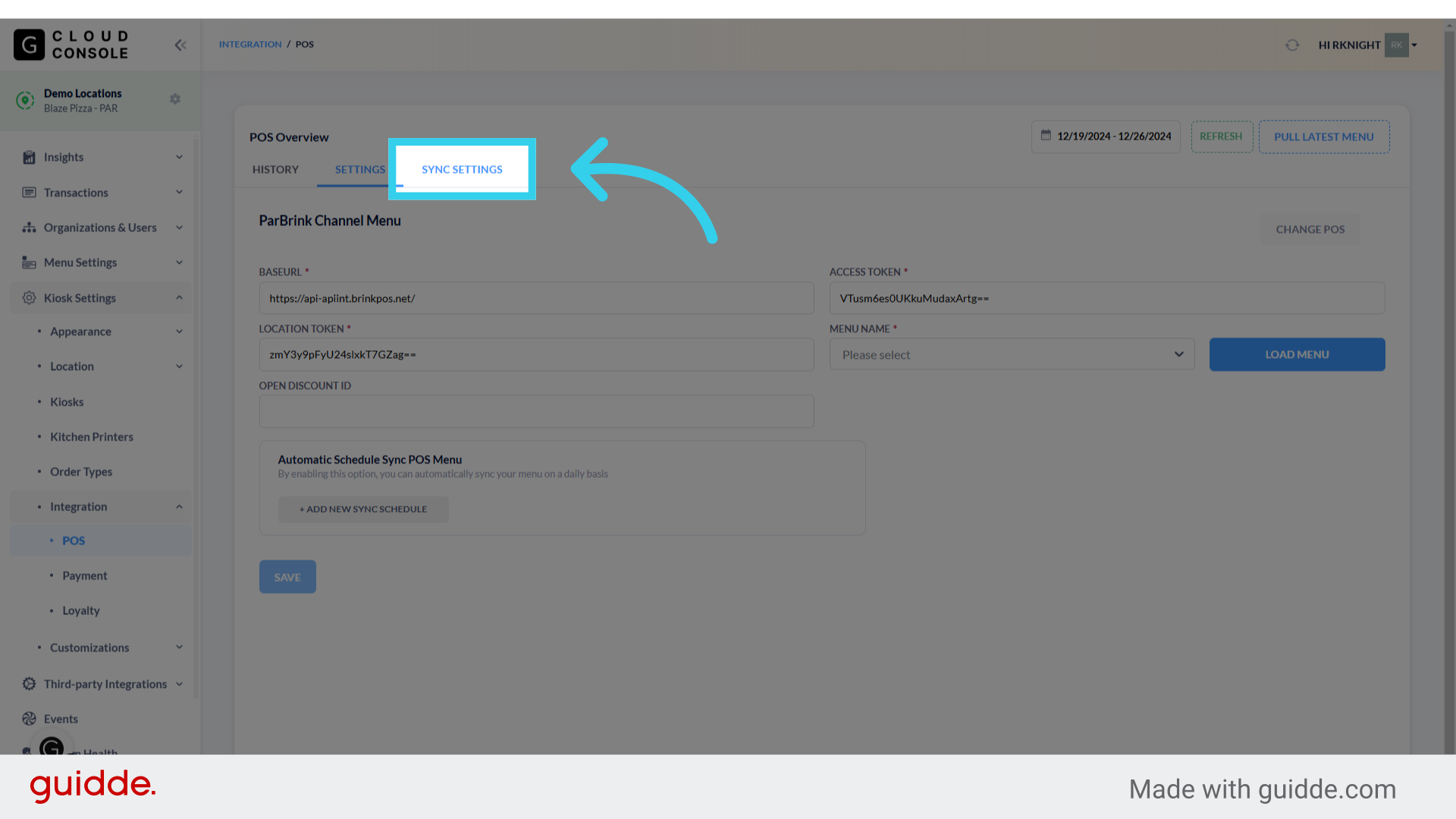
4. Click "Sync Settings"
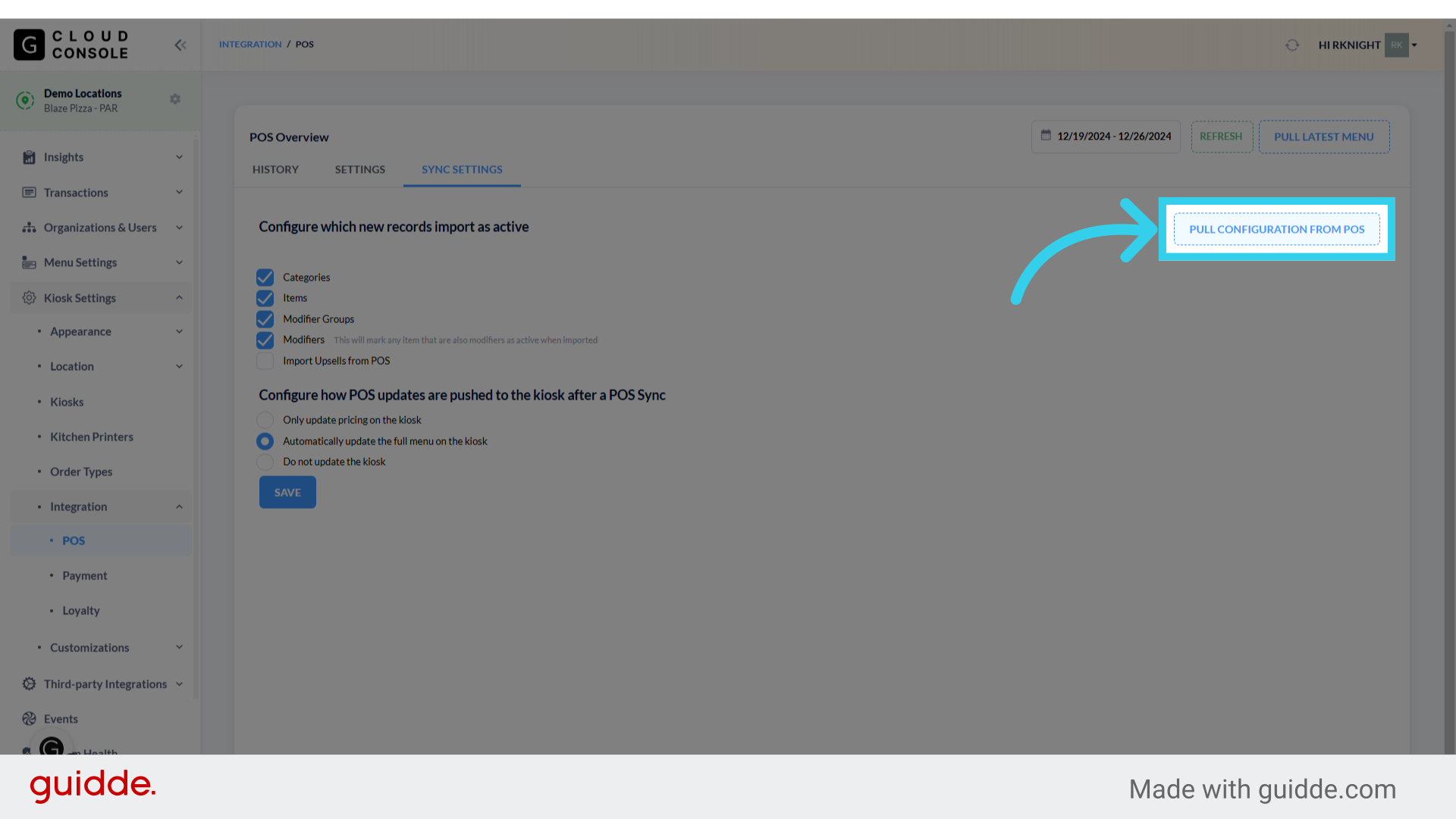
5. Before we can perform the manual pull, we need to ensure that we've configured which new records will import as active...

6. And how POS updates will be pushed to the Kiosk

7. Once we've confirmed the required settings, click "Pull Configuration from POS"
8. Click "OK" when asked if you're sure you want to pull configurations from the POS

Once the sync is complete, you can review the newly imported menu and make any required changes before pushing the new menu configurations to the Kiosk.