How to Identify and Revert Overrides in the GRUBBRR Console
Last updated: August 8, 2026
How can I see if an item in the GRUBBRR Console has been updated after it was imported from my POS?
Sometimes, we need to make temporary display overrides- like uploading new menu images, or changing display names- in the GRUBBRR Console rather than in the POS. Once we've made these overrides, the Kiosk will always refer to them- even if we've created new descriptions or images in the POS. Luckily, we can easily find and undo these overrides in the GRUBBRR Menu Manager by following the steps below.
Go to console.grubbrr.com
1. Click "Menu Settings"

2. Click "Menu"

3. Let's look at an item with a Display Name override

4. Find the item you want to audit, and click the "More Options" button here

5. Click "Edit"

6. This blue icon indicates that we've applied an override in the GRUBBRR Console
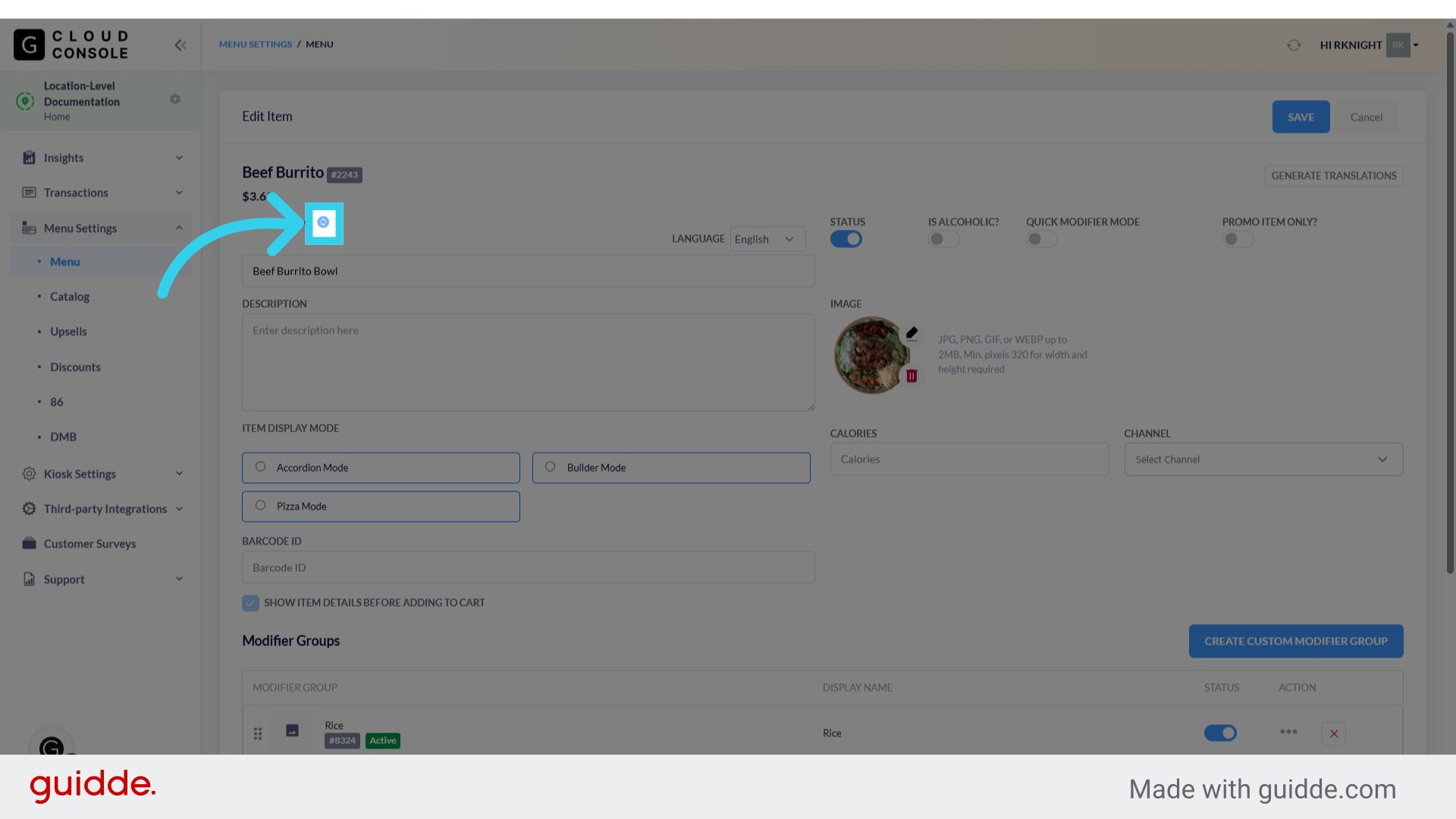
7. You can click on the icon to tell the Console to revert the override back to POS defaults during the next menu sync
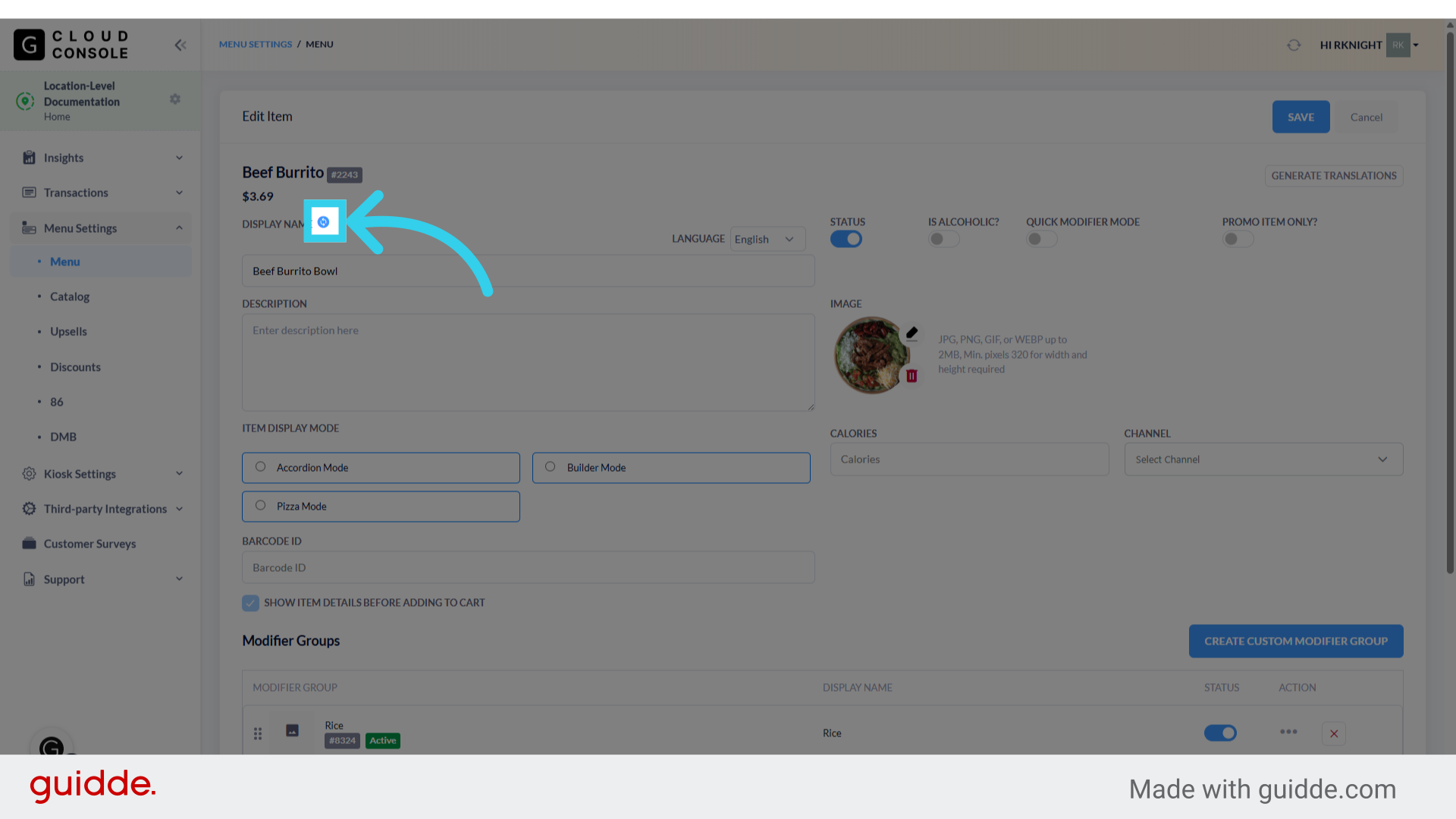
8. Don't forget to save your changes when making this selection!
