How to Link a Legacy KDS to the Clover Merchant Portal
Last updated: August 8, 2026
How do we connect a GRUBBRR KDS to a client's Clover SMB solution?
As part of the onboarding process for new Clover SMB clients, we have to link a KDS device configured in the Legacy Portal to the client's Merchant account. This allows the KDS to record Kiosk orders and display tickets accurately in real-time. The process for linking a KDS to the Merchant and Legacy portals is outlined below.
Prerequisites:
This guide assumes that GRUBBRR and the client have already completed the following:
- The client has already created their new company in the Merchant Portal
- The client has added techdev@grubbrr.com as an admin on their Clover Portal, and
- We have emailed the Clover SMB Product Owner the name of the company that needs to be linked, and he has pushed the Kiosk app to the client's device
- To use the attached email template, click the blue "M" button, then replace any text in [brackets] with information about the client
Linking the KDS
Once we have access to the client's Merchant portal, the client's Project Manager will need to create a new company and location in the GRUBBRR Legacy Portal. Then, we'll need to complete the following at the location level.
Link the Location to the Client's POS
Follow the steps below to link your new Location to the client's Clover POS
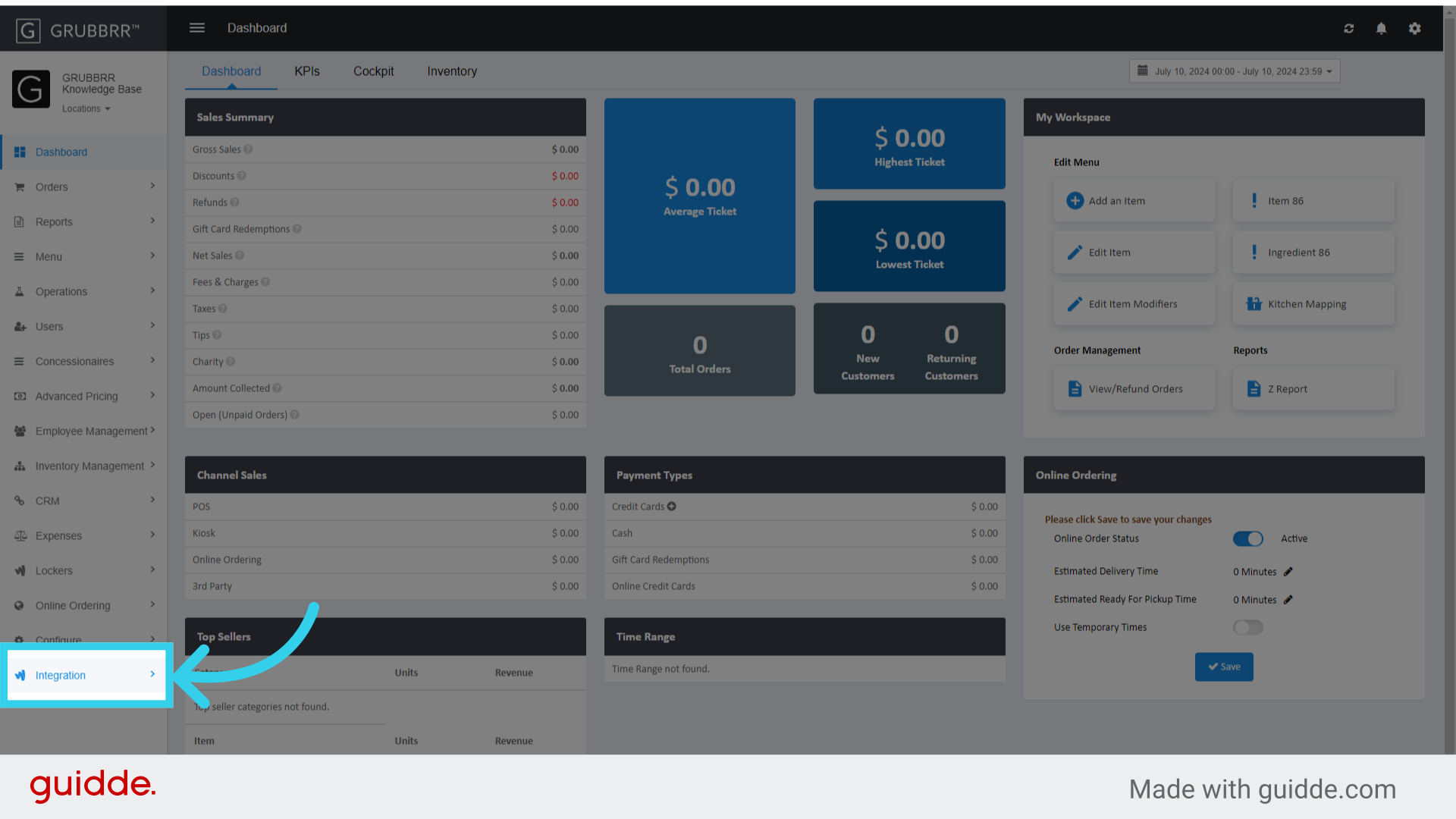
1. Click "Integration"
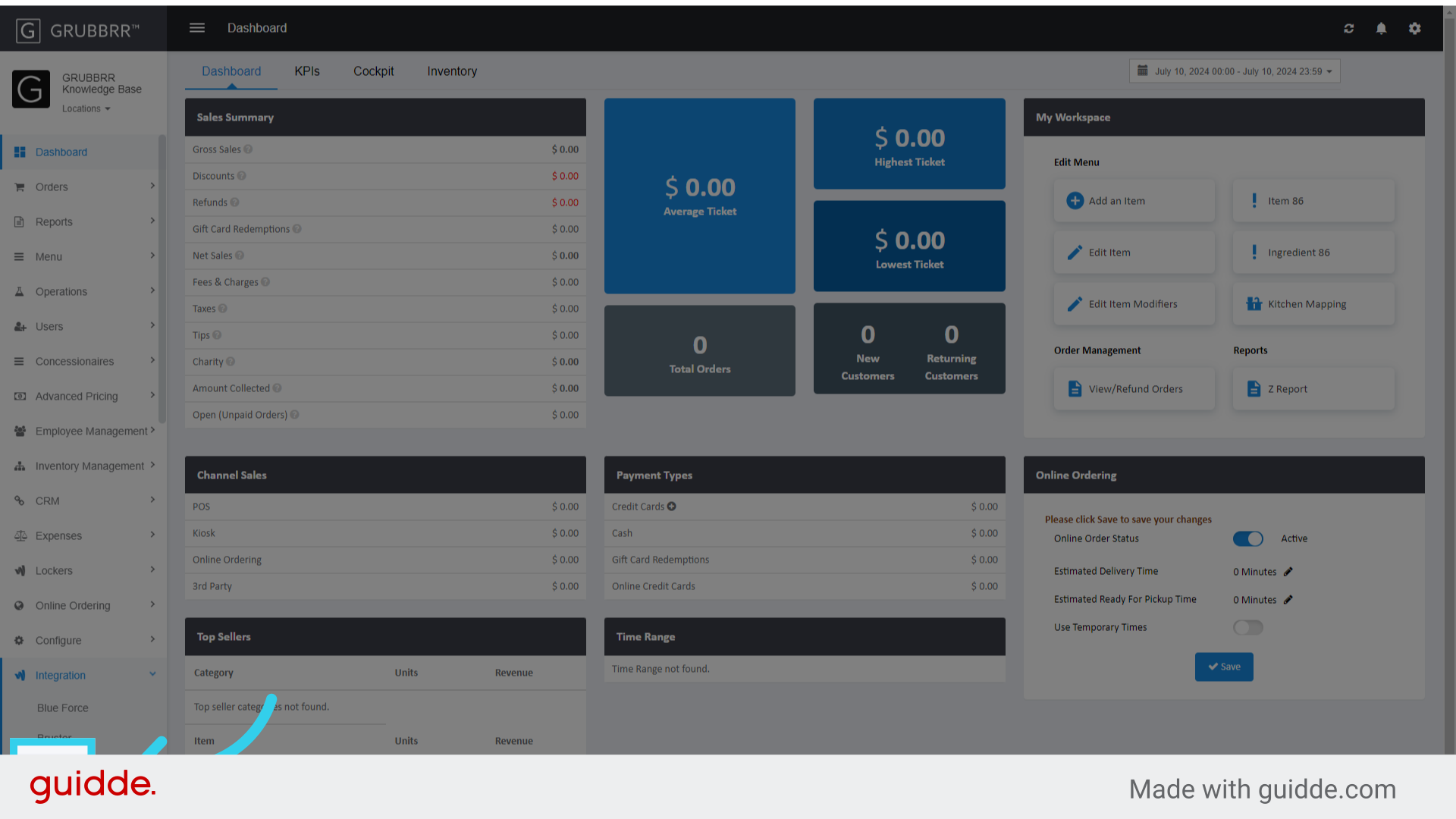
2. Click "Clover"
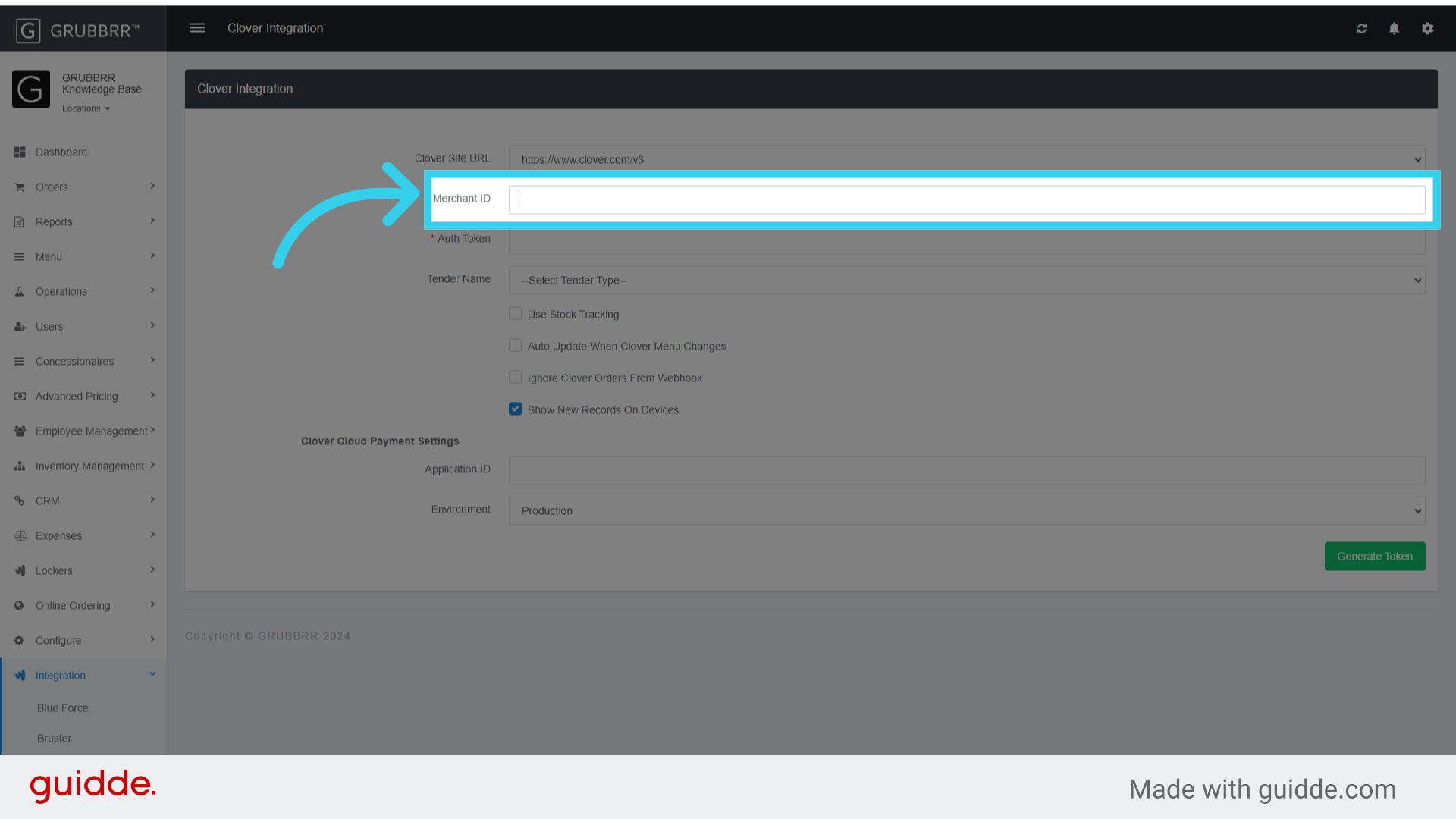
3. Enter the Merchant ID
We can pull this information from the client's Merchant Portal
4. Enter the client's Authorization Token
We can pull this information from the client's Merchant Portal

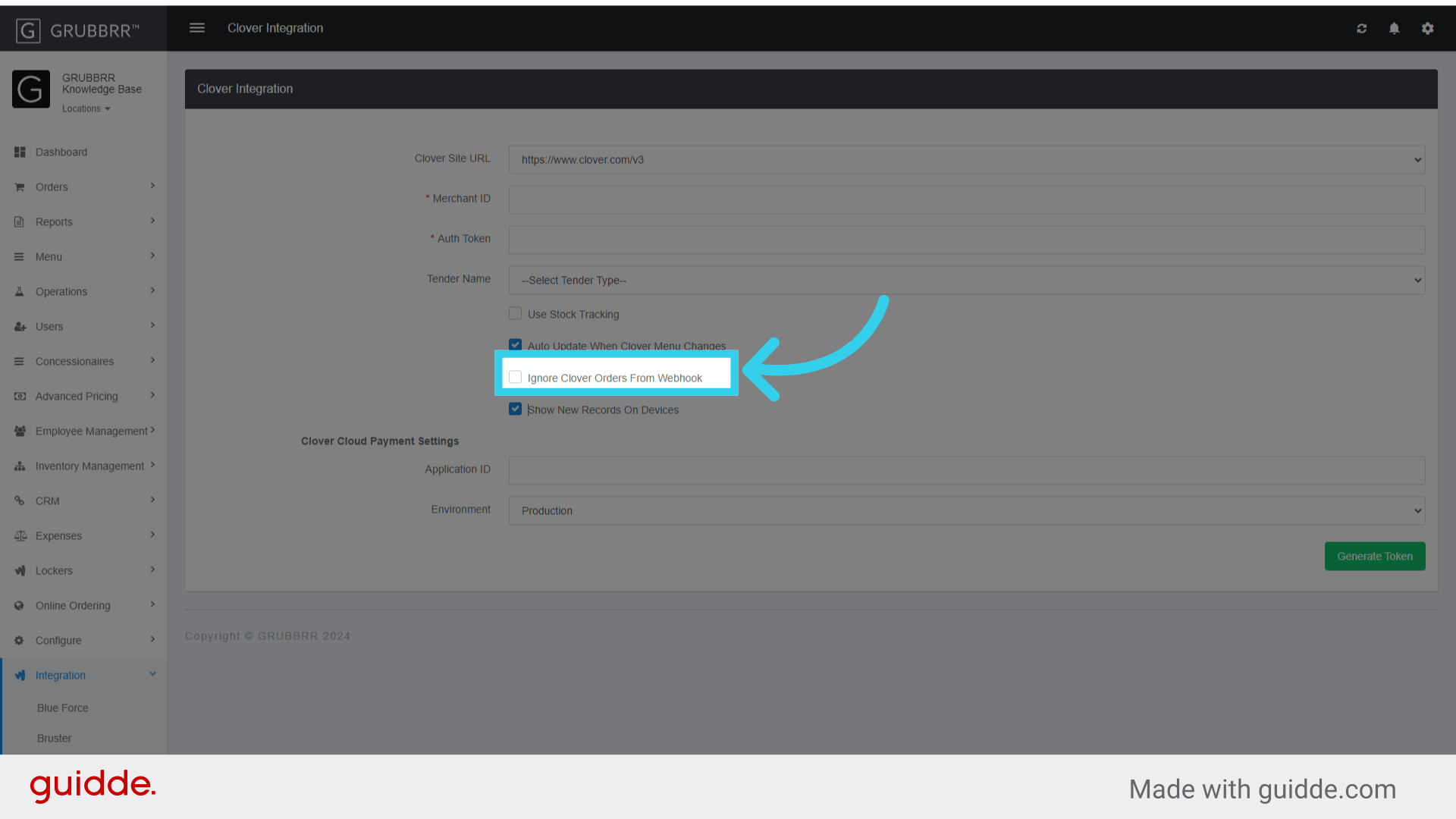
5. Enable "Auto Update when Clover Menu Changes"

6. Enable "Show New Records on Devices"
7. Enter the Application ID
The default is HH8CDADDVS1EM.A5K8RJHYMYJ1

8. Click "Generate Token"
Then sync with the POS

Link a KDS to the Legacy Portal
Once the client's Company and Location have been created, we can link the KDS to the portal. This is configured through the Device Settings section at the location level.
Stage the KDS
Once we've added the KDS to the client's GRUBBRR Portal, submit a request to GRUBBRR's Deployment team to stage the device using the Legacy login credentials. This allows us to verify that the device is functioning as expected.