How to add a "Call to Action" Button to Kiosks in the GRUBBRR Console
Last updated: August 8, 2026
My Kiosk's screensaver doesn't have any "Order Here" messaging in it; can I edit this at all in the Console?
Version 14.x: How to add a "Tap to Order" Button to a Kiosk
By default, Kiosks running version 14.x+ of our Kiosk application don't include a "Call to Action" (CTA) element, such as a "Tap Here to Order" button; generally, we expect that these elements will be included as part of the Kiosk's screensaver. However, if a client wants, we can enable a separate CTA element, which will display over any active screensaver on the device. This setting can be configured at the location level by following the steps outlined below.
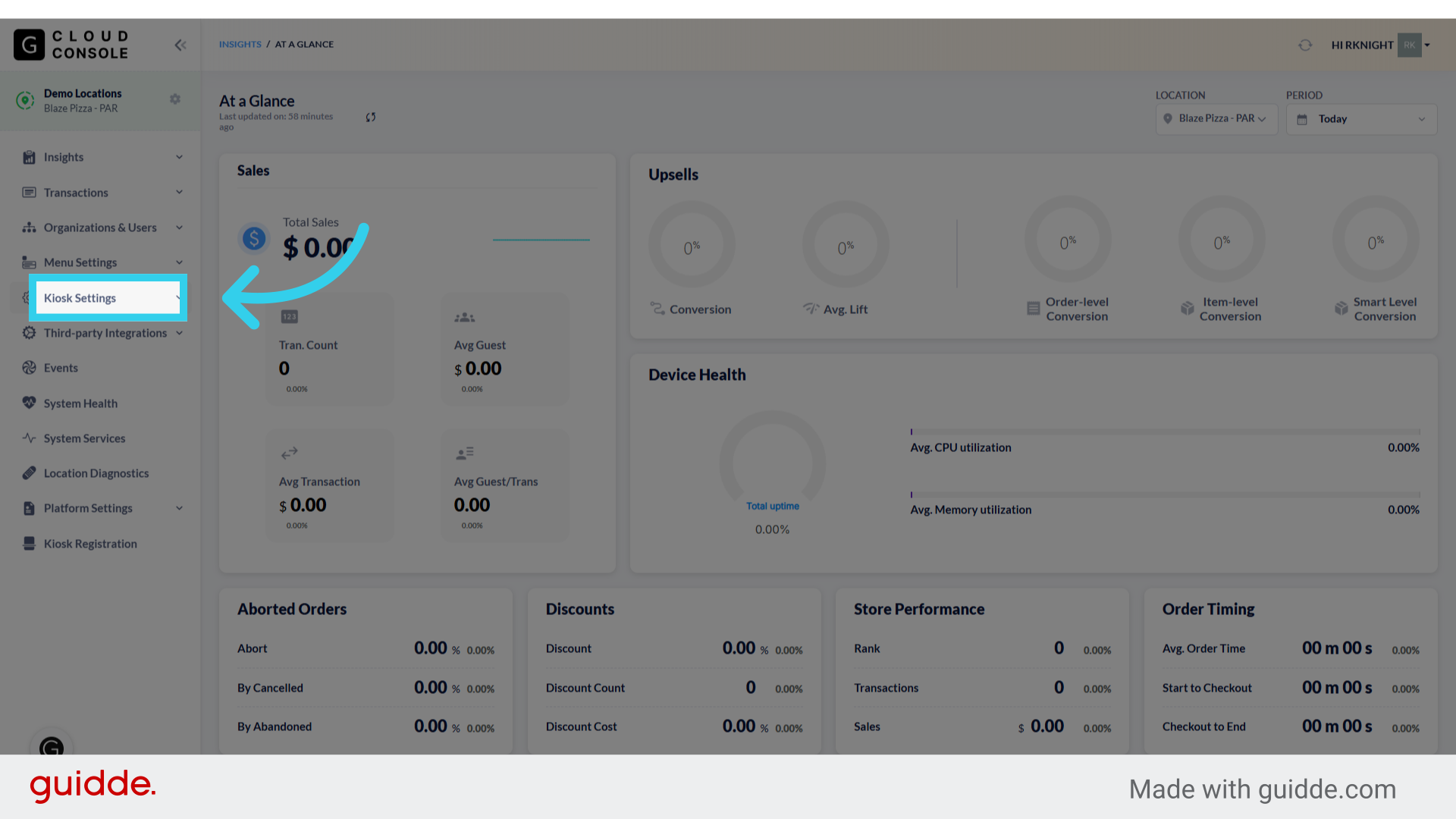
1. Click "Kiosk Settings"
2. Click "Appearance"

3. Click "Kiosk Appearance"

4. Click here to turn on "Tap to Order" functionality

5. The "Call to Action" button can be configured as a text element, or as an uploaded image

6. For Text elements, we can configure the color of the text...
This control uses hexcode.

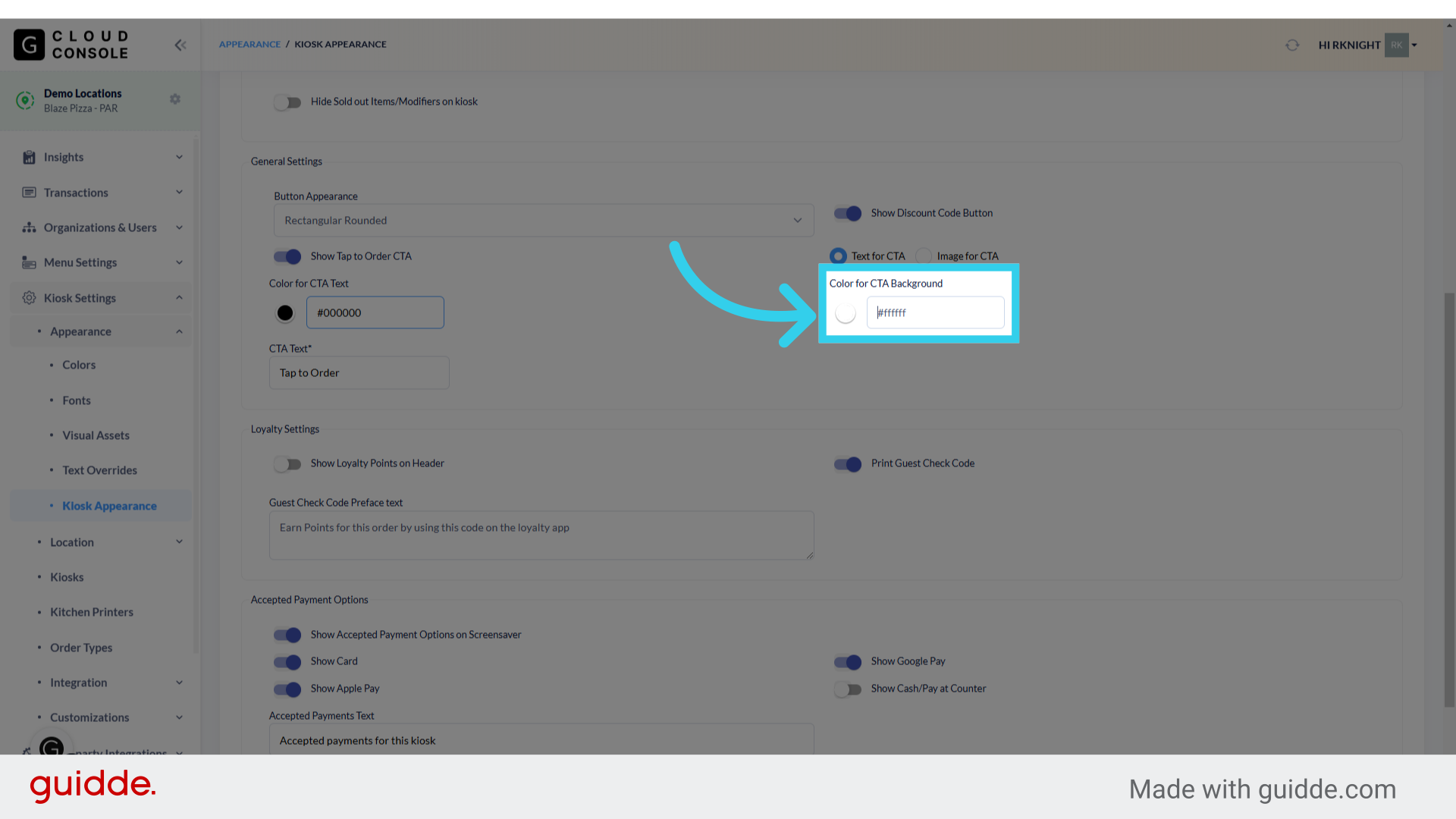
7. ... the color of the background the text is displayed on...
Also using hexcode here.
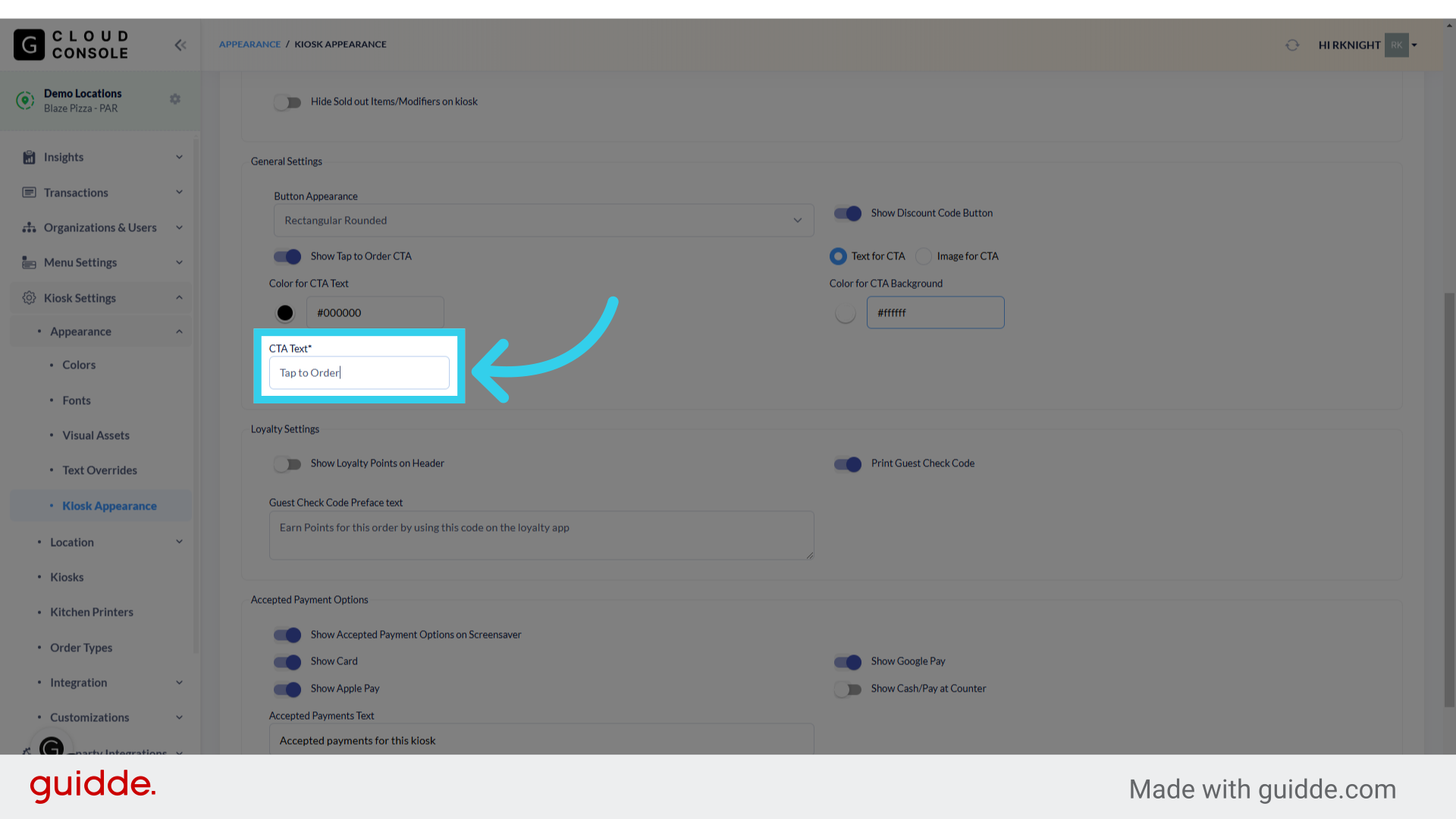
8. And the message for the Call to Action
Please note, messages are capped at 25 characters.
9. If you're using an image for the CTA element, you can upload a locally saved file from your PC here
This is a standalone element, so we can use different image sizes (up to 1080px in any direction) to create this button. I.e., a standard "banner" button would be 1080x200px, but a square or circle button might be 800x800px.

10. Click "Save" to apply your changes
As always, remember to push updates to the Kiosk when you're done.
