How to Update Color Codes for your Kiosks in the GRUBBRR Console
Last updated: August 21, 2026
Version 14.x of the GRUBBRR Kiosk has advanced Color controls that we can configure through the GRUBBRR Console, either through Location-Level or ECM controls. Any settings we configure in this way will be applied across the Kiosk's entire user interface.
How to Change Kiosk Colors
First, let's take a look at how we can change the color scheme of a particular element through the Console.
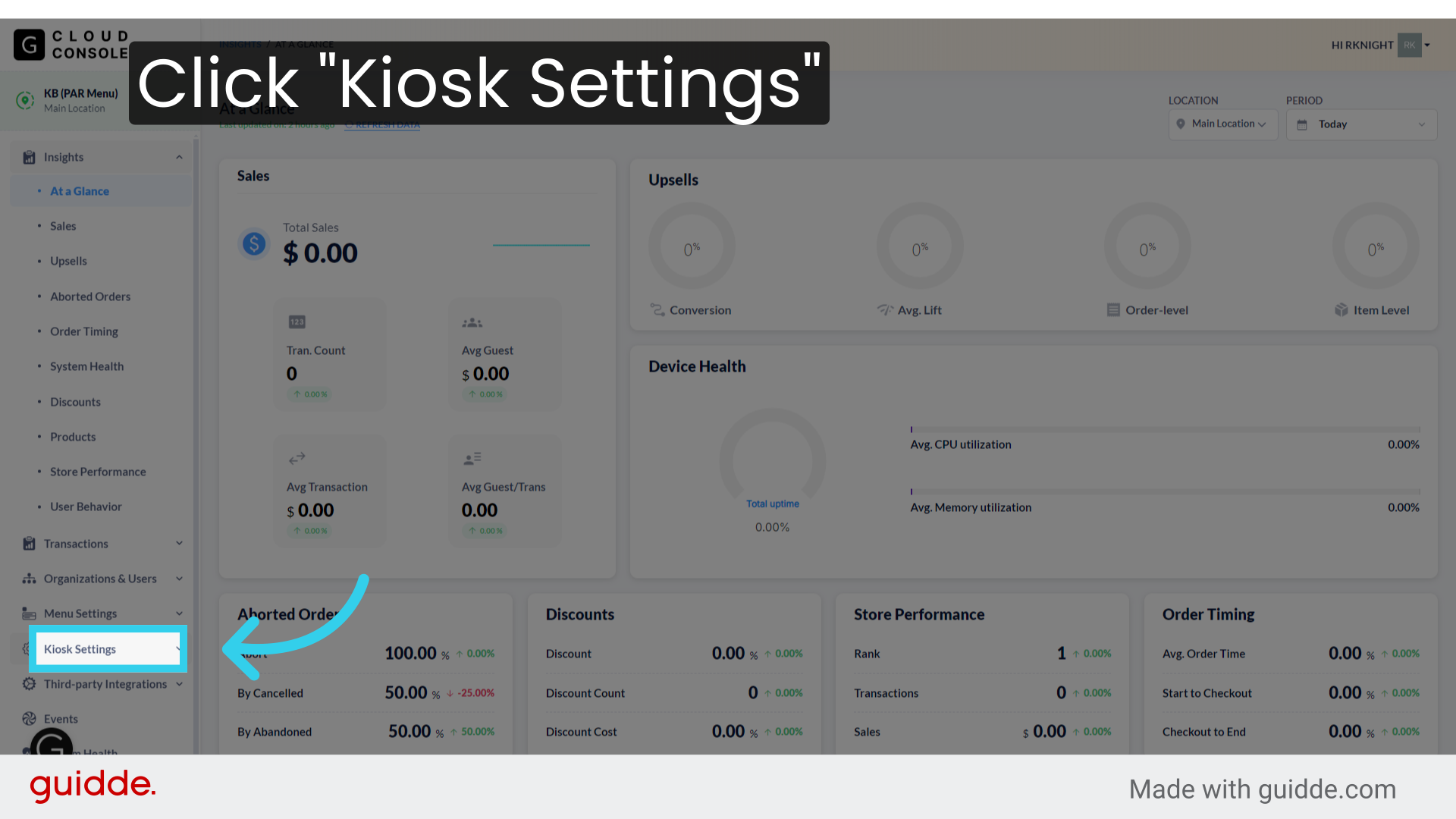
1. Click "Kiosk Settings"
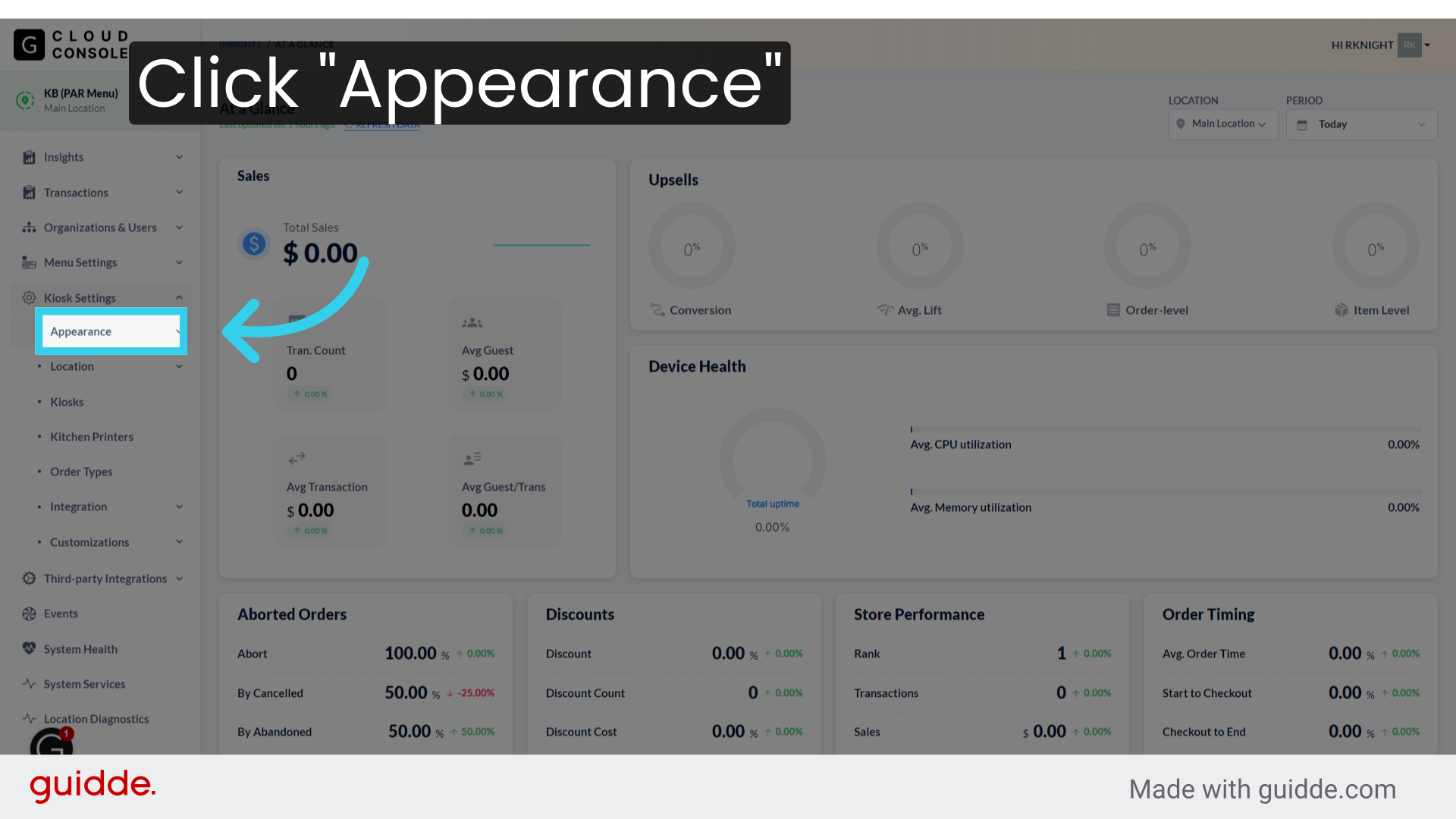
2. Click "Appearance"
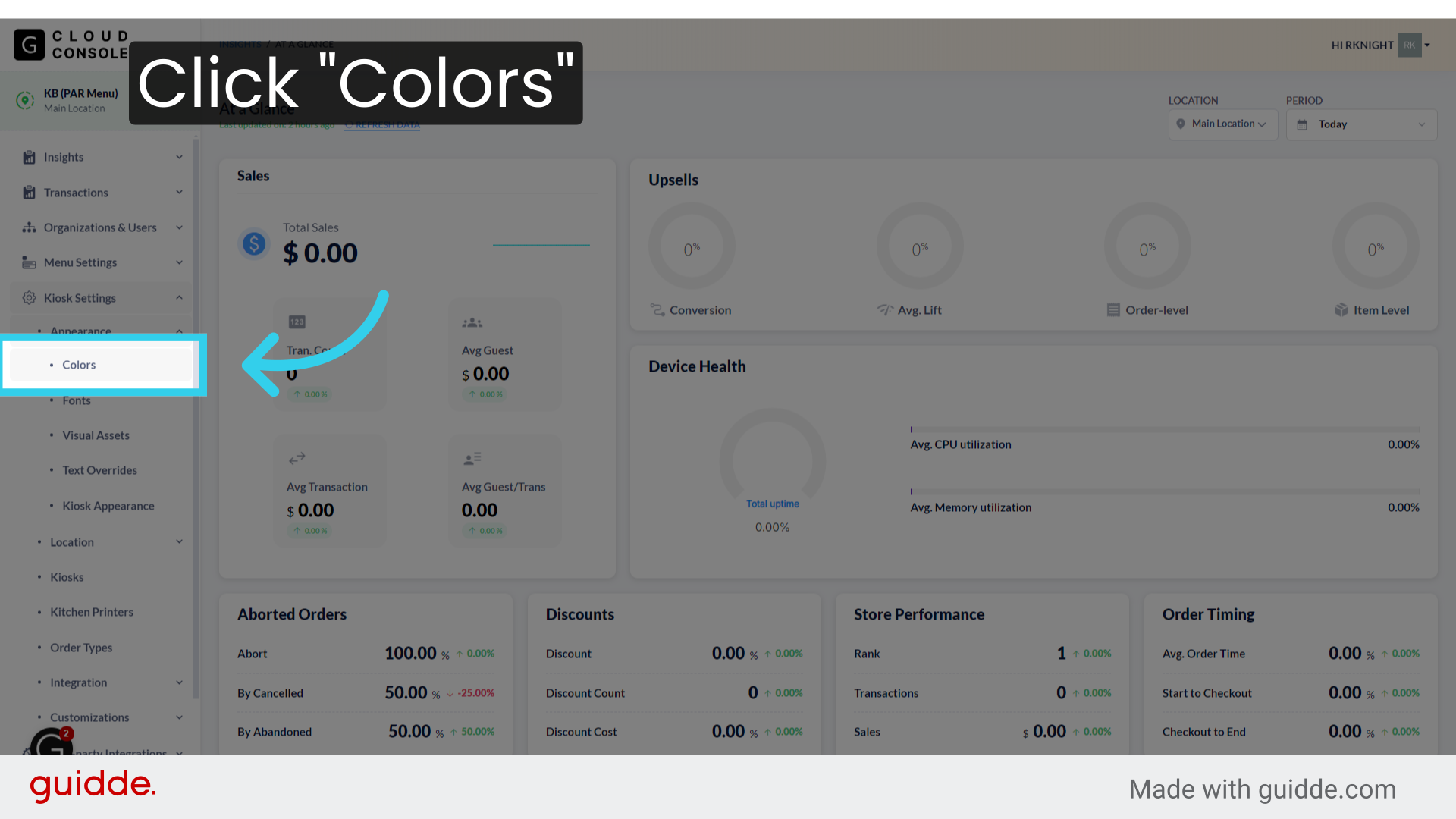
3. Click "Colors"
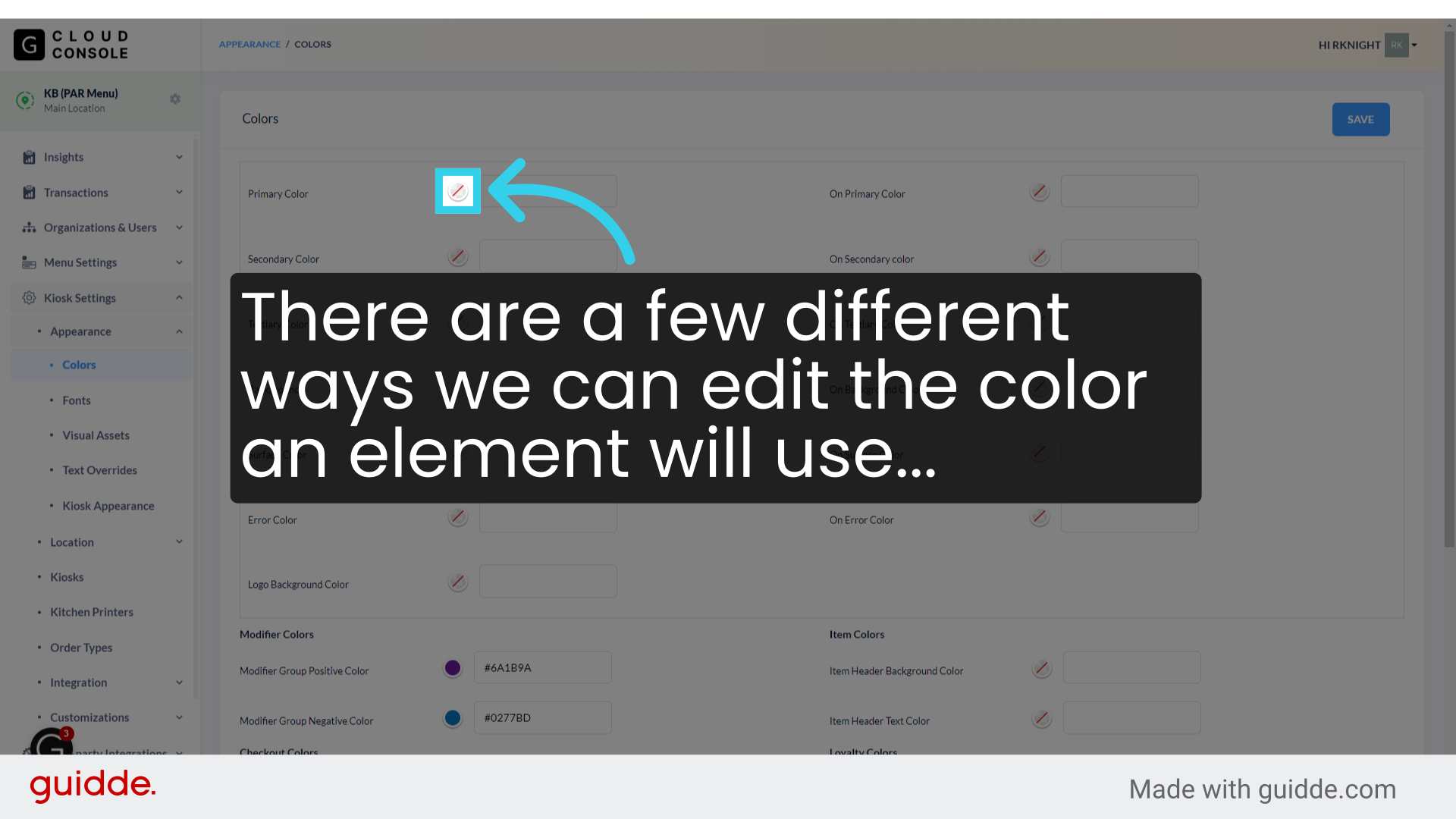
4. There are a few different ways we can edit the color an element will use...
5. First, we can select a Color swatch on this pop-up...
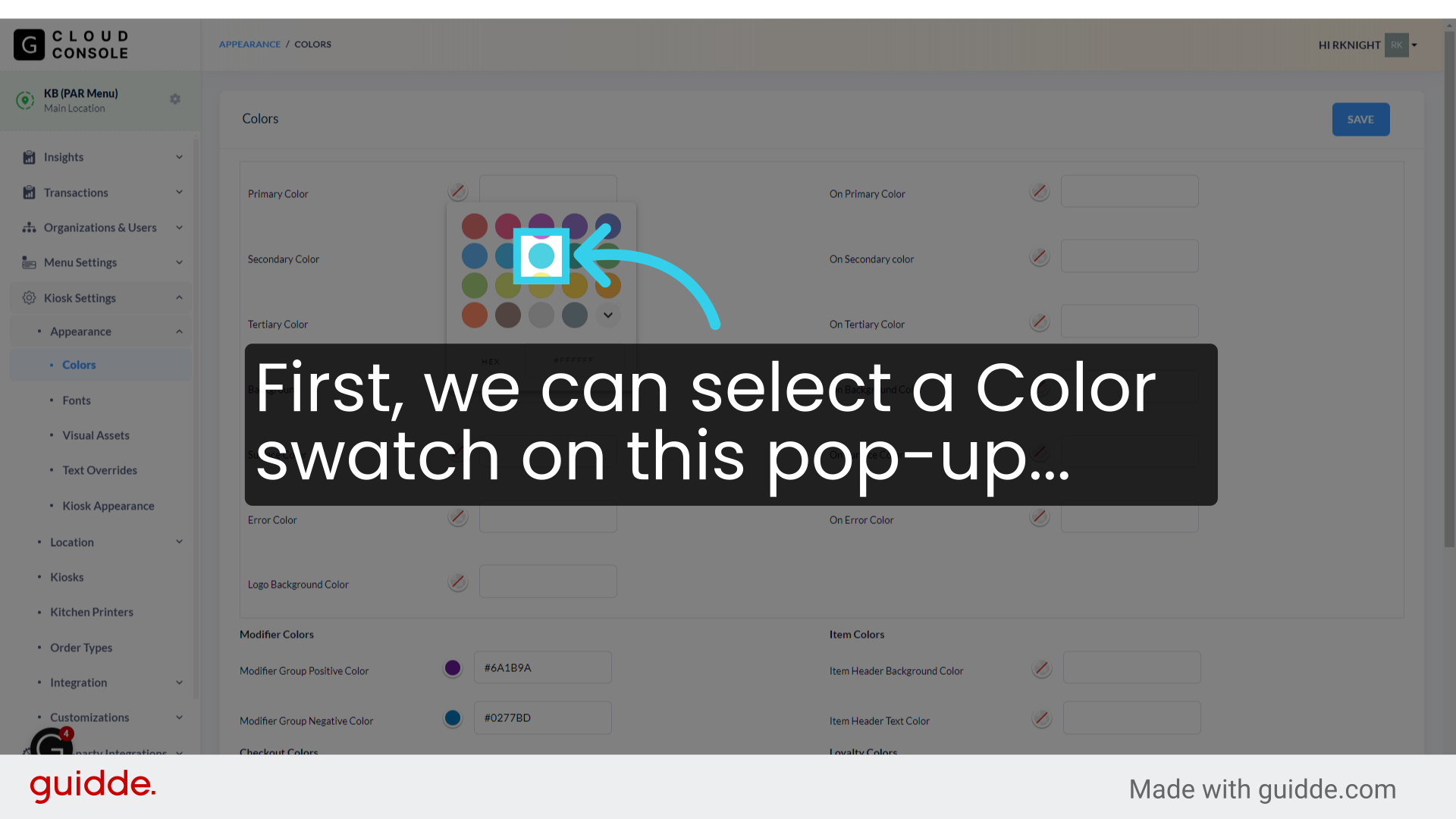
6. Which will then offer us a choice of shades for the color

7. We can also click the dropdown tool...

8. ... to bring up a detailed color selector tool
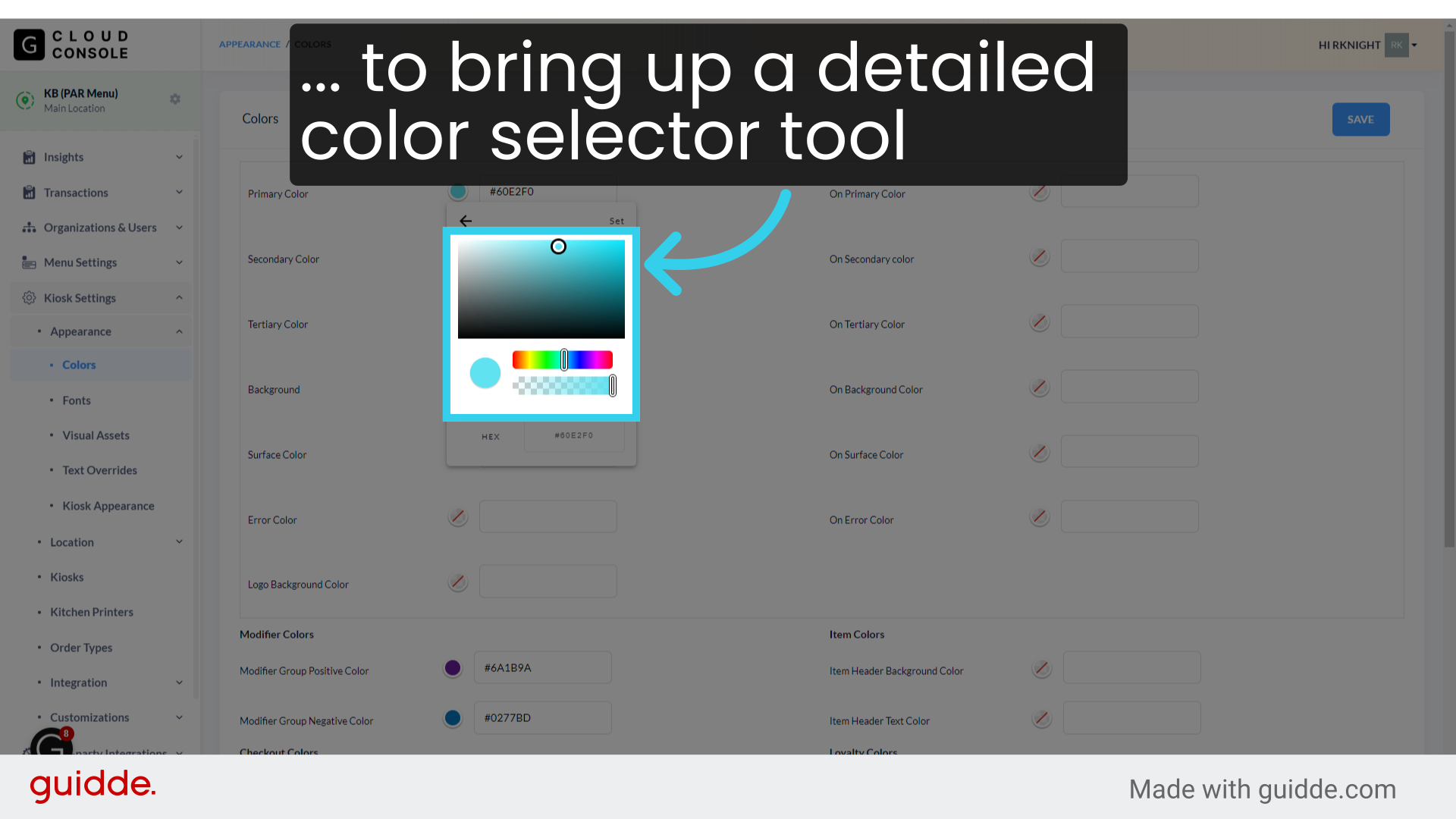
9. The system also allows us to directly enter Color Hexcodes, either through the color selection tool...

10. Or on the main Color list

How Individual Color Codes Work
Now that we've covered how to change an element's color scheme, let's take a look at what each element controls on the Kiosk
1. The "Primary" Color is used for Buttons on the Kiosk
This will update the following:
Order Type Buttons
Category and Item Headers (default)
"Add as Is" buttons
"Close" pop-up buttons
"Add to order" buttons
The "Pay"/"Continue" button
The Tip Slider
Pay at Counter button
No receipt button

2. "On Primary Color" controls the line-art and text on buttons

3. "Secondary Color" is for highlighted text, such as prices, or alternative option buttons
This will update the following:
The "Sign in For Rewards" button
The outline and text for the "Skip Rewards" loyalty button
Category Names when they are listed below the category header
Pricing information
Calorie Information
The cancel order button
The divider at the bottom of the Kiosk screen
The Legal Text button
The "Customize" and "Done" buttons on the modifier screen
The "Special Request" button
Quantity Selection buttons
Item Names on the Order Review Screen
The "Back" button on the Order Review Screen
The "Cancel Order" button
The Tip Slider dialog box
Text on un-selected tip suggestions
Highlight color for selected tip suggestions
Order Totals
"How would you like to pay?" text
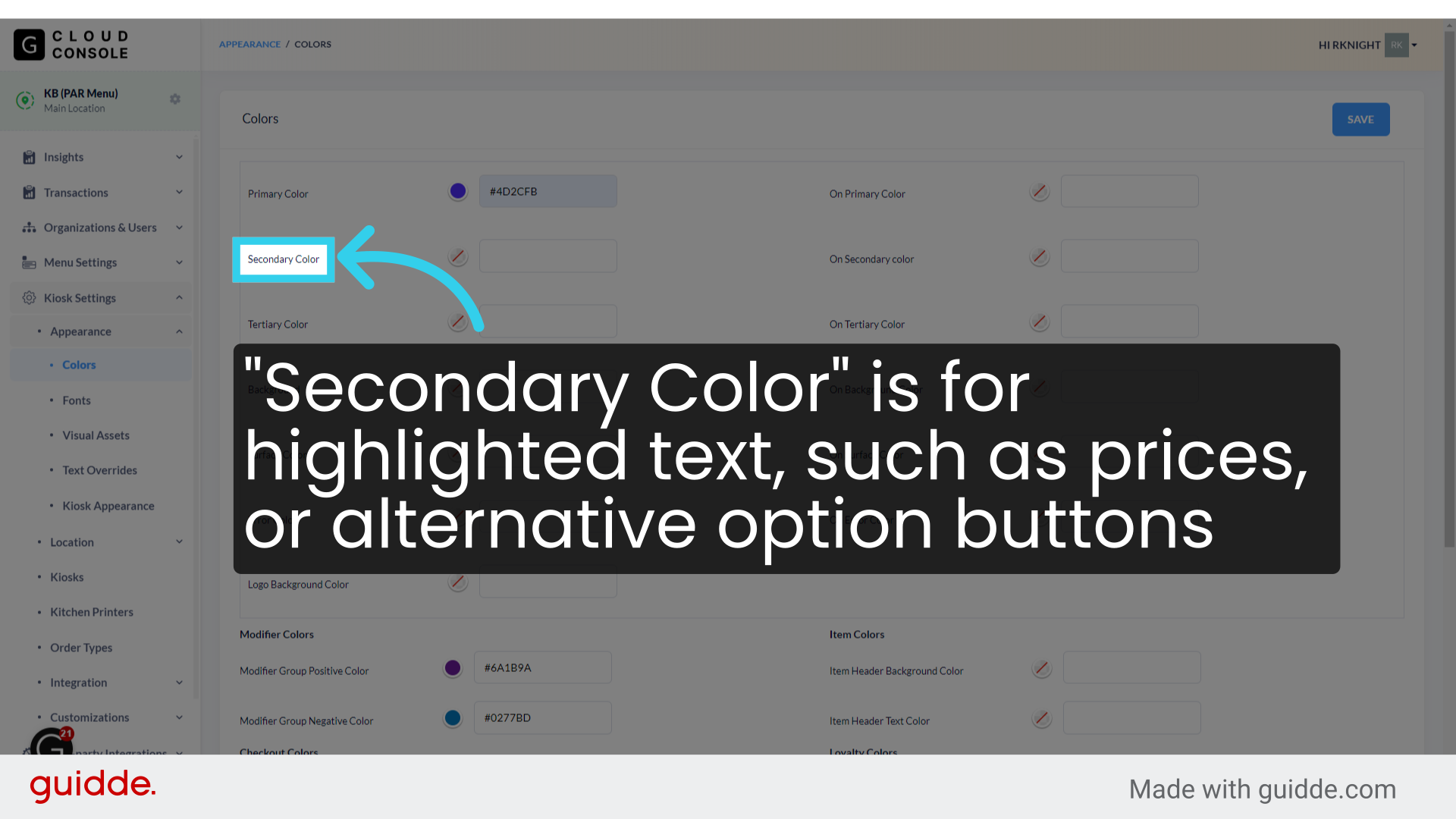
4. "On Secondary" controls line art and text on alternate choice button

5. "Tertiary Color" applies to loyalty-specific text, and to size choices in Combo Families

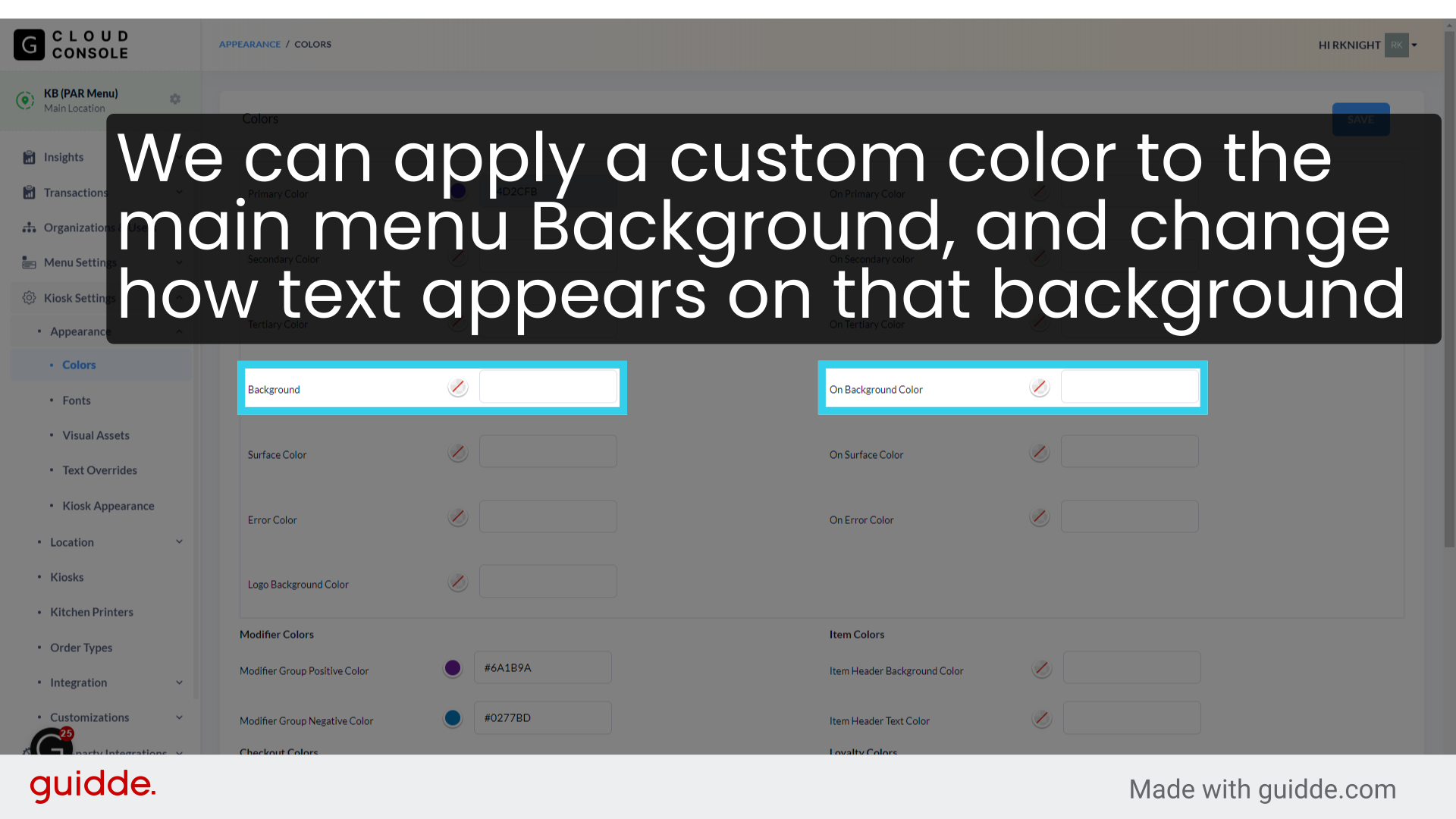
6. We can apply a custom color to the main menu Background, and change how text appears on that background
Note that this background won't appear on the Item/Modifier screen
7. Surface Color alters the Category Sidebar, the background of pop-up windows, and the outline for modifier cards
This includes the pop-up that displays when we try to access the Kiosk's internal admin settings
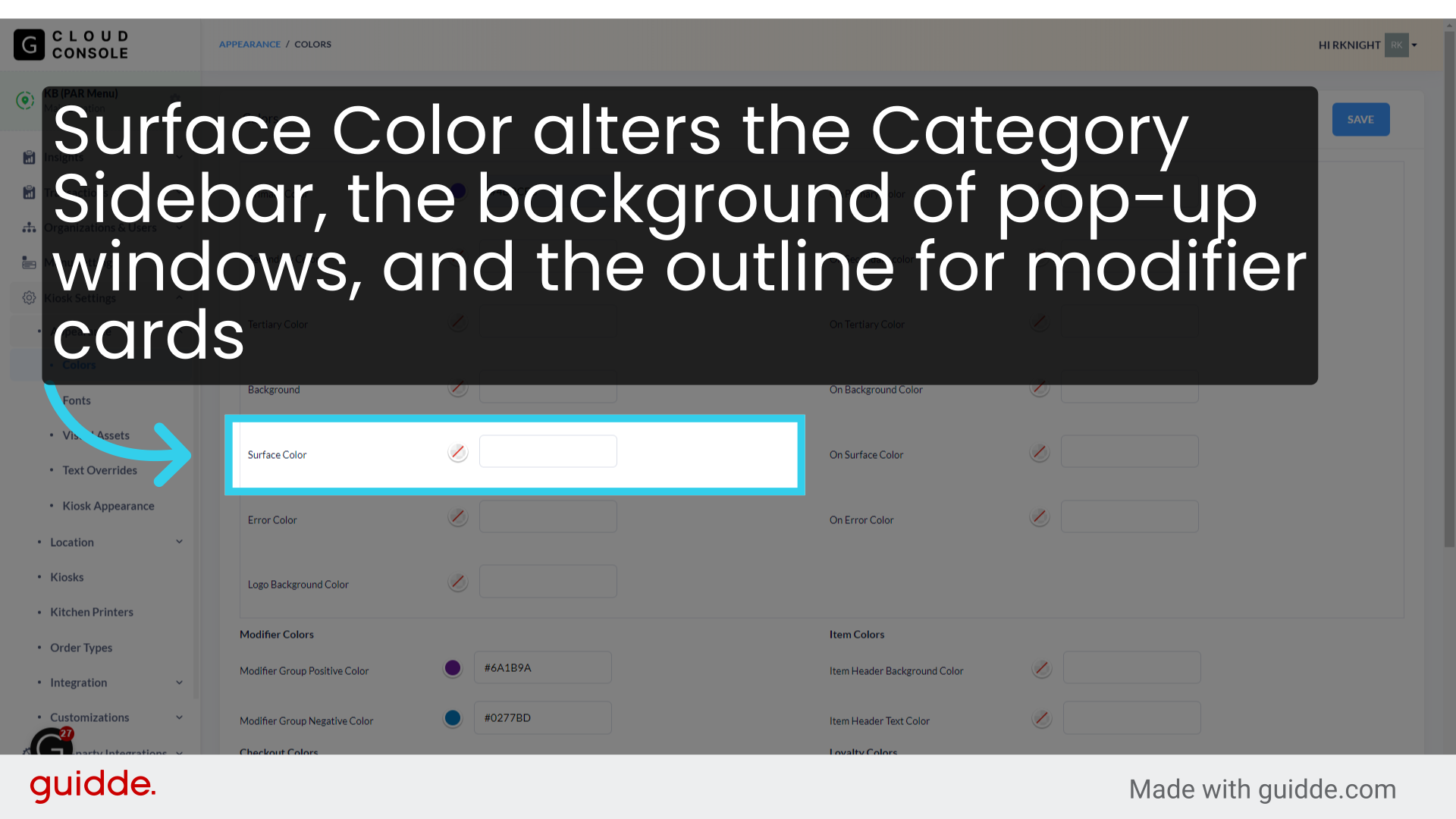
8. While "On Surface Color" affects the text and lineart on these elements

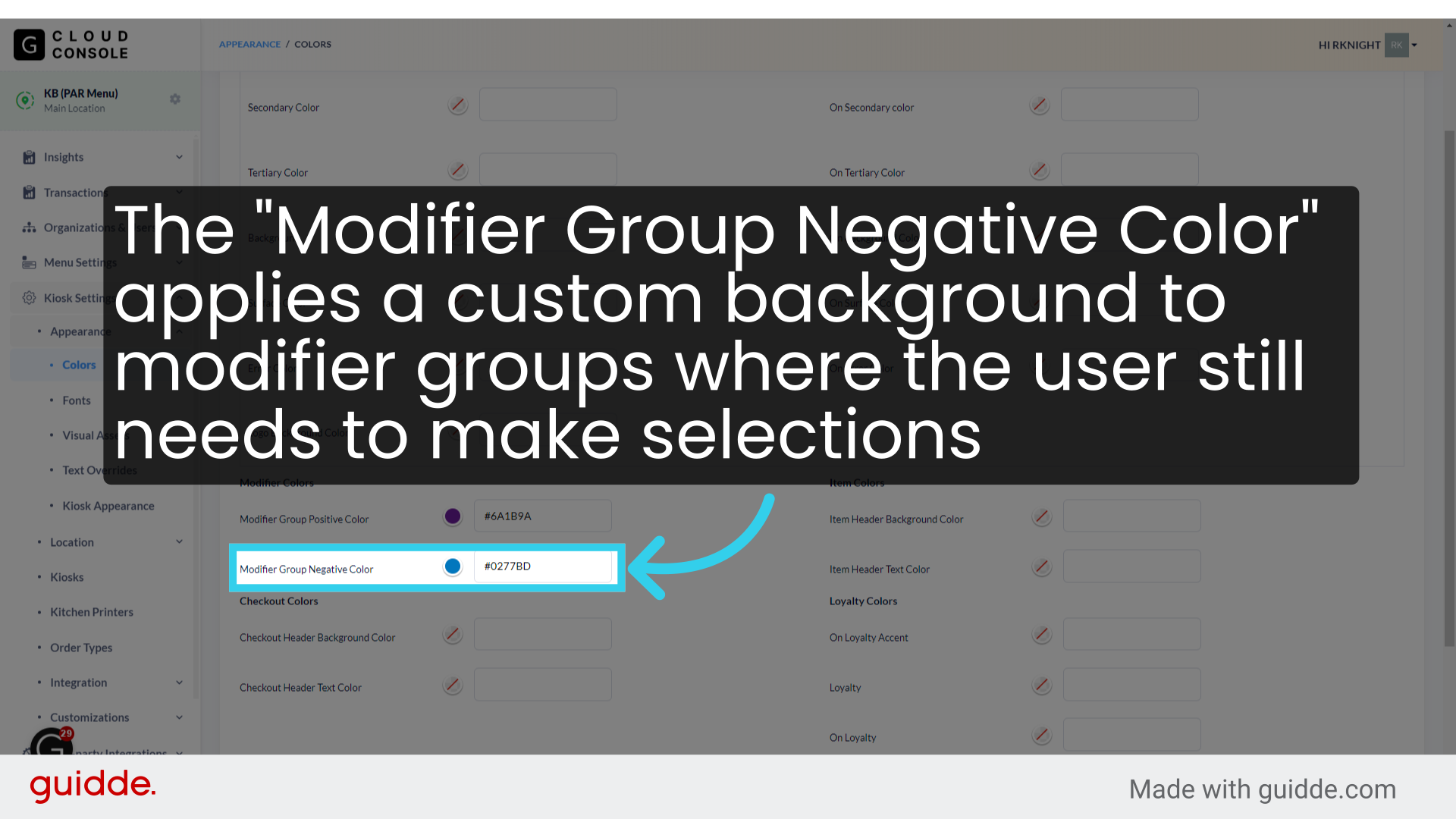
9. The "Modifier Group Negative Color" applies a custom background to modifier groups where the user still needs to make selections
The "Positive Color" is hardcoded, and does not change the UI at this time
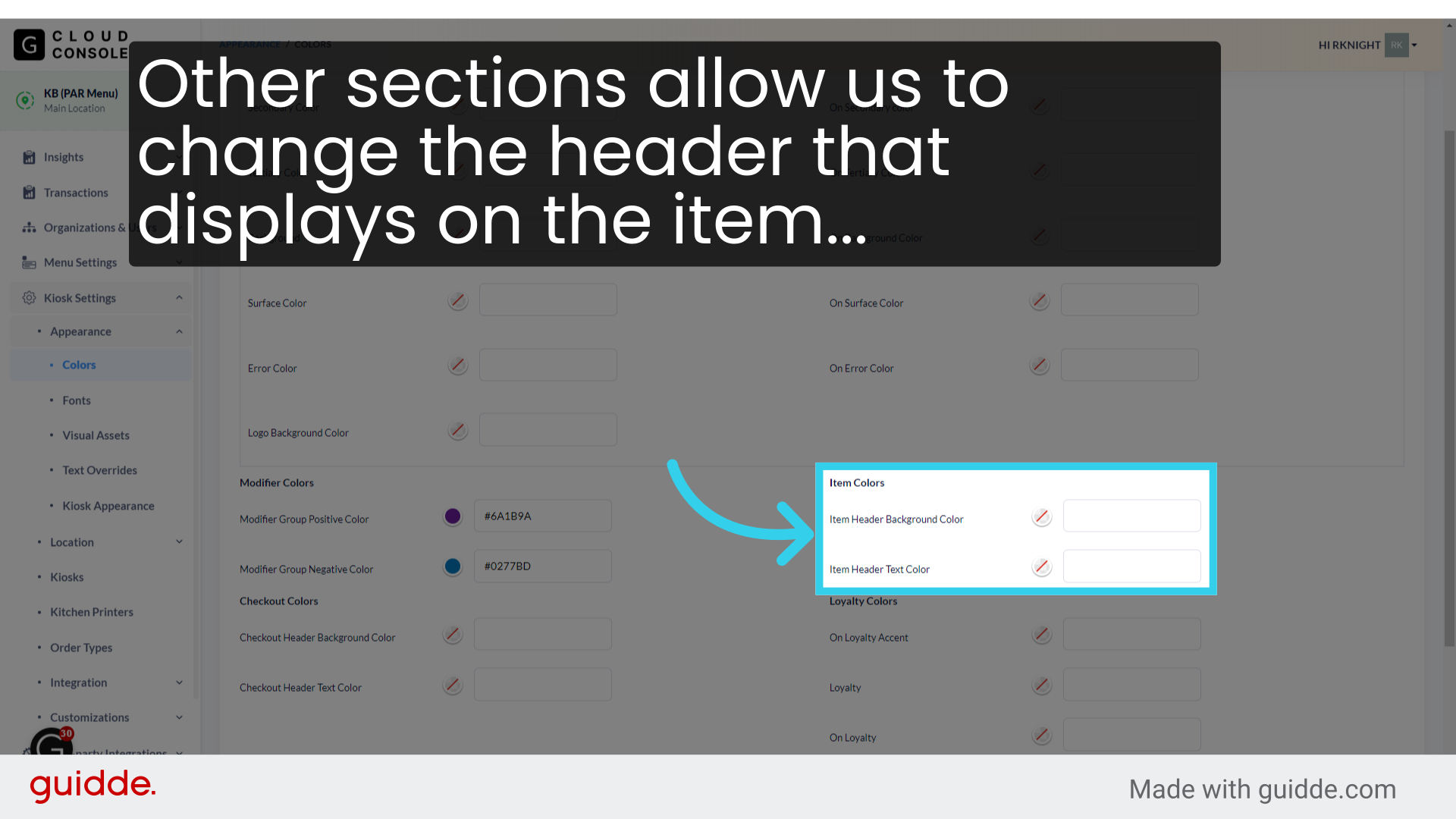
10. Other sections allow us to change the header that displays on the item...
11. ... Loyalty...

12. ... Category...
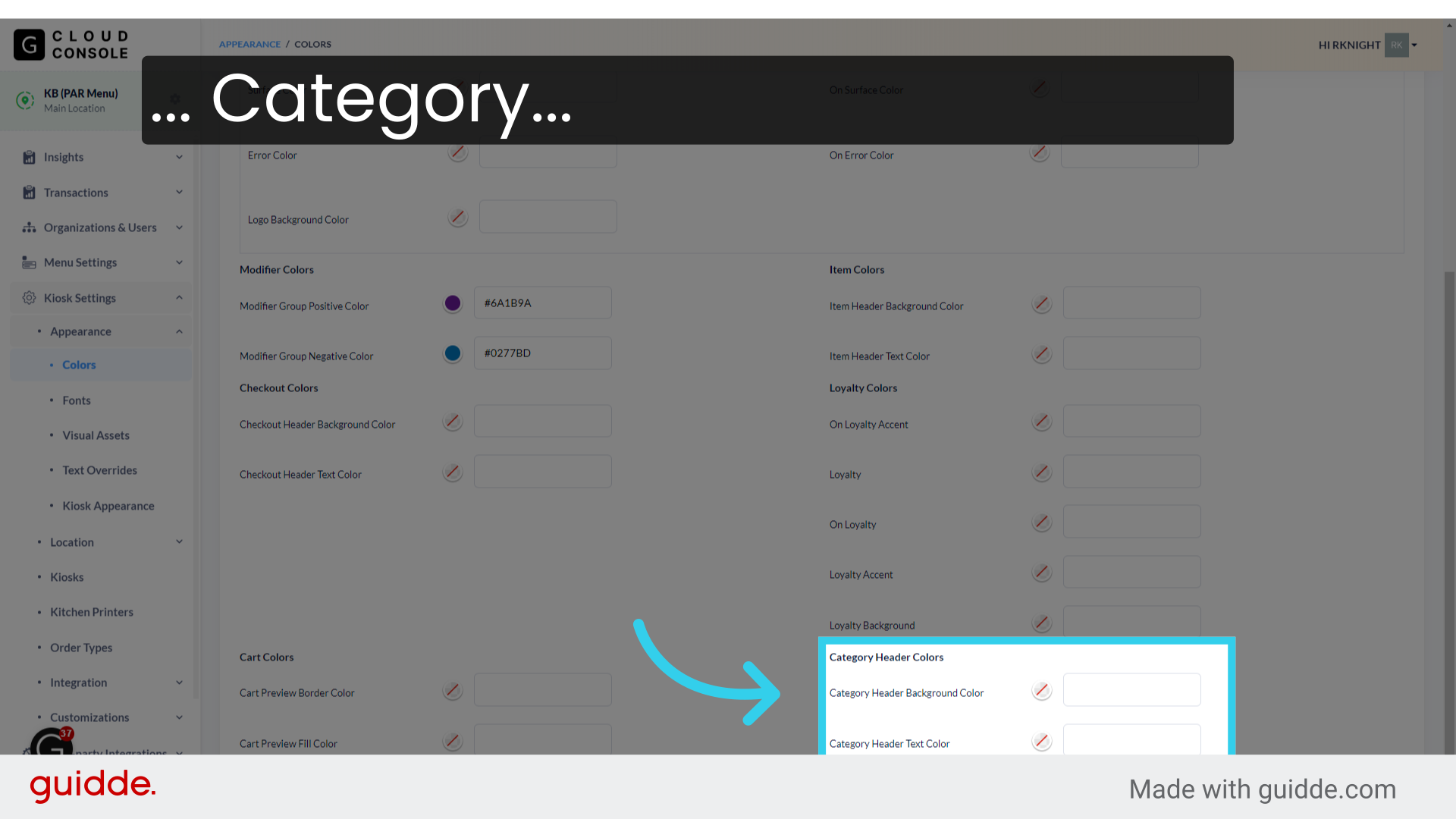
13. ... and Checkout screens

Troubleshooting & FAQS
What do I do if I can't see Category Header text after updating my Kiosk's color scheme?
If you can't see category headers on your Kiosk menu after updating your menu's Color scheme, you may be able to resolve the issue by:
Ensuring that you've assigned a color to the Header Background and Header text (as pictured in step 12 above)
Make sure that "Show Category Name in Header" is enabled on the Category Settings page, as shown below