How to use Localization Controls & Custom Text Overrides in the GRUBBRR Console
Last updated: August 8, 2026
Does the GRUBBRR Kiosk support any languages besides English?
The GRUBBRR Console offers advanced localization controls for both customer-facing and internal elements of the Kiosk user interface. With these controls, we can display these elements of the menu in English, Spanish, and French; we can also allow clients to choose which language they'll use as the "default" for their devices, and even override UI elements with custom messages. Please note: these settings do not impact the language used for menu items, or their descriptions.
To enable localization controls and custom text on the Kiosk at the Location level:
1. Click "Kiosk Settings"

2. Click "Appearance"

3. Click "Text Overrides"

4. Users can view the Kiosk UI in any "Enabled Languages"
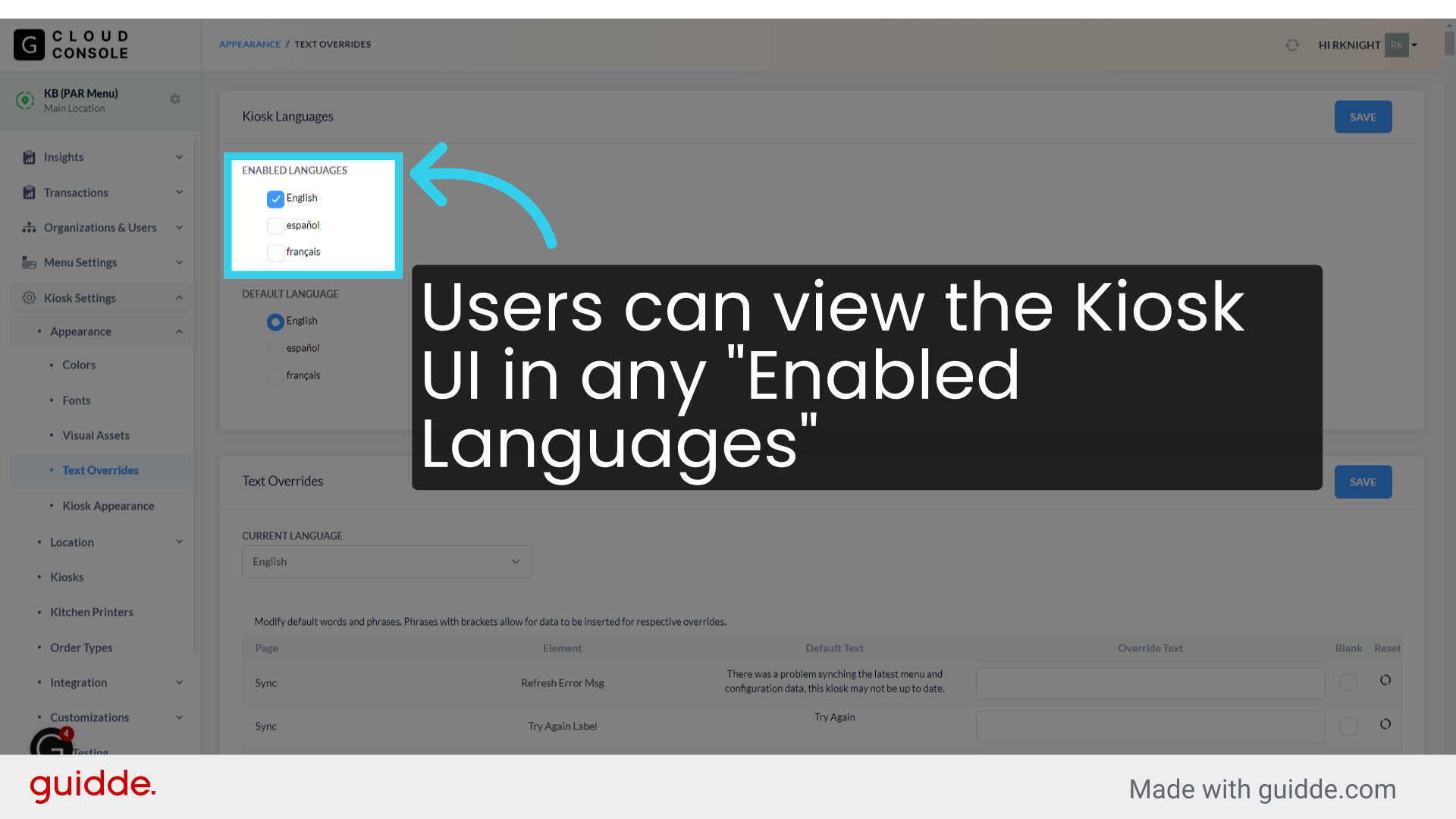
5. The "Default Language" is the primary language we use for the Kiosk UI

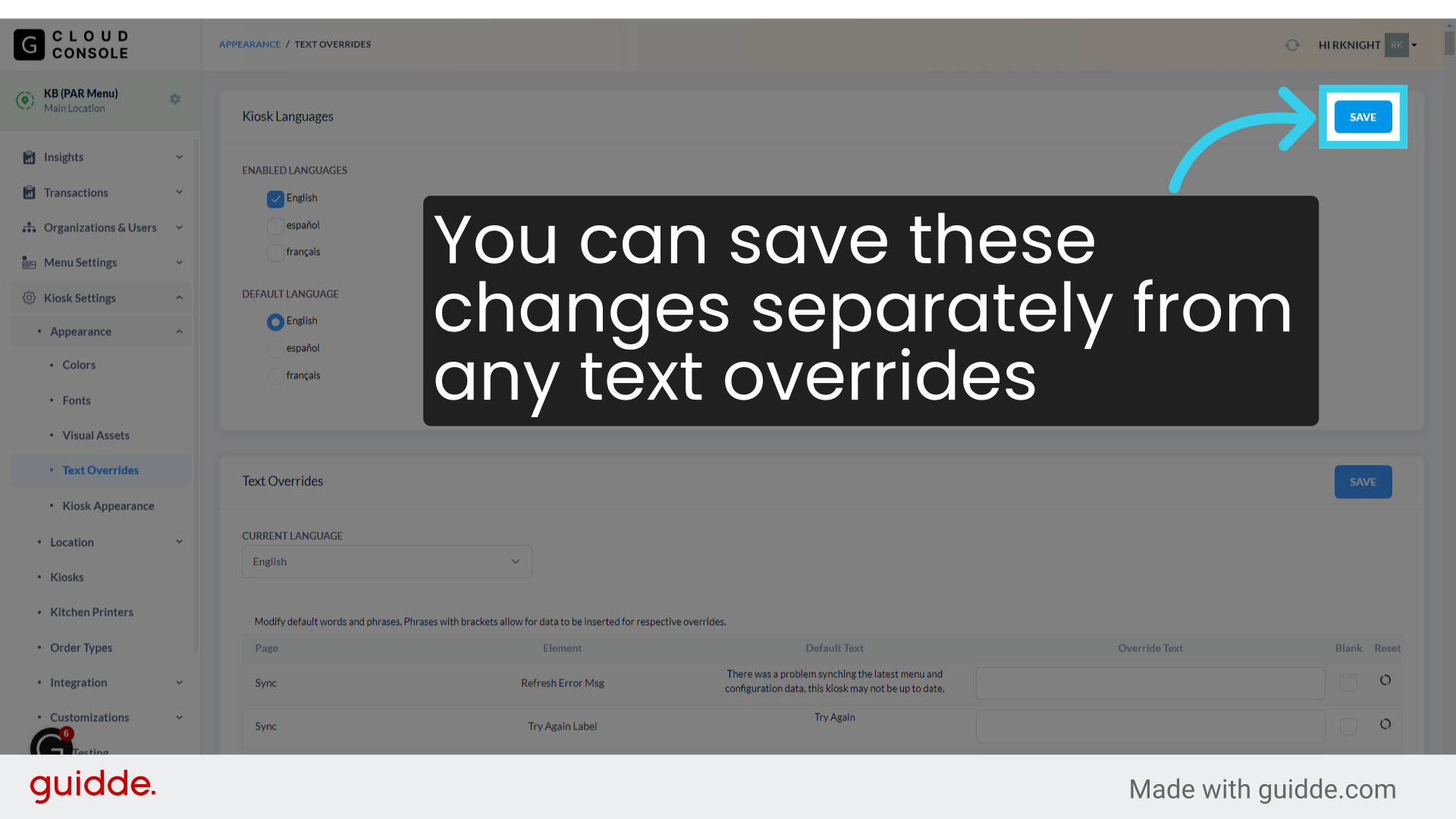
6. You can save these changes separately from any text overrides
7. We can assign "Text Overrides" for the UI across all available languages

8. Select the UI language you want to update...
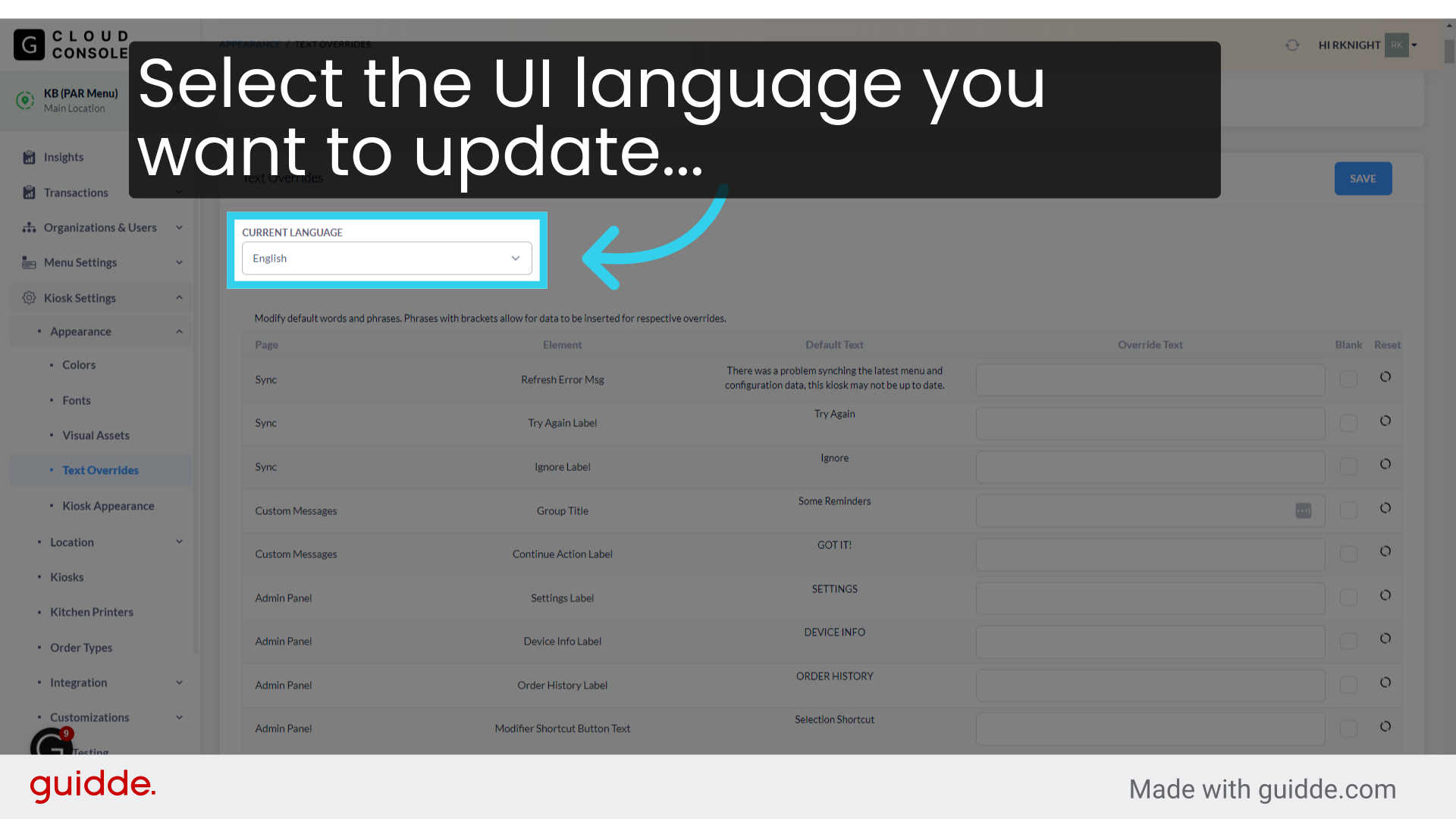
10. ...And enter the new text for UI elements in the spaces provided

11. At the moment, the "Blank" flag is non-functional
If you want an element to be blank, press the space bar in the override text box

12. You can revert to default text by clicking the "Reset" button

13. Click "Save"

14. Click "Push to Kiosk" to apply your changes on all Kiosks at the location
