How to Bypass the Item Detail Screen for Simple Menu Items through the GRUBBRR Enterprise Console
Last updated: August 8, 2026
Is there a setting in the Console that allows my customers to add simple items, like bottled water, to their cart with a single tap?
By default, version 14.x+ of the GRUBBRR Kiosk application displays an Item Detail screen every time a user adds an item to cart, whether the item includes modifiers or not. For some users, this can lead to "click fatigue"- a sense of frustration that the Kiosk ordering process isn't as convenient as placing an order on the POS. There are a lot of ways that we can reduce click fatigue; for example, by telling the Kiosk to bypass Item Details for any- or at least select- items that don't have any associated modifiers. In this article, we'll show you how to turn on this bypass for all "simple items" at a location, and how you can turn the bypass on or off for specific menu items as well.
We can configure these settings as part of ECM datasets, or through location-level controls. For this guide, we'll walk through the process at the location level.
Go to console.grubbrr.com
1. Click "Kiosk Settings"

2. Click "Appearance"
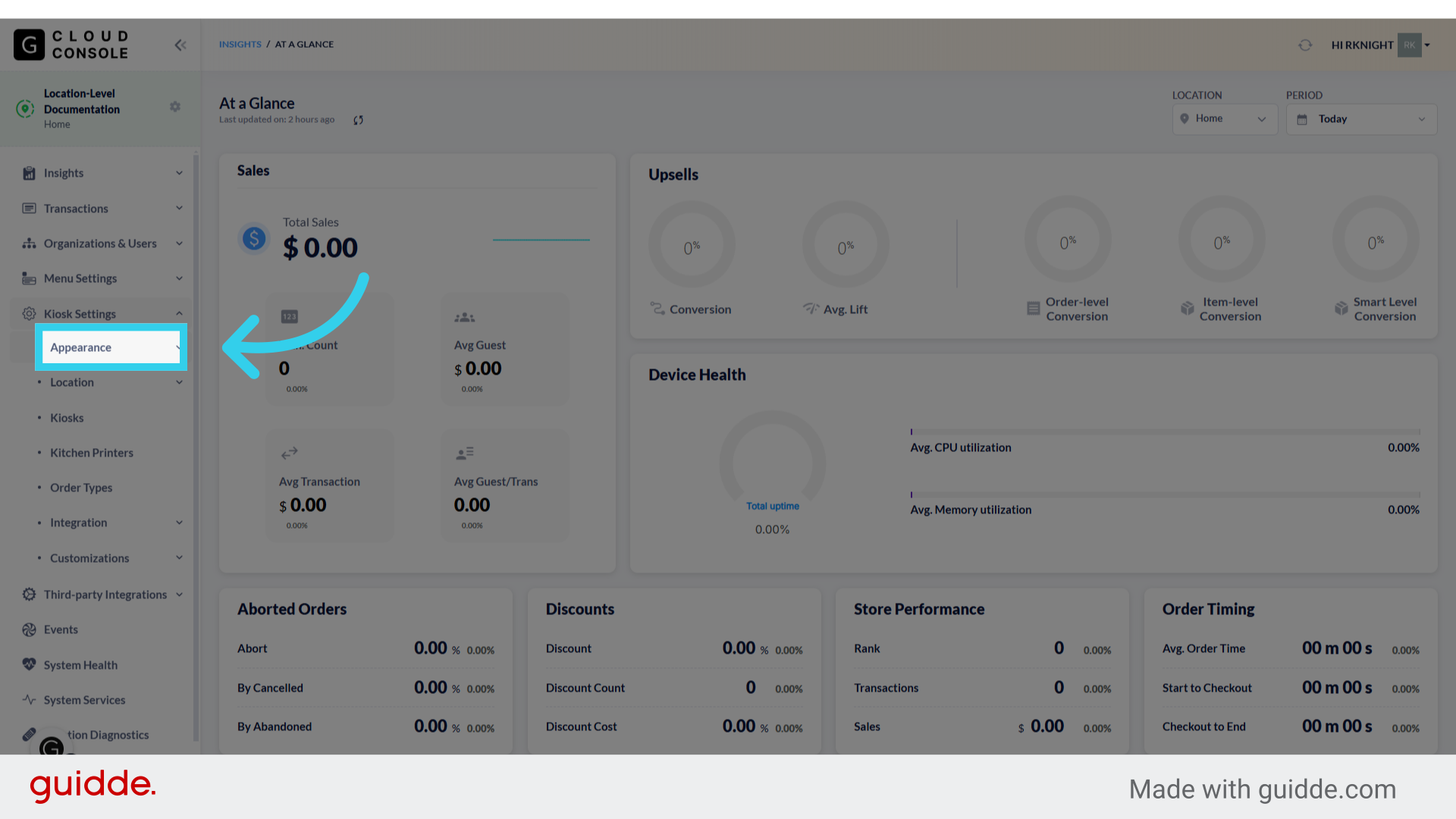
3. Click "Kiosk Appearance"

4. Click "Immediately add to Cart" to bypass the item detail screen on all simple menu items

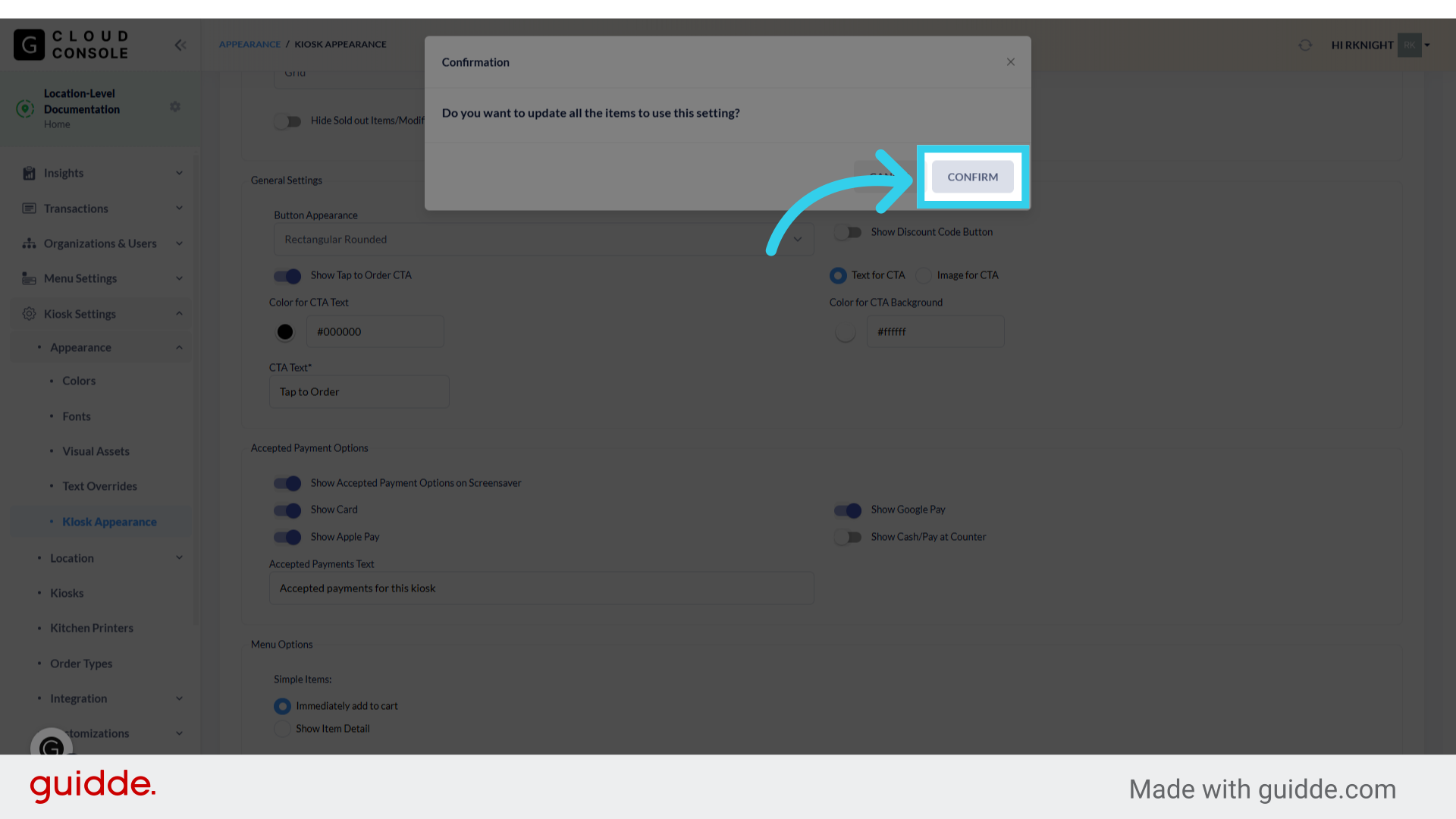
5. Click "Confirm" to apply your changes across your menu
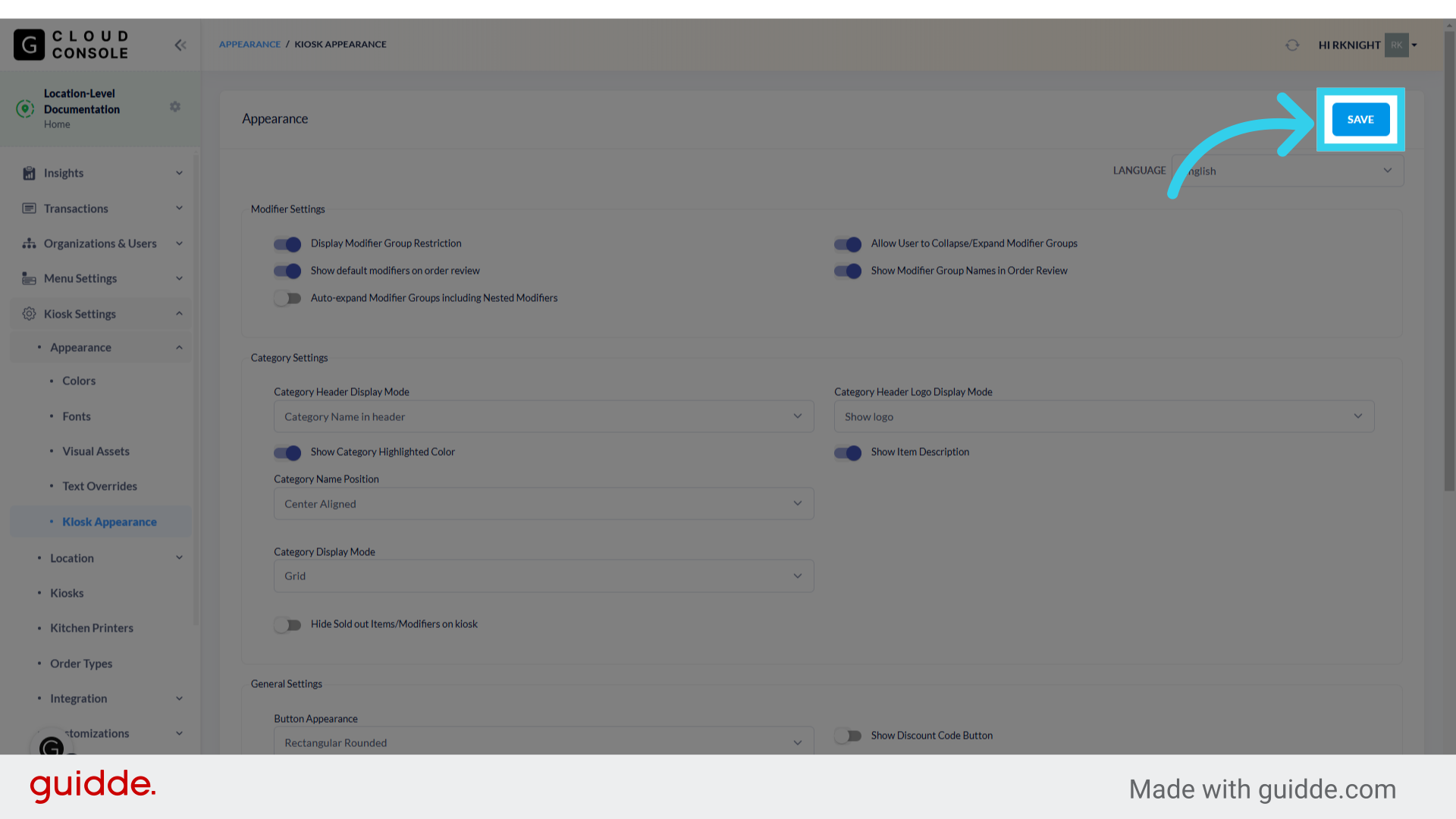
6. Click "Save" to apply your changes
How to Bypass Item Details for a Specific Menu Item
1. Click "Menu Settings"
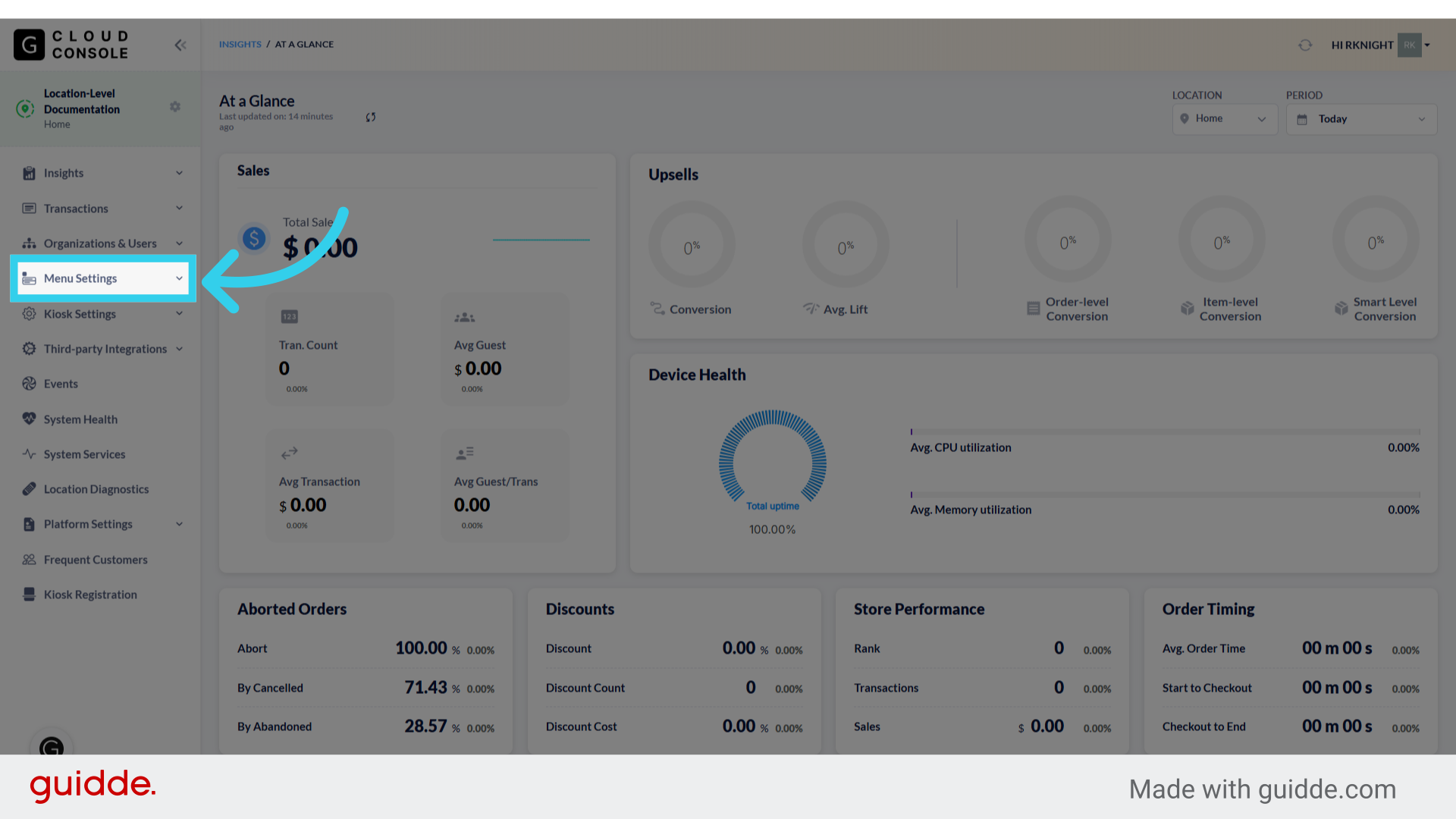
2. Click "Menu"

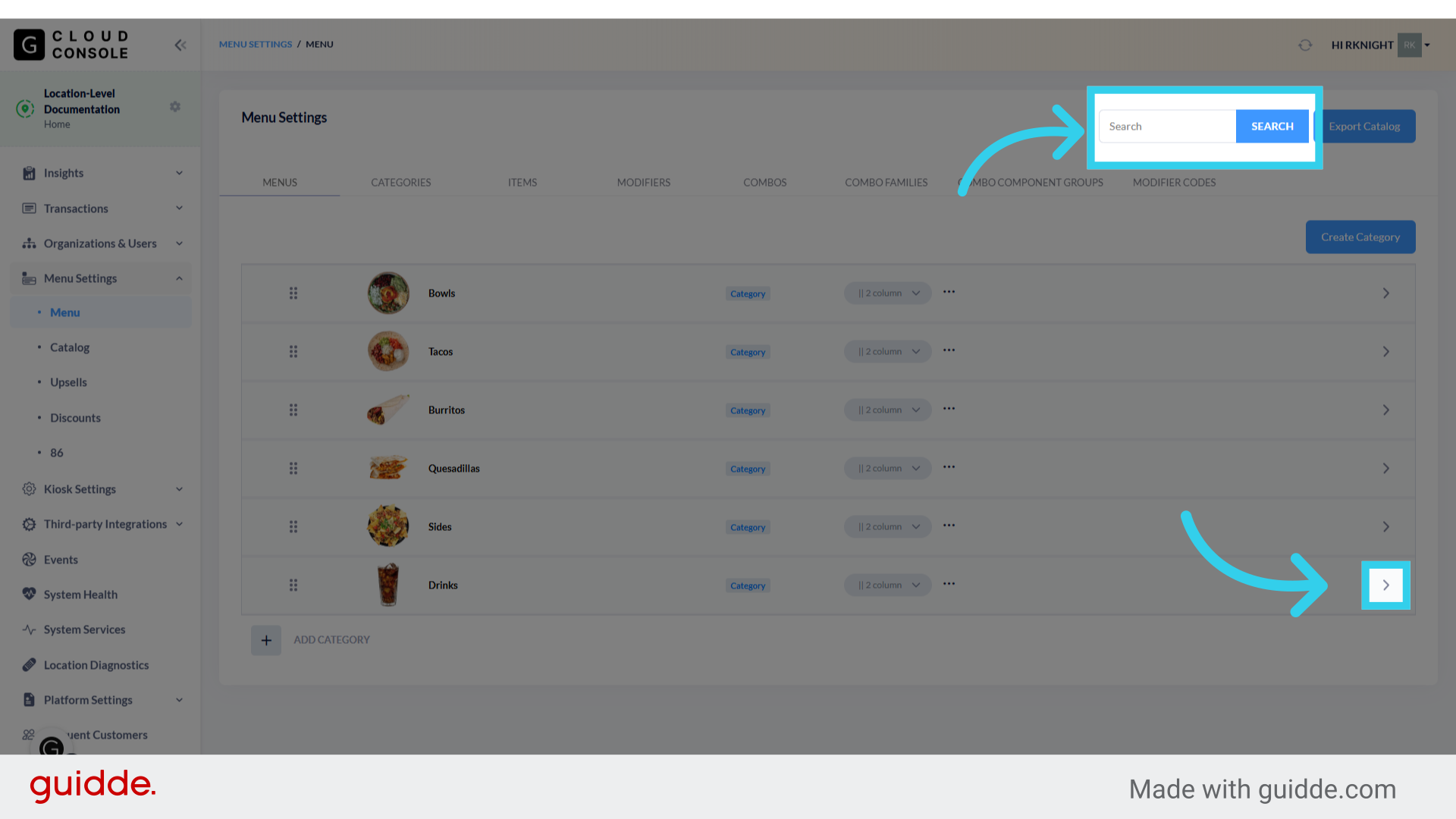
3. Use the search tool, or the dropdowns in the menu manager to find the item you wish to update
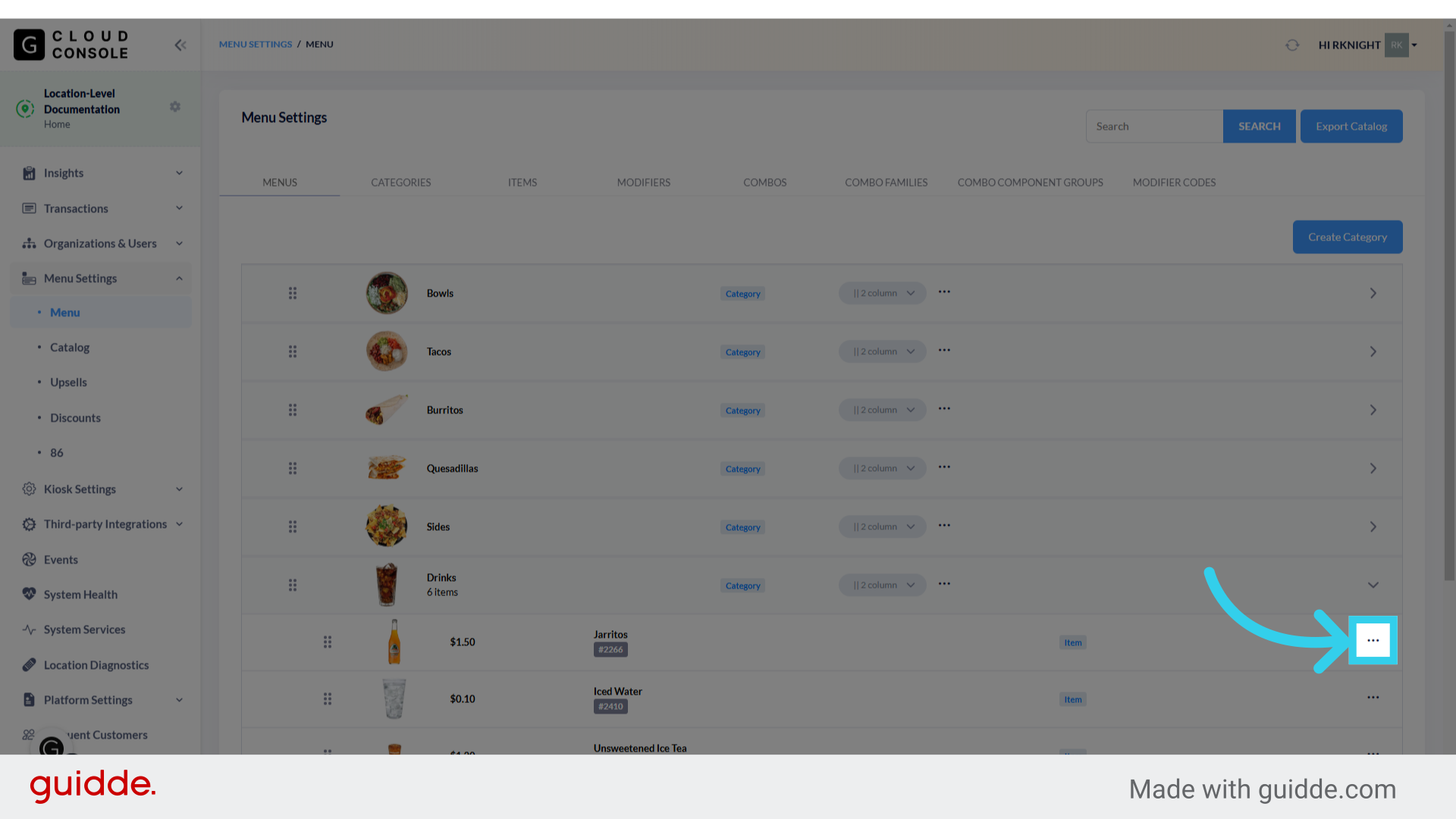
4. Click here to open the "more options" dropdown
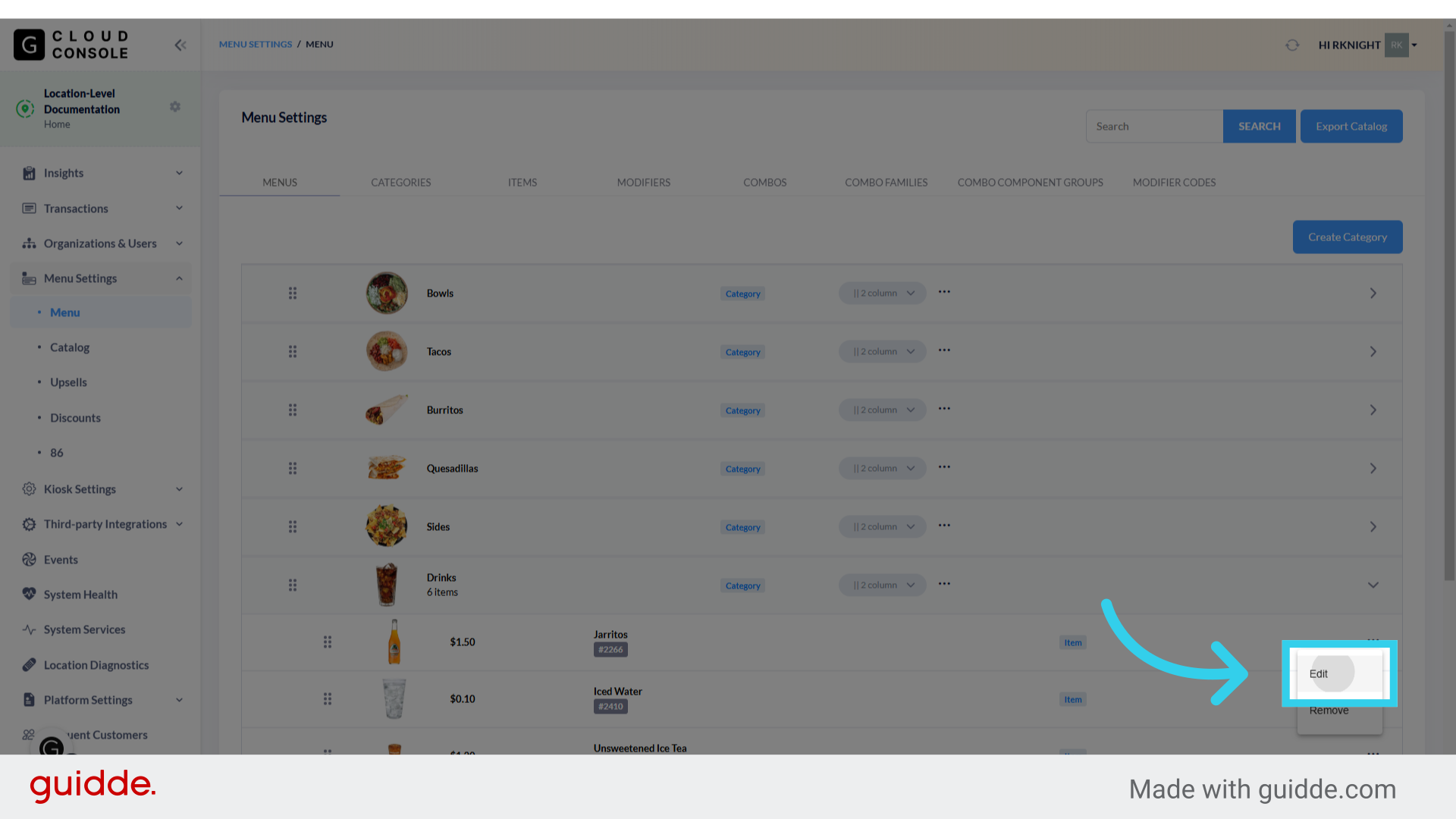
5. Click "Edit"
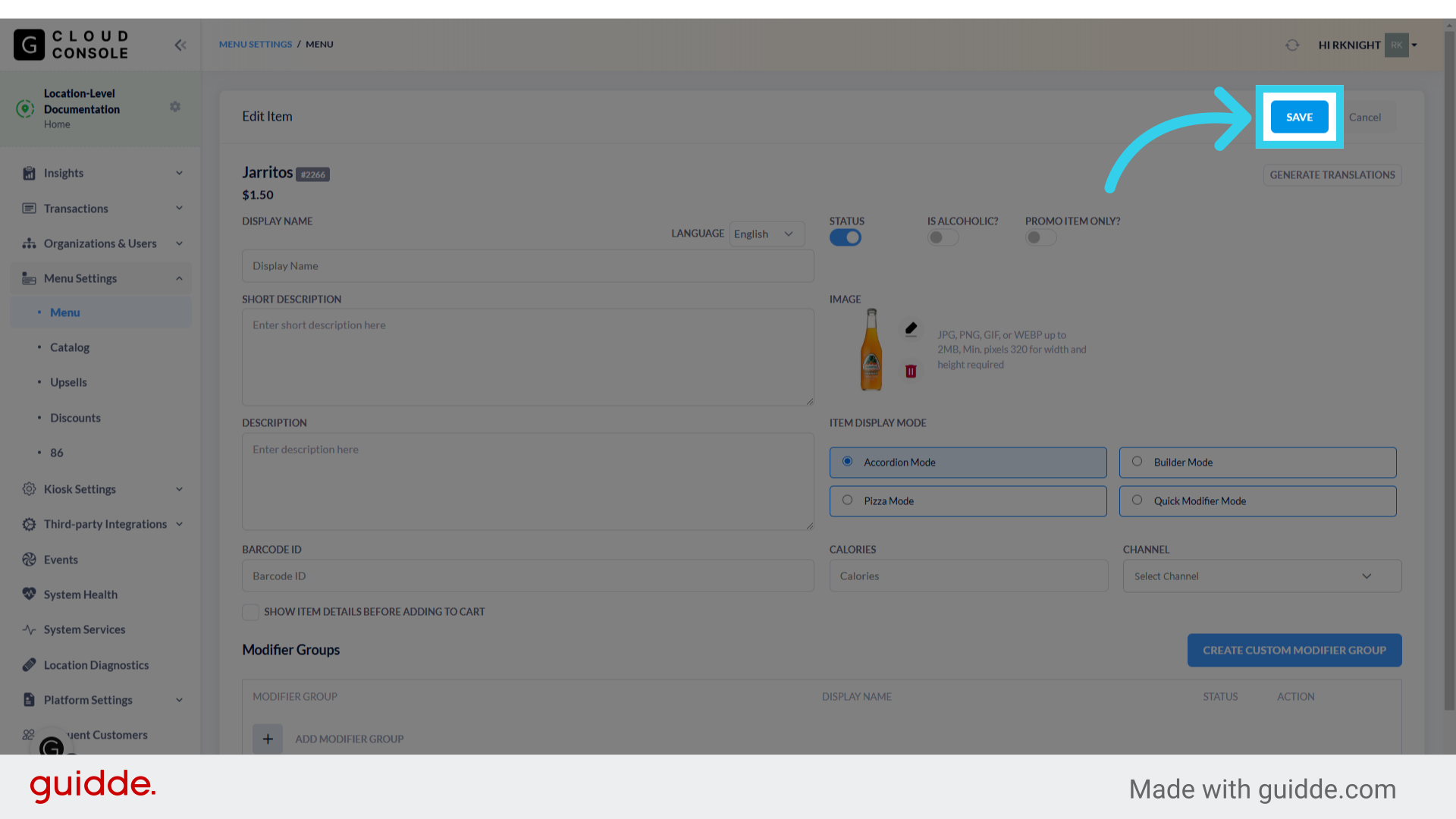
6. Click here to turn off item details

7. Click "Save" to apply your changes