How to Onboard a New Order Progress Board in the GRUBBRR Portal
Last updated: August 8, 2026
I have a new Order Progress Board at my location. How do connect it to my GRUBBRR Kiosk?

Order Progress Boards make it easy for your employees and guests to track the status of open orders, whether they were submitted at a Kiosk or through your POS. You can connect your Order Progress Board (OPB) to the GRUBBRR Portal by following the steps below.
1. Sign in to the GRUBBRR Portal at the Location level
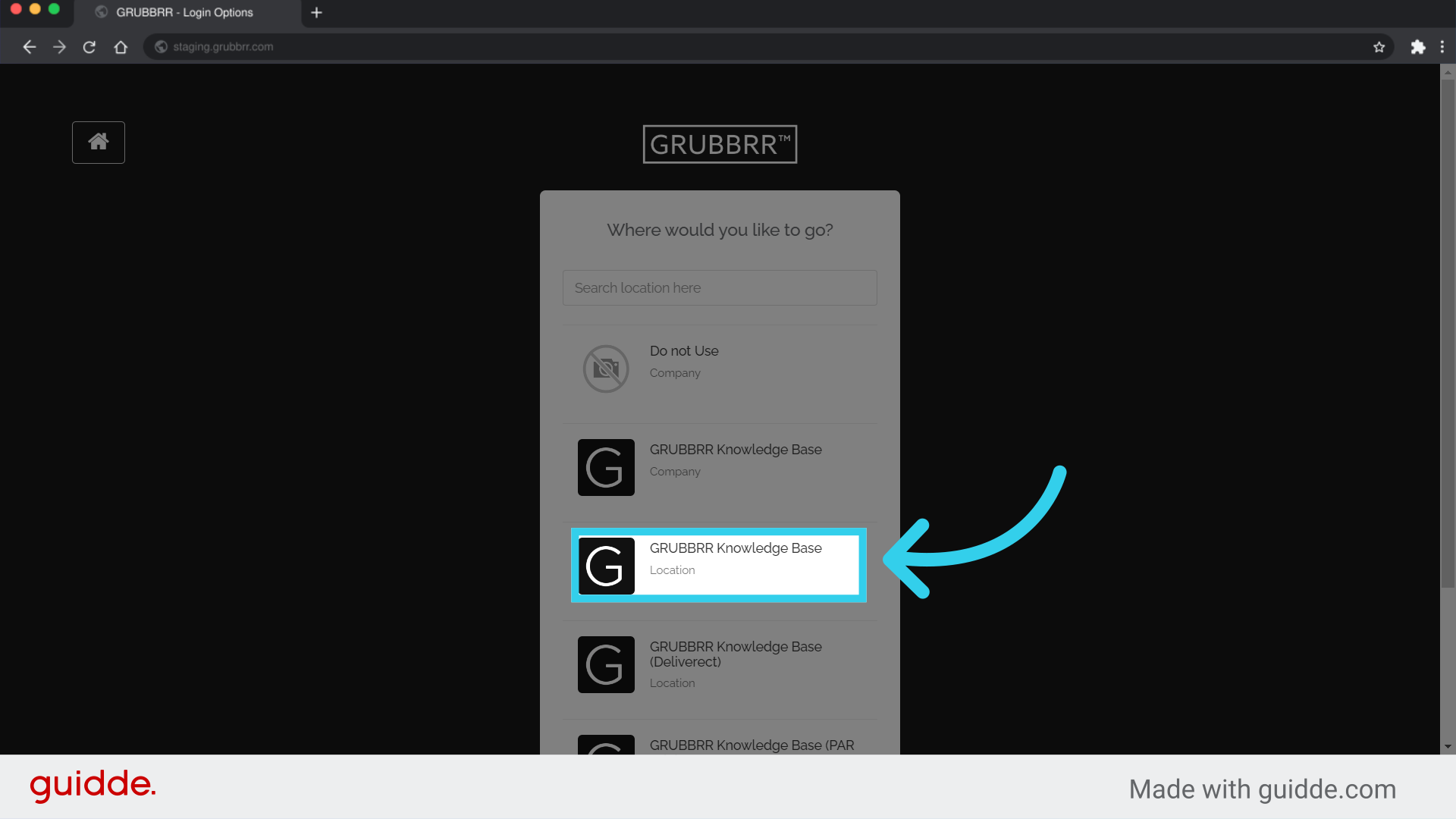
2. Click "Configure"
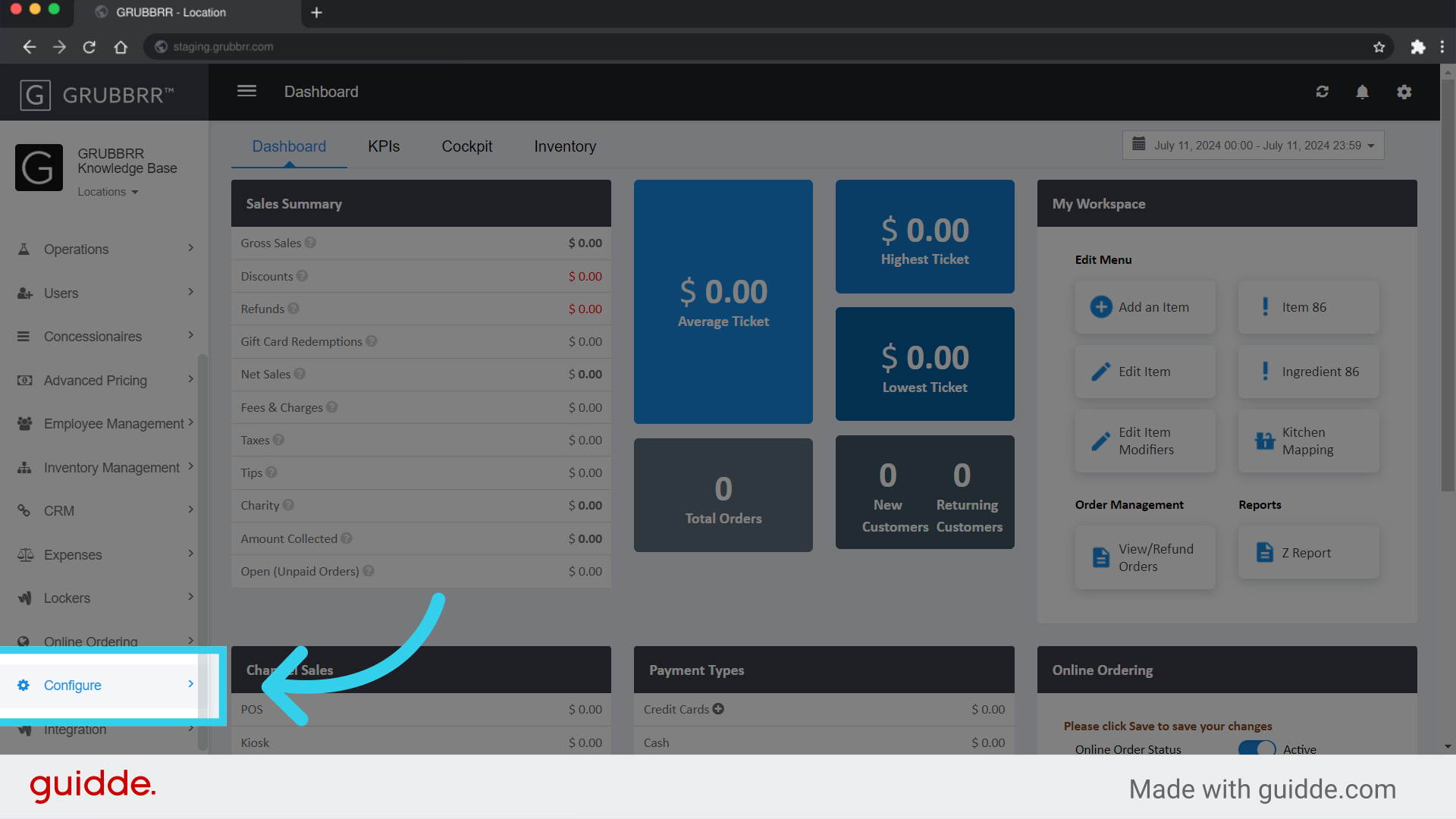
3. Click "OPB Master"
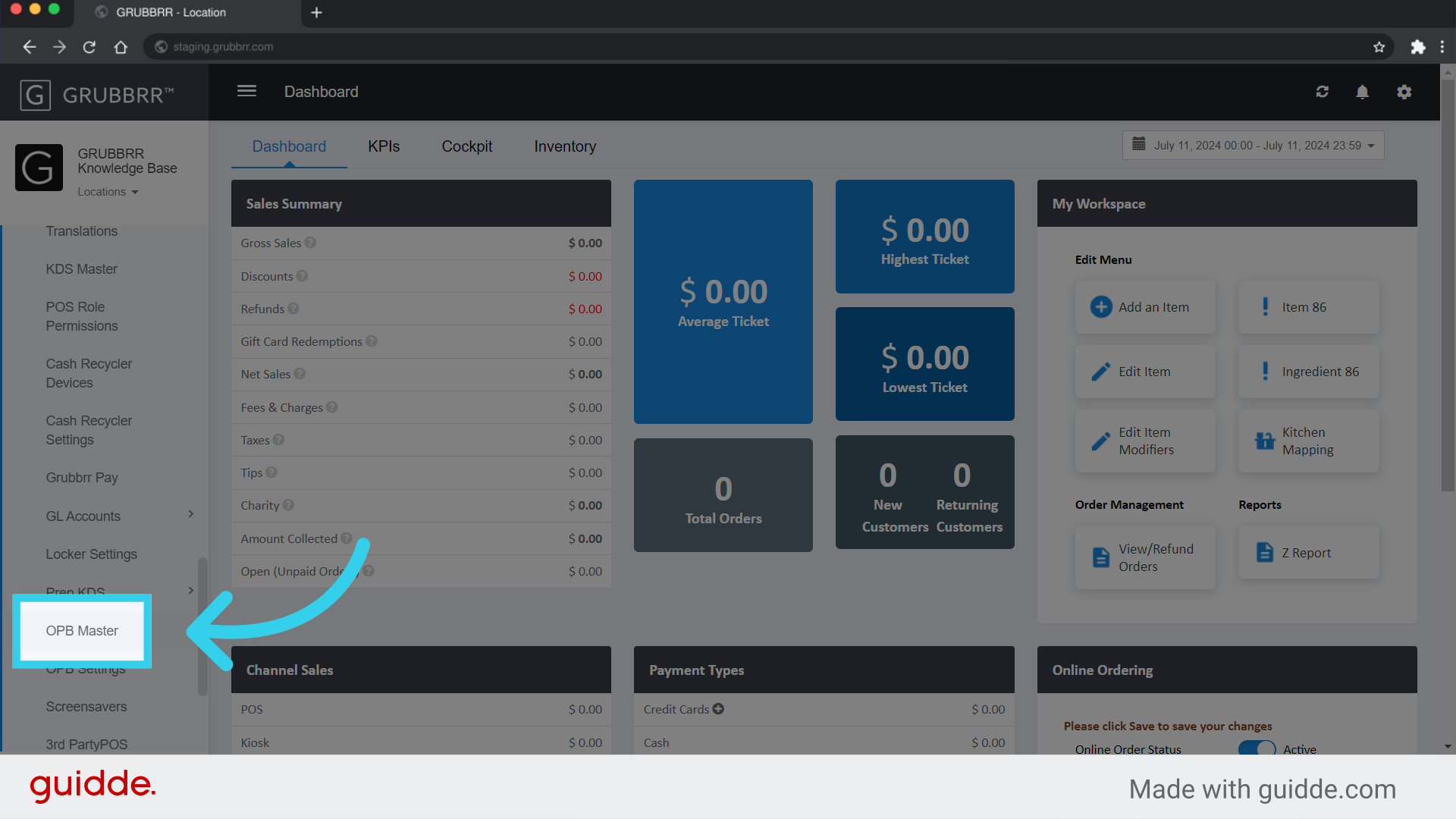
4. Click "Add New"

5. Give the device a name
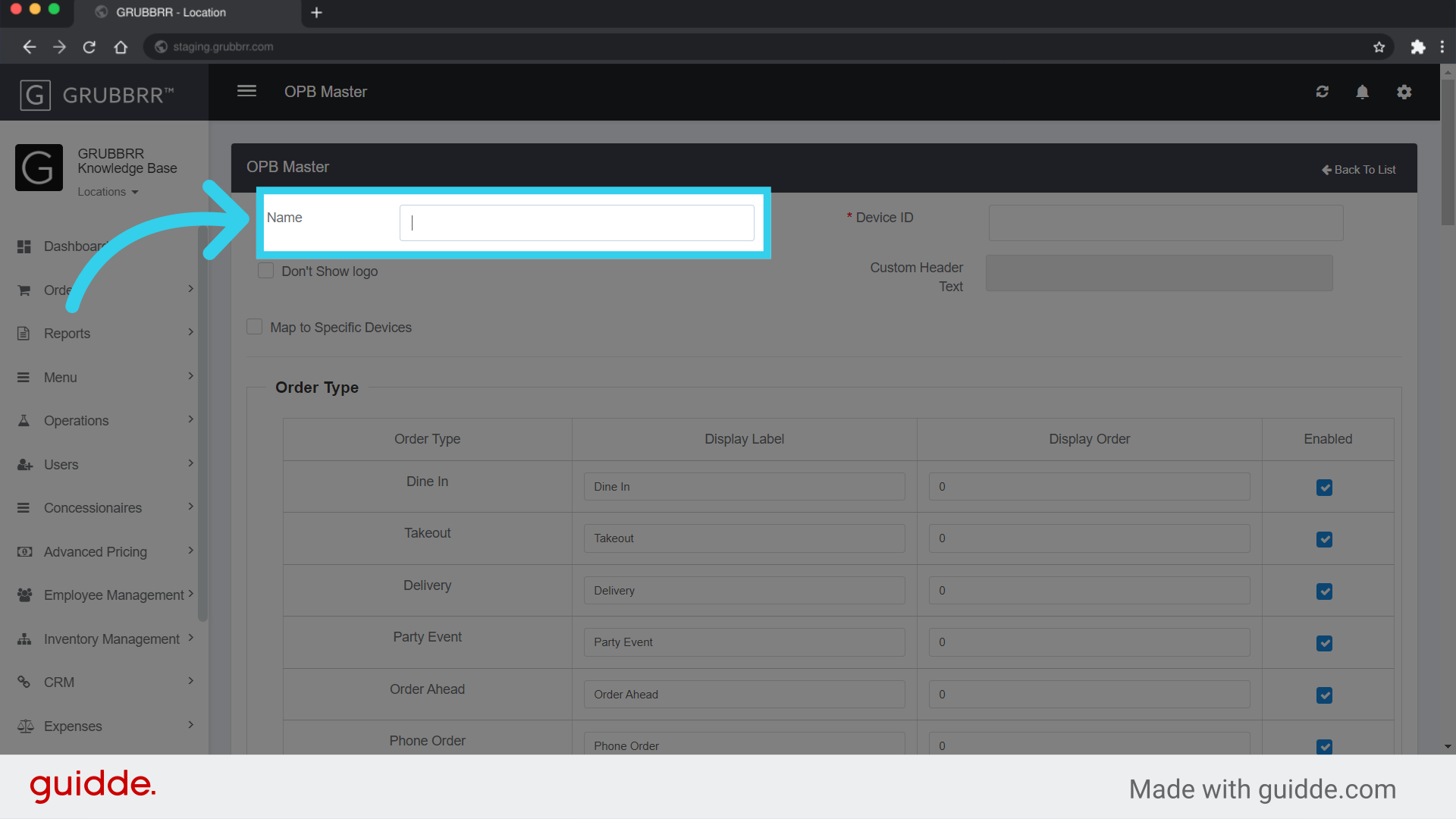
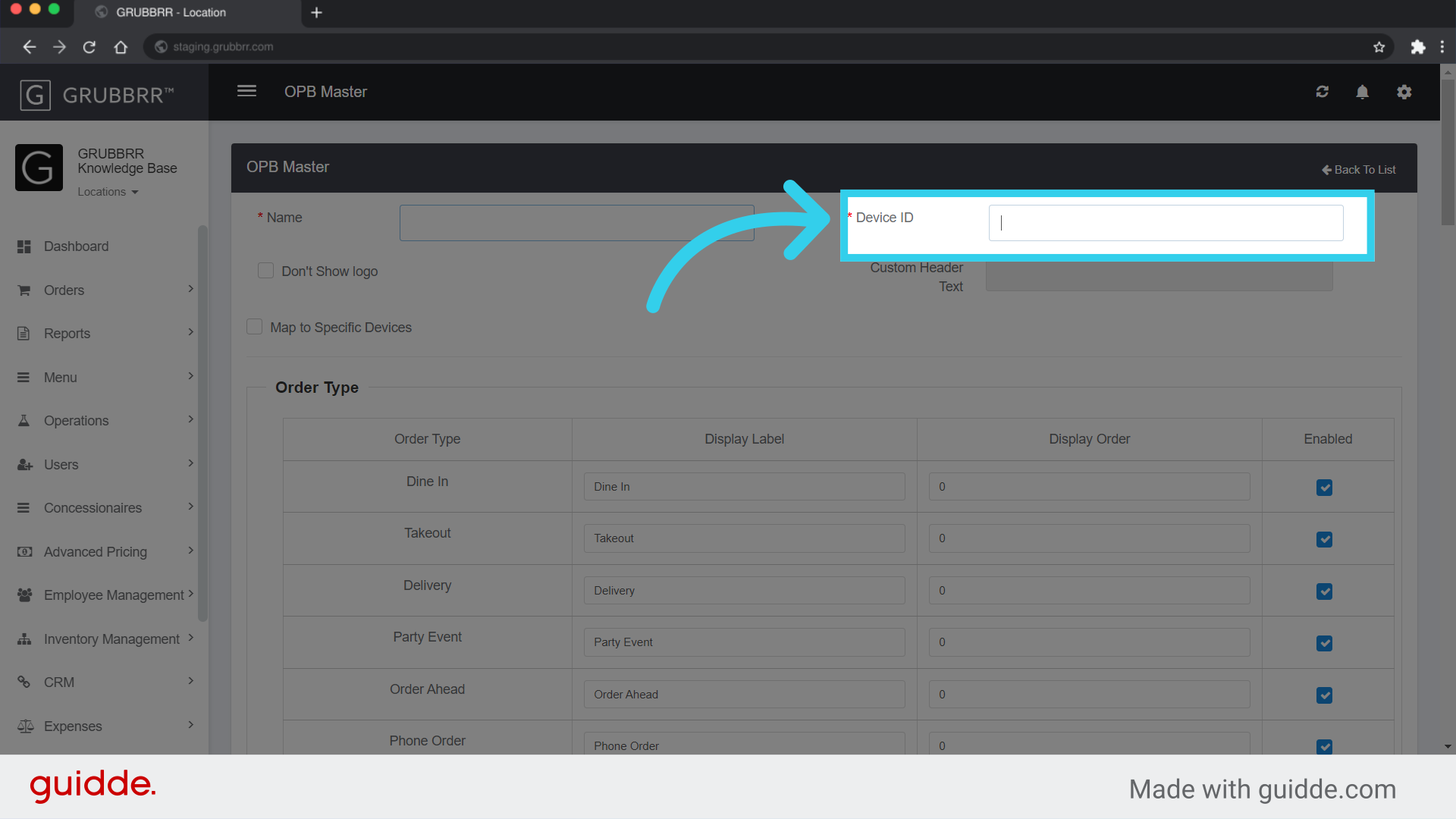
6. Enter the device's App ID into the "Device ID" Field
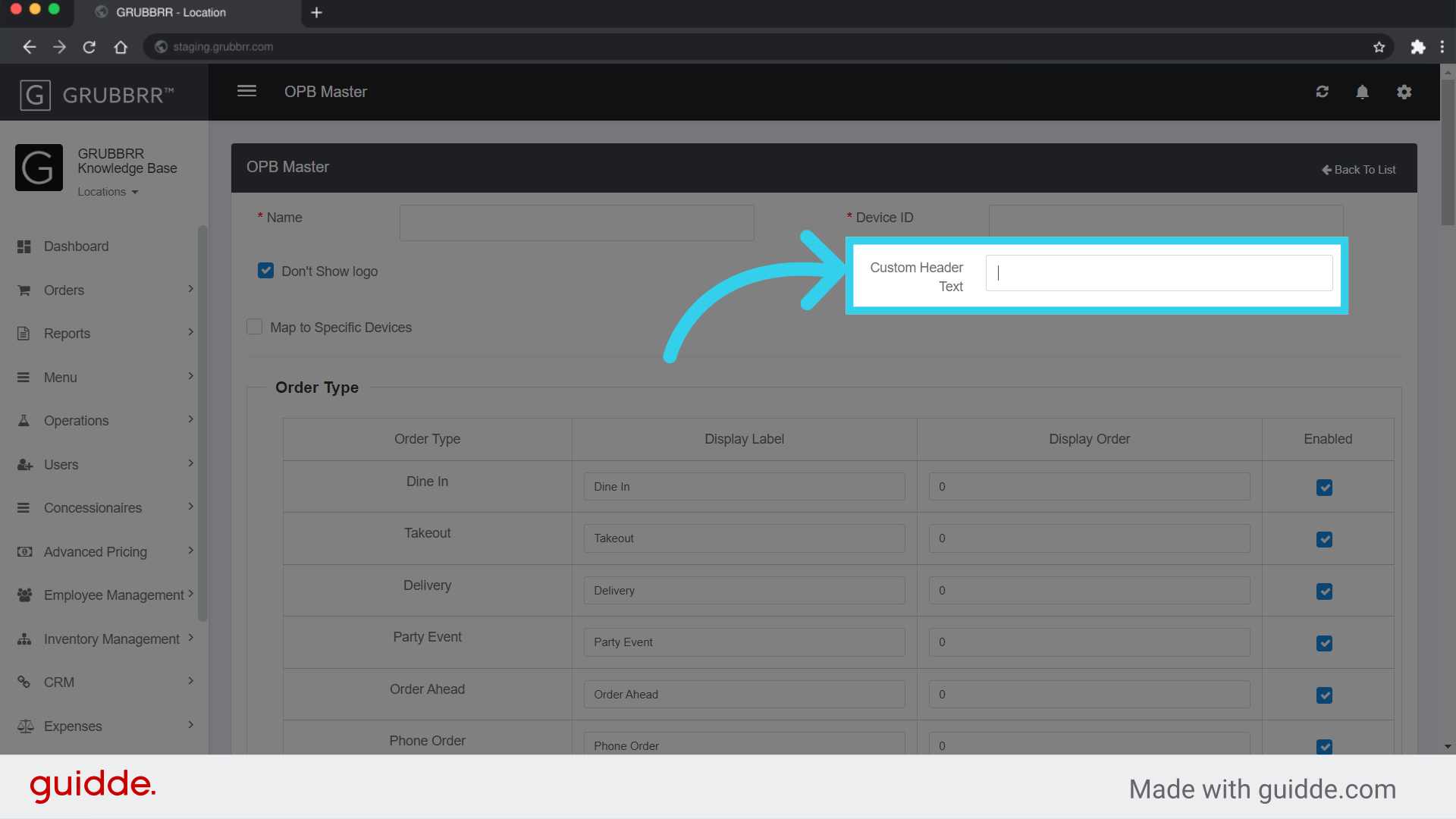
7. OPTIONAL: You can click "Don't Show Logo" to replace the default header with custom text

8. The "Custom Header Text" field only opens if "Don't Show Logo" is selected
9. Optional: Click "Map to Specific Devices" to limit which devices send orders to the OPB
Mapping a device limits which orders the OPB displays

10. A device is only mapped after you click the "Assign" button

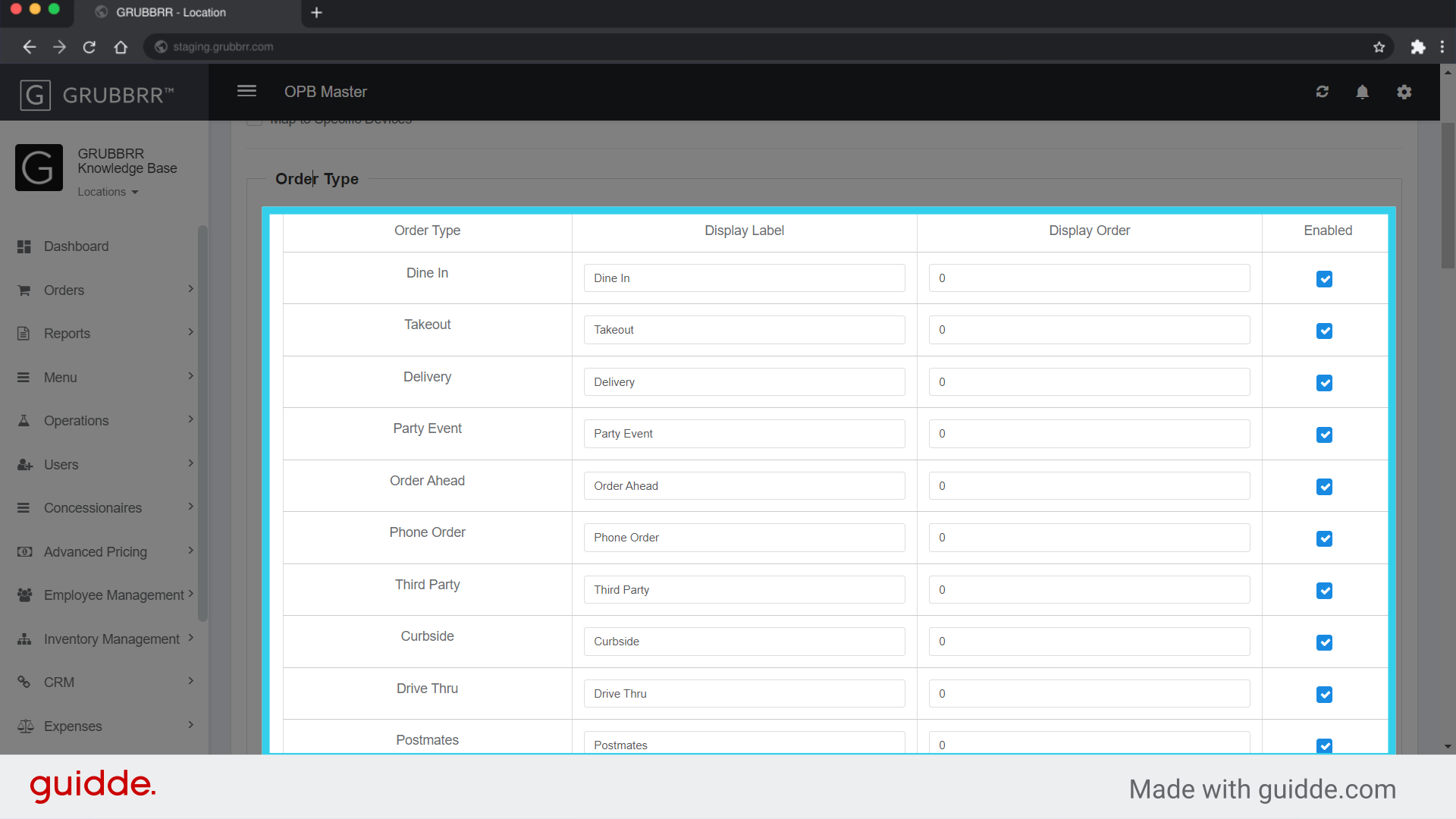
11. You can limit which types of orders the OPB displays here
This can be useful if you only want to track takeout / pickup orders, minimizing visual clutter on the device.
12. Click "Save" to apply your changes
Remember to sync to your devices once the changes have applied!
