How to Change Item Availability through the Kiosk's Internal Settings Menu
Last updated: August 21, 2026
By default, the GRUBBRR console updates item availability based on information we receive from your Point of Sale. However, there may be times when you can't wait for a scheduled sync or webhook to update your menu- that's why we offer the ability to mark an item as Sold out- or available- directly through the Kiosk's internal admin settings. Please note: this feature requires you to be using version 15.1 or later of the GRUBBRR Kiosk application, and can only be used by individuals with an access code for the Kiosk's internal menus.
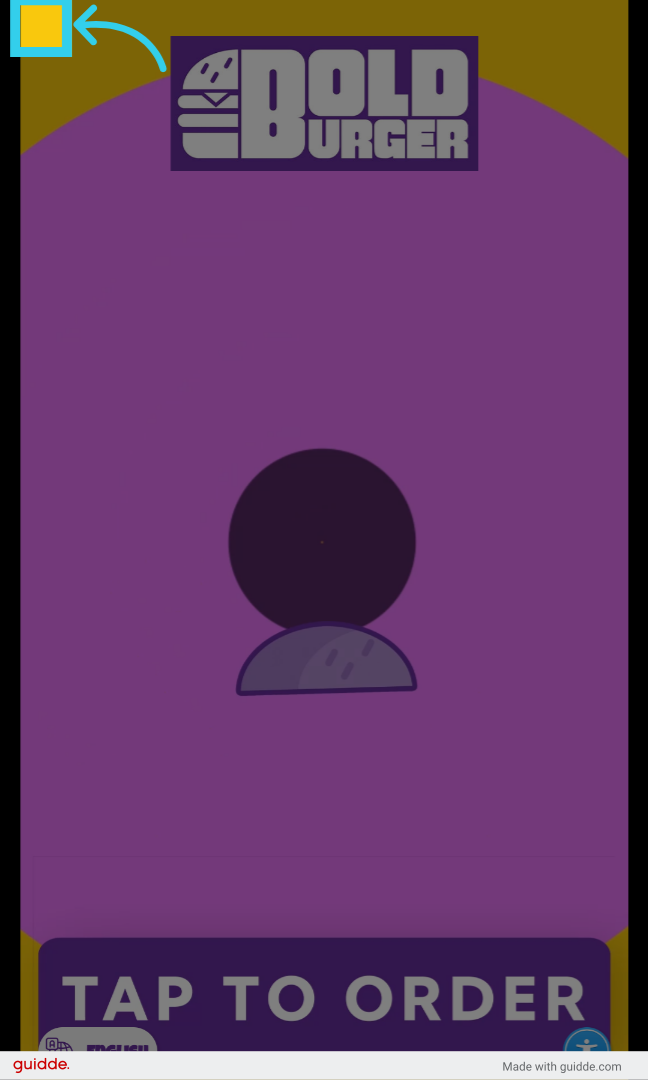
1. To open the Kiosk's internal admin settings menu, click the top left corner of the Kiosk's home screen five times
You will not be able to access these settings from inside the Kiosk menu.
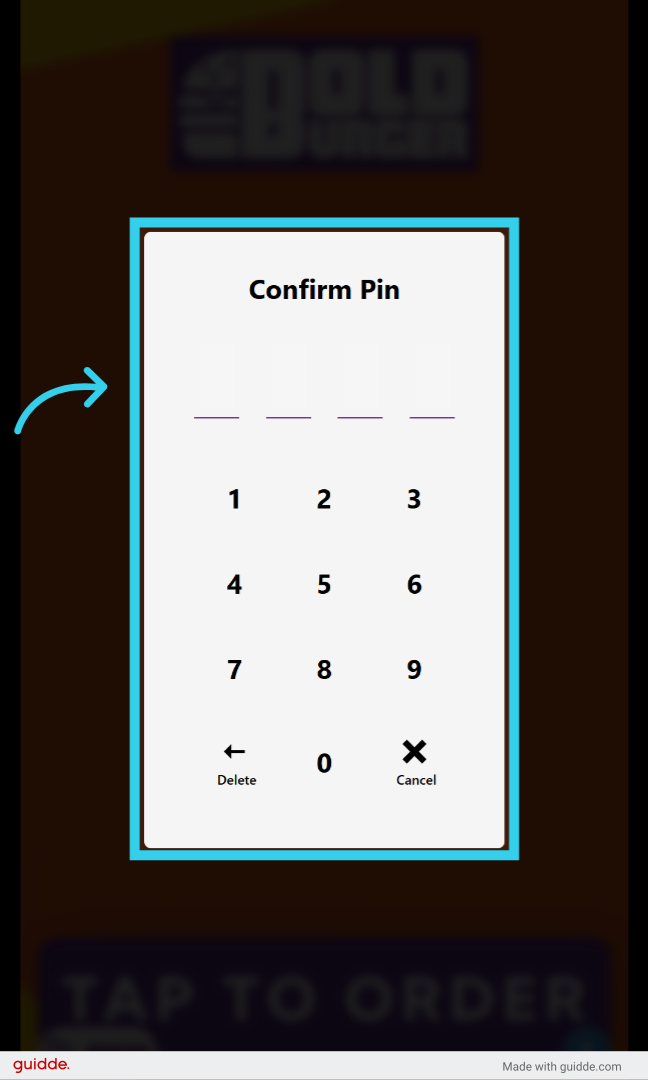
2. Then, you'll need to enter the Kiosk's pin code
These four digit codes are created in the "Staff" section of the GRUBBRR Console
3. Click "Menu Availability"

4. You can mark items and individual modifiers (i.e., onions or ketchup) as available/unavailable through this menu

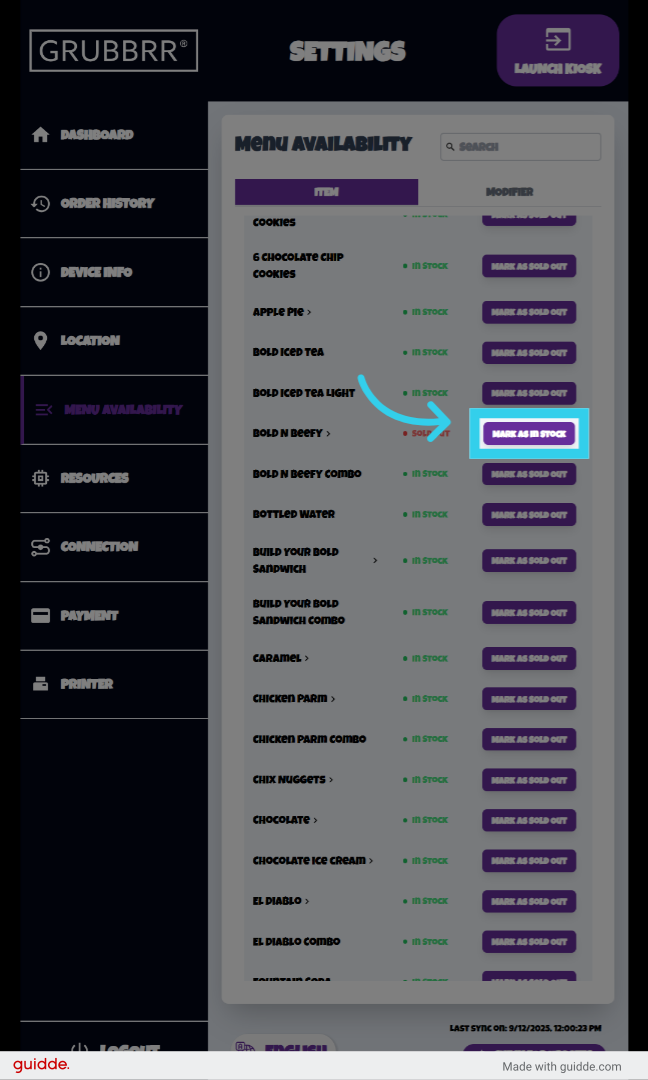
5. Simply tap here to mark the item as "Sold Out"

6. And tap again to mark the item as back in stock
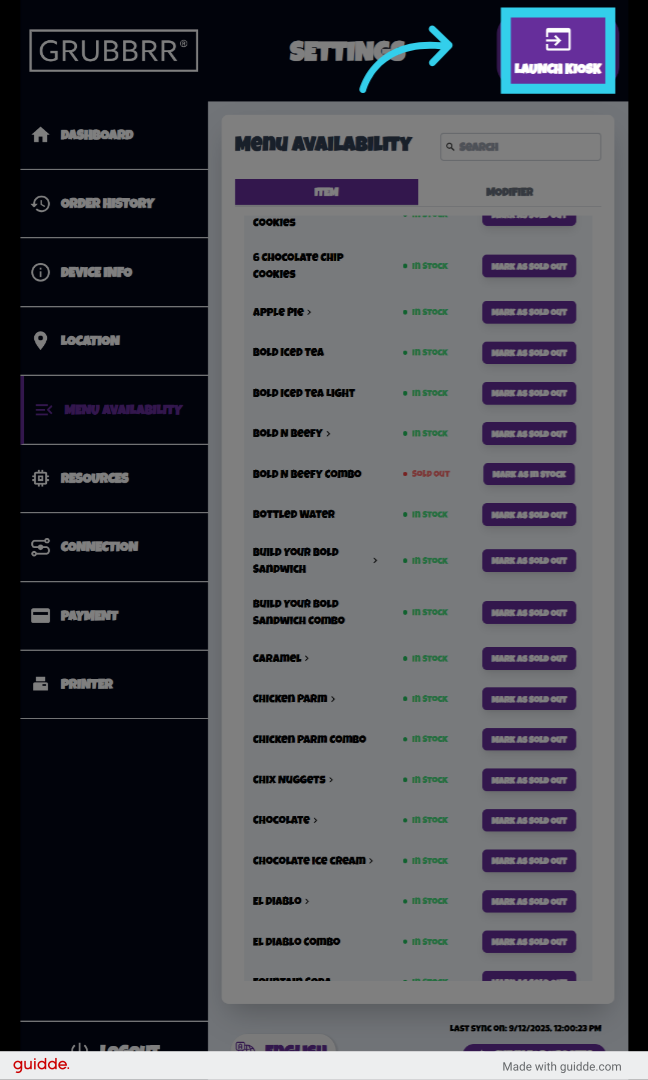
7. When you're done making changes, click "Launch Kiosk"
Your changes will be reflected on this device, and on any other Kiosks at your location
8. Sold Out items will either be grayed out, or will be hidden in the Kiosk menu depending on your settings
