How to Customize Visual Assets in the GRUBBRR Console
Last updated: August 8, 2026
How do I change non-menu images or animations on my Kiosk? What are the different things I can customize?
The GRUBBRR Console allows clients to override a significant portion of their Kiosk Menu's UI to better align with their brand identity. These settings can be managed at the location level by following the steps outlined below.
1. Click "Kiosk Settings"

2. Click "Appearance"

3. Click "Visual Assets"

4. Header Images appear at the top of the Kiosk Screen during an order

5. You can upload Images or Videos to act as Screen Savers for your Kiosk here

6. You can also upload custom images or gifs for all transition animations on the Kiosk

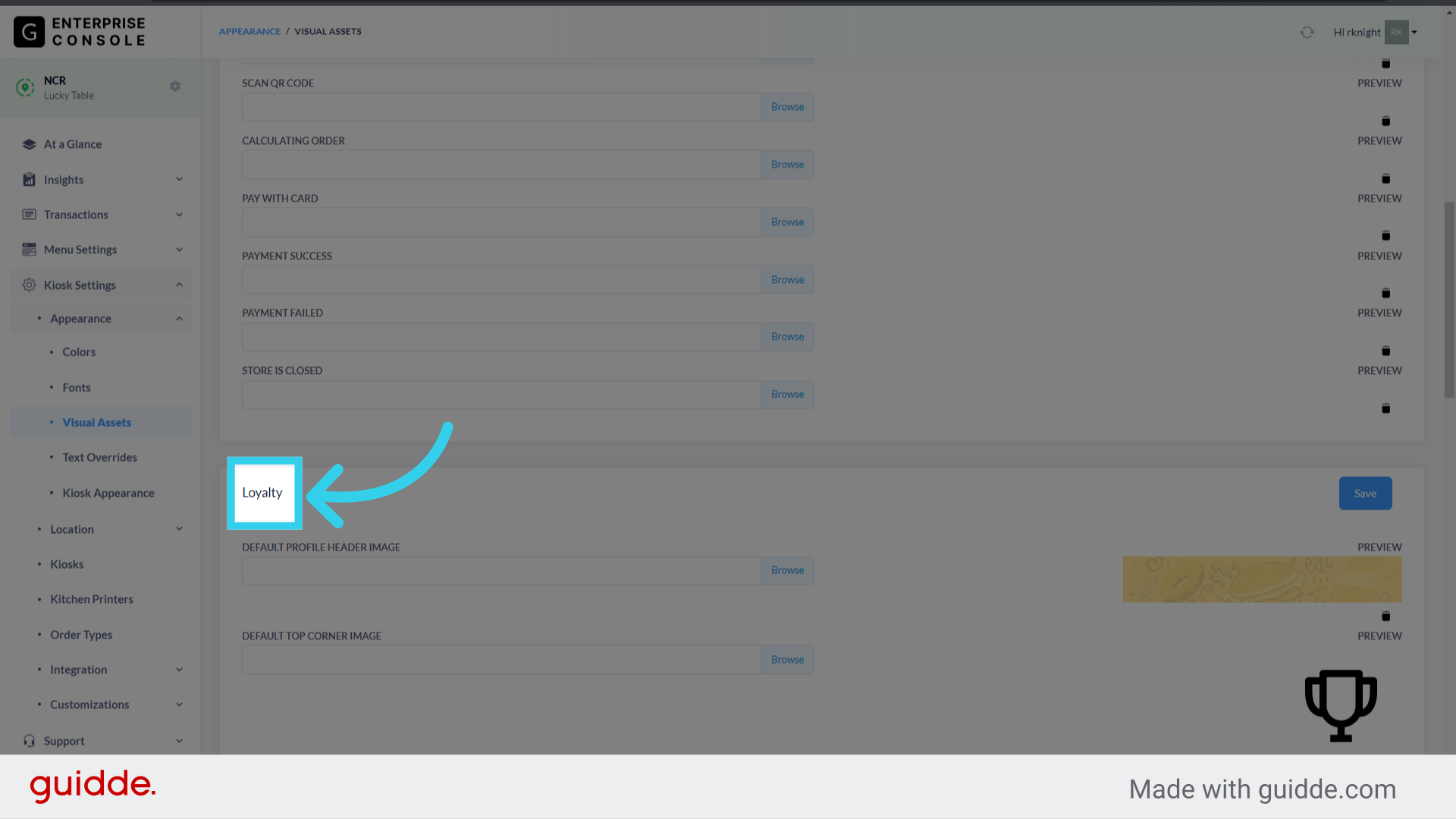
7. The "Loyalty" makes it possible to override most UI elements when a customer signs in to their Loyalty account
8. The "Discount" section lets you upload custom images and banners for discount and reward redemption

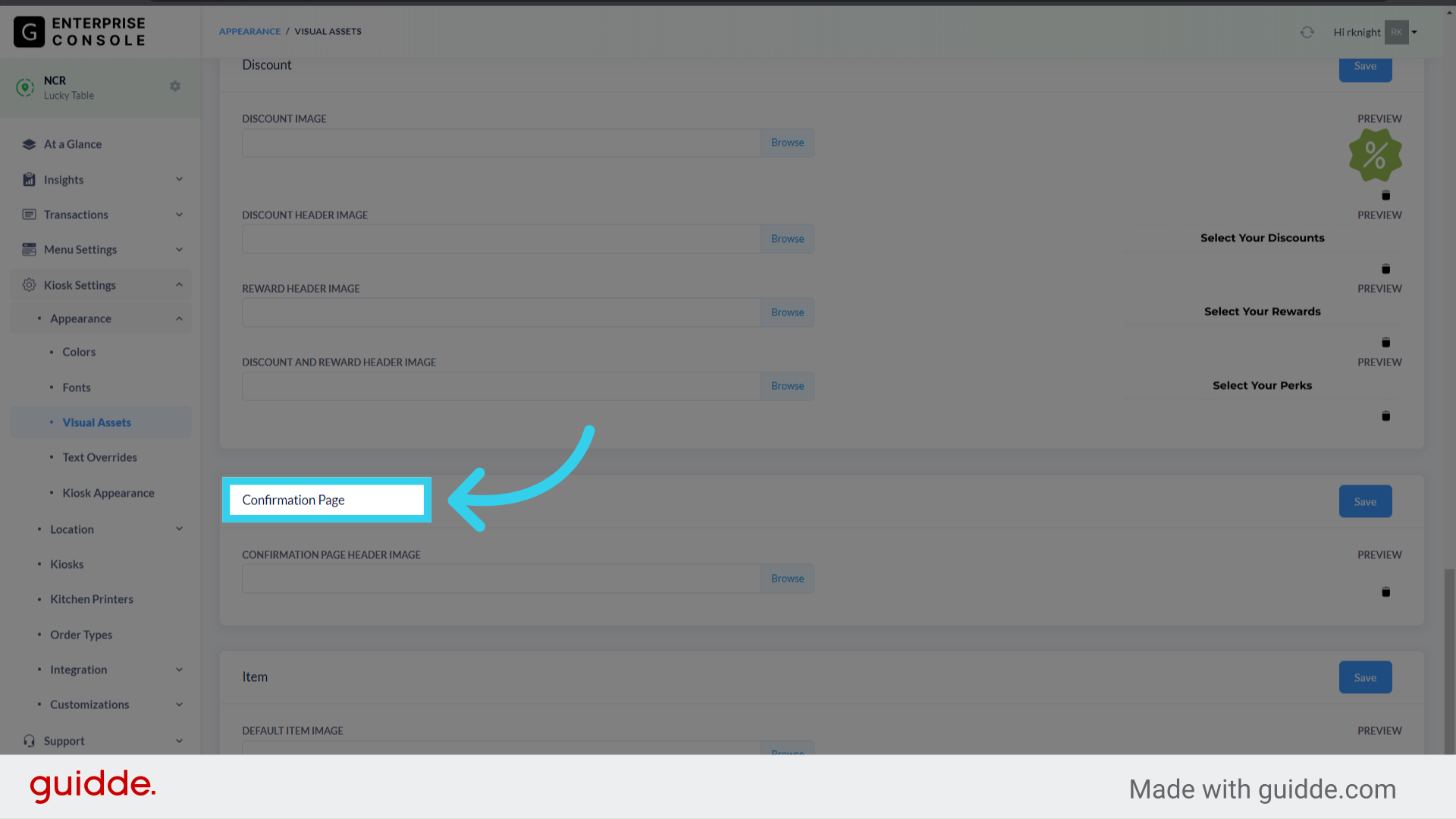
9. The "Confirmation Page" image controls what your guests see when they finalize their order on the Kiosk
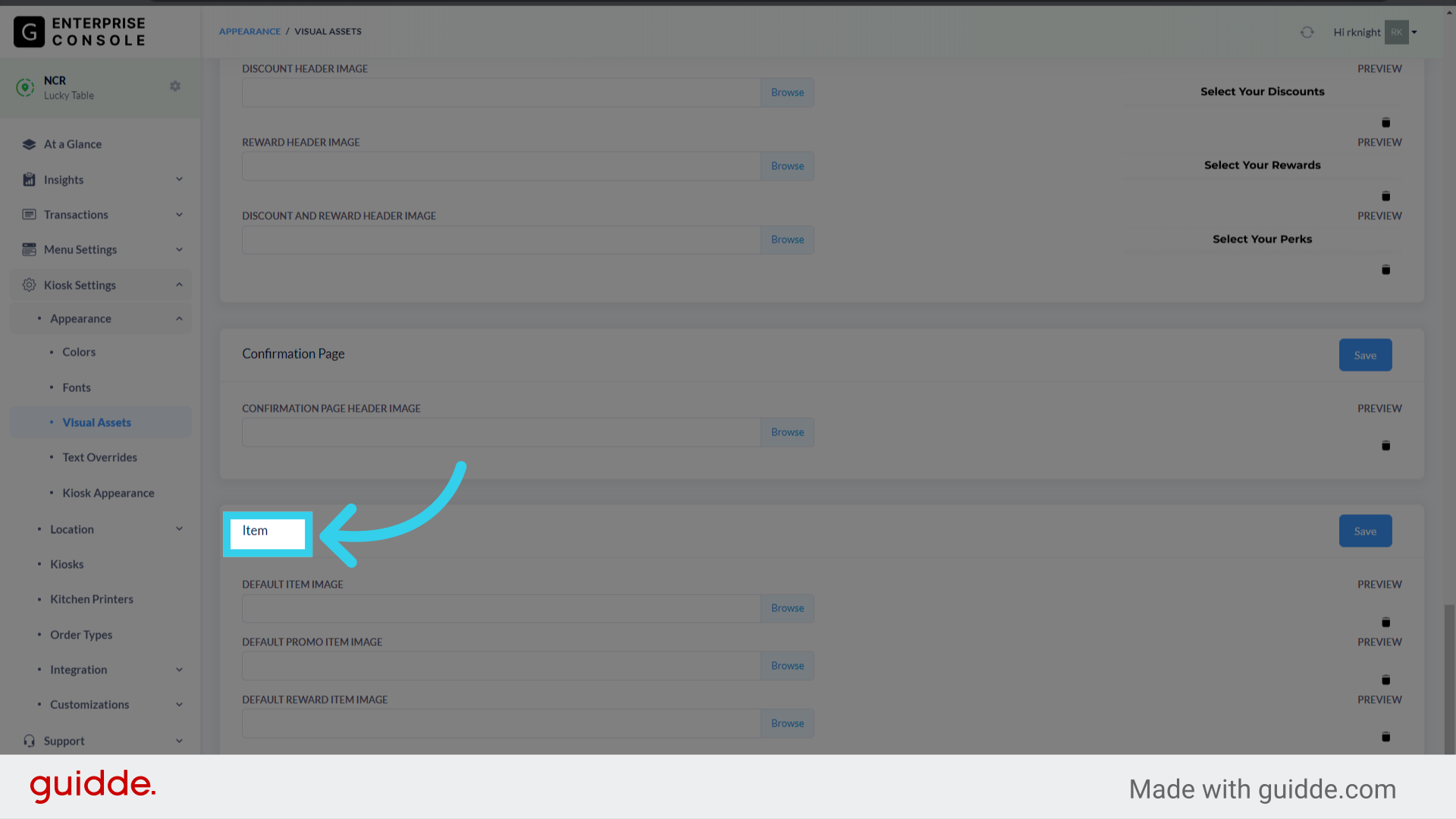
10. You can upload images to the "Item" section to create your own custom place-holders for menu items that don't have a custom image yet
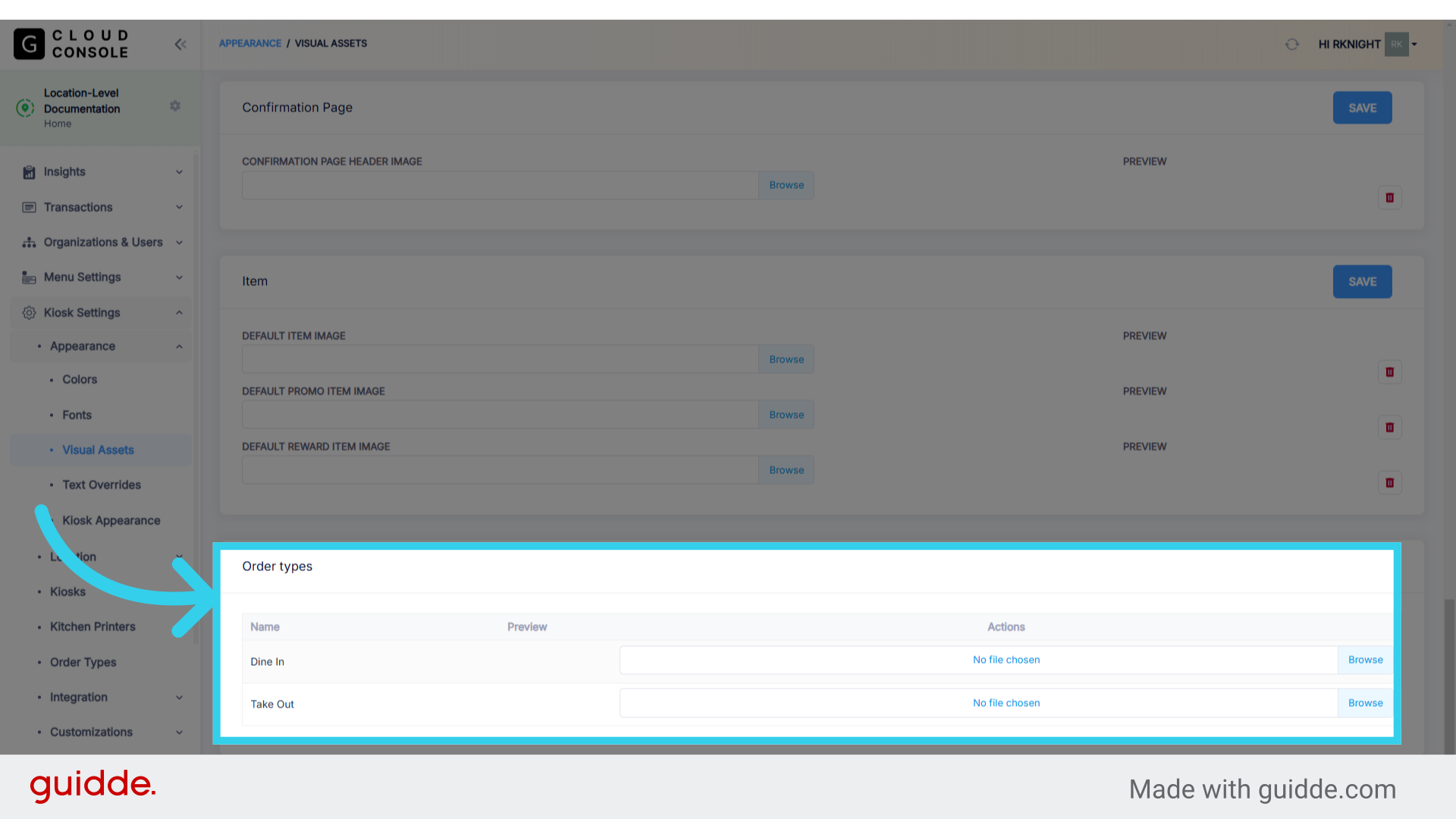
11. The "Order Types" section allows us to upload a custom image for the Dine In / Take Out tiles when users start a new order
12. Each section has its own save function- remember to save often when making large-scale changes!
